
Samsung DeX Not Working: Causes and Safe Fixes
Samsung DeX usually fails to start because of the cable, the input source, or a wireless network mismatch — not because the phone is broken. Work through the ordered checks below for wired and wireless DeX before assuming hardware failure, and check device compatibility first since some Galaxy models don’t support DeX at all.
On this page
Samsung DeX usually fails to start because of the cable, the input source, or a wireless network mismatch — not because the phone is broken.
1. Who this guide is for
This guide is for Samsung Galaxy owners whose Samsung DeX won’t launch, won’t connect to a monitor or TV, drops out, or behaves strangely (wrong resolution, peripherals not working, lag) — whether you’re using a wired USB-C connection, a DeX dock, wireless DeX, or DeX on a Windows PC. It covers both phones and tablets. (Source: samsung.com)
If DeX was working before and suddenly stopped — for example after a software update, after switching cables, or after moving your setup — the same ordered checks apply. Most “DeX stopped working” cases trace back to one of five things: the cable, the monitor’s input setting, the Wi-Fi network (wireless), an outdated app or system, or a compatibility limit you didn’t know about.
This guide does not cover Samsung’s older “DeX for PC” software issues in exhaustive depth, but it does flag an important change: on phones running Android 15 with One UI 7 or later, the DeX for PC app is no longer supported — Samsung points users to Link to Windows instead. If that’s your situation, no amount of troubleshooting the DeX PC app will bring it back.
Quick facts: DeX needs a video-capable USB-C cable or HDMI adapter — charge-only cables won’t work. Wireless DeX needs your phone and display on the same Wi-Fi network. The Galaxy Z Flip series has limited or no DeX support. DeX for PC is discontinued on Android 15 / One UI 7 and later.
2. How Samsung DeX is supposed to work
Before troubleshooting, it helps to know what a healthy DeX setup looks like, because “not working” often turns out to be a step that was never quite right.
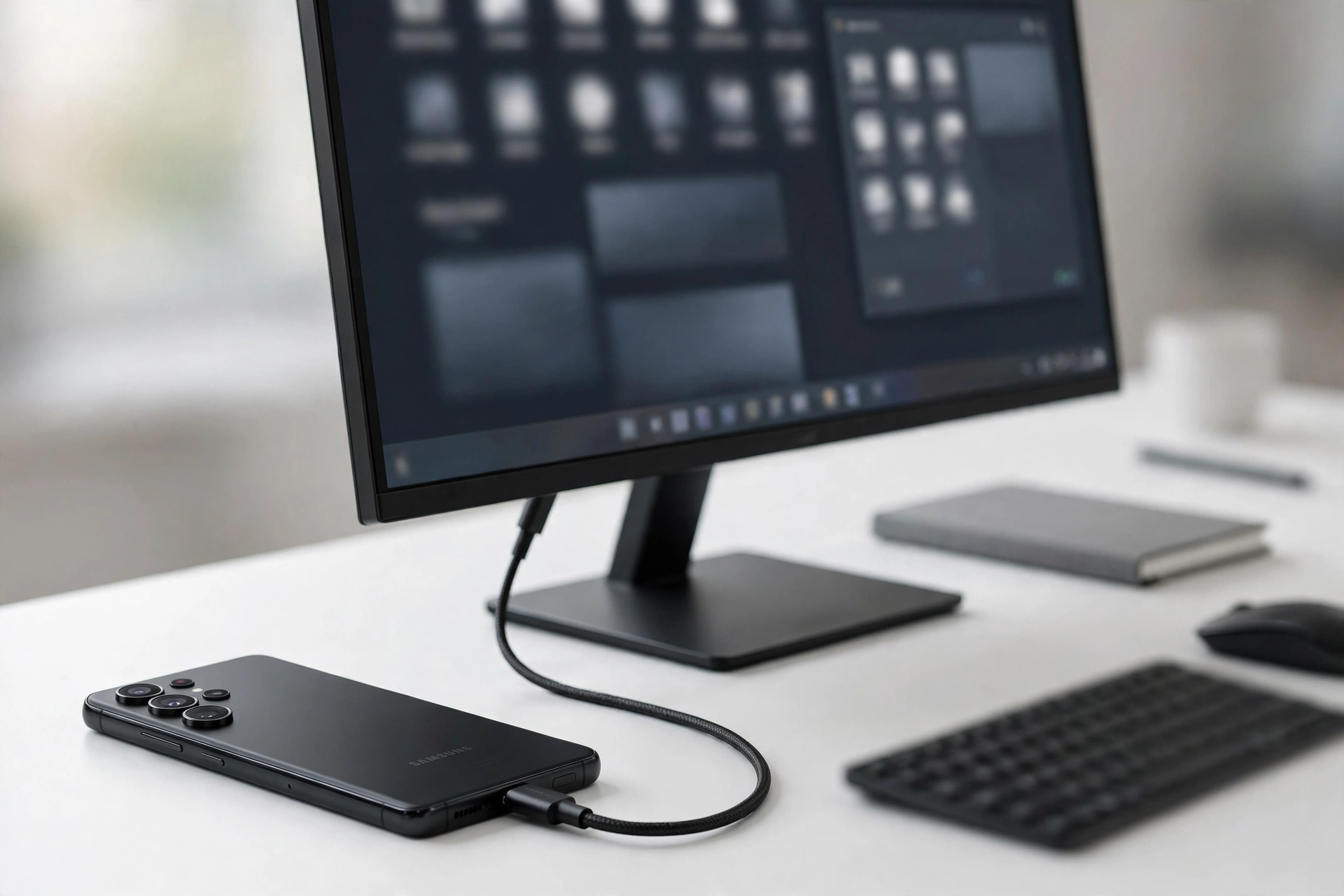
Wired DeX to a monitor or TV: You connect your Galaxy phone or tablet to a display with a USB-C to HDMI cable or adapter, or with an official dock (DeX Station or DeX Pad). Within a few seconds, the external display shows a desktop-style interface — taskbar, resizable windows, system tray — while your phone can become a touchpad. A Bluetooth keyboard and mouse complete the workstation.
Wireless DeX: From Quick Settings, you tap the DeX tile and pick a compatible TV or monitor (most Samsung Smart TVs from 2019 onward support it via Miracast). No accessories needed. Performance and latency are worse than wired, but there’s nothing to plug in.
DeX on PC: On older software, you could connect your phone to a Windows PC with a USB cable and run the DeX PC app to get the desktop interface in a window on your computer. As noted above, this path is no longer supported on devices running Android 15 with One UI 7 or later — on those phones, Samsung’s answer is Link to Windows instead.
One more compatibility note from Samsung’s own support pages: the Galaxy Z Flip series is not compatible with DeX via cable, HDMI, DeX on PC, or wireless DeX to a TV or monitor. If you own a Z Flip and DeX never appears, that’s expected behavior, not a fault.
3. Quick checks before anything else
Run these first — they resolve the majority of DeX failures in under five minutes:
- Is your device supported? Swipe down the notification panel and look for a DeX tile in Quick Settings. Samsung’s guidance is practical here: the tile only appears on hardware that supports DeX. No tile, no DeX. Z Flip owners, this is your answer.
- Is the monitor on the right input? If you plugged into HDMI 2, the monitor must be set to HDMI 2. This sounds obvious, but it accounts for a surprising share of “blank screen” reports. Cycle through the monitor’s inputs with its remote or buttons.
- Try a different cable or port first. A charge-only USB-C cable carries power but no video signal, and the screen stays blank. If the display stays dark, swap the cable before blaming the phone — Samsung’s own troubleshooting and third-party guides agree this is the single most common wired failure.
- Restart everything. Restart your phone, and power-cycle the monitor or TV. Samsung lists restarting the phone, PC, and connected display among its first-line fixes.
- Remove the case. Samsung’s DeX setup guidance specifically notes that a case can cause connection issues with docks like the DeX Pad or Station. If you’re docking, take the case off and reseat the phone.
Tip: Keep a known-good, video-capable USB-C to HDMI cable as your “reference cable” for testing. When DeX fails, swap in the reference cable immediately — if DeX springs to life, the original cable or adapter was the problem, and you’ve saved yourself an hour of settings archaeology.
4. Wired DeX won’t start or shows a blank screen
A wired connection is the most reliable DeX path — so when it fails, the cause is usually physical. Work through these in order:
4.1. The cable or adapter doesn’t carry video
Not all USB-C cables are equal. A cable bundled with a charger, or bought purely for charging, often carries power only — no video. DeX needs a cable or adapter that supports video output (often labeled DisplayPort Alt Mode or HDMI output). Samsung’s support documentation lists officially supported accessories — the DeX Station, DeX Pad, and specific HDMI adapters — and warns that non-genuine products may not be compatible depending on their characteristics.
The same applies to USB-C hubs and docks: not every hub supports video output. Check the hub’s specs for DisplayPort Alt Mode or HDMI output. A hub that only adds USB ports and charging won’t drive a display.
4.2. The monitor or TV input and settings
Beyond selecting the right input, check the monitor’s own settings. Some monitors need you to enable the HDMI port’s full bandwidth or pick the right signal type. If the image appears but looks wrong — wrong resolution, blurry text — open the DeX settings on your phone: Settings > Connected devices > Samsung DeX, where your phone lists the display resolutions it supports. Match the monitor’s native resolution.
4.3. Power and the dock
If you use a DeX Station or DeX Pad, Samsung’s setup steps require connecting the dock to its charging adapter first — the dock needs its own power. A dock without power won’t initialize the display connection. If your adapter has power passthrough, connect a charger to it as well; stable power prevents performance throttling during longer DeX sessions.
4.4. The USB mode on the phone
When you plug the cable in, your phone may ask which USB mode to use. If DeX doesn’t auto-launch, pull down the notification shade, tap the USB notification, and make sure the mode allows data/video rather than “charging only.” On supported models DeX can launch from the cable connection without a separate confirmation prompt — but only if the phone recognizes the connection as a display link. If your computer doesn’t detect the phone over USB at all, work through our phone-not-recognized-by-computer fixes first — DeX can’t start if the USB link itself isn’t established.
5. Wireless DeX won’t connect or keeps dropping
Wireless DeX trades convenience for fragility. Every one of these conditions has to hold:
- Same Wi-Fi network. Your phone and the TV or monitor must be on the same Wi-Fi network — not just “connected to Wi-Fi,” but the same network name and band. Samsung lists this as the first wireless troubleshooting step. A phone on the 5 GHz band and a TV on 2.4 GHz of the same router usually still works, but a phone on your home network and a TV on a guest network will not.
- Miracast support on the display. Wireless DeX to a TV needs Miracast. Most Samsung Smart TVs from 2019 onward support it, as do Samsung’s smart monitors. A non-Samsung TV without Miracast won’t appear in the device list at all.
- Move closer; reduce interference. Samsung’s own troubleshooting advises moving closer to the router or switching to a less crowded Wi-Fi channel. Wireless DeX is sensitive to congestion — if it connects but stutters or drops, interference is the prime suspect.
- Try a different Wi-Fi band. If your router offers both 2.4 GHz and 5 GHz, try each. The 5 GHz band is usually less congested and better for DeX, but has shorter range.
- Turn off VPN. VPN connections can interfere with local device discovery. Disable any VPN on the phone and try again.
- Disable power-saving mode. Power-saving modes can restrict background networking and prevent DeX from maintaining its wireless link.
Expect higher latency over wireless than wired — that’s inherent, not a fault. If wireless DeX is too laggy for real work, switch to a wired USB-C connection.
6. DeX on PC problems (older devices)
This section applies only if your phone runs software older than Android 15 / One UI 7, where the DeX PC app still exists. If you’re on Android 15 with One UI 7 or later, skip to the note below.
- Check PC requirements. Samsung’s published minimums: Windows 10 (32/64-bit) or later, Intel Core i3 2.4 GHz or higher (i5 2.5 GHz recommended), 4 GB RAM (8 GB recommended), 500 MB free disk space, one free USB 2.0 port (USB 3.0 recommended), and 1024×768 32-bit display or better.
- Same Wi-Fi network for the wireless PC connection, just like wireless DeX to a TV.
- Update or reinstall the DeX PC app. If the app misbehaves, update it; if updating doesn’t help, reinstall it fresh.
- Use a proper USB cable for the wired PC connection — again, charge-only cables won’t establish the link.
Stop for software reality: On Galaxy devices running Android 15 with One UI 7 or later, DeX for PC is not supported — Samsung’s support page says so explicitly, and directs users to Link to Windows instead. If your phone updated to One UI 7 and the DeX PC app vanished or stopped working, that is an intentional platform change, not a bug you can fix with settings. Don’t chase third-party “DeX PC” downloads to work around it; they aren’t Samsung software.
7. Peripherals and display quirks in DeX
Sometimes DeX “works” but something attached to it doesn’t. These are separate problems with separate fixes:
- Keyboard or mouse not responding: For Bluetooth peripherals, pair them through the phone’s Bluetooth settings, not inside any secondary environment. USB peripherals through a hub should work automatically — if they don’t, try different hub ports, and confirm the hub itself is powered.
- Apps look wrong or won’t resize: Some apps aren’t optimized for DeX’s desktop layout. This is an app limitation, not a DeX failure. Developer Options on the phone can force resizable windows, but results vary by app.
- Resolution looks wrong: Set it in Settings > Connected devices > Samsung DeX to match the monitor’s native resolution.
- Lag or poor performance: Close background apps on the phone, make sure it isn’t overheating (heat triggers performance throttling), and prefer wired over wireless. Keep the phone on a charger during long sessions.
- DeX launches but the phone screen goes black: That’s normal on some models — the phone becomes a touchpad. If you need the phone screen too, check DeX settings for the touchpad/screen-mirroring options.
8. Software-side resets that actually help
When hardware checks pass and DeX still misbehaves, the software stack is next:
- Update everything. Samsung lists software updates among its first fixes: update the phone’s system software, and on PC, the DeX app. DeX improvements arrive through system updates rather than separate installs, so an outdated One UI can absolutely be the cause.
- Clear the DeX app’s cache. Go to Settings > Apps, show system apps, find Samsung DeX, then Storage > Clear cache. This resolves glitches from corrupted temporary data without touching your files. (Clearing data is a bigger step — it resets DeX’s settings — try cache first.)
- Confirm DeX is enabled. In Settings > Connected devices > Samsung DeX, make sure the feature is switched on. After some updates it can end up toggled off.
- Restart the phone after any of the above, then retry the connection from scratch.
If DeX isn’t your only Samsung headache, note that related faults are separate problems with their own fixes — for example, if your phone also isn’t detecting its SIM card, or Secure Folder has stopped working, address each on its own rather than assuming one fix covers everything.
9. Symptom → likely cause → safe fix
| Symptom | Likely cause | Safe fix |
|---|---|---|
| Blank screen on monitor after plugging in | Charge-only cable; wrong monitor input; hub lacks video output | Swap in a video-capable USB-C cable; set monitor to the correct HDMI input; verify hub supports DisplayPort Alt Mode |
| DeX tile missing from Quick Settings | Device doesn’t support DeX (e.g., Z Flip) | Confirm model support; no tile means no DeX on that hardware |
| Wireless DeX can’t find the TV | Different Wi-Fi networks; TV lacks Miracast | Put both on the same network; confirm the TV supports Miracast (Samsung Smart TVs 2019+) |
| Wireless DeX connects then drops | Wi-Fi interference or congestion; power-saving mode; VPN | Move closer to router; try 5 GHz; disable power-saving and VPN |
| DeX on PC app won’t open (One UI 7+) | DeX for PC discontinued on Android 15 / One UI 7+ | Use Link to Windows instead; don’t install unofficial DeX PC copies |
| Keyboard/mouse dead in DeX | Pairing or hub-power issue | Pair Bluetooth devices in phone settings; use powered hub ports |
| Apps look stretched or won’t resize | App not optimized for DeX | App limitation; try forcing resizable windows in Developer Options |
| DeX lags or stutters | Wireless latency; overheating; background apps | Switch to wired; cool the phone; close background apps; keep it charging |
| Dock (Station/Pad) does nothing | Dock has no power; case blocking the connector | Connect the dock’s charger; remove the phone case and reseat |
| DeX worked, then stopped after an update | DeX toggled off; app cache corrupted; platform change (One UI 7) | Re-enable in Settings; clear DeX app cache; check whether DeX for PC was discontinued on your version |
10. Hypothetical examples
(Hypothetical illustration, not a customer story.) Amara’s blank monitor: Amara plugs her Galaxy S25 into her home monitor with the USB-C cable from her charger box. The monitor stays black. She swaps in a USB-C to HDMI cable labeled as supporting video, sets the monitor to the right HDMI input, and DeX appears within seconds. The original cable was charge-only — a five-minute fix once identified.
(Hypothetical illustration, not a customer story.) Daniel’s missing TV: Daniel tries wireless DeX, but his Samsung TV never appears in the device list. He discovers his phone is on the main Wi-Fi network while the TV is on the guest network. Moving the TV to the main network makes it appear immediately.
11. What these checks can and cannot establish
| Observation | What it establishes | What it doesn’t establish |
|---|---|---|
| DeX works with a different cable | The original cable/adapter was the fault | That the phone’s USB-C port is healthy long-term |
| DeX works on another monitor | The first monitor’s input or settings were wrong | That the first monitor is broken — recheck its inputs |
| No DeX tile in Quick Settings | The device doesn’t support DeX | That anything is “broken” — it’s a hardware limitation |
| Wireless DeX works but wired doesn’t | The wired path (cable, hub, port) has the fault | That the phone can’t do wired DeX at all |
| DeX fails on every cable and display | Points toward the phone’s port or software | Which one — needs professional assessment |
12. When to stop and seek assessment
Stop troubleshooting and get the phone assessed if:
- DeX fails on multiple known-good cables, adapters, and displays — the common factor is the phone.
- The USB-C port is loose, wobbly, or visibly damaged, or charging is also intermittent — the port itself may need service.
- The phone overheats sharply whenever DeX starts, or the battery is swollen — stop using DeX and treat it as a safety issue first.
- You’re on Android 15 / One UI 7+ and need the old DeX-for-PC workflow — no repair restores a discontinued software feature; the path forward is Link to Windows.
Stop for safety: Never force a damaged USB-C connector, never use a swollen or dangerously hot phone with a dock, and never open the phone to “fix” the port. Port repair is precision work; a damaged port assessed by a technician is far cheaper than a damaged port plus a damaged board.
13. Frequently asked questions
Why is there no DeX option on my Galaxy phone?
Most likely your model doesn’t support it — the Galaxy Z Flip series, for example, is not DeX-compatible. Check Quick Settings for the DeX tile: Samsung’s guidance is that the tile only appears on supporting hardware. No tile means the feature isn’t available on that device.
Do I need a Samsung-branded cable for DeX?
Not necessarily, but the cable must support video output — a charge-only cable won’t work. Samsung lists official DeX accessories (DeX Station, DeX Pad, specific HDMI adapters) and notes non-genuine products may not be compatible. A quality third-party USB-C to HDMI cable that supports DisplayPort Alt Mode generally works.
Why does my monitor stay black when I plug in the cable?
The three usual suspects: a charge-only cable, the monitor set to the wrong input, or a hub that doesn’t support video output. Swap the cable first, then check the input, then verify the hub’s specs.
Can I use DeX wirelessly without any accessories?
Yes — wireless DeX needs no accessories. Both the phone and the TV/monitor must be on the same Wi-Fi network, and the display must support Miracast (most Samsung Smart TVs from 2019 onward do).
Why did DeX on PC stop working after I updated my phone?
If the update took you to Android 15 with One UI 7, DeX for PC was discontinued on your device — Samsung’s support page confirms this and recommends Link to Windows instead. This is an intentional platform change, not a bug.
Why do my keyboard and mouse work on the phone but not in DeX?
Pair Bluetooth peripherals through the phone’s Bluetooth settings, and make sure USB peripherals are on powered hub ports. An unpowered hub may not deliver enough current for all attached devices.
DeX is laggy — is my phone too old?
Not necessarily. Wireless DeX is inherently laggier than wired — switch to a cable first. Then close background apps, keep the phone cool and charging. Only if wired DeX still stutters on a capable phone should you suspect deeper issues.
Can a repair shop fix DeX?
A shop can assess the likely hardware causes — a damaged USB-C port, for instance — but most DeX failures are cables, settings, networks, or compatibility limits, not repair jobs. If you’ve worked through this guide and DeX fails on every cable and display, a diagnostic assessment is the sensible next step. Be ready to describe which cables, displays, and steps you already tried.
Video: How to tell if your smartphone is fake or real

Sources and editorial notes
- Samsung Support — How to use Samsung DeX: Samsung’s official DeX guide covering wired/wireless setup, PC requirements, and first-line troubleshooting (same Wi-Fi network, software updates, restarting devices, reducing wireless interference). (Last checked October 13, 2026.)
- Samsung Support (AU) — How to use Samsung DeX: Samsung’s official accessory requirements — DeX Station, DeX Pad, or HDMI adapter for wired display connections; USB Type-C cable for PC; no accessories for wireless — plus the genuine-accessory compatibility note. (Last checked October 13, 2026.)
- Samsung Support (US) — Use the Samsung DeX screen on your Galaxy phone or tablet: Samsung’s official page confirming DeX for PC is not supported on Android 15 with One UI 7 or later (use Link to Windows), Z Flip incompatibility, and dock setup steps including case removal. (Last checked October 13, 2026.)
- The Droid Guy — Samsung DeX not working fixes: third-party troubleshooting list corroborating power-saving, VPN, USB mode, DeX app cache clearing, and PC app reinstall steps. (Last checked October 13, 2026.)
- Fone.tips — Samsung DeX: How to Use It on a Monitor, TV, or PC: third-party guide corroborating the charge-only cable pitfall and supported-device scope. (Last checked October 13, 2026.)
Last source check: October 13, 2026. AI-assisted editorial guide, checked against the linked manufacturer information. Procedures described here follow Samsung’s published support guidance; third-party sources are cited only for corroboration. If your Galaxy phone needs hands-on assessment, Las Vegas Phone Repair & Accessories is at 7400 Las Vegas Blvd S, Unit TT42, Las Vegas, NV 89123 — call (424) 406-6202 ahead to confirm today’s hours (generally 10:00 AM–8:00 PM).
Let’s get you connected again.
Tell us what’s happening with your device and we’ll help you decide the safest next step — no jargon, no pressure.
Las Vegas Phone Repair & Accessories · 7400 Las Vegas Blvd S, Unit TT42, Las Vegas, NV 89123
10:00 AM–8:00 PM — call ahead to confirm today’s hours