
iPhone Bluetooth Not Working After Update: Causes and Safe Fixes
Most iPhone Bluetooth problems that appear right after a software update are caused by stale pairing data or changed settings, not damaged hardware. Work through the ordered steps below — restart, forget and re-pair, check for a patch, then reset network settings — and the majority of cases resolve without touching the phone’s internals.
On this page
Most iPhone Bluetooth problems that appear right after a software update are caused by stale pairing data or changed settings, not damaged hardware.
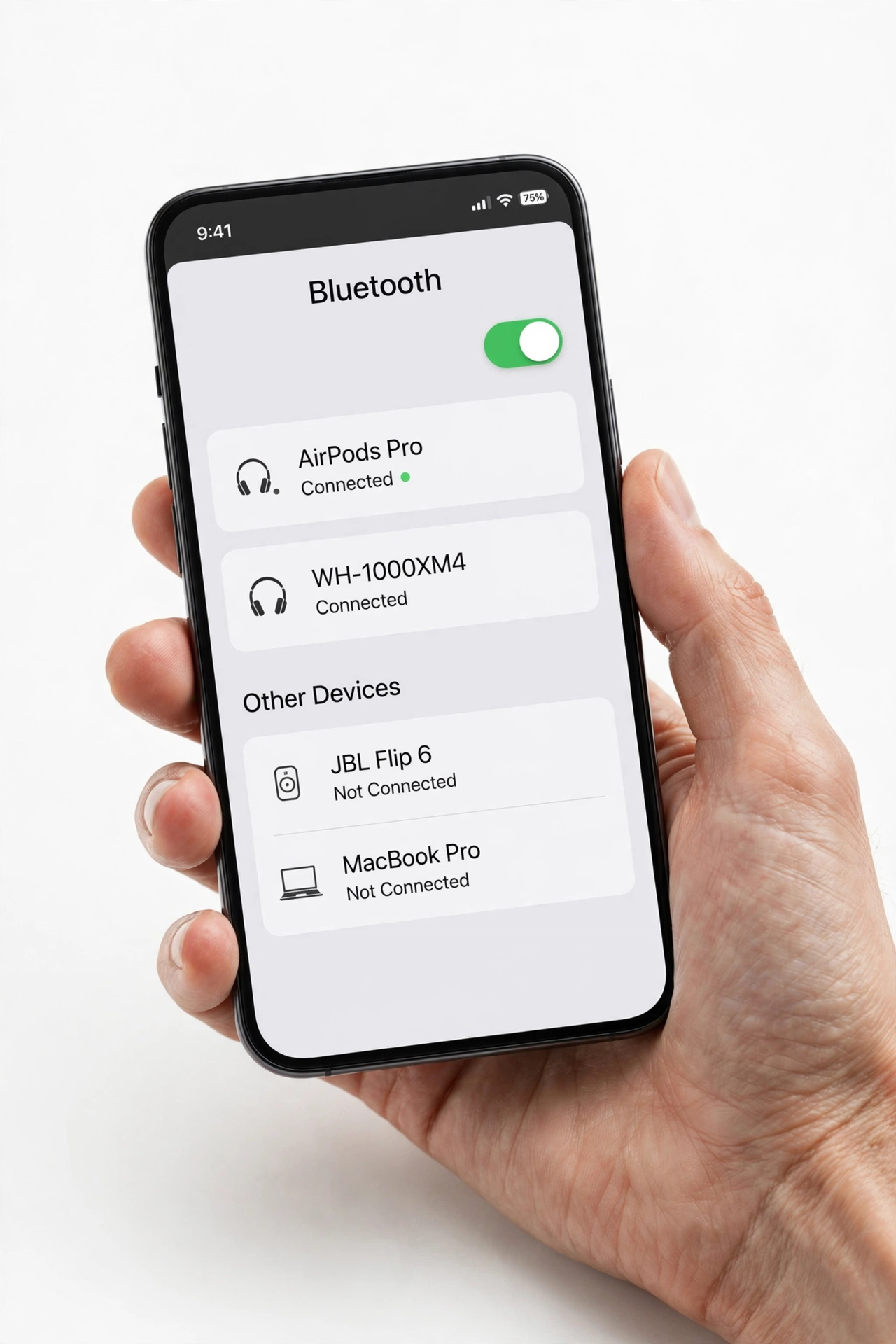
1. Who this guide helps
This guide is written for iPhone owners who updated to a newer iOS version and found Bluetooth misbehaving afterward: accessories that will not pair, AirPods that connect then drop, a car system that no longer appears, or Bluetooth that seems fine for calls but not for music. If your Bluetooth was working normally the day before the update, the update itself — or something the update changed — is the most plausible explanation, and this guide is for you. (Source: simplymac.com)
A quick scope note before we begin. This article covers iPhone-specific Bluetooth failures that appear after an iOS update. If you are troubleshooting Bluetooth on an Android phone after an update, see our general phone Bluetooth after-update guide. If your iPhone’s Bluetooth failed for no clear reason (no recent update involved), our general iPhone Bluetooth guide covers that scenario. The distinction matters because update-related failures follow a different pattern — and a different fix order — than spontaneous failures.
2. The quick answer
After an iOS update, the first three things to do are: (1) restart your iPhone and the accessory; (2) forget the accessory in Settings > Bluetooth and pair it again from scratch; (3) check Settings > General > Software Update for a newer iOS version, because Apple routinely ships small follow-up releases that correct connectivity regressions. Those three steps resolve most post-update Bluetooth complaints. If they do not, the deeper steps later in this guide — resetting network settings, then all settings — cover the rest of the software-side possibilities before you conclude anything about hardware.
Quick fact: An iOS update replaces system software; it does not physically alter the Bluetooth radio or antenna inside your iPhone. If Bluetooth worked the day before the update, a hardware failure that coincidentally started at the same moment is possible but far less likely than a software or settings cause.
3. Why updates break Bluetooth: the five post-update mechanisms
Understanding why an update can disturb Bluetooth keeps you from resetting the wrong things. In practice, post-update Bluetooth trouble comes from one of five mechanisms:
| Mechanism | What you see | First check |
|---|---|---|
| Stale pairing data | Accessory listed but “Not Connected”; taps to connect fail | Forget This Device, then pair again |
| Silently changed settings | Bluetooth works for some uses but not others; toggle states look different | Verify Bluetooth is on in Settings, not just Control Center |
| Accessory firmware mismatch | One specific accessory fails while others work fine | Update the accessory’s firmware via its maker’s app |
| Genuine iOS bug | Multiple accessories fail at once; reports of the same issue online | Install the next iOS patch release |
| Revoked app permissions | A companion app cannot find the accessory, though Settings can | Settings > Privacy & Security > Bluetooth |
3.1 Stale pairing data
The most common cause. Each Bluetooth pairing stores cryptographic keys and connection preferences. An update can leave that stored data in a state the new system software no longer trusts, so the phone lists the accessory but cannot complete the handshake. Forgetting the device and pairing again creates fresh pairing data under the new iOS version — which is why this single step resolves so many cases.
3.2 Silently changed settings
Major iOS releases occasionally reset or reinterpret settings. A useful distinction: the Bluetooth toggle in Control Center does not fully switch Bluetooth off — it disconnects accessories until the next day while leaving the radio in a limited state. After an update, always confirm Bluetooth status in Settings > Bluetooth, which shows the true state.
3.3 Accessory firmware mismatch
When Apple changes its Bluetooth stack, accessory makers sometimes must update their own firmware to stay compatible. Apple’s own AirPods receive firmware automatically in the background, but third-party headphones, speakers, and car kits often need a manual update through the manufacturer’s app. If one particular accessory fails while everything else pairs normally, the accessory — not the iPhone — is the prime suspect.
3.4 Genuine iOS bugs
Sometimes an update genuinely ships with a Bluetooth regression. Patterns reported by users after major releases have included accessories disconnecting and reconnecting on a loop, CarPlay refusing to connect, and accessories demanding re-pairing far more often than before. When the failure hits many of your accessories at once — especially after you did nothing except install the update — a bug in the release itself is plausible, and the remedy is the follow-up patch rather than more resets on your phone.
3.5 Revoked or reset app permissions
Many accessories rely on a companion app (a headphone maker’s app, a car manufacturer’s app, a fitness app) that needs Bluetooth permission. Updates can reset these permissions. If the iPhone’s Settings can see and pair the accessory but the app cannot find it, check Settings > Privacy & Security > Bluetooth and confirm the app is allowed.
4. Before you change anything: the two-minute triage
Run these three quick tests before any resets. They take about two minutes and tell you whether the problem lives in your iPhone, in one accessory, or in the environment around them.
4.1 Test A: one accessory or all of them?
Try pairing at least two different Bluetooth accessories (for example, headphones and a speaker). If one fails while another connects normally, the failing accessory is the problem — update its firmware or check with its maker. If all accessories fail, the iPhone’s Bluetooth stack is the problem, and the steps below are aimed at it.
4.2 Test B: distance and interference
Bluetooth works best within about 10 meters (roughly 30 feet) with a clear path. Move the accessory close to the iPhone, away from Wi-Fi routers, microwaves, and thick walls or metal surfaces, and try again. Also confirm the accessory itself is charged — a low battery is a surprisingly common cause of pairing failure that has nothing to do with any update.
4.3 Test C: the accessory on another device
If possible, pair the troubled accessory with a different phone or a computer. If it pairs there without trouble, the issue is on the iPhone side. If it fails there too, the accessory needs attention (firmware, reset, or replacement), and no amount of iPhone troubleshooting will fix it.
Tip: If you use a thick phone case — especially a metal or magnetic one — remove it temporarily during testing. Cases can attenuate the Bluetooth signal enough to turn a marginal connection into a failing one.
5. The fix path, in order
Follow these steps in sequence, testing after each one. Stop as soon as Bluetooth works — later steps are progressively more disruptive.
Step 1: Toggle Bluetooth properly
Go to Settings > Bluetooth and turn Bluetooth off. Wait about fifteen seconds, then turn it back on. Use the Settings toggle rather than Control Center, because the Control Center button only disconnects accessories temporarily. This clears transient radio state without disturbing any saved pairings.
Step 2: Restart the iPhone
A simple restart clears temporary system state that an update can leave behind. On iPhone X and later: press and hold the Side button and either volume button until the power-off slider appears, drag it, wait for the phone to shut down fully, then press and hold the Side button until the Apple logo appears. On iPhone SE (2nd/3rd generation): press and hold the Side button alone until the slider appears. After the restart, test Bluetooth before changing anything else.
Step 3: Restart the accessory
Turn the accessory completely off and back on. If it has a companion app, check there for a firmware update and install it. For AirPods specifically: with the lid open, press and hold the setup button on the back of the case for about fifteen seconds, until the status light flashes amber and then white — this resets the AirPods, after which you re-pair them normally.
Step 4: Forget and re-pair
This is the single most effective post-update fix. Go to Settings > Bluetooth, find the accessory under My Devices, tap the information icon (ⓘ) next to it, and choose Forget This Device. Then put the accessory back into pairing mode (follow the manufacturer’s instructions — usually a long press of a pairing button) and pair it again from the Bluetooth screen, staying on that screen until pairing completes. Some accessories require a PIN; check the manual if prompted.
Step 5: Check for a newer iOS version
Go to Settings > General > Software Update. If a newer version is available, install it — follow-up releases frequently contain connectivity fixes for problems introduced by the release you just installed. Keep the iPhone charged or plugged in and connected to Wi-Fi during the update.
Step 6: Check app Bluetooth permissions
If a companion app is involved, open Settings > Privacy & Security > Bluetooth and confirm the app is listed and enabled. Also check the app itself for updates in the App Store, since apps sometimes need their own compatibility update after a major iOS release.
Step 7: Reset Network Settings
If individual re-pairing has not helped, resetting network settings clears all Bluetooth pairings along with saved Wi-Fi networks, VPN configurations, and cellular settings, returning the networking stack to defaults.
Stop for safety: Reset Network Settings erases every saved Wi-Fi password and every Bluetooth pairing on the phone. It does not erase photos, messages, or apps. Do not confuse it with “Erase All Content and Settings,” which wipes the entire phone. Make sure you can re-enter your Wi-Fi password before proceeding.
The path: Settings > General > Transfer or Reset iPhone > Reset > Reset Network Settings, then enter your passcode and confirm. The iPhone restarts. Reconnect to Wi-Fi first, then re-pair your Bluetooth accessories one by one.
Step 8: Reset All Settings
If the problem persists, Settings > General > Transfer or Reset iPhone > Reset > Reset All Settings returns every system setting — display, sounds, privacy, keyboard, network — to defaults without deleting your data, apps, or media. You will need to reconfigure preferences afterward, so treat this as a significant but non-destructive step.
Step 9: Restore as a last resort
A full restore — Erase All Content and Settings, ideally followed by setting the phone up fresh rather than restoring a backup — is the final software step. It takes time and is only worth doing after everything above has failed, because it proves whether the cause is software at all: if Bluetooth still fails on a freshly set-up iPhone with no third-party apps installed, the cause is almost certainly hardware.
Stop for safety: Erasing the iPhone deletes everything on it. Back up to iCloud or a computer first and verify the backup completed. Never erase a phone as a casual first troubleshooting step — destructive actions belong at the end of the sequence, not the beginning.
6. Accessory-specific notes
6.1 AirPods and Beats
Apple’s own accessories update their firmware automatically while charging near the paired iPhone, so they rarely suffer the firmware-mismatch problem. After an iOS update, AirPods that connect but drop repeatedly usually respond to the forget-and-re-pair sequence plus the 15-second case reset described in Step 3. If one AirPod plays while the other is silent, check the balance slider in Settings > Accessibility > Audio/Visual before assuming a Bluetooth fault.
6.2 Car Bluetooth and CarPlay
Car systems are the most commonly affected accessories after updates, because the car’s Bluetooth firmware is old and rarely updated. Try these car-specific steps: delete the iPhone from the car’s paired-device list and forget the car on the iPhone, then pair fresh; if the car offers both a Bluetooth audio profile and CarPlay, set them up separately; and check whether the car maker has published a firmware update for the infotainment unit. For CarPlay specifically, also confirm that CarPlay is enabled under Settings > General > CarPlay and that any “allow while locked” setting matches how you use it.
6.3 Apple Watch
The Watch pairs through the Watch app rather than the Bluetooth settings screen, so the forget-and-re-pair step looks different: unpair from the Watch app (which creates a backup), then pair again. If the Watch shows as connected but notifications or health sync stall after an update, toggling Bluetooth off and on in Settings and restarting both devices resolves most cases.
6.4 Third-party headphones and speakers
These are the accessories most likely to need a firmware update after a major iOS release. Check the maker’s app or website — not just the App Store listing — for firmware notes mentioning your iOS version. Also be aware that some budget accessories implement only part of the Bluetooth audio specification; features like multipoint (staying connected to two devices) are often the first things to break after an update.
7. Symptom worksheet: match your symptom, then fix
| Symptom | Most likely cause | Do this first |
|---|---|---|
| Accessory listed as “Not Connected”; tapping fails | Stale pairing data | Forget This Device, pair again (Step 4) |
| iPhone cannot find the accessory at all | Accessory not in pairing mode, or out of range | Put accessory in pairing mode; move closer (Triage B) |
| Connects, then disconnects repeatedly | Corrupted connection state or genuine iOS bug | Restart both devices; check for iOS patch (Steps 2, 5) |
| Worked before update; fails only with one accessory | Accessory firmware mismatch | Update accessory firmware (Step 3) |
| All accessories fail at once | iPhone-side software fault | Reset Network Settings (Step 7) |
| Bluetooth toggle is grayed out | System fault or hardware fault | Force restart; if still grayed out, seek service |
| Pairs, but no audio from music apps | Wrong audio output selected | Control Center: long-press Now Playing, tap AirPlay icon, choose device |
| Companion app cannot find accessory that Settings can see | App permission reset by update | Settings > Privacy & Security > Bluetooth (Step 6) |
| Car pairs for calls but not music (or vice versa) | One Bluetooth profile connected, the other not | Forget both sides, re-pair; check car audio source selection |
| Intermittent cutouts when phone is in pocket or bag | Signal blocked by body or case; interference | Remove case; keep phone and accessory on same side of body |
8. What these steps can and cannot establish
Honesty about what troubleshooting proves is part of doing it well. A symptom worksheet is not a diagnosis.
| Observation | What it establishes | What it does not establish |
|---|---|---|
| Forget-and-re-pair fixed it | The pairing data was stale or corrupted | That the update itself was defective |
| One accessory fails, others work | The problem is specific to that accessory | Whether the accessory is broken or just needs firmware |
| Everything fails after trying all steps | The fault is deeper than settings — OS corruption or hardware | Which of those two it is, without a fresh restore test |
| Failure disappears after an iOS patch | The original release contained a bug | That your earlier troubleshooting was unnecessary — it ruled out other causes |
| Bluetooth toggle is grayed out after all resets | A system-level or hardware fault is likely | The exact failed component; that needs diagnostics |
| Accessory pairs with another phone | The accessory’s radio and pairing logic work | That it will work with your iPhone — compatibility is separate |
The practical takeaway: the sequence in this guide is designed so that each step rules something out. Even when an early step does not fix the problem, it has still given you information — which is why the order matters and why skipping to a factory reset teaches you nothing.
9. Hypothetical examples
(The following are hypothetical illustrations, not customer stories.)
9.1 Maya’s CarPlay problem
Maya updated her iPhone on a Sunday evening. On Monday morning, her car no longer connected for hands-free calls. The phone’s Bluetooth screen showed the car as a known device but “Not Connected,” and tapping it did nothing. She restarted the phone — no change. She then forgot the car on the iPhone, deleted the iPhone from the car’s paired list, and paired fresh following the car’s manual. The connection returned immediately. The pairing data created under the old iOS version had not survived the update intact — a textbook stale-pairing case, fixed at Step 4.
9.2 Daniel’s disconnecting earbuds
Daniel’s third-party earbuds began disconnecting every few minutes after a major iOS update, while his AirPods worked perfectly. Because the failure affected only one accessory (Test A), he checked the earbud maker’s app and found a firmware update whose release notes mentioned compatibility with the new iOS version. After installing it and re-pairing, the disconnections stopped. The earbuds were fine; their firmware was simply behind the phone’s new Bluetooth stack.
10. When to stop troubleshooting and seek help
Stop and arrange professional assessment if any of these are true:
- The Bluetooth toggle stays grayed out in Settings after a force restart and a Reset Network Settings. This pattern can indicate a hardware-level fault.
- Bluetooth fails on a freshly restored iPhone set up as new, with no third-party apps — software causes have then been effectively ruled out.
- The iPhone has physical damage — a hard drop, bending, or liquid exposure — around the same time the problem started. Updates do not cause impact damage, and impact damage does not fix itself with settings changes.
- You notice other radio problems at the same time (Wi-Fi failing, cellular dropping), which suggests a broader hardware or board-level issue rather than a Bluetooth-specific one.
Stop for safety: Never open the iPhone yourself to inspect the Bluetooth module or antenna. The battery and internal components can be damaged — dangerously so — by improvised disassembly. Internal inspection belongs to trained technicians with proper tools.
For an iPhone, the natural next step is Apple Support or an Apple Store, which can run remote or in-store diagnostics. If you are in the Las Vegas area and would like a local assessment, Las Vegas Phone Repair & Accessories at 7400 Las Vegas Blvd S, Unit TT42, Las Vegas, NV 89123 — phone (424) 406-6202 — can take a look; hours are 10:00 AM to 8:00 PM, and it is best to call ahead to confirm today’s hours. Any repair decision, parts availability, and warranty terms should be confirmed directly before authorizing service.
11. Questions to ask before approving any Bluetooth repair
If a shop recommends a repair, these questions protect you:
- Was the Bluetooth module actually tested, or is the diagnosis a guess based on symptoms?
- Does the quoted repair address the specific failure (for example, antenna vs. board-level work), and what does each option cost?
- Will the repair affect the phone’s water resistance, and is that disclosed in writing?
- What warranty covers the repair itself, and for how long?
- Will my data be preserved, and should I back up before handing the phone over?
- Is there a diagnostic fee, and is it waived or credited if I approve the repair?
Note that this article cannot confirm any shop’s current pricing, parts stock, or warranty terms — those change, so confirm them at the time of service.
12. Preventing the next post-update Bluetooth surprise
- Update accessories first: before installing a major iOS release, check your most important accessories’ maker apps for firmware updates.
- Prefer point releases for critical weeks: if you depend on car Bluetooth for work, waiting a week or two after a major release lets early bugs surface and get patched.
- Keep a pairing list: note which accessories you have paired and any PINs, so re-pairing after a Reset Network Settings takes minutes instead of an afternoon.
- Back up before major updates: an iCloud or computer backup before any big change means a restore is always available as a safety net.
For related after-update issues beyond Bluetooth, our auto-rotate after update guide follows the same ordered-fix philosophy for a different sensor system.
13. Frequently asked questions
Why did my iPhone’s Bluetooth stop working right after updating iOS?
The most common reasons are stale pairing data that the new iOS version no longer accepts, settings the update changed silently, or an accessory whose firmware predates the new Bluetooth stack. Genuine bugs in the release itself are less common but do happen, and are fixed by follow-up patches. Hardware failure coinciding exactly with an update is possible but unusual.
Will resetting network settings delete my photos or messages?
No. Reset Network Settings erases Wi-Fi passwords, VPN configurations, and Bluetooth pairings only. Photos, messages, apps, and other data are untouched. It is still wise to know your Wi-Fi password before you reset, since you will need to re-enter it.
Should I erase my iPhone to fix Bluetooth?
Only as a last resort. Erasing is destructive and time-consuming, and most post-update Bluetooth issues resolve at earlier steps — restart, forget and re-pair, patch update, or Reset Network Settings. Erase only after those have failed, and only with a verified backup in place.
My AirPods work but my car stereo does not. Is my iPhone broken?
Almost certainly not. When some accessories work and one does not, the failing accessory is the suspect — typically its firmware or its stored pairing. Forget and re-pair that specific accessory, check the maker’s app for a firmware update, and test the accessory with another device before concluding anything about the iPhone.
Bluetooth is grayed out in Settings. What does that mean?
A grayed-out Bluetooth toggle that survives a force restart and a network-settings reset points to a system-level or hardware fault rather than a pairing problem. At that stage, further settings changes are unlikely to help; arrange diagnostics through Apple Support or a qualified repair shop.
Do I need to update my Bluetooth accessories after every iOS update?
Not every update, but it is worth checking after major annual releases. Minor point releases rarely disturb accessory compatibility. Apple’s own AirPods update themselves; third-party accessories depend on their makers, so check the maker’s app after a big iOS version change.
Can a phone case really affect Bluetooth?
Yes, particularly thick, metal, or magnetic cases. Bluetooth is a short-range radio signal, and anything that shields the phone’s antenna area can weaken it. Removing the case for a test costs nothing and rules the possibility out quickly.
How long should I wait after an update before troubleshooting?
Give the phone a few hours of normal use first. Immediately after an update, the iPhone performs background tasks — indexing, photo analysis, app optimization — that can make everything feel sluggish, including wireless performance. If Bluetooth is still misbehaving the next day, work through this guide.
Video: How to fix iPhone stuck after iOS update

Sources and editorial notes
- SimplyMac — Bluetooth Not Working on iPhone: Troubleshooting Guide: summarizes iOS-version-specific Bluetooth issues (repeated disconnection, CarPlay refusal, re-pairing loops) and the standard fix order of restart, forget and re-pair, and Reset Network Settings.
- MacObserver — How to Fix Bluetooth Issues in iOS 26: documents the forget-and-re-pair flow (ⓘ → Forget This Device), the Reset Network Settings path via Transfer or Reset iPhone, and notes that third-party audio devices are disproportionately affected after major releases.
- SlashGear — How to Fix When Your iPhone Can’t Find Bluetooth Devices: describes the Reset Network Settings procedure and its side effects (erases saved Wi-Fi passwords and Bluetooth pairings), recommending it as a last-resort rather than first step.
- Beebom — iPhone Bluetooth Not Working? Fixes to Try: lists the AirPods case reset (hold setup button ~15 seconds until amber-then-white flash) and documents force-restart button sequences by iPhone generation.
- GeeksChalk — Bluetooth Not Working on iPhone After iOS Update: covers the post-update-specific sequence of toggling Bluetooth in Settings, restarting, removing old pairings, and re-pairing with the accessory in pairing mode.
- BuzzyMoment — Troubleshooting Bluetooth Sync Problems After iOS Updates: notes the Settings → Privacy & Security → Bluetooth permission check for companion apps affected by updates.
Last source check: October 14, 2026. AI-assisted editorial guide, checked against the linked manufacturer and independent information above. Menu paths reflect iOS as documented in the cited guides; exact wording may vary slightly between iOS versions. No Apple authorization is claimed, and no repair pricing, parts availability, or warranty terms are stated here — confirm those directly with any service provider before authorizing work.
Let’s get you connected again.
Tell us what’s happening with your device and we’ll help you decide the safest next step — no jargon, no pressure.
Las Vegas Phone Repair & Accessories · 7400 Las Vegas Blvd S, Unit TT42, Las Vegas, NV 89123
10:00 AM–8:00 PM — call ahead to confirm today’s hours