
Phone Auto-Rotate Not Working After Update: Causes and Safe Fixes
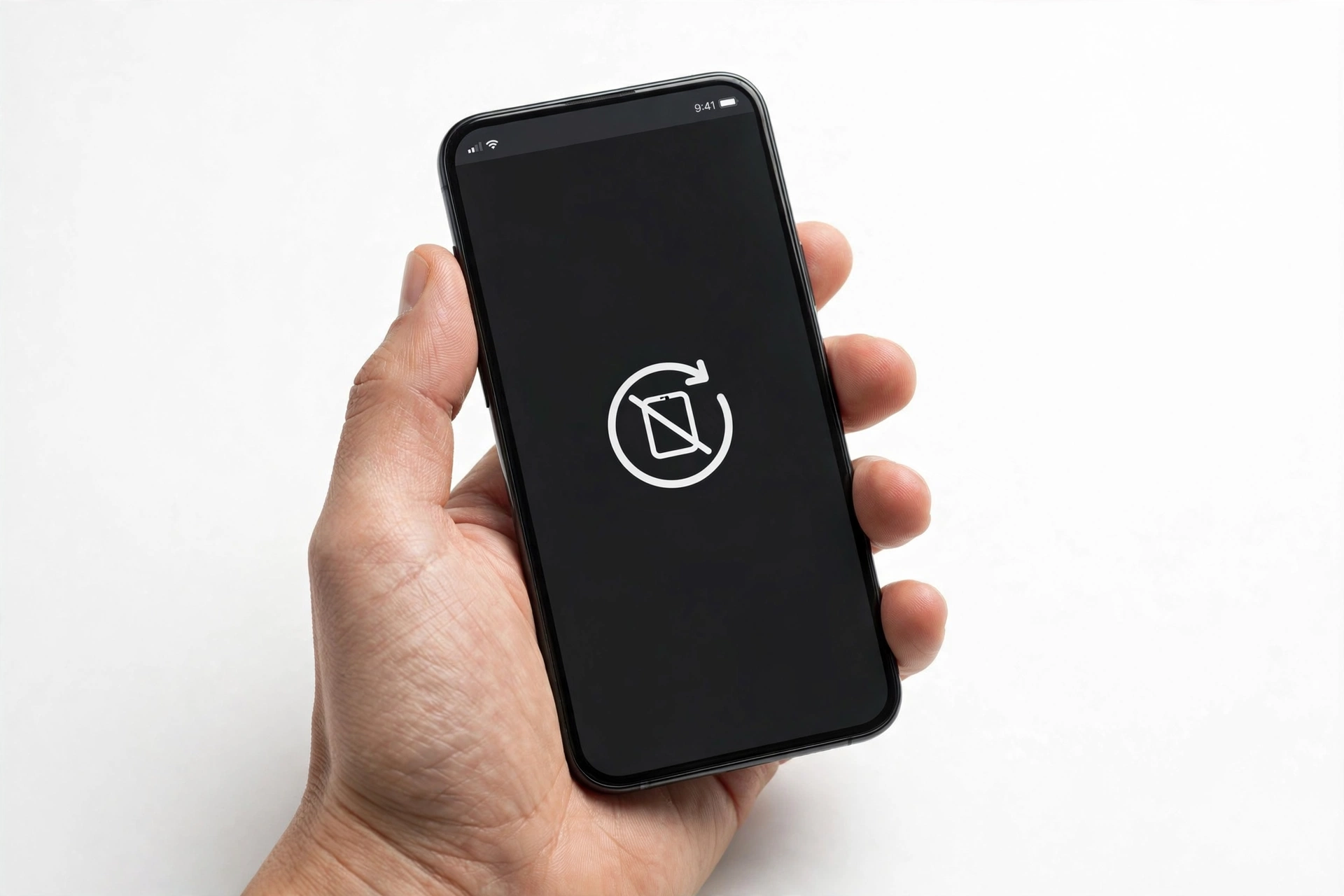
After a software update, auto-rotate usually stops working because the update reset your rotation settings or corrupted a system cache — checking the rotation lock toggle and restarting the phone fixes most cases. This guide walks through the update-specific causes and safe fixes for iPhone and Samsung, shows how to test whether the motion sensors themselves are healthy, and explains when the problem is hardware instead of software.
On this page
After a software update, auto-rotate usually stops working because the update reset your rotation settings or corrupted a system cache — checking the rotation lock toggle and restarting the phone fixes most cases.
1. Who this guide helps
This article is for anyone whose phone screen stopped rotating after installing a software update — iOS, Android, One UI, or a security patch. It covers both iPhone and Samsung Galaxy phones, because the troubleshooting paths differ. If your rotation broke without any update, the same steps still apply, but the “update-specific” sections explain why updates are a common trigger. (Source: support.apple.com)
You will learn how to tell a settings problem apart from a sensor problem, how to run the built-in sensor diagnostics on each platform, and which fixes are safe to try at home versus which situations call for professional assessment. Nothing here asks you to open the phone, install unofficial software, or bypass any security feature.
2. The 60-second check: rotation lock
Before anything else, confirm the rotation lock is actually off. Updates can silently re-enable it, and the toggle is easy to bump by accident.
On iPhone
- On iPhones with Face ID, swipe down from the top-right corner to open Control Center.
- On iPhones with a Home button, swipe up from the bottom edge.
- Look for the padlock icon surrounded by a circular arrow. If it is highlighted, tap it to turn Portrait Orientation Lock off.
- Turn the phone sideways and test in Safari or Messages — apps Apple confirms support landscape mode.
On Samsung Galaxy
- Swipe down from the top of the screen to open Quick Settings (swipe down twice for the full panel).
- Find the Auto Rotate tile. It can show three states: Auto rotate, Portrait, or Landscape. Tap until it reads Auto rotate.
- If the tile says Portrait or Landscape, rotation is locked — that is the entire problem.
Quick fact: A locked rotation is the single most common cause of “auto-rotate not working” reports after updates, on both platforms. Always rule this out first before touching anything else.
3. Why software updates break auto-rotate
An update cannot physically damage the accelerometer or gyroscope, but it can disturb every software layer those sensors depend on. Understanding the mechanisms helps you pick the right fix instead of guessing.
Silently reset settings
Major updates sometimes restore display or accessibility settings to defaults. On Samsung, the Auto Rotate tile can revert to Portrait lock; on iPhone, Portrait Orientation Lock can end up enabled. The setting changed without you touching it, which is why the failure feels sudden and mysterious.
Corrupted system caches
Updates rewrite system files while old cached data is still in place. If the cache for the display service, the sensor hub, or the launcher becomes inconsistent, rotation commands stop reaching the screen. Clearing those caches (detailed below) resolves this without touching your personal data.
Sensor calibration drift
The accelerometer and gyroscope rely on calibration data. An update can invalidate or misread that data, so the phone misjudges which way is up. Samsung’s built-in sensor diagnostics can re-test and recalibrate; on iPhone, the Measure app’s Level tool serves as a practical sensor check.
App incompatibility
Some apps hard-code their orientation or use outdated rotation APIs. After an OS update, an app that rotated fine before may refuse to rotate until its developer ships a compatibility update. This looks like a phone problem but is really an app problem — the key test is whether rotation works in the phone’s own apps.
Genuine OS bugs
Occasionally the update itself ships with a rotation regression affecting many users. These are usually fixed in the next point release (x.0.1 or the monthly patch). Checking for a follow-up update is always worthwhile before deeper troubleshooting.
4. Isolate the problem: app, settings, or sensors?
Run these three tests before changing anything. They take about two minutes and tell you exactly where the fault lies.
Test A — system apps vs. third-party apps
Open Safari (iPhone) or Samsung Internet/Chrome (Samsung) and rotate the phone. Then try Messages. If these rotate but your other apps do not, the problem is app-level: update those apps or wait for their developers to fix compatibility.
Test B — the sensor reading itself
On iPhone, open the Measure app and tap Level. Tilt the phone and watch the reading. If the numbers change smoothly as you tilt, the motion sensors are working and the problem is software configuration. If the reading is frozen or stuck, the sensor pipeline needs attention (restart first, then the deeper steps below).
On Samsung, open the Samsung Members app, tap Support, then Phone diagnostics, then Sensors. Run the accelerometer/gyroscope test and follow the on-screen calibration if offered.
Test C — home screen vs. in-app
On Samsung, the home screen has its own rotation setting, separate from the system Auto Rotate toggle. Long-press an empty area of the home screen, tap Settings or Home screen settings, and look for “Rotate to landscape mode” or “Allow home screen rotation.” If apps rotate but the home screen does not, this separate toggle is the answer — not a sensor fault.
| Test | Result | Likely cause | Next step |
|---|---|---|---|
| System apps rotate, others do not | Partial failure | App incompatibility after update | Update the affected apps; report to developer |
| Nothing rotates, sensors read fine | System-wide, sensors healthy | Settings reset or corrupted cache | Check lock toggle, restart, clear cache |
| Sensors frozen or stuck | Sensor pipeline fault | Calibration drift or software glitch | Restart, run diagnostics, update OS |
| Home screen only will not rotate | Launcher-level | Separate home-screen rotation toggle | Enable it in launcher settings |
| Rotation worked, then stopped days later | Delayed failure | App update or cache corruption | Check recently updated apps, clear cache |
5. iPhone: the ordered fix path
Work through these in order. Stop as soon as rotation works — most cases resolve in the first three steps.
Step 1 — Confirm Portrait Orientation Lock is off
Open Control Center (swipe down from the top-right on Face ID iPhones; swipe up from the bottom on Home-button iPhones). The padlock-with-arrow icon must not be highlighted. Toggle it off if needed, then test in Safari.
Step 2 — Test with apps Apple confirms support rotation
Apple’s own guidance says some apps don’t support rotation, so a non-rotating screen may be normal for that app. Test with Safari or Messages, which are known to work in landscape. If they rotate, your phone is fine — the other app simply doesn’t support it.
Step 3 — Check the sensors with Measure
Open Measure, tap Level, and tilt the phone. Smoothly changing numbers mean the accelerometer is alive. A frozen reading points to a sensor-pipeline glitch — continue to the restart step.
Step 4 — Force restart
A restart clears temporary sensor-service glitches. On Face ID iPhones: press and quickly release Volume Up, press and quickly release Volume Down, then press and hold the Side button until the Apple logo appears. On Home-button iPhones: hold the Home button and the Sleep/Wake button together until the logo appears.
Step 5 — Install any available iOS update
Go to Settings, then General, then Software Update. If a point release is available, install it — rotation regressions are commonly fixed in follow-up releases. Keep the phone charged above 50% and on Wi-Fi during the update.
Step 6 — Reset All Settings (rarely needed)
If rotation fails everywhere and the sensors test fine, corrupted settings may be the cause. Go to Settings, then General, then Transfer or Reset iPhone, then Reset, then Reset All Settings. This restores system preferences — including display and rotation settings — without deleting your photos, messages, apps, or documents. You will need to re-enter Wi-Fi passwords afterward.
Stop for safety: Choose “Reset All Settings” — never “Erase All Content and Settings.” These sit next to each other in the menu, and the second one wipes the entire phone. Read the button label twice before tapping.
6. Samsung Galaxy: the ordered fix path
Work through these in order, stopping when rotation returns.
Step 1 — Set the Quick Settings tile to Auto rotate
Swipe down twice for the full Quick Settings panel. The tile cycles through Auto rotate, Portrait, and Landscape. Make sure it reads Auto rotate — not Portrait, not Landscape.
Step 2 — Enable home-screen rotation separately
Long-press an empty area of the home screen, tap Settings or Home screen settings, and turn on “Rotate to landscape mode” (on some models: “Allow home screen rotation”). Test the home screen specifically.
Step 3 — Restart the phone
Press and hold the Side button and Volume Down together, tap Restart, and confirm. Temporary sensor-service glitches clear on reboot.
Step 4 — Run Samsung Members sensor diagnostics
Open the Samsung Members app, tap Support, then Phone diagnostics, then Sensors. Run the accelerometer and gyroscope tests and complete any calibration the app offers. This is the definitive check for whether the hardware sensors are healthy.
Step 5 — Test in Safe Mode
A third-party app — especially launchers, screen-control utilities, or rotation-manager apps — can block rotation after an update changed system behavior. Boot into Safe Mode (press and hold Power, then touch and hold “Power off” until the Safe Mode prompt appears) and test rotation. If it works in Safe Mode, a third-party app is the culprit; uninstall recently updated apps one by one.
Step 6 — Wipe the system cache partition
Corrupted system caches survive restarts. Power off the phone, then press and hold Volume Up and Power together until the recovery menu appears. Use the volume keys to select “Wipe cache partition” and confirm with the Power button. This takes about two minutes and keeps all your data — it only clears temporary system files.
Step 7 — Install the next software update
Go to Settings, then Software update, then Download and install. Rotation regressions introduced by one update are frequently fixed in the next.
Step 8 — Reset all settings
As a last software step: Settings, then General management, then Reset, then Reset all settings. This restores system defaults without deleting personal data. Back up first anyway — caution costs nothing.
7. Symptom worksheet: match, then fix
| Symptom | Likely cause | Try first |
|---|---|---|
| Stopped rotating right after an update | Settings silently reset | Check rotation lock / Auto Rotate tile state |
| Only one or two apps will not rotate | App incompatibility | Update those apps; test system apps |
| Home screen stuck in portrait, apps rotate | Separate launcher toggle | Enable home-screen rotation in launcher settings |
| Rotation laggy or flips randomly | Sensor calibration drift | Restart; run Samsung sensor diagnostics / iPhone Measure Level |
| Worked after update, broke days later | App update or cache corruption | Check recently updated apps; wipe cache partition (Samsung) |
| Rotates in Safe Mode but not normally | Third-party app interference | Uninstall recently updated apps one by one |
| Level/sensor reading frozen | Sensor pipeline glitch | Force restart; install point-release update |
| Rotation fails after every update | Recurring settings reset | Verify toggle after each update; report via feedback channels |
| Screen rotates but upside down or wrong direction | Calibration error | Run sensor calibration; restart |
| Nothing rotates, sensors test healthy | Deep software fault | Reset All Settings (iPhone) / Reset all settings (Samsung) |
8. App-specific rotation issues
Not every app is supposed to rotate. Apple’s support documentation explicitly notes that some apps don’t support rotation, so the screen stays put even with the lock off. Common examples include many banking apps, some camera viewfinders, and apps designed portrait-only.
After an update, an app that used to rotate may stop if its developer hasn’t adapted to new OS rotation APIs. The fix is on their side: check the App Store or Play Store for an app update, and use the developer’s contact link to report it. Deleting and reinstalling the app sometimes helps if its cached orientation state is corrupt — but only after confirming your data in that app is backed up or cloud-synced.
Also check per-app quirks: video players often have their own rotation lock inside the player controls, and some launchers override system rotation with their own setting. When only one app misbehaves, look inside that app’s settings before resetting anything on the phone.
9. When it is hardware, not software
Software updates cannot physically break the accelerometer or gyroscope, but a failing sensor can coincidentally reveal itself around update time — or a drop that happened earlier finally gets blamed on the update. These signs point to hardware:
- The sensor reading stays frozen in every diagnostic (Measure Level on iPhone; Samsung Members sensor test) even after restarts and updates.
- Rotation fails identically in Safe Mode, after a cache wipe, and after resetting all settings.
- Other motion features fail too: step counting, compass, panorama photos, or games that use tilt controls.
- The phone took a hard drop or liquid exposure around the time rotation stopped.
In these cases, no settings change will help — the sensor assembly needs professional assessment. Do not open the phone yourself; internal components, especially the battery, can be damaged by improper handling.
Tip: Before concluding hardware failure, make sure you have installed the latest point-release update and tested in Safe Mode (Samsung) or after a force restart (iPhone). Genuine sensor hardware failure is rare; software causes are far more common.
10. What observations can and cannot prove
| Observation | What it suggests | What it cannot prove |
|---|---|---|
| Rotation works in system apps only | Third-party app incompatibility | Which specific app, without testing them individually |
| Sensors read normally in diagnostics | Hardware sensors are healthy | That no software bug remains — settings or caches may still be at fault |
| Rotation works in Safe Mode | A third-party app is interfering | Which app, without uninstalling candidates one by one |
| Failed after an update | Update-related settings or cache issue | That the update caused it — coincidence with hardware failure is possible |
| Fixed by a restart | Temporary software glitch | It will not recur — monitor after the next update |
| Frozen sensor readings everywhere | Sensor pipeline or hardware fault | Hardware vs. deep software fault without a settings reset test |
11. Hypothetical examples
(The following are hypothetical illustrations, not customer stories.)
Maya’s One UI update: Maya installs a major One UI update overnight. In the morning, her Galaxy phone no longer rotates in any app. She opens Quick Settings and finds the tile reads “Portrait” — the update had reset it. One tap to Auto rotate fixes everything in seconds. Total time: under a minute, no data touched.
Daniel’s stubborn iPhone: Daniel updates iOS and his iPhone stops rotating even in Safari. Portrait Orientation Lock is off, and the Measure app’s Level reading moves normally — so the sensors are fine. A force restart clears the glitch and rotation returns. He makes a note to check the lock toggle first after every future update.
12. Prevention: keep rotation working through updates
- After every major update, glance at the rotation toggle before assuming something broke — updates reset settings more often than people expect.
- Keep the OS current: point releases frequently fix rotation regressions from the major release.
- Update third-party apps promptly after an OS update so their rotation handling stays compatible.
- Avoid “rotation manager” or screen-control utility apps unless you need them; they are a common source of conflicts after updates.
- If rotation matters to you daily (reading, videos, navigation), test it in a system app right after each update so you catch problems early.
13. When to stop troubleshooting and seek assessment
Stop and seek professional assessment if: sensors test frozen after restarts and updates; rotation fails identically in Safe Mode and after resetting all settings; multiple motion features (compass, tilt games, step counting) fail together; or the phone suffered a drop or liquid exposure. These patterns indicate the sensor hardware or its connection needs hands-on diagnosis.
For a local assessment in the Las Vegas area, Las Vegas Phone Repair & Accessories at 7400 Las Vegas Blvd S, Unit TT42, Las Vegas, NV 89123 can evaluate rotation and sensor issues. Call (424) 406-6202 ahead — hours are 10AM–8PM, and calling first confirms today’s availability.
Related update-specific guides: mobile data not working after an update, GPS not working after an update, and screen flickering after an update.
14. Frequently asked questions
Why did auto-rotate stop working right after I updated my phone?
The most common reason is that the update reset your rotation settings — Portrait Orientation Lock re-enabled on iPhone, or the Auto Rotate tile reverting to Portrait on Samsung. Corrupted system caches and sensor calibration drift are the next most common causes. Check the toggle first; it resolves the majority of cases.
How do I know if it is the app or my phone?
Test with the phone’s built-in apps: Safari or Messages on iPhone, Samsung Internet or Chrome on Samsung. If those rotate, your phone is fine and the third-party app doesn’t support rotation or needs its own update.
Can a software update damage the rotation sensors?
No. An update cannot physically damage the accelerometer or gyroscope. It can only disturb the software layers — settings, caches, calibration data, or app compatibility — that those sensors depend on. If sensors test frozen after every software step, suspect a coincidental hardware failure instead.
What is the difference between Auto Rotate, Portrait, and Landscape on Samsung?
Auto rotate lets the screen follow how you hold the phone. Portrait locks it upright; Landscape locks it sideways. The Quick Settings tile cycles through all three, so make sure it actually reads “Auto rotate” and not one of the lock states.
Why won’t my Samsung home screen rotate when apps do?
The home screen has a separate rotation setting from the system toggle. Long-press an empty area of the home screen, open its Settings, and enable “Rotate to landscape mode.” This is by design, not a malfunction.
Will Reset All Settings delete my photos and apps?
No. On iPhone, Reset All Settings restores system preferences without touching photos, messages, apps, or documents — but you will need to re-enter Wi-Fi passwords. On Samsung, Reset all settings similarly preserves personal data. Still, back up before any reset, and never confuse it with “Erase All Content and Settings,” which wipes everything.
My iPhone rotates in some apps but the Home Screen never rotates. Is that normal?
Yes. iPhone Home Screens on most models are portrait-only by design (Plus/Max models historically offered landscape home screens). This is not a fault and not something an update broke.
When should I consider it a hardware problem?
Consider hardware when sensor readings stay frozen in diagnostics after restarts and updates, rotation fails identically in Safe Mode and after resetting all settings, or other motion features (compass, tilt controls, step counting) fail at the same time — especially after a drop.
Video: How to tell if your smartphone is fake or real
Sources and editorial notes
- Apple Support — Rotate the screen on your iPhone or iPod touch: documents the Portrait Orientation Lock toggle in Control Center for iPhones with and without a Home button, notes that some apps don’t support rotation, and recommends testing with Safari or Messages.
- Fone.tips — iPhone Screen Won’t Rotate: secondary walkthrough aligning with Apple’s steps; describes the Measure app’s Level tool as a sensor check and the restart-then-update order.
- Switching to Mac — iPhone rotation unlock guide: documents the Reset All Settings path (Settings > General > Transfer or Reset iPhone > Reset) and notes hardware sensor failure as rare, usually drop-related.
- Fone.tips — Samsung Screen Rotation Not Working: documents the Auto Rotate / Portrait / Landscape tile states, Safe Mode app-isolation test, and cache-partition wipe keeping user data.
- Technobezz — Auto Rotate Not Working on Samsung: documents the separate home-screen rotation toggle (“Rotate to landscape mode”) and the Quick Settings tile behavior.
- Sebertech — Galaxy S25 FE auto-rotate fix: documents the Samsung Members app sensor diagnostics path (Support > Phone diagnostics > Sensors) and the Settings > General management > Reset > Reset all settings path.
- Mobility Arena — auto-rotate on iPhone and Samsung (2026): corroborates the Control Center and Quick Settings toggle paths on current models.
Last source check: October 14, 2026. AI-assisted editorial guide, checked against the linked manufacturer information. Menu paths reflect documented iOS and One UI layouts; third-party guides are cited as secondary corroboration, not as manufacturer statements. No device was opened and no unofficial software was used in preparing this guide.
Let’s get you connected again.
Tell us what’s happening with your device and we’ll help you decide the safest next step — no jargon, no pressure.
Las Vegas Phone Repair & Accessories · 7400 Las Vegas Blvd S, Unit TT42, Las Vegas, NV 89123
10:00 AM–8:00 PM — call ahead to confirm today’s hours