
Phone Mobile Data Not Working After Update: Causes and Safe Fixes
If your phone’s mobile data stopped working right after a software update, the update almost certainly changed settings or carrier configuration rather than damaging anything — so start with a carrier settings update and a network settings reset, not a repair shop. This guide walks you through the exact checks for iPhone and Samsung in the right order, explains what an update can and cannot break, and shows you when the problem is actually on your carrier’s side.
On this page
If your phone’s mobile data stopped working right after a software update, the update almost certainly changed settings or carrier configuration rather than damaging anything — so start with a carrier settings update and a network settings reset, not a repair shop.
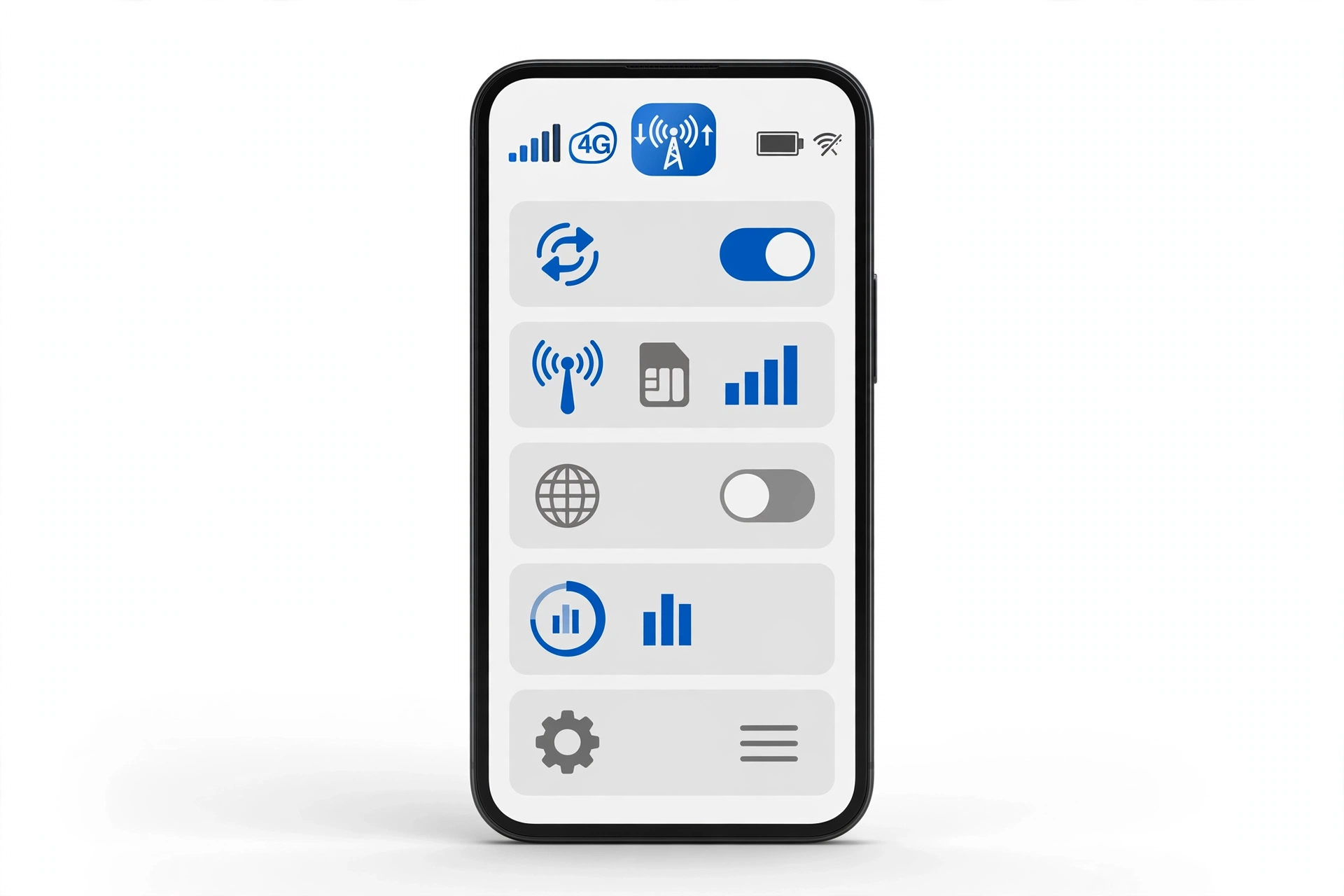
Quick fact: A software update cannot physically damage your phone’s cellular radio or antenna. When mobile data fails after an update, the cause is almost always corrupted settings, an outdated carrier configuration, a SIM that lost its registration, or a carrier-side provisioning mismatch triggered by the new software version.
1. Who this guide helps — and what makes it different
This guide is for you if your phone could browse, stream, and use apps over cellular data before a software update, and cannot (or can only intermittently) do so afterward. It covers both iPhones and Samsung Galaxy phones, because the two platforms have different settings menus and different carrier-update mechanisms. (Source: samsung.com)
It is deliberately different from the companion update guides on this site. Wi-Fi problems after updates involve your home or office network; hotspot problems after updates involve sharing your connection with other devices. This article is about the cellular data connection itself — the link between your phone’s modem, your SIM, and your carrier’s towers. If you have no signal bars at all and cannot make calls either, start with our no-service guide instead; that symptom points more toward SIM or tower problems than data settings.
2. The two-minute triage: find the right half of the problem first
Before changing anything, answer these four questions. They take about two minutes and they decide which half of this guide applies to you.
- Do calls and texts still work? If yes, your SIM is registered and the radio is fine — the problem is almost certainly in data settings (APN, carrier configuration, or a data toggle the update flipped). If calls also fail, treat this as a broader network problem and check SIM and carrier status first.
- Does Wi-Fi still work? If yes, you can rule out a dead phone and you can download updates and carrier settings over Wi-Fi while you troubleshoot. If neither works, focus on the phone-side network stack.
- Is anyone else affected? Ask someone on the same carrier, or check the carrier’s outage page (over Wi-Fi). An outage cannot be fixed from your phone, and knowing that saves you an hour of resets.
- Did the update change anything else? Some updates reset network-related toggles silently — data roaming, preferred network type (5G vs. LTE), or the default SIM on dual-SIM phones. A quick glance at Settings now can end the whole investigation.
Tip: Write down — or screenshot — your current settings before you reset anything: network mode, APN entries, and which SIM is set for data on dual-SIM phones. Resets are safe, but re-entering a carrier-specific APN from memory is not fun.
3. What a software update can actually break (and what it can’t)
Understanding the mechanism keeps you from wasting time. A phone software update touches five things that affect mobile data:
3.1 Carrier settings version mismatch
Carriers ship small configuration files — carrier settings — that tell your phone how to talk to their network: which access point names (APNs) to use, which features (VoLTE, 5G, Wi-Fi calling) your line supports, and how to authenticate. After a major OS update, your phone may be running new modem software against an old carrier settings file, and the two no longer agree. Apple explicitly prompts for carrier settings updates through Settings > General > About; Samsung applies them through software update channels and sometimes through the carrier’s own app.
3.2 Corrupted saved network settings
Updates migrate your existing settings to new formats. Occasionally that migration corrupts entries — a saved network preference, a cached authentication token, or a preferred-network-type entry. The phone then behaves as if everything is configured while quietly failing to attach to data services. This is the classic “everything looks right but nothing loads” case, and it is exactly what a network settings reset is designed to clear.
3.3 Silently reset toggles
Major updates sometimes restore certain toggles to defaults: mobile data itself, data roaming, the preferred network mode (5G vs. LTE), or the SIM selected for data on dual-SIM devices. Samsung’s own support flow lists “check if Mobile data is enabled” as step one for a reason — it is the most common and most embarrassing cause, and updates are a prime suspect when it flips on its own.
3.4 SIM / eSIM registration loss
Your SIM holds the cryptographic identity your carrier uses to authenticate you. After an update, the phone can lose its registration state with the network — the SIM is fine, but the network no longer recognizes the session. On eSIM phones this sometimes means the eSIM profile needs to be refreshed or re-added. Apple Support guidance for persistent cellular issues includes checking the SIM/eSIM state and, when appropriate, removing and re-adding the eSIM with the carrier’s QR code or app.
3.5 Genuine bugs in the new software
Sometimes the update itself has a bug — a modem firmware regression that mishandles a specific carrier’s configuration or a particular network mode. These are usually followed quickly by a point release (the “.1” or “.2” update). If your problem started within hours of a major update and matches reports from other users on the same carrier, installing the next available update is often the actual fix.
Quick fact: An update can reveal a weakness without causing it. A SIM card that was barely making contact, or a carrier account with a provisioning quirk, can work for months and then fail the moment the phone re-registers with the network after an update. In those cases the update was the trigger, not the root cause.
4. Update-specific failure mechanisms at a glance
| Mechanism | Typical symptom | First fix to try |
|---|---|---|
| Outdated carrier settings | Signal bars present, calls work, data dead or intermittent | Carrier settings update (iPhone: Settings > General > About; Samsung: Software update) |
| Corrupted network settings migration | Everything looks configured; data silently fails; Wi-Fi works | Reset network settings |
| Silently reset toggle | Data dead immediately after update; often mobile data or roaming flipped off | Re-enable the toggle in Settings |
| SIM registration loss | “No Service” or “Searching,” sometimes intermittent | Restart; reseat physical SIM; refresh eSIM |
| Corrupted APN | Connected to network (bars) but no internet; MMS may also fail | Reset APN to default (Samsung) or check Cellular Data Network (iPhone) |
| Genuine OS/modem bug | Many users on the same carrier report the same failure within days of release | Install the next point-release update; report to carrier |
5. iPhone: the ordered fix path
Work through these in order. After each step, test mobile data before moving on — most post-update failures resolve in the first four steps.
5.1 The 60-second checks
- Confirm Cellular Data is on: Settings > Cellular — the Cellular Data toggle must be green. Also scroll down and confirm data is enabled for the app you’re testing (an update can flip per-app data permissions).
- Toggle Airplane Mode: Turn it on, wait 15–20 seconds, turn it off. This forces the cellular radio to drop its current session and re-register with the nearest tower — the fastest fix for a stale post-update registration.
- Check the signal indicator: If it says “SOS” or “No Service,” you have a registration problem, not a settings problem — skip to the SIM section.
5.2 Update carrier settings
Go to Settings > General > About and wait 10–15 seconds. If a carrier settings update is available, a prompt appears — install it. This is the single most update-relevant fix on iPhone: Apple delivers carrier configuration separately from iOS updates, and a major iOS version frequently needs a matching carrier settings version. If no prompt appears, your carrier settings are current.
5.3 Check data roaming and network mode
- Roaming: Settings > Cellular > Cellular Data Options > Data Roaming. If you’re traveling, it must be on. If you’re home, leave it off — but verify the update didn’t flip it.
- 5G vs. LTE: Settings > Cellular > Cellular Data Options > Voice & Data. If 5G is slow or dropping, switch to LTE/4G temporarily. If LTE works, the issue is 5G-specific in your area — report it to your carrier rather than resetting everything.
5.4 Remove VPNs and configuration profiles
Go to Settings > General > VPN & Device Management. VPN apps, ad blockers, and enterprise configuration profiles can intercept or block cellular traffic, and updates sometimes re-enable a VPN that was off. Temporarily disable or remove anything you don’t recognize, then test data again.
5.5 Reset network settings
Settings > General > Transfer or Reset iPhone > Reset > Reset Network Settings. This clears saved Wi-Fi networks, Bluetooth pairings, VPN configurations, and all cellular settings back to defaults — it does not delete your photos, apps, or personal data. After the phone restarts, rejoin Wi-Fi and test mobile data. This is the fix for corrupted post-update settings migrations.
Stop for safety: “Reset Network Settings” and “Erase All Content and Settings” sit in the same Reset menu. Tap only Reset Network Settings. The Erase option wipes the entire phone — a much bigger step that should never be taken casually, and only after a full backup.
5.6 Install the next iOS update
Go to Settings > General > Software Update. Modem and carrier-related bugs in a major release are frequently fixed in the first point release. If your data failed within days of a major iOS version and other users report the same issue, the patch — not more troubleshooting — is the real fix.
5.7 When to suspect the carrier or the hardware
If data still fails after the steps above, the problem is probably not in your phone’s settings. Contact your carrier and ask them to check your line’s provisioning — specifically whether your line is correctly set up for your plan’s data features (5G, VoLTE) and whether there is an outage or account issue. In rare, documented cases (press reporting has covered instances of post-update service loss on specific carrier/device combinations), a phone that loses all service after an update and never recovers may need carrier or manufacturer replacement rather than further troubleshooting.
6. Samsung Galaxy: the ordered fix path
Samsung’s own support flow for mobile data issues follows a clear ladder: confirm the toggle, restart, reset network settings, then involve the carrier. Work through it in order.
6.1 The 60-second checks
- Confirm Mobile data is on: Swipe down for Quick Settings and check the Mobile data icon, or go to Settings > Connections > Data usage > Mobile data. Samsung lists this as the first check because updates do occasionally flip it.
- Toggle Airplane Mode for 15–20 seconds, then off — same re-registration logic as iPhone.
- Check data usage limits: Settings > Connections > Data usage — an update can reset your billing cycle dates or re-enable a data limit that now throttles you to zero.
6.2 Force restart
Hold the Volume down key and the Side key together until the phone restarts (the Samsung logo appears). A force restart clears the modem’s running state more thoroughly than a normal restart and does not delete any data or files.
6.3 Reset APN to default
Go to Settings > Connections > Mobile networks > Access Point Names, tap the three-dot menu, and choose Reset to default. Incorrect or corrupted APN settings are one of the most common causes of “signal bars but no internet” after an update — the phone is attached to the network but has no valid gateway for data. Resetting restores your carrier’s correct values automatically.
6.4 Check network mode and operator selection
- Network mode: Settings > Connections > Mobile networks > Network mode. Try switching between the available modes (for example, 5G/LTE/3G/2G auto-connect vs. LTE/3G/2G) — if one mode works, the issue is mode-specific.
- Network operators: Settings > Connections > Mobile networks > Network operators > Select automatically. A manual operator selection that was valid before the update may no longer be optimal.
- Data roaming: Settings > Connections > Mobile networks > Data roaming — enable it when traveling; verify the update didn’t flip it at home.
6.5 Reset network settings
Settings > General management > Reset > Reset network settings (some models show “Reset mobile network settings” as a separate, narrower option — try that first if available). This clears Wi-Fi, Bluetooth, and mobile network settings. It does not delete personal data. After the reset, test mobile data before re-pairing everything else.
6.6 Run Samsung Members diagnostics
Open the Samsung Members app > Support > Get Started, and run the Mobile network diagnostic. This tests the phone’s radio against Samsung’s own checks and can distinguish a phone-side fault from a network-side one — useful evidence before you call the carrier.
6.7 Update software, then call the carrier
Settings > Software update > Download and install — install anything pending, since modem fixes ship in these updates. If data still fails, contact your carrier: ask about outages, verify your line is provisioned correctly, and confirm your plan’s data features are active on your account. Samsung’s support flow explicitly ends here — persistent failure after all phone-side steps is a carrier or hardware matter.
7. The SIM and eSIM deep dive
The SIM is your identity on the carrier’s network. Updates interact with it in two ways: they can corrupt the phone’s stored registration state, and (rarely) the physical SIM’s contacts can be disturbed if the phone was handled during the update process.
7.1 Physical SIM: reseat and inspect
Power the phone fully off, eject the SIM tray, and check the SIM for visible damage, corrosion, or heavy scratching. Wipe the gold contacts gently with a dry, lint-free cloth — no liquids, no abrasives. Reinsert it firmly and power on. If you have access to another phone, test your SIM in it: if data works there, your SIM is fine and the problem is in your phone’s settings; if it fails there too, ask your carrier for a replacement SIM (they’re usually free or cheap).
7.2 eSIM: refresh the profile
On iPhone, go to Settings > Cellular, tap your plan, and check that the line is turned on and set as the data line. For persistent post-update eSIM failures, the reliable fix is to remove the eSIM and re-add it using your carrier’s QR code or app — but only do this when you have the carrier’s re-activation details in hand (or carrier support on the line), because a removed eSIM cannot be recovered without them. On Samsung, the equivalent path is Settings > Connections > SIM manager.
Tip: Dual-SIM phones add a failure mode: the update can change which SIM is selected for mobile data. On iPhone check Settings > Cellular > Cellular Data (the line selector); on Samsung check Settings > Connections > SIM manager > Mobile data. The “wrong” SIM may simply have no data plan.
8. APN settings: the “bars but no internet” fix
The Access Point Name is the gateway address your phone uses to reach the internet through your carrier. When it’s wrong or corrupted, you get the most confusing symptom in cellular troubleshooting: full signal bars, working calls, but zero data and often failing picture messages.
- Samsung: Settings > Connections > Mobile networks > Access Point Names. The three-dot menu offers “Reset to default,” which restores your carrier’s correct APN automatically — always try this before manual editing.
- iPhone: Settings > Cellular > Cellular Data Network (under Cellular Data Options). For most carriers this is configured automatically and the menu may not even appear; if it does and the fields look wrong or empty, get the correct values from your carrier’s official site or support — never copy APN values from random forums.
Stop for safety: Do not invent APN values or copy them from unofficial sources. A wrong APN can break data and MMS entirely, and some carriers use different APNs for different plans. Your carrier’s official website or support line is the only trustworthy source.
9. The carrier side: outages, provisioning, and plan problems
Some mobile data failures have nothing to do with your phone. After an update, three carrier-side issues become more likely:
- Outages and maintenance. Towers go down for maintenance and get congested during events. Check your carrier’s outage page or social channels over Wi-Fi before resetting anything. If neighbors on the same carrier are also affected, wait it out.
- Provisioning mismatches. Your carrier’s systems store a profile of your line: which plan, which features (5G, VoLTE, hotspot), which device type. A major OS update can change what your phone reports about itself, and if the carrier’s profile disagrees, data can be throttled or blocked while calls keep working. Only the carrier can check and fix this — ask them specifically to verify your line’s data provisioning.
- Plan and billing issues. An overdue bill, an expired prepaid balance, or a plan change can suspend data while leaving emergency calls working. Updates don’t cause these, but the timing coincidence sends people down the wrong troubleshooting path. Check your account status in the carrier’s app first.
When you call the carrier, have this information ready: your phone model, the exact software version, when the problem started relative to the update, what you’ve already tried, and whether calls/texts work. That list turns a 40-minute call into a 10-minute one.
10. Hypothetical examples
(The following are hypothetical illustrations, not customer stories.)
10.1 Maya’s corrupted APN after a major update
Maya updated her Samsung Galaxy on a Tuesday evening. Wednesday morning she had full signal bars and could make calls, but no app would load anything over cellular — Wi-Fi worked fine. She worked through the ordered path: toggles were correct, Airplane Mode didn’t help, and the carrier had no outage. At the APN step she found the Access Point Names screen showed a single entry with a blank APN field — the update’s settings migration had corrupted it. One tap on “Reset to default” restored her carrier’s APN, and data returned immediately. Total time: about ten minutes, most of it spent checking the carrier’s outage page first.
10.2 Daniel’s silently flipped data toggle
Daniel updated his iPhone overnight. The next day, nothing loaded on cellular. His first instinct was a network settings reset — but the triage step saved him: Settings > Cellular showed the Cellular Data toggle itself was off, something the update had flipped during installation. He turned it back on, and everything worked. He also checked Cellular Data Options afterward and found his preferred network mode had changed from 5G Auto to LTE — harmless, but worth knowing. His lesson: always check the toggles before the resets.
11. Symptom worksheet: match your symptom, then fix
| Symptom | Likely cause | First fix |
|---|---|---|
| Full signal bars, calls work, no data at all | Corrupted or outdated APN / carrier settings | Reset APN to default (Samsung) or update carrier settings (iPhone: Settings > General > About) |
| “No Service” or “Searching” after update | SIM registration loss | Restart; reseat physical SIM; refresh eSIM |
| Data works on Wi-Fi only, cellular dead | Cellular Data toggle flipped off by the update | Re-enable in Settings > Cellular (iPhone) or Quick Settings (Samsung) |
| Data worked, then dies after minutes | Corrupted network settings / stale session | Airplane Mode toggle; then reset network settings |
| 5G slow or dropping, LTE fine | 5G-specific carrier or modem issue in the new software | Switch to LTE temporarily; install next point release; report to carrier |
| Data dead while traveling, worked at home | Data roaming flipped off by the update | Enable Data Roaming in cellular/mobile network settings |
| Data dead on one phone, works on another with same SIM | Phone-side settings corruption | Reset network settings on the affected phone |
| Same SIM fails in two phones | Damaged SIM or carrier-side account issue | Request a replacement SIM from the carrier |
| Data dead for everyone on your carrier nearby | Tower outage or maintenance | Nothing phone-side — wait, or use Wi-Fi; report the outage |
| Everything configured, data fails silently | VPN or configuration profile blocking traffic | Disable VPN; remove unknown profiles (iPhone: Settings > General > VPN & Device Management) |
12. What your observations can and cannot prove
| Observation | What it suggests | What it cannot prove |
|---|---|---|
| Calls work but data doesn’t | SIM is registered; radio is functional; the fault is in data settings or provisioning | It cannot tell you whether the APN, the carrier settings, or the account provisioning is at fault — test each |
| Wi-Fi works but cellular data doesn’t | The phone’s apps and OS networking are fine; the fault is cellular-specific | It cannot distinguish a phone-side settings fault from a carrier-side provisioning fault |
| Reset network settings fixed it | The cause was corrupted settings from the update migration | It cannot tell you which specific setting was corrupt |
| Another phone works with your SIM | Your SIM and carrier account are fine | It cannot tell you whether the fault is software settings or a failing modem — but software is far more likely |
| Your SIM fails in another phone | The SIM or the carrier account is the problem | It cannot distinguish a physically damaged SIM from an account provisioning issue — ask the carrier |
| Data returns after a carrier settings update | The old carrier configuration was incompatible with the new OS | It cannot guarantee the carrier won’t need another update after the next OS release |
13. Prevention: make the next update boring
- Screenshot your key settings before major updates: network mode, APN screen, data roaming state, and the data SIM on dual-SIM phones. If the update flips something, you’ll spot it in seconds.
- Update over Wi-Fi with a charged battery (above 50% or plugged in). Interrupted updates are a prime cause of corrupted settings migrations.
- Install carrier settings updates promptly. On iPhone, check Settings > General > About after every iOS update. On Samsung, check for software updates the same day.
- Wait a few days on major releases if your phone is mission-critical. The first wave of modem and carrier bugs is usually patched within two weeks.
- Keep your carrier’s app installed and your account details handy — including eSIM re-activation credentials. The one time you’ll need them is the one time you won’t have them.
- Back up before major updates. If troubleshooting ever escalates to a factory reset, you’ll be glad you did.
14. When to stop troubleshooting and get help
Stop and get professional help if any of these are true:
- Your phone shows “No Service” persistently after a SIM reseat and a network settings reset, on a SIM that works in another phone — the modem or antenna path may have a hardware fault.
- Data fails identically on a clean setup (after a factory reset with no backup restored) — that points away from settings and toward hardware or carrier provisioning.
- You see physical damage, swelling, or excessive heat around the phone — stop using it and have it assessed; do not attempt to open it yourself.
- Your carrier confirms your line is provisioned correctly and there is no outage, but data still fails after all phone-side steps.
For an in-person assessment in the Las Vegas area, Las Vegas Phone Repair & Accessories (7400 Las Vegas Blvd S, Unit TT42, Las Vegas, NV 89123; (424) 406-6202; open 10AM–8PM, call ahead to confirm today’s hours) can check SIM seating, run diagnostics, and advise whether the issue is phone-side or carrier-side before any repair is approved.
15. Frequently asked questions
Will resetting network settings delete my photos or apps?
No. Resetting network settings only clears Wi-Fi networks and passwords, Bluetooth pairings, VPN configurations, and cellular settings. Your photos, apps, messages, and personal data are untouched. (The similarly named “Erase All Content and Settings” is a different, destructive option — don’t confuse the two.)
Why do I have signal bars but no internet?
Signal bars show your connection to the carrier’s tower; internet access additionally requires a valid APN (the data gateway) and correct carrier provisioning. This “bars but no internet” pattern is the hallmark of a corrupted or outdated APN — reset it to default as described in section 8.
Can a software update damage my SIM card?
No — software cannot physically damage a SIM. But an update can corrupt the phone’s stored registration state, making a healthy SIM appear dead. Reseating the SIM or refreshing the eSIM profile resolves this. If the SIM fails in a second phone, it’s the SIM or the account, not the update.
Should I update to the newest iOS/Android version to fix data issues?
If your problem started with a major update and other users report the same issue, yes — the next point release often contains the modem or carrier fix. But if your data worked fine before and broke for an unclear reason, work through the settings steps first; a new update won’t fix a flipped toggle or a corrupted APN.
How do I update carrier settings on iPhone vs. Samsung?
On iPhone: Settings > General > About — wait 10–15 seconds for a carrier settings prompt. On Samsung: carrier configuration arrives through Settings > Software update > Download and install, and sometimes through your carrier’s own app. Both should be checked after any major OS update.
My carrier says everything looks fine on their end. Now what?
Ask them specifically to re-provision your line’s data features and to check for a device-type mismatch in their system (your phone may be reporting a different model string after the update). If that fails, a factory reset with a clean setup — no backup restored initially — is the last software step before suspecting hardware.
Is it safe to edit APN settings manually?
Only with values from your carrier’s official website or support. Resetting to default is always safer than manual editing. Never copy APN values from forums or videos — wrong values break data and MMS, and carriers use different APNs for different plans.
Data works on LTE but not 5G after the update. Is my phone broken?
Almost certainly not. This pattern points to a 5G-specific issue: your area’s 5G configuration, your carrier’s 5G provisioning for your line, or a modem quirk in the new software. Use LTE for now, install the next software update, and report the 5G failure to your carrier with your location and phone model.
Video: How to tell if your smartphone is fake or real
Sources and editorial notes
- Samsung Support — How to troubleshoot mobile data issues: the official ladder used in section 6 (check Mobile data toggle, force restart with Volume down + Side key, reset network settings via General management, contact carrier). Last checked October 14, 2026.
- Samsung Support — Calls disconnect or no network signal: APN reset path (Connections > Mobile networks > Access Point Names > Reset to default), network mode switching, network operator automatic selection, and Samsung Members mobile-network diagnostics. Last checked October 14, 2026.
- Samsung Support — Data roaming on/off: the Data Roaming toggle path (Connections > Mobile networks) and the note that roaming requires mobile data to be active. Last checked October 14, 2026.
- Apple Support Communities — “Could not activate cellular data network”: Apple’s recommended first steps summarized in section 5 (verify Airplane Mode off and Cellular Data on, toggle data off/on, install carrier settings update, contact carrier about line provisioning). Last checked October 14, 2026.
- MacObserver — Fix cellular data not working: independent guide summarizing Apple’s flows — carrier settings via Settings > General > About, 5G/LTE switching under Cellular Data Options, eSIM remove-and-re-add caution, VPN/profile removal, and Reset Network Settings. Last checked October 14, 2026.
- Fone.tips — Cellular data not working on iPhone: secondary summary of causes (settings, software, SIM, carrier outage) and the Airplane Mode / carrier-settings-update first steps consistent with Apple’s guidance. Last checked October 14, 2026.
- AEANET — How to fix cellular data on iPhone: step-by-step iPhone flow used to cross-check menu paths (Cellular toggle, Data Roaming, carrier settings via About, Reset Network Settings, APN via Cellular Data Network). Last checked October 14, 2026.
Last source check: October 14, 2026. AI-assisted editorial guide, checked against the linked manufacturer information. Menu paths reflect the manufacturers’ documented settings layouts as of the check date and may vary slightly by model and software version. Carrier-specific details (APN values, provisioning, plan features) must be confirmed with your carrier. This guide does not imply manufacturer authorization, and no repair availability, pricing, or warranty is promised.
Let’s get you connected again.
Tell us what’s happening with your device and we’ll help you decide the safest next step — no jargon, no pressure.
Las Vegas Phone Repair & Accessories · 7400 Las Vegas Blvd S, Unit TT42, Las Vegas, NV 89123
10:00 AM–8:00 PM — call ahead to confirm today’s hours