
Phone Hotspot Not Working After Update: Causes and Safe Fixes
A phone hotspot that stops working right after a software update is almost always a software problem — a stalled sharing service, a silently reset setting, or a carrier profile that no longer matches the new OS. Work through a short ordered checklist (restart, toggle, re-pair, settings audit, network reset) before considering anything drastic, and only treat it as a possible hardware fault if the hotspot fails everywhere after the software side is fully cleaned up.
On this page
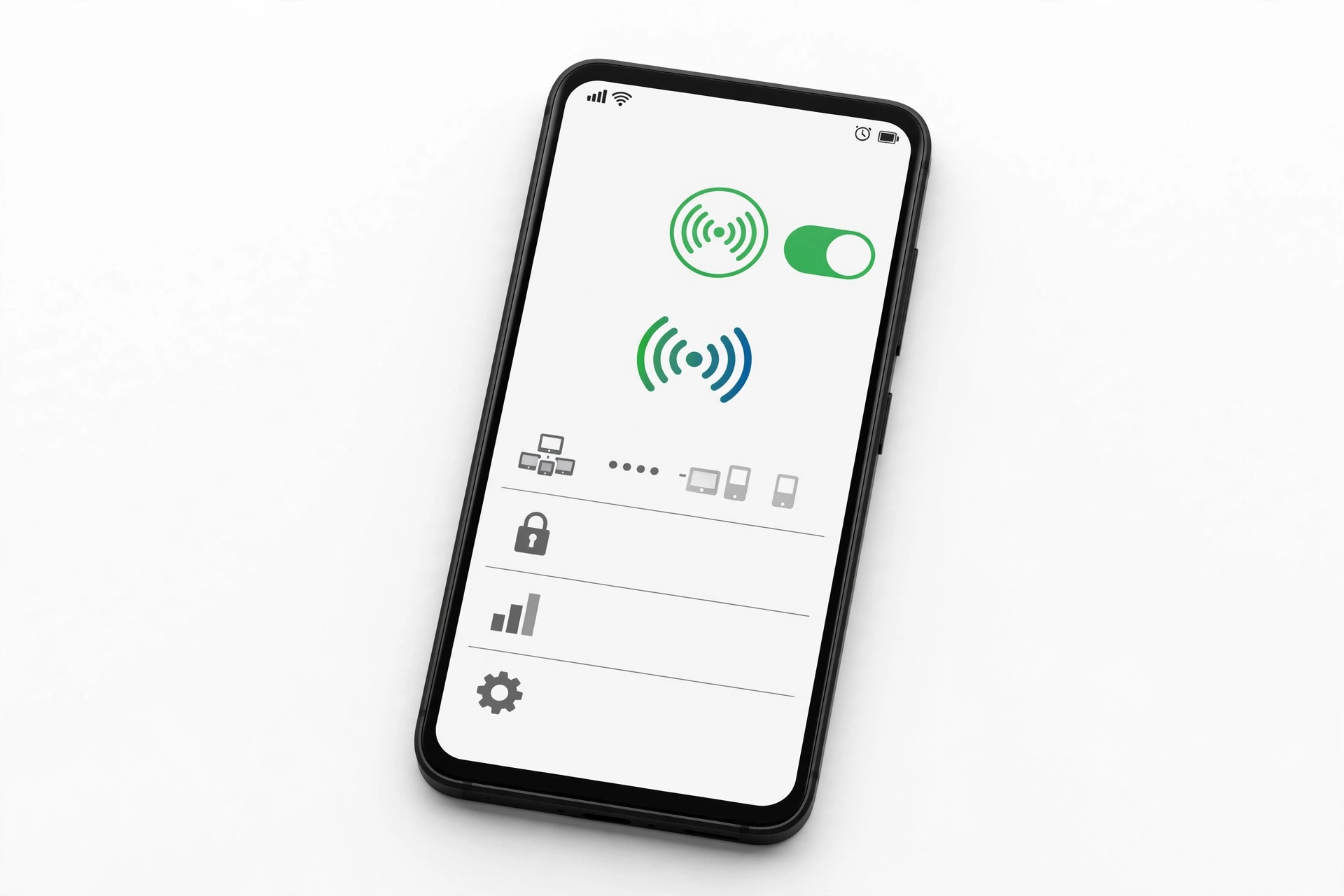
A phone hotspot that stops working right after a software update is almost always a software problem — a stalled sharing service, a silently reset setting, or a carrier profile that no longer matches the new OS.
1. Why this guide exists — and who it is for
This guide is for iPhone and Samsung Galaxy owners whose Personal Hotspot or Mobile Hotspot worked fine before a system software update (an iOS point release, a major iOS version, a One UI/Android update) and broke afterward. If your hotspot never worked, or broke after a drop or liquid exposure, the steps here can still help you rule things out, but the underlying cause is more likely a plan or hardware issue. (Source: laptops251.com)
It is deliberately different from our general hotspot guides. Those cover every possible reason a hotspot can fail — wrong password, exhausted data allowance, carrier plans that exclude tethering, and more. This guide focuses only on the failure patterns that updates introduce, so you can fix the update-caused problem without wading through causes that don’t apply to you.
Scope note: This guide covers Apple’s Personal Hotspot (iPhone) and Samsung’s Mobile Hotspot (Galaxy phones). If you use a different brand, many of the underlying ideas still apply — settings get reset, caches go stale, carrier profiles mismatch — but the exact menu names below follow Apple’s and Samsung’s documented layouts.
2. What an update actually breaks
Understanding the mechanism makes the fixes feel less random. A software update can interfere with hotspot sharing in several specific ways:
- A stalled sharing service. The background process that shares your cellular connection can fail to restart correctly during the update. The toggle may look “on” while nothing is actually broadcasting.
- Silently reset settings. Updates sometimes revert network-adjacent settings: Wi-Fi passwords, Bluetooth pairings, VPN and APN (access point name) configurations, or the “Allow Others to Join” switch itself. Samsung’s One UI 6.1, for example, was reported to stop the hotspot from activating automatically in certain conditions, with Samsung acknowledging the issue and preparing a fix in a subsequent update (reported by Sammy Fans, April 2024).
- Stale network caches. Cached carrier and routing data from the old OS version can conflict with the new one, so connected devices join the hotspot but get no internet.
- Carrier profile mismatch. Carriers publish small carrier-settings bundles that tell the phone how tethering is allowed and billed on their network. After an OS update, the old bundle can be out of date until a new one arrives — this is the most common reason the hotspot option disappears entirely on iPhone.
- Revoked or changed permissions and profiles. VPN apps, device-management profiles, and data-saver features can interact with the new OS differently than the old one.
- Genuine OS bugs. Occasionally a release simply has a hotspot bug. In that case the real fix is the next point release, and the job below is to rule everything else out first.
3. Two-minute triage: rule out the obvious first
Before changing anything, answer these questions. Each one points at a different part of the checklist.
| What you observe | What it most likely means | Jump to |
|---|---|---|
| The Personal Hotspot / Mobile Hotspot option is missing from Settings | Cellular data off, or carrier profile mismatch after the update | Sections 4 and 5 (platform fixes) |
| The hotspot turns on, but no device can see it | Stalled service, or Wi-Fi/Bluetooth radios off | Sections 4 and 5 (toggle + radios) |
| Devices connect, but get no internet | Stale routing/cache, VPN interference, or APN mismatch | Sections 4, 5, and 6 |
| The hotspot drops repeatedly after the update | Low Power Mode, data saver, or aggressive power settings | Sections 4 and 5 (power features) |
| Hotspot worked for years and broke only after a drop or repair | Hardware — the software checklist below is unlikely to fix it | Section 8 (when to stop) |
Quick fact: A single restart fixes a surprising number of post-update hotspot failures because it clears the stalled networking services the update left behind. If you haven’t restarted since the update finished installing, do that first — it costs nothing and loses no data.
4. iPhone: ordered fixes for Personal Hotspot after an update
Work in this order. Stop when the hotspot works again.
4.1. Confirm cellular data is on and toggle the hotspot
Personal Hotspot needs cellular data. Go to Settings > Cellular and confirm Cellular Data is on. Then go to Settings > Personal Hotspot, turn off Allow Others to Join, wait about 15 seconds, and turn it back on. This forces iOS to reload the sharing service, which is often all a stalled post-update service needs.
4.2. Check for a carrier settings update
This is the highest-value step when the hotspot option vanished after an update. Go to Settings > General > About and wait about 30 seconds. If your carrier has published an updated bundle, a prompt appears — install it. Carrier updates are tiny and do not change your iOS version.
4.3. Make sure Wi-Fi and Bluetooth are truly on
Personal Hotspot uses Wi-Fi (and sometimes Bluetooth) for device discovery. Check Settings > Wi-Fi and Settings > Bluetooth — the Control Center toggles alone are not a reliable check. Also confirm Airplane Mode is off.
4.4. Rule out power and data features
Turn off Low Power Mode (Settings > Battery) temporarily — it can suspend the background services hotspot depends on, especially when the screen locks. Also check Settings > Cellular > Cellular Data Options > Data Mode and make sure Low Data Mode isn’t strangling the connection. Disable any VPN in Settings > VPN or Settings > General > VPN & Device Management, since even inactive VPN profiles can hijack the routing hotspot traffic uses.
4.5. Toggle cellular data and restart
Turn Cellular Data off for about 10 seconds, then back on — this refreshes your registration with the carrier’s network. Then restart the iPhone (not just lock it): this clears stalled networking daemons without touching any data.
4.6. Try Maximize Compatibility
In Settings > Personal Hotspot, turn on Maximize Compatibility. This makes the hotspot broadcast on 2.4 GHz so older devices can find it. Note that this can reduce speed and Wi-Fi security for connected devices, so treat it as a diagnostic step and a workaround, not a permanent preference.
4.7. Install the next iOS point release
Apple regularly ships small patches after major releases that fix regressions like hotspot failures. Go to Settings > General > Software Update and install anything pending.
4.8. Check the cellular data line (dual SIM users)
If you use two lines, hotspot data comes from one of them. In Settings > Cellular, tap the line you want to use and confirm Turn On This Line and Cellular Data are both enabled, then pick the default data line at the top of the Cellular screen.
4.9. Reset Network Settings
If nothing above worked, go to Settings > General > Transfer or Reset iPhone > Reset > Reset Network Settings. This clears saved Wi-Fi networks and passwords, Bluetooth pairings, VPN settings, and cellular settings, then restarts the phone.
Stop for safety: Reset Network Settings is not the same as Erase All Content and Settings. It only clears network-related data — your photos, apps, and files stay put. Do not tap Erase All Content and Settings by mistake; that wipes the whole phone. Read the button label before confirming.
4.10. Re-check the APN (advanced, older guides only)
Some older troubleshooting guides describe retyping the access point name under the cellular data settings. On modern iOS versions this field is normally managed automatically by the carrier bundle, and manually editing APN values can break data entirely. Do not change APN settings unless your carrier’s own support documentation tells you to, with the exact values they provide.
4.11. Last resort: restore via computer
If the hotspot still fails after everything above, a full restore through a computer (Finder or iTunes) installs a fresh copy of iOS. This erases the phone, so back it up first. After the restore, set the phone up and test the hotspot before restoring your backup — that tells you whether the problem was in the OS or in something your backup carried over. If it persists even on a fresh install, treat it as a hardware or carrier-account problem and contact Apple Support.
5. Samsung: ordered fixes for Mobile Hotspot after an update
Work in this order. Stop when the hotspot works again.
5.1. Confirm mobile data and toggle the hotspot
Open Settings > Connections > Mobile Hotspot and Tethering > Mobile Hotspot and turn it off, wait about 15 seconds, and turn it back on. Confirm Mobile data is on under Settings > Connections.
5.2. Turn off Data saver
Samsung’s own customer support lists this as a first step for hotspot trouble: go to Settings > Connections > Data usage > Data saver and make sure it is off. Data saver restricts background data in ways that can silently break sharing.
5.3. Restart the phone
A plain restart clears the stalled services an update can leave behind. Do this before anything deeper.
5.4. Check hotspot settings the update may have reset
In Settings > Connections > Mobile Hotspot and Tethering > Mobile Hotspot, tap the settings/gear icon or the hotspot name to review: the network name, password, security type, band selection (2.4 GHz vs 5 GHz — try 2.4 GHz if devices can’t see it), and any auto-off or timeout setting that the update may have enabled.
5.5. Reset network settings
Samsung’s published support path is Settings > General management > Reset > Reset network settings. This clears saved Wi-Fi networks, mobile data settings (re-read from the SIM automatically), and Bluetooth pairings. Samsung’s support responses also mention Reset all settings (same screen) as a deeper step that restores settings to defaults without erasing personal data.
5.6. Install the next software update
Go to Settings > Software update > Download and install. Samsung has acknowledged specific hotspot regressions after updates (such as the One UI 6.1 automatic-hotspot behavior reported in April 2024) and shipped fixes in later updates — if your problem is a genuine bug, the patch is the fix.
5.7. Last resort: factory data reset
Samsung’s own support lists this as the final software step. Back up first — with Smart Switch, Samsung’s temporary cloud backup, or an external storage backup — and make sure you know your Google account password, because the phone requires it during setup afterward. The path is Settings > General management > Reset > Factory data reset. This erases everything, so treat it as the last software option before concluding the problem is hardware or account-related.
Stop for safety: A factory data reset permanently erases photos, messages, apps, and files on the phone. Do not start it without a verified backup, and do not confuse it with the much lighter “Reset network settings” or “Reset all settings” options on the same screen.
6. Carrier settings and APN: the account side of the story
Not every hotspot failure is in the phone. Carriers control tethering in two places:
- Your plan. Some plans exclude hotspot use or cap it separately from phone data. An update doesn’t change your plan, but it can expose a plan limitation that was previously masked — for example, if the old OS reported tethering differently to the carrier. If the hotspot option is present but connected devices get a carrier “not allowed” page, call the carrier before resetting anything else.
- Carrier settings bundles. On iPhone, the carrier bundle (checked via Settings > General > About) tells iOS how tethering is provisioned. After a major iOS update, an outdated bundle is a classic cause of a missing hotspot option. Install it when prompted.
- APN settings. The access point name tells the phone which carrier gateway to use for data. On both iPhone and Samsung these are normally provisioned automatically. Manually editing APN values based on forum posts is a common way to make things worse. Only change them with values published by your carrier’s own support pages.
| Observation | More likely | What to do |
|---|---|---|
| Hotspot option missing right after update, cellular data works fine | Phone side (carrier bundle) | Check for a carrier settings update (iPhone); reset network settings (Samsung) |
| Hotspot present, devices connect, carrier shows a “tethering not included” page | Carrier side (plan) | Contact the carrier; no phone reset will fix a plan exclusion |
| Hotspot worked after the update for days, then stopped | Phone side (cache) or plan cap reached | Restart, then check your hotspot data usage with the carrier |
| Hotspot fails on this phone but works with the same SIM in another phone | Phone side (software) | Work the ordered checklists in sections 4 and 5 |
| Hotspot fails with the same SIM in two different phones | Carrier side (account/SIM) | Contact the carrier; ask for a SIM refresh or plan check |
7. Symptom worksheet: match what you see to the most likely cause
| Symptom | Likely cause | First fix to try |
|---|---|---|
| Hotspot toggle missing from Settings | Cellular data off, or carrier bundle mismatch | Turn on cellular data; check Settings > General > About for a carrier update (iPhone) |
| Toggle on, but no device can find the network | Stalled sharing service; Wi-Fi/Bluetooth radios off | Toggle hotspot off/on; confirm Wi-Fi and Bluetooth are on in Settings |
| Devices see it but can’t connect (wrong password errors) | Password or security setting reset by the update | Re-check the hotspot password and security type in hotspot settings |
| Devices connect but have no internet | Stale routing cache; VPN interference; APN mismatch | Restart the phone; disable VPN; reset network settings |
| Hotspot drops when the phone screen locks | Low Power Mode or data/battery saver suspending the service | Turn off Low Power Mode / Data saver; check auto-off timeout in hotspot settings |
| Hotspot works on 2.4 GHz but not 5 GHz (or vice versa) | Band setting reset; device compatibility | Switch the hotspot band in hotspot settings; try Maximize Compatibility (iPhone) |
| Hotspot fails only with one specific device | That device’s saved network entry is stale | Forget the hotspot network on that device and rejoin fresh |
| Hotspot worked for a week after the update, then stopped | Plan hotspot allowance exhausted | Check hotspot data usage with the carrier before resetting the phone |
| Hotspot fails even after network reset and updates | Genuine OS bug, or hardware/account issue | Install the next point release; if clean, contact support with a log (Samsung Members) or visit a service point |
8. What these checks can and cannot establish
Being honest about the limits of troubleshooting saves you from false confidence — and from unnecessary resets.
| Observation | What it suggests | What it cannot prove |
|---|---|---|
| Hotspot works after a restart | The cause was a stalled service, now cleared | That it won’t stall again after the next update |
| Hotspot works after Reset Network Settings | Stale configuration was the problem | Which specific setting was stale |
| Hotspot works with the SIM in another phone | The original phone’s software is at fault | Whether it’s the OS, a setting, or an app — keep narrowing |
| Hotspot fails with the SIM in two phones | The account, SIM, or carrier provisioning is at fault | That the phones are fine (still possible both have the same OS bug) |
| Hotspot fails after a factory reset | Strong signal of hardware or carrier-account cause | It doesn’t identify which — check the carrier account next |
| Connected device shows “no internet” | Routing, VPN, or APN problem on the phone | It doesn’t rule out the carrier throttling or blocking tethering |
9. When to stop troubleshooting and get help
Stop the DIY checklist and seek professional or carrier help when any of these is true:
- The hotspot fails identically after a full factory reset (Samsung) or a computer restore (iPhone) — the software side is exhausted.
- The phone gets unusually hot around the top edge, or multiple radios (Wi-Fi, Bluetooth, hotspot) all fail together — that pattern points at hardware.
- The carrier confirms tethering is provisioned on your account and the SIM works for hotspot in another phone — the remaining suspect is the phone’s hardware.
- You see a carrier “tethering not included” message — no phone setting overrides a plan exclusion; this is a billing conversation, not a settings one.
If the phone needs hands-on assessment, a repair shop can check the radios and antennas without you guessing. In the Las Vegas area, Las Vegas Phone Repair & Accessories (7400 Las Vegas Blvd S, Unit TT42, Las Vegas, NV 89123; (424) 406-6202; open 10AM–8PM, call ahead to confirm today’s hours) can assess connectivity faults — but call first, since hotspot diagnosis may need the carrier involved too.
Quick fact: Samsung’s own support responses for post-update hotspot failures ask users to send an error report with a log file through the Samsung Members app (Support > Send feedback > Error report) when the standard steps don’t work. If you contact Samsung, having that log ready speeds things up.
10. Hypothetical examples
(The following are hypothetical illustrations, not customer stories.)
Maya’s One UI update
Maya updated her Galaxy phone overnight. In the morning, her laptop couldn’t find the hotspot she’d used daily for months. She restarted the phone — no change. Then she opened the hotspot settings and found the update had switched the broadcast band and enabled an auto-off timer she’d never set. She switched the band back to 2.4 GHz, turned the timer off, and toggled the hotspot once. The laptop connected immediately. Her lesson: after an update, check what the update changed before assuming something is broken.
Daniel’s missing iPhone toggle
Daniel installed a major iOS update and the Personal Hotspot option vanished from Settings entirely. Cellular data worked fine. Instead of resetting the phone, he went to Settings > General > About, waited, and a carrier settings update prompt appeared. He installed it, and the hotspot option returned. The carrier bundle — not the phone — had been the problem all along.
11. Prevention: before your next update
- Screenshot your hotspot settings (name, password, band, timeout) before major updates, so you can spot silent resets afterward.
- Update apps first, especially VPN and carrier apps, so they’re compatible with the new OS on day one.
- Wait for the x.0.1 release if you depend on the hotspot daily — the first patch typically fixes the regressions the major release introduced.
- Keep 5+ GB free — cramped storage is a known cause of incomplete updates and corrupted caches.
- Test the hotspot right after updating, while you still remember exactly what changed.
12. Frequently asked questions
Why did my hotspot stop working right after I updated my phone?
The most common update-specific causes are a stalled sharing service, settings the update silently reset, stale network caches, or an outdated carrier settings bundle. Work the ordered checklists in sections 4 (iPhone) or 5 (Samsung) — most cases resolve at the restart, toggle, or carrier-update step.
Do I need to factory reset my phone to fix this?
Almost certainly not. A factory reset is the last step on both platforms’ official troubleshooting paths, and the vast majority of post-update hotspot failures are fixed by lighter steps: restart, toggle, carrier update, or Reset Network Settings (which doesn’t erase your data). Only reset the whole phone after everything else has failed — and back it up first.
Will Reset Network Settings delete my photos?
No. On iPhone (Settings > General > Transfer or Reset iPhone > Reset > Reset Network Settings) it clears Wi-Fi networks and passwords, Bluetooth pairings, VPN settings, and cellular settings — your photos, apps, and files stay. On Samsung (Settings > General management > Reset > Reset network settings) the scope is the same. Just don’t tap Erase All Content or Factory data reset by mistake.
My carrier says hotspot isn’t on my plan. Can a settings fix change that?
No. If tethering is excluded from your plan, no phone setting can enable it — that’s enforced on the carrier’s network, not in the phone. This is a billing question for your carrier, and it’s worth asking before spending an hour on phone settings.
Should I change my APN settings?
Only with values from your carrier’s own support documentation. APN settings are provisioned automatically on modern phones, and editing them from forum posts is a common way to break mobile data entirely. If a carrier support agent gives you exact values, use those and nothing else.
The hotspot works but keeps disconnecting since the update. What’s wrong?
Check power features first: Low Power Mode on iPhone, Data saver on Samsung, and any auto-off or timeout setting in the hotspot settings that the update may have enabled. Also disable VPN apps temporarily — they can drop and re-establish in ways that break tethered connections. Our companion guide on hotspots that keep disconnecting covers this pattern in more depth.
Could the update have damaged my phone’s hardware?
Software updates don’t damage radios or antennas. What an update can do is expose a weakness that was already there, or — much more commonly — misconfigure the software around healthy hardware. If the hotspot fails identically after a full factory reset or computer restore, that’s the point where hardware becomes a realistic suspect.
How is this different from your general hotspot troubleshooting guide?
The general guides cover every hotspot failure cause: plans, passwords, data caps, and hardware. This guide covers only the update-introduced mechanisms — stalled services, reset settings, stale caches, carrier-bundle mismatches, and OS bugs — so you can fix the problem the update caused without wading through causes that don’t apply.
Video: How to tell if your smartphone is fake or real
Sources and editorial notes
- Laptops251 — 14 Ways to Fix iOS 18 Personal Hotspot Not Working on iPhone: documents the ordered iPhone fixes summarized here (toggle hotspot, Low Power Mode, VPN/profile interference, Wi-Fi/Bluetooth radios, restart, carrier update via Settings > General > About). Last checked October 14, 2026.
- MacObserver — How to Fix Personal Hotspot Not Working on iOS 26: confirms Apple’s documented flow (restart, software update, toggle cellular data, Reset Network Settings, carrier settings update). Last checked October 14, 2026.
- Real4Web — Personal Hotspot Not Working After iOS 18 Update: corroborates carrier settings update, cellular toggle, Reset Network Settings, and dual-SIM default-line check. Last checked October 14, 2026.
- Samsung Members Community — Hotspot not working after updating to One UI 7: Samsung Customer Support’s published response listing disable data saver, reset network settings, reset all settings, software update, and factory data reset (with Smart Switch backup and Google password reminder). Last checked October 14, 2026.
- Samsung Members Community — After updating my software my Wi-Fi and Hotspot not working: Samsung support’s troubleshooting steps for post-update Wi-Fi/hotspot issues (forget network, reset network settings, restart router and device, disable flight mode, disable data saver). Last checked October 14, 2026.
- Sammy Fans — Galaxy’s Hotspot is unwell in One UI 6.1, Samsung pushes software fix: press reporting that Samsung acknowledged the One UI 6.1 automatic-hotspot regression and prepared a fix for a later update. Last checked October 14, 2026.
- BackToDefault — Samsung S21 Mobile Hotspot Is Not Working: documents the Samsung ordered flow including the software-update-or-factory-reset decision when the problem started after an update. Last checked October 14, 2026.
Last source check: October 14, 2026. AI-assisted editorial guide, checked against the linked manufacturer information and support-community responses. Procedures are summarized in original language from the sources above; menu paths follow Apple’s and Samsung’s documented layouts. For related reading, see our guides on iPhone Personal Hotspot not working, phone hotspot keeps disconnecting, and phone Wi-Fi not working after an update.
Let’s get you connected again.
Tell us what’s happening with your device and we’ll help you decide the safest next step — no jargon, no pressure.
Las Vegas Phone Repair & Accessories · 7400 Las Vegas Blvd S, Unit TT42, Las Vegas, NV 89123
10:00 AM–8:00 PM — call ahead to confirm today’s hours