
How to Transfer Data from Broken OnePlus Phone to New Phone: Complete Guide
If your OnePlus phone has a Google backup or a Clone Phone backup, you can restore it to a new phone without ever touching the broken device. If there is no backup and the phone is dead, your options narrow to screen workarounds, USB file access, or professional recovery — none of which can recover data that was never saved anywhere.
On this page
If your OnePlus phone has a Google backup or a Clone Phone backup, you can restore it to a new phone without ever touching the broken device.
1. The one question that decides everything
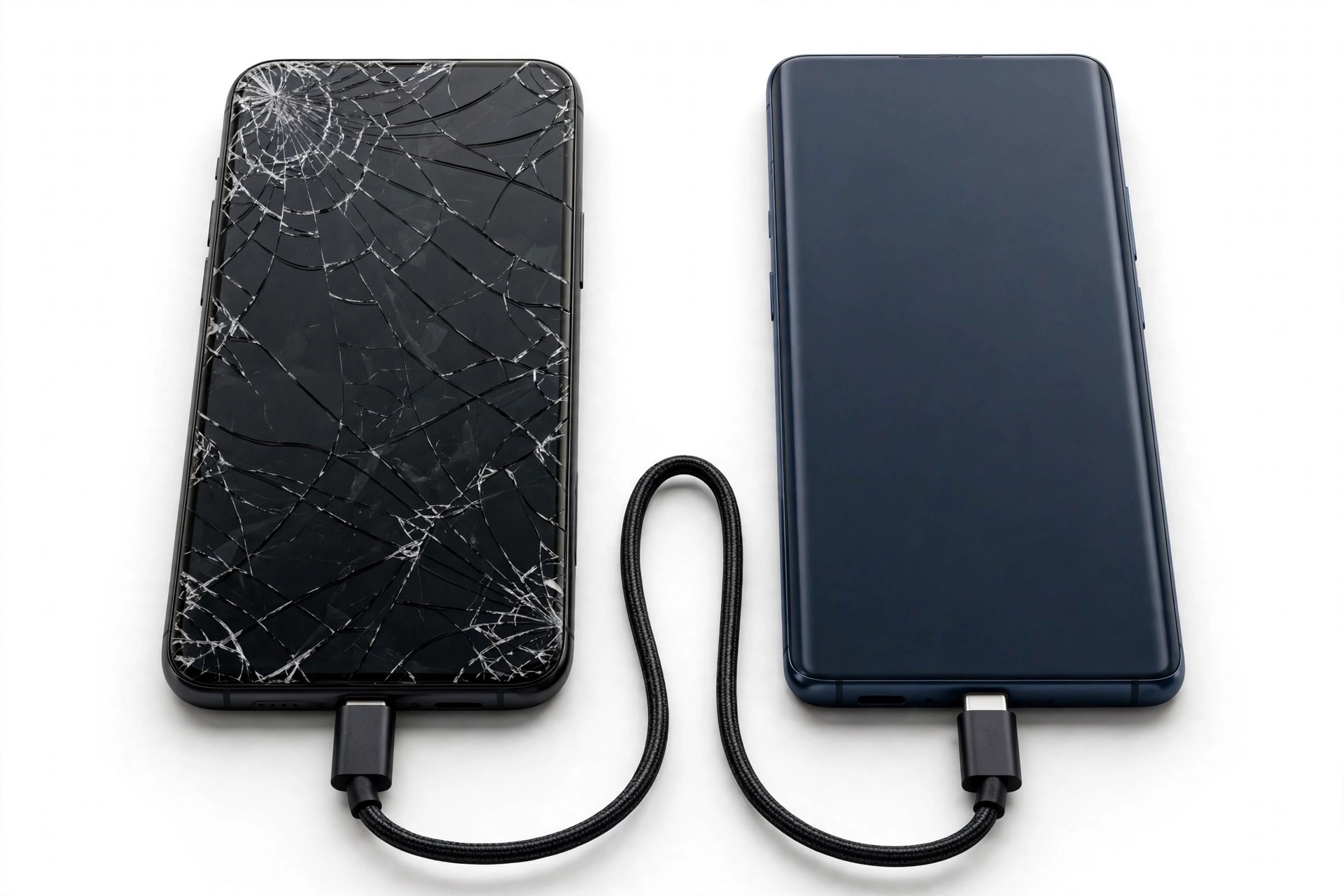
When a OnePlus phone breaks — cracked screen, dead display, phone that won’t turn on — owners ask the same thing: “How do I get my data onto my new phone?” The answer depends almost entirely on a single question: (Source: devicology.com)
Did the old phone back up before it broke?
If the answer is yes — through Google backup, a Clone Phone local backup, or Google Photos sync — the transfer is straightforward and you may never need the broken phone to work at all. If the answer is no, the path gets harder: you are trying to extract data directly from damaged hardware, and every method depends on how much of the phone still works.
This guide covers both paths in order, OnePlus-specific throughout. It uses OnePlus’s own documented tools — Clone Phone (formerly OnePlus Switch), Google’s Android backup system, and the local backup archive method OnePlus describes in its own app documentation — plus honest fallback options for phones with no backup. Everything here is a software procedure or a computer connection; nothing asks you to open the phone.
2. Who this guide helps
- Broken-screen owners: the screen is cracked or the touch no longer responds, but the phone still powers on and charges.
- Dead-phone owners: the phone shows nothing, won’t power on, or boot-loops, and you need to know whether recovery is realistic.
- Upgraders with a damaged trade-in: you are moving to a new OnePlus (or another Android) and want the fastest complete migration from a partly working old phone.
- Family helpers: someone asked you to “get everything off” a broken OnePlus and you need a safe, ordered plan.
This guide assumes the new phone is an Android device — ideally another OnePlus, since OnePlus’s Clone Phone tool is designed for exactly that. If your new phone is an iPhone, the OnePlus-specific tools don’t apply in reverse; the general broken phone data transfer guide covers cross-platform basics.
3. Quick decision table: pick your path
| Your situation | Best first move | Old phone needed? | What it restores |
|---|---|---|---|
| Google backup exists (same Google account) | Restore during new-phone setup | No | Apps, contacts, calendar, some settings, photos if Google Photos synced |
| Clone Phone local backup exists (opbackup folder) | Copy opbackup folder to new phone, restore in Clone Phone | No | Contacts, SMS, call history, notes, layouts, apps (not app data) |
| Screen broken but phone on and unlockable via mouse | USB OTG + mouse, then Clone Phone migration or fresh backup | Yes — must power on | Nearly everything via Clone Phone |
| Phone powers on, screen dead, computer recognizes it | USB cable to computer, copy files manually | Yes — must power on | Photos, videos, documents, downloads |
| Phone completely dead, no backup anywhere | Professional data recovery lab | Yes — the hardware | Whatever the lab can extract; never guaranteed |
Quick fact: Clone Phone is the current name of the app OnePlus originally shipped as “OnePlus Switch.” It is the same app, renamed and updated — if you see guides mentioning OnePlus Switch, the steps apply to Clone Phone. The app has been available on the Google Play Store since December 2017 and requires Android 6.0 or higher.
4. Path A: You have a Google backup
This is the easiest outcome. Google’s backup runs quietly in the background on most OnePlus phones as long as it was switched on. If your old phone backed up to Google Drive (or Google One), the broken phone never needs to work again.
How to check whether a backup exists
From any computer or working phone, open a browser and visit your Google account’s device backup page (drive.google.com, then Settings, or one.google.com) and sign in with the Google account that was on the broken OnePlus. If a backup entry for the old phone appears with a recent date, you have a backup.
On the old phone itself — if it is still partly usable — the backup setting lives at Settings, then System, then Backup, where “Back up to Google Drive” can be toggled and a “Back up now” button forces an immediate backup. Independent guides summarizing OnePlus’s documented flows describe exactly this path.
Restoring to the new phone
- During the new phone’s first-time setup, sign in with the same Google account.
- When offered a restore option, choose the backup from the broken OnePlus.
- Let the restore finish over Wi-Fi — apps, contacts, calendar entries, and many settings come back automatically.
- Open Google Photos separately and confirm your photos are there; photo sync is a separate toggle from device backup.
Tip: Google’s device backup does not include everything. SMS history, authenticator codes, and some app data are commonly incomplete. If messages matter, the Clone Phone backup path (Section 5) is the more complete OnePlus-native option — provided you made one before the break.
5. Path B: You have a Clone Phone local backup
Clone Phone — OnePlus’s official migration app — has a second job beyond phone-to-phone transfer: it can create local backup archives on the phone itself. The app’s own documentation describes the backup function creating a local archive (stored in a folder named opbackup) containing contacts, SMS, call history, notes, desktop layouts, and apps (excluding app data).
What the backup contains — and what it doesn’t
| Data type | In local backup | In phone-to-phone migration |
|---|---|---|
| Contacts | Yes | Yes |
| SMS messages | Yes | Yes |
| Call history | Yes | Yes |
| Photos, videos, audio | Not listed in backup docs | Yes |
| Apps | Yes — but excluding app data | Yes — including data of certain apps |
| Notes, desktop layouts, calendar | Yes | Yes (calendar) |
The key distinction: a migration (old phone to new phone, both working) moves more — including media files and some app data — while a backup archive is narrower. If you have the archive, though, it is still the best OnePlus-native restore source for messages and call history, which Google backup often misses.
How to restore a Clone Phone backup
- Install Clone Phone on the new phone from the Google Play Store.
- Open the app, scroll to the bottom, and tap Backup and Restore.
- Tap Restore Backup and select the backup you want.
- Choose the data types to restore and confirm.
If the backup archive lives on the broken phone’s storage and you can connect that phone to a computer, copy the entire opbackup folder to the computer first, then to the new phone, before restoring. OnePlus’s own app documentation advises saving the backup folder to a desktop computer as a second copy — especially before any factory reset, since a reset can delete the archive along with everything else.
Stop for safety: Do not factory-reset the broken phone before you have copied the opbackup folder somewhere safe. A reset wipes the backup archive itself, and at that point the data is gone.
6. Path C: Screen broken, phone still powers on
This is the most common real-world case: the phone works underneath, but the touch screen is dead or the display shows nothing. Clone Phone’s normal migration needs both phones to run the app and scan a QR code — impossible without a working screen. The workarounds below get you control of the phone again.
Workaround 1: USB OTG cable + mouse
If the display shows an image but touch doesn’t respond, a USB OTG (On-The-Go) adapter lets you plug an ordinary USB mouse into the phone’s charging port. The mouse cursor appears on screen, and you can click through menus, unlock the phone, open Clone Phone, and run a fresh backup or migration. Independent recovery guides describe this as the standard approach for touch-dead OnePlus phones.
- Connect the OTG adapter to the phone, then plug in a USB mouse (a wired mouse is most reliable).
- Unlock the phone using the mouse to enter the PIN or pattern.
- Open Clone Phone and either run a new backup or start a migration to the new phone.
- Alternatively, enable Google backup and tap “Back up now,” or copy files to a computer over USB.
Workaround 2: USB cable to a computer
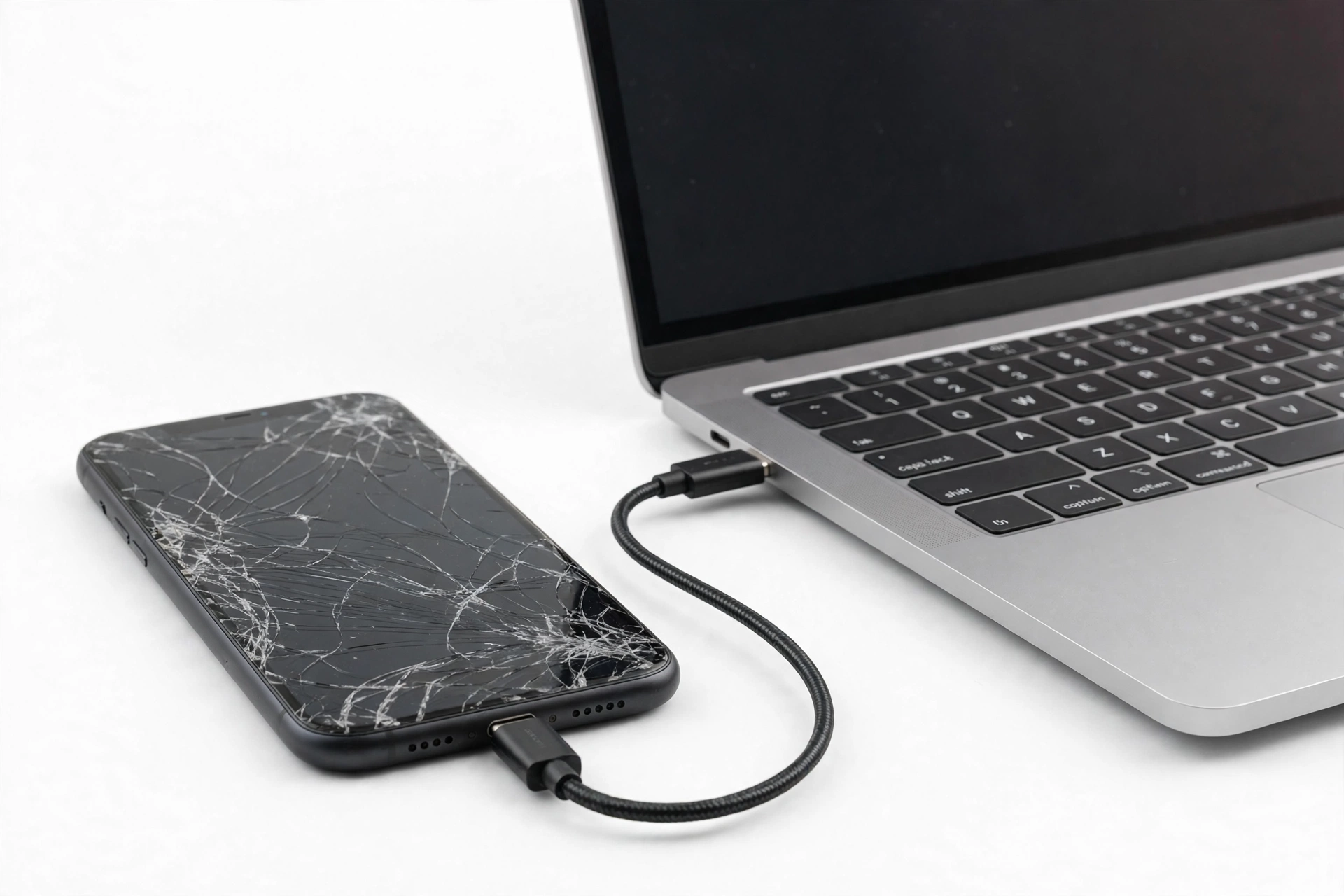
If the screen is dead but the phone powers on and the computer recognizes it, connect it with a USB cable and open File Explorer (Windows) or the file manager (Mac). With the phone unlocked — which may require the OTG mouse trick above — you can browse internal storage and copy photos, videos, documents, and downloads manually. Note that some guides mention this historically required USB debugging to be enabled beforehand; try it first, since many OnePlus phones default to file-transfer mode once unlocked.
Quick fact: Manually copied files cover your media and documents, but not SMS, call logs, app data, or settings. For those, a working Clone Phone migration or a cloud backup is still the better path.
Workaround 3: Phone-to-phone migration with a partly working screen
If the old phone can display the Clone Phone QR screen even briefly, the normal migration works: on the new phone go to Settings, then Additional Settings, then Backup and Reset, then Backup and Migrate, then Clone Phone, and choose “This is the new phone.” On the old phone, install Clone Phone from the Play Store, choose “This is the old phone,” scan the QR code, select data, and start. Keep both phones charged and on the same Wi-Fi. If the app stalls, independent guides suggest reinstalling it and trying in smaller batches — the app’s own release notes acknowledge that large transfers can hit storage limits and recommend migrating in batches.
7. Path D: Phone completely dead, no backup
This is the hardest case, and honesty matters most here. If the phone won’t power on at all and no backup exists anywhere — not Google, not Clone Phone, not Google Photos — then the data exists only on the dead phone’s storage chips.
What won’t work
- Clone Phone cannot run on a dead phone — both devices must be powered on and connected.
- Google restore has nothing to restore from.
- USB file access needs the phone to power on and be recognized by a computer.
- Third-party “recovery” apps that claim to pull data from a dead phone over a cable cannot bypass hardware encryption; modern Android storage is encrypted with keys tied to the device, and no app can conjure data the phone itself can’t read.
What can work: professional recovery
Data recovery laboratories can sometimes repair the phone’s board enough to power it — replacing a charging port, reflowing power circuitry, or transplanting storage to a donor board — and then extract the data. This is real, but it is expensive, slow, and never guaranteed. Before agreeing, ask the lab: what is the diagnostic fee, what is the success rate for this exact failure, what is the no-data policy, and how is the extracted data delivered. Do not pay in full upfront for a guaranteed outcome that no one can guarantee.
Stop for safety: Never try to open a dead phone yourself to “get the memory out.” Phone storage is soldered to the main board — there is no removable card to pull — and a damaged battery can catch fire if punctured. Opening the phone also destroys any chance a professional lab had of recovering it.
8. What transfers and what doesn’t: the honest table
| Data type | Google backup restore | Clone Phone migration | Clone Phone backup archive | USB manual copy |
|---|---|---|---|---|
| Contacts | Yes | Yes | Yes | No |
| Photos and videos | Only if Google Photos synced | Yes | Not documented | Yes |
| SMS and call logs | Often incomplete | Yes | Yes | No |
| Apps | Reinstalled from Play Store | Yes, with data of certain apps | Yes, excluding app data | No |
| Authenticator codes | No | No | No | No |
| WhatsApp chats | Only via WhatsApp’s own backup | Partial — use WhatsApp backup | No | No |
| Notes and calendar | Calendar yes | Yes | Yes | No |
| Documents and downloads | No | Yes | No | Yes |
Two entries deserve emphasis. Authenticator codes (Google Authenticator, Microsoft Authenticator) do not transfer through any OnePlus or Google method shown here — they must be migrated inside the authenticator app itself before the old phone dies, or recovered through the app’s own account recovery. WhatsApp chats need WhatsApp’s own backup to Google Drive; Clone Phone moves the app, but chat history comes from WhatsApp’s restore flow.
9. Hypothetical examples
(The following are hypothetical illustrations, not customer stories.)
Maya’s cracked OnePlus 11. Maya dropped her OnePlus 11 and the touch screen stopped responding, though the display still lit up. She plugged in a USB OTG adapter with a wired mouse, unlocked the phone, and opened Clone Phone. She ran a phone-to-phone migration to her new OnePlus 12 over Wi-Fi, moving contacts, messages, photos, and apps in one pass. The whole transfer took about 40 minutes, and she verified her SMS history arrived before wiping the old phone.
Daniel’s dead OnePlus 9. Daniel’s OnePlus 9 went through a washing machine and never powered on again. He checked his Google account from a computer and found a device backup from two weeks earlier — contacts, apps, and calendar restored to his new phone during setup. His photos were safe because Google Photos had been syncing. His SMS history from the last two weeks was lost, because he had never run a Clone Phone backup. He chose not to pay for lab recovery, since the backup covered everything he actually needed.
10. What your situation can and cannot establish
| Observation | What it establishes | What it does not establish |
|---|---|---|
| Phone charges and vibrates but screen is black | The board likely has power; storage may be intact | That the display, touch, or data are recoverable |
| Computer recognizes the phone over USB | The USB port and basic firmware respond | That you can access files — unlock may still be required |
| Google account shows a recent backup | Restorable data exists independently of the phone | That SMS, authenticator codes, or unsynced photos are included |
| Clone Phone migration stalls halfway | That batch or the connection hit a limit | That the data is lost — retry in smaller batches |
| Phone gets hot or smells while charging | Stop immediately — battery damage is possible | Anything about your data; safety comes first |
11. When to stop troubleshooting and get help
- The phone is hot, swollen, smells, or makes noise — unplug it and stop. A damaged lithium battery is a fire risk, not a data problem.
- The phone was in water — do not charge it to “test” whether it works. Charging a wet phone can short the board and destroy recoverable data.
- You have tried the OTG mouse, USB, and cloud checks and the phone still won’t cooperate — further random attempts rarely help and can overwrite things.
- A shop or lab is your next step — for assessment, not for promises. No honest technician guarantees recovery from a dead phone.
For in-person help in Las Vegas, Las Vegas Phone Repair & Accessories (7400 Las Vegas Blvd S, Unit TT42, Las Vegas, NV 89123; (424) 406-6202; open 10 AM–8 PM — call ahead to confirm today’s hours) can assess a broken OnePlus and advise on realistic next steps.
12. Questions to ask before approving any service
- What exactly will you attempt, and what is the diagnostic fee if nothing is recoverable?
- Do you work on the original board, or do you transplant storage? What are the risks of each?
- How will the recovered data be delivered to me, and in what format?
- What is your no-data policy — do I pay the full fee if nothing is recovered?
- Will any step erase or overwrite the phone’s storage?
13. Frequently asked questions
Can Clone Phone transfer data from a broken OnePlus?
Only if the old phone still powers on and can run the app. Clone Phone needs both devices working and connected — usually by scanning a QR code. If the screen is dead, use the USB OTG mouse workaround to operate the phone first, then run the migration.
Is OnePlus Switch the same as Clone Phone?
Yes. OnePlus renamed its OnePlus Switch app to Clone Phone. It is the same official app with the same backup and migration functions, updated under the new name. Guides written for OnePlus Switch apply to Clone Phone.
Where is the Clone Phone backup stored?
In a folder named opbackup on the phone’s storage. OnePlus’s own documentation advises copying this folder to a computer as a second copy — especially before a factory reset, which would delete it.
Does Google backup include my text messages?
Often incompletely. Google’s device backup covers apps, contacts, calendar, and settings reliably, but SMS history is a known gap. If messages matter, a Clone Phone backup or migration is the more complete OnePlus-native route.
My old phone won’t turn on at all. Is my data gone?
Not necessarily, but the easy paths are closed. Check your Google account for a backup first — many people have one without realizing it. If there is truly no backup, a professional data recovery lab is the remaining option, with no guarantees.
Can I move my data to a non-OnePlus Android phone?
Yes. Clone Phone can be installed from the Play Store on other Android phones for migration, and Google backup restore works on any Android device signed into the same Google account. Some OnePlus-specific items (notes, layouts) may not carry over perfectly.
What about my authenticator app codes?
They do not transfer through Clone Phone, Google backup, or USB copying. Migrate them inside the authenticator app (most support export or cloud sync) while the old phone still works, or use the app’s account recovery process.
Should I factory-reset the broken phone before sending it for repair or recycling?
Only after your data is safely on the new phone and verified — and only after copying the opbackup folder elsewhere if you made a Clone Phone backup. Resetting first destroys the backup archive along with everything else. Related reading: our guides on broken Pixel data transfer and broken Samsung data transfer follow the same backup-first rule.
Video: How to transfer everything from old to new Android
Sources and editorial notes
- Devicology — How to Transfer Data From Old Phone to New OnePlus: summarizes the Clone Phone flow (Settings > Additional Settings > Backup and Reset > Backup and Migrate > Clone Phone), QR pairing, and the Google backup alternative.
- Android Central — How to backup and restore your OnePlus phone: documents the Google Drive backup path (Settings > System > Backup) and the OnePlus Switch/Clone Phone Backup & Restore flow, including the advice to copy backups to a computer.
- Dr.Fone — OnePlus Switch App Guide: describes Clone Phone’s migration data types (contacts, messages, call logs, photos, videos, apps) and the batch-transfer advice for large migrations.
- MobiKin — Recover Data from a Broken OnePlus Phone: covers the OnePlus Switch backup-restore method and USB File Explorer extraction for damaged-screen devices.
- Dr.Fone — OnePlus Data Recovery: outlines the cloud-backup-first approach (Google Drive, Photos, OnePlus Cloud) and notes when professional lab recovery becomes necessary.
- AnyRecover — How to Recover Data from Broken OnePlus Phone: documents the USB OTG cable + mouse method for touch-dead screens and the Google Drive download path.
Last source check: October 14, 2026. AI-assisted editorial guide, checked against the linked manufacturer information and independent repair documentation. Procedures reflect documented OnePlus and Google flows; third-party recovery claims are summarized from independent guides and labeled where they are not official. For related scenarios, see our general broken-phone transfer guide.
Let’s get you connected again.
Tell us what’s happening with your device and we’ll help you decide the safest next step — no jargon, no pressure.
Las Vegas Phone Repair & Accessories · 7400 Las Vegas Blvd S, Unit TT42, Las Vegas, NV 89123
10:00 AM–8:00 PM — call ahead to confirm today’s hours