
How to Transfer Data from Broken Google Pixel to New Phone: Complete Guide
The fastest way to move your data from a broken Google Pixel to a new phone is to restore from the Google backup the old phone was already making to your Google Account. If the old Pixel can’t power on at all and it never backed up, some data may still be reachable through Google Photos, contacts, and other synced services — but anything that was only stored on the phone is likely gone, and no shop can reliably recover it.
On this page
The fastest way to move your data from a broken Google Pixel to a new phone is to restore from the Google backup the old phone was already making to your Google Account.
This guide is written for Google Pixel phones specifically — Pixel 6 through the Pixel 10 series. If your old phone is a Samsung Galaxy or an iPhone, see our dedicated guides: Transfer Data From a Broken Phone, How to Transfer Data From a Broken Samsung Phone, and How to Transfer Data From a Broken iPhone to a New iPhone.
1. Who this guide helps
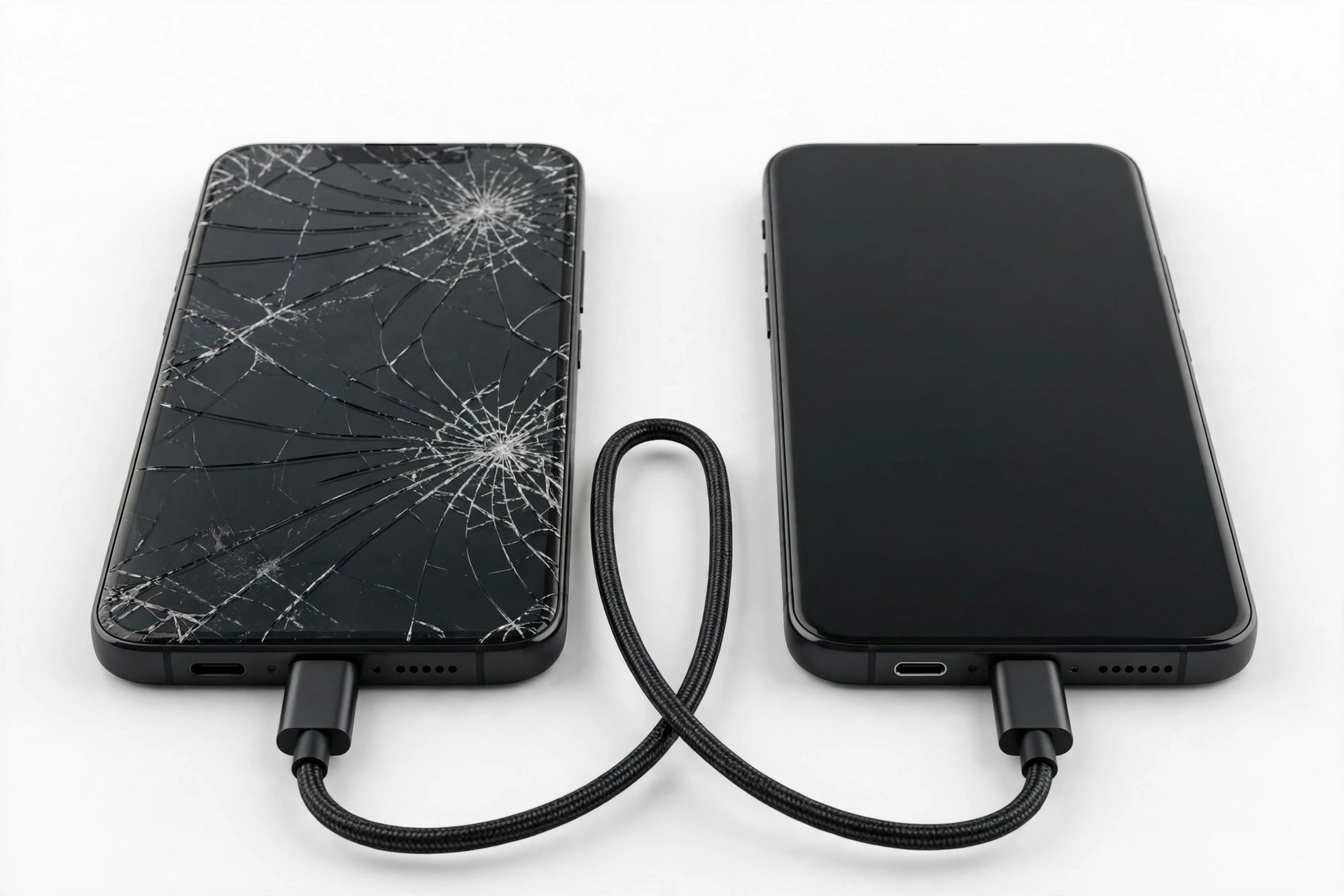
This guide is for you if your Google Pixel is cracked, unresponsive, stuck in a boot loop, water-damaged, or completely dead — and you need its data on a new phone. It covers every documented Google pathway: automatic Google backup, cable transfer, after-setup copy, Google Photos sync, and contacts sync. It also covers what to do when none of those work, with honest expectations about professional data recovery. (Source: support.google.com)
If your Pixel still powers on and the screen works, you have the most options. If the screen is dead but the phone still vibrates, plays sounds, or lights up, some partial options remain. If the phone shows no signs of life, the backup path is your only realistic route — and it works even if you no longer have the old phone at all.
2. The deciding question: did your Pixel back up?
Every method in this guide branches on one question: was your broken Pixel backing up to your Google Account before it broke? Google Pixel phones back up automatically when “Backup by Google One” is enabled — app data, call history, contacts, device settings, SMS messages, and more go to your Google Account. Photos and videos sync separately through Google Photos.
If you can’t remember whether backup was on, you can check from any computer before touching the new phone: sign into Google One (one.google.com) with the same Google Account, go to Storage, and look for device backups. If you see your Pixel model listed with a recent backup date, you’re in good shape — the new phone can pull from that backup during setup, and the old phone never needs to power on again.
Quick fact: Photos and videos backed up to Google Photos, contacts synced to your Google Account, and calendar events are not part of the device backup — they live in the cloud already. Even if your Pixel is completely dead and never made a device backup, those three usually survive untouched. Check photos.google.com and contacts.google.com before assuming anything is lost.
3. Method comparison: which path fits your situation
| Method | Requires | Old phone must power on? | What it restores | Limitations |
|---|---|---|---|---|
| Cloud backup restore (during setup) | A Google backup of the old Pixel, same Google Account | No | Apps, app data, call history, contacts, settings, SMS, Wi-Fi | Only as recent as the last backup; no photos unless Google Photos backup was on |
| Cloud backup restore (after setup, Pixel 9+) | Same as above; new phone is already set up | No | Additional data categories you skipped during setup | Merges into the existing phone; some data types may not re-transfer |
| USB cable direct transfer | Both phones, USB-C cable (and Quick Switch adapter for non-USB-C phones) | Yes — old phone must unlock | Apps, photos, videos, music, texts, call history, settings | Needs the old phone working enough to unlock and tap “Trust” |
| Wi-Fi / QR-code pairing transfer | Both phones, Wi-Fi | Yes — old phone must unlock and scan | Same categories as cable | Slower than cable; needs a working screen on the old phone |
| Google Photos / Contacts / Calendar sync | Sync was enabled on the old Pixel | No | Photos, videos, contacts, calendar events | Only synced data; app data and SMS not included |
| Computer file pull (USB) | Old phone recognized by a computer, file transfer mode | Partially — must be recognized | Files, photos, downloads visible over USB | Cannot access app data, messages, or settings; phone may need to be unlocked |
4. Path A: restore from your Google backup (no old phone needed)
This is the path Google documents and the one to try first when the old Pixel is dead, lost, or beyond repair. It works during the new phone’s initial setup.
4.1 During initial setup
- Power on the new phone and tap Get started.
- Connect to Wi-Fi and sign in with the same Google Account the old Pixel used.
- On the Copy apps & data screen, choose the option for restoring from a cloud backup (worded on recent Pixels as a backup from a previous device).
- Select your broken Pixel’s backup from the list, then choose which data categories to restore.
- Tap through and let the restore finish. Apps download in the background — give it time on Wi-Fi.
Google’s own Pixel Help page notes that if errors occur during the transfer, you can try again to retrieve missing data types. Not everything will come across: photos and videos only restore if they were backed up to Google Photos, and some app data depends on each app’s own backup behavior.
4.2 After setup (Pixel 9 and later)
If you skipped the restore during setup — or you want to pull additional data later — Pixel 9 and newer phones let you copy data from a cloud backup after setup without starting over:
- Open Settings.
- Go to Back up or copy data, then tap Copy data.
- Follow the prompts to pick data from your cloud backup and tap Copy.
Tip: On the new Pixel, the path is Settings > System > Backup (on older Pixels) or Settings > Back up or copy data (on newer Pixels). Keeping “Backup by Google One” enabled on the new phone protects you from being in this situation again.
5. Path B: cable transfer from a still-working Pixel
If the old Pixel powers on and you can unlock it — even with a cracked screen — the direct cable transfer is the most complete method. Google documents this as the “Copy apps & data” flow:
- Fully charge both phones and connect to stable Wi-Fi.
- On the new Pixel, go through setup until you reach Copy apps & data, then tap Next.
- Choose the old phone option and connect the two phones with a USB-C to USB-C cable. If the old phone has a different port, use the Quick Switch adapter that came with the Pixel.
- Unlock the old phone and tap Trust when prompted.
- On the new Pixel, choose what to transfer, sign into your Google Account, and start the copy.
Depending on how much data the old phone holds, this can take a few minutes to over an hour. Some apps reinstall from the Play Store afterward, so they may not appear immediately.
Quick fact: The cable method works between Android phones and also from an iPhone to a Pixel (with a cable and, if needed, Apple’s “Switch to Android” flow on the iPhone). But this guide is about Pixel-to-new-phone moves; for iPhone-specific broken-phone recovery, see our broken iPhone guide.
6. When the screen is broken but the phone still works
A black or unresponsive screen doesn’t always mean a dead phone. If the Pixel still vibrates, makes sounds, or shows signs of life, these workarounds can let you interact with it:
- USB OTG adapter + mouse. Pixel phones support USB On-The-Go. Plug a USB-C OTG adapter into the Pixel and connect a USB mouse — the mouse cursor lets you navigate and unlock the phone without touch. Then you can enable backups or start a cable transfer.
- Voice control. If Voice Access or Google Assistant was already enabled, you may be able to unlock and trigger a backup by voice.
- A matching phone as a visual guide. If touch still works under a dead display, mirroring the layout of an identical working Pixel can let you tap through to backup screens — slow, but it has worked for real users.
Note that external-display output (USB-C to HDMI) is only supported on newer Pixel models — broadly, the Pixel 8 series and later — and it requires granting display permission on the phone first, which you can’t do with a dead screen. Don’t buy an adapter expecting this to work on older Pixels.
7. Pulling files through a computer
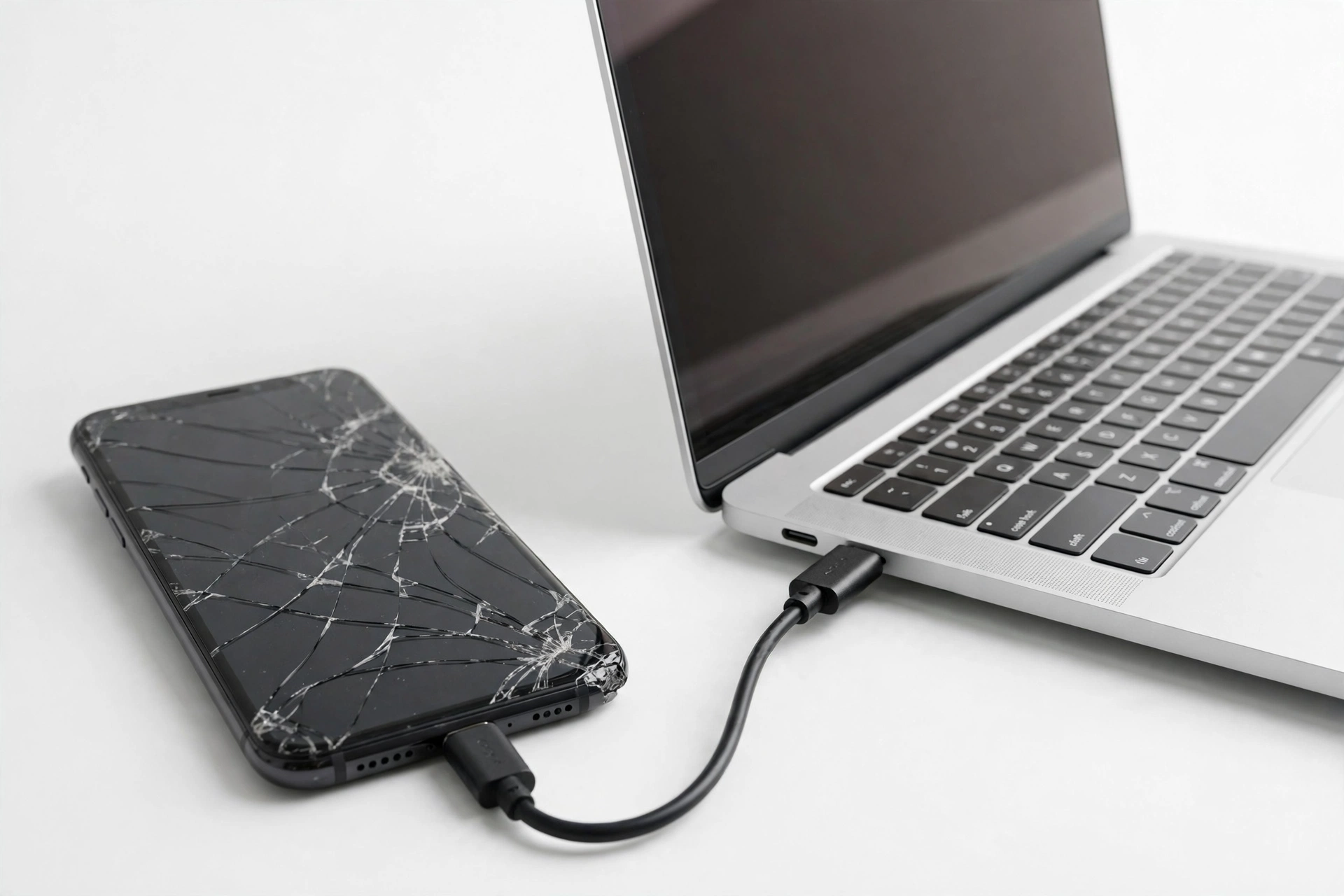
Connecting the broken Pixel to a computer with a USB cable sometimes lets you browse files — photos, downloads, documents — even when the screen is dead, if the computer recognizes the phone and the phone’s storage isn’t locked behind an un-dismissable prompt.
- Connect the Pixel to the computer with a USB cable.
- If the phone shows a USB notification you can’t reach, the computer may still list the device.
- Copy visible folders (DCIM, Downloads, Documents) to the computer.
- Move them onto the new phone later, or upload them to Google Drive.
This method cannot recover app data, SMS messages, call history, or settings — it only exposes raw files. And if the phone is locked, the computer typically gets nothing until it’s unlocked.
8. What syncs back automatically (no transfer needed)
Before spending effort on recovery, check what was already in the cloud — it may be most of what you need:
- Photos and videos: photos.google.com — if Backup was enabled in the Google Photos app.
- Contacts: contacts.google.com — Pixel phones sync contacts to the Google Account by default.
- Calendar: Google Calendar events sync automatically.
- Gmail: email is already in the cloud — just sign in.
- Drive files: anything saved to Google Drive is untouched by a broken phone.
- Chrome: bookmarks, history, and passwords sync if Chrome sync was on.
Tip: Many people discover their “lost” photos were in Google Photos all along. Check the cloud services first — it takes five minutes and sometimes makes the whole recovery question disappear.
9. When nothing works: professional data recovery
If the Pixel is dead, encrypted, and has no backup, be realistic: modern Pixels use hardware-bound encryption. The data on the storage chip is encrypted with keys tied to the phone’s hardware. Simply removing the storage chip does not give anyone your data — the phone must be brought back to a working-enough state to unlock and decrypt.
Specialist data-recovery labs can sometimes repair the phone’s board just enough to boot it and extract data — dead screens, boot loops, and fried components are all cases they’ve seen. What to know before you go this route:
- It is expensive — board-level recovery is lab work, not a shop repair.
- It is not guaranteed — if the storage chip or encryption keys are destroyed, the data is gone.
- Do not factory reset the phone — a reset wipes the encryption keys and makes recovery impossible.
- Do not keep charging a dead or water-damaged phone — powering a damaged board can cause more harm.
Stop for safety: Never open a damaged phone yourself. Punctured lithium batteries can catch fire or release toxic fumes. If the phone is swollen, hot, or smells chemical, move it to a non-flammable surface away from people and do not charge it. A battery that looks wrong is a safety problem first and a data problem second.
10. What does and doesn’t transfer
| Data type | Comes across via backup/transfer? | Notes |
|---|---|---|
| Apps and app data | Usually yes | Depends on each app’s backup support; some apps (notably authenticators) need their own transfer process |
| Photos and videos | Yes, if Google Photos backup was on | Check photos.google.com; device backup does not include them separately |
| SMS and MMS | Yes | Included in Google device backup |
| Call history | Yes | Included in Google device backup |
| Contacts | Yes | Synced to Google Account regardless of backup |
| Device settings, Wi-Fi networks | Yes | Restored during setup |
| Authenticator codes | No — special handling | Google/Microsoft Authenticator must be transferred through the app’s own export or cloud sync; see our authenticator transfer guide |
| Secure-folder / locked content | No | Encrypted containers don’t migrate; unlock and move them first if the old phone works |
| Downloaded music (offline) | Often no | Streaming libraries sync via account; offline downloads usually re-download |
11. Protect the new phone from day one
Once your data is on the new phone, set up the safety net that would have made this whole exercise unnecessary:
- Go to Settings > Back up or copy data and confirm Backup by Google One is on.
- Open Google Photos and confirm Backup is enabled for photos and videos.
- Note the backup account — make sure it’s one you control and can sign into from a computer.
- For two-factor codes, set up your authenticator app’s cloud sync or export now, not later.
12. When to stop and get an assessment
Stop troubleshooting and get a professional assessment if: the phone is swollen, hot, or smells chemical; the phone was submerged and you haven’t dried it properly; the screen replacement quote exceeds the phone’s value; or a lab tells you recovery isn’t feasible. A repair shop can replace a Pixel screen — often restoring full data access — but be clear with the shop that you want the data preserved, not a factory reset.
If you’re in the Las Vegas area and want an in-person assessment of a broken Pixel, Las Vegas Phone Repair & Accessories (7400 Las Vegas Blvd S, Unit TT42, Las Vegas, NV 89123; (424) 406-6202; open 10:00 AM–8:00 PM — call ahead to confirm today’s hours) can evaluate the device and discuss screen repair and data-preservation options. Never promise-free: get a clear explanation of what will happen to your data before any repair begins.
13. Hypothetical examples
(The following are hypothetical illustrations, not customer stories.)
Maya’s cracked Pixel 8. Maya dropped her Pixel 8 and the screen went black, but it still vibrated on calls. She plugged in a USB OTG adapter with a mouse, unlocked the phone, confirmed a Google One backup ran that morning, and then restored everything to her new Pixel 9 during setup. Total data loss: none.
Daniel’s dead Pixel 6a. Daniel’s Pixel 6a died completely after water exposure. It had never enabled device backup, but Google Photos backup had been on. He signed into photos.google.com and contacts.google.com on a computer and recovered all his photos and contacts; his SMS history and app data, which only lived on the phone, were unrecoverable. A lab quoted board-level recovery with no guarantee, and he chose not to proceed.
14. Frequently asked questions
Can I transfer data from a Pixel that won’t turn on at all?
Only from a cloud backup. If the Pixel made a Google backup before it died, restore it during the new phone’s setup — the old phone never needs to power on. Without a backup, a dead phone’s data is generally unreachable outside a specialist lab, and even labs can’t guarantee success on encrypted modern phones.
How do I check whether my broken Pixel had a backup?
Sign into Google One (one.google.com) on a computer with the same Google Account, open Storage, and look for device backups. If your Pixel model appears with a recent date, the backup exists.
Do photos transfer with the device backup?
No — photos and videos are handled by Google Photos backup, which is separate from the device backup. Check photos.google.com. If Photos backup was off and the phone is dead, photos stored only on the phone are likely lost.
Will my authenticator codes transfer?
Not automatically through the standard restore. Authenticator apps need their own transfer: Google Authenticator has a transfer/export feature, and Microsoft Authenticator syncs to a Microsoft account. Set this up on the new phone as soon as possible — being locked out of two-factor accounts is one of the most painful parts of a broken-phone move.
Can a repair shop get data off my dead Pixel?
A shop can often replace a broken screen, which restores your own access to the phone — that’s the most common “data recovery” outcome. True dead-board recovery is specialist lab work with no guarantees. Be explicit with any shop: ask them to preserve your data and confirm they won’t factory reset the device.
What about my SIM card and phone number?
Your phone number moves with your SIM or eSIM transfer — it’s separate from data. Move the SIM to the new phone (or transfer the eSIM through your carrier’s process) and your number follows. Contacts stored on the SIM itself can be imported, but most Pixel users keep contacts in their Google Account.
Should I factory reset the broken Pixel before recycling it?
Yes — but only after you’ve confirmed your data is safely on the new phone and in your Google Account. If the phone still powers on, use Settings > System > Reset options > Erase all data. If it doesn’t power on, remove the SIM and sign the device out of your Google Account remotely via your Google Account’s device management page.
How long does the restore take?
A cloud restore during setup usually takes 15–60 minutes depending on data size and Wi-Fi speed, with apps continuing to download in the background afterward. Cable transfers are faster but require both phones working.
Video: How to transfer everything from old to new Android
Sources and editorial notes
- Back up or restore data on your Pixel device — Pixel Phone Help: Google’s official guidance on automatic backup, restoring during and after setup (Pixel 9 and later), and what data categories transfer. Summarized in original language.
- Transfer data from a cloud backup — Pixel Phone Help: Google’s official steps for restoring from a cloud backup when you no longer have the old device. Summarized in original language.
- Screen broken, data recover — Google Pixel Community: community thread confirming that screen replacement is the reliable path to data access when the display is dead, and that external-display output requires on-phone permission. Summarized; community content, not official guidance.
- Google Pixel Data Recovery: Dead, Locked, or Broken: independent lab’s explanation of hardware-bound encryption on modern Pixels and why recovery depends on restoring the hardware enough to unlock. Summarized in original language.
- How to use Google’s Pixel 9 transfer tool to restore more old data — Android Authority: walkthrough of the post-setup “Back up or copy data” flow on Pixel 9 and later. Summarized in original language.
- Transfer Everything to Your New Google Pixel 8 — Technobezz: cable-transfer and cloud-restore steps during initial setup. Summarized in original language.
Last source check: October 14, 2026. AI-assisted editorial guide, checked against the linked manufacturer information. Google’s support pages change over time; if a menu path in this guide no longer matches your phone, use your Pixel’s Settings search to find the current location. This article describes Google’s documented backup and transfer features — it does not claim data recovery is possible in every case, and professional recovery outcomes are never guaranteed.
Let’s get you connected again.
Tell us what’s happening with your device and we’ll help you decide the safest next step — no jargon, no pressure.
Las Vegas Phone Repair & Accessories · 7400 Las Vegas Blvd S, Unit TT42, Las Vegas, NV 89123
10:00 AM–8:00 PM — call ahead to confirm today’s hours