
How to Transfer Data from Broken Samsung Phone to New Phone: Complete Guide
If your Samsung phone is broken but you had a backup — Smart Switch on a computer, Samsung Cloud, or Google backup — your data can move to a new Galaxy phone even if the old phone is completely dead. Without a backup, your options depend on whether the old phone still powers on and can be unlocked; this guide walks through every working method in order of reliability.
On this page
If your Samsung phone is broken but you had a backup — Smart Switch on a computer, Samsung Cloud, or Google backup — your data can move to a new Galaxy phone even if the old phone is completely dead.

Related: our general broken-phone data transfer guide covers the brand-neutral basics; the broken-iPhone companion guide covers Apple’s side. This article is Samsung-specific throughout.
1. Who this guide is for
This guide is written for owners of Samsung Galaxy phones — the Galaxy S series, Galaxy Z Fold and Z Flip, Galaxy A series, and older Samsung models — whose phone is physically damaged (cracked or black screen, dead battery, water damage, won’t turn on) and who need to get their data onto a new phone. (Source: samsung.com)
It helps you if any of these describe you:
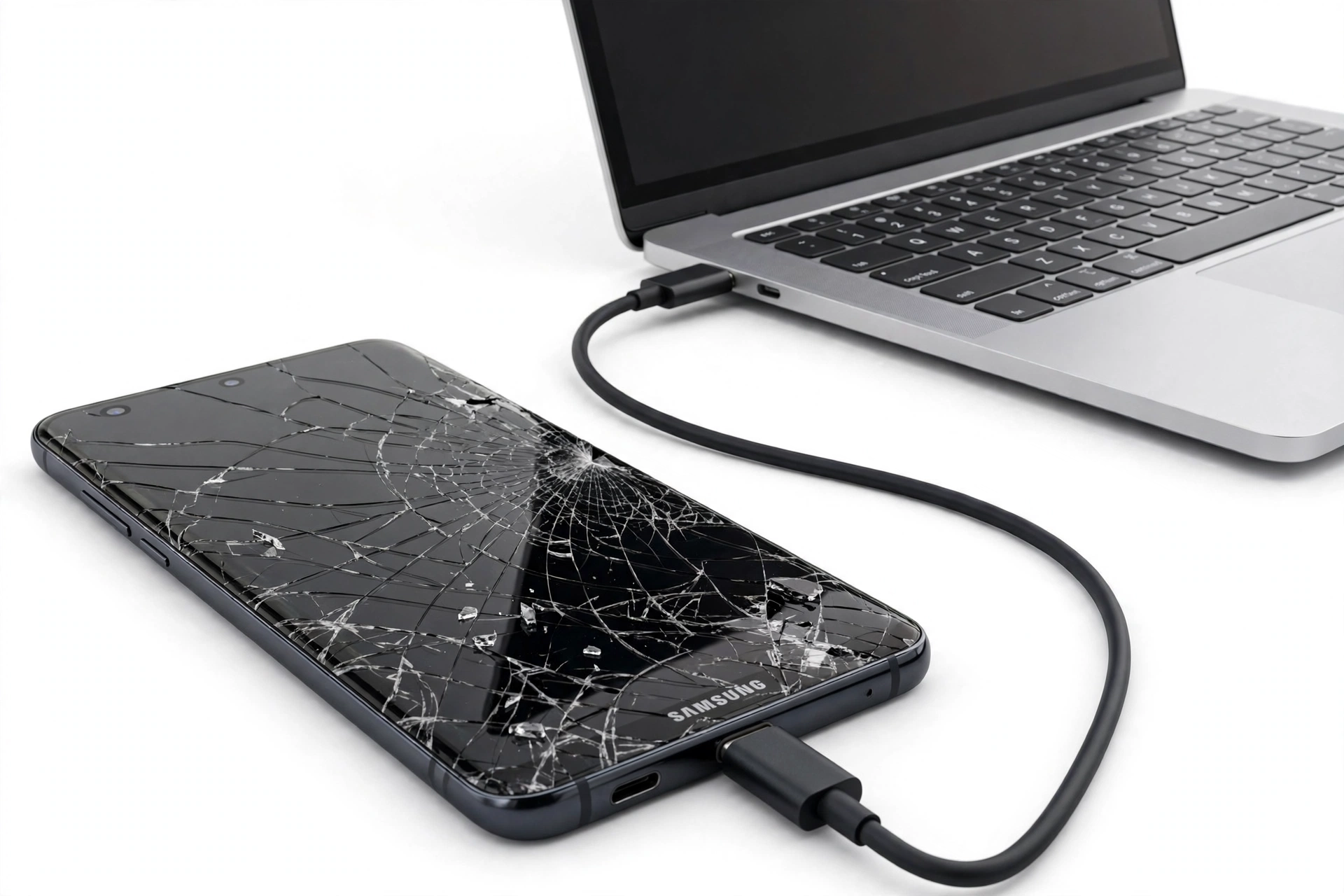
- Your Samsung screen is shattered but the phone still turns on, and you need contacts, photos, messages, and apps on your new Galaxy.
- Your Samsung phone is completely dead and you’re wondering whether anything is recoverable.
- You had a Smart Switch backup on a computer, a Samsung Cloud backup, or a Google backup, and you’re not sure how to get that backup onto the new phone.
- You want to know honestly which methods work with a broken screen — and which don’t.
If your phone works fine and you simply want to move to a new Galaxy, the standard Smart Switch phone-to-phone transfer is easier and is covered on Samsung’s support pages. This guide focuses on the broken-phone scenarios where the normal path isn’t available.
2. The one question that decides everything
Before trying anything, answer this single question:
Did your broken Samsung phone back up before it broke?
If the answer is yes — a Smart Switch backup on a Windows PC or Mac, a Samsung Cloud backup, or a Google backup — then the physical state of the old phone barely matters. You can restore that backup onto the new phone even if the old phone is completely destroyed. Skip straight to the method that matches your backup type (Sections 4, 6, and 7).
If the answer is no, or you’re not sure, then everything depends on the phone’s condition:
- Phone powers on and can be unlocked: you can still make a Smart Switch backup to a computer or transfer directly to the new phone — even with a broken screen, using workarounds covered in Section 5.
- Phone powers on but you can’t see or touch anything: harder, but there are still paths (cloud backups you may not know were running; OTG-mouse control; Find My Mobile remote actions).
- Phone is completely dead (won’t power on at all): if there is no backup, professional board-level data recovery is the only remaining option — and it comes with honest limits, covered in Section 9.
Quick fact: many Samsung owners have backups they don’t know about. Samsung phones can back up to Samsung Cloud automatically (if enabled) and to a Google account automatically (if backup is on in Google settings). Before assuming the worst, check both on your new phone during setup — Section 6 and 7 explain how.
3. Samsung’s three transfer systems, explained
Samsung phones have three built-in backup and transfer systems, and they behave differently when the old phone is broken. Understanding the difference saves you from trying the wrong method first.
Smart Switch (local backup and transfer)
Smart Switch is Samsung’s official transfer tool. It exists in two forms:
- The mobile app (preinstalled on Galaxy phones) — moves data directly from an old phone to a new Galaxy over cable or wirelessly.
- The PC/Mac program — backs up a Galaxy phone to a Windows computer or Mac, and restores that backup to a (new) Galaxy phone.
Per Samsung’s support documentation, Smart Switch backs up and restores contacts, messages, photos, videos, music, documents, apps, call logs, alarms, and settings. Backups are stored on your computer or external storage — not in the cloud — which is what makes Smart Switch so useful for broken phones: a backup made weeks ago still works today, no old phone required.
Samsung Cloud (cloud backup)
Samsung Cloud backs up your Galaxy phone to Samsung’s servers — typically while charging on Wi-Fi, if the feature was enabled. The backup is tied to your Samsung account, not to the physical phone. During the setup of a new Galaxy phone, you sign in with your Samsung account and choose which cloud backup to restore.
The critical detail: Samsung Cloud backups happen automatically only if the feature was turned on. Samsung Cloud also syncs certain data continuously (contacts, calendar, notes, photos via Gallery sync) independently of full backups.
Google backup (Android system backup)
Every Android phone, including Samsung’s, can back up to your Google account: app data, call history, contacts, device settings, and (if enabled) photos and videos. This backup is restored during the new phone’s setup when you sign in with the same Google account.
Google backup is the quiet workhorse: many Samsung owners have it running without remembering they turned it on.
4. Method 1: Restore a Smart Switch computer backup (most reliable)
If you (or someone) ever connected your Samsung phone to a Windows PC or Mac and clicked Backup in the Smart Switch program, you have the most reliable recovery path of all — it needs no working old phone.
Find the backup file first
Smart Switch stores backups in fixed locations, per Samsung’s support documentation:
- Windows 10: C:\Users\[username]\Documents\Samsung\SmartSwitch
- Windows 11: C:\Users\[username]\AppData\Roaming\Samsung\SmartSwitchPCtoPC
- Mac: /Users/[username]/Documents/Samsung/SmartSwitch/backup
If you used a different computer than your current one — a work laptop, a family PC, a computer you no longer own — think carefully about which machine ran the backup. The backup file lives on that machine.
Tip: Smart Switch backup folders are named by device model and date. If you find several folders, pick the one matching your broken phone’s model and the most recent date before the damage.
Restore it to the new Galaxy
Following Samsung’s documented restore procedure:
- Download and install the Smart Switch PC program from Samsung’s official website on the computer that holds the backup.
- Temporarily disable or pause your firewall, antivirus, anti-spyware, and anti-malware tools — Samsung’s own support pages note these can interrupt the transfer.
- Open Smart Switch on the computer and connect your new Galaxy phone with a USB data cable.
- Allow permissions on the new phone when prompted.
- On the computer, click Restore, then select the backup file (use Select a Different Backup if it isn’t the default).
- Choose the data categories you want — or restore everything — and click Restore now.
- When complete, click OK and safely disconnect the phone.
This method restores contacts, messages, photos, videos, apps, settings, and more — the most complete single restoration available, because Smart Switch computer backups are more comprehensive than cloud backups. If photos are your main concern, our guide to backing up Samsung photos before a repair covers photo-specific options in more detail.
5. Method 2: Smart Switch from the broken phone itself (when it still powers on)
If there is no computer backup but the old Samsung phone still turns on, you can create a fresh backup now — even with a damaged screen — and then restore it to the new phone. The catch is always the same one: Smart Switch cannot bypass the lock screen. The phone must be unlocked before Smart Switch will talk to it.
Scenario A: Screen is cracked but touch works (partially)
If you can see enough of the display and the touch digitizer responds in at least part of the screen:
- Unlock the phone with your PIN, pattern, or password.
- Connect the old phone to your computer with a USB data cable and tap Allow on the “Allow access to phone data” prompt if it appears.
- Open Smart Switch on the computer, click Backup, select your data categories, and click OK.
- Wait for the backup to finish — keep the phone connected and, if available, enable the Keep screen on option on the phone so it doesn’t lock mid-backup.
- Then connect the new Galaxy and click Restore (Section 4’s steps).
Scenario B: Screen is visible but touch is dead
A cracked screen that shows a picture but ignores your fingers is extremely common. The widely used workaround is a USB OTG (On-The-Go) adapter with a USB mouse:
- Plug a USB OTG adapter into the broken phone’s charging port.
- Plug a standard USB mouse into the adapter — a cursor appears on the phone’s screen.
- Use the mouse to enter your PIN/pattern/password and unlock the phone.
- Use the mouse to tap Allow on the USB data-access prompt.
- Then run the Smart Switch backup from the computer exactly as in Scenario A.
This works because the phone’s USB port still functions normally even when the touch layer is destroyed. OTG adapters are inexpensive and widely available; any basic wired or wireless USB mouse works.
Scenario C: Phone is locked and you can’t unlock it at all
If you can’t see or control the screen, try Samsung’s Find My Mobile (part of SmartThings Find) from a web browser:
- On a computer or another device, sign in at Samsung’s Find My Mobile site with the Samsung account used on the broken phone.
- If the phone is online, you can see its location and — importantly — use the Unlock remote action, which unlocks the phone even without the PIN.
- Once unlocked, proceed with the Smart Switch backup via computer.
Remote unlock only works if the phone is powered on, connected to the internet, signed into the Samsung account, and had remote unlock enabled. If any of those aren’t true, move to the cloud-backup methods in Sections 6 and 7.
Scenario D: Direct phone-to-phone transfer with a broken screen
Smart Switch can also move data directly from the old phone to the new Galaxy over a USB-C cable (or wirelessly), without a computer:
- Open Smart Switch on both phones.
- On the old phone tap Send data; on the new phone tap Receive data.
- Connect the phones with a USB-C cable (or choose Wireless and place the phones within a few inches of each other).
- Tap Allow on the old phone when prompted, select the data to transfer on the new phone, and tap Transfer.
With a broken screen, the OTG-mouse trick from Scenario B handles the taps on the old phone. A wired connection is more stable than wireless for large transfers — a wired transfer of around 50 GB typically completes in roughly 15–25 minutes, while a congested wireless transfer can take over an hour.
Stop for safety: never try to open a damaged Samsung phone to “fix” it for data recovery. A swollen, punctured, or overheating battery is a fire risk — stop, keep the phone away from flammable materials, and take it to a professional. No data is worth a battery fire.
6. Method 3: Restore a Samsung Cloud backup during new-phone setup
If your broken Samsung had Samsung Cloud backup enabled, the backup is waiting on Samsung’s servers under your Samsung account — no old phone needed.
- Start the setup on your new Galaxy phone.
- When prompted, sign in with the same Samsung account used on the broken phone.
- During setup you’ll be offered available backups — select the most recent Samsung Cloud backup from before the damage.
- Choose what to restore and complete the setup. Restoration continues in the background.
You can also check what Samsung Cloud holds before committing: sign in to your Samsung account in a web browser on a computer, where you can view synced data — contacts, photos, notes, and other synced items — and even download some of it directly.
Quick fact: even without a full Samsung Cloud backup, individually synced items (contacts, calendar, Samsung Notes, Gallery photos if sync was on) come back automatically the moment you sign into your Samsung account on the new phone. Many “lost data” panics end here.
7. Method 4: Restore the Google backup during new-phone setup
Google’s Android backup is the fallback most people forget they have. During the new Galaxy phone’s setup:
- Sign in with the same Google account that was on the broken Samsung.
- When the setup offers to restore from a backup, you’ll see the broken phone listed with its backup date.
- Select it and choose what to restore: apps, app data, call history, contacts, device settings, and photos/videos (if Google Photos backup was on).
Google backup restores less than a Smart Switch backup — it won’t carry over Samsung-specific items like Samsung Notes, Secure Folder contents, or system-level Samsung settings — but for contacts, photos (if backed up), and getting your apps back, it does the job. It combines well: restore the Google backup at setup, then layer a Smart Switch restore on top for Samsung-specific data.
8. Method 5: SD card or USB-drive backup restore
If your broken Samsung had a microSD card (many Galaxy A series and older S series phones do), check the card first — photos, videos, and files saved to the card are untouched by screen or board damage. Move the card to the new phone (if it supports one) or read it on a computer.
Smart Switch can also back up to external storage, and restore from it:
- Insert the SD card from the old phone into the new Galaxy (or connect a USB OTG flash drive or SSD to the new phone’s charging port).
- Open Smart Switch on the new phone and tap the SD card icon in the upper-right corner.
- Tap Restore, select the content, and tap Restore again.
If the old phone can’t be operated at all but had previously written a Smart Switch backup to an SD card or USB drive, that backup is directly restorable on the new phone with no computer involved.
9. Method comparison: which path fits your situation
Use this table to pick your starting point. Start with the highest-numbered method you qualify for — the earlier methods are more complete and more reliable.
| Method | Requires | Old phone needed? | What it restores | Limitations |
|---|---|---|---|---|
| 1. Smart Switch computer backup restore | The backup file on a PC/Mac | No | Contacts, messages, photos, videos, apps, settings, documents — the most complete restore | Only works if a backup was made before the damage |
| 2. Fresh Smart Switch backup from the broken phone | Old phone powers on and can be unlocked (OTG mouse if touch is dead) | Yes | Same comprehensive set as Method 1, current to today | Phone must unlock; “Allow” prompt must be tappable; dead phones excluded |
| 3. Samsung Cloud restore | Samsung account + a cloud backup or synced data | No | Contacts, calendar, notes, photos (if synced), app list, settings | Only if backup/sync was enabled before damage; Secure Folder contents do not transfer |
| 4. Google backup restore | Google account + Android backup enabled | No | Apps, app data, call history, contacts, settings, photos (if backed up) | Less complete than Smart Switch; no Samsung-specific data |
| 5. SD card / USB drive restore | A card or drive holding the files or a Smart Switch backup | No (for restore) | Whatever was saved on the card; full backup if Smart Switch wrote one there | Newer Galaxy flagships have no SD slot; card must have been in use before damage |
| 6. Professional data recovery | A repair shop with board-level capability | Yes | Potentially raw storage contents | Expensive; no guarantees; encrypted storage may be unreadable without a working board |
10. What transfers — and what doesn’t
Expectations matter. Even the best method has boundaries, and knowing them now prevents a nasty surprise after the restore finishes.
| Data type | Smart Switch | Samsung Cloud | Google backup |
|---|---|---|---|
| Contacts | Yes | Yes | Yes |
| Photos and videos (on device) | Yes | Yes (if Gallery sync was on) | Yes (if Google Photos backup was on) |
| Text messages | Yes | Yes (if included in backup) | Limited (varies by app) |
| Call history | Yes | Yes | Yes |
| Apps and most app data | Yes | App list (re-downloads) | Yes |
| Samsung Notes | Yes | Yes | No |
| Secure Folder contents | No | No | No |
| WhatsApp chats | Partial (see note) | No | Yes (via WhatsApp’s own backup) |
| Banking / authenticator apps | Often excluded by design | Excluded | Excluded |
WhatsApp note: WhatsApp keeps its own backup (Google Drive on Android). Install WhatsApp on the new phone, verify your number, and restore from its own backup prompt — don’t rely on Smart Switch for it.
Authenticator note: apps like Google Authenticator and Microsoft Authenticator deliberately don’t transfer codes for security. If you still have the old phone working, transfer them inside each app before wiping anything. If the old phone is dead and you didn’t export, you’ll need each account’s recovery codes — this is the single most common permanent loss in broken-phone scenarios.
11. Special scenarios, honestly addressed
The phone is dead — no power, no lights, nothing
If the phone won’t power on at all and there is no backup anywhere, be honest with yourself: the data is most likely gone. The one remaining path is professional board-level data recovery, where a technician repairs the phone’s power circuitry just enough to read the storage chip. This is specialized work, it costs significantly more than a screen repair, and modern Samsung encryption means the data may be unreadable even if the chip is extracted. No reputable shop will guarantee results — treat any “100% guaranteed recovery” claim as a red flag.
The screen is black but the phone vibrates or makes sounds
This is actually a hopeful scenario: the phone is alive, only the display is dead. The OTG-mouse method (Section 5, Scenario B) works here — you navigate “blind” with the mouse, or better, connect the phone to a computer running Smart Switch and authorize via mouse. If the phone was previously set to stay unlocked on trusted devices, even less interaction is needed.
Water damage
Do not charge a water-damaged phone, and do not try to power it on repeatedly “to check.” If it already powers on, back it up immediately with Smart Switch before corrosion progresses. If it doesn’t, keep it powered off and dry, and take it to a professional promptly — water damage gets worse with time, and every day reduces recovery odds.
You bought the new phone already and set it up
Cloud restores (Samsung Cloud, Google backup) are offered during initial setup. If you already finished setup, you can still restore a Smart Switch computer backup afterward (Section 4) — but merging may duplicate some items. The cleanest result comes from restoring during setup, so if you just unboxed the new phone, don’t complete setup until you’ve decided your restore strategy.
Two hypothetical scenarios
The following are hypothetical illustrations, not customer stories.
Scenario A — Maya’s cracked Galaxy S24. Maya drops her Galaxy S24 and the screen shatters, but touch still works on the left half of the display. She unlocks the phone with her PIN, connects it to her laptop, taps Allow on the half-visible prompt, and runs a Smart Switch backup to the PC. Two days later she restores that backup to her new Galaxy phone. Total data lost: none — because the phone still powered on and unlocked, the damage was an inconvenience, not a data-loss event.
Scenario B — Daniel’s dead Galaxy A54. Daniel’s Galaxy A54 goes through a full washing-machine cycle and never powers on again. He never made a Smart Switch backup — but during his new phone’s setup he signs into his Samsung account and discovers a Samsung Cloud backup from the night before the accident. His contacts, photos, and notes come back; his Secure Folder contents and authenticator codes do not. The cloud backup he didn’t know he had saved most of what mattered.
12. When to stop and get professional help
Stop DIY recovery and take both phones (or the broken phone and your computer with the backup) to a repair shop if:
- The phone is swollen, hot, smells odd, or the battery area is distorting the frame — safety first, always.
- Smart Switch doesn’t detect the old phone after trying a known-good cable, a different USB port, and reinstalling device drivers.
- The phone is dead and holds irreplaceable data (wedding photos, a deceased relative’s messages) with no backup — a professional assessment costs little compared to permanent loss.
- You need Secure Folder contents — these are encrypted to the device and effectively unrecoverable from a dead phone; a technician can at least confirm what’s possible.
For an assessment in the Las Vegas area, Las Vegas Phone Repair & Accessories, 7400 Las Vegas Blvd S, Unit TT42, Las Vegas, NV 89123, (424) 406-6202, can evaluate a damaged Samsung phone and advise on recovery options. Hours are 10:00 AM–8:00 PM; call ahead to confirm today’s hours.
13. What no method can do — honest limits
| What you can establish | What you cannot establish |
|---|---|
| Whether a Smart Switch backup file exists on your computer (check the folders in Section 4) | Whether a backup contains a specific photo without restoring it |
| Whether Samsung Cloud has a backup (sign in during new-phone setup) | The exact contents of a cloud backup before restoring |
| Whether the old phone still powers on (charger + vibration/sound check) | Whether a dead phone’s storage is readable without professional tools |
| Whether your Google account was backing up (check during setup) | Recovery of Secure Folder contents from a dead device |
Quick fact: Samsung’s Smart Switch documentation notes that messages can’t be viewed on the computer from backup files — they only become readable once restored to a phone. So don’t panic if the backup folder looks like gibberish; that’s normal.
14. Frequently asked questions
Can Smart Switch transfer data from a Samsung with a completely black screen?
Yes, if the phone powers on and can be unlocked. The screen being black doesn’t stop Smart Switch — the phone’s USB connection still works. Use a USB OTG adapter with a mouse to unlock the phone and tap “Allow” on the data-access prompt, then run the backup from the Smart Switch PC program. If the phone won’t unlock at all, fall back to Samsung Cloud or Google backup restore.
Does Smart Switch delete data from the old phone?
No. Smart Switch copies data; it never deletes anything from the source phone. Your old phone keeps everything. (Only wipe the old phone yourself after you’ve verified the new phone has everything — and never wipe a phone whose data you haven’t confirmed elsewhere.)
I never made a backup. Is everything lost?
Not necessarily — check three things before concluding that: (1) sign into your Samsung account during new-phone setup to see if Samsung Cloud has a backup or synced data; (2) sign into your Google account to see if Android backup was running; (3) if the old phone powers on, make a Smart Switch backup now. Only if all three come up empty is the situation genuinely bleak.
Can I restore a Smart Switch backup to a non-Samsung phone?
No — Smart Switch restores target Galaxy devices. If your new phone isn’t a Samsung, use Google backup restore during its setup instead, and move files manually via USB. (Smart Switch can send from many Android phones and iPhones to a Galaxy, but the restore direction is Galaxy-only.)
How long does the transfer take?
It depends on data volume and method. A wired Smart Switch transfer of around 50 GB typically takes 15–25 minutes; wireless takes longer, especially on congested Wi-Fi. Cloud restores depend on your internet speed and continue in the background. Keep both phones charged and don’t interrupt the process.
Will my apps and logins come back?
Apps themselves come back; logins mostly don’t. Plan to sign back into banking apps, social apps, and email. Authenticator apps need special handling — transfer codes inside the app while the old phone works, or use your saved recovery codes. Treat re-login as a normal part of the process, not a failure.
My new phone is already set up. Can I still restore?
Yes for Smart Switch computer backups — connect the new phone and restore anytime. For Samsung Cloud and Google backups, the restore prompt appears during initial setup; if you already finished setup, you’d need to factory-reset the new phone to get that prompt again. Weigh that against what’s at stake before resetting a phone you’ve already configured.
What about photos on the SD card?
They’re the easiest win of all: the card is independent of the phone’s damage. Move it to the new phone (if it has a slot), a card reader on a computer, or a USB OTG reader. Check the card before anything else — it takes thirty seconds and often resolves the “my photos are gone” panic immediately.
Video: How to transfer everything from old to new Android
Sources and editorial notes
- Samsung Support — Back up and restore data or files on your Galaxy phone or tablet: Smart Switch PC/Mac backup and restore procedures, backup file locations, external-storage restore.
- Samsung Support — Transfer data to a new phone using Smart Switch for Windows or Mac: computer-based backup and restore steps, disabling security software during transfer.
- Samsung Support — Transfer Data with Smart Switch: wireless, cable, and computer transfer methods; supported Galaxy devices.
- Samsung Support — Transfer, backup, or restore Messages on Galaxy phones: message transfer specifics, including PC/Mac and external-storage restore paths.
- TechOnTheGo — Samsung Broken Screen Data Recovery: independent guide covering cloud restore, OTG-mouse control, and Smart Switch with damaged screens.
Last source check: October 14, 2026. AI-assisted editorial guide, checked against the linked manufacturer information. Procedures describe Samsung’s documented Smart Switch, Samsung Cloud, and Google backup flows; third-party workarounds (OTG mouse, remote unlock) are described as community-documented techniques, not Samsung-official procedures. Business details describe Las Vegas Phone Repair & Accessories as provided by the site owner. No data recovery outcome is guaranteed.
Let’s get you connected again.
Tell us what’s happening with your device and we’ll help you decide the safest next step — no jargon, no pressure.
Las Vegas Phone Repair & Accessories · 7400 Las Vegas Blvd S, Unit TT42, Las Vegas, NV 89123
10:00 AM–8:00 PM — call ahead to confirm today’s hours