
How to Transfer Data from Broken Ulefone Phone to New Phone: Complete Guide
Yes — you can transfer data from a broken Ulefone phone to a new phone, and the most reliable method is restoring the Google backup your Ulefone was already making in the background. Because Ulefone ships near-stock Android with no proprietary transfer app, Google’s built-in backup, Google Photos, and a USB cable do the heavy lifting — even when the screen is cracked or dead.
On this page
Yes — you can transfer data from a broken Ulefone phone to a new phone, and the most reliable method is restoring the Google backup your Ulefone was already making in the background.
1. Who this guide helps
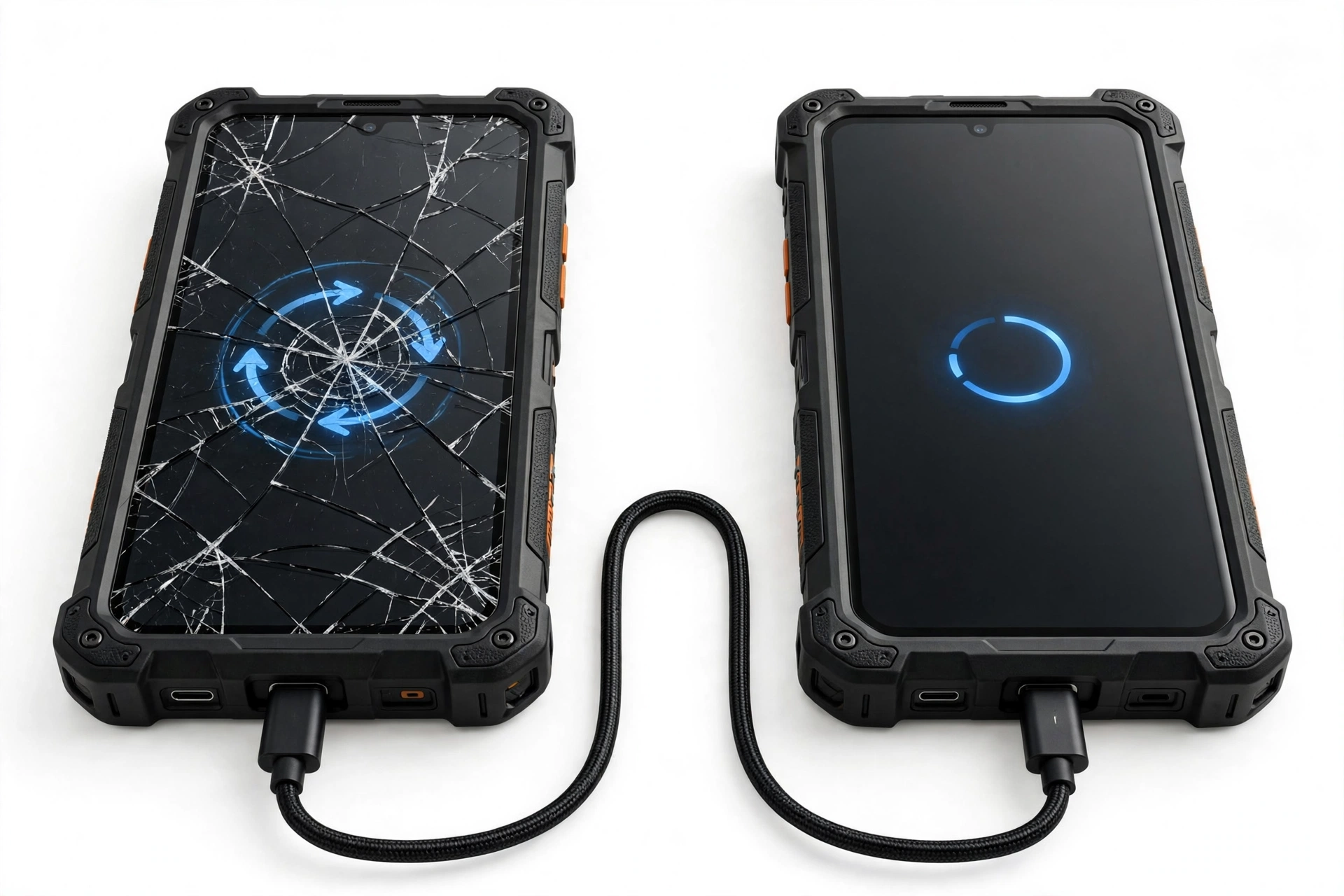
This guide is written for Ulefone owners — Armor, Note, Power, and Power Armor series users — whose phone is cracked, has a dead touchscreen, won’t power on reliably, or is otherwise too damaged to use normally, and who need to move contacts, photos, messages, apps, and other data to a replacement phone (any brand). It also helps anyone planning ahead: the steps that make a future transfer painless. (Source: resetfree.com)
Ulefone phones are rugged by design — IP68/IP69K ratings and MIL-STD-810H certification on Armor models — but rugged does not mean indestructible. Screens still crack, USB ports still fail, and batteries still swell. When that happens, the transfer playbook is the same one that applies to most Android phones, with a few Ulefone-specific notes around microSD storage and the stock-Android settings paths.
Quick fact: Ulefone has never released a flagship phone-to-phone transfer app of its own — there is no Ulefone equivalent of Samsung Smart Switch or Honor Device Clone. Any Play Store app calling itself “Ulefone Transfer” or “Ulefone Phone Clone” is third-party software, not made by Ulefone. Google’s built-in backup and the “Copy apps & data” setup flow on your new phone are the official path.
2. Before you touch anything: the safety rules
A broken phone can be a hazardous phone. Follow these rules before attempting any transfer:
- Swollen or hot battery — stop. If the back cover is bulging, the screen is lifting away from the frame, or the phone is dangerously hot, do not charge it, do not power it on repeatedly, and do not attempt a cable transfer. Power it down if you safely can and get professional help.
- Water damage — no rice, no repeated power-ons. If the phone got wet, do not put it in rice (it does nothing useful and introduces dust), and do not keep trying to power it on — each attempt risks short-circuiting components. Let it dry in open air, then assess.
- Never factory-reset before copying. A factory reset erases the very data you are trying to save. Reset only after you have confirmed your data is safely on the new phone or in the cloud — or when you are recycling the broken phone after a successful transfer.
- Never open the phone yourself. Ulefone Armor models use glued, gasketed assemblies for their water resistance. Prying one open risks battery puncture (fire hazard) and destroys the waterproofing.
Stop for safety: if the phone smells of burning plastic, is smoking, or the battery is visibly swollen, stop all transfer attempts immediately. No photo or contact is worth a battery fire. A repair shop can advise on safe handling.
3. What “broken” actually means for your data
Not all broken phones are equal. Your transfer options depend entirely on what still works. Identify your phone’s condition first, then jump to the method that fits.
| Phone condition | Screen visible? | Touch works? | Best transfer method |
|---|---|---|---|
| Cracked glass, everything works | Yes | Yes | Google backup check + cable copy + SD card |
| Screen visible, touch dead | Yes | No | USB OTG + mouse to operate phone, then cable copy |
| Screen black, phone powers on | No | Unknown | Google backup restore on new phone (cloud already has it); USB to PC if recognized |
| Phone won’t power on at all | No | No | Google backup restore on new phone — only option without repair |
| Phone powers on but USB port damaged | Maybe | Maybe | Google backup restore; microSD card if data was stored there |
The single most important insight: if your Ulefone was signed into a Google account with backup enabled, most of your data is already in the cloud — contacts, calendar, app list, SMS (on newer Android), Wi-Fi passwords, and settings. You do not need the broken phone to cooperate to get that data onto a new phone. Photos are in Google Photos only if backup was turned on there.
4. Method 1: Restore your Google backup on the new phone (works even with a dead phone)
This is the method to try first, because it requires nothing from the broken phone — not even that it powers on. During the setup of any new Android phone, Google offers to restore from a previous device backup.
What Google backup includes
Google’s device backup (sometimes labeled “Backup by Google One”) covers:
- Contacts (if saved to your Google account)
- Calendar events
- SMS text messages (on Android 8 and later, when backup is enabled)
- Call history
- Installed app list (apps re-download from the Play Store)
- Device settings (Wi-Fi networks and passwords, wallpaper, display settings)
- Some app data (for apps that participate in backup — not all do)
| Data type | Covered by Google backup? | Notes |
|---|---|---|
| Contacts | Yes | Only if saved to Google account, not “Phone” or SIM-only |
| Photos and videos | Only via Google Photos | Device backup does not include camera photos — check Google Photos separately |
| SMS / call logs | Yes | Requires backup enabled before the phone broke |
| WhatsApp chats | No | WhatsApp has its own Google Drive backup — restore inside WhatsApp |
| Authenticator codes | Usually no | Export or transfer these separately if the old phone still works |
| Banking app sessions | No | You will log in fresh on the new phone |
Step-by-step: restore during new-phone setup
- Power on your new phone and connect to Wi-Fi.
- Sign in with the same Google account that was on your Ulefone.
- When prompted “Copy apps & data,” choose to restore from a previous backup.
- Select your Ulefone from the list of available backups.
- Choose what to restore (apps, SMS, call history, device settings) and continue setup.
- After setup, open Google Photos and confirm your photos are syncing.
- Open WhatsApp and restore its own backup when prompted.
Stop for safety: Google deletes device backups after 57 days of inactivity. If your Ulefone has been sitting broken and unused for nearly two months, its cloud backup may be about to expire or already gone. Restore to the new phone as soon as possible — do not wait.
How to check what was backed up (without the broken phone)
You can verify your backup from any browser: visit your Google account’s backup management page (Google One storage settings) to see the device backups associated with your account, their dates, and their sizes. If your Ulefone appears with a recent date, your data is safe in the cloud.
5. Method 2: Google Photos, Drive, and account sync
Even without a full device restore, several Google services independently hold your data:
- Google Photos: open photos.google.com in a browser or the app on your new phone. If “Backup & sync” was enabled on the Ulefone (Settings > Photos settings > Backup & sync), your photos and videos are there. This is the most commonly missed check — people assume photos are in the device backup, but they are not.
- Google Drive: documents you manually uploaded or that apps saved to Drive are at drive.google.com.
- Contacts: contacts.google.com shows every contact synced to your Google account. If your Ulefone contacts were saved to the Google account (the default on most setups), they are all here.
- Calendar, Keep, Gmail: these sync continuously and need no restore step — just sign in.
On Ulefone’s near-stock Android, the sync path is Settings > Google > Sync now, with checkboxes for each data type. If you can still operate the broken phone (even with a mouse — see Method 4), a final manual sync before the transfer captures the latest changes.
6. Method 3: USB cable to a computer
If the broken Ulefone still powers on and is recognized by a computer, a direct USB copy grabs files that cloud backup misses — downloaded files, recordings, documents in device storage, and anything in folders apps created.
- Connect the Ulefone to a Windows PC or Mac with a USB cable.
- On the phone, set the USB mode to File Transfer (MTP). If the touchscreen is dead, use a USB OTG mouse to make this selection (see Method 4).
- On the PC, open the phone’s storage and copy the DCIM (photos), Download, Music, Documents, and any app folders you recognize to the computer.
- Copy from the computer to your new phone, or upload to Google Drive.
Quick fact: if the PC does not recognize the phone at all, try a different cable (many “charging” cables carry no data), a different USB port, and — on Windows — check Device Manager for driver issues. A phone that charges but never appears as a storage device may have a damaged data connection in its USB port.
7. Method 4: USB OTG + mouse for a touch-dead screen
This is the classic rescue for a phone whose display works but whose touchscreen does not respond — common after a drop that damages the digitizer but not the panel.
- Get a USB OTG adapter (USB-C for most recent Ulefone models, micro-USB for older ones) and a standard USB mouse.
- Plug the OTG adapter into the phone, then plug the mouse into the adapter. A cursor appears on screen.
- Use the mouse to unlock the phone (typing a PIN or drawing a pattern takes practice — go slowly).
- Navigate to Settings > Google > Sync now to force a final cloud sync.
- Then set USB mode to File Transfer and copy files to a PC as in Method 3, or upload key files to Google Drive directly from the phone.
Ulefone Armor models’ large batteries are an advantage here — a phone that still holds charge gives you a long working window for the mouse-driven rescue.
8. Method 5: The microSD card (a Ulefone strength)
Many Ulefone models — especially the Armor and Power series — support microSD expansion, some up to 2TB. If you stored photos, videos, or music on the SD card, that data is physically separate from the broken phone.
- Power the phone off and remove the microSD card (on Armor models, the SIM/SD tray is usually under a sealed cover — open it carefully).
- Insert the card into your new phone or a card reader on a PC.
- Copy the files to the new phone’s storage or upload them to Google Photos/Drive.
Stop for safety: if the SD card was formatted as adopted (internal) storage, it is encrypted and tied to the broken phone — it will be unreadable in any other device. Only cards used as portable storage can be moved freely. If you are unsure which yours was, try it in a reader: readable means portable, unreadable means adopted.
9. Method comparison: which to use when
| Method | Needs broken phone working? | What it moves | Best when |
|---|---|---|---|
| 1. Google backup restore | No | Contacts, SMS, apps, settings, call history | Phone is dead or fully unusable — always try first |
| 2. Google Photos / Drive / sync | No | Photos, videos, documents, contacts, calendar | Verifying what the cloud already holds |
| 3. USB cable to PC | Yes — powers on, recognized | All files in device storage | Phone powers on; grabs what cloud missed |
| 4. OTG + mouse | Yes — display visible | Enables methods 2 and 3 | Touchscreen dead but screen visible |
| 5. microSD card | No (just remove card) | Photos, videos, music on card | Data was stored on portable SD card |
| 6. Move to iOS | Partially — needs screen | Contacts, photos, messages to iPhone | New phone is an iPhone (see §11) |
10. App-by-app honesty: what transfers and what does not
- WhatsApp: has its own backup to Google Drive (Settings > Chats > Chat backup). On the new phone, install WhatsApp, verify the same number, and restore when prompted. Media is included only if “Include videos” was enabled.
- Google Photos: separate from device backup — verify at photos.google.com.
- Authenticator apps: most authenticator codes do not transfer via Google backup. If the broken phone still operates, open the authenticator app and use its export/transfer feature first. Otherwise, you will re-enroll each account using its recovery codes.
- Banking and payment apps: sessions never transfer — you log in fresh, which is by design.
- Game progress: transfers only for games linked to Google Play Games or their own cloud accounts.
- Third-party “phone clone” apps: several Play Store apps use names suggesting they are official transfer tools. They are not made by Ulefone, quality varies, and some request excessive permissions. Prefer Google’s built-in tools.
11. Moving from Ulefone to iPhone
If your replacement is an iPhone, Apple’s Move to iOS app handles the cross-platform move:
- On the new iPhone, reach the “Transfer Your Apps & Data” setup screen.
- Install Move to iOS on the Ulefone from the Play Store (needs a working screen — use the OTG mouse method if touch is dead).
- Follow the pairing code flow; select contacts, message history, photos, videos, and Google account data to move.
- After the move, sign into Google on the iPhone to pull in anything Move to iOS did not carry (notably Google Photos content and Drive files).
WhatsApp offers its own cross-platform chat transfer inside the app — check WhatsApp’s current documented flow, as the steps change periodically.
12. Hypothetical examples
(The following are hypothetical illustrations, not customer stories.)
Amara’s cracked Armor: Amara drops her Ulefone Armor 12S on concrete. The glass is spider-webbed but the display and touch both work. She connects to Wi-Fi, opens Settings > Google, taps “Sync now,” then opens Google Photos to confirm “Backup complete.” She plugs the phone into her laptop, copies the DCIM and Download folders, and removes the microSD card with her music. On the new phone, she restores the Google backup during setup, reinserts the SD card, and verifies WhatsApp restored its own backup. Total data loss: nothing.
Devon’s dead Power Armor: Devon’s Ulefone Power Armor 18T went through a washing machine and will not power on. No cable or mouse trick can help. But Devon had been signed into the same Google account for two years with backup enabled. On the new phone, he signs in, restores the Ulefone backup during setup, opens Google Photos (two years of photos intact), and reinstalls WhatsApp to restore its Drive backup. The only losses: authenticator codes (he re-enrolls with recovery codes) and a few downloaded PDFs that were only in device storage. The 57-day expiry warning is what prompts him to do it immediately rather than “next weekend.”
13. What does NOT work — common dead ends
- No cable trick recovers app-private data from a phone that won’t power on. If it is not in a cloud backup, it is not recoverable without professional board-level repair.
- “Data recovery” PC software is largely marketing on modern encrypted Android phones. Without USB debugging pre-enabled and an unlocked bootloader, these tools cannot reach past Android’s encryption.
- ADB commands require USB debugging to have been enabled before the phone broke — you cannot enable it on a phone you cannot operate.
- SIM card transfer moves only contacts deliberately saved to the SIM (usually a small subset) — it is not a full transfer method.
14. When to stop and get professional help
Stop DIY transfer attempts and consult a repair shop when:
- The battery is swollen, hot, or smells of chemicals.
- The phone is recognized by no computer with any cable.
- You need board-level data recovery (chip-off or ISP reading) — this is specialist work with no guaranteed outcome, and any shop should tell you that honestly before charging.
- The data is legally sensitive — a reputable shop will explain its data-privacy handling before taking the device.
For readers in the Las Vegas area, Las Vegas Phone Repair & Accessories, 7400 Las Vegas Blvd S, Unit TT42, Las Vegas, NV 89123, (424) 406-6202, can assess a broken Ulefone and advise what recovery options fit its condition. Call ahead to confirm today’s hours.
15. After the transfer: the checklist
- Verify contacts, photos, and WhatsApp chats on the new phone.
- Re-enroll authenticator codes and banking apps.
- Confirm Google Photos shows “Backup complete” on the new phone.
- Only then: factory-reset the broken Ulefone (if it still operates) before recycling or trading it in — Settings > System > Reset options > Erase all data.
- Remove the broken phone from your Google account’s device list.
16. Frequently asked questions
Can I transfer data from a Ulefone that won’t turn on at all?
Yes — via the Google backup restore during new-phone setup, plus Google Photos, Drive, and contacts in the cloud. Anything that existed only in the dead phone’s internal storage and was never backed up is not recoverable without professional repair.
Does Ulefone have its own transfer app like Samsung Smart Switch?
No. Ulefone has never released a proprietary phone-to-phone transfer app. Google’s built-in backup and the “Copy apps & data” setup flow are the official path. Treat similarly named Play Store apps as third-party software.
Will my photos transfer with the Google backup?
Only if Google Photos backup was enabled. The device backup itself does not include camera photos. Check photos.google.com from any browser to see what is there.
How do I check whether my broken Ulefone had backup enabled?
From any browser, check your Google account’s backup management (Google One settings) for a backup entry named after your Ulefone with a recent date. You can also check contacts.google.com and photos.google.com directly.
My Ulefone uses a microSD card — can I just move it?
If the card was used as portable storage, yes — move it to the new phone or a card reader. If it was formatted as adopted (internal) storage, it is encrypted to the broken phone and unreadable elsewhere.
The touchscreen is dead but I can see the screen. What now?
Use a USB OTG adapter and a USB mouse to operate the phone: unlock it, run a final Google sync, set USB to File Transfer, and copy files to a PC — or upload them to Google Drive straight from the phone.
How long do I have before Google deletes my backup?
Google deletes device backups after 57 days of inactivity. Restore to the new phone promptly rather than leaving the broken phone in a drawer.
Should I factory-reset the broken phone before transferring?
No — never reset before you have confirmed the data is safe on the new phone or in the cloud. Reset only after a verified successful transfer, when recycling or trading in the old device.
Video: How to transfer everything from old to new Android
Sources and editorial notes
- ResetFree: Back up Ulefone Armor 8 5G — documents Google Photos backup & sync paths, Google Drive manual upload, SD card backup, and USB-to-PC transfer on Ulefone’s Android build.
- MobileSpecs: Backup on Ulefone Note 15 — documents Google account sync setup (Settings > Google > Sync), contacts export, and Google Photos as the photo backup route.
- TechCabal: Move data from a damaged phone to a new one — documents the USB OTG + mouse method for touch-dead screens and the file-transfer permission flow.
- Ulefone Armor 30 Pro user manual (Manuals.plus) — confirms Android 14, microSD expansion up to 2TB, and IP68/IP69K / MIL-STD-810H durability ratings on current Armor models.
- Nairaland: Broken screen USB debugging discussion — community discussion confirming ADB requires debugging pre-enabled; included to support the “what does not work” section.
Last source check: October 14, 2026. AI-assisted editorial guide, checked against the linked manufacturer and third-party documentation. Ulefone’s software and Google’s backup behavior change over time; menu paths may vary slightly by model and Android version. This guide describes generally available methods and does not guarantee recovery of data that was never backed up.
Related reading: our brand-agnostic guide to transferring data from a broken phone, the Meizu broken-phone transfer guide, and the ZTE broken-phone transfer guide cover the same methods adapted to other Android brands.
Let’s get you connected again.
Tell us what’s happening with your device and we’ll help you decide the safest next step — no jargon, no pressure.
Las Vegas Phone Repair & Accessories · 7400 Las Vegas Blvd S, Unit TT42, Las Vegas, NV 89123
10:00 AM–8:00 PM — call ahead to confirm today’s hours