
How to Transfer Data from Broken Doogee Phone to New Phone: Complete Guide
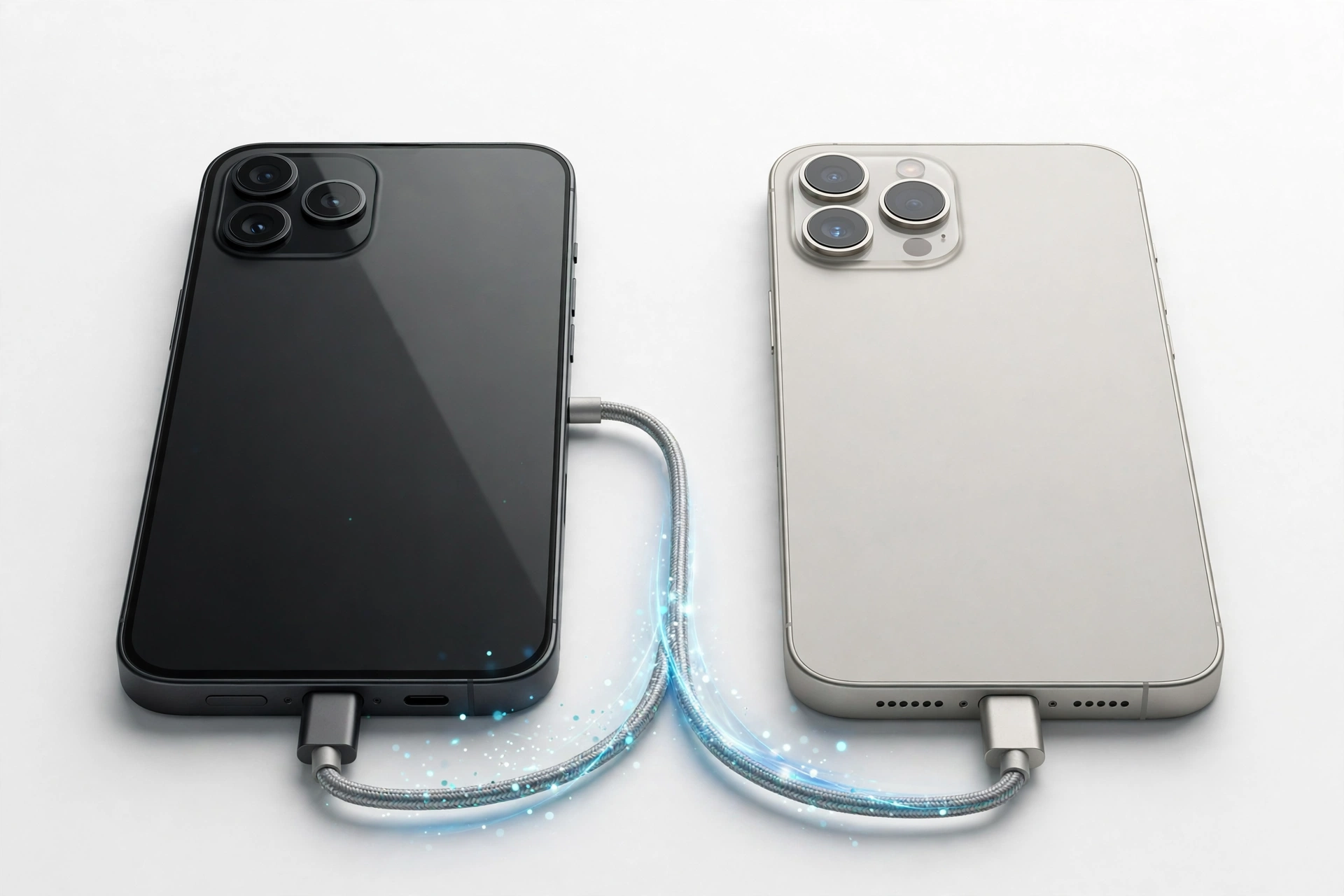
Yes — you can get your data off a broken Doogee phone, but the method that works depends on whether the phone still powers on. If it turns on, Google’s built-in backup and the “Copy apps & data” setup flow are the official path; if it is fully dead, your Google One cloud backup is the only route that does not need the phone at all.
On this page
Yes — you can get your data off a broken Doogee phone, but the method that works depends on whether the phone still powers on.
1. Who this guide helps
This guide is written for anyone whose Doogee phone is cracked, unresponsive, or dead, and who needs to move contacts, photos, messages, and app data to a new phone. Doogee is a rugged-phone brand — models like the Blade 20 Max, T40 Pro, S41T, V10 5G, and V30 5G — and Doogee has never released its own phone-to-phone transfer app (there is no Doogee equivalent of Samsung Smart Switch). That is not a dead end. Because Doogee phones run standard Android with Google services, Google’s built-in backup and transfer tools are the official, documented path, and they work the same on a Doogee as on any other Android phone. (Source: firmwarespro.com)
The most common mistake people make is assuming that “transfer” means one thing. There are actually four different jobs hiding inside the word “transfer”: copying media files (photos, videos, music), syncing account data (contacts, calendar, Gmail), restoring app data and settings, and moving items like SMS history, call logs, and authenticator codes that each have their own rules. Each job has its own tool, and each tool has its own limits. This guide walks through all of them honestly, starting with what your phone’s current condition actually allows.
Quick fact: Doogee’s own user manuals (for example, the S41T and V10 5G manuals) tell you to back up important data before any factory reset, and they point you to the standard Android backup path. The manuals do not describe any Doogee-made transfer app — because one does not exist.
2. Before you touch anything: what your phone’s condition allows
Do not start trying methods at random. Start by classifying your phone’s condition, because every method below has a minimum hardware requirement. The table below tells you which methods are even possible for your situation.
| Condition | Screen | Powers on | Methods that can work |
|---|---|---|---|
| Cracked screen, touch works | Damaged but usable | Yes | Google backup, cable/Wi-Fi copy, microSD, manual USB copy |
| Touch dead, display visible | Shows picture, no touch | Yes | OTG + USB mouse, then Google backup or USB copy |
| Screen black, phone vibrates/boots | Nothing visible | Probably | Google backup restore on the new phone only (nothing from the dead phone directly) |
| Completely dead (no power, no charge light) | — | No | Google One cloud backup restore only |
| Water damage | Variable | Do not keep trying | Cloud backup only — repeated power-on attempts can destroy recoverable hardware |
If your phone is in the first two rows, you have the most options and this guide will help you use them. If it is fully dead, skip straight to the Google backup restore method — nothing below that requires the old phone can help you, and that is normal, not a failure on your part.
Stop for safety: If the battery is swollen, distorted, or dangerously hot, power the phone down and stop. Do not charge it, do not try to open it, and do not attempt any transfer that requires the phone to stay powered. Rugged Doogee phones use glued, gasketed assemblies — opening one yourself risks puncturing the battery, which can cause fire.
3. What actually moves — and what does not
“Everything” is the promise most transfer tools imply, but no tool moves literally everything. Here is the honest coverage picture for Google’s backup, which is the primary route on Doogee phones.
| Data type | Covered by Google backup? | Notes |
|---|---|---|
| Contacts | Yes, if synced to your Google account | Contacts stored only on the SIM or “Device” storage are not synced — check contacts.google.com from a computer |
| Calendar events | Yes | Synced automatically with your Google account |
| Photos and videos | Only via Google Photos backup, separate from device backup | Open Google Photos on the web to verify what is actually there |
| Apps | Yes — the list of installed apps | Apps re-download from the Play Store; some may be unavailable in your region on the new phone |
| App data | Partially — only for apps that opt into Android backup | Many apps (banking, some games, messaging apps with their own backup) exclude their data |
| SMS / call history | Yes, included in the device backup | Restores during the new phone’s setup, not afterwards |
| WhatsApp chats | No — needs WhatsApp’s own backup | WhatsApp backs up to Google Drive separately; restore inside WhatsApp on the new phone |
| Authenticator codes | Usually no | Export or transfer these first — losing them can lock you out of accounts |
| Wi-Fi passwords and settings | Yes | Restored automatically on the new phone |
The practical takeaway: Google backup handles the bulk of everyday data, but photos need Google Photos to have been syncing, WhatsApp needs its own backup, and authenticator codes are the single most commonly lost item. Deal with those three explicitly, not hopefully.
4. Method 1: Restore your Google backup on the new phone (works even if the Doogee is dead)
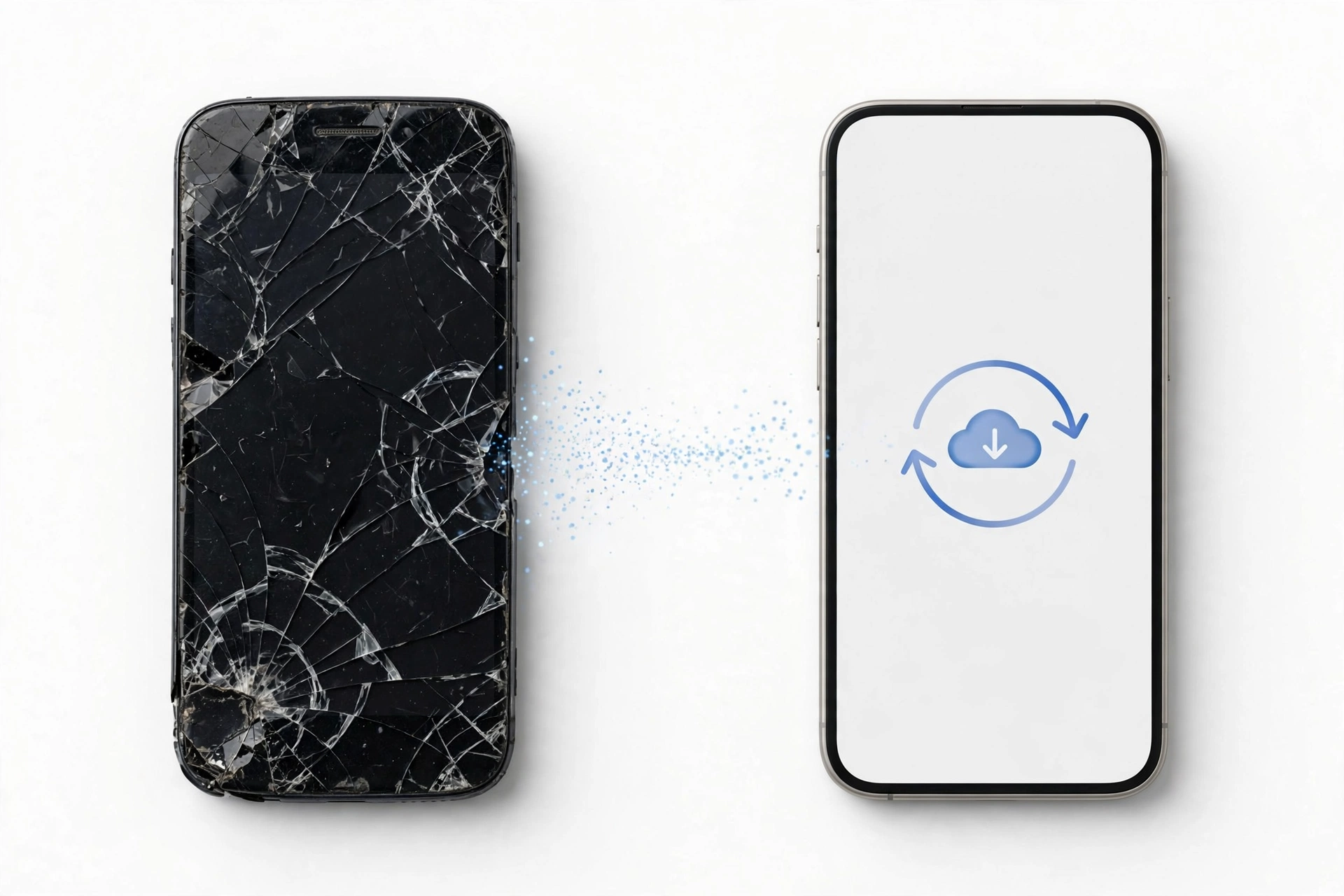
This is the method to use when the Doogee will not turn on at all. It requires nothing from the broken phone — only that a backup existed in your Google account. During the new phone’s initial setup, Android offers a “Copy apps & data” step; choose the option to restore from a cloud backup and sign in with the same Google account you used on the Doogee.
- On the new phone, connect to Wi-Fi during initial setup.
- When you reach “Copy apps & data,” choose to restore from a cloud backup.
- Sign in with the same Google account that was on the Doogee.
- Pick the backup that matches your Doogee (check the device name and date).
- Choose what to restore — you can skip apps you no longer want — and continue.
- Leave the phone on Wi-Fi until background installs and syncing finish; this can take a while.
If the setup is already complete on the new phone, the cloud-restore option is no longer offered. In that case you can still get your synced data (contacts, calendar, Gmail) by simply signing into your Google account — those sync automatically. App data and settings from the backup, however, are only available during that first setup, so if the backup restore matters to you, consider resetting the new phone and going through setup again.
Stop and check: Google deletes a device backup after 57 days of account inactivity. If the Doogee has been dead for two months and you have not signed into that Google account elsewhere, the backup may already be gone. Sign into your Google account on a computer right now and check Google Drive’s backup section before doing anything else.
5. Method 2: Direct copy during setup (needs both phones working)
If the Doogee still powers on and can stay unlocked, the fastest full transfer is Android’s direct device-to-device copy, offered on the same “Copy apps & data” setup screen. It works over a USB cable or over Wi-Fi.
- On the new phone, start setup and reach “Copy apps & data.”
- Choose the cable or Wi-Fi option for copying from an old device.
- On the Doogee, open the Google app and say or type “Set up my device” to pair the two phones.
- Verify the matching shapes or codes shown on both screens, and enter the Doogee’s screen lock when asked.
- Select what to copy — contacts, photos, calendar, Gmail, apps, and settings — and start the transfer.
- Keep both phones on Wi-Fi (and near each other) until the copy and the background installs finish.
The cable option is generally faster and more reliable for large photo libraries. The Wi-Fi option avoids needing a USB-C cable and adapter, which is handy because not everyone has the right cable on hand.
One honest limitation: this method cannot move app-private data for apps that exclude themselves from backup, and it cannot bypass a broken screen. If the Doogee’s touch is dead, pair this method with the OTG mouse technique in Method 4.
6. Method 3: Move files with a microSD card
Many Doogee models support microSD expansion — up to 1 TB on models like the S41T and V10 5G — and a removable card is one of the most reliable ways to move photos, videos, music, and documents when the screen is damaged but the phone boots.
- If the phone boots and the screen works, copy or move your media folders to the microSD card using a file manager.
- Power the phone off, remove the card, and insert it in the new phone (or a computer).
- Copy the files to their final location.
There is one critical caveat. If the card was ever formatted as adopted (internal) storage, it is encrypted and tied to the dead phone — it cannot be read in any other device. Only cards used as portable storage can be moved between phones. If you are unsure which yours is, assume nothing and check from a computer with a card reader before formatting or wiping anything.
Quick fact: Doogee’s rugged phones tend to ship with large batteries (8,500 mAh on the V10 5G, 6,300 mAh on the S41T). A nearly full large battery gives you a longer rescue window for OTG-mouse or USB-copy work before the phone dies mid-transfer — charge the phone fully before you start.
7. Method 4: OTG cable plus USB mouse (touch-dead screen rescue)
If the Doogee boots but the touchscreen does not respond, an OTG (On-The-Go) adapter plus an ordinary USB mouse lets you control the phone well enough to enable backups or copy files. This is the standard rescue technique for touch-dead Android phones and it works on Doogee models with USB OTG support.
- Plug the OTG adapter into the Doogee’s USB port and connect a USB mouse.
- A cursor should appear on the screen — use it exactly like a finger tap.
- Navigate to Settings > Google > Backup and run a backup now, or connect the phone to a computer and copy files over USB.
- If the display is visible but dim or flickering, lower the screen timeout temporarily so the phone does not lock mid-copy.
This method needs a phone that boots to the home screen or lock screen. It cannot help a phone that will not power on, and it needs the display to show a picture — if the screen is black, there is nothing for the mouse to click.
8. What does NOT work — honest limits
It saves time to know what to stop trying.
- Third-party “Doogee transfer” apps. Doogee has never published a phone-to-phone transfer app. Play Store apps using Doogee’s name are third-party software with varying quality and real privacy risk — do not grant them your contacts, messages, and files.
- PC “data recovery” software on a dead phone. On modern encrypted Android phones, these tools are mostly marketing when the phone will not boot. They cannot decrypt app-private data without the phone’s own hardware keys.
- ADB commands. ADB needs USB debugging to have been enabled before the phone broke. If it was not, this route is closed.
- Moving the SIM card as a “transfer.” A SIM carries your number and possibly a few contacts — not photos, apps, messages, or settings.
- Cable tricks for app-private data. Plugging a dead phone into a computer does not expose app data; USB file transfer only shows media and files the phone was already sharing.
9. App-by-app: the items people actually lose
Google backup moves the bulk of everyday data, but four categories need their own attention.
Photos and videos. These are covered only if Google Photos backup was turned on. Check photos.google.com from a computer right now — what you see there is what you have. If backup was off and the phone is dead, the photos on the phone’s internal storage are not recoverable through Google.
WhatsApp. WhatsApp keeps its own backup to Google Drive, separate from Android’s device backup. On the new phone, install WhatsApp, verify your number, and restore when prompted. This only works if a WhatsApp backup existed — check inside WhatsApp’s settings on any device where you can still sign in, or accept that chats after the last backup are gone.
Authenticator codes. Most authenticator apps deliberately exclude their codes from cloud backup. If you still have the old phone working, use the app’s own export/transfer feature first, before anything else. If the phone is dead and you did not export, you will need each service’s account-recovery process.
Banking and payment apps. These never restore sessions — by design. You will sign in fresh on the new phone. Make sure you know your passwords and have access to your recovery email or phone number before you start.
10. Moving from Doogee to an iPhone
If the new phone is an iPhone, Apple’s “Move to iOS” app handles the transfer from the Doogee during the iPhone’s initial setup. It moves contacts, message history, photos and videos, web bookmarks, mail accounts, and calendars, and it flags free apps that exist on both platforms so you can re-download them.
- On the iPhone, proceed through setup until you reach “Transfer Your Apps & Data,” then choose “From Android.”
- On the Doogee, install and open “Move to iOS” from the Play Store.
- Enter the code shown on the iPhone, select what to transfer, and wait for the loading bar to finish on the iPhone before using either device.
Move to iOS needs the Doogee to be working and on Wi-Fi. If the Doogee is dead, fall back to whatever is in your Google account: sign into Gmail, Google Contacts, Google Calendar, and Google Photos on the iPhone and let each service sync.
11. The microSD encryption trap, in detail
This deserves its own section because it is the single most misunderstood part of card-based transfers. Android offers two ways to use a microSD card:
| Portable storage | Adopted (internal) storage | |
|---|---|---|
| Can be moved to another phone | Yes | No — encrypted to the original phone |
| Readable in a computer card reader | Yes | No |
| Stores apps | No | Yes |
| Good for rescue transfers | Yes | Useless once the phone dies |
If your Doogee ever prompted you to “use as internal storage” and you accepted, that card is now married to the dead phone. Do not format it, do not let the new phone “fix” it, and do not assume a repair shop can decrypt it — the encryption keys lived on the dead phone’s hardware. If the card was used as portable storage, simply move it and copy the files.
Stop for safety: Never factory-reset the broken Doogee “to make the transfer cleaner” before your data is safely copied. A reset wipes the phone’s storage and, on encrypted modern Android, makes the old data permanently unrecoverable. Copy first, reset later — or not at all.
12. Two examples of how this plays out
(The following are hypothetical illustrations, not customer stories.)
Amara’s cracked Blade 20 Max. Amara dropped her Blade 20 Max and the lower half of the touchscreen stopped responding, but the display still showed a picture. She connected a USB mouse through an OTG adapter, navigated to Settings > Google > Backup, and ran a manual backup over Wi-Fi. She then checked photos.google.com on her laptop to confirm her photos were there, and restored everything onto her new phone during its initial setup using “Copy apps & data” from the cloud backup. Total extra hardware: one OTG adapter she already owned.
Devon’s dead S41T. Devon’s S41T would not power on at all after a fall — no charge light, no vibration. Because the phone was dead, none of the direct methods could work. He signed into his Google account on a computer, confirmed a device backup from two weeks earlier existed in Google Drive, and restored it during his new phone’s setup. His photos were safe because Google Photos backup had been on; his WhatsApp chats restored from WhatsApp’s own backup; his authenticator codes were lost because he had never exported them — a lesson he now applies to every phone he owns.
13. When to stop and get professional help
Stop DIY transfer attempts and get an assessment when any of the following is true:
- The phone gets dangerously hot during charging or transfer attempts.
- The battery is swollen or the case is distorted.
- The phone was exposed to water — repeated power-on attempts can corrode the board and destroy data that a professional might have recovered.
- The phone boots but no method above can see your files, and the data matters enough to pay for professional recovery.
Be honest with yourself about what “professional help” can do. A repair shop can assess whether the fault is the screen, the battery, or the mainboard, and a working screen or battery may be enough to get the phone booting for a transfer. But no shop can decrypt a dead phone’s internal storage without its hardware keys, and anyone who guarantees full data recovery from a dead encrypted phone is not being straight with you.
If you are in the Las Vegas area and want an in-person assessment of a broken Doogee, Las Vegas Phone Repair & Accessories, 7400 Las Vegas Blvd S, Unit TT42, Las Vegas, NV 89123, (424) 406-6202 — call ahead to confirm current hours and model support, since parts for less common brands are not always stocked.
For a broader overview of broken-phone transfer methods that are not brand-specific, see our general guide to transferring data from a broken phone. The same techniques are covered for Doogee’s rugged-phone cousins in our guides to transferring data from a broken Ulefone and transferring data from a broken Meizu.
14. Frequently asked questions
Can I transfer data from a Doogee that will not turn on at all?
Only through a Google One cloud backup that already existed. Sign into your Google account on a computer and check Google Drive’s backup section — if a backup of the Doogee is there, you can restore it during your new phone’s initial setup. Nothing that requires the dead phone itself can work.
Does Doogee have its own transfer app like Samsung Smart Switch?
No. Doogee has never released a proprietary phone-to-phone transfer app. The official path is Google’s built-in backup and the “Copy apps & data” setup flow, which work the same on Doogee phones as on any other Android phone. Treat any Play Store app using Doogee’s name as third-party software.
Will my photos transfer with Google backup?
Only if Google Photos backup was turned on. Device backup and photo backup are separate systems. Check photos.google.com from a computer to see exactly what is saved — that is your ground truth.
How do I check whether a backup of my Doogee exists?
On a computer, sign into the Google account that was on the phone, open Google Drive, and look for the Backups section. You will see each backed-up device with its backup date. On a working Android phone, go to Settings > Google > Backup to see the last backup time.
Can I move my microSD card to the new phone?
Only if it was used as portable storage. If it was formatted as adopted (internal) storage, it is encrypted to the dead Doogee and cannot be read anywhere else. When in doubt, test the card in a computer card reader before doing anything destructive.
My Doogee’s touch is dead but the screen shows a picture. What now?
Use an OTG adapter and a USB mouse to control the phone. From there you can run a Google backup, enable USB file transfer, or copy files to a microSD card. This needs a phone that boots — it cannot revive a dead one.
Does Google backup expire?
Yes — Google deletes a device backup after 57 days of account inactivity. If the Doogee has been dead for a while, check your backups now rather than assuming they are still there.
Should I factory-reset the broken Doogee before transferring?
No — never reset before your data is safely copied. A factory reset wipes the phone’s storage and, on encrypted modern Android, makes the old data permanently unrecoverable. Copy first, reset later, or skip the reset entirely if the phone is being recycled.
Video: How to transfer everything from old to new Android
Sources and editorial notes
- FirmwaresPro — How to Backup Doogee V30 5G: documents the Google Drive backup path on Doogee phones (Settings > Google > Backup, “Upload to Google Drive” toggle) and the 15 GB free-tier limit.
- FirmwaresPro — How to Transfer Data to Doogee N50: documents the “Copy apps & data” first-setup flow on Doogee phones, including the Google “Set up my device” pairing step.
- MobileSpecs — How to backup Doogee S68 Pro: documents TWRP/custom-recovery backup methods and notes they require root — included to explain why these are not recommended for ordinary users.
- Doogee S41T user manual (via Manuals.plus): documents the factory-reset data warning (“back up important data before proceeding”) and the model’s microSD expansion, battery, and durability specifications.
- Doogee V10 5G user manual (via Manuals.plus): documents the troubleshooting guidance to back up before a factory reset and the model’s 8,500 mAh battery and 1 TB microSD support.
Last source check: October 14, 2026. AI-assisted editorial guide, checked against the linked manufacturer and third-party documentation. Doogee publishes limited model-specific transfer documentation, so brand-specific steps are drawn from attributed third-party guides covering Doogee models; Google’s backup and transfer flows are Google’s own documented features. Procedures may vary slightly by model and Android version. This guide is for reader education and does not constitute a data-recovery guarantee.
Let’s get you connected again.
Tell us what’s happening with your device and we’ll help you decide the safest next step — no jargon, no pressure.
Las Vegas Phone Repair & Accessories · 7400 Las Vegas Blvd S, Unit TT42, Las Vegas, NV 89123
10:00 AM–8:00 PM — call ahead to confirm today’s hours