
Cubot Phone Camera Not Working After Update: Causes and Safe Fixes
A Cubot camera that stops working right after a system update is almost always a software problem, not broken hardware — and a factory reset is the wrong first move. Updates can revoke camera permissions, corrupt the camera app’s cached data, or ship a driver bug on Cubot’s MediaTek chipsets, and the safe fix order below resolves most cases without deleting anything.
On this page
A Cubot camera that stops working right after a system update is almost always a software problem, not broken hardware — and a factory reset is the wrong first move.
1. What an update can actually do to your camera
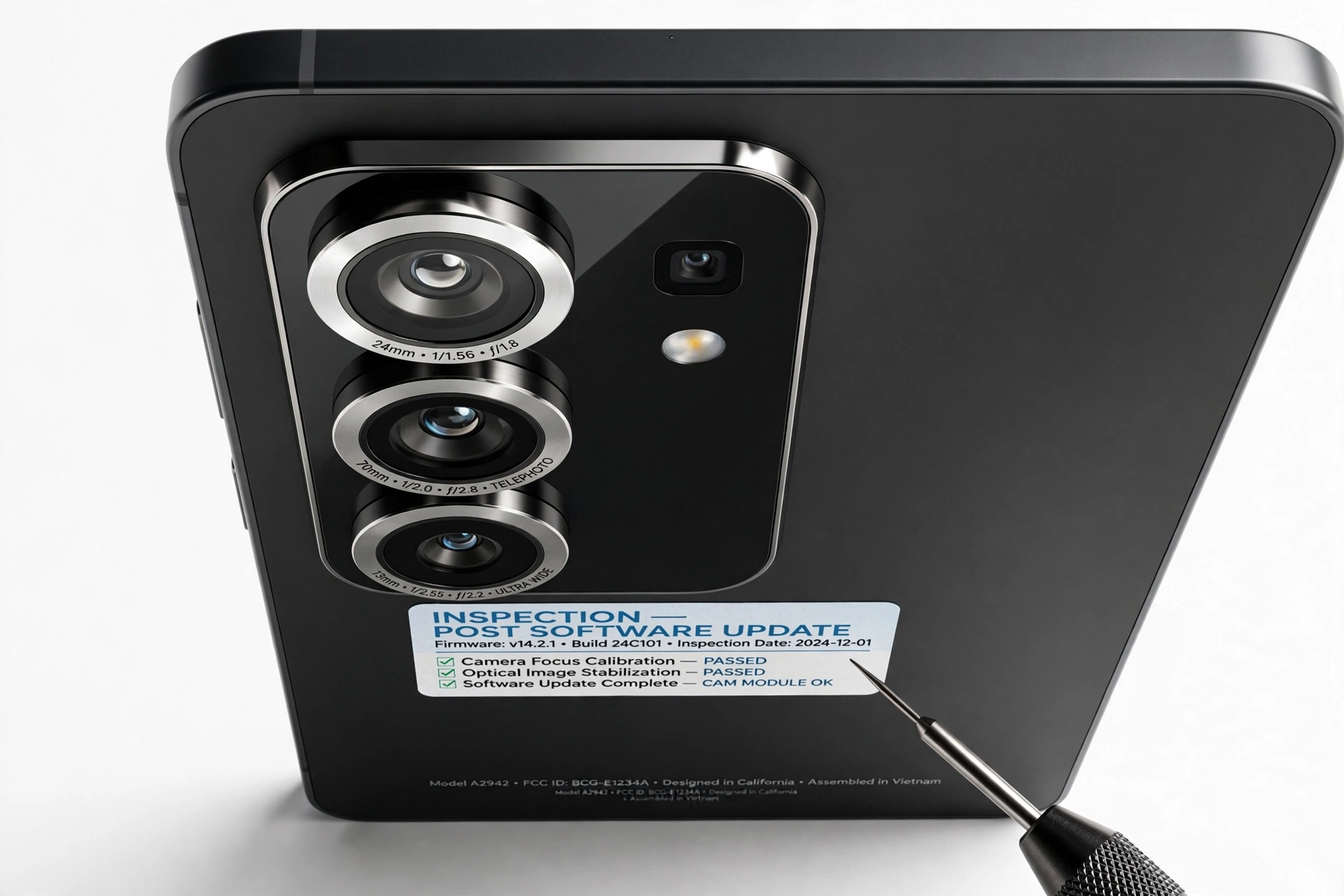
When your Cubot phone’s camera worked yesterday and fails today after an update, it helps to know what a software update is capable of breaking. An update cannot physically damage the camera sensor or lens. It can, however, change five things that sit between you and a working viewfinder: (Source: slashgear.com)
- App permissions. Updates sometimes reset or tighten privacy permissions. If the camera app loses its Camera permission, it opens to a black screen or an error message. This is the single most common cause and the fastest fix.
- Cached data corruption. The camera app stores temporary files (cache) and settings (data). An update can leave these in a state the new system version cannot read, so the app crashes on launch.
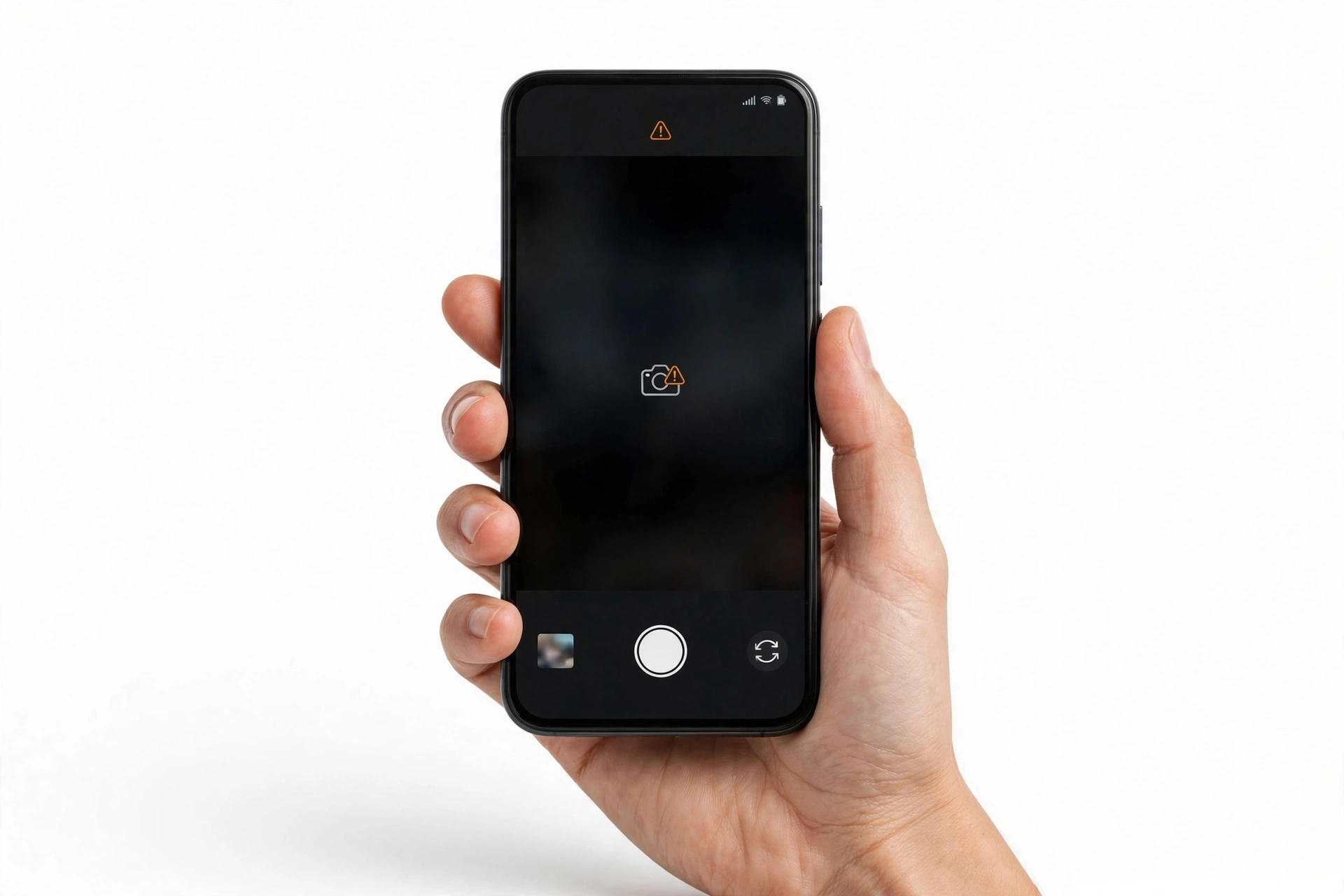
- Driver or HAL bugs. Cubot phones run on MediaTek or UNISOC chipsets with a camera hardware abstraction layer. A system update can ship a mismatched camera driver, which typically shows up as a black viewfinder or “can’t connect to camera” error while everything else works fine.
- Third-party app conflicts. Some apps — especially “camera booster,” “camera fixer,” or aggressive cleaner apps — hook into the camera pipeline. An update can change the rules these apps were exploiting, turning them from harmless into crash triggers.
- Media framework changes. Video recording depends on the microphone and the media encoder as well as the camera. An update that changes audio routing can make video mode crash while still photos work.
| Mechanism | Typical symptom | How common |
|---|---|---|
| Permission reset | Black screen or “camera permission required” error | Most common |
| Cache/data corruption | App crashes on launch, or freezes mid-use | Very common |
| Driver/HAL mismatch | “Can’t connect to camera,” black viewfinder on stock app only | Common after major version updates |
| Third-party app conflict | Camera worked until a specific app updated alongside the system | Common |
| Media framework change | Photos work, video recording crashes | Less common |
Cubot ships its phones with near-stock Android and the standard AOSP camera app, which is actually good news for troubleshooting: the fix paths are the same documented Android paths, and Cubot’s own support guidance follows them. Cubot’s published troubleshooting for camera malfunctions lists exactly three steps: clear the cache and data of the camera app in Settings, restart the phone, and make sure the lens is clean — with persistent failure pointing to a hardware problem needing professional repair.
2. First: isolate the problem in 60 seconds
Before changing anything, run two quick tests. They take about a minute and they tell you which section of this guide applies to you.
Test A — front vs. rear camera. Open the camera app and switch between the front (selfie) and rear cameras. If one works and the other doesn’t, the problem is likely in that camera module’s driver or hardware, not a system-wide failure. If both fail identically, the problem is at the app or system level.
Test B — stock camera vs. a third-party camera app. Install a simple, reputable third-party camera app (such as Open Camera) from the Play Store and try it. The interpretation table below explains what the result means.
| Stock camera app | Third-party camera app | What it means |
|---|---|---|
| Fails | Works | The stock app’s cache, data, or permissions are broken. Fix at the app level (sections 4–6). |
| Fails | Fails the same way | A system-level driver or permission problem. Work through the full fix order. |
| Works | Fails | The third-party app is the problem, not your phone. Uninstall it. |
| Fails only in video mode | Works in video mode | Media framework or microphone-permission issue in the stock app. |
Quick fact: On Cubot phones the default camera app is the stock Android camera. Clearing its data does not delete your photos — your photos live in the DCIM folder or Google Photos, not inside the camera app. Clearing app data only resets the app’s own settings.
3. Restart the phone — properly
Cubot’s own support guidance lists restarting as a first step, and it is genuinely effective after updates: a restart clears the camera hardware lock, reloads drivers, and drops any app that is silently holding the camera open in the background.
Do a full restart, not just a screen-off. Press and hold the power button, tap Restart (or Power off, wait 10 seconds, then power on). After the phone boots, wait about 30 seconds for background services to settle, then open the camera app before opening anything else.
If the phone is frozen on the camera app, do a forced restart: press and hold the power button for about 10–15 seconds until the phone vibrates and reboots. This does not delete data.
4. Check camera permissions
System updates can revoke or re-prompt app permissions, and the camera permission is one of the most commonly affected. This produces a black viewfinder or an explicit error the moment the app opens.
- Open Settings > Apps (on some Cubot models: Settings > Apps & notifications).
- Find and tap Camera.
- Tap Permissions.
- Make sure Camera is set to Allow (or “Allow only while using the app”).
- If you use video mode, also confirm Microphone is allowed — video recording needs it, and a revoked microphone permission can crash video capture specifically.
- While you are here, check Settings > Apps > Special app access or the permission manager for any unfamiliar app that holds the Camera permission and revoke it. Only the apps you actually use for photos or video calls need it.
Tip: If the permission was already allowed, toggle it off and back on. On some Android builds the permission database entry itself is what the update corrupted, and re-granting it rewrites the entry cleanly.
5. Force stop, then clear cache
If permissions are fine, the next suspect is corrupted temporary data. Work in this order — cache first, because it is the gentlest step.
- Go to Settings > Apps > Camera.
- Tap Force stop, then confirm. This kills any stuck camera process.
- Tap Storage & cache (or Storage).
- Tap Clear cache. This deletes temporary files only — no settings, no photos.
- Reopen the camera app and test.
Clearing the cache fixes the large middle category of post-update camera failures: the app launches, but crashes or freezes because it is trying to read temporary files written by the pre-update system.
6. Clear the camera app’s data (not a factory reset)
If clearing the cache did not help, escalate to clearing the app’s data. This is stronger than clearing cache but far weaker than a factory reset — it only resets the one app.
- Go to Settings > Apps > Camera > Storage & cache.
- Tap Clear storage (labeled Clear data on some models).
- Confirm, then reopen the camera app. It will behave like a fresh install.
| Action | What it deletes | What it keeps |
|---|---|---|
| Clear cache | Temporary files | All settings, all photos |
| Clear app data (Camera app only) | That app’s settings and saved modes | All photos, all other apps, all accounts |
| Factory reset | Everything on the phone | Nothing (unless backed up) |
Stop for safety: Do not confuse “clear the camera app’s data” with a factory reset. They are different screens with very different consequences. A factory reset wipes the entire phone and should be the last resort, not the first idea — see section 11.
7. Test in Safe Mode to catch app conflicts
Safe Mode starts Android with only the pre-installed system apps running. If the camera works in Safe Mode but not in normal mode, a third-party app you installed is interfering — often one that updated around the same time as the system.
To enter Safe Mode on most Cubot phones: press and hold the power button until the power menu appears, then press and hold Power off until a “Reboot to safe mode” prompt appears, and tap OK. The words “Safe mode” appear in a corner of the screen. Open the camera app and test.
To exit Safe Mode: simply restart the phone normally.
Prime suspects if Safe Mode fixes it:
- “Camera booster,” “camera fixer,” or “HD camera” apps — these are frequent causes of camera failures, not cures. Uninstall them.
- Aggressive cleaner, antivirus, or battery-saver apps that kill background camera services.
- Any app you installed or updated in the days around the system update.
Uninstall suspects one at a time, restarting normally between each, and test the camera after each removal.
8. Rule out the simple physical causes
Cubot’s support guidance explicitly includes checking the lens, and it is worth doing before assuming a software bug. Updates get the blame for problems that are sometimes coincidental.
- Clean the lens with a soft, dry microfiber cloth. Fingerprints and pocket dust are the most common cause of blurry photos, and a blurry photo after an update is often just a dirty lens noticed at an unlucky moment.
- Remove the case temporarily. Some third-party cases partially cover a lens or the flash, and a case shifted during handling can mimic a camera fault.
- Check for condensation. If the phone moved between very cold and warm environments, moisture can fog the lens from the inside. Let the phone sit powered off in a dry room; do not apply heat.
- Look for new physical damage. A cracked lens cover or a phone that was dropped around the same time as the update points to hardware, not software.
Stop for safety: Never poke anything into the lens area, and never apply liquids, heat, or compressed air to the camera module. A soft dry cloth is the only safe cleaning tool. If the lens assembly is cracked or the phone is swollen or dangerously hot, stop and do not use the phone — see section 12.
9. Check for a follow-up update
When a system update ships a camera driver bug, the manufacturer’s fix is usually another update. Cubot distributes updates over the air, and checking is quick:
- Go to Settings > System > System update (on some models: Settings > About phone > System update).
- Tap Check for updates and install anything offered.
- After installing, restart the phone and test the camera before restoring old settings.
This step matters more than it looks. Cubot, like other budget-brand makers, occasionally ships camera fixes in small follow-up patches after user reports. If forums or Cubot’s community pages show other owners of your model reporting the same post-update camera failure, a patch is the likely official resolution — and no amount of cache-clearing will substitute for it.
Also check the Play Store for an update to any Cubot system app involved in imaging, and make sure Google Play system updates are current (Settings > Security > Google Play system update on supported models).
10. Free up storage and check battery state
Two unglamorous conditions break cameras after updates:
- Nearly full storage. Updates consume space, and a phone left with almost no free storage can fail to save photos or even launch the camera. Keep at least 1–2 GB free: Settings > Storage shows the breakdown. Offload photos and videos to Google Photos or a computer first.
- Low battery or power-saving mode. The camera is power-hungry. Some phones throttle or block the camera when the battery is very low or when aggressive battery-saver modes are on. Charge above 30% and temporarily disable battery saver while testing.
11. The central rule: don’t factory-reset first
A factory reset is the most commonly suggested — and most commonly regretted — response to a post-update camera failure. Here is why it should be last, not first:
- It cannot fix a driver bug. A factory reset reinstalls the same system version that is currently on the phone, including the same camera driver. If the update shipped a broken driver, the reset gives you back the same broken driver with none of your data.
- It deletes everything. Photos, messages, app logins, authenticator codes — all gone unless fully backed up. “Backed up” means verified restorable, not “I think Google backs that up.”
- It destroys your diagnostics. Once reset, you can no longer test whether Safe Mode or a permission toggle would have fixed it.
A factory reset is only reasonable when all of these are true: every gentler step in this guide has failed, your data is fully backed up and the backup is verified, and you have a specific reason to believe the problem is corrupted user data rather than a system driver. Even then, test the camera immediately after the reset before restoring apps, so you know whether the reset itself helped.
Stop for safety: Back up first, reset last, and never reset a phone with a swollen battery, a dangerously hot phone, or a phone you cannot unlock — a reset on a compromised device can leave you locked out with no recovery path.
12. When to stop troubleshooting and seek professional help
Stop and get the phone assessed if you see any of these:
- The camera fails identically in Safe Mode, after clearing data, after a follow-up update, and on a third-party camera app — the remaining suspects are the driver (needs a manufacturer patch) or the hardware.
- Only one camera (front or rear) fails while the other works perfectly — this points to that module or its connection.
- The phone was dropped, got wet, or shows a cracked lens around the time the problem started.
- The battery is swollen, distorted, or the phone gets dangerously hot — stop using it entirely. Do not charge it, do not reset it, and do not open it. Swollen lithium batteries are a fire risk.
- You see condensation inside the lens that does not clear after a day in a dry room.
A professional assessment can distinguish a driver problem (waiting on the manufacturer) from a failed camera module (a hardware repair) without you risking further damage. If you are in the Las Vegas area, Las Vegas Phone Repair & Accessories (7400 Las Vegas Blvd S, Unit TT42, Las Vegas, NV 89123; (424) 406-6202) can examine the phone and tell you which one you are dealing with before any work is approved.
13. Symptom worksheet: match what you see to the fix
| Symptom | Most likely cause | Try first |
|---|---|---|
| Black screen when the camera opens | Revoked camera permission | Section 4: re-grant permission |
| “Can’t connect to camera” error | Driver/HAL mismatch or another app holding the camera | Section 3: restart; then section 7: Safe Mode |
| App crashes immediately on launch | Corrupted cache or data | Sections 5–6: clear cache, then clear data |
| App freezes when taking a photo | Corrupted cache or full storage | Sections 5 and 10 |
| Photos work, video crashes | Microphone permission or media framework issue | Section 4: check microphone permission |
| Only front camera fails | Front module driver or hardware | Section 12: professional assessment |
| Only rear camera fails | Rear module driver or hardware | Section 12: professional assessment |
| Camera works in Safe Mode only | Third-party app conflict | Section 7: uninstall suspects |
| Blurry photos, app otherwise fine | Dirty lens or case obstruction | Section 8: clean lens, remove case |
| Everything camera-related fails everywhere | System driver bug or hardware failure | Section 9: follow-up update; then section 12 |
14. What these checks can and cannot establish
| Observation | Establishes | Does not establish |
|---|---|---|
| Camera works after clearing cache | The failure was corrupted temporary data | That it won’t recur after the next update |
| Camera works in Safe Mode | A third-party app is interfering | Which app, without testing removals one by one |
| Third-party camera app works | The hardware and system driver are fine | That the stock app will recover without its data cleared |
| Permission re-grant fixes it | The update revoked the permission | That permissions won’t be reset by a future update |
| Nothing software-side helps | The cause is likely driver or hardware | Which of the two — that needs professional diagnosis or a manufacturer patch |
| Problem started exactly at update time | Strong correlation with the update | That the update is the cause — coincidence (a drop, new app, full storage) is still possible |
15. Frequently asked questions
Will clearing the camera app’s data delete my photos?
No. Your photos are stored in the phone’s DCIM folder (and in Google Photos if backup is on), not inside the camera app. Clearing the camera app’s data only resets that app’s settings and modes. Your photos stay where they are.
Why did the camera break if the update was supposed to improve the phone?
Updates change thousands of system files. Most changes are improvements, but any change to permissions handling, the camera app, or the chipset’s camera driver can introduce a regression. This is why manufacturers ship follow-up patches — section 9 explains how to check for one.
Should I install a “camera fixer” app from the Play Store?
No. These apps are among the most common causes of camera conflicts on budget Android phones. They cannot repair a driver bug or a permission problem, and several request broad permissions themselves. Work through this guide’s built-in steps instead.
The camera fails only in WhatsApp or video calls, but the stock app works. Is that the update?
Probably an app-level issue rather than a system camera failure. Check that the calling app has its Camera (and Microphone) permission, clear that app’s cache, and update the app itself. If the stock camera works, your hardware and system driver are fine.
How do I know if it’s a hardware problem?
The strongest signs: one camera works and the other doesn’t across all apps and Safe Mode; visible lens or body damage; failure that survives a full software fix order and a manufacturer patch. Those point to the module or its connection, which needs hands-on repair.
Is it safe to keep using the phone while the camera doesn’t work?
Yes, with one exception: if the phone is swollen, distorted, or dangerously hot, stop using it entirely and do not charge it. A non-working camera alone is not a safety issue.
Will Cubot release a fix if this is a widespread bug?
If the failure is a driver regression affecting many owners of your model, a follow-up system update is the usual manufacturer response. Check for updates regularly (section 9) and report the issue through Cubot’s support channels so it is logged against your model.
Can a repair shop fix a software-caused camera failure?
A shop can confirm whether the cause is software or hardware, apply the software fixes safely, and preserve your data in the process. What a shop cannot do is rewrite the manufacturer’s camera driver — if the root cause is a shipped driver bug, the real fix is the manufacturer’s patch. For broader context on post-update camera failures across brands, see our general guide to phone cameras not working after updates, and the brand-specific guides for Blackview and Doogee rugged phones.
Video: How to tell if your smartphone is fake or real
Sources and editorial notes
- SlashGear — Common Camera Problems on Android Phones and How to Fix Them: documents the standard fix order for crashing camera apps — restart, clear cache and data via Settings > Apps > Camera > Storage, and checking for software updates.
- PhoneCorridor — How to Fix Camera Not Working on Android Devices: covers clearing camera app data, checking for apps actively using the camera, verifying camera permissions, and charging before diagnosing.
- MobilityArena — Top Solutions to Fix Android Camera Not Working: notes power-saving mode interference, concurrent camera access by multiple apps, and checking for system updates.
- TechWizs — Apps Crashing Randomly? Fix It Fast: permission-check paths (Settings > Apps > app > Permissions) and the ordered checklist of restart, update, force stop, and clear cache.
- XDA Forums — Fix “Cannot Connect To Camera” Error: community documentation of the “cannot connect to camera” error on MediaTek-chipset phones including Cubot models, and its driver-level nature.
- DevicesFAQ — Cubot X17 FAQs: Cubot model-specific guidance including Google Photos backup for camera media and factory-reset data-loss warnings.
Last source check: October 14, 2026. AI-assisted editorial guide, checked against the linked manufacturer information and community documentation above. Cubot’s published support guidance for camera malfunctions (clear the camera app’s cache and data, restart the phone, clean the lens, then contact support if the issue persists) is summarized in original language; no Cubot text is reproduced. Procedures described are standard Android paths also documented by Cubot support; no manufacturer authorization is claimed.
Let’s get you connected again.
Tell us what’s happening with your device and we’ll help you decide the safest next step — no jargon, no pressure.
Las Vegas Phone Repair & Accessories · 7400 Las Vegas Blvd S, Unit TT42, Las Vegas, NV 89123
10:00 AM–8:00 PM — call ahead to confirm today’s hours