
How to Transfer Data from Broken Sonim Phone to New Phone: Complete Guide
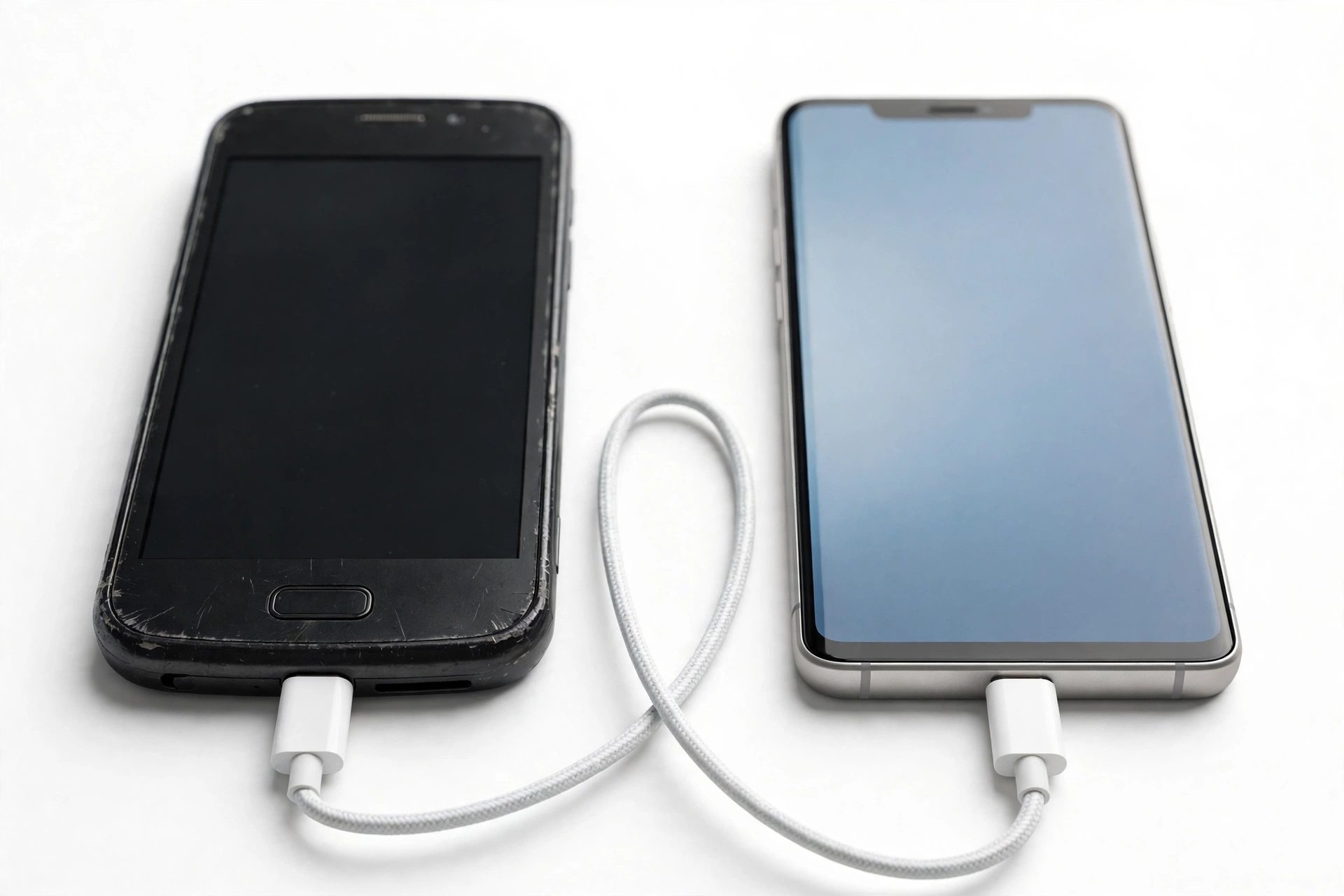
The most reliable way to move data from a broken Sonim phone is Google’s own backup restore: if “Back up my data” was ever switched on, a new phone signed into the same Google account can pull contacts, photos, app data, and settings automatically — no working Sonim screen required. Sonim never released a proprietary phone-to-phone transfer app, so the documented paths are Google backup, USB-C file transfer to a computer, microSD moves, and OTG-mouse rescue for touch-dead screens. What works depends entirely on what is broken: a cracked-but-alive phone gives you options, while a fully dead phone leaves you with only whatever was already synced to the cloud.
On this page
The most reliable way to move data from a broken Sonim phone is Google’s own backup restore: if “Back up my data” was ever switched on, a new phone signed into the same Google account can pull contacts, photos, app data, and settings automatically — no working Sonim screen required.
1. Who this guide is for
This guide helps owners of Sonim ultra-rugged phones — the XP8, XP5s, XP10, XP Pro, XP3, and related models — whose device is damaged but whose data still matters. Sonim phones are built for construction sites, oil fields, emergency services, and other harsh environments, so they usually break differently than ordinary phones: the screen cracks but the phone keeps running, or the sealed body survives a drop while the display goes dark. Each failure mode leaves a different set of rescue options open, and this guide matches methods to conditions. (Source: manuals.plus)
If you have never owned a rugged phone before, the good news is that Sonim’s smartphones run near-stock Android on most models. That means the same standard Android recovery tools work here — Google backup, USB file transfer, and microSD storage. The one thing to know up front: there is no “Sonim Smart Switch” or manufacturer cloud service to fall back on. Sonim’s documentation points you to Google’s own backup services, so your recovery plan should center on those.
2. Sonim reality check: what the manufacturer actually provides
An honest starting point saves hours of searching for something that does not exist. Research confirms the following about Sonim’s transfer and backup support:
- No proprietary transfer app. Sonim has never published a phone-to-phone data migration app on the Play Store. Any third-party app that uses Sonim’s name is unofficial and should be treated with suspicion before you grant it access to your data.
- Google backup is the official path. The Sonim XP3 user guide documents “Back up my data” under Menu > Applications > Backup and Restore, sending contacts, calendar, SMS/MMS, and media to your Google accounts and SD card. Newer models like the XP10 and XP Pro follow the standard Android setup flow: “Copy your data” from an Android backup, a cloud backup, or even an iPhone, or “Set up as new.”
- USB file transfer is documented. AT&T’s official device support for the Sonim XP8 walks through USB-C file transfer to a computer: connect the cable, swipe down, choose “Transfer files,” and drag and drop folders. The same standard Android File Transfer app works on a Mac.
- microSD expansion is standard. The XP8 and XP5s accept microSDXC cards up to 128 GB. The XP5s uses a USB Type-C port; the older XP5 used Micro-USB.
- Sealed rugged construction. Sonim phones carry IP68 (and on the XP8, IP69K) ratings with MIL-STD-810 certification. That means you should never try to open the phone to reach the storage directly — the seals are the whole point of the device, and prying them open destroys the protection and risks injury.
Quick fact: The XP8’s official spec list includes “Computer sync, OTA sync” among its features, and the AT&T support page confirms standard USB “Transfer files” mode works with a PC or Mac. For Sonim models, ordinary Android methods are the manufacturer-endorsed methods.
3. First: figure out exactly what is broken
Before choosing a method, classify your phone’s condition. The rescue path for a cracked screen is completely different from the path for a dead phone.
| Condition | What still works | Best methods |
|---|---|---|
| Cracked screen, touch works | Display readable, input functional | USB file transfer, Google “Back up now,” microSD copy |
| Cracked screen, touch dead | Display readable, no input | USB OTG mouse, USB-C hub + monitor |
| Black screen, phone on (vibrates, rings) | System running, display dead | USB-C hub + monitor, USB file transfer (if authorized before) |
| Phone won’t power on at all | Nothing | Google cloud restore only (if backup existed) |
| Water or heat damage | Unknown — do not power on repeatedly | Dry first, then assess; cloud restore as fallback |
Stop for safety: If the battery is swollen, distorted, leaking, or the phone gets dangerously hot, do not charge it and do not attempt any transfer method. Power it down, keep it away from flammable materials, and take it to a professional for safe handling.
4. Check whether a Google backup already exists
This single check can save you hours. If the broken Sonim had Google’s backup switched on, your contacts, calendar events, app data, call history, device settings, and (on many models) SMS messages are already sitting in your Google account — and a new phone can pull them down during setup without the old phone being involved at all.
To check from any working device:
- Open a browser and go to your Google Drive.
- Open the Storage section (or the gear menu, then Settings).
- Look for Backups — any Android backup tied to your Google account appears here, with the device name and backup date.
If you see your Sonim listed with a recent date, you are in good shape: skip straight to Method 1 and set up the new phone from that backup. If there is no backup listed, or the newest one is months old, move on to the hardware methods below — and treat the cloud restore as a partial fallback rather than a complete solution.
Quick fact: Google’s free storage tier is 15 GB shared across Drive, Gmail, and Photos. On Sonim models the manual notes that backups route through your Google accounts, so a backup that failed silently for months often traces back to a full Drive.
5. Method 1: Restore from Google backup on the new phone
This is the only method that works with a fully dead Sonim — and it is also the easiest when it works. It is the same “Copy your data” flow documented in the XP10 and XP Pro user guides.
- Turn on the new phone and connect to Wi-Fi.
- When the setup wizard asks, tap Copy your data (not “Set up as new”).
- Choose A backup from the cloud.
- Sign in with the same Google account that was on the Sonim.
- Select the Sonim’s backup from the list, choose what to restore (apps, contacts, settings, photos if included), and let the restore finish before interrupting it.
Expect the restore to take a while on a slow connection — app re-downloads continue in the background after setup completes. Keep the new phone on Wi-Fi and charging during this period.
Be aware of the limits: Google’s device backup covers contacts, calendar, call history, SMS (on most recent Android versions), device settings, and app data for apps that participate in Android’s backup framework. It does not cover files saved only to the phone’s internal storage, authenticator codes (which are usually excluded — plan to re-register each account), or anything in apps that manage their own backups, like WhatsApp.
6. Method 2: USB OTG mouse for a touch-dead screen
If the Sonim’s display is readable but the touchscreen no longer responds, a USB OTG adapter and an ordinary USB mouse give you full control of the phone again. Sonim’s rugged models support USB On-The-Go on their USB-C ports (the XP8 and XP5s both list Type-C connectivity), and Android has supported USB mice natively for years.
- Get a USB-C OTG adapter (or a USB-C hub with USB-A ports).
- Plug the mouse into the adapter, then the adapter into the Sonim.
- A cursor appears on screen within seconds — no setup needed.
- Use the mouse to unlock the phone, open Settings, and run a Google backup (Settings > System > Backup > Back up now), or copy files to a microSD card.
This method shines on Sonim phones for one reason: the big batteries. The XP8 packs a 4,900 mAh battery and the XP5s a 3,180 mAh one, so you usually get a generous window of powered-on time to work with — longer than many ordinary phones would give you after screen damage.
7. Method 3: USB-C hub and external display for a black screen
If the screen is completely dark but the phone itself powers on (it vibrates, rings, or shows a notification light), a USB-C hub with HDMI output can mirror the phone’s display to a monitor or TV. Pair it with a USB mouse plugged into the same hub and you can operate the phone almost normally.
- Connect a USB-C hub with HDMI to the Sonim.
- Connect the hub’s HDMI output to a monitor or TV.
- Plug a USB mouse into the hub’s USB-A port.
- Use the mirrored display to back up data or copy files to microSD/USB.
Quick fact: USB-C video output (DisplayPort alternate mode) is not universal on budget or older rugged phones. If your Sonim model does not output video over USB-C, this method will not work — fall back to the OTG mouse (if the built-in screen shows anything) or the cloud restore.
8. Method 4: microSD card transfer
Both the XP8 and XP5s accept microSDXC cards up to 128 GB, and moving files to the card is the simplest offline method when the phone is at least partially usable.
- With the phone working (or via OTG mouse), open the file manager.
- Copy photos, videos, documents, and downloads to the microSD card.
- Power the phone fully off, remove the card, and insert it into the new phone or a card reader.
| Storage mode | What it means | Can you move the card? |
|---|---|---|
| Portable storage | Card used as removable media | Yes — files readable in any device |
| Adopted (internal) storage | Card encrypted as part of system storage | No — card is tied to that phone and unreadable elsewhere |
If the card was ever formatted as internal/adopted storage, do not remove it expecting to read it elsewhere — the encryption key lives on the broken phone. In that case, copy files off the phone through USB or cloud methods first.
9. Method 5: USB file transfer to a computer
AT&T’s official XP8 support documentation describes this exactly: connect the USB-C cable, swipe down from the notification bar, select the Android System notification, choose Transfer files, and drag and drop folders between the phone and the computer. On a Mac, install Google’s Android File Transfer app first.
This method requires the phone to be powered on and, in most cases, unlocked — and the “Transfer files” selection must be made on the phone, which means the screen must be at least partially usable or operable via OTG mouse. Once connected, copy the DCIM (photos/videos), Documents, Downloads, and any app folders you care about. Then move them to the new phone over USB or through cloud storage.
10. Method 6: Bluetooth for small transfers
The XP10 manual notes that file sharing over Bluetooth works even without a SIM card. Bluetooth is slow and unsuitable for gigabytes of photos, but it is useful for a handful of documents, contacts (as vCard files), or voice recordings when nothing else is available. Pair the Sonim with the new phone or a laptop, select the files, and share via Bluetooth. Keep expectations modest: this is a last-resort method, not a migration strategy.
11. Recommended order of operations
Do not start with the hardest method. Work down this list and stop at the first one that succeeds:
| Order | Method | Why this position |
|---|---|---|
| 1 | Check for an existing Google backup | Zero risk, works even with a dead phone |
| 2 | Google “Back up now” on the broken phone | Captures everything while it still powers on |
| 3 | OTG mouse (touch-dead screen) | Restores full control with one cheap adapter |
| 4 | USB file transfer to a computer | Fast for large photo/video libraries |
| 5 | microSD copy | Simple offline move, limited by card size |
| 6 | USB-C hub + monitor (black screen) | Powerful but needs extra hardware |
| 7 | Bluetooth | Last resort for small files only |
Stop for safety: Never factory-reset the broken Sonim before you have confirmed the data is safely copied elsewhere. A reset wipes the phone — that is the last step, not the first.
12. App-by-app: what actually moves and what does not
| Data | Moves via Google restore? | Notes |
|---|---|---|
| Contacts, calendar | Yes | Synced to Google account automatically |
| Photos and videos | Sometimes | Only if Google Photos backup was on; otherwise copy via USB/microSD |
| SMS and call history | Usually | Included in Android device backup on recent versions |
| WhatsApp chats | No | Uses its own Google Drive backup — restore inside WhatsApp on the new phone |
| Authenticator codes | Usually no | Excluded from device backup; re-register each account or use the app’s own transfer |
| Banking and payment apps | No | Sign in fresh on the new phone for security |
| Downloaded files, documents | No | Copy via USB, microSD, or cloud storage |
| Game progress | Varies | Moves only if the game uses cloud saves or Google Play Games |
13. Two worked examples
(The following are hypothetical illustrations, not customer stories.)
Example 1 — cracked screen, touch works. Maya drops her XP8 on a job site. The display is spiderwebbed but readable and touch-responsive. She plugs the phone into her laptop, selects “Transfer files,” copies the entire DCIM folder, then opens Settings and runs a manual Google backup. On the new phone she restores from the cloud backup and copies the photos over USB. Total data loss: none.
Example 2 — phone will not power on. Devon’s XP5s went through a washing machine and never turned on again. He checks Google Drive from his laptop and finds a device backup from three weeks ago. He sets up the new phone from that backup, recovers contacts, calendar, and most app data, then re-downloads WhatsApp and restores its separate chat backup. Photos taken in the last three weeks are lost — they were never backed up anywhere.
14. When to stop and get professional help
Stop troubleshooting and seek a professional assessment when:
- The battery is swollen, leaking, or dangerously hot.
- The phone was submerged and you have already tried drying it once without success.
- The device powers on but no method above yields any access.
- You need data from internal storage and the phone will not boot.
A repair shop can sometimes recover data by repairing the phone just enough to boot it — a screen replacement purely for data extraction is a legitimate, common request. For an honest overview of that decision, see our general guide on transferring data from a broken phone, and the brand-specific guides for CAT and AGM rugged phones. Las Vegas Phone Repair & Accessories, 7400 Las Vegas Blvd S, Unit TT42, Las Vegas, NV 89123, (424) 406-6202 — call ahead to confirm today’s hours before visiting.
15. After the transfer: close out the old phone
Once you have verified the data on the new phone — open a few photos, check contacts, confirm WhatsApp chats restored — finish the job properly:
- Sign out of your Google account on the broken Sonim (if it still powers on).
- Remove the SIM card and microSD card.
- Factory-reset the broken phone only after confirming the copy. Copy first, wipe last.
- Recycle the device through an e-waste program rather than the trash — rugged phones contain the same lithium batteries and materials as any phone.
16. Frequently asked questions
Can I transfer data from a Sonim that will not turn on at all?
Only through a cloud backup that already existed. With no power, no USB method, OTG method, or SD method can reach the storage. Check Google Drive’s Backups section from another device — if the Sonim appears there, set up the new phone from that backup.
Did Sonim ever release its own transfer app?
No. Sonim never published a proprietary phone-to-phone transfer app, and there is no Sonim cloud service. The documented paths are Google backup, USB file transfer, and microSD. Treat any Play Store app trading on Sonim’s name as unofficial.
How do I check whether my Sonim had backup switched on?
From any browser, open Google Drive, go to Storage (or Settings), and look for Backups. Each entry shows the device name and the backup date. You can also check on the phone itself under Settings > System > Backup, if it still powers on.
What is the fastest method for a cracked screen that still responds to touch?
USB file transfer to a computer — connect the cable, choose “Transfer files,” and drag the DCIM and Documents folders over. Then run a manual Google backup from Settings for contacts, settings, and app data.
Can a USB mouse really control a phone with a dead touchscreen?
Yes. Android supports USB mice natively over OTG, and Sonim’s USB-C models support OTG. Plug in a USB-C OTG adapter with a mouse and a cursor appears — no drivers or setup needed.
Will my microSD card work in the new phone?
If it was used as portable storage, yes — just move the card. If it was ever formatted as adopted/internal storage, no: the card is encrypted to the broken phone and unreadable elsewhere. Copy the files off through USB first in that case.
How do I move WhatsApp chats?
WhatsApp keeps its own backup, separate from Google’s device backup. If WhatsApp backup was enabled on the Sonim, install WhatsApp on the new phone, verify the same phone number, and choose Restore when prompted. This works independently of the device backup.
Should I repair the Sonim or just replace it?
If the only goal is data recovery, a screen repair purely to extract data can be worthwhile and is a routine request at repair shops. As a long-term daily driver, weigh the repair cost against the phone’s age — Sonim models tend to stay in service for years in industrial settings, so check parts availability with the shop first.
Video: How to transfer everything from old to new Android
Sources and editorial notes
- Sonim XP10 Rugged Smartphone User Guide (Manuals.plus) — documents the first-time setup flow with “Copy your data” options: backup from an Android phone, backup from the cloud, or an iPhone device.
- Sonim XP3 User Guide (Manuals.plus) — documents Menu > Applications > Backup and Restore with “Back up my data” to Google accounts and SD card.
- Sonim XP8 Backup & Restore with a Computer (AT&T) — official carrier documentation of USB-C “Transfer files” mode and Android File Transfer on Mac.
- Sonim XP Pro User Guide (Sonim) — documents the “Copy apps & data” setup screen and Google backup opt-ins.
- Sonim XP8 Full Specifications (PhoneArena) — 4,900 mAh battery, microSDXC up to 128 GB, USB Type-C, IP68/IP69K, MIL-STD-810.
- Sonim XP5s Full Specifications (PhoneArena) — 3,180 mAh battery, microSDXC up to 128 GB, USB Type-C, IP68.
- AT&T Launches Sonim XP8 Ultra-Rugged Smartphone (Android Headlines) — IP69K certification context and rugged positioning.
Last source check: October 14, 2026. AI-assisted editorial guide, checked against the linked manufacturer information. Sonim model availability, specifications, and support documentation may change; verify current details with Sonim or your carrier before acting.
Let’s get you connected again.
Tell us what’s happening with your device and we’ll help you decide the safest next step — no jargon, no pressure.
Las Vegas Phone Repair & Accessories · 7400 Las Vegas Blvd S, Unit TT42, Las Vegas, NV 89123
10:00 AM–8:00 PM — call ahead to confirm today’s hours