
CAT Phone Camera Not Working After Update: Causes and Safe Fixes
A software update cannot physically break your CAT phone’s camera — the cause is almost always a revoked permission, a corrupted app cache, a third-party app conflict, or a buggy driver, and most of these are fixable at home. Work through permission checks, front/rear isolation, a third-party camera test, cache clearing, and Safe Mode before considering anything drastic; a factory reset is the last resort, never the first step.
On this page
A software update cannot physically break your CAT phone’s camera — the cause is almost always a revoked permission, a corrupted app cache, a third-party app conflict, or a buggy driver, and most of these are fixable at home.
1. The short answer
When a CAT phone camera stops working after a system update, work through a fixed order: check the camera permission first, test whether the front and rear cameras fail independently, try a third-party camera app, clear the Camera app’s cache, and only clear its data as a later step. Test in Safe Mode to rule out third-party app conflicts. A factory reset is the last resort, never the first step — a reset reinstalls the same system version, so it cannot fix a bug that shipped inside the update itself. (Source: manuals.plus)
Two honest complications are specific to CAT phones. First, Bullitt Group — the company that designed and supported CAT phones under license from Caterpillar — closed down in early 2024, and in 2025 the CAT phone license moved to Orbic. That means the official support channel your manual names may no longer exist in its old form, and no new software patch may ever arrive for your model. Second, models like the CAT S62 Pro carry a separate FLIR thermal imaging camera with its own app — a thermal camera failure after an update is a different fault from the regular camera failing, and it has its own fix path.
2. Identify your exact symptom before touching anything
“Camera not working” covers at least six different failures, and each points at a different cause. Spend two minutes matching your symptom before you start changing settings — the wrong fix wastes time and, in one case (clearing data), deletes your camera preferences.
| What you see | Most likely category | First check |
|---|---|---|
| Camera app opens but shows only black | Permission revoked or driver mismatch | Settings > Apps > Camera > Permissions |
| “Can’t connect to camera” or “Camera error” message | Another app is holding the camera, or HAL/driver failure | Close all apps; test in Safe Mode |
| App crashes immediately on launch | Corrupted cache or conflicting app | Clear Camera app cache |
| Front camera works, rear doesn’t (or vice versa) | Driver/HAL issue on one sensor | Third-party camera app test |
| Photos are blurry or won’t focus | Physical (lens) or autofocus software | Clean lens; check focus behavior |
| Thermal camera fails but regular camera is fine | FLIR app/system integration issue | Restart the thermal imaging app |
| Flashlight also fails | Shared camera/flash hardware path | Treat as hardware-side; check physical damage |
Stop for safety: If the phone is swollen, distorted, or dangerously hot, power it down and stop troubleshooting. Do not charge it, do not attempt a factory reset, and do not try to open it — a damaged lithium battery is a fire risk. This applies to sealed rugged phones too: the rugged shell does not make a swollen battery safe.
3. Why updates break cameras: five mechanisms, in likelihood order
Understanding what an update actually changes keeps you from chasing ghosts. A system update can:
| Mechanism | What happens | How you recognize it |
|---|---|---|
| 1. Permission reset | The update resets app permissions; the Camera app silently loses access | Black viewfinder, no error message; fixed in seconds via Settings |
| 2. Cache corruption | Stale cached data from the old version conflicts with the new one | App crashes on launch or freezes; clearing cache fixes it |
| 3. Third-party app conflict | An old “camera booster,” flashlight, or scanner app misbehaves under the new system | Works in Safe Mode, fails in normal mode |
| 4. Driver/HAL mismatch | The update ships a camera driver that doesn’t match your hardware revision | One sensor fails while the other works; persists across cache clears |
| 5. Interrupted update corruption | The update itself didn’t finish cleanly | Multiple system functions misbehave, not just the camera |
Mechanisms 1–3 are common and fully fixable at home. Mechanism 4 is a genuine shipped bug — only the manufacturer can fix it with a follow-up update, and with Bullitt Group gone, that patch may never come (see section 14). Mechanism 5 is rare but serious; if several unrelated things broke at once, treat the whole update as suspect.
4. Check 1: the camera permission (fixes most cases)
Android updates can revoke app permissions, and the Camera app may then show a black screen with no error at all. This is the single most common cause of “camera broke after update,” and it takes under a minute to check:
- Open Settings > Apps (on some CAT models: Settings > Apps & notifications).
- Find and tap Camera.
- Tap Permissions.
- Make sure Camera permission is set to Allow (or “Allow only while using the app”).
- If it was off, turn it on and reopen the Camera app.
Also check the same permission path for any third-party camera, barcode-scanner, or video-call app you actually use. And check the reverse: if a “camera fixer,” “camera booster,” or beauty-filter app you installed months ago now holds camera permission, it may be grabbing the camera at boot and blocking the stock app — revoke its permission or uninstall it.
Quick fact: On Android, only one app can hold the camera at a time. If a flashlight app, QR scanner, or “camera enhancer” is running in the background, the stock Camera app will fail with “can’t connect to camera” even though nothing is physically wrong.
5. Check 2: isolate front vs. rear camera
Open the Camera app and switch between the front and rear cameras. The result tells you a lot:
| Result | What it means | Next step |
|---|---|---|
| Both fail identically | System-level issue (permission, cache, driver, conflict) | Continue with the software steps below |
| Only one fails | Driver/HAL issue for that sensor, or that sensor’s hardware | Third-party camera app test (section 6) |
| Both work but photos are blurry | Physical or autofocus issue, not an update bug | Lens check (section 11) |
On the CAT S62, the rear array includes a 12 MP main sensor, an 8 MP front camera, and a 2 MP depth sensor. A “depth sensor failed” message while the main camera works is almost always software — the depth sensor has no independent user-facing function to break.
6. Check 3: the third-party camera app test
Install a reputable, minimal third-party camera app (for example, Open Camera) and test both sensors with it. This single test separates app problems from system problems:
- If the third-party app works fine: your hardware and drivers are healthy. The fault is in the stock Camera app — clear its cache (section 7) or its data (section 8).
- If the third-party app fails the same way: the fault is below the app layer — a driver/HAL mismatch from the update, a third-party conflict, or hardware. Continue to Safe Mode (section 9).
Uninstall the test app afterward if you don’t want it; it was a diagnostic tool, not a permanent fix.
7. Check 4: clear the Camera app’s cache
Cache holds temporary data the app reuses. After an update, old-format cache can crash the new app version. Clearing cache is safe — it deletes no photos, no settings, no accounts:
- Go to Settings > Apps > Camera > Storage & cache.
- Tap Clear cache (do NOT tap “Clear storage”/”Clear data” yet — that’s section 8).
- Force-stop the Camera app, then reopen it and test.
If the camera works now, you were dealing with mechanism 2 from section 3. Done — no further steps needed.
8. Check 5: clear the Camera app’s data (know what it costs)
“Clear storage” / “Clear data” resets the Camera app to its just-installed state. It wipes your in-app preferences (modes, saved settings, custom defaults) but not your photos — those live in the gallery/DCIM folder, not in the app’s data. Still, understand the trade before you tap it:
| Action | What it deletes | What it cannot fix |
|---|---|---|
| Clear cache | Temporary files only | Driver bugs, permission issues |
| Clear app data | App settings and preferences (photos are safe) | Driver bugs, system-level faults |
| Factory reset | Everything: accounts, apps, files, settings | A bug shipped inside the update itself |
Stop and think: Clearing app data is a one-way action for your preferences. Only do it after cache-clearing and the Safe Mode test have failed, and never confuse “clear app data” with “factory reset” — they are vastly different in consequence.
9. Check 6: Safe Mode — the third-party conflict test
Safe Mode starts Android with only the preinstalled system apps running. If your camera works in Safe Mode but not in normal mode, a third-party app is the culprit:
- Press and hold the power button until the power menu appears.
- Press and hold Power off until the “Reboot to safe mode” prompt appears, then tap OK. (On some CAT models, hold Volume down + Power during boot instead.)
- Test the stock Camera app in Safe Mode.
- Restart normally to exit Safe Mode.
Works in Safe Mode, fails normally? Uninstall recently installed or updated apps one at a time — start with anything camera-related: “camera boosters,” beauty cameras, flashlight apps, QR/barcode scanners, and “phone cleaner” utilities. Test the camera after each removal. The last app you removed before it started working was the offender.
Tip: “Camera fixer” and “camera booster” apps deserve special suspicion. They are a frequent cause of post-update camera failures, not a cure. If one is installed, uninstall it before doing anything more drastic.
10. The FLIR thermal camera: a separate system with its own rules (S62 Pro)
The CAT S62 Pro carries an integrated FLIR Lepton thermal imaging camera alongside its regular cameras. It runs through its own app (MyFLIR) and its own driver path. That means:
- Thermal camera fails, regular camera works: this is an app/driver issue with the thermal system, not the main camera. The S62 Pro manual’s own guidance for a non-working thermal imager is: make sure the thermal lens is clean and unobstructed, then restart the thermal imaging app or the device itself.
- Regular camera fails, thermal works: the fault is in the standard camera stack — follow sections 4–9.
- Both fail: treat as a system-level update problem; the shared element is the update, not either camera.
Do not confuse the two lenses when cleaning (section 11) — the thermal lens is the small dark window, and it needs only a soft, dry cloth. And do not “fix” the thermal app by installing random third-party thermal apps from the Play Store; they cannot talk to the FLIR hardware and some request invasive permissions.
11. Physical checks: the rugged phone is tough, the lens isn’t special
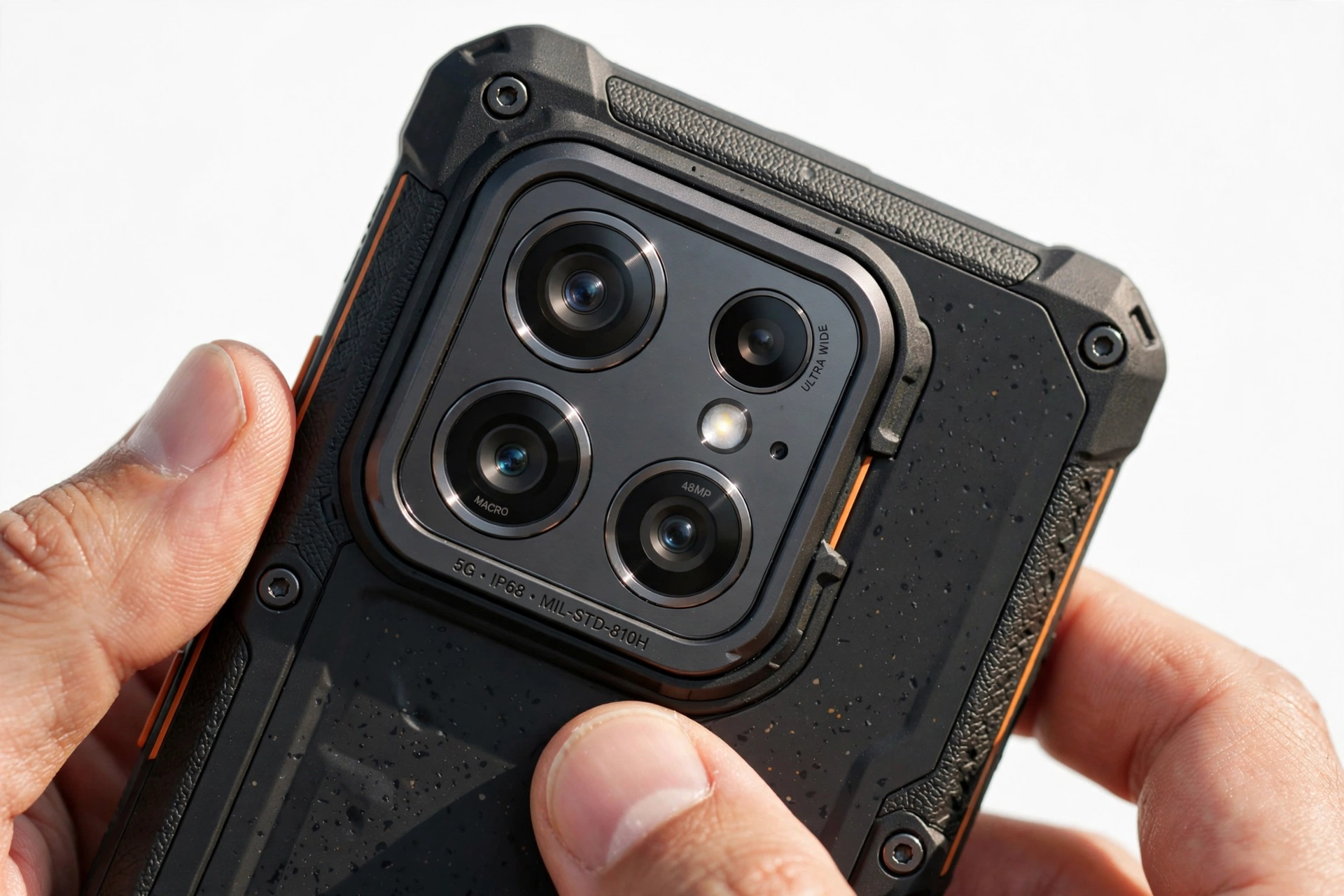
CAT phones are IP68-rated and MIL-STD-810H drop-tested, which protects the body — but the camera lens glass follows the same physics as any phone. After ruling out software:
- Clean the lens with a soft, dry, lint-free cloth. No pins, no liquids, no compressed air, no heat. A sealed rugged phone keeps dust inside out, but a fingerprint on the outside still blurs every photo.
- Check for a cracked lens cover. A drop that the body shrugs off can still crack the small lens glass. Cracks cause permanent blur or flare — no software fix exists.
- Check the case. Some rugged cases and add-on lens protectors cover part of the lens or the flash. Remove the case and test.
- Check focus behavior. Tap to focus on a near object, then a far one. If focus never locks on either camera, note it — that’s useful information for a repair assessment.
Stop for safety: Never poke anything into the lens area, microphone holes, or speaker grilles. Never apply heat to “dry out” a camera, and never open a sealed rugged phone — the waterproofing is a factory assembly, and opening it destroys the seal and risks the battery.
12. When the update itself is the bug: check for a follow-up patch
Sometimes the honest answer is that the update shipped a broken camera driver. Signs:
- The camera failed immediately after the update finished, with no other changes.
- Cache clearing, data clearing, and Safe Mode all fail identically.
- Other owners of the same model report the same failure online after the same update.
If that fits, check Settings > System > Software update (wording varies by model) for a newer patch. Manufacturers sometimes ship a quick follow-up fix. But read section 14 before pinning hopes on one — for Bullitt-era CAT phones, the company that would have shipped that patch no longer exists.
13. The central rule: don’t factory-reset first
A factory reset erases everything — accounts, apps, photos not backed up, messages, authenticator setups — and then reinstalls the same system version you already have, including the same camera driver. Think about what that means:
- If the bug is a revoked permission, corrupt cache, or app conflict, the earlier sections fix it without a reset.
- If the bug is a driver shipped inside the update, the reset reinstalls that exact driver. The camera will still be broken afterward — and now your data is gone too.
A factory reset is only rational after you have (a) backed up everything and verified the backup, (b) exhausted sections 4–12, and (c) accepted that the likely outcome is “still broken, now also wiped.” On a CAT S62, the path is Settings > System > Reset options > Erase all data (factory reset), with a backup first via Settings > System > Backup. A force restart — holding the power button for about 10–15 seconds, per the S62 Pro manual — is the safe reboot to try before any reset.
Quick fact: Resetting “does not erase any system software updates” on these phones — the manual says so explicitly. That is exactly why a reset cannot undo a bad update.
14. The Bullitt Group problem: what the 2024 shutdown means for your CAT phone
This is the honest context most troubleshooting guides skip. CAT phones were designed, built, and supported by the British company Bullitt Group under license from Caterpillar — from 2012 until Bullitt Group closed down in early 2024. In 2025, Caterpillar licensed the CAT phone range to Orbic. What that means for a camera broken by an update:
- Don’t expect a manufacturer patch for Bullitt-era models (S62, S62 Pro, S75, S53, S42 and older). The company that would have written it is gone.
- Old support links may be dead. If your manual points you to a Bullitt support portal, it may no longer respond. Check Orbic’s current CAT phone pages for whatever support now exists for your model.
- Warranty claims go through whoever sold you the phone now, not a single global manufacturer support desk. Keep your purchase documentation.
- Security updates have effectively ended for Bullitt-era models. Weigh that in any repair-vs-replace decision — a working camera on an unpatched phone is a different value proposition than it was in 2023.
None of this changes the troubleshooting steps above — a permission reset or cache clear works regardless of who owns the brand. It only changes your expectations about manufacturer fixes, and it makes the “repair vs. replace” math in section 16 more important.
For context on the general Android camera fix order that applies to any phone, see our general guide to phone cameras failing after updates. Owners of other rugged brands facing the same symptom may find the AGM camera-after-update guide and the Oukitel camera-after-update guide useful comparisons — the fix order is the same, only the manufacturer details differ.
15. Symptom worksheet: match, then act
Use this table as a worksheet. Find your row, do the first check, and only move down if the check fails.
| Symptom | Likely cause | First check | If that fails |
|---|---|---|---|
| Black viewfinder, no error | Permission revoked | Settings > Apps > Camera > Permissions | Clear cache |
| “Can’t connect to camera” | App holding camera / HAL fault | Close all apps, restart | Safe Mode test |
| Crash on launch | Cache corruption | Clear Camera cache | Clear Camera data |
| One sensor dead | Driver mismatch | Third-party camera app test | Check for follow-up update |
| Blurry, won’t focus | Lens or autofocus | Clean lens, remove case | Professional assessment |
| Thermal camera dead (S62 Pro) | FLIR app/driver | Restart thermal app, clean thermal lens | Restart phone; check for update |
| Flashlight also dead | Shared hardware path | Restart; check for damage | Professional assessment |
| Everything broken after update | Corrupt update | Force restart (10–15 s power hold) | Backup, then consider reset |
| Works in Safe Mode only | Third-party conflict | Uninstall camera-related apps one by one | Clear Camera data |
| Nothing software fixes it | Hardware or unfixable driver | Document symptoms | Repair-or-replace decision |
Two brief illustrations of how this plays out in practice (the following are hypothetical illustrations, not customer stories):
- Daniel’s silent permission revoke: Daniel’s CAT S62 camera showed only black the morning after an update. No error, no crash. He checked Settings > Apps > Camera > Permissions and found camera access had been switched off by the update. One toggle, and the camera worked — a thirty-second fix for what looked like a dead camera.
- Maya’s Safe Mode discovery: Maya’s S62 Pro camera crashed on every launch after an update, and clearing the cache didn’t help. In Safe Mode the camera worked perfectly, which pointed at a third-party app. She uninstalled a “camera enhancer” she had added months earlier; the stock camera worked immediately after the restart.
Tip: When you find the fix, note which step worked. If a future update breaks the camera again, you’ll know your phone’s personal weak point — permission, cache, or a specific app — and can go straight there.
16. What your checks can and cannot establish
Honesty about limits is part of the fix. Home troubleshooting is powerful but bounded:
| Observation | Establishes | Does NOT establish |
|---|---|---|
| Permission was off; camera works after enabling | The update revoked the permission | That nothing else is wrong |
| Works in Safe Mode | A third-party app is interfering | Which app, without testing |
| Third-party camera app works | Hardware and drivers are healthy | What corrupted the stock app |
| One sensor fails everywhere | That sensor’s path is broken | Whether it’s driver or hardware |
| Cache clear fixes it | Stale cache was the cause | That it won’t recur after the next update |
| Nothing fixes it | Software steps are exhausted | That the phone is unrepairable — a shop can test the hardware directly |
17. Repair or replace? The decision the shutdown forces
With Bullitt Group gone, the repair-vs-replace math for a CAT phone is different than for a phone with an active manufacturer:
- Repair makes sense if the fault is isolated (one sensor, one app) and the phone otherwise meets your needs — a competent shop can replace a camera module without manufacturer support.
- Replace makes sense if the fault is a driver bug with no patch coming, if multiple systems failed, or if you need ongoing security updates — no Bullitt-era CAT phone will receive them.
- Before either, back up everything while the phone still boots. A phone with a dead camera today can become a phone that won’t boot tomorrow if the underlying issue spreads.
If you want a professional assessment, Las Vegas Phone Repair & Accessories, 7400 Las Vegas Blvd S, Unit TT42, Las Vegas, NV 89123, (424) 406-6202, can examine the phone in person — call ahead to confirm today’s hours. An in-person check can distinguish a hardware fault from a software one in minutes, which no remote guide can do.
18. Frequently asked questions
Will a factory reset fix my CAT camera after an update?
Usually not, and it costs you all your data. A reset reinstalls the same system version — including the same camera driver that the update installed. Fix permissions, cache, and app conflicts first; those are the actual common causes.
Why did the update break my camera if updates are supposed to improve things?
Updates change permissions, replace drivers, and alter how apps interact. Any of those can break a working camera. On older or discontinued models, updates receive less testing against the full hardware range, so regressions are more likely.
My CAT S62 Pro thermal camera stopped working but the normal camera is fine. Is it the same problem?
No — the thermal camera is a separate FLIR system with its own app and driver. Clean the thermal lens, restart the thermal imaging app, then restart the phone, per the S62 Pro manual’s own thermal-imager guidance. If the regular camera had failed instead, you’d follow the standard steps in this guide.
Can a “camera booster” app fix this?
No. These apps are a frequent cause of post-update camera failures, not a cure — they grab camera access and conflict with the stock app. Uninstall them.
The camera worked for a week after the update, then failed. Is that still the update’s fault?
Possibly, but delayed failure points more toward a third-party app that updated afterward, or a cache that corrupted gradually. Run the Safe Mode test — it’s the fastest way to separate a late-breaking app conflict from a true update regression.
CAT support isn’t answering. What now?
Bullitt Group, the company behind Bullitt-era CAT phones, closed in early 2024; the CAT phone license moved to Orbic in 2025. Check Orbic’s current CAT phone support pages for your model, and direct warranty questions to the retailer who sold you the phone.
Is it safe to keep using the phone with a broken camera?
Yes, as long as nothing else is wrong — no swelling, no overheating, no other failures. But back up your data promptly; a phone showing one post-update fault deserves a current backup regardless.
When should I stop troubleshooting and get help?
Stop when you’ve worked the worksheet in section 15 and nothing changed, when the flashlight fails too (suggesting a shared hardware path), when you see physical damage, or when the phone shows any battery warning signs. At that point a hands-on diagnosis beats more settings changes.
Video: How to tell if your smartphone is fake or real
Sources and editorial notes
- CAT S62 Pro Rugged Smartphone User Manual (via manuals.plus) — troubleshooting section (thermal imager guidance: clean lens, restart app or device), force restart (hold power 10–15 seconds), factory reset path (Settings > System > Reset options > Erase all data), backup path (Settings > System > Backup).
- CAT phones — Wikipedia — Bullitt Group developed and marketed CAT phones 2012–2024 under Caterpillar license; 2025 license moved to Orbic.
- Android Authority: the company behind rugged CAT and Motorola phones has shut down — Bullitt Group closure confirmed via employee reports, January 2024.
- GizmoChina: Bullitt Group declares bankruptcy — CAT S75 satellite messaging context; future of CAT phones uncertain at the time.
- TechSpot: Bullitt, maker of Caterpillar, Land Rover, and Kodak-branded phones, goes out of business — S60 as first phone with integrated FLIR thermal camera; company history.
- CAT S62 Rugged Smartphone User Manual (via manuals.plus) — model Q75701 specifications (12 MP rear, 8 MP front, 2 MP depth, Android 11 Go, IP68, MIL-STD-810H), factory reset procedure.
Last source check: October 14, 2026. AI-assisted editorial guide, checked against the linked manufacturer information. Troubleshooting steps are summarized in the author’s own words from the cited manuals and reporting; no manufacturer text is reproduced. The Bullitt Group closure and Orbic licensing details are reported facts as of the source dates. If Orbic announces new support channels for Bullitt-era models, the guidance in section 14 should be re-checked.
Let’s get you connected again.
Tell us what’s happening with your device and we’ll help you decide the safest next step — no jargon, no pressure.
Las Vegas Phone Repair & Accessories · 7400 Las Vegas Blvd S, Unit TT42, Las Vegas, NV 89123
10:00 AM–8:00 PM — call ahead to confirm today’s hours