
How to Transfer Data from Broken Kyocera Phone to New Phone: Complete Guide
You can transfer data from a broken Kyocera phone to a new phone using your Google backup, a USB cable, or a microSD card — Kyocera never released a proprietary transfer app, so Google’s own backup is the official path. If the phone still powers on, a USB cable and microSD card give you direct file access; if it is fully dead, restoring a Google backup onto the new phone is usually the only lifeline, and it works even without touching the broken device.
On this page
You can transfer data from a broken Kyocera phone to a new phone using your Google backup, a USB cable, or a microSD card — Kyocera never released a proprietary transfer app, so Google’s own backup is the official path.
1. Who this guide is for
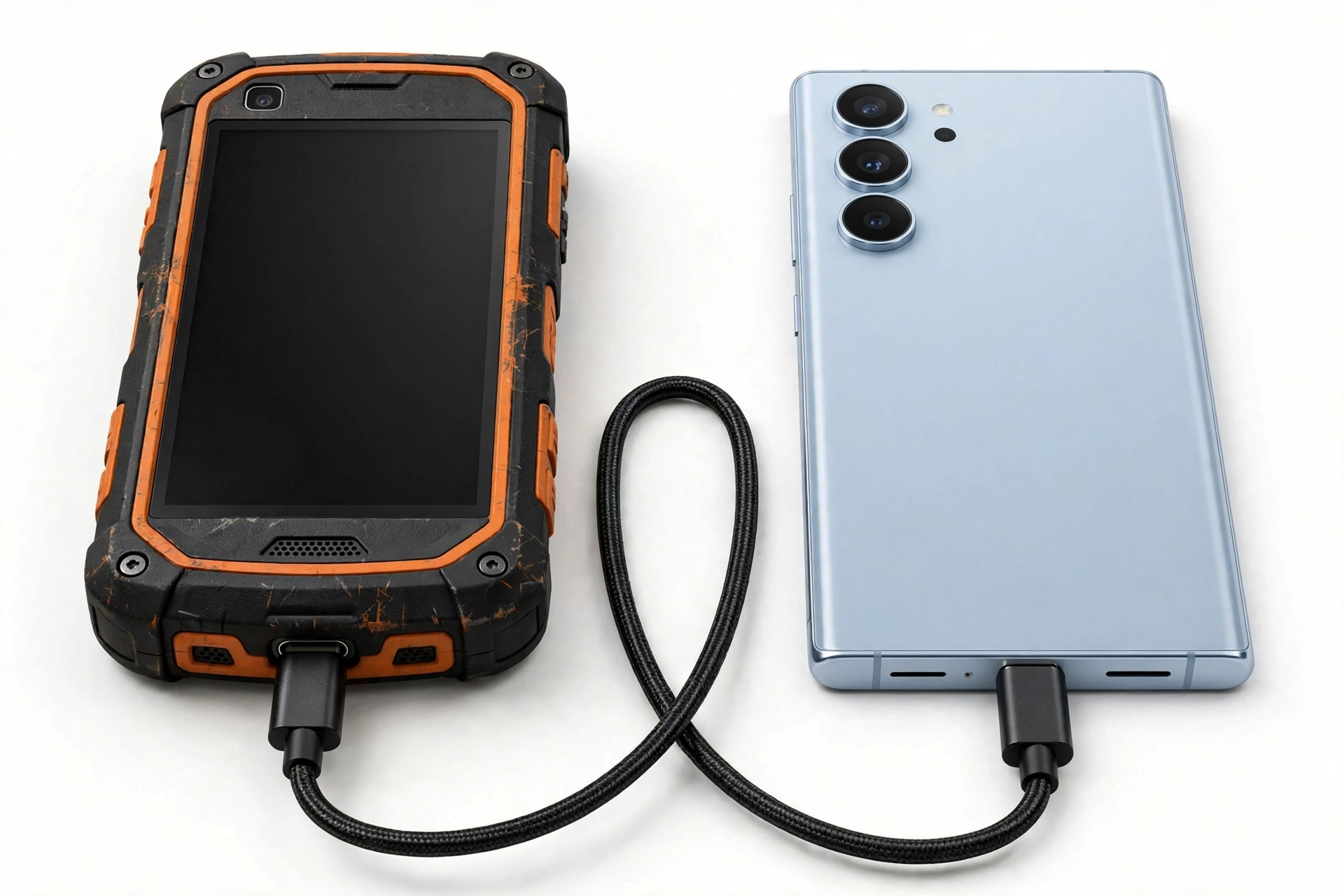
This guide is for anyone whose Kyocera phone — most often a DuraForce, DuraForce Pro, DuraForce Ultra 5G, or DuraForce Pro 3 — has a cracked screen, a dead touch panel, a black display, charging problems, or water exposure, and who now needs to move contacts, photos, messages, and app data onto a working phone. Kyocera’s DuraForce line is built for construction sites, warehouses, farms, and first-responder work, so “broken” here often means the phone survived a drop that would have killed a glass flagship but finally gave up after years of hard use. (Source: att.com)
It also helps if you are setting up the replacement phone and wondering which of your old data comes back automatically and which needs a manual move. The methods below are ordered from least effort to most effort, and the first method works even when the broken phone will not turn on at all.
Quick fact: Kyocera announced it was exiting the consumer phone business in the United States while continuing to serve the enterprise and rugged segment — so DuraForce phones remain supported through business and carrier channels, but the consumer playbook below (Google backup, USB, microSD) is the same path Kyocera’s own manuals document.
2. First: figure out what “broken” means for your phone
Not every broken phone needs the same rescue. Before you try anything, match your phone’s condition to the right starting point. Spending ten minutes on the wrong method is how people accidentally wipe the data they were trying to save.
| Condition | What it looks like | Start with |
|---|---|---|
| Cracked screen, touch works | Display shows damage but responds to taps | USB cable transfer or microSD copy — fastest |
| Touch dead, display visible | You can see the screen but cannot interact | USB cable to computer (no touch needed after plugging in) |
| Black screen, phone powers on | Vibrates or makes sounds; screen stays dark | USB cable to computer; try the notification-shade USB mode by memory |
| Phone dead, no signs of life | No vibration, no charging light, nothing | Google backup restore on the new phone — skip the broken phone entirely |
| Water-exposed | Was submerged or heavily splashed | Do not power on or charge; go straight to the water-safety section, then Google backup |
Stop for safety: If the battery area is swollen, bulging, distorted, leaking, or dangerously hot, do not charge it, do not plug it into a computer, and do not try any transfer that powers the phone. A damaged lithium battery is a fire risk. Power the phone down if it is on, set it on a non-flammable surface away from anything combustible, and skip to the professional-help section.
3. The honest Kyocera reality: there is no Kyocera transfer app
Some phone brands ship a proprietary migration tool. Kyocera is not one of them. Kyocera has never released a “Kyocera Smart Switch” or equivalent phone-to-phone transfer app, and its manuals document Google’s own backup as the official route: the DuraForce manuals describe backing up through Settings > Backup & reset > Back up my data to Google servers, with a Google Account set as the backup account.
This is actually good news for a broken-phone rescue. It means the transfer path does not depend on any Kyocera software working on the damaged phone — it depends on Google’s cloud backup, standard USB file transfer, and the microSD card slot that the DuraForce line has carried for years. Any third-party Play Store app trading on Kyocera’s name is unofficial: treat it as untrusted software and do not hand it your Google credentials or personal data.
Tip: Because the path is Google’s, your rescue works the same whether your replacement phone is another Kyocera, a Samsung, a Pixel, or any other Android phone. The new phone just needs to sign in to the same Google account.
4. Method 1: Restore your Google backup on the new phone (works even if the old phone is dead)
This is the method to try first, because it is the only one that works when the broken phone will not power on. During the new phone’s first setup, Android offers to copy apps and data from a previous device or a cloud backup. Choosing the cloud backup pulls down everything Google saved: app list, app data for participating apps, call history, contacts, device settings, SMS history (on most Android versions), and Wi-Fi passwords.
Step 1: Check whether a backup actually exists (do this before you buy or set up anything)
- On any computer or working phone, open Google Drive in a browser and sign in to the same Google account used on the Kyocera.
- Open Storage (or the gear menu), then Backups.
- Look for an entry named after your Kyocera model with a recent date. If it exists and is recent, your rescue is in good shape.
Important: Google device backups expire. If a backup has not been updated for about 57 days, Google may delete it. Check sooner rather than later — a backup that existed last month may already be gone.
Step 2: Restore during new-phone setup
- Power on the new phone and begin setup.
- When asked to copy apps and data, choose “Can’t use old device” (wording varies by brand) and then restore from a cloud backup.
- Sign in to the same Google account, pick the Kyocera backup, and let the restore finish over Wi-Fi.
Step 3: What to verify afterward
Open Contacts, check that your contact list is complete; open Photos (see the app-by-app section below); and confirm your call log and SMS threads came through. Anything missing at this point probably was never in the backup — see Method 2 and Method 3 for the direct-copy routes.
| Data type | Usually included? | Notes |
|---|---|---|
| Contacts | Yes, if saved to Google account | Contacts saved to “Phone” or SIM only may not sync |
| Photos and videos | Only via Google Photos sync | Device backup and Photos backup are separate — check both |
| SMS and call history | Often yes | Depends on Android version and messaging app |
| App list | Yes | Apps reinstall; logins usually do not carry over |
| App data | For participating apps | Many games and some apps opt out |
| Wi-Fi passwords and settings | Yes | Restored automatically on sign-in |
| WhatsApp chats | No — separate backup | WhatsApp keeps its own Google Drive backup |
| Authenticator codes | Usually no | Plan to re-register these manually |
5. Method 2: USB cable to a computer (best when the screen is cracked or touch is dead)
If the phone powers on but the screen is unusable, a USB cable lets a computer read the phone’s storage directly — no screen interaction required beyond the initial connection. Kyocera’s own carrier support documentation describes exactly this flow for the DuraForce line.
On a Windows PC
- Power the Kyocera on and connect it to the computer with a USB cable (USB-C on newer models like the DuraForce Pro 3; Micro-USB on older DuraForce models — use the cable type that matches your phone’s port).
- Swipe down from the notification shade and tap the USB / charging notification, then choose Transfer files (also called File Transfer or MTP). If the touch screen is dead, this step is the hard part — try it by memory, or skip to the microSD method.
- Open File Explorer > This PC, open the phone’s drive, and drag-and-drop the folders you need — DCIM (photos and videos), Download, Documents, and any app folders you recognize.
On a Mac
Install Google’s Android File Transfer app first — macOS does not read Android phones natively. Then follow the same steps: connect, set the phone to Transfer files mode, and drag-and-drop in the app window.
Quick fact: Kyocera’s manuals also document the USB connection modes: Media device (MTP) for file transfer on Windows or Android File Transfer on Mac, Camera (PTP) for photo-oriented software, and Charge only. If your computer sees the phone but shows no files, the phone is almost certainly still in Charge only mode.
If the computer does not recognize the phone
- Try a different cable — many “charging” cables carry no data wires.
- Try a different USB port, preferably one directly on the computer rather than a hub.
- On Windows, Kyocera USB drivers may be needed; the driver package is published for the DuraForce line and installs like any other device driver.
- If the phone was wet, do not use the USB port until the phone is completely dry — Kyocera’s own waterproofing guidance warns against using the port while moisture is present.
6. Method 3: microSD card (Kyocera’s rugged-phone advantage)
The DuraForce line has long shipped with a microSD slot — the DuraForce Pro 3 supports microSDXC cards up to 1TB — which gives you a physical, removable copy of your files that survives even a phone that will never boot again. If your photos, videos, or documents were saved to the card, simply move the card to the new phone or a computer card reader.
How to use it
- Power the phone fully off and remove the microSD card (on sealed rugged models, the card sits under a port cover or the back cover — open only the cover the manual designates for the card).
- Insert the card into the new phone or a USB card reader on a computer and copy everything to a safe location first.
- Only after you have a verified copy on the computer should you rely on the card in the new phone.
| Format | What it means | Can another device read it? |
|---|---|---|
| Portable storage | Card used as removable media | Yes — move it freely between devices |
| Adopted (internal) storage | Card formatted as an extension of internal storage | No — encrypted to the original phone; unreadable elsewhere |
Important: If your card was formatted as adopted (internal) storage, it is encrypted to the broken phone and cannot be read by the new phone or a computer. In that case the card is not a rescue path — fall back to the Google backup or USB methods.
7. Touch-dead and black-screen rescues: an honest assessment
With the screen unusable, your options narrow. The USB method above is the most realistic because the computer does the work. Two other rescue ideas deserve honest framing on Kyocera hardware:
- USB mouse via adapter: On many Android phones, a USB OTG adapter plus a mouse lets you control a touch-dead phone. However, at least one published spec listing for the DuraForce Pro 3 marks OTG support as absent, and Kyocera does not document OTG-mouse rescue in its manuals — so treat this as worth one attempt with a cheap adapter, not a guaranteed fix. Do not buy expensive gear on the assumption it will work.
- Programmable buttons: The DuraForce Pro 3 has three programmable hardware buttons that can be set to launch apps with single, double, or press-and-hold actions. If yours were configured before the screen failed, they may still launch the camera or another app — a small but genuine Kyocera-specific edge.
- Removable battery (DuraForce Pro 3): A true battery pull gives you a real power cycle when the phone is frozen — no need to hold buttons and hope. This is one of the few modern phones where “take the battery out” is still legitimate advice.
Tip: If the display is black but the phone vibrates or plays sounds, the phone is alive and the USB method is your best bet — you just need the computer to see it. Try the notification-shade USB mode change from memory: swipe down, tap roughly where the USB notification sits, and select the transfer option.
8. Method comparison: which to try first
| Order | Method | Needs the old phone working? | Best for |
|---|---|---|---|
| 1 | Google backup restore | No | Dead phones; full setup migration |
| 2 | USB cable to computer | Must power on | Photos, videos, documents; touch-dead screens |
| 3 | microSD card move | No (card must be portable-format) | Media libraries on high-capacity cards |
| 4 | Google Photos / Drive sync check | No | Recovering media that synced before the failure |
9. App-by-app: what actually moves and what does not
Two hypothetical illustrations show where people get surprised:
(The following are hypothetical illustrations, not customer stories.) Maya, a site foreman, restores her Google backup to a new phone and finds her contacts and apps back — but her authenticator codes are gone and her banking apps demand fresh logins. Devon, whose DuraForce died completely, discovers his photos are safe because Google Photos had been syncing, but his WhatsApp history is missing because he never enabled WhatsApp’s own backup.
| App or data | Moves with Google backup? | What to do |
|---|---|---|
| WhatsApp chats | No | Enable WhatsApp’s own Google Drive backup; restore inside WhatsApp on the new phone |
| Google Photos media | Separate sync | Check photos.google.com — synced media is already safe |
| Authenticator codes | Usually no | Re-register each account; keep backup codes somewhere safe |
| Banking and payment apps | App yes, login no | Sign in fresh; have your credentials ready |
| Text messages | Often yes | Verify threads after restore; carrier messages may vary |
| Files on microSD (portable) | N/A — physical | Move the card or copy via reader |
10. Kyocera-specific notes worth knowing
- Enterprise and carrier devices: Many DuraForce phones are Verizon business or first-responder devices with enterprise management. If yours was carrier-managed, check with your IT administrator — they may have their own backup or device-replacement process, and a factory reset could violate company policy.
- Waterproofing and the USB port: DuraForce phones carry serious water resistance (IP68-class on recent models), but the seals only work when port covers are properly seated. After any water exposure, do not use the USB port for charging or data until the phone is completely dry.
- Underwater camera mode: Some DuraForce models include an underwater photo mode. If the camera app seems stuck in an odd mode after water exposure, that is a software state, not a transfer blocker — your files are still in the DCIM folder.
- Push-to-talk and One Talk: Business features like Verizon One Talk live in the carrier account, not the phone — they follow your line, not your device, so they are not part of the data rescue.
11. What not to do
- Do not factory-reset the broken phone before copying. A reset wipes the very data you are trying to save, and on a phone with a dead screen you cannot even confirm what the reset erased. Copy first, wipe last.
- Do not repeatedly power on a water-damaged phone. Each power-on risks shorting components. If it got wet, leave it off and rely on the cloud backup.
- Do not open the phone beyond the battery/card covers. The DuraForce Pro 3’s removable battery is user-serviceable; the sealed internals are not. Opening them voids protection and risks the battery.
- Do not install “data recovery” apps from unknown developers on the new phone and grant them broad permissions — many are adware or worse. Stick to Google’s own tools and manual file copies.
- Do not trust unofficial “Kyocera transfer” apps with your Google credentials, as noted in section 3.
Stop for safety: Never charge a phone that was submerged until it is fully dry inside and out, and never charge a swollen, punctured, or overheating battery under any circumstances. When in doubt, leave it unplugged.
12. After the transfer: close out the old phone properly
- Verify first: On the new phone, open contacts, photos, messages, and your most important apps. Confirm the data is really there — not just the app icons.
- Sign out of the old phone if you can still access it (Settings > Accounts > Google > Remove account). If the screen is dead, remove the device from your Google account via a browser at your Google account’s device management page instead.
- Remove the SIM and microSD card before recycling or trading in the broken phone.
- Factory-reset only after verification — and only if the phone still powers on. A dead phone going to e-waste recycling does not need a reset you cannot perform; removing the accounts remotely (step 2) covers the security angle.
13. When professional help makes sense
If the phone holds irreplaceable data — years of job-site photos, for example — and none of the methods above reach it, a repair shop can assess whether a screen replacement (to regain touch access for a USB transfer) is worthwhile. For DuraForce phones this math is unusually favorable: the removable battery and the enterprise repair ecosystem mean parts and procedures exist, though availability varies by model.
Las Vegas Phone Repair & Accessories, 7400 Las Vegas Blvd S, Unit TT42, Las Vegas, NV 89123, (424) 406-6202, can assess a broken Kyocera and advise whether a repair-for-data-recovery makes sense for your situation. Call ahead to confirm today’s hours. No outcome is guaranteed — the assessment tells you what is actually recoverable before you spend anything.
For background on the general process, see our guide to transferring data from a broken phone; the Sonim and CAT walkthroughs — Sonim and CAT — cover the same methods on other rugged brands.
14. Frequently asked questions
Can I transfer data from a Kyocera that will not turn on at all?
Yes — through the Google backup, which lives in the cloud rather than on the phone. During the new phone’s setup, choose the cloud-restore option and sign in to the same Google account. USB and microSD methods need at least some sign of life from the old phone, except for a portable-format microSD card, which can be moved directly.
Did Kyocera ever release a transfer app?
No. Kyocera never shipped a proprietary phone-to-phone transfer app. Its manuals document Google’s backup (Settings > Backup & reset > Back up my data) as the official method. Treat any Play Store app using Kyocera’s name as unofficial.
How do I check whether a Google backup exists?
Open Google Drive in a browser, go to Storage, then Backups, while signed in to the same Google account. Look for an entry named after your Kyocera model with a recent date.
What is the fastest method if the screen is cracked but touch works?
A USB cable to a computer in Transfer files (MTP) mode, dragging the DCIM, Download, and Documents folders across. It is faster than cloud restore for large photo libraries and gives you a local copy you control.
Can I control a touch-dead DuraForce with a USB mouse?
Possibly, but it is not guaranteed — published specs for the DuraForce Pro 3 are inconsistent on OTG support, and Kyocera does not document the method. It is worth one attempt with an inexpensive adapter, but do not plan your whole rescue around it.
Will moving my microSD card move everything?
Only what was stored on the card — typically photos, videos, and downloads if you set the camera and apps to save there. Contacts, messages, and app data live in internal storage and the Google backup, not on the card. And if the card was formatted as adopted (internal) storage, it cannot be read by any other device.
What about my WhatsApp chats?
WhatsApp keeps its own backup to Google Drive, separate from the device backup. On the new phone, install WhatsApp, verify your number, and accept the restore prompt. If you never enabled WhatsApp’s backup on the old phone, those chats are not recoverable from the Google device backup.
Should I repair the Kyocera or just replace it?
If the phone is otherwise working and you need touch access for a one-time data pull, a screen repair can be the cheapest path to your data. As a long-term daily driver, weigh the repair cost against a replacement — keeping in mind Kyocera’s shift toward the enterprise segment. A shop assessment gives you the real numbers before you decide.
Video: How to transfer everything from old to new Android
Sources and editorial notes
- AT&T Kyocera DuraForce (E6560) user manual — Backup & reset settings, “Back up my data” to Google servers, Gmail/Exchange backup steps.
- AT&T device support: Kyocera DuraForce Pro (E6820) media transfer — USB Transfer files mode steps for PC and Mac.
- Kyocera DuraForce Pro 3 instruction manual (Manuals.plus) — Battery, waterproofing precautions, USB port guidance.
- Android Headlines: DuraForce Pro 3 on Verizon — microSDXC up to 1TB, removable 4,270mAh battery, programmable buttons.
- ZDNet: DuraForce Pro 3 review — Removable battery and microSD details, rugged construction.
- BetaNews: Kyocera launches DuraForce Pro 3 — Full specifications, IP68, MIL-STD-810H.
- PhoneArena: DuraForce Pro 3 official — Kyocera’s enterprise focus and consumer exit context.
- Maxbhi: DuraForce Pro 3 specifications — USB-C, spec listing noting OTG as unconfirmed (used with caution).
Last source check: October 14, 2026. AI-assisted editorial guide, checked against the linked manufacturer information. Kyocera procedures described here are limited to documented Settings paths and carrier-published support steps; no unofficial codes or procedures are included. Spec-aggregator details are labeled as such. If Kyocera or your carrier publishes updated transfer guidance, the official guidance takes precedence.
Let’s get you connected again.
Tell us what’s happening with your device and we’ll help you decide the safest next step — no jargon, no pressure.
Las Vegas Phone Repair & Accessories · 7400 Las Vegas Blvd S, Unit TT42, Las Vegas, NV 89123
10:00 AM–8:00 PM — call ahead to confirm today’s hours