
Sonim Phone Camera Not Working After Update: Causes and Safe Fixes
If your Sonim phone’s camera stopped working after an update, the problem is almost always software, not a broken camera. Updates can reset camera permissions, corrupt the camera app’s cache, or introduce a driver mismatch — and the fix is usually a sequence of safe software checks, not a repair shop visit.
On this page
If your Sonim phone’s camera stopped working after an update, the problem is almost always software, not a broken camera.
1. What “camera not working after an update” actually means on a Sonim
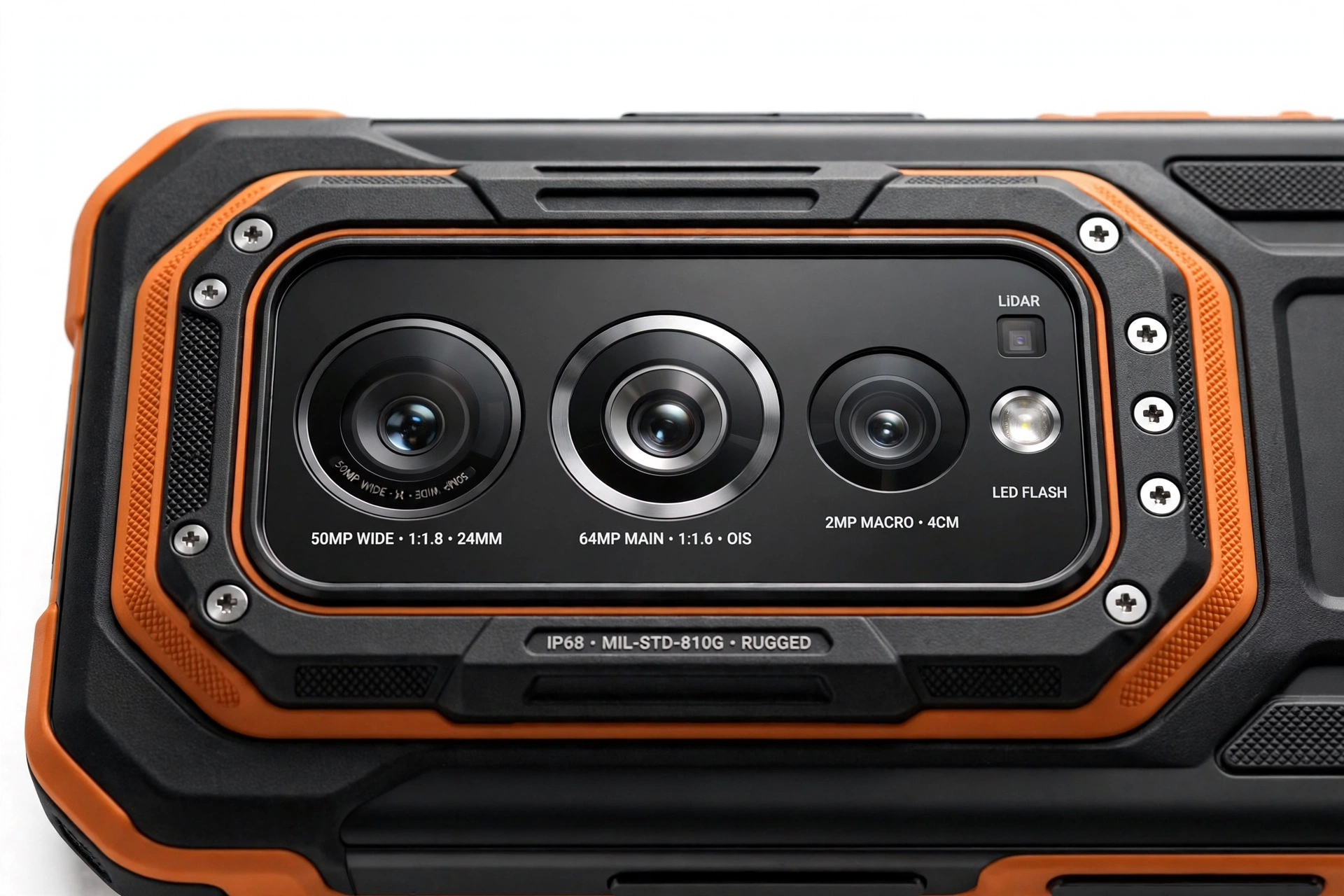
Sonim phones — the XP3, XP3 Plus, XP5, XP5s, XP5plus, XP8, and XP10 series — are ultra-rugged work phones built to MIL-STD-810H and IP68 ratings. They run a lightly customized version of Android (with some carrier-specific builds on Verizon and AT&T), and they receive system updates that occasionally change how the camera hardware, drivers, and permissions interact. When the camera breaks right after one of those updates, it is tempting to assume the update “fried” the camera. In nearly every case, it did not. (Source: manuals.plus)
What actually happens is more mundane. An update can:
- Reset or revoke the Camera app’s permissions, so the app can no longer talk to the hardware — the viewfinder goes black or the app refuses to open.
- Corrupt the Camera app’s cached data, causing crashes, freezes, or the “Can’t connect to camera” error.
- Introduce a camera driver (HAL) mismatch, where the new system software and the existing camera driver no longer agree — this shows up as a black viewfinder or error messages in third-party camera apps too.
- Conflict with a third-party app that also uses the camera (flashlight apps, barcode scanners, video chat apps), which can hold the camera open and block the stock Camera app.
- Change power-management or media-framework behavior, which can cause intermittent crashes in video mode specifically.
None of these are physical damage. An update cannot crack a lens, disconnect a ribbon cable, or burn out a sensor. The one honest exception is coincidence: a loose camera connector can fail at the same time as an update, which is how “the update broke it” stories start. This guide will help you tell the difference.
Quick fact: Sonim’s own manuals confirm the software-first approach. The XP3 Plus XP3900 user manual’s troubleshooting table lists “Camera not working” with the cause “Software lens glitch or camera obstructed” and the solution “Restart the device. Ensure lens camera is clean and unobstructed.” The fix order starts with the simplest software steps — this guide follows the same logic in more detail.
2. The one rule: don’t factory-reset first
A factory reset reinstalls the same system version that is currently on the phone — including the same camera driver. If the problem is a shipped driver bug introduced by the update, a reset cannot fix it, because you are reinstalling the same buggy software. Worse, a factory reset erases everything: your Google account, downloaded apps, photos, and settings. Sonim’s own XP10 manual states the warning plainly: “Tap Erase all data to erase all the data… You can’t undo this action!”
So the order is: test first, escalate later, reset only as a last resort with a verified backup. Every step in this guide is non-destructive until you reach the clearly-marked escalation points.
Stop for safety: Do not confuse “clear the Camera app’s cache” with a factory reset. Clearing cache (Settings → Apps & notifications → Camera → Storage & cache → CLEAR CACHE) only removes temporary files and is safe. “Clear data” removes the app’s settings. “Erase all data” (factory reset) wipes the whole phone. These are three very different actions — this guide tells you exactly which one to use at each step.
3. Sonim-specific things worth knowing before you start
Sonim’s XP lineup is unusual enough that a few brand specifics matter before you troubleshoot:
- Some Sonim phones have no front camera. The XP5 and XP5s are basic rugged feature-style phones with a single rear camera (5 MP). If “selfie mode doesn’t work” on an XP5/XP5s, that is the hardware, not the update.
- The XP8 has a dedicated camera key. If the camera key stops launching the camera after an update, test whether the camera works when launched from the app drawer — a key-remapping issue is different from a camera failure.
- Removable batteries are a feature, not a bug. The XP8 (4,900 mAh) and XP5s (3,180 mAh) have removable battery doors secured with screws. A proper power cycle can mean removing the battery for 30 seconds — something almost no modern phone allows.
- Carrier builds differ. Verizon and AT&T ship their own Sonim builds with their own update schedules. An update that breaks the camera on a Verizon XP8 may never touch an AT&T XP8, and vice versa. Check which carrier’s build you have in Settings → About phone.
- Updates are relatively infrequent. Sonim’s update cadence is slower than mainstream brands, which means each update changes more at once — and permission resets are more likely to catch you off guard.
Sonim’s official support contacts, if you need them later: support@sonimtech.com or 1-833-MY-SONIM (1-833-697-6646). Keep these in reserve for the “contact the manufacturer” step at the end — you likely won’t need them.
4. Five ways an update can break the camera, in likelihood order
When readers ask “why would an update break my camera?”, this is the honest technical answer. The table below ranks the mechanisms from most to least likely, with what each one looks like from your side of the screen.
| Mechanism | How likely | What you see | Fix |
|---|---|---|---|
| Permission reset | Very likely | Camera app opens but viewfinder is black; or app asks for permission again | Re-grant Camera permission in Settings → Apps |
| Camera app cache corruption | Likely | App crashes on open, freezes, or shows “Can’t connect to camera” | Force stop → Clear cache |
| Driver (HAL) mismatch | Possible | Black viewfinder in every camera app, including third-party ones | Wait for follow-up update; clear cache as interim step |
| Third-party app conflict | Possible | Camera worked until you opened another app; “camera in use” errors | Close or uninstall camera-holding apps; test in Safe Mode |
| Media framework / power-management change | Less common | Photo mode fine, video mode crashes — or vice versa | Clear cache; check for follow-up update |
You don’t need to memorize this table. Just follow the steps in order — each one is designed to rule out one mechanism at a time, cheapest first.
5. Start here: the 60-second checks
Before touching any settings, run through these three checks. They resolve a surprising number of “broken camera” reports.
Restart the phone properly. On touchscreen XP models (XP8, XP10), hold the power button and choose Restart. On models with removable batteries (XP8, XP5s), a deeper power cycle is available: power off, remove the battery for 30 seconds, reseat it, and power on. This is Sonim’s own documented first step — the XP3 Plus manual’s troubleshooting table leads with “Restart the device” for camera issues.
Clean the lens. Sonim phones live in pockets, tool belts, and dusty job sites. Use a soft, dry, lint-free cloth and wipe the lens in one direction. The XP3 Plus manual advises cleaning with “a soft, damp cloth” and avoiding harsh chemicals — extend that guidance to the lens: no solvents, no abrasive materials.
Stop for safety: Never poke anything into or around the lens area — no pins, needles, or compressed air. Compressed air can force grit under the lens assembly or damage the seal on a rugged phone. If the lens looks scratched from the inside or you see condensation behind it, that is a hardware issue no software fix will solve — skip to section 16.
Check free storage. A camera that cannot save a photo behaves like a broken camera: the shutter appears to do nothing, or the app crashes when you take a shot. Check Settings → Storage. If the phone is nearly full, delete or move some files and test again. Sonim’s AT&T device guides list freeing up memory — deleting unwanted pictures or videos — as a standard troubleshooting step.
6. Permissions: the most common post-update culprit
Android updates can silently revoke app permissions, and the Camera app is a frequent victim. The symptom is distinctive: the Camera app opens, but the viewfinder is black — or the app shows a permission prompt you already answered months ago. The camera hardware is fine; the app simply isn’t allowed to use it.
Check and re-grant permissions:
- Open Settings → Apps & notifications.
- Select Camera (on some builds, tap “See all apps” first).
- Tap Permissions.
- Make sure Camera permission is set to Allow. On some builds, also confirm Microphone (needed for video) and Storage/Files (needed to save photos) are allowed.
If permissions were already correct, move on — but note what you found, because the pattern matters for the worksheet in section 14.
For a broader reset, the XP10 manual documents Reset app preferences: Settings → System → Reset options → Reset app preferences. This restores default permissions and notification settings for all apps without deleting any data — a useful catch-all when an update has scrambled permissions across several apps. (Verify the exact path on your model; carrier builds may place it under a slightly different menu.)
Tip: On Sonim phones sold through carriers, the stock Camera app may be joined by carrier-specific camera or gallery apps. Check permissions on each camera-related app — an update can revoke them independently.
7. Clear cache, clear data, and why the difference matters
If permissions were fine, the next step is clearing the Camera app’s cache. Corrupted cached data is one of the most common reasons a camera app crashes or freezes after an update.
Step 1 — Force stop, then clear cache (safe):
- Open Settings → Apps & notifications.
- Select Camera.
- Tap FORCE STOP, then confirm.
- Tap Storage & cache.
- Tap CLEAR CACHE.
- Reopen the Camera app and test.
This is documented procedure on Sonim’s carrier builds — Verizon’s XP8 support page walks through exactly this sequence (Force stop → Storage & cache → Clear cache), and AT&T’s XP5plus guide covers the same flow with the phone’s key-based navigation. Clearing cache does not delete your photos or settings; it only removes temporary files.
Step 2 — Clear data (more aggressive, still not a factory reset):
If clearing the cache didn’t help, return to the same screen and tap CLEAR DATA (AT&T’s XP8 guide documents this path too: Settings → Apps & notifications → app → Storage → CLEAR DATA). This resets the Camera app to its out-of-box state — your custom camera settings will be lost, but your photos are untouched (they live in the Gallery/DCIM storage, not in the Camera app’s data). Test again.
| Action | What it removes | What it keeps | When to use it |
|---|---|---|---|
| Clear cache | Temporary files only | Photos, settings, everything else | First software step after restart |
| Clear data (Camera app) | Camera app settings and state | Photos, other apps, accounts | Cache clear didn’t work |
| Factory reset (Erase all data) | Everything: accounts, apps, photos, settings | Nothing (the OS itself is reinstalled) | Last resort only, with verified backup |
Stop for safety: Do not factory-reset at this stage. If the cause is a driver mismatch from the update (section 4), a reset reinstalls the same driver and changes nothing — except deleting your data. The reset step belongs at the very end of this guide, after you’ve confirmed everything else.
8. Safe Mode: the conflict detector
If the stock Camera app still misbehaves, the next question is whether a third-party app is interfering. Safe Mode boots the phone with only pre-installed system apps running — no downloaded apps at all.
To enter Safe Mode on most Sonim touchscreen models: press and hold the power button, then press and hold the “Power off” option until “Reboot to safe mode” appears, and confirm. (On keypad-style models, consult your manual — the key combination differs.) The words “Safe mode” appear in a corner of the screen.
Open the Camera app in Safe Mode and test:
- Camera works in Safe Mode → a downloaded app is the problem. Restart normally, then think about which apps use the camera: flashlight apps, barcode/QR scanners, video chat apps, “camera booster” or “camera fixer” apps. Uninstall the most recently installed or updated one first and retest.
- Camera still broken in Safe Mode → the problem is in the system software or the hardware, not a third-party app. Continue with the steps below.
Restart the phone normally to exit Safe Mode.
Tip: “Camera fixer,” “camera booster,” and similar utility apps are a frequent cause of post-update camera failures on Android phones, not a cure. If you have one installed, uninstall it as part of this step regardless of the Safe Mode result.
9. The third-party camera test
Install a reputable third-party camera app (such as Open Camera, free on the Play Store) and test both photo and video capture. This isolates whether the fault is in Sonim’s stock Camera app or deeper in the system.
| Stock Camera app | Third-party app | What it means | Next step |
|---|---|---|---|
| Broken | Works | Fault is in the stock Camera app | Clear data on stock app; check for app updates |
| Broken | Broken | Fault is in the camera driver or hardware | Check for follow-up system update; consider hardware |
| Works | Broken | Third-party app incompatibility | Uninstall the third-party app |
| Works | Works | No fault right now — intermittent issue | Monitor; note when it fails for the worksheet |
10. Front and rear camera isolation
On models with two cameras (XP8: 12 MP rear, 8 MP front; XP10 and others), test each camera independently. If the rear camera fails but the front works — or vice versa — you have narrowed the fault to one camera module or its driver path.
To switch cameras, open the stock Camera app and tap the camera-switch icon. If the app crashes only when switching to one specific camera, note which one. This detail is genuinely useful if you end up at a repair shop: a single-camera failure points to that module, while both cameras failing points to shared software.
Remember: the XP5 and XP5s have no front camera at all. “Front camera not working” on those models is expected hardware behavior, not an update bug.
11. Check for a follow-up update
If the fault looks like a driver mismatch — every camera app fails, permissions and cache are fine — the real fix may be a patch you don’t have yet. Sonim and its carrier partners do ship corrective updates.
Check manually: Settings → Software update → Check for updates (documented in the XP10 manual; on some builds the path is Settings → System → System update). If an update is available, install it over Wi-Fi with the battery well charged, then retest the camera.
A note on honesty: Sonim’s update cadence is slower than mainstream brands, so a fix may take weeks rather than days. That doesn’t mean your phone is permanently broken — it means the software steps in this guide are your interim toolkit, and the hardware checks below help you decide whether waiting is reasonable.
12. The “camera not detected” case
There is one failure pattern worth describing separately because it looks like software but usually isn’t. In a community thread about the Sonim XP3, multiple owners reported the camera stopping entirely — and diagnostic apps showed the system no longer recognizing that a camera was connected at all. After a reset, the phone even installed the camera-less variant of the system software, as if the hardware had never existed.
The community’s working theory was a loose internal camera connector — plausible on a rugged phone that has absorbed years of vibration and drops, even though Sonim builds them tough. The distinguishing signs of this pattern:
- The camera fails in every app, including third-party ones.
- System or diagnostic apps don’t list a camera device at all.
- The failure is sudden and total, not gradual — and it doesn’t correlate with any particular app.
- A factory reset doesn’t help (and on the XP3, made things stranger).
If your Sonim matches this pattern, the software steps above are still worth trying once — they’re cheap — but set your expectations: this is the pattern most likely to need a hardware repair. Do not open the phone yourself to reseat the connector (see the safety box in section 16).
Quick fact: This “camera not detected” pattern is community reporting from an owner forum, not an official Sonim diagnosis. It’s included because the symptom pattern is distinctive and useful — if your phone matches it, you can skip straight to the professional-assessment step instead of repeating software fixes that won’t help.
13. Rugged-phone physical checks
Sonim phones are sealed against dust and water (IP68) and tested to MIL-STD-810H, but “rugged” doesn’t mean “maintenance-free.” A few physical realities of ultra-rugged phones:
- Condensation behind the lens. Moving between extreme temperatures — a heated truck cab to sub-zero air, for example — can fog the inside of the lens. The camera will look blurry or washed out. Let the phone acclimate to room temperature for an hour and retest before assuming software damage.
- Dust-packed seals. Fine dust can accumulate around the camera bezel. Wipe gently with a soft, dry cloth. Never use compressed air — it can drive particles past the seals.
- Battery-door seating (removable-battery models). On the XP8 and XP5s, the battery door is part of the phone’s environmental sealing. If the door isn’t seated correctly after a battery pull, moisture or dust can reach internals. Reseat it carefully and confirm the screws are snug (not overtightened).
- Screen protectors and cases. An ill-fitting case or a screen protector that has shifted can partially cover a front camera or the proximity sensor. Remove the case and test.
14. Symptom worksheet: match what you see to the first check
Use this table to match your exact symptom to the most likely cause and the step to try first. Work down the list in the order given — don’t skip ahead.
| Symptom | Most likely cause | Try first |
|---|---|---|
| Black viewfinder, app opens fine | Permission revoked by update | Section 6: re-grant Camera permission |
| App crashes immediately on open | Corrupted app cache | Section 7: force stop + clear cache |
| “Can’t connect to camera” error | Cache corruption or app conflict | Section 7, then Section 8 (Safe Mode) |
| Works in one app, not another | App-level fault | Section 9: third-party camera test |
| Photo mode fine, video crashes | Media framework / microphone permission | Check Microphone permission; clear cache |
| One camera works, the other doesn’t | Single-module driver or hardware fault | Section 10: isolation; note which camera |
| No camera detected by system at all | Hardware connectivity (loose connector) | Section 12; then professional assessment |
| Blurry or foggy images only | Condensation or dirty lens | Section 5 (clean) and Section 13 (acclimate) |
| Shutter does nothing / won’t save | Storage full | Section 5: free up storage |
| Camera key won’t launch camera | Key remapping, not camera fault | Launch from app drawer; check key settings |
Tip: (The following are hypothetical illustrations, not customer stories.) Imagine Daniel, whose XP8 camera showed a black viewfinder the morning after an AT&T update — re-granting the Camera permission in Settings fixed it in under a minute. Or Maya, whose XP10 camera crashed on open every time — clearing the app’s cache resolved it. Both patterns in the table above come from the most common real-world reports; your symptom likely matches one of these rows.
15. What your checks can and cannot establish
An honest guide should say what home troubleshooting can actually prove. This table keeps expectations realistic.
| Check | Can establish | Cannot establish |
|---|---|---|
| Permission check | Whether the app is allowed to use the camera | Whether the hardware is healthy |
| Clear cache / clear data | Whether corrupted app state was the cause | Whether the driver is correct |
| Safe Mode test | Whether a downloaded app is interfering | Which app, without further testing |
| Third-party camera test | Whether the fault is app-level or system-level | Whether the system fault is driver or hardware |
| Front/rear isolation | Whether one or both camera modules are affected | The exact failed component |
| Visual lens inspection | Obvious dirt, damage, or condensation | Internal connector or sensor faults |
No combination of home checks can definitively distinguish a driver bug from a failed camera module. If you’ve worked through the software steps and the camera still fails in every app, the remaining possibilities are a shipped driver bug (fixable only by a future update) or hardware failure (fixable only by repair). A professional assessment can tell them apart.
16. When to stop and get professional help
Stop troubleshooting and seek a professional assessment if any of the following apply:
- The camera fails in every app after permissions, cache, Safe Mode, and a follow-up-update check.
- The system doesn’t detect a camera at all (the section 12 pattern).
- You see condensation inside the lens that doesn’t clear after acclimating.
- The phone was dropped hard or exposed to water around the same time as the update — the timing may be coincidence.
- The battery is swollen, distorted, or dangerously hot — power the phone down and stop immediately.
Stop for safety: Never open a Sonim phone yourself. The XP series uses sealed, ruggedized assemblies — opening the phone breaks the environmental sealing, voids any remaining warranty, and on models with non-removable batteries risks puncturing the battery. There are no user-serviceable parts inside. If the battery is swollen or the phone is dangerously hot, power it down, do not charge it, and keep it away from flammable materials.
If you decide a repair assessment makes sense, a local shop can check the camera module and connectors without guessing. Las Vegas Phone Repair & Accessories, 7400 Las Vegas Blvd S, Unit TT42, Las Vegas, NV 89123, (424) 406-6202, can assess Sonim camera issues — call ahead to confirm current hours and Sonim parts availability, since rugged-phone parts are less commonly stocked than mainstream models. For warranty questions, Sonim’s own support is support@sonimtech.com or 1-833-MY-SONIM (1-833-697-6646).
Quick fact: If your Sonim is still within its warranty period (historically up to 3 years on many XP models), contact Sonim or your retailer first — a warranty repair costs you nothing and preserves the phone’s rugged sealing. Out-of-warranty hardware faults are where a local repair assessment makes sense.
17. Frequently asked questions
Can a system update physically damage my Sonim’s camera?
No. An update changes software — permissions, cached data, drivers. It cannot crack a lens, disconnect a cable, or burn out a sensor. When hardware fails at the same time as an update, the timing is coincidence (or the reboot during the update revealed a pre-existing loose connection). The software checks in this guide resolve the genuine software causes.
Should I factory-reset my Sonim to fix the camera?
Not as a first step — and usually not at all for this problem. A factory reset reinstalls the same system version, so it cannot fix a driver bug shipped in the update. It also erases all your data. Work through permissions, cache clearing, Safe Mode, and the update check first. Only consider a reset as a last resort with a verified backup, as described in section 2.
Why does my camera work in WhatsApp but not in the Camera app?
That pattern points to the stock Camera app itself — corrupted cache or data, or a permission issue specific to that app. Clear the stock Camera app’s cache and data (section 7) and retest. The camera hardware is fine, since another app can use it.
What does “Can’t connect to camera” mean?
It means the Camera app tried to open the camera hardware and failed. The most common causes after an update are corrupted app cache or another app holding the camera open. Force-stop the Camera app, clear its cache, and check Safe Mode (sections 7 and 8). If it persists across all apps, see section 12.
Do “camera fixer” or “camera booster” apps help?
No — they are a frequent cause of camera problems, not a cure. These apps request camera access and can hold the camera open, blocking the stock app, or conflict with the system camera service after an update. Uninstall any such app and retest before trying anything else.
My XP5s has no front camera option. Is it broken?
No. The Sonim XP5s (and XP5) ship with a single rear camera and no front camera — that’s the hardware specification, not an update bug. The same applies to any “missing” front-camera toggle on those models.
The camera worked for a week after the update, then stopped. Is the update still the cause?
Possibly, but delayed failures deserve extra skepticism. A driver issue usually appears immediately. A failure that appears days later — especially after a drop, temperature shock, or exposure to moisture — is more likely hardware. Run the software checks once, but weight the physical checks in section 13 more heavily.
What should I tell a repair shop about my Sonim camera problem?
Bring the results of your checks: which camera fails (front, rear, or both), whether it fails in all apps or just one, what the exact error message is, which update preceded the failure, and whether the system detects the camera at all. That information lets a technician go straight to the likely fault instead of repeating your software steps. Also mention your model and carrier build — Sonim parts and firmware vary by both.
Tip: For more general camera troubleshooting that applies to any Android phone, see our general guide to phone cameras not working after updates. For the same issue on other rugged brands, see our guides for CAT phones and AGM phones.
Video: How to tell if your smartphone is fake or real
Sources and editorial notes
- Sonim XP3 Plus XP3900 User Manual (manuals.plus) — official troubleshooting table (“Camera not working: software lens glitch or camera obstructed; restart the device; ensure lens is clean”) and maintenance guidance (soft damp cloth, no harsh chemicals).
- Verizon: Sonim XP8 — Reset App — documented force-stop and clear-cache sequence (Settings → app → Force stop → Storage & cache → Clear cache).
- AT&T: Sonim XP8 — Available Memory — documented clear app data/cache path (Settings → Apps & notifications → app → Storage → Clear data/Clear cache).
- AT&T: Sonim XP5plus — App Troubleshooting — documented clear-cache and force-stop procedures for Sonim’s keypad-navigated models.
- Sonim XP10 Rugged Smartphone User Guide (manuals.plus) — documented software-update check path, reset-app-preferences, and factory-reset (“Erase all data”) warning.
- PhoneArena: Sonim XP8 vs XP5s specs comparison — camera specifications (XP8: 12 MP rear / 8 MP front; XP5s: 5 MP rear, no front), IP68, MIL-STD-810, battery details.
- Apps4Flip forums: Sonim XP3 camera stopped working — community reporting on the “camera not detected by system” pattern; presented as community experience, not official diagnosis.
- Sonim support appendix (manuals.plus) — official support contacts: support@sonimtech.com, 1-833-MY-SONIM (1-833-697-6646).
Last source check: October 14, 2026. AI-assisted editorial guide, checked against the linked manufacturer information. Sonim procedures described here are limited to documented Settings paths and manual-documented steps; no unofficial codes or procedures are included. Community forum reports are labeled as such. If Sonim or your carrier publishes updated camera troubleshooting, the official guidance takes precedence.
Let’s get you connected again.
Tell us what’s happening with your device and we’ll help you decide the safest next step — no jargon, no pressure.
Las Vegas Phone Repair & Accessories · 7400 Las Vegas Blvd S, Unit TT42, Las Vegas, NV 89123
10:00 AM–8:00 PM — call ahead to confirm today’s hours