
Energizer Phone Camera Not Working After Update: Causes and Safe Fixes
Your Energizer phone’s camera almost certainly stopped working because of an app update or a settings change, not because the update broke the hardware. Work through the safe software checks below in order — permissions, cache, storage, a third-party camera test, and Safe Mode — before you consider anything drastic, because a factory reset fixes this specific problem far less often than it costs you your data.
On this page
Your Energizer phone’s camera almost certainly stopped working because of an app update or a settings change, not because the update broke the hardware.
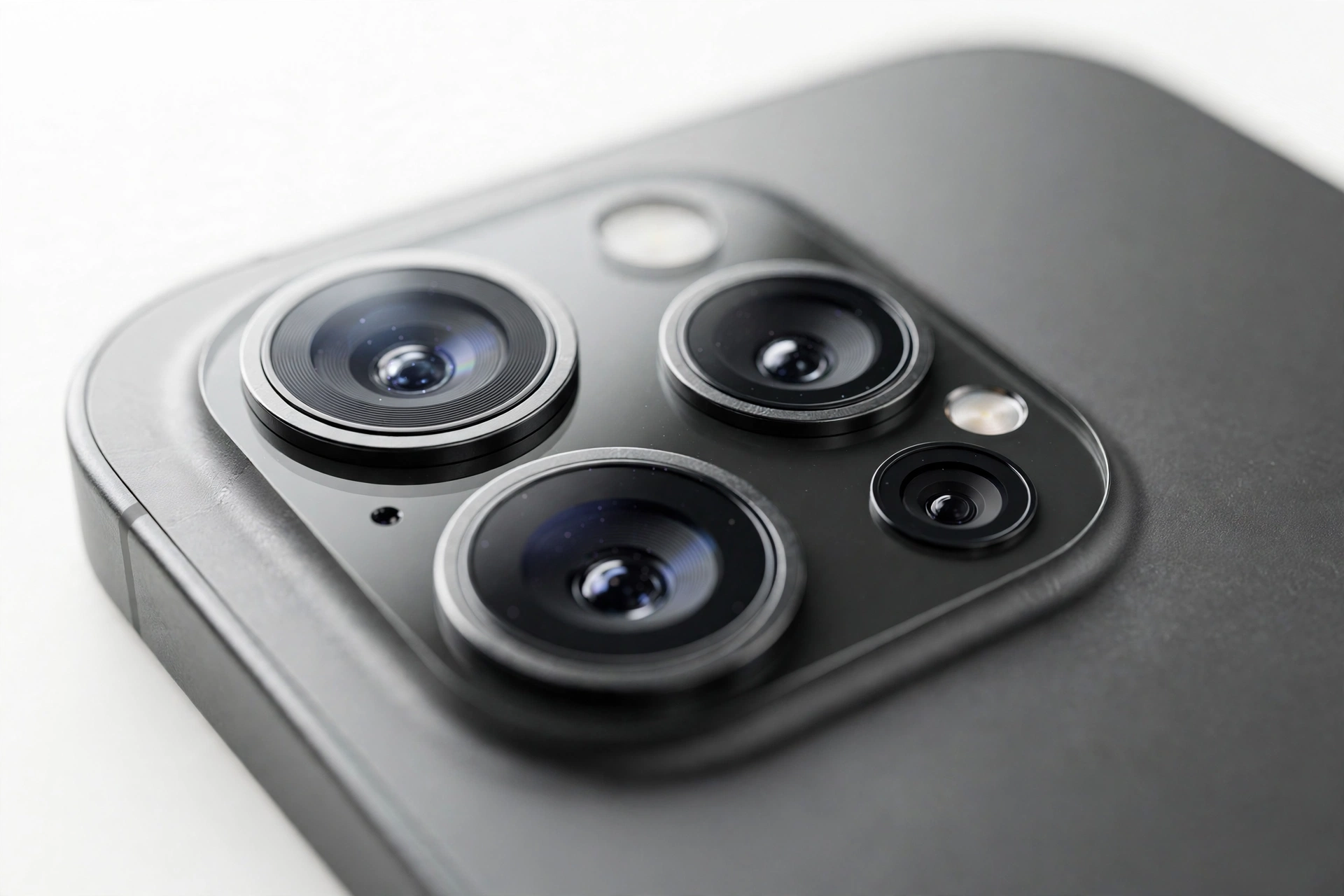
1. What an “Energizer phone” actually is — and why it matters for troubleshooting
Before diving into fixes, one piece of honesty that shapes everything below: Energizer, the battery company, does not design or manufacture smartphones. Energizer-branded phones are built by Avenir Telecom under an exclusive license from Energizer, and they are sold mainly as budget devices in Europe and other markets. Models include the Energy E500/E500S, the Power Max P490S, the Ultimate U630S Pop, the Ultimate U660S foldable, and the rugged Hard Case range. (Source: mobilenewscwp.co.uk)
That licensed-brand reality has two practical consequences for you:
- There is no “Energizer phone support” knowledge base for troubleshooting. Unlike Samsung or Apple, there is no official manufacturer guide for “camera stopped after update” on these phones. The checks in this guide use standard Android procedures that work on any Android phone, which is exactly what an Energizer phone is under the hood.
- These are budget phones with modest hardware. Typical models ship with 1–4GB of RAM, 8–64GB of storage, and older Android versions (many run Android Oreo or Android Go 8.0; newer ones like the Ultimate U660S run Android 14). Budget hardware means storage fills up fast and background apps get killed aggressively — and both of those are classic causes of “camera stopped working” that have nothing to do with the camera hardware itself.
Quick fact: Because Energizer phones are budget Android devices, every fix in this guide uses stock Android menus — Settings, Apps, Storage, Play Store. You do not need any Energizer-specific app or account, and you should treat any third-party app claiming to be an “official Energizer camera fixer” as unofficial and untrustworthy.
2. What “after an update” really means on one of these phones
On a Samsung or Pixel, “after an update” usually means a full system software update. On an Energizer phone, it usually means something smaller — because most of these models rarely receive OS updates at all. When the camera breaks “after an update,” the update was most likely one of these:
- A camera app update from the Google Play Store — the stock camera app or a third-party camera app updated silently in the background.
- A Google Play services or system component update — these update independently of the Android version and can change how apps access hardware.
- An app-settings reset triggered during maintenance — clearing space or running a “phone booster” app can reset the camera app’s defaults and permissions.
- Coincidence — the timing lines up with an update, but the actual cause is a full storage, a corrupted cache, or a hardware issue that was already developing.
This distinction matters because it decides which fix to try. A camera app problem responds to cache clearing and permission resets. A true driver-level problem (rare on these phones) responds to almost nothing short of a firmware reflash — and that is not something to attempt at home.
3. What an update can and cannot do to your camera
Keep this table in mind as you work through the checks. It separates the plausible from the impossible, so you do not waste time on fixes that cannot work.
| Mechanism | How likely | What it looks like | Fix |
|---|---|---|---|
| Camera app cache corrupted during its update | High | App opens then closes immediately, or shows a black screen | Clear cache (Section 6) |
| Camera permission revoked or default app reset | High | “Camera failed” error, or another app opens instead | Re-grant permission, reset defaults (Section 5) |
| Storage too full for the camera to save photos | High | Shutter button does nothing, or “storage full” warning | Free storage (Section 7) |
| Another app is holding the camera session open | Medium | “Can’t connect to camera” — especially after video calls | Force-stop the other app (Section 5) |
| Play services component changed camera behavior | Medium | Camera works in one app but not another | Update all apps, test third-party camera (Section 8) |
| Driver-level bug from a system update | Low | No camera app can access any camera | No safe home fix; professional assessment |
| Update physically damaged the camera | Not possible | — | Software cannot break hardware; look for a coincidental hardware fault |
Tip: The last row is the most important one. Software updates cannot physically damage a camera sensor or lens. If the timing feels too perfect to be coincidence, the honest explanation is usually that the update changed software behavior around hardware that was already marginal — for example, a loose camera connector that a new driver initializes differently.
4. Triage first: figure out exactly which failure you have
Different symptoms point to different causes. Match what you see to the first check in the table, then jump to that section.
| What you see | Likely cause | Go to |
|---|---|---|
| Camera app opens, then closes instantly | Corrupted cache or revoked permission | Section 5, then 6 |
| Black screen in the viewfinder, buttons still work | Another app holding the camera, or driver issue | Section 5, then 9 |
| “Can’t connect to camera” or “Camera failed” | Session held by another app, or permission problem | Section 5 |
| Shutter button does nothing when tapped | Storage full | Section 7 |
| Front camera works, rear does not (or vice versa) | App-level or driver-level fault on one sensor | Section 8, then 10 |
| Camera works in WhatsApp but not the stock app | Stock camera app is the problem, not the hardware | Section 6, then 8 |
| Flashlight also stopped working | Shared driver/hardware fault | Section 10, then professional assessment |
| Photos save as grey or corrupted files | Failing storage or interrupted write | Section 7 |
| Camera worked once after the update, then died | Cache corruption building up, or storage filling | Section 6, then 7 |
| Nothing camera-related works at all | Driver or hardware fault | Section 9, then 10 |
5. Check one: permissions, defaults, and the app holding your camera hostage
On Android, only one app can use the camera at a time. If a video-calling app, a QR scanner, or even the stock camera app itself crashed without releasing the camera, every other camera app will report “can’t connect” until that session is released. This is the single most common cause of sudden camera failure, and it takes about a minute to rule out.
Step 1 — close everything. Open the recent-apps view (the square navigation button) and swipe away every app, especially video-calling apps, QR scanners, banking apps with document scanning, and social media apps.
Step 2 — force-stop the usual suspects. Go to Settings → Apps, tap the camera app, then tap Force stop. Do the same for any app you used recently that touches the camera. Then try the camera again.
Step 3 — check the camera permission. In Settings → Apps → Camera → Permissions, make sure Camera permission is allowed. On the older Android versions many Energizer phones run (Oreo, Android Go), there is no per-app runtime permission screen like on newer Android — permissions are granted at install. If your phone runs Android 6.0 or later, the permission toggle exists and an update or a “privacy cleaner” app may have switched it off.
Step 4 — check the default camera app. In Settings → Apps → Default apps (on some models: Settings → Apps → gear icon → Default apps), confirm which app is set as the camera default. Updates and newly installed apps can silently change this, so the “camera” you are opening may not be the app you think it is.
Quick fact: If the camera starts working after force-stopping another app, you found the culprit — a misbehaving app, not a broken camera. Consider uninstalling or updating that app, and check its own camera permission so it cannot grab the camera in the background again.
For a broader walkthrough of this failure pattern on any Android phone, see our general guide to phone cameras failing after an update.
6. Check two: clear the camera app’s cache (before you touch anything else)
When a camera app updates, its cached data — thumbnails, settings, temporary processing files — can end up in a format the new version cannot read. The result is the classic “opens then instantly closes” crash. Clearing the cache deletes only those temporary files; your photos are untouched.
- Go to Settings → Apps → Camera (the stock camera app).
- Tap Storage, then tap Clear cache. Do not tap Clear data / Clear storage yet.
- Reopen the camera and test it.
If that fixes it, you are done. If not, repeat the same steps for any third-party camera app you use, and for Google Play services — its cache affects how apps talk to hardware.
| Action | Deletes | Risk to your photos | When to use it |
|---|---|---|---|
| Clear cache | Temporary files only | None | First step for any app crash |
| Clear data / Clear storage | App settings, accounts, saved preferences | Photos safe, but app setup lost | Only if clearing cache failed |
| Factory reset | Everything on the phone | Total loss unless backed up | Last resort — see Section 12 first |
Stop for safety: Never tap “Clear data” on the camera app as a first step — it is safe for photos, but it wipes the app’s settings, and on some budget phones it can also remove the association with stored photo folders. Always try “Clear cache” first and confirm it failed before going further.
7. Check three: storage space — the budget-phone killer
Here is the failure mode that hits Energizer phones harder than almost any other brand: the camera needs free storage to save a photo, and these phones do not have much of it. An Energy E500S ships with 8GB of total storage; a Power Max P490S has 16GB. After Android itself, preinstalled apps, and a year of WhatsApp media, there may be only a few hundred megabytes free — and a single photo needs a place to land.
When storage runs out, the camera app typically does one of three things: the shutter button silently does nothing, the app shows a “storage full” warning, or it crashes. All three look like “the update broke my camera.”
Check your free space: Settings → Storage. If you have less than about 1GB free, treat storage as your prime suspect:
- Delete or move large videos and WhatsApp media (WhatsApp → Settings → Storage and data → Manage storage is the fastest way to find the biggest files).
- Uninstall apps you do not use — on 8–16GB phones, every app counts.
- Move photos to a microSD card if your model has a slot (most Energizer phones do, up to 32GB or 128GB depending on model) or back them up to Google Photos and use its “Free up space” option.
- Clear cached data for heavy apps (Settings → Storage → Cached data), which is safe.
Then test the camera again. If the shutter now fires, the “update” was a red herring — your storage simply crossed the line around the same time.
Tip: On phones with very little storage, turn off any “save burst photos” or high-resolution video modes you do not need, and check whether the camera app is set to save to internal storage or the SD card. A camera pointed at a full internal memory will fail even when a half-empty SD card is sitting in the slot.
8. Check four: the third-party camera test (isolates app vs. hardware)
This is the single most informative test in the whole guide. Install a reputable third-party camera app — Open Camera (free, open-source, no ads) is the standard choice for diagnostics — and try taking a photo with it.
| Stock camera app | Open Camera | What it means | Next step |
|---|---|---|---|
| Fails | Works | The stock camera app is broken, not the camera | Update, clear data, or replace the stock app |
| Works | Fails | The third-party app lacks permission or has a bug | Check its permission; the hardware is fine |
| Fails | Fails on rear only | Rear sensor or its driver has a problem | Safe Mode (Section 9), then assessment |
| Fails | Fails on front only | Front sensor or its driver has a problem | Safe Mode (Section 9), then assessment |
| Fails | Fails on both | System-level driver or hardware fault | Safe Mode (Section 9), then assessment |
If Open Camera works and the stock app does not, the fix is straightforward: update the stock camera app in the Play Store, or if it has no update available, clear its data (Settings → Apps → Camera → Storage → Clear data — safe for photos, resets the app’s settings) and set Open Camera as your daily camera in the meantime. There is no rule that says you must use the app that came with the phone.
Similar isolation logic applies to other licensed-brand budget phones — see how the same test is used for Jeep-branded phones and myPhone devices.
9. Check five: Safe Mode — the downloaded-app verdict
Safe Mode starts Android with only the preinstalled system apps running. If the camera works in Safe Mode but not in normal mode, a downloaded app is interfering — often a “phone booster,” antivirus, or battery-saver app that kills camera processes or blocks hardware access after its own update.
To enter Safe Mode: press and hold the power button until the power menu appears, then press and hold Power off until the “Reboot to safe mode” prompt appears. Tap OK. You will see “Safe mode” in the corner of the screen.
Test the stock camera. Then restart normally to exit Safe Mode.
| Camera in Safe Mode | Camera in normal mode | Verdict |
|---|---|---|
| Works | Fails | A downloaded app is the culprit — uninstall recent apps one by one, starting with boosters, cleaners, and antivirus |
| Fails | Fails | System-level or hardware fault — not caused by a downloaded app |
Quick fact: “Phone cleaner” and “battery saver” apps are disproportionately common on budget phones, because budget-phone owners are disproportionately targeted by ads for them. If you have one installed, it is the prime suspect — these apps are famous for breaking camera, Bluetooth, and notification behavior after their own updates.
10. Check six: restart properly, and check for app updates
Two simple steps that resolve a surprising number of cases:
Restart the phone fully. Hold the power button, tap Restart (not just screen-off). A full restart releases stuck camera sessions and reloads drivers. Many Energizer models have removable or easily cyclable batteries — if yours does, powering fully off for 60 seconds is an even cleaner reset than a software restart.
Update everything camera-related. Open the Play Store → profile icon → Manage apps & device → Updates available and update the camera app, Google Play services, and any app that uses the camera. On phones that rarely get OS updates, these component updates are the “update” that changed behavior — and a follow-up update is often the fix.
If the camera and the flashlight both died at the same time, note it: they share low-level drivers on most phones, so a joint failure points below the app layer toward a driver or hardware issue, and the remaining software checks are less likely to help.
11. Front vs. rear: isolate which camera is actually broken
Open the camera app and switch between front and rear cameras. The pattern tells you where the fault lives:
- Rear fails, front works: the rear sensor, its lens assembly, or its driver path is at fault. Try Open Camera on the rear sensor specifically — if it works there, the stock app is mishandling that sensor.
- Front fails, rear works: same logic, mirrored. On pop-up selfie models like the Ultimate U630S Pop, also check whether the motorized mechanism is stuck — a mechanical jam reads as a camera failure.
- Both fail everywhere: system-level. Work through Safe Mode (Section 9) and then consider professional assessment.
On the Ultimate U660S foldable, test with the phone both open and closed: the cover-screen camera path and the main-screen camera path initialize differently, and a fault that appears in only one posture narrows the diagnosis considerably.
12. The central rule: do not factory-reset first
On forums and in comment sections, “just factory-reset it” is the most common advice for any post-update problem. For a camera failure on an Energizer phone, it is bad advice, and here is why:
- A reset reinstalls the same software. If a driver-level bug shipped with an update, the reset restores the same driver. It cannot fix what it does not change.
- It destroys your evidence and your data. Photos, WhatsApp history, authenticator apps, saved logins — all gone unless you have verified backups. On a budget phone with 8GB of storage, many owners have no backup at all.
- Re-setup is painful on old Android. Reinstalling and reconfiguring everything on Android Oreo-era software, possibly without the original Google account credentials at hand, can leave you worse off than when you started — including the well-documented risk of Factory Reset Protection locking you out if you cannot sign back in.
- It rarely fixes app-level problems permanently. If a misbehaving third-party app caused the failure, the reset removes it — but so does uninstalling that one app, in two minutes, with zero data loss.
Stop for safety: If you are considering a factory reset, stop and confirm three things first: (1) your photos are backed up somewhere you have verified — not “probably in the cloud,” but opened and checked; (2) you know your Google account email and password; (3) you have tried every check in Sections 5–11. If any answer is no, do not reset yet.
A factory reset is a legitimate last step, after backups are verified and the software checks are exhausted — never a first step, and never a casual one.
13. What your checks can and cannot establish
Honesty about the limits of home troubleshooting keeps you from chasing ghosts:
| Observation | Establishes | Does not establish |
|---|---|---|
| Third-party camera works, stock app fails | The stock app is broken; hardware is fine | Why the stock app broke |
| Camera works in Safe Mode only | A downloaded app interferes | Which app, without testing |
| Shutter works after freeing storage | Storage was the cause | That the update was blameless (it may have filled the last megabytes) |
| No camera works in any app or mode | System-level or hardware fault | Whether it is the sensor, the connector, or the driver |
| Failure started right after an update | Timing correlation | Causation — coincidence is common |
| Flashlight also dead | Shared driver/hardware path involved | That the update caused it |
No home check can distinguish a dead sensor from a loose connector or a corrupted driver. That distinction needs hands-on diagnosis — which is the point where professional assessment earns its keep.
14. Two hypothetical walkthroughs
The following examples are hypothetical illustrations of the diagnostic logic, not reports of real repairs.
Hypothetical example 1: Amara’s Energy E500S
Amara’s E500S camera started crashing the morning after several Play Store apps auto-updated overnight. The app opened and closed instantly. Following the triage table, she force-stopped the camera app (no change), then cleared its cache — and the camera worked immediately. Total time: four minutes. The corrupted cache from the app update was the entire problem, and nothing else needed to change.
Hypothetical example 2: Devon’s Power Max P490S
Devon’s P490S shutter button did nothing after what he described as “an update.” The triage table pointed at storage — and Settings → Storage showed 214MB free on a 16GB phone. He moved WhatsApp videos to his microSD card, uninstalled three unused games, and freed 2.1GB. The shutter fired on the next try. The “update” had downloaded just enough data to push his nearly-full phone over the edge.
15. When to stop troubleshooting and consider professional assessment
Stop the software checks and seek hands-on help if:
- No camera works in any app, including Safe Mode and Open Camera.
- The flashlight died at the same time as the camera.
- The phone was dropped, got wet, or the battery is swollen or distorted — do not charge or use it; a swollen battery is a fire risk, not a troubleshooting step.
- You see physical damage: cracked lens, moisture under the lens, or a rattling camera module.
- You have worked through Sections 5–11 and nothing changed.
Stop for safety: Never open the phone yourself to “check the camera connector.” Budget phones are not designed for user service, opening one risks the battery and the display, and there are no user-serviceable parts inside. Never poke anything into the lens area, and never apply heat, liquids, or compressed air to the camera module.
If you are in the Las Vegas area and the software checks point to hardware, an in-person assessment can determine whether the fault is the sensor, the connector, or the board — and whether repair makes economic sense on a budget device. Las Vegas Phone Repair & Accessories, 7400 Las Vegas Blvd S, Unit TT42, Las Vegas, NV 89123; (424) 406-6202. Calling ahead to confirm today’s hours is recommended. Be aware that replacement parts for licensed-brand budget phones can be harder to source than for mainstream models, so ask for an assessment before assuming repair is available.
Video: How to tell if your smartphone is fake or real
Frequently asked questions
Can a software update permanently break my Energizer phone’s camera?
No. Software cannot physically damage the sensor or lens. What an update can do is corrupt the camera app’s data, revoke a permission, change a default, or expose a hardware weakness that was already there. Every one of those except the last is fixable with the software checks in this guide.
Why does my camera say “can’t connect to camera”?
Another app is holding the camera session open, or the camera permission was revoked. Force-stop recent camera-using apps (Section 5) and check the permission. This message almost never means the hardware is dead.
Should I install a “camera fixer” app from the Play Store?
No. There is no legitimate app that repairs camera drivers, and many “fixer” apps are adware or permission harvesters. Use Open Camera purely as a diagnostic tool (Section 8) — it tells you whether the hardware works; it does not repair anything.
My photos save as grey boxes. Is the camera broken?
Probably not — grey or corrupted image files usually mean the photo could not be written completely, which points to failing storage or a nearly-full memory. Free up space (Section 7) and test again before suspecting the sensor.
The front camera works but the rear does not. What does that mean?
One of the two camera paths has a fault — app-level, driver-level, or hardware. Run the third-party test on the failing sensor specifically (Section 8). If no app can use that sensor, it needs hands-on diagnosis.
Will clearing the camera app’s data delete my photos?
No. “Clear data” resets the app’s settings and preferences; your photos live in the phone’s storage (DCIM folder), not inside the app. Still, try “Clear cache” first — it is the safer step and fixes most app crashes.
How do I know if it is a hardware problem?
The strongest home signal is: no camera works in any app, in Safe Mode, after a full restart, with free storage available. At that point the fault is below the app layer. Only hands-on diagnosis can separate a dead sensor from a loose connector or a driver fault.
Is it worth repairing the camera on a budget Energizer phone?
It depends on the fault and the model. Software faults cost nothing to fix at home. For hardware faults, ask for an assessment first — parts for licensed-brand budget phones can be harder to source than for mainstream models, and on the lowest-cost models the repair economics do not always favor repair over replacement. A reputable shop will tell you honestly which side your case falls on.
Sources and editorial notes
- Mobile News — Avenir Telecom’s Energizer range launch (Power Max P490S, Energy E500/E500S); confirms the licensed-brand arrangement and budget positioning.
- Gizchina — Energizer Power Max P490S specifications (MT6739, 2GB/16GB, Android Oreo, dual rear and dual front cameras).
- Gizmochina — Energizer Ultimate U660S foldable specifications (Helio G99, Android 14, 64MP main camera); illustrates the newer end of the range.
- GSMArena — Energizer Ultimate U630S Pop full specifications (Helio P22, Android 9, pop-up selfie camera); documents the older-Android reality of much of the range.
- YugaTech — MWC 2024 Energizer announcements; confirms Avenir Telecom as the company behind Energizer phones.
- Gagadget — Energizer Hard Case P28K (Android 14, triple rear camera); shows the rugged line’s camera setup.
- Google Android Help — official documentation for fixing camera problems on Android (permissions, cache, storage), the basis for the software checks in this guide.
Last source check: October 14, 2026. AI-assisted editorial guide, checked against the linked manufacturer information. Energizer phone specifications are summarized from the cited press and spec aggregators; Avenir Telecom publishes limited official troubleshooting documentation for these models, so software procedures follow standard Android documentation. Internal links point to related troubleshooting guides on this site.
Let’s get you connected again.
Tell us what’s happening with your device and we’ll help you decide the safest next step — no jargon, no pressure.
Las Vegas Phone Repair & Accessories · 7400 Las Vegas Blvd S, Unit TT42, Las Vegas, NV 89123
10:00 AM–8:00 PM — call ahead to confirm today’s hours