
Energizer Phone Speaker Not Working After Update: Causes and Safe Fixes
An update cannot physically damage your Energizer phone’s speaker — if sound stopped after an update, the cause is almost always software: a reset volume setting, a stuck Bluetooth routing, or an app update conflict. Work through earpiece-vs-loudspeaker isolation, Bluetooth checks, and Safe Mode before assuming hardware failure.
On this page
An update cannot physically damage your Energizer phone’s speaker — if sound stopped after an update, the cause is almost always software: a reset volume setting, a stuck Bluetooth routing, or an app update conflict.
1. What “speaker not working after an update” actually means
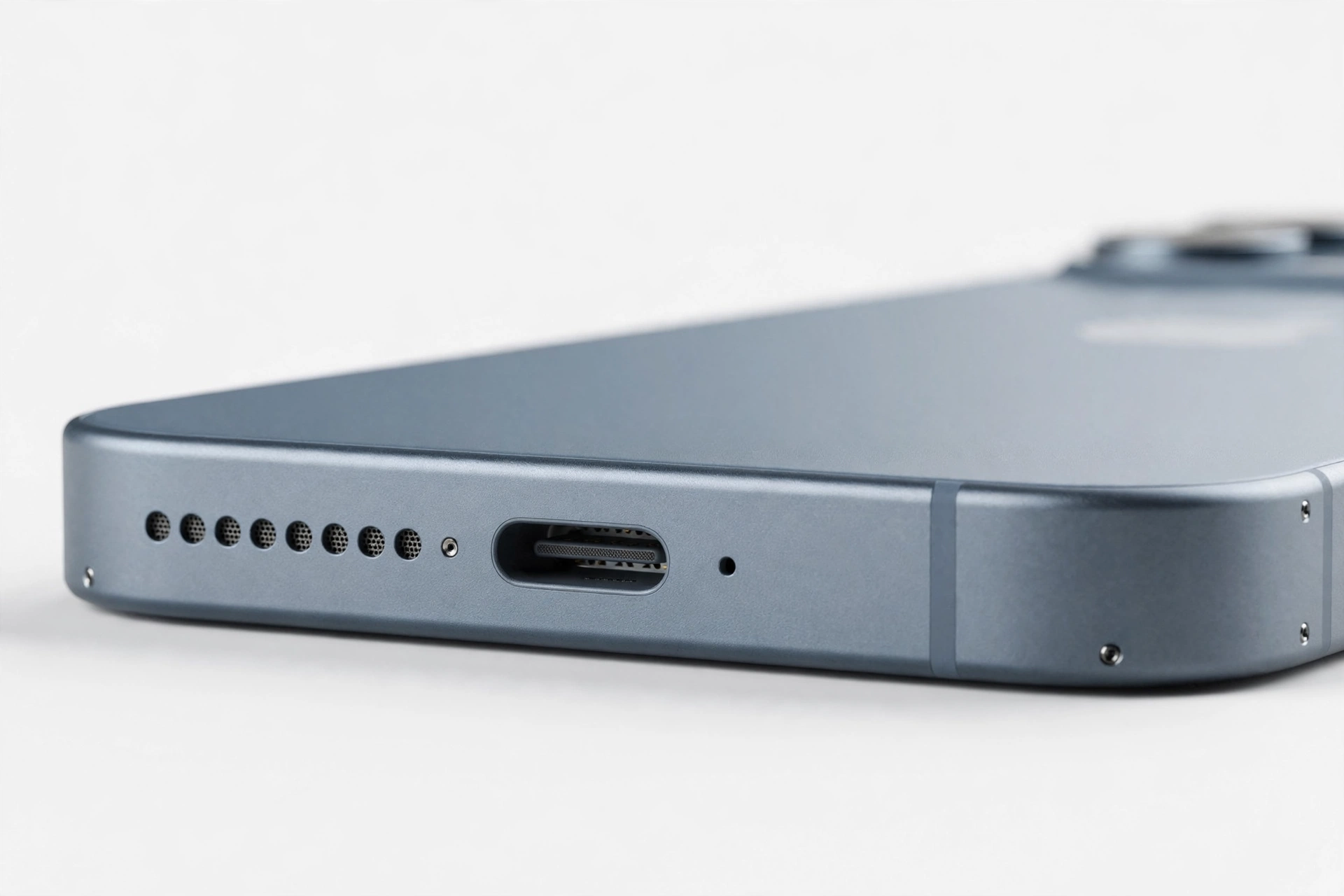
When your Energizer phone’s speaker stops working right after a software update, it is natural to connect the two events. But the honest technical reality is important to state first: a software update cannot physically break a speaker. Speakers are hardware — a membrane, a voice coil, a magnet. Software cannot tear a membrane, puncture a grille, or burn out a coil. What an update can do is change the software that controls sound: audio-routing rules, volume defaults, Bluetooth behavior, app permissions, or audio-driver settings. (Source: gizchina.com)
That distinction matters because it changes how you troubleshoot. If the speaker itself were broken, no settings change would fix it. But because most “after an update” audio failures are software-level, many of them are fixable without opening the phone — and several common causes are things the update merely coincided with rather than caused.
Quick fact: Energizer-branded phones are built by Avenir Telecom, a French manufacturer, under an exclusive license from the Energizer brand. Avenir’s phone lineup includes the Hardcase range (rugged, often IP68-rated smartphones and KaiOS feature phones), the Power Max range (very large-battery smartphones such as the P18K Pop with its 18,000 mAh battery), and the Energy range (budget Android smartphones such as the E500 and E500S). There is no single “Energizer phone” hardware platform, so fixes below are given as documented Android steps that apply across these models.
2. First: isolate which speaker is silent
“Speaker not working” is ambiguous. Every phone has at least two sound outputs — the earpiece (the small speaker at the top of the phone you hold to your ear during calls) and the loudspeaker (the main speaker on the bottom or back used for speakerphone, ringtones, music, and alarms). Updates can affect these differently, because Android treats them as separate audio devices with separate volume streams and routing rules.
Work through this isolation sequence before anything else:
- Play a ringtone and a song. Go to Settings and play the ringtone preview, then open a music or video app. If ringtones and media are silent, the loudspeaker path is affected.
- Make a normal call. Hold the phone to your ear. Can you hear the other person? If yes, the earpiece works and the problem is specific to the loudspeaker or its routing.
- Make a speakerphone call. During a call, tap the speaker icon. If you can hear through the earpiece but not on speakerphone, the failure is isolated to the loudspeaker output path.
- Check alarms. Set an alarm for one minute ahead with a loud tone. Alarms use the loudspeaker stream and can reveal whether the issue is app-specific (music app silent but alarm loud = likely an app-level issue, not hardware).
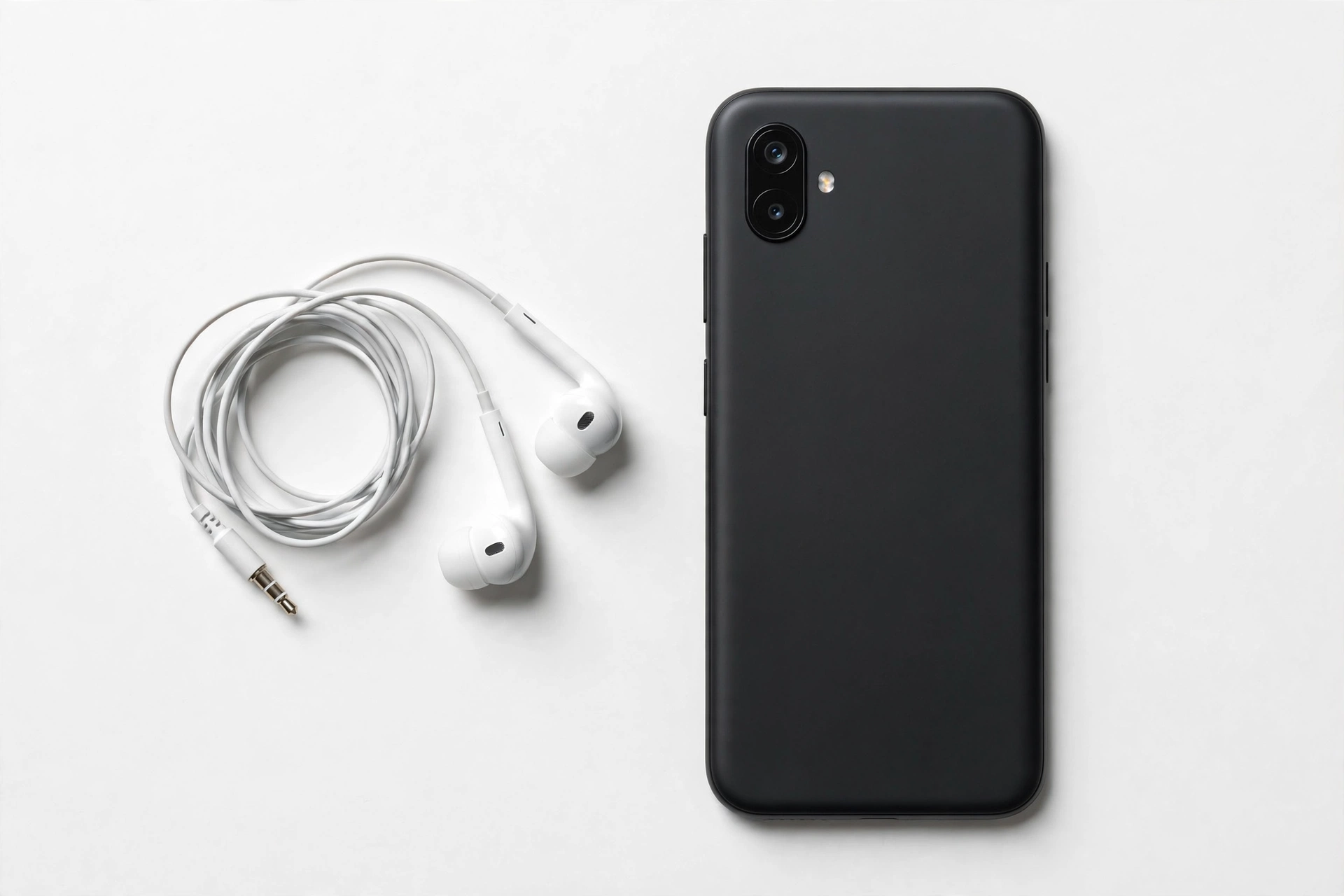
- Try a wired headset if your model has a 3.5 mm jack. Many Energizer models (such as the Energy E500) include a headphone jack. If sound plays through wired headphones, the phone’s audio processing is fine and the problem is limited to the built-in speaker path.
Write down exactly which of these produce sound and which do not. This table — your “what works / what doesn’t” record — is what distinguishes a settings problem from a hardware problem, and it is what a repair technician will ask about first.
| Test | Uses which output | Sound heard? | What it tells you |
|---|---|---|---|
| Normal phone call (phone to ear) | Earpiece | Yes / No | If Yes, earpiece and core audio work |
| Speakerphone during a call | Loudspeaker | Yes / No | If No while earpiece works, loudspeaker path is the fault zone |
| Ringtone preview in Settings | Loudspeaker | Yes / No | If Yes, speaker hardware is fine — suspect app settings |
| Music or video in an app | Loudspeaker | Yes / No | Silent here but ringtone audible = app-level issue |
| Alarm tone | Loudspeaker | Yes / No | Alarms use their own stream; silence here too = system-level |
| Wired headphones (if jack present) | Headset | Yes / No | If Yes, audio processing works — built-in speaker path is isolated |
3. The single most common cause: stuck Bluetooth audio routing
After an update, the most common reason a phone goes silent is that Android believes it is sending sound to a Bluetooth device that is not actually playing it — a paired speaker, car system, smartwatch, or earbuds that is connected, half-connected, or merely remembered from the past. The update did not break the speaker; it changed which output Android thinks it should use.
Run this Bluetooth sequence:
- Look at the status bar. Is there a Bluetooth icon? If Bluetooth is on, that alone is a suspect.
- Open Settings → Connected devices (or Bluetooth). Look at every paired device. If any audio device shows as “Connected” or “Connecting,” disconnect or unpair it.
- Turn Bluetooth off entirely. Then test the loudspeaker again. If sound returns, you have found the cause: routing, not hardware.
- Check “Media audio” per-device settings. On some Android builds, a device can be connected for calls but have “Media audio” toggled off, or vice versa. Tap the gear icon next to each paired audio device and review its toggles.
- Forget devices you no longer use. Old pairings (a car you sold, a speaker you gave away) can still grab the audio route when the phone is in range of their remembered profile. Unpairing them is safe.
Tip: On budget and rugged Energizer models, Bluetooth settings may sit under Settings → Wireless & networks → Bluetooth rather than under “Connected devices.” If you cannot find a menu path mentioned here, use the Settings search box and type “Bluetooth.”
4. Volume streams: the update may have reset them
Android keeps separate volume levels for media, ringtones, alarms, calls, and notifications. An update can reset or decouple these — so your phone may look loud on one stream while the stream you actually need sits at zero. Check all of them:
- Press a volume button, then tap the small arrow or gear icon to expand the full volume panel. On most Android builds this reveals Media, Ring, Alarm, and sometimes Notification sliders.
- Drag each slider up, including Media and Ring, and test between adjustments.
- Check Settings → Sound for the same sliders — the expanded hardware-button panel and the Settings page sometimes show different states after an update.
- Look for a “Do not disturb” schedule or an accidentally enabled silent mode. Some updates re-enable Do Not Disturb rules or change their behavior. Check Settings → Sound → Do not disturb.
- Check per-app sound settings. Some music and video apps have their own internal volume or mute toggle that survives system volume changes.
5. Safe Mode: the definitive software-vs-hardware test
Safe Mode starts Android with only the pre-installed system apps running — every third-party app you installed is temporarily disabled. This is the single most informative test you can run, because “speaker cleaner,” equalizer, volume-booster, and call-recording apps are frequent causes of exactly this symptom, and an update can change how those apps interact with the audio system.
- Press and hold the power button until the power menu appears.
- Press and hold “Power off” until you see the “Reboot to safe mode” prompt, then confirm. (On some Energizer models, hold Power + Volume Up instead — check your model’s manual if the long-press does not offer Safe Mode.)
- The phone restarts with “Safe mode” shown in a corner of the screen.
- Play a ringtone and a video. If the speaker works in Safe Mode, a third-party app is the cause — not the update, and not the hardware.
- To exit, restart the phone normally.
| Safe Mode result | Meaning | Next step |
|---|---|---|
| Speaker works in Safe Mode | A third-party app is interfering with audio | Uninstall recently updated apps one by one, starting with audio-related apps (equalizers, boosters, “speaker cleaners,” call recorders), testing the speaker after each removal |
| Speaker still silent in Safe Mode | The cause is in the system or hardware | Continue with cache clearing and the remaining checks; if nothing helps, treat as potential hardware failure and seek professional assessment |
Stop for safety: If your Energizer phone’s battery is swollen, the back cover is bulging, or the phone is getting dangerously hot during these tests, stop immediately. Do not charge it, do not keep testing it, and do not try to open it. A swollen battery is a fire risk — this needs professional handling, not troubleshooting.
6. “Speaker cleaner” and volume-booster apps: often the cause, never the cure
This deserves its own section because it is such a frequent pattern. After an update, many users search for a fix and install a “speaker cleaner” or “volume booster” app. These apps deserve honest scrutiny:
- Speaker-cleaner apps typically play loud tones or vibrations, claiming to shake dust out of the speaker. They cannot physically clean a speaker grille, and on rugged Energizer models with IP67/IP68 sealing (such as the Hardcase range or the ENERGY E520 LTE), the speaker is protected behind an acoustic membrane — sound waves from an app cannot clean what a membrane already blocks.
- Volume-booster apps override Android’s audio limits. They can cause distortion, overheating, and in extreme cases speaker damage from driving the speaker beyond its design limits. If your speaker sounds distorted after you installed a booster, the app may have caused the damage it promised to fix.
- Both categories commonly request invasive permissions — device administrator, accessibility access, or the ability to draw over other apps. An app with device-admin rights can change system settings persistently, which is exactly how an “audio fix” app can leave your speaker broken even after you uninstall it.
If you installed any such app around the time of the update, uninstall it, then restart the phone and re-test. If the problem appeared before you installed the app, keep it uninstalled anyway — it will not help, and it may make things worse.
7. Cache clearing and app-level resets
If Safe Mode points at software but you cannot identify the app, or if the problem is limited to one app (music plays but one streaming app is silent), try these in order — least destructive first:
- Clear the affected app’s cache. Settings → Apps → [the app] → Storage → Clear cache. This removes temporary files without deleting your data or login.
- Clear the app’s data only as a second step — and understand the difference. Clear data resets the app to a fresh install state, deleting logins and downloaded content. Only do this for apps where you can sign back in and re-download content.
- Wipe the system cache partition. Power the phone off, then boot into recovery mode (usually Power + Volume Up held together; the exact combination varies by model — check your model’s manual on energizermobile.com). Select “Wipe cache partition” with the volume keys and confirm with Power. This clears system temporary files without touching your data. It is safe and cannot delete your photos, contacts, or apps.
- Check for a follow-up update. Manufacturers and app developers frequently ship a fix days after a buggy update. Check Settings → System → System update and the Play Store’s “Manage apps” section for pending updates.
Quick fact: On the Energizer Energy range phones that ship with Android Go edition (such as the E500S, which runs Android Oreo Go), the Settings menu layout is simplified. Cache options live under Settings → Apps & notifications → App info → [app] → Storage. The wording differs slightly but the function is the same.
8. KaiOS models: a different troubleshooting path
Not all Energizer phones run Android. The Hardcase H241, H242, H242S, and H280S feature phones run KaiOS — a completely different operating system with its own settings structure. If your Energizer phone is a KaiOS feature phone:
- There is no Safe Mode and no per-app cache clearing on KaiOS. Skip sections 5 and 7.
- Check Settings → Sound for volume profiles and confirm the phone is not on a silent profile.
- Check whether a Bluetooth headset is paired: Settings → Bluetooth. KaiOS Bluetooth pairings are a common silent-audio cause on these models.
- Remove the battery if your model has a removable one, wait 60 seconds, and reinsert it. Several Hardcase feature phones have user-removable batteries, and a true power cycle clears stuck audio states that a simple restart does not.
- KaiOS “updates” are rare and small; if sound failed after a KaiOS update, a factory reset via Settings → Device → Reset is the documented fix — but it erases everything, so treat it as a last resort and back up contacts first.
9. When it is a software bug vs. when it is hardware
An update can ship with a genuine audio bug — it happens, and manufacturers do issue corrections. But a genuine update bug has a recognizable signature: many users report the identical symptom on the identical model after the identical update, at the same time. One person with one silent speaker is almost never a widespread bug; it is almost always one of the causes above.
Hardware failure, meanwhile, has its own signature. Suspect hardware — not software — when:
- The speaker is silent in every test: earpiece calls, speakerphone, ringtones, media, alarms, Safe Mode, and after a cache-partition wipe.
- Sound is distorted, crackling, or rattling rather than simply absent. Distortion at all volumes is a classic damaged-membrane or loose-component symptom.
- The failure followed a drop, impact, or water exposure — even if an update happened around the same time. On rugged models, the IP68 seal protects against water only when port covers are closed and the phone is undamaged; a cracked housing defeats the seal.
- The speaker cuts in and out when you squeeze or tap the phone — a sign of a loose connection or damaged flex cable.
- The phone was exposed to dust, metal filings, or magnetic debris at a worksite. Fine metal particles can be drawn into the speaker’s magnet gap and cause distortion or silence. This is a known worksite hazard for rugged phones.
| Observation | Points to software | Points to hardware |
|---|---|---|
| Speaker works in Safe Mode | ✓ Third-party app interference | |
| Sound returns when Bluetooth is off | ✓ Routing issue | |
| Only one app is silent | ✓ App-level issue | |
| Many users report the same symptom after the same update | ✓ Genuine update bug — wait for a fix | |
| Distortion or crackling at all volumes | ✓ Damaged membrane or component | |
| Silence in every test including Safe Mode | ✓ Likely hardware failure | |
| Failure followed a drop or water exposure | ✓ Physical damage | |
| Sound cuts in/out when phone is squeezed | ✓ Loose connection |
10. What your observations can and cannot establish
Being precise about what you actually know protects you from both false hope and unnecessary expense:
- What Safe Mode CAN establish: whether a third-party app is responsible. This is a definitive test.
- What Bluetooth-off CAN establish: whether audio routing is the problem. Also definitive.
- What a cache wipe CAN establish: whether corrupt temporary system files were involved — but a negative result (still silent) proves nothing by itself.
- What you CANNOT establish at home: whether the speaker driver, the audio codec chip, or the flex cable is faulty. That requires opening the phone, which you should not do.
- What an update CANNOT have done: physically damaged the speaker. Any shop that tells you “the update fried your speaker” is not describing a real failure mechanism.
11. When to stop troubleshooting
Stop and seek professional assessment when any of these are true:
- You have completed the isolation worksheet, Bluetooth checks, volume-stream checks, Safe Mode, and a cache-partition wipe, and the speaker is still silent.
- The sound is distorted or crackling rather than absent — continued high-volume testing can worsen a damaged speaker.
- The phone was dropped, crushed, or exposed to water, dust, or metal particles.
- The battery is swollen or the phone is overheating.
- You are tempted to open the phone. Don’t — rugged Energizer models rely on factory sealing for their water and dust resistance, and opening the phone destroys that seal along with any remaining warranty.
Stop for safety: Never poke anything into the speaker grille — no pins, needles, toothpicks, or SIM tools. On IP-rated Energizer models the speaker sits behind a protective acoustic membrane; puncturing it destroys the water seal. Never use compressed air, heat, or liquids to “clean” a speaker, and never charge a phone that is wet, swollen, or dangerously hot.
12. Questions to ask before approving a speaker repair
If troubleshooting points to hardware, these questions protect you before you authorize service:
- Is the diagnosis based on my symptom worksheet, or are they guessing? A competent technician will ask which outputs work and which don’t.
- Is this a speaker-module replacement or a board-level repair? Speaker modules are simpler; board-level audio faults are more complex and more expensive.
- Are replacement parts available for this specific Energizer model? Energizer phones are niche devices with limited parts channels — confirm before leaving the phone.
- Will the repair preserve the phone’s water and dust resistance? Resealing an IP-rated phone requires proper gaskets and adhesive; ask directly.
- What is the warranty on the repair itself?
- Will my data be touched? Speaker repair should not require data access — be cautious of any shop that asks for your passcode for a speaker job.
13. A note on Energizer phone support reality
Because Energizer phones are licensed-brand devices built by Avenir Telecom, support works differently than with major brands. There is no vast network of authorized Energizer service centers, and software updates for these models are infrequent — which is actually useful information: if your Energizer phone “updated” recently, verify what actually updated. On Android models, check Settings → System → System update for the last update date; on many budget Energizer models, system updates are rare, and the “update” in question may have been a Play Store app update or a carrier-settings update rather than a full OS update. Knowing which one it was narrows the suspect list considerably.
If you need model-specific documentation, Avenir Telecom publishes manuals and specifications at energizermobile.com. Have your exact model number ready (printed on the box, under the battery on removable-battery models, or in Settings → About phone) — “Energizer phone” alone is not enough to identify parts or procedures.
14. Related guides
If this guide did not resolve your issue, or your problem involves a different brand or a general procedure, these related guides cover the same troubleshooting from other angles:
- Phone Speaker Not Working After Update: Causes and Safe Fixes — the general version of this guide, with the full diagnostic sequence for any Android phone.
- Jeep Phone Speaker Not Working After Update: Causes and Safe Fixes — the same licensed-brand troubleshooting pattern for Jeep-branded rugged phones.
- myPhone Speaker Not Working After Update: Causes and Safe Fixes — speaker troubleshooting for myPhone and Hammer rugged devices.
15. Frequently asked questions
Can a software update break my Energizer phone’s speaker?
No — not physically. An update can change audio settings, routing, or app behavior, which can make the speaker seem broken. But software cannot tear a speaker membrane or burn out a coil. If the speaker is truly silent in every test including Safe Mode, the cause is hardware failure that coincided with the update, not damage caused by it.
Why did my speaker stop working right after I updated?
The most common reasons are a stuck Bluetooth audio route (the phone thinks it is playing through a paired device), reset volume streams, or a third-party audio app conflicting with the new system version. Work through the isolation worksheet and Bluetooth checks first — these resolve the majority of cases.
My Energizer phone has no sound at all — not even ringtones. Is it the speaker?
Not necessarily. Total silence across ringtones, media, and calls points first to a system-level cause: Do Not Disturb enabled, all volume streams at zero, or Bluetooth routing everything to a disconnected device. Check all volume streams in the expanded volume panel and turn Bluetooth off before suspecting hardware.
Should I factory reset my phone to fix the speaker?
No — not as a troubleshooting step. A factory reset erases all your data and, on these models, reinstalls the same system version, so it cannot fix a bug shipped in that version. It is a last resort only after you have a complete, verified backup. Try Safe Mode and cache clearing first.
Will a “speaker cleaner” app fix my speaker?
No. These apps cannot physically clean a speaker, and on IP-rated Energizer models the speaker is sealed behind an acoustic membrane that sound waves cannot clean through. Some of these apps request invasive permissions and volume-booster apps can actually damage speakers. Uninstall them.
My speaker works for calls but not for music. What does that mean?
That pattern points to the media volume stream or the music app itself, not the speaker hardware. Check the Media slider in the expanded volume panel, check the app’s internal volume, and clear that app’s cache. If the ringtone preview in Settings plays audibly, your speaker hardware is fine.
How do I boot my Energizer phone into Safe Mode?
On most Android-based Energizer models, press and hold the power button, then press and hold “Power off” until the Safe Mode prompt appears. On some models the combination is Power + Volume Up. KaiOS feature phones (Hardcase H241/H242/H280S) do not have Safe Mode — skip that test on those models.
Where can I get my Energizer phone’s speaker repaired in Las Vegas?
Speaker diagnosis starts with the symptom worksheet in this guide — which outputs work and which don’t. For an in-person assessment, Las Vegas Phone Repair & Accessories at 7400 Las Vegas Blvd S, Unit TT42, Las Vegas, NV 89123, (424) 406-6202, can evaluate the phone. Call ahead to confirm current hours. Note that replacement parts for niche licensed-brand models can be limited, so ask about parts availability for your exact model before leaving the device.
Video: How to tell if your smartphone is fake or real
Sources and editorial notes
- Gizchina — Energizer Hardcase mobile phone series (Avenir Telecom license, IP68, KaiOS): confirms Avenir Telecom builds Energizer phones under exclusive license; Hardcase H241/H242/H242S/H280S are IP68 KaiOS feature phones.
- Gizchina — Energizer Mobile and smartphones (Hardcase, Energy ranges): documents the Hardcase, Energy, and Power Max ranges, IP67/IP68 ratings, and battery capacities.
- YugaTech — Energizer Power Max P18K Pop specs: 18,000 mAh battery, Android 9 Pie, MediaTek Helio P70 — the large-battery flagship example.
- GSMArena — Energizer Power Max P18K Pop: corroborates the P18K Pop’s 18,000 mAh battery, pop-up cameras, and Android 9.
- Mobile News — Avenir Telecom Energizer Energy E500S: E500S specs (Android Oreo Go, 2,000 mAh) — the budget-range example.
- Gizchina — Energizer Energy E520 LTE: IP68 rugged model with 4,000 mAh battery — documents the sealed-speaker design relevant to the “don’t poke the grille” warning.
- Google Android Help — sound troubleshooting and Safe Mode procedures (support.google.com): the documented Android procedures referenced for Bluetooth, volume streams, Safe Mode, and cache clearing.
Last source check: October 14, 2026. AI-assisted editorial guide, checked against the linked manufacturer information. Troubleshooting steps describe documented Android and KaiOS settings paths only; no device disassembly is described or recommended. Hypothetical examples in this guide are illustrative scenarios, not customer cases. For model-specific documentation, consult your exact model’s manual. Business information: Las Vegas Phone Repair & Accessories, 7400 Las Vegas Blvd S, Unit TT42, Las Vegas, NV 89123, (424) 406-6202 — call ahead to confirm today’s hours.
Let’s get you connected again.
Tell us what’s happening with your device and we’ll help you decide the safest next step — no jargon, no pressure.
Las Vegas Phone Repair & Accessories · 7400 Las Vegas Blvd S, Unit TT42, Las Vegas, NV 89123
10:00 AM–8:00 PM — call ahead to confirm today’s hours