
myPhone Speaker Not Working After Update: Causes and Safe Fixes
An update cannot physically damage the speaker on your myPhone, so if sound stopped right after an update, the cause is almost always software: a changed audio route, a reset volume, or a driver quirk. This guide walks you through the checks in the right order — from myPhone’s own documented first steps to the deeper diagnostics — so you find the real cause without risking the phone’s sealed rugged body.
On this page
An update cannot physically damage the speaker on your myPhone, so if sound stopped right after an update, the cause is almost always software: a changed audio route, a reset volume, or a driver quirk.
1. Who this guide helps
This guide is for owners of myPhone rugged phones — sold under the HAMMER brand — whose earpiece, loudspeaker, or both stopped producing sound after a system update. It applies whether the silence appeared immediately after the update finished, after the reboot that followed it, or over the day or two after. It helps when calls are inaudible, media has no sound, ringtones and notifications are silent, or the speaker works in some apps but not others. (Source: manualslib.com)
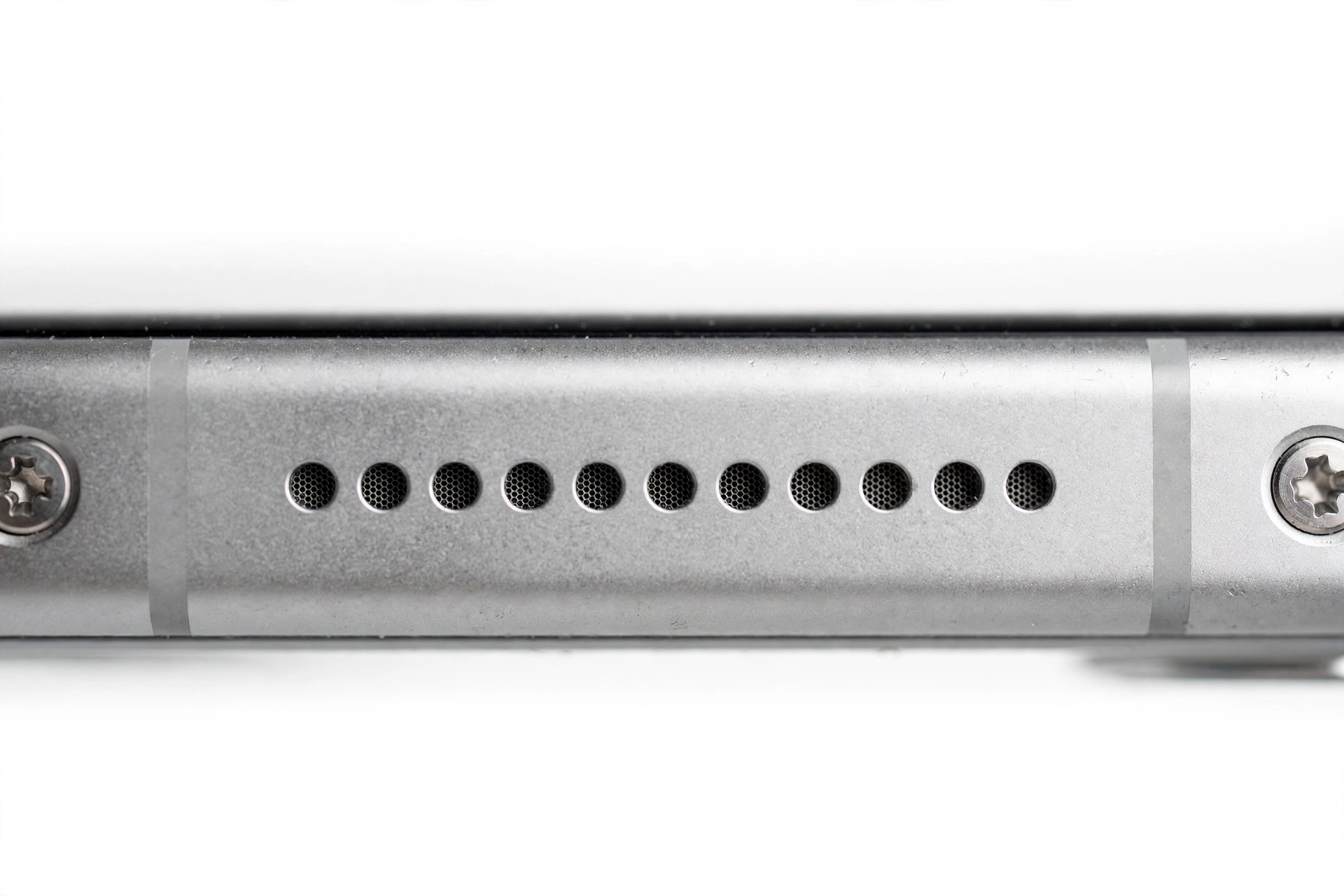
A note on the brand, because it shapes this guide: myPhone is a Polish brand from Wrocław, made by the company mPTech (part of the TelForceOne group). Its rugged phone line carries the HAMMER name — models like the Hammer Axe Pro, Hammer Iron series, Hammer Energy, Hammer Blade, and the feature-phone Hammer 3. These phones are built for harsh environments: IP68 water and dust sealing on most models, IP69 plus MIL-STD-810H military-grade toughness on newer ones, rubber-sealed port covers, and chunky housings. That rugged construction changes how you troubleshoot. The sealed body that keeps dust and water out also means you must not open the phone, poke into the speaker grille, or apply compressed air or heat. Every step in this guide respects that boundary.
Quick fact: myPhone publishes limited model-specific audio troubleshooting, so this guide combines the brand’s own documented checks — from the Hammer Axe Pro and myPhone MF2301 manuals — with standard Android audio diagnostics. Where manufacturer documentation is thin, the guide says so and stays within documented settings rather than inventing procedures.
2. An update cannot physically damage the speaker
This is the most important thing to internalize before you touch anything, and it is the central honesty point of this guide. A software update rewrites system files; it cannot burn out a speaker coil, tear a membrane, or melt a solder joint. Sound hardware is controlled by electrical signals, and code can change which signals are sent — volume levels, routing decisions, equalization — but it cannot physically break the hardware.
So when a myPhone speaker stops working “after an update,” there are exactly two honest possibilities:
- The update changed something in software. Volumes were reset, the audio route changed (sound is being sent to a Bluetooth device that is no longer in the room), a profile switched to silent, or a driver now has a bug. All of these are reversible in software.
- A hardware problem coincidentally showed up at the same time. A speaker that was slowly failing, a membrane already clogged with dust, or debris already sitting in the grille can cross the failure threshold right after an update — the update gets the blame for something it did not cause.
The diagnostic order in this guide tests the software explanations first, because they are the most common and the cheapest to check — and because every step is safe to perform at home on a sealed rugged phone.
3. First isolate: earpiece or loudspeaker?
“The speaker isn’t working” can mean two very different things, and each points down a different diagnostic path. Run this isolation test before changing any setting — it takes two minutes and immediately halves the suspect list.
| Test | What you hear | What it points to |
|---|---|---|
| Make or take a call, earpiece to your ear | Silence, but the loudspeaker plays media fine | Earpiece path issue — routing, call volume, or earpiece hardware |
| Make or take a call, switch to speakerphone | Silence on loudspeaker too | System-wide audio issue — routing, driver, or global setting |
| Play a video or music file | Sound plays normally | Audio hardware is fine; the problem is call-audio routing or the calling app |
| Play a video or music file | Silence | Loudspeaker path issue — driver, routing, membrane, or hardware |
| Plug in wired earphones | Sound through earphones | Audio system works; fault is in the handset speaker path |
| Set an alarm one minute ahead | Alarm rings normally | Speaker hardware fine; media/call volumes or routing are the problem |
If earphones work but the handset speakers don’t, the phone’s audio system is alive — the fault is downstream of it. That rules out a global driver failure and narrows the field to routing, the speaker path, or the speaker itself. If nothing produces sound anywhere, start with the system-wide checks in the following sections.
4. myPhone’s documented first checks: volume, mute, and the minijack
The Hammer Axe Pro user manual documents its own troubleshooting steps for sound problems, and they are worth following in spirit because they are the genuine official guidance. Paraphrasing the manual: when sound is missing, make sure the sound is not muted, check the other sound settings on the phone, and check that the plug at the end of any cable is connected correctly to the 3.5 mm audio socket — some plugs differ slightly, and a poorly seated plug can hold the audio route.
The same manual documents the general rule for device problems: make a copy of your important data first, then restart the phone. Only if the problem continues do deeper steps come into play. And a second myPhone manual (for the MF2301 model) documents the classic call-audio checks directly: if sound quality during a conversation is poor, make sure the speaker and microphone are not covered; if you cannot hear the caller, check that the built-in speaker isn’t covered and check that any headset is connected correctly.
Translate that into a practical order for your HAMMER smartphone:
- Media volume — press a volume key while media is playing (not on a call) and confirm the media slider is up. Android keeps media, call, ringtone, notification, and alarm volumes as separate channels, and an update can reset one while leaving the others alone.
- Call volume — during an active call, press the volume key and confirm the in-call slider is up. This is a separate channel from media, which is why “videos play but calls are silent” is almost always a single slider.
- Ringtone and notification volume — confirm alerts are audible; silent notifications after an update often mean a reset notification channel.
- Do Not Disturb and sound profiles — check the quick-settings shade and Settings for any active DND rule or silent profile. An update can re-enable or reconfigure these.
- Unplug the 3.5 mm cable — per the manual’s own guidance, check that any plug is seated correctly, or unplug it entirely. A partially seated plug can hold the audio route away from the speaker.
- Restart the phone — this is myPhone’s own documented first step for persistent problems, and it clears transient audio-routing glitches after an update.
Quick fact: On many HAMMER models the audio socket and the charging port sit under protective rubber flaps (documented on the Axe Pro, which has both ports covered). Make sure the flaps are seated properly after any handling — a displaced flap can press against a connector, and the manual warns that ill-fitting plugs cause sound trouble.
5. Ghost Bluetooth is the number-one false alarm
This is the most common cause of “my speaker stopped working after the update” on any Android phone, and it has nothing to do with the speaker. After an update, the phone may reconnect to a Bluetooth device you aren’t thinking about — a truck stereo, a worksite radio, a headset left in a bag, a vehicle mount — and send all audio there. The handset speaker is fine; the sound is going somewhere else.
The Hammer Axe Pro manual’s Bluetooth troubleshooting section lists the right instincts: check that the Bluetooth connection is active, make sure both devices are within range with no obstacles, and confirm airplane mode is off since it blocks Bluetooth along with everything else. But the practical fix is simpler:
- Go to Settings, then Bluetooth. Look at connected devices, not just paired ones.
- Disconnect from every connected audio device and test the speaker again.
- If you use the phone in a work vehicle, check the vehicle’s head unit — many reconnect automatically when in Bluetooth range, even if the vehicle is off.
- As a fast test, toggle Bluetooth off entirely and re-test. If sound returns, the speaker was never the problem.
Hypothetical illustration 1. (The following is a hypothetical illustration, not a customer story.) Daniel works construction and pairs his Hammer Iron phone to his work truck’s stereo. After an overnight system update, the phone is silent the next morning — no ringtone, no media sound. He assumes the update broke the speaker. In Bluetooth settings he finds the phone is connected to the truck stereo, which is powered off but still holding the audio route. He disconnects it and all sound returns. The speaker was never broken.
Quick fact: On rugged work phones like myPhone’s HAMMER line, ghost Bluetooth is disproportionately common — the phones live in trucks, on machinery, and in workshops surrounded by paired audio equipment. The update just happens to be when the reconnection occurred.
6. HAMMER’s sealed rugged reality: membranes, flaps, and water
myPhone’s HAMMER phones carry IP68 sealing on most models — and IP69 plus MIL-STD-810H on newer ones — which means the speaker and microphone sit behind protective membranes and rubber-sealed port covers. That protection changes how sound behaves in ways a generic troubleshooting guide will miss.
Membrane muffling is a physical phenomenon, not a bug. The waterproof membrane that keeps water out of the speaker also attenuates sound passing through it, and after the phone has been in water, rain, or heavy humidity, moisture can sit on the membrane and muffle output dramatically — the speaker sounds dead or distorted even though nothing is broken. This is temporary and resolves as the phone dries.
- If the speaker went quiet after the phone got wet (rain, sweat, a dunk on site), give it time: let it dry at room temperature with the speaker grille facing down.
- Do not use a hair dryer, an oven, a radiator, or any heat source to dry it — heat damages seals, membranes, and batteries on sealed rugged phones.
- Do not use compressed air on the speaker — it can force water deeper and rupture the protective membrane.
- If muffling persists after a day of drying in a dry room, the membrane may be clogged with dust or residue — that is a service-center matter, not a DIY fix.
Check the rubber flaps. On models like the Axe Pro, the audio connector and charging port sit under rubber plugs. If a flap is displaced, damaged, or not sealing, debris reaches the connector area — and the manual’s own guidance reminds you that plug and socket fit matters for sound. Reseat the flaps properly after any handling.
Stop for safety: Never poke into the speaker grille with pins, needles, or tools. On a sealed IP68 phone, puncturing the membrane destroys the water seal permanently and can push debris into the acoustic chamber. Wipe the grille area with a soft dry cloth only — no liquids, no compressed air, no heat, no sharp objects.
7. Test in Safe Mode
Safe Mode boots Android with third-party apps disabled. It is the single best test for separating a system or driver issue from a misbehaving app — and it is fully documented Android behavior, not a myPhone-specific trick.
- Press and hold the power button until the power menu appears.
- Press and hold “Power off” until the “Reboot to safe mode” prompt appears, then confirm. (Exact wording varies by Android version.)
- Once in Safe Mode (a badge shows in a corner of the screen), test the speaker: play media, make a call.
- Restart normally to exit Safe Mode.
| Safe Mode result | Normal mode result | Interpretation |
|---|---|---|
| Speaker works | Speaker silent | A third-party app is seizing or muting audio — find it (section 10) |
| Speaker silent | Speaker silent | System-level issue — driver, routing, or hardware (sections 8–9, 12) |
| Works partially (media only) | Silent everywhere | Call-audio routing issue — check the calling app and Bluetooth |
8. Clear caches and reset app preferences
When Safe Mode points at an app — or when the speaker fails in one app but works everywhere else — the fix is usually in that app’s cached data, not in the phone. Work in this order, from least to most invasive:
- Force stop and clear cache of the affected app: Settings → Apps → select the app → Storage & cache → Clear cache. This is non-destructive — no data, photos, or logins are lost.
- Reset app preferences: Settings → Apps → menu → Reset app preferences. This restores default permissions and notification settings for all apps without deleting data — useful when an update left an app’s audio permission in a broken state.
- Check the app’s own audio settings. Calling and push-to-talk apps often have their own speaker/earpiece/Bluetooth output selector independent of the system. An update can reset it.
Tip: Push-to-talk and field-communication apps are common on HAMMER work phones, and they are aggressive about seizing the audio route. If sound died after an update that also updated one of these apps, the app — not the system update — is the prime suspect.
9. The five ways an update can affect speaker behavior, in likelihood order
Not all update-related audio failures are the same. Here are the mechanisms ranked by how often they actually occur, so you check the common ones before the rare ones.
| Mechanism | Typical symptom | First check |
|---|---|---|
| Bluetooth or wired routing changed | Silence everywhere on the handset; works on another output | Bluetooth settings; unplug the 3.5 mm cable (sections 4–5) |
| Volume channel or profile reset | Some sounds work, others silent | Per-channel volume sliders; Do Not Disturb (section 4) |
| App permission or default-app change | One app silent, others fine | App cache; app preferences; Safe Mode (sections 7–8) |
| Shipped audio driver bug | Identical silence across everything, sudden onset | Follow-up update check; bug report (section 11) |
| Coincidental hardware failure | Silence that survives every software test | Hardware assessment (section 12) |
If you suspect a shipped driver bug — the failure started immediately after the update on a phone that was fine before, Safe Mode doesn’t help, no app explains it, and the failure is identical across media, calls, and notifications — check for a follow-up update under Settings → System → System update. Manufacturers and carriers ship corrective patches, and enterprise-oriented devices like HAMMER phones often receive them through carrier or enterprise channels. Report the bug through the phone’s feedback path too: a driver regression affecting many units is fixed by a patch, not by anything you can do locally.
10. “Speaker cleaner” and “booster” apps are a cause, not a cure
Apps that promise to clean water from speakers or boost volume beyond system limits are a frequent cause of post-update audio problems on rugged phones. They work by seizing the audio route and injecting their own processing — and updates frequently break their compatibility, leaving audio muted or distorted.
- If you installed such an app before the update, uninstall it and re-test.
- If Safe Mode restored sound but normal mode is silent, a “cleaner” or “booster” app is a top suspect.
- Never grant these apps accessibility or device-admin permissions — they can intercept audio system-wide.
Hypothetical illustration 2. (The following is a hypothetical illustration, not a customer story.) Amara installs a “speaker cleaner” app on her Hammer Energy after a rainy site shift, hoping it will push water out of the speaker. A system update arrives the same week, and afterward all audio dies. Safe Mode brings sound back. Uninstalling the cleaner app fixes everything — the update broke the app’s audio hook, and the app was muting the system. Proper drying at room temperature would have handled the moisture in the first place.
Quick fact: HAMMER phones are already engineered for high-noise work environments with loud, sealed loudspeakers. Third-party boosters pushing beyond the designed output risk distortion and driver damage for no real gain.
11. The cold-weather audio quirk: a community-reported pattern
Here is a pattern worth knowing about because it is genuinely brand-specific, though the evidence for it comes from community experience rather than manufacturer documentation. A published hands-on review of the Hammer Iron 2 reported audio issues on the built-in speaker, “especially in low temperatures” — described as crackling, glitching, and voice going mute.
Treat this as a possibility, not a diagnosis. HAMMER phones are marketed for extreme conditions, but cold can stiffen speaker membranes and affect battery and component behavior in ways that sound like an update problem when the timing coincides. If your speaker trouble appeared during cold weather or after the phone spent time in the cold:
- Warm the phone gradually to room temperature before judging the speaker — do not apply heat sources.
- Test again once the phone has been at room temperature for an hour.
- If the distortion is clearly temperature-dependent and repeatable, note that for any service assessment — it is a hardware-environment interaction, not a driver bug, and no software update will fix it.
Quick fact: This low-temperature pattern is reported by owners, not documented by myPhone. It is included here so you can recognize it — not so you can diagnose against it. The software checks above still come first.
12. When it is hardware, not software
If every software test has been exhausted — routing clean, volumes up, Safe Mode silent, caches cleared, no suspect apps — the fault may genuinely be hardware. On a rugged phone, the candidates are:
- Speaker module failure — the loudspeaker or earpiece has failed electrically.
- Membrane damage — from impact, a puncture attempt, or chemical exposure on site.
- Connector or flex issue — impact can unseat internal connectors even in rugged housings.
- Corrosion — saltwater or chemical exposure can attack contacts despite IP68, especially if seals were already compromised by a drop.
At this point, stop the software loops. Further resets cannot fix hardware, and each factory reset costs you time and data risk. What you can do is gather evidence: does the earphone test pass? Does an alarm ring? Is the failure temperature-dependent? Bring those observations to a professional assessment. myPhone’s official support information is available through the brand’s support pages, and the EU Declaration of Conformity for HAMMER devices is published on the brand’s support site — useful if you need official model documentation for a warranty or service conversation.
Stop for safety: If the phone is swollen, distorted, dangerously hot, or smells of chemicals, stop all troubleshooting immediately. Do not charge it, do not press on it, and do not attempt any fix. A damaged lithium battery is a fire risk — this overrides every other step in this guide.
13. Don’t factory-reset first
A factory reset is the most overused and least appropriate step in post-update speaker troubleshooting, and it deserves its own section because myPhone’s own manual mentions restoring factory settings as an option — which makes it tempting.
Here is the honest logic. A factory reset reinstalls the same system version you already have, including the same audio driver. If the problem is a shipped driver bug, the reset cannot fix it — you will spend an hour backing up and restoring to arrive at the identical broken driver. If the problem is routing, volumes, or an app, the gentler steps above fix it without the data risk. A reset only helps when the fault is corrupted user-level settings that nothing else can clear — and that is rare.
- Never factory-reset as a first, second, or third step for a speaker issue.
- If you reach the point where a reset is genuinely on the table, verify a complete backup first — myPhone’s manual itself says to copy important data (contacts, SMS, photos, videos, music) before this step.
- Test before restoring your apps and data afterward: if the speaker works on a clean reset but breaks again after restore, an app or setting was the cause all along.
14. Symptom worksheet: match what you see to what to check first
Use this worksheet to shortcut the guide. Find the row that matches your symptom and start with the listed check.
| Symptom | Likely cause | Check first |
|---|---|---|
| No sound from the loudspeaker at all | Stuck Bluetooth or wired audio route | Turn Bluetooth off; unplug everything; restart |
| Calls silent but media plays | Call volume channel reset to zero | Raise call volume during a call; check earpiece test |
| Media silent but calls work | Media volume channel reset | Raise media volume while a video plays |
| Some apps silent, others fine | App audio permission or session conflict | Force-stop the silent app; clear its cache; Safe Mode |
| Speaker very quiet or muffled | Wet membrane; debris; case blocking grille | Dry at room temperature; soft cloth on grille; remove case |
| Crackling or distortion | Corrupted enhancement or cold-weather membrane behavior | Restart; warm to room temperature; Safe Mode |
| Sound only through earphones or Bluetooth | Routing stuck on the accessory | Unplug/forget the accessory; restart |
| Ringtones silent but media plays | Ringer volume zeroed; Do Not Disturb on | Raise ringer slider; check DND and profiles |
| Speaker worked, then died hours after the update | Third-party app conflicting with the new OS | Safe Mode; uninstall recently updated apps one by one |
| Silence that survives every software test | Hardware failure or membrane damage | Stop software loops; seek professional assessment |
Quick fact: The Hammer Axe Pro manual’s general troubleshooting advice is to copy important data and restart the phone before anything deeper. If you have skipped the restart, go back and do it — it is the single highest-value step in this entire guide.
15. When to stop troubleshooting and get professional help
Stop and seek a professional assessment when any of the following is true:
- You have worked through sections 3–10 and the speaker is still silent in Safe Mode with clean routing and full volumes.
- The phone shows physical damage: a cracked housing near the speaker, a punctured grille, corrosion, or water inside the display.
- The battery is swollen, distorted, or dangerously hot — stop immediately and do not charge the phone.
- The failure is clearly temperature-dependent and repeatable, pointing to a hardware-environment interaction.
- You are considering opening the phone. Don’t — HAMMER devices are sealed rugged assemblies, and opening one destroys the water seal and voids warranty coverage.
When you go in for an assessment, bring the evidence you gathered: which tests passed (earphone test, alarm test, Safe Mode result), when the failure started relative to the update, and whether the phone was wet, dropped, or cold around that time. That information is what lets a technician separate a driver bug from a hardware fault in minutes.
For an in-person assessment in Las Vegas, you can contact Las Vegas Phone Repair & Accessories, 7400 Las Vegas Blvd S, Unit TT42, Las Vegas, NV 89123, at (424) 406-6202 — call ahead to confirm today’s hours before visiting. For deeper background on update-related audio failures generally, see our general speaker not working after an update guide; for how other rugged brands handle the same problem, see the Evolveo and RugGear speaker guides.
16. What your tests can and cannot prove
Honest troubleshooting means knowing the limits of what you observed. This table keeps the conclusions straight.
| Observation | What it suggests | What it cannot prove |
|---|---|---|
| Speaker died within minutes of the update finishing | Strongly suggests a software cause — routing, settings, or service | Does not 100% rule out coincidence, though coincidence is unlikely |
| Earphones play sound but the handset speaker is silent | Audio system works; fault is in the speaker path or routing | Does not distinguish a stuck route from a failed speaker module |
| Speaker works in Safe Mode but not normally | A third-party app is interfering | Does not identify the app — uninstall candidates one by one |
| Sound works through Bluetooth but not the loudspeaker | Routing issue or loudspeaker-specific setting | Does not rule out a hardware fault limited to the loudspeaker |
| Crackling that started exactly after the update | Usually a corrupted audio state or settings conflict | Persistent crackling after all software fixes may be hardware |
| Speaker was already quiet or distorted before the update | Pre-existing wear, debris, or membrane condition; the update is likely coincidence | Cannot confirm without physical inspection |
Video: How to tell if your smartphone is fake or real
Frequently asked questions
Can a system update really break my myPhone’s speaker?
No — not physically. An update cannot burn out a speaker coil or tear a membrane. What it can do is change audio routing, reset volume channels, alter app permissions, or ship a driver with a bug. All of those are software problems with software fixes, which is why the isolation tests in this guide come before any talk of hardware.
My Hammer phone’s speaker crackles in cold weather. Is that the update’s fault?
Probably not. A published owner review of the Hammer Iron 2 reported speaker crackling, glitching, and voice dropouts specifically in low temperatures. Cold stiffens membranes and affects components in ways that mimic software failure. Warm the phone gradually to room temperature and retest before blaming the update — and note that this pattern is community-reported, not manufacturer-documented.
Why does my speaker sound muffled after the phone got wet?
The waterproof membrane protecting the speaker attenuates sound when wet — that is the physics of the seal doing its job. Let the phone dry at room temperature with the grille facing down. Never use heat, a hair dryer, or compressed air; all three can destroy the membrane or the seal. If muffling persists after a full day of drying, the membrane may be clogged and needs professional attention.
Should I use a “speaker cleaner” app to fix it?
No. These apps seize the audio route and inject their own processing, and updates frequently break their compatibility — leaving audio muted or distorted. They are a frequent cause of post-update silence, not a cure. Uninstall any such app and retest; use Safe Mode to confirm whether an app is the culprit.
The speaker works in Safe Mode but not normally. What now?
A third-party app is interfering with audio. Uninstall recently installed or recently updated apps one by one — start with equalizers, volume boosters, “speaker cleaner” apps, call recorders, and push-to-talk apps, which are the most aggressive about seizing the audio route. Restart normally after each removal and retest.
Will a factory reset fix a speaker problem caused by an update?
Almost certainly not, and it should never be an early step. A reset reinstalls the same system version — including the same audio driver — so it cannot fix a shipped driver bug. It only helps with corrupted user-level settings that nothing else can clear, which is rare. myPhone’s own manual says to back up important data before this step, and you should test the speaker on the clean reset before restoring apps to learn whether an app was the cause.
My phone thinks headphones are plugged in but nothing is connected. What do I do?
This is stuck jack detection — the phone believes a 3.5 mm plug is seated. Following myPhone’s own manual guidance about plug fit: plug a headset in and out several times firmly, then restart the phone. Check the rubber flap over the audio socket for debris or damage. If the phantom detection persists, the jack or its sensor needs professional assessment — do not poke into the socket.
When should I stop troubleshooting and get the phone assessed?
Stop when the speaker stays silent in Safe Mode with clean routing and full volumes, when there is physical damage or a swollen battery, or when you are tempted to open the phone. Bring your test results — earphone test, alarm test, Safe Mode result, and the timing relative to the update — because that evidence lets a technician separate a driver bug from a hardware fault quickly.
Sources and editorial notes
- Hammer Axe Pro user manual (ManualsLib) — official troubleshooting section: sound checks (mute, sound settings, 3.5 mm plug fit), Bluetooth checks, and the general rule to back up data and restart before deeper steps.
- myPhone MF2301 user manual (Manuals.plus) — official call-audio troubleshooting: speaker and microphone not covered, headset connection checks.
- TechRadar: myPhone Hammer Axe Pro review — single bottom-mounted speaker, programmable SOS key, rubber port flaps, IP68 rating, titanium alloy structure.
- Owner review: Hammer Iron 2 (community blog) — community-reported speaker audio issues in low temperatures (crackling, glitching, voice going mute); labeled as community experience, not manufacturer documentation.
- Alertify: Hammer Blade 5G launch report — Polish brand’s first rugged 5G smartphone with eSIM, IP69 and military-grade certification; Hammer brand mission since 2014.
- ERS: myPhone Hammer Energy specifications — IP68, Gorilla Glass 3, 5000 mAh battery, 2-year manufacturer warranty; retailer specification listing.
- Polish News: Hammer Iron 6 report — IP69 certificate, MIL-STD-810H, 6050 mAh battery; reporting on the Polish rugged phone market.
- Aussie Mobile Phone Repairs: Android speaker troubleshooting — safe-mode diagnosis, reset warning, and stop rules for moisture or swelling; cited for general Android audio-diagnostic methodology.
Last source check: October 14, 2026. AI-assisted editorial guide, checked against the linked manufacturer information. myPhone procedures described here are limited to documented manual guidance and standard Android settings paths; no unofficial codes or procedures are included. Community reports are labeled as such. If myPhone or your carrier publishes updated speaker troubleshooting, the official guidance takes precedence.
Let’s get you connected again.
Tell us what’s happening with your device and we’ll help you decide the safest next step — no jargon, no pressure.
Las Vegas Phone Repair & Accessories · 7400 Las Vegas Blvd S, Unit TT42, Las Vegas, NV 89123
10:00 AM–8:00 PM — call ahead to confirm today’s hours