
iPhone NameDrop Not Working: Causes and Safe Fixes
If NameDrop isn’t working, the most common cause is that “Bringing Devices Together” is switched off or the phones aren’t being held top-to-top — check Settings > General > AirDrop first, then bring the tops of the unlocked phones together. Most NameDrop failures are settings or technique, not a broken iPhone.
On this page
If NameDrop isn’t working, the most common cause is that “Bringing Devices Together” is switched off or the phones aren’t being held top-to-top — check Settings > General > AirDrop first, then bring the tops of the unlocked phones together.
1. Who this guide is for
This guide is for anyone whose iPhone won’t trigger NameDrop when they hold it near another iPhone or Apple Watch — the screen stays dark, no contact card appears, or the exchange stalls halfway. It covers the normal NameDrop flow, the requirements Apple documents, the most common misconfigurations, and an ordered set of safe fixes you can run yourself. (Source: apple.gadgethacks.com)
This guide is about NameDrop only — the contact-sharing feature that starts when two devices are brought close together. If regular AirDrop transfers (sending a photo or file through the share sheet) are failing too, start with our iPhone AirDrop troubleshooting guide, because NameDrop sits on top of the same radios and settings. If you want to move your whole address book to a new phone rather than exchange one card at a time, our contacts transfer guide covers the bulk methods. This guide does not cover third-party “NFC contact card” tricks or Android Beam-style tools — NameDrop is an iPhone-to-iPhone (and iPhone-to-Apple Watch) feature.
2. Quick answer: the five-minute fix sequence
If you just need NameDrop working right now, run these five checks in order:
- Both phones unlocked. NameDrop never triggers from the lock screen. Unlock both iPhones and keep them awake.
- Bringing Devices Together is on, on both phones. Go to Settings > General > AirDrop and confirm the Bringing Devices Together toggle is green on both devices.
- Wi-Fi and Bluetooth on, on both phones. Open Control Center and confirm both icons are blue (not gray) on both iPhones. It does not matter whether you’re connected to a Wi-Fi network — the radio just needs to be on.
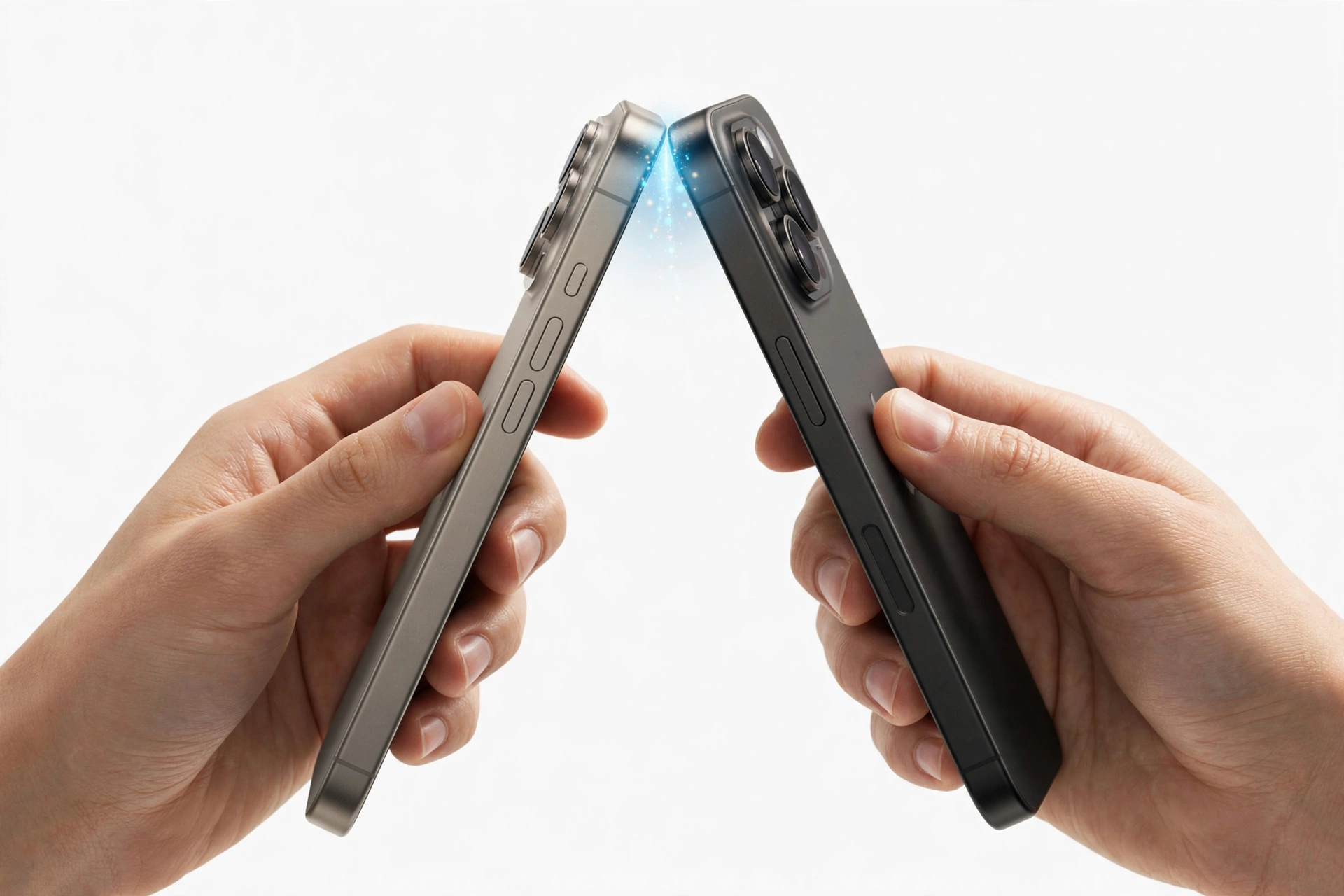
- Bring the tops of the phones together. Touch the top edge of one iPhone — the end with the front camera and earpiece — to the top edge of the other. Hold them together for a few seconds until the screen glows.
- Restart both iPhones if the glow appears but nothing loads. A full restart clears the temporary radio glitches that most often stall the exchange.
QUICK FACTS: NameDrop requires iOS 17 or later on an iPhone XR, XS, XS Max, or any newer model (including iPhone SE 2nd generation and later). Both devices must be unlocked, with Wi-Fi and Bluetooth on, and Bringing Devices Together enabled. No internet connection is required.
If these five steps don’t fix it, the rest of this guide walks through every documented requirement and the deeper causes, one at a time.
3. How NameDrop is supposed to work
Understanding the normal flow makes it easier to spot which step is failing. Here is what a successful NameDrop looks like:
- You bring the top of your iPhone to the top of the other person’s iPhone. Both screens glow with a subtle animation.
- After a second or two, a Share Your Contact screen appears showing your Contact Poster — the personalized card you set up for your own contact entry.
- You choose what to share: your full contact card, or a limited set of details (phone number and email address only).
- The other person does the same, and each of you taps Save or Done on the card that appears.
- The new contact lands in the Contacts app. Moving the phones apart before the exchange begins cancels it — you can also just pull away if you change your mind.
NameDrop also works with Apple Watch: bringing the top of your iPhone to the top of a compatible Apple Watch (Series 6 or later, SE, or Ultra) exchanges contact cards the same way. And the same proximity gesture triggers a different behavior when photos are on screen — holding two iPhones together while viewing a photo offers to share it instead.
TIP: To end a NameDrop session without exchanging anything, simply separate the phones before the share screen finishes loading. If a card was already saved, delete it manually in the Contacts app.
4. The requirements checklist: device, software, and account
Before touching any settings, confirm both devices actually qualify. NameDrop is not available on older hardware or older iOS versions, and no amount of toggling will change that.
4.1 Compatible iPhone models
Apple supports NameDrop on these iPhones:
- iPhone XR, iPhone XS, iPhone XS Max
- iPhone 11, 11 Pro, 11 Pro Max
- iPhone 12 series, 13 series, 14 series, 15 series, 16 series, 17 series
- iPhone SE (2nd generation and later)
Compatible Apple Watch models for watch-to-iPhone sharing include Apple Watch Series 6 and later, Apple Watch SE (both generations), and Apple Watch Ultra and Ultra 2.
4.2 Software version
Both devices must be running iOS 17 or later. If one person’s iPhone is still on iOS 16 or earlier, NameDrop will not appear — the feature simply isn’t in that software. Check via Settings > General > Software Update on both phones.
4.3 Both devices unlocked
This one is easy to miss. NameDrop requires both phones to be unlocked when they touch. If one person’s phone auto-locks after a few seconds of staring at the blank screen, the exchange silently fails. Keep both screens awake during the attempt.
4.4 Apple ID is fine, but contacts setup matters
NameDrop shares the contact card stored under your own name in the Contacts app — your “My Card.” If your contact card is incomplete (no phone number or email), there may be nothing meaningful to share. Check Contacts > your name at the top to make sure your own card is set and has details on it.
5. The proximity gesture: technique matters more than you think
A surprising number of NameDrop “failures” are just wrong positioning. The NFC antenna that detects the other device sits near the top of the iPhone, by the front camera and earpiece.
- Do: touch the top edges of the two phones together, earpiece to earpiece, and hold them there for two to four seconds.
- Don’t: lay the phones flat side by side, or hold the bottom halves together. The antennas are at the tops — the bottoms have almost no chance of triggering the feature.
- Don’t pull away too fast. Give the glow animation time to resolve into the share screen. Ripping the phones apart after one second aborts the handshake.
- Remove thick metal cases if positioning seems hopeless. A very thick or metal-lined case can shield the antenna. You don’t need to remove normal silicone cases, but if nothing triggers, try once with the cases off.
TIP: The small “Connected” banner that appears at the top of the screen can be tapped before moving the phones apart. If you see it, the devices have found each other — stay still a moment longer.
6. The master switch: Bringing Devices Together
When NameDrop launched with iOS 17, some users worried that contact details could be pulled from their phone by anyone holding another iPhone near it. In response, Apple added an explicit master toggle. If it’s off, NameDrop cannot trigger — and neither can the other proximity sharing features.
To check it:
- Open Settings.
- Tap General.
- Tap AirDrop.
- Look at Bringing Devices Together. It ships enabled, but it may have been turned off at some point — for privacy reasons, after a software update, or by whoever set up the phone.
- Toggle it on, on both devices.
STOP FOR SAFETY: If you share this iPhone with a child or someone who shouldn’t be exchanging contact cards with strangers, leave this toggle off on purpose. Turning it off is a legitimate privacy choice, not a bug.
7. Wi-Fi, Bluetooth, and AirDrop receiving settings
NameDrop is built on AirDrop, so it needs the same radios and a few of the same settings.
7.1 Wi-Fi and Bluetooth must both be on
On both iPhones, open Control Center and confirm the Wi-Fi and Bluetooth icons are blue. If either is gray, tap it. The phones don’t need to be connected to the same Wi-Fi network — or any network at all. The radios just need to be active so the devices can discover each other.
If the icons look on but NameDrop still fails, toggle both off and back on once on each phone. This clears transient radio states that a glance at Control Center can’t show.
7.2 AirDrop receiving: Contacts Only vs Everyone
Your AirDrop receiving setting controls who can see your device for AirDrop in general. It lives under Settings > General > AirDrop, or by long-pressing the network card in Control Center and tapping AirDrop. The options are Receiving Off, Contacts Only, and Everyone for 10 Minutes.
By default, Apple sets AirDrop receiving to Contacts Only. If you’re trying to NameDrop with someone who is not already in your contacts, some troubleshooting guides suggest temporarily switching to Everyone for 10 Minutes. Apple doesn’t list this as a formal requirement for NameDrop, so treat it as an unconfirmed workaround: try it only after the documented checks (toggle, radios, positioning, both unlocked) have failed, and only for the duration of the exchange.
7.3 Airplane Mode and VPN interference
If Airplane Mode is on, Wi-Fi and Bluetooth may be off or crippled — turn Airplane Mode off before testing. A VPN that routes all traffic through a tunnel can also interfere with local device discovery; temporarily disable the VPN for the test. Personal Hotspot being active can block the local radios the same way it does for regular AirDrop — switch it off while you try.
8. Contact card and Contact Poster problems
Sometimes the gesture works — the screens glow — but the exchange itself misbehaves: no card to share, the wrong card, or the receive prompt never appears.
- Missing My Card: If your own contact card isn’t set, NameDrop has nothing to offer. Open Contacts, check that your name appears at the very top as your card, and add a phone number and email if it’s blank.
- Contact Poster not set: The visual card shown during NameDrop is your Contact Poster. If it’s blank or broken, the share screen can look empty. Set one under Contacts > your card > Contact Photo & Poster.
- Sharing limited details: NameDrop lets you choose between sharing your full card or just phone and email. If you tapped through quickly, you may have shared the limited version — the other person isn’t missing anything; you sent the short one.
- “Receive” prompt missing on the other end: The receiving iPhone shows its own prompt to accept or decline. If it never appears, the receiver’s Bringing Devices Together toggle is the first suspect — check it on their phone, not just yours.
For moving an entire address book to a new phone instead of one card at a time, see our guide to transferring contacts to a new phone.
9. Screen Time, restrictions, and managed devices
If everything else checks out but NameDrop stubbornly refuses to trigger, look at restrictions.
- Screen Time Content & Privacy Restrictions: A parent or guardian may have restricted AirDrop under Settings > Screen Time > Content & Privacy Restrictions > Allowed Apps. If AirDrop is disabled there, NameDrop goes with it.
- Work or school management profiles: Employer- or school-managed iPhones can have AirDrop or contact sharing disabled by policy. On a managed device, this is a deliberate organizational setting — it isn’t something to work around, and attempting to bypass a management profile can violate the device’s acceptable-use policy.
- Focus modes: A Focus mode (like Do Not Disturb or Work) can suppress the incoming NameDrop prompt on the receiving phone. Try with Focus off on both devices.
QUICK FACTS: On a device supervised by an organization (work or school), disabled AirDrop or contact-sharing features are policy, not a fault. Only the organization’s administrator can change them.
10. Software updates and post-update glitches
Apple refines proximity features with each iOS release, and occasionally an update breaks them temporarily.
- Update both iPhones. Settings > General > Software Update on both devices. NameDrop behavior can differ between iOS versions, so matching versions removes one variable.
- Restart after updating. A restart right after an update completes is standard practice — it clears half-initialized services.
- Wait for follow-up fixes. If NameDrop broke immediately after a major iOS update and no settings changed, the cause may be a genuine bug that Apple’s next point update will fix. Use an alternative sharing method (text your card, or AirDrop it through the share sheet) in the meantime rather than fighting the feature.
11. Privacy explained: why NameDrop can’t steal your contacts
NameDrop drew attention at launch because of claims that someone could grab your contact details just by walking past you with an iPhone. The reality, confirmed by independent fact-checks at the time, is that several conditions must all be true before anything transfers:
- Both devices must be unlocked.
- The phones must be held very close together, essentially touching.
- Bringing Devices Together must be enabled on both phones.
- You must tap to confirm what to share; the other person must accept.
Walking past someone in a crowd meets none of these conditions. If you still don’t want the feature at all — many people don’t — turning off Bringing Devices Together under Settings > General > AirDrop disables NameDrop and the other proximity sharing features while leaving ordinary AirDrop available.
12. Ordered fix sequence: the complete checklist
Work through these in order, and stop as soon as NameDrop starts working:
- Confirm both iPhones are iPhone XR or newer, running iOS 17 or later.
- Unlock both phones and keep the screens awake.
- Settings > General > AirDrop > Bringing Devices Together — on, both phones.
- Control Center — Wi-Fi and Bluetooth blue, both phones.
- Airplane Mode off, Personal Hotspot off, VPN off — both phones.
- Focus modes off — both phones.
- Touch the top edges together and hold for several seconds.
- Toggle Wi-Fi and Bluetooth off and back on — both phones — and try again.
- Restart both iPhones and try again.
- Update both iPhones to the latest iOS, restart, and try again.
- Try with someone outside your contacts using Everyone for 10 Minutes (temporary).
- Check Screen Time restrictions and management profiles.
- Reset Network Settings as a last resort (Settings > General > Transfer or Reset iPhone > Reset > Reset Network Settings).
STOP FOR SAFETY: Reset Network Settings erases saved Wi-Fi passwords, paired Bluetooth devices, and VPN configurations. Use it only after everything above has failed, and make sure you know your Wi-Fi password before you tap it.
13. Symptom → likely cause → safe fix
| What you see | Likely cause | Safe fix |
|---|---|---|
| Nothing happens when phones touch | Bringing Devices Together is off, or a phone is locked | Check the toggle on both phones; unlock both and keep screens awake |
| Screens glow, then nothing | Wi-Fi/Bluetooth radio glitch, or phones pulled apart too soon | Toggle both radios off and on; hold tops together for several seconds |
| Works with friends but not strangers | AirDrop receiving set to Contacts Only | Temporarily use Everyone for 10 Minutes for the exchange |
| Prompt appears on one phone only | Receiver’s toggle off, or Focus mode suppressing the prompt | Check the receiver’s toggle; turn Focus off on both |
| NameDrop option missing from AirDrop settings | iPhone too old or iOS older than 17 | Check model and software version; update if eligible |
| Broke right after an iOS update | Update bug or half-initialized service | Restart both phones; update again when the next point release arrives |
| Toggle is grayed out | Screen Time restriction or management profile | Check Screen Time > Allowed Apps; managed devices need the administrator |
| Shares the wrong details | My Card is incomplete or wrong | Fix your own contact card in the Contacts app |
14. What these checks can and cannot establish
| Observation | What it establishes | What it does not establish |
|---|---|---|
| Screens glow when phones touch | The NFC proximity detection works; antennas are fine | That the full exchange will complete |
| Works after toggling the switch on | The switch was the blocker | That the feature was “broken” |
| Works with one person but not another | The other person’s settings or device is the variable | That your iPhone is faulty |
| Fails identically on two iPhones | A common factor (update, environment, technique) | That both phones have a hardware defect |
| Regular AirDrop also fails | The underlying radios or settings are the problem | That NameDrop specifically is broken |
15. When to stop and get an assessment
NameDrop is a software and settings feature — it almost never indicates a hardware fault. Still, stop troubleshooting and seek an in-person assessment if:
- The iPhone has other Bluetooth or Wi-Fi symptoms too — won’t pair with headphones, won’t join any network, Wi-Fi toggle grayed out (see our Bluetooth guide).
- The screen never responds to any touch or gesture anywhere, which suggests a display or digitizer problem rather than a NameDrop setting.
- The phone was dropped, bent, or exposed to liquid before NameDrop stopped working — physical damage can affect the antenna area at the top of the phone.
- You’ve run the full ordered sequence on two known-good iPhones and nothing triggers — a shop can confirm whether the NFC antenna area is functional.
Bring both iPhones to the assessment if possible, and be ready to describe which steps you’ve already tried — it saves diagnostic time.
16. Hypothetical examples
(The following are hypothetical illustrations, not customer stories.)
Maya’s new-colleague exchange
Maya meets a new colleague at a Las Vegas trade show and tries NameDrop. Nothing happens. She checks: her toggle is on, her colleague’s toggle is off — he disabled it last year after reading a scary headline. He turns it on, they hold the tops of their phones together, and both cards exchange in seconds. The “fault” was one toggle on one phone.
Daniel’s sideways attempt
Daniel and a friend keep laying their iPhones flat side by side on a table, wondering why nothing triggers. A quick re-read of the technique — tops together, earpiece to earpiece, held for three seconds — gets the glow animation on the first try. Nothing was wrong with either phone.
17. Frequently asked questions
Does NameDrop work with Android phones?
No. NameDrop is an Apple-only feature between iPhones (and between iPhone and compatible Apple Watch). There is no official way to NameDrop to an Android phone — use a different method, like sending your contact card by text or email.
Can someone steal my contact info by holding their phone near mine?
No. Both phones must be unlocked, held essentially touching, with the feature enabled — and you must tap to confirm what to share. It cannot pull data silently from a locked phone in a pocket or bag.
Why does NameDrop keep turning itself off?
It usually hasn’t turned itself off — someone toggled it. Check whether a Screen Time passcode holder, a family sharing organizer, or a management profile changed the setting. Major iOS updates occasionally reset toggles, so re-check after updating.
Can I NameDrop just my phone number, not my whole card?
Yes. On the share screen, choose the limited option to send only your phone number and email address instead of your full contact card.
Does NameDrop work if I don’t have the person in my contacts?
That’s exactly what it’s designed for. If the exchange still fails with a non-contact, try temporarily switching AirDrop receiving to Everyone for 10 Minutes on both phones for the duration of the attempt.
Is NameDrop the same as AirDrop?
NameDrop is a feature built on top of AirDrop’s technology, but it’s specifically for exchanging contact cards by proximity. Regular AirDrop (via the share sheet) sends photos, files, and links and has its own separate fixes — see our AirDrop guide.
How do I turn off NameDrop completely?
Go to Settings > General > AirDrop and turn off Bringing Devices Together. This disables NameDrop and the other hold-together sharing features; regular AirDrop still works according to your receiving setting.
Can a repair shop fix NameDrop?
Usually there is nothing to repair — NameDrop failures are settings, technique, or software issues, not hardware. A shop is useful when you’ve exhausted the software sequence and need diagnostics to rule out an antenna or radio fault, especially after physical damage. Be ready to describe every step you already tried.
Video: How to tell if your smartphone is fake or real
Sources and editorial notes
- Gadget Hacks — How to Use NameDrop on iPhone: corroborating the Bringing Devices Together toggle location, the radio toggle fix, the top-edge positioning guidance, and the Everyone-for-10-Minutes unconfirmed workaround framing. (Last checked October 13, 2026.)
- iGeeksBlog — NameDrop Not Working on iPhone: corroborating the compatibility list, the Bringing Devices Together security rationale, and the gesture technique. (Last checked October 13, 2026.)
- AppleInsider — How to Use NameDrop to Exchange iPhone Contacts: corroborating the sleep-wake retry tip, the Home Screen positioning advice, and the toggle-off instructions. (Last checked October 13, 2026.)
- Beebom — NameDrop Not Working Fixes: corroborating the Bringing Devices Together default-on state, the Bluetooth/Wi-Fi dependency, and the top-edge positioning. (Last checked October 13, 2026.)
- GeekChamp — Fix NameDrop Not Working After iOS 18 Update: corroborating the supported device lists for iPhone and Apple Watch, and the reset-network-settings last-resort ordering. (Last checked October 13, 2026.)
Last source check: October 13, 2026. AI-assisted editorial guide, checked against the linked manufacturer information and independent technical reporting. Procedures described here follow Apple’s published NameDrop behavior as documented in iOS; third-party sources are cited only for corroboration. If your iPhone needs hands-on assessment, Las Vegas Phone Repair & Accessories is at 7400 Las Vegas Blvd S, Unit TT42, Las Vegas, NV 89123 — call (424) 406-6202 ahead to confirm today’s hours (generally 10:00 AM–8:00 PM).
Let’s get you connected again.
Tell us what’s happening with your device and we’ll help you decide the safest next step — no jargon, no pressure.
Las Vegas Phone Repair & Accessories · 7400 Las Vegas Blvd S, Unit TT42, Las Vegas, NV 89123
10:00 AM–8:00 PM — call ahead to confirm today’s hours