
iPhone Bluetooth Not Working: Safe Checks Before Repair
If your iPhone won’t connect to a Bluetooth accessory, the cause is usually on the accessory side — discovery mode, low power, or a stale pairing — rather than a fault in the iPhone itself. Apple’s recommended sequence works through the simplest explanations first: confirm proximity and discovery mode, restart and charge the accessory, check app Bluetooth permissions, then unpair and re-pair before considering service or repair.
On this page
If your iPhone won’t connect to a Bluetooth accessory, the cause is usually on the accessory side — discovery mode, low power, or a stale pairing — rather than a fault in the iPhone itself.
Who this guide is for
This guide is for iPhone owners whose Bluetooth has stopped working as expected. That includes several different situations: your iPhone won’t pair with a new accessory at all, a previously working accessory (headphones, a speaker, a car system, a smartwatch, a keyboard) suddenly won’t connect, the connection keeps dropping, or the Bluetooth toggle itself is greyed out and can’t be turned on. The steps below follow Apple’s official troubleshooting sequence for Bluetooth accessories, expanded with the context you need to run each step safely and to interpret what the results mean. (Source: support.apple.com)
If your Bluetooth problem involves a specific symptom — for example, a Bluetooth headset whose microphone doesn’t pick up your voice on calls — the general steps here still apply, but you may also want our focused guide on iPhone microphone problems during calls. And if the accessory in question is a Bluetooth speaker with no sound, our Galaxy speaker troubleshooting guide covers speaker-side checks that apply to any brand of Bluetooth speaker.
This guide covers software and settings checks only. Nothing here requires opening your iPhone, removing screws, or handling internal components. If a step ever asks you to do something you’re unsure about, stop and re-read it — Bluetooth troubleshooting should never put your data or your device at risk.
How iPhone Bluetooth pairing works
Understanding the basics makes the troubleshooting steps make sense. Bluetooth pairing is a handshake between two devices: your iPhone and the accessory. For that handshake to succeed, four things must be true at the same time: (1) Bluetooth must be turned on on your iPhone, (2) the accessory must be powered and in “discovery” or “pairing” mode (broadcasting that it’s available), (3) the two devices must be close enough for the radio signal to reach, and (4) nothing may be blocking the connection — such as the accessory already being connected to a different device, a permission the companion app hasn’t been granted, or corrupted pairing data from an earlier connection.
Most Bluetooth failures are a breakdown in one of these four conditions, not a hardware failure. That’s good news: it means most problems resolve with settings and sequencing rather than repair. The steps below are ordered from simplest and least disruptive to most involved, which is also the order Apple recommends.
First: identify your symptom pattern
Bluetooth problems look different depending on what’s actually wrong, and the right first step depends on the pattern. Before changing anything, work out which of these descriptions matches your situation. This matters because a greyed-out Bluetooth toggle points at the iPhone itself, while “everything pairs except my car” points at one specific accessory or its compatibility.
| Symptom | What you see | Most likely cause |
|---|---|---|
| Bluetooth won’t turn on | The Bluetooth toggle in Settings is greyed out or immediately switches back off | iPhone-side issue — a software fault or, less commonly, a hardware problem with the iPhone’s Bluetooth radio |
| No accessories connect | Bluetooth is on, but no accessory appears or connects — even ones that worked before | iPhone-side issue — corrupted Bluetooth settings, or a system-level software problem |
| One accessory won’t pair | Other Bluetooth devices connect fine, but a single accessory won’t | Accessory-side issue — discovery mode, power, compatibility, or the accessory is paired elsewhere |
| Pairs but keeps dropping | The accessory connects, then disconnects repeatedly or audio stutters | Interference, distance, low battery on either side, or a second device competing for the accessory |
| Was working, now isn’t | A previously reliable accessory suddenly stopped connecting after an update, a trip, or no obvious trigger | Stale pairing data, an app permission that was reset, or the accessory connected itself to another device |
| Connects but misbehaves | Pairing succeeds, but audio routes wrong, the microphone doesn’t work, or controls don’t respond | App permission missing, wrong audio output selected, or accessory firmware quirk |
Keep your pattern in mind as you work through the steps. Steps 1 through 4 resolve the majority of accessory-side problems; Steps 5 through 7 handle pairing-data and compatibility problems; Step 8 is a last resort for iPhone-side problems. If your toggle is greyed out, skip straight to the “When Apple says to contact support” section after trying a restart — most of the middle steps can’t help when Bluetooth won’t turn on at all.
Before you change anything: quick observations
Two minutes of observation now can save you twenty minutes of unnecessary steps. Note the answers to these questions before you begin:
- When did it stop working? Right after an iOS update, after the accessory’s battery died, after you got a new phone, or gradually? An update timing points at software; a dead battery points at the accessory needing a full recharge and re-pair.
- Does the accessory work with any other device? If you have a second phone, tablet, or computer, try pairing the accessory to it. This single test separates iPhone-side problems from accessory-side problems more reliably than any other step. (More on this in “Is it the iPhone or the accessory?” below.)
- Is the accessory’s battery charged? Many “won’t connect” cases are simply a dead or nearly dead accessory battery. Bluetooth radios are among the first things to fail when an accessory’s battery runs low.
- Has anything in the environment changed? New Wi-Fi router, a microwave between you and the speaker, a crowded office full of Bluetooth devices? Bluetooth and Wi-Fi share the 2.4 GHz band, and interference is a real cause of drops and stutters.
- Is your iPhone itself healthy otherwise? If the iPhone is also having charging trouble, that can matter — a phone struggling to hold charge may behave erratically in other radios too. See our iPhone not charging safe checks if that’s also happening.
Step 1 — Confirm proximity and discovery mode
Apple’s first recommendation is also the most overlooked. If the accessory was previously paired with your iPhone, make sure the two are close together — in the same room, ideally within a few feet. Bluetooth range is officially around 30 feet (10 meters), but walls, bodies of water (including the human body), and interference shrink that dramatically in practice.
If you’ve never paired the accessory with this iPhone before, proximity alone isn’t enough: the accessory must be in discovery mode (sometimes called pairing mode). In discovery mode, the accessory actively broadcasts “I’m available to pair.” Most accessories enter discovery mode with a long-press on a dedicated Bluetooth button, or by holding the power button for several seconds until an LED blinks in a specific pattern — but the exact gesture varies by brand and model. Check the accessory’s manual or the manufacturer’s quick-start guide. A common mistake is assuming the accessory is discoverable just because it’s powered on; many accessories only broadcast for 60–120 seconds after entering discovery mode, then go quiet to save battery.
If the accessory never appears in your iPhone’s Bluetooth device list (Settings > Bluetooth), the most common reasons are: it isn’t in discovery mode, it’s already connected to a different device (see Step 6), or its battery is too low to broadcast. Work through those before assuming anything is broken.
Step 2 — Restart the accessory and check its power
Turn the Bluetooth accessory off and back on again. This clears the accessory’s temporary connection state — the equivalent of a restart for a small embedded device — and forces it to re-broadcast. Wait about ten seconds between off and on so its radio fully powers down.
While you’re at it, verify power properly. “Fully charged or connected to a power source” is Apple’s wording, and it matters: an accessory at 10% battery may power on and even appear in the Bluetooth list, but fail to sustain a connection. If the accessory uses replaceable batteries, try fresh ones. If it’s rechargeable, give it a full charge — not just a few minutes on the cable — then retry. For accessories that charge over USB, try a different cable and power source if charging itself seems unreliable; a cable that only intermittently delivers power can leave an accessory in a half-charged state that behaves erratically.
Step 3 — Toggle Bluetooth on your iPhone (and restart the iPhone)
On your iPhone, go to Settings > Bluetooth and turn Bluetooth off, wait about ten seconds, then turn it back on. This restarts the iPhone’s Bluetooth stack without affecting anything else.
If toggling doesn’t help, restart the iPhone itself. A restart clears temporary system state across all radios and is the single most effective general-purpose fix for “it was working yesterday” problems. Use the standard restart for your model (quick-press volume up, quick-press volume down, then hold the side button until the Apple logo appears on Face ID models; hold the side/top button and slide to power off on models with a Home button, then power back on). A restart does not erase any data.
Stop and read carefully if the Bluetooth toggle is greyed out or won’t stay on. That pattern usually indicates a system-level problem, not something the remaining steps can fix. Restart the iPhone once; if the toggle is still greyed out afterward, skip to “When Apple says to contact support” below rather than continuing through accessory-side steps.
Step 4 — Check the app’s Bluetooth permission
Many Bluetooth accessories — fitness trackers, smartwatches, hearing aids, smart home devices, some headphones — rely on a companion app, and that app needs your explicit permission to use Bluetooth. iOS asks for this permission the first time the app tries to use Bluetooth, and it’s easy to have tapped “Don’t Allow” without realizing, or to have had the permission reset by an update or by offloading the app.
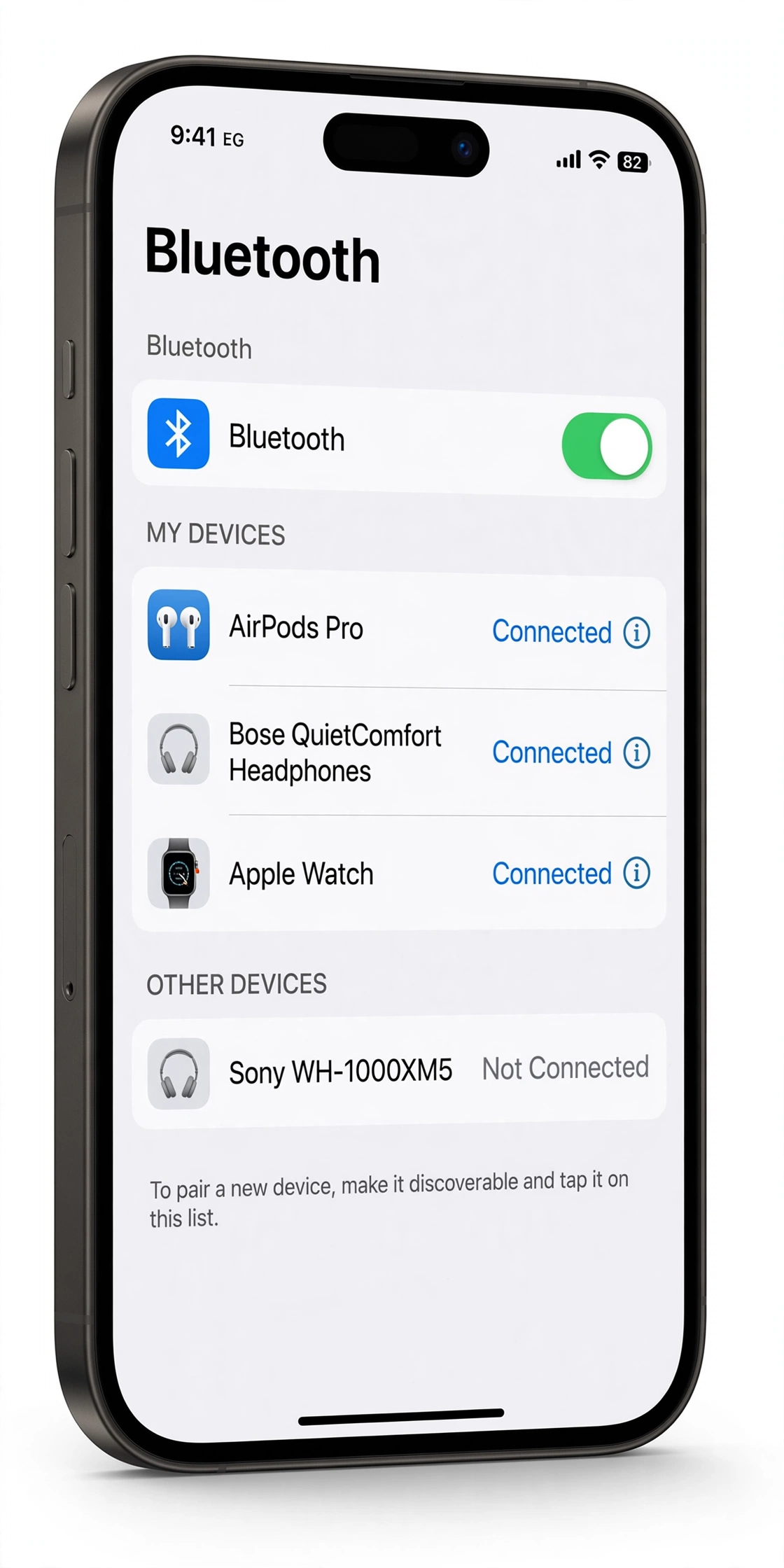
To check: open the Settings app, tap Privacy & Security, then tap Bluetooth. You’ll see a list of apps that have requested Bluetooth access, each with a toggle. Make sure the toggle is on for the app you use with the accessory. If the app isn’t listed at all, open the app itself and try its “connect” or “pair” flow — iOS should prompt you for permission at that point.
This step is a frequent fix for the “pairs but misbehaves” pattern: the accessory connects at the system level, but the companion app can’t talk to it, so features like firmware updates, equalizer settings, or device controls don’t work. It’s also worth checking after any iOS update, which can occasionally reset privacy permissions.
Step 5 — Unpair the accessory and pair it again
If the accessory was previously connected to your iPhone, stale pairing data is a prime suspect — especially if it worked before and stopped after an update, a long period of disuse, or a low-battery episode. The fix is to remove (“forget”) the existing pairing and start fresh.
How to unpair
Go to Settings > Bluetooth. Find the accessory in the “My Devices” list, tap the information (i) icon next to its name, then tap “Forget This Device” and confirm. This deletes the stored pairing keys and connection preferences for that accessory on your iPhone. It does not affect the accessory itself, your other paired devices, or any data on your iPhone.
How to re-pair
After forgetting the device: put the accessory back into discovery mode (Step 1 — this is essential; the accessory won’t reappear in the list unless it’s broadcasting), then on your iPhone go to Settings > Bluetooth and wait for the accessory’s name to appear under “Other Devices.” Tap it to pair. If the accessory uses a PIN, enter the one from its manual (common defaults are 0000 or 1234, but check the manufacturer’s documentation — don’t guess repeatedly, as some accessories lock out after several failed attempts).
Unpairing and re-pairing is safe and reversible. The only thing you lose is the convenience of automatic reconnection for that one accessory; you’ll simply pair it again. If you have many paired accessories, you don’t need to forget all of them — only the one that’s misbehaving.
Step 6 — Disconnect the accessory from your other devices
Most Bluetooth accessories can maintain an active connection to only one device at a time (some newer ones support two, but single-connection is still the norm). If your headphones are connected to your laptop, your speaker is connected to your partner’s phone, or your car system is still holding onto your old phone, your iPhone can’t claim the accessory — and the symptom looks exactly like “won’t pair,” even though nothing is broken.
Apple’s guidance here is direct: if the accessory pairs with some devices but not your iPhone, unpair it from the other devices, then try pairing with your iPhone again. Practically, this means:
- On each other device (laptop, tablet, old phone), go into its Bluetooth settings and either disconnect or forget the accessory.
- Or, simpler: turn Bluetooth off on the other devices temporarily, or move them out of range, then retry pairing with your iPhone.
- For car systems: if the car is paired with multiple phones, check which phone it’s currently connected to — cars often auto-connect to the most recently used phone, which may not be yours.
This step alone resolves a large share of “it was working and suddenly stopped” cases, because accessories often silently reconnect to the last device they were used with. Someone in the household using “your” speaker with their phone yesterday is a classic cause.
Step 7 — Confirm compatibility with the manufacturer
If you’ve worked through Steps 1–6 and the accessory still won’t pair, compatibility enters the picture. Bluetooth has gone through multiple versions (4.x, 5.x, and various sub-versions), plus optional profiles for specific functions — audio (A2DP), hands-free calling (HFP), low-energy accessories (BLE), and so on. An iPhone and an accessory can both “have Bluetooth” yet fail to interoperate if the accessory relies on a profile the iPhone doesn’t support, or if the accessory’s firmware predates the iPhone’s Bluetooth implementation.
Apple’s advice is to contact the accessory manufacturer to confirm compatibility with your iPhone model and iOS version. Before you call, gather: your exact iPhone model (Settings > General > About > Model Name), your iOS version (same screen), the accessory’s exact model name/number, and its firmware version if the companion app shows one. Manufacturers can also tell you whether a firmware update for the accessory exists — many pairing problems with older accessories are fixed by updating the accessory’s firmware through its companion app.
Compatibility cuts both ways. If the manufacturer confirms the accessory works correctly with other phones — including other iPhones — but not yours, that information is significant: Apple specifically lists “the accessory manufacturer confirmed that your accessory is working correctly” as a trigger to contact Apple Support. Write down who you spoke to and what they confirmed; you’ll need it.
Step 8 — Reset network settings (last resort, read this first)
If Bluetooth is on but no accessories will connect — not just one — and everything above has failed, the remaining software-side option is resetting your iPhone’s network settings. This clears all stored Bluetooth pairings, Wi-Fi networks, and related radio configuration, forcing the system to rebuild them from scratch. It sometimes resolves deep system-level Bluetooth faults that toggling and restarts can’t reach.
Read this before you tap it. Resetting network settings erases: all saved Wi-Fi networks and their passwords, all Bluetooth pairings, VPN configurations, and cellular settings (such as any custom APN). It does NOT erase your photos, apps, messages, or other personal data — but you will need to re-enter Wi-Fi passwords and re-pair every Bluetooth accessory afterward, and reconfigure any VPN. Only use this step if Bluetooth is broadly broken (no accessories connect), not for a single misbehaving accessory. Go to Settings > General > Transfer or Reset iPhone > Reset > Reset Network Settings, and confirm. Your iPhone will restart.
After the reset and restart, test Bluetooth with the simplest accessory you own before re-pairing everything — confirm the radio itself works before rebuilding your full device list. If Bluetooth still fails to connect to anything after a network settings reset, you’ve exhausted the software-side options; the next step is support, not more troubleshooting.
Is it the iPhone or the accessory? How to tell
The most decisive test in all of Bluetooth troubleshooting is cross-testing: try the accessory with a different phone, tablet, or computer, and try a different Bluetooth accessory with your iPhone. The four possible outcomes tell you exactly where the fault lies:
| Accessory on another device | Another accessory on your iPhone | Conclusion |
|---|---|---|
| Works | Works | The original pairing was the problem (stale data, wrong device connected, permission). Re-pairing should fix it. |
| Works | Fails | Points at your iPhone — its Bluetooth system isn’t connecting to anything. Work through Steps 3, 5, and 8. |
| Fails | Works | Points at the accessory — it’s faulty, incompatible, or not actually in discovery mode. Contact the accessory manufacturer. |
| Fails | Fails | Inconclusive — test with a third combination if possible, or check for environmental interference affecting everything nearby. |
If you don’t have a second device available, a repair shop can usually perform this test in a few minutes with their own equipment — it’s one of the quickest ways to separate an iPhone fault from an accessory fault without guessing.
What your checks can and cannot establish
It’s worth being clear about the limits of home troubleshooting, so you don’t draw expensive conclusions from thin evidence.
What your checks can establish: whether the accessory is powered and discoverable; whether the problem affects one accessory or all of them; whether the iPhone’s Bluetooth toggle works; whether a clean re-pair resolves it; whether the accessory works with other devices; whether the manufacturer considers it compatible. These are all useful, concrete facts.
What your checks cannot establish: whether the iPhone’s Bluetooth radio hardware is failing (a greyed-out toggle suggests it, but only diagnostics can confirm); whether an iOS bug is responsible (patterns across many users after an update suggest it, but you can’t prove it from one phone); whether the accessory has an internal hardware fault versus a firmware problem; and whether a repair would actually fix it versus a software update doing so later. Don’t authorize hardware service based on symptoms alone when a free cross-test or a manufacturer confirmation could settle the question first.
When to stop troubleshooting
Stop and seek support instead of continuing when any of these is true:
- The Bluetooth toggle is greyed out or won’t stay on after an iPhone restart.
- No Bluetooth accessories at all will connect, even after a network settings reset.
- You’ve completed Steps 1–8 carefully and the same single accessory still won’t pair — the remaining answers are with the manufacturer or Apple, not in more repetition.
- The accessory is physically damaged (cracked, exposed battery, swelling, burn smell) — do not keep powering or charging it; stop using it.
- You find yourself repeating the same steps hoping for a different result. Bluetooth troubleshooting is deterministic: if a clean re-pair with a charged, discoverable, compatible accessory fails twice in a row, repeating it a third time adds no new information.
When Apple says to contact support
Apple’s support article names three situations where you should contact Apple Support rather than continue troubleshooting on your own:
- You can’t turn on Bluetooth, or the setting is greyed out. This indicates the iPhone’s Bluetooth system isn’t initializing — a software fault at best, a hardware fault at worst.
- You can’t connect any Bluetooth accessories with your device. When every accessory fails, the common factor is the iPhone, and the remaining fixes (like a network settings reset) are the last self-service options.
- The accessory manufacturer confirmed that your accessory is working correctly. If the manufacturer has verified the accessory — ideally by testing it themselves or confirming it works with other iPhones — the fault is on the iPhone side by elimination.
Before contacting support, have ready: your iPhone model and iOS version, a description of which of the three situations applies, what steps you’ve already tried, and the results of any cross-testing. This saves significant time and helps support skip straight to the relevant diagnostics.
Hypothetical examples
The following examples are hypothetical illustrations, not reports of real repairs or real customers.
Example 1 — the gym headphones. Hypothetical: Maya’s wireless earbuds connected flawlessly for a year, then stopped appearing in her iPhone’s Bluetooth list after she used them with her laptop during a work trip. The earbuds were fine — they had simply auto-reconnected to the laptop every time it was nearby. Forgetting the earbuds on the laptop and putting them back in discovery mode let the iPhone pair immediately. Total fix time: under five minutes, once the real cause was identified.
Example 2 — the car that forgot. Hypothetical: Daniel’s car stereo paired with his iPhone for months, then began dropping the connection a few minutes into every drive after an iOS update. Toggling Bluetooth didn’t help, but forgetting the car system on the iPhone and re-pairing from scratch — with the car in discovery mode — produced a stable connection. The old pairing data hadn’t survived the update cleanly.
Example 3 — the greyed-out toggle. Hypothetical: Priya’s Bluetooth toggle went grey the morning after her phone got very warm during a long video call in a hot car. A restart didn’t restore it, and no accessories would connect. Because the toggle itself was unresponsive — Apple’s first “contact support” trigger — she stopped troubleshooting and sought support instead of continuing through accessory-side steps that couldn’t have helped.
Questions to ask before approving any service
If troubleshooting points at the iPhone itself and you’re considering professional service, ask these questions first — whether you visit a repair shop or contact Apple:
- Have you confirmed it’s the iPhone, not the accessory? Ask for (or perform) the cross-test: your accessory on another device, another accessory on your iPhone. Don’t pay for an iPhone repair to fix a broken headset.
- Is it software or hardware? Ask what diagnostics were run and what they showed. A greyed-out toggle after a network reset leans hardware; intermittent drops lean software or interference.
- What exactly will be done? Bluetooth radio faults are typically board-level issues. Ask what component or board is involved, and whether the proposed fix addresses it specifically.
- What happens to my data? Ask whether the service requires erasing the iPhone, and back up before handing it over regardless. (Apple’s own backup guidance applies before any service.)
- What does it cost, and what if it doesn’t fix it? Get the price in writing before approval, and ask what happens if the Bluetooth problem persists after the service — is re-diagnosis included?
- Is there a manufacturer route? If the iPhone is under Apple warranty or AppleCare, Apple’s own service may be the better path for a suspected hardware fault. A reputable independent shop will tell you this honestly.
No reputable shop can promise a specific outcome before diagnostics. Be cautious of anyone who guarantees a fix, quotes a price without examining the device, or can’t explain what they’d actually do. And never approve service based on a symptom (like “Bluetooth doesn’t work”) without a stated diagnosis.
Repair, replacement, and manufacturer support: how to think about it
Most iPhone Bluetooth problems never reach this stage — they’re resolved by re-pairing, permissions, or the accessory side. But when the evidence genuinely points at the iPhone’s Bluetooth hardware (greyed-out toggle that survives a restart and network reset, zero accessories connecting across multiple tested devices), you have three paths:
- Apple Support / Apple Store: the natural route for suspected hardware faults, especially under warranty or AppleCare. Apple’s diagnostics can confirm a radio hardware failure definitively.
- Independent repair: for out-of-warranty devices, an independent shop can diagnose and, where feasible, address board-level Bluetooth faults. Ask the questions above first. Our shop — Las Vegas Phone Repair & Accessories, 7400 Las Vegas Blvd S, Unit TT42, Las Vegas, NV 89123, (424) 406-6202, open 10AM–8PM (call ahead to confirm today’s hours) — can run the cross-tests and diagnostics described in this guide to establish whether the fault is in your iPhone or your accessory before any service is discussed.
- Accessory replacement: if cross-testing proves the accessory is the faulty party, replacing the accessory is usually cheaper and simpler than any phone-side intervention. Check the accessory’s own warranty first — many carry one to two years.
One more consideration: if your Bluetooth problem began immediately after an iOS update and affects a previously working accessory, check whether other users report the same pattern before paying for anything. Update-related Bluetooth regressions are typically fixed by a subsequent iOS update, not by hardware service — patience (and the manufacturer’s support forums) can save you a repair bill.
Video: How to tell if your smartphone is fake or real
Frequently asked questions
Why won’t my iPhone find my Bluetooth accessory at all?
The accessory isn’t appearing usually means it isn’t broadcasting: it’s not in discovery mode, its battery is too low, or it’s already connected to a different device. Put it in discovery mode per its manual, make sure it’s charged, move it close to the iPhone, and check that no other nearby device (laptop, old phone, partner’s phone) has claimed it. If it still doesn’t appear in Settings > Bluetooth under “Other Devices,” work through Steps 1, 2, and 6 above.
Should I reset network settings to fix Bluetooth?
Only as a last resort, and only when no Bluetooth accessories at all will connect. Resetting network settings erases all saved Wi-Fi networks and passwords, all Bluetooth pairings, VPN configurations, and cellular settings — you’ll need to set all of that up again afterward. It does not erase photos, apps, or messages. For a single misbehaving accessory, unpairing and re-pairing just that accessory (Step 5) achieves the relevant part without the collateral disruption.
My Bluetooth was working and suddenly stopped. What changed?
The most common silent changes: the accessory connected itself to a different device (a laptop or family member’s phone), an iOS update reset an app’s Bluetooth permission, the accessory’s battery ran down, or old pairing data went stale. Walk through the “quick observations” checklist at the top of this guide — the timing of when it stopped usually points at the cause.
Can interference really break a Bluetooth connection?
Yes. Bluetooth shares the 2.4 GHz radio band with Wi-Fi, microwaves, baby monitors, and many other devices. Symptoms of interference are distinctive: connections that work fine at close range but drop or stutter at distance, or that degrade in crowded environments (offices, gyms, conferences) but work at home. If your accessory works reliably within a few feet but not across the room, try changing your Wi-Fi router’s band to 5 GHz if it offers one, and move the accessory closer.
Why does my accessory connect to my old phone instead of my iPhone?
Bluetooth accessories generally auto-reconnect to the most recently used device. If you paired the accessory with an old phone or a laptop, it will keep choosing that device whenever it’s in range. Fix it by forgetting the accessory on the old device (or turning that device’s Bluetooth off), then pairing fresh with your iPhone. This is one of the most common causes of “it won’t pair” and one of the easiest to fix.
My Bluetooth toggle is greyed out. Is my iPhone broken?
Not necessarily, but it’s the most serious common Bluetooth symptom. First restart your iPhone — a greyed-out toggle after a software glitch sometimes clears with a restart. If it’s still greyed out, Apple lists this as a “contact support” situation: it means the Bluetooth system isn’t initializing, which points to a system software fault or a hardware problem with the radio. Don’t keep repeating accessory-side steps; they can’t help when Bluetooth won’t turn on.
Do I need the accessory’s app for Bluetooth to work?
For basic pairing, no — standard Bluetooth accessories (headphones, speakers, keyboards) pair directly through Settings > Bluetooth without any app. But many accessories need their companion app for full functionality, and the app needs Bluetooth permission (Settings > Privacy & Security > Bluetooth). If pairing works but features like firmware updates, custom controls, or device settings don’t, check the app permission first.
How do I know whether to replace the accessory or service the iPhone?
Cross-test: try the accessory with another device, and try another accessory with your iPhone. If the accessory fails everywhere but your iPhone pairs fine with other devices, replace the accessory (check its warranty first). If no accessory works with your iPhone but they all work elsewhere, the iPhone needs attention — start with Apple Support, especially if the toggle is greyed out or nothing connects after a network settings reset.
Sources and editorial notes
- Apple Support — “If a Bluetooth accessory won’t connect to your iPhone or iPad” (published December 19, 2025): Apple’s official sequence — proximity and discovery mode, restart the accessory, check power, app Bluetooth permission via Privacy & Security, unpair and re-pair, unpair from other devices, compatibility check with the manufacturer, and the three “contact Apple Support” triggers (Bluetooth won’t turn on/greyed out, can’t connect any accessories, manufacturer confirmed the accessory works).
Last source check: October 13, 2026. AI-assisted editorial guide, checked against the linked manufacturer information. Apple’s steps are summarized above in original language; for the authoritative wording, see the linked Apple Support article. Nothing in this guide requires opening your device. If your situation doesn’t match the patterns described here, or if troubleshooting points at the iPhone’s hardware, professional diagnosis is the next step — not further guesswork.
Let’s get you connected again.
Tell us what’s happening with your device and we’ll help you decide the safest next step — no jargon, no pressure.
Las Vegas Phone Repair & Accessories · 7400 Las Vegas Blvd S, Unit TT42, Las Vegas, NV 89123
10:00 AM–8:00 PM — call ahead to confirm today’s hours