
How to Transfer Passwords to New Phone: iPhone and Android
Passwords transfer to a new phone through the password manager’s own sync, not through a manual copy. iPhone users get passwords back by signing in to the same Apple Account with iCloud Keychain (or Passwords app) sync turned on; Android users get them back by signing in to the same Google account with Google Password Manager, or the same Samsung account for Samsung Pass. Cross-platform moves need an export and import — handle that file with care.
On this page
Passwords transfer to a new phone through the password manager’s own sync, not through a manual copy.
1. Who this guide is for
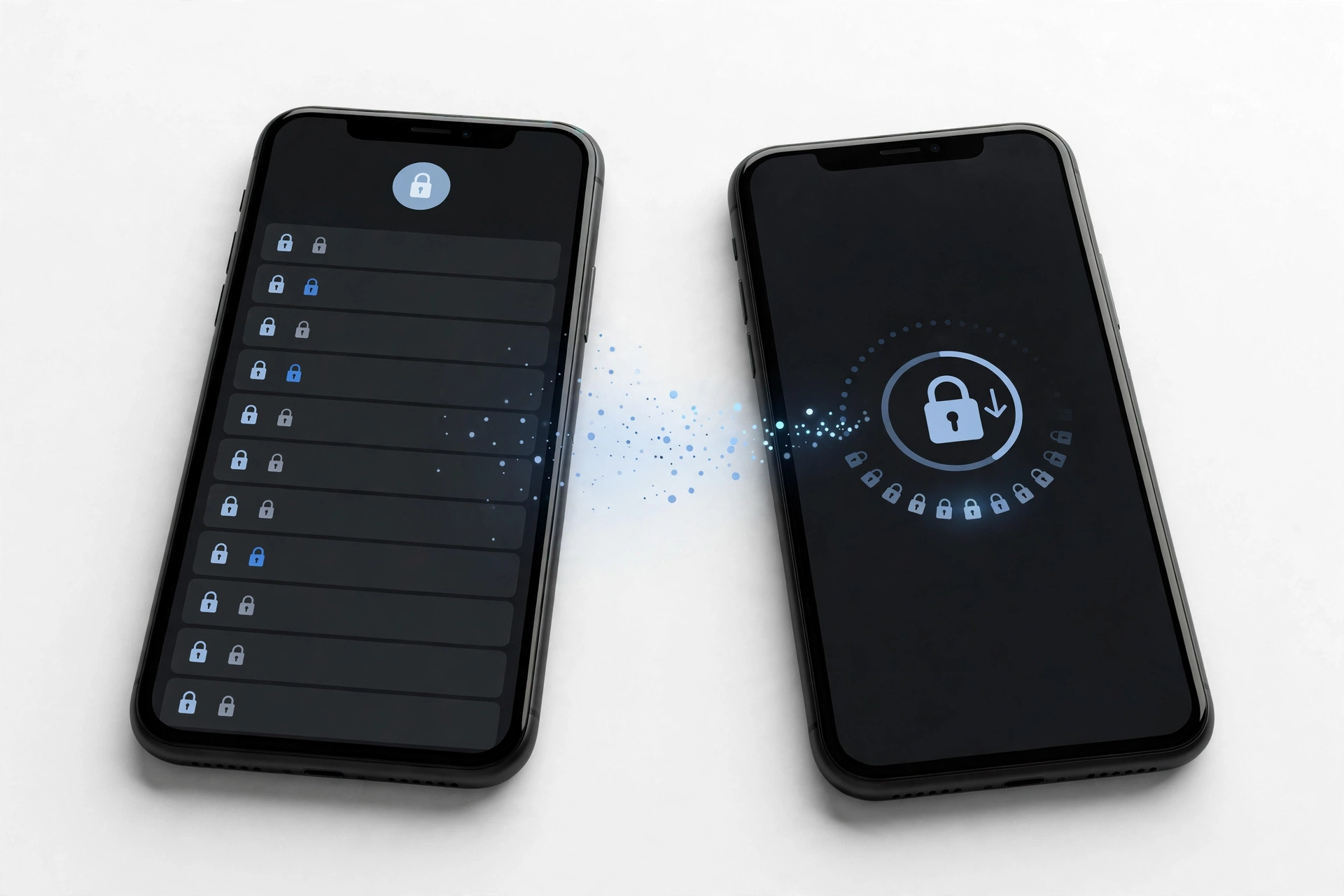
This guide is for anyone moving to a new phone who does not want to lose the hundreds of saved logins they have built up over the years. If you have ever set up a new phone and discovered your banking app, email, and social accounts all require passwords you no longer remember, this guide is written for you. (Source: support.apple.com)
It covers the four common situations: iPhone to iPhone, Android to Android, iPhone to Android, and Android to iPhone. It focuses specifically on passwords — the website and app logins your phone fills in automatically. That includes iCloud Keychain and the Apple Passwords app on iPhone, Google Password Manager on Android, Samsung Pass on Samsung phones, and popular third-party managers like 1Password, Bitwarden, and Dashlane.
This is not the same as our general data transfer guide, which covers photos, contacts, messages, and apps. Passwords are deliberately harder to move than photos, because they are encrypted. That extra friction is a feature — it protects you if a phone is lost or stolen. For the full move, read this guide alongside how to transfer data to a new phone.
2. Quick answer: the short version
Your passwords are safest when you have already been using a password manager with cloud sync. If that is true, the transfer is simple:
- iPhone to iPhone: Sign in to the same Apple Account on the new iPhone, turn on Passwords and Keychain sync (Settings > your name > iCloud), and passwords arrive automatically over Wi-Fi. Encrypted computer backups also carry passwords.
- Android to Android: Sign in to the same Google account during setup; Google Password Manager restores saved logins. Samsung-to-Samsung users can also use Samsung Pass with the same Samsung account, often via Smart Switch.
- Cross-platform (either direction): Export passwords as a file from the old manager and import into the new one — then delete the export file immediately.
Quick facts: Passwords are never transferred over plain text. Apple encrypts iCloud Keychain with 256-bit AES so that even Apple cannot read it. Google’s managers tie passwords to your Google account. Samsung Pass ties them to your Samsung account. If a backup was not encrypted, passwords may be missing from it.
3. Before you start: three ground rules
Passwords are the most sensitive data on your phone. A single mistake can lock you out of accounts for days or expose credentials to the wrong people. Follow these rules before anything else.
Rule 1: Verify the old phone still works and you know its passcode
Almost every password transfer starts from the old phone. If it is dead, shattered, or locked, your options narrow to whatever is already stored in the cloud. Charge it, connect it to Wi-Fi, and confirm you can unlock it. If you cannot, check how to transfer data from a broken phone — but know that passwords from a dead device may be unrecoverable if cloud sync was off.
Rule 2: Encrypted backups carry passwords; unencrypted ones do not
Stop for safety: A standard computer backup without encryption typically does not include saved passwords. If you back up an iPhone to a computer, choose the encrypted backup option and remember the backup password — without it, that backup is useless to you. The same principle applies to any export: treat password files as live keys to your accounts.
Rule 3: Never erase or wipe the old phone until the new one is verified
Keep the old phone signed in and powered until you have logged in to your bank, email, and two or three other important accounts on the new phone and confirmed the passwords are actually there. A transfer that “looked successful” can still leave gaps.
Rule 4: Never share your credentials with anyone, including a shop
No legitimate repair or data-transfer service needs your passwords. If a shop asks for your Apple Account or Google account password, decline and leave. Shops can check a device’s hardware; they cannot and should not handle your vault.
4. iPhone to iPhone: iCloud Keychain and the Passwords app
Moving between iPhones is the easiest password transfer, because Apple’s system syncs passwords automatically once it is turned on. There are two parts to understand: the sync itself, and what to do if it was never turned on.
Check that iCloud Keychain sync is on (old and new iPhone)
On both phones, go to Settings > your name > iCloud, then tap Passwords (on some versions this is labeled “Passwords & Keychain”) and turn on Sync this iPhone. Confirm with your Apple Account password if asked. Once sync is on, saved website and app passwords, passkeys, credit card information, Wi-Fi network information, and Mail/Contacts/Calendar account details update across all approved devices signed in to the same Apple Account.
When you sign in to the new iPhone during setup, the setup assistant asks about iCloud Keychain. Keep it on and finish setup; passwords download over Wi-Fi in the background, usually within a few minutes. There is no cable or computer involved.
If Keychain was never turned on on the old iPhone
If sync was off, the old iPhone may still hold passwords locally. Turn it on now, connect to Wi-Fi, and give it time to sync before wiping the old phone. Alternatively, restore the new iPhone from an encrypted computer backup — Apple’s documentation notes that encrypted backups and all iCloud backups include passwords, while unencrypted computer backups do not.
Passwords app: view, manage, and import
The Apple Passwords app (on recent iOS versions) is where synced passwords live. You can view and delete saved passwords and passkeys there, and its Security section flags reused, weak, and leaked passwords. Apple’s iPhone User Guide notes that the Passwords app can import passwords from another password manager using a CSV or ZIP file — useful if you are coming from Android and want everything in one place. After importing, turn on AutoFill Passwords and Passkeys (Settings > Passwords) so the iPhone actually suggests the logins.
Tip: When you sign in to a brand-new iPhone with an Apple Account, Apple may ask you to enter the passcode of one of your other devices. This is a normal security step for iCloud Keychain — Apple’s encryption keys live on your devices, not on Apple’s servers, which is also why Apple itself cannot read your keychain.
5. Android to Android: Google Password Manager
On Android, passwords saved through Chrome and Android’s autofill live in Google Password Manager, tied to your Google account. The transfer mostly happens by itself.
The account-sign-in route
When you set up the new Android phone, sign in with the same Google account you used on the old phone. Saved passwords sync from Google’s cloud and become available in Chrome and in Android’s autofill. On the old phone, it is worth confirming that password saving is enabled: open Settings > Google > Autofill, then Autofill with Google, and make sure Use autofill with Google is on. In the same area you can open Google Password Manager, check its settings (the gear icon), and confirm options like “Offer to save passwords” and “Auto sign-in” are active.
The new direct transfer feature
Google confirmed in September 2026 that Android can now move passwords and passkeys directly between password manager apps, with no export file involved. Start inside the new manager app — open Google Password Manager (or the manager you are switching to), go to its settings, and choose the option to import passwords and passkeys from another provider. Android detects which managers are installed, shows you the source, and opens the old manager so you can review and approve exactly what moves. Google says the exchange takes a few seconds. Supported so far: Google Password Manager, 1Password, Bitwarden, and Dashlane, on Android 8 and newer. If your manager is not supported yet, the older export-to-file route still applies.
Importing and exporting
Google Password Manager supports importing a CSV file (columns: url, username, password; up to 3,000 at a time; 10,000 stored per account). Exporting is equally simple — but see the warning below.
Stop for safety: An exported password file is plain, unprotected text. Anyone who opens that file can read every login. Google’s own help page warns about this. If you export, import immediately, then delete the file and empty the trash or recycle bin. Never email the file to yourself and leave it sitting in your inbox.
6. Samsung to Samsung: Samsung Pass and Smart Switch
Samsung phones have a second, separate password store: Samsung Pass. Some of your logins may live in Samsung Pass instead of Google Password Manager, especially if you used Samsung Internet or let Samsung’s system save passwords.
How Samsung Pass moves
Samsung Pass syncs with your Samsung account. When you sign in to the same Samsung account on the new Galaxy phone, your saved login information comes with it. Samsung Smart Switch — the app used to move data between Galaxy phones — can also carry Samsung Pass data and Wi-Fi passwords as part of settings and preferences. After the move, open Samsung Pass on the new phone and confirm entries are present.
Watch the fingerprint change
Samsung Pass is often unlocked with biometrics. If your new phone has a different fingerprint sensor (for example, moving from an in-display sensor to a side-mounted one), you may need to update biometrics on the new phone before Samsung Pass opens smoothly. Also note: Smart Switch does not transfer your Samsung account password itself — you sign in manually.
Leaving Samsung for another brand
Export passwords from Samsung Pass and import them into Google Password Manager or your new brand’s system. The same delete-the-export-file rule from the section above applies here too.
7. Cross-platform: iPhone to Android
Apple’s system does not talk directly to Android’s, so there is no one-tap move. The path is export, import, verify.
- On the old iPhone, export passwords from the Passwords app. If export is not offered on the phone itself, export via a Mac’s Passwords app if you have one; otherwise enter the most important logins manually into Google Password Manager on the new phone.
- Sign in to the Google account on the new Android phone.
- Open Google Password Manager (in Chrome: three-dot menu > Passwords and autofill > Google Password Manager), go to Settings, and choose Import. Enter the exported CSV or ZIP file.
- Check that a few important logins appear, then delete the export file from the old phone and from any computer that handled it.
If you used a third-party manager (1Password, Bitwarden, Dashlane) on the iPhone, skip the export entirely — install the same app on the Android phone, sign in, and your vault syncs. This is one of the strongest reasons to use a cross-platform manager.
8. Cross-platform: Android to iPhone
This direction is slightly friendlier, because Apple’s Passwords app is designed to accept imports.
- On the Android phone, open Google Password Manager, go to Settings, and export your passwords.
- On the new iPhone, open the Passwords app and import the exported file (Apple supports CSV or ZIP exported from another password manager).
- Turn on Settings > [your name] > iCloud > Passwords > Sync this iPhone so the imported passwords sync with your Apple Account.
- Turn on AutoFill Passwords and Passkeys under Settings > Passwords.
- Delete the export file everywhere it touched.
If the new iPhone is also running Windows alongside it, the iCloud for Windows app with iCloud Passwords can keep Chrome on the PC working with Apple passwords too.
Tip: Smart Switch cannot directly transfer iCloud Keychain passwords from an iPhone to a Samsung phone. Expect to do the export/import path or to use a cross-platform password manager instead. Budget a little extra time for this direction.
9. Third-party password managers: the portable choice
1Password, Bitwarden, and Dashlane are designed to be platform-agnostic: your vault syncs through the manager’s own cloud, so moving phones mostly means installing the app and signing in. Bitwarden is notable for being open-source; 1Password and Dashlane are established commercial options. All three now participate in Android’s direct transfer flow described in Section 5.
What to check before wiping the old phone
- Open the vault on the new phone and spot-check five to ten logins, including one passkey if you use them.
- Confirm autofill is set as the default on the new phone (Android: Settings > System > Languages & input > Autofill service; iPhone: Settings > Passwords > AutoFill Passwords and Passkeys, and pick the manager).
- If the manager offers an emergency or recovery kit, keep a copy somewhere safe that is not on the phone — losing your master password and your recovery method at the same time is the one way to be locked out permanently.
A word on scam “transfer” tools
Random “password transfer” apps and websites promise one-click moves and then ask for your Apple ID, Google account, or master password. Do not use them. The four legitimate transfer paths are: the platform’s own sync, the platform’s import/export, Smart Switch between Samsung phones, and a reputable password manager you already trust. Before handing your phone to anyone, skim how to check your phone for malware.
10. Passkeys: what moves and what doesn’t
Passkeys are the newer login credentials that replace typed passwords with a cryptographic key pair. The private half lives inside your password manager and is never typed, which makes them phishing-resistant. Here is what the September 2026 Android transfer feature changed and what it did not:
- Same ecosystem: Passkeys in iCloud Keychain sync to your new iPhone automatically. Passkeys in Google Password Manager are available when you sign in on the new Android phone.
- Between managers on Android: The new direct transfer moves passkeys along with passwords — no file, approval-based, a few seconds. Importing may require a recovery key for the passkeys.
- Cross-platform (Apple ↔ Google): Passkeys generally do not travel with a password export. Expect to recreate passkeys on the sites and apps that use them after switching platforms. This is normal, not a failure of your transfer.
Quick facts: Before creating passkeys on any device, update the device software and set a secure screen lock. Only generate passkeys on devices you own and control. Keep a spare login method (a password or recovery option) for critical accounts until passkeys are firmly established.
11. Method comparison table
| Method | Platforms | What it moves | Limitations |
|---|---|---|---|
| iCloud Keychain / Passwords sync | iPhone → iPhone | Passwords, passkeys, credit cards, Wi-Fi, account details | Same Apple Account required; Apple-only ecosystem |
| Encrypted computer backup restore | iPhone → iPhone | Full backup including passwords | Must be encrypted; unencrypted backups skip passwords |
| Passwords app import (CSV/ZIP) | Any → iPhone | Passwords from another manager | Export file is unprotected; delete after use |
| Google account sign-in | Android → Android | Passwords saved to Google Password Manager | Same Google account required; Samsung Pass items separate |
| Android direct manager transfer | Android → Android | Passwords and passkeys between apps | Android 8+; only supported managers (Google, 1Password, Bitwarden, Dashlane) |
| Samsung Pass + Smart Switch | Samsung → Samsung | Samsung Pass logins, Wi-Fi passwords | Same Samsung account; biometrics may need re-setup |
| CSV export/import | Any → Any | Passwords (not passkeys) | File is plain text — import and delete immediately |
| Third-party manager sign-in | Any → Any | Full vault, passwords + passkeys | Requires a subscription or account with that manager |
12. What observations can and cannot establish
| What you observe | What it establishes | What it does not establish |
|---|---|---|
| Passwords appear in the new phone’s manager | Those entries synced or imported | That every login transferred — spot-check important accounts |
| Autofill works on one website | That entry is usable | That app logins, Wi-Fi passwords, and passkeys all came over |
| Import reported “completed” | The file was processed | That nothing was skipped; mismatched fields can misplace entries |
| Passkeys are missing after a cross-platform move | This is expected behavior | That the transfer failed — recreate passkeys on those sites |
| Some logins are gone | They were stored elsewhere | That they are lost — check Samsung Pass, Chrome, or another manager |
13. Troubleshooting: when passwords don’t appear
Wrong account or sync off
The most common cause. On iPhone, verify you are signed in to the intended Apple Account and Passwords sync is on. On Android, verify the intended Google account is the phone’s primary account and password saving is enabled. Switching between two Apple IDs or Google accounts is the classic way to “lose” passwords that are sitting safely under the other account.
Sync delay or no Wi-Fi
Password sync needs a network connection. Give the new phone Wi-Fi and some minutes. On iPhone, you can open the Passwords app to see entries arriving.
Unencrypted backup restored
If you restored the new phone from a computer backup that was not encrypted, passwords were deliberately excluded. The fix is to go back to the old phone (if you still have it), make an encrypted backup or turn on Keychain sync, and try again.
Passwords stored in a manager you forgot
Many people have logins scattered across iCloud Keychain, Chrome, Samsung Pass, and an old password manager. Search each one before assuming entries are gone.
Two-factor codes and authenticator apps
Passwords and two-factor codes are different things. Authenticator apps (including codes stored in the Apple Passwords app) need their own transfer. Apple Passwords can sync verification codes with Keychain; standalone authenticator apps usually transfer only through the app’s own cloud backup or export. Move those separately.
14. Hypothetical examples (not customer stories)
Note: The following are hypothetical illustrations, not real customer stories.
Example 1: Maya’s careful iPhone-to-Android switch
(Hypothetical illustration, not a customer story.) Maya switches from an iPhone to a Pixel. Before touching the iPhone, she exports her passwords from the Passwords app, imports the file into Google Password Manager on the Pixel, and verifies her email, banking app, and a streaming service all autofill. Only then does she delete the export file from both devices and reset the iPhone. Her passkeys do not come over — she recreates them on the banking app and email the next morning. Nothing is rushed, nothing is lost.
Example 2: Daniel’s Samsung-to-Samsung move with a snag
(Hypothetical illustration, not a customer story.) Daniel uses Smart Switch from an older Galaxy to a new one. Most passwords arrive, but a few app logins are missing. He discovers those were saved in Google Password Manager, not Samsung Pass. He signs the new phone in to the same Google account, the missing logins appear, and he updates the new phone’s side-mounted fingerprint so Samsung Pass opens smoothly. The lesson: his passwords lived in two stores, and each needed its own transfer.
15. When to stop and seek help
Stop and reassess if any of the following happen:
- The old phone is dead or locked and cloud sync was off — further attempts on your own may overwrite the only remaining copy.
- You are locked out of the Apple Account or Google account itself — resolve the account recovery first; no password manager can transfer until the account is accessible.
- An app or website claims your login is compromised — change that password directly on the site rather than importing an old one.
If your phone needs hands-on help beyond passwords — for example a cracked screen or a failing battery before your switch — a repair assessment is the right next step. Back up everything first, following how to back up an iPhone before repair or the equivalent Android process.
16. Frequently asked questions
Do passwords transfer automatically to a new phone?
Within the same ecosystem, usually yes — iPhone to iPhone via iCloud Keychain sync, Android to Android via your Google account. Cross-platform moves need an export and import.
Why didn’t my passwords transfer to my new iPhone?
The usual causes: iCloud Keychain sync was off on the old iPhone, the new iPhone is signed in to a different Apple Account, there is no Wi-Fi for the sync, or the new phone was restored from an unencrypted computer backup, which excludes passwords.
Do passkeys transfer to a new phone?
Within the same ecosystem they sync automatically. Between managers on Android, the new direct transfer moves them. Across platforms, they generally do not transfer — recreate them on the sites that use them.
Is exporting passwords as a file safe?
Only if you treat the file as radioactive: import it immediately and delete it from every device that touched it, then empty the trash. The file is plain text and anyone who opens it can read your logins.
Can Smart Switch move my iCloud Keychain passwords?
No. Smart Switch moves Samsung Pass and Wi-Fi passwords between Galaxy phones but cannot pull from iCloud Keychain. Use the export/import path or a cross-platform password manager.
What happens if I forget my encrypted backup password?
Apple cannot recover it, and the backup is unreadable without it. Store encrypted-backup passwords in your password manager — which is a good reason to keep the manager synced to the cloud separately.
Should I use the manufacturer’s manager or a third-party one?
If you expect to stay in one ecosystem forever, the built-in manager is fine. If you might switch between iPhone and Android, a cross-platform third-party manager saves you an export/import cycle every time.
Can a repair shop transfer my passwords for me?
No legitimate shop needs or should handle your passwords. Transfer them yourself using the methods in this guide. A shop can repair hardware and help you back up a device, but your credentials stay with you.
Video: How to transfer all data to new iPhone fast
Sources and editorial notes
- Apple Support — Make your passkeys and passwords available on all your devices with iPhone and iCloud Keychain: Apple’s official guide to turning on iCloud Keychain sync (Settings > your name > iCloud > Passwords & Keychain > Sync this iPhone), approving additional devices, and the 256-bit AES encryption that keeps keychain data unreadable to Apple. (Last checked October 13, 2026.)
- iDownloadBlog — How to set up, use, or turn off iCloud Keychain: corroborating setup steps for enabling sync during and after device setup, viewing saved passwords in the Passwords app, and the import path from other password managers. (Last checked October 13, 2026.)
- GizChina — Secure password migration between smartphones: corroborating the Google Password Manager setup path (Settings > Google > Autofill), the export/import option, and Samsung Pass behavior when moving between Samsung phones. (Last checked October 13, 2026.)
- DigitBin — Android direct password and passkey transfer feature: reporting Google’s September 2026 confirmation of direct password and passkey transfer between manager apps (Google Password Manager, 1Password, Bitwarden, Dashlane), the start-in-the-new-app flow, and Android 8+ support. (Last checked October 13, 2026.)
- Help Net Security — Password and passkey transfer on Android: corroborating the approval-based handoff, the CSV import limits (3,000 per file, 10,000 stored per account), and the warning to delete leftover export files. (Last checked October 13, 2026.)
- GBTimes — Does Samsung Smart Switch transfer passwords?: clarifying that Smart Switch carries Samsung Pass data and Wi-Fi passwords between Galaxy phones but cannot directly transfer iCloud Keychain passwords. (Last checked October 13, 2026.)
Last source check: October 13, 2026. AI-assisted editorial guide, checked against the linked manufacturer information. Procedures described here follow Apple, Google, and Samsung published support guidance; third-party sources are cited only for corroboration. Password sync behavior can change with software updates — if a menu path differs on your phone, check the manufacturer’s current support pages. If your phone needs hands-on assessment, Las Vegas Phone Repair & Accessories is at 7400 Las Vegas Blvd S, Unit TT42, Las Vegas, NV 89123 — call (424) 406-6202 ahead to confirm today’s hours (generally 10:00 AM–8:00 PM).
Let’s get you connected again.
Tell us what’s happening with your device and we’ll help you decide the safest next step — no jargon, no pressure.
Las Vegas Phone Repair & Accessories · 7400 Las Vegas Blvd S, Unit TT42, Las Vegas, NV 89123
10:00 AM–8:00 PM — call ahead to confirm today’s hours