
Phone Won’t Connect to Car Bluetooth: Causes and Safe Fixes
A phone that won’t connect to car Bluetooth is usually failing at pairing, not broken. Forget the old pairing on both devices, restart both, and re-pair from scratch — that sequence resolves the majority of connection failures for iPhone, Samsung, and Android phones.
On this page
A phone that won’t connect to car Bluetooth is usually failing at pairing, not broken.
1. Who this guide is for
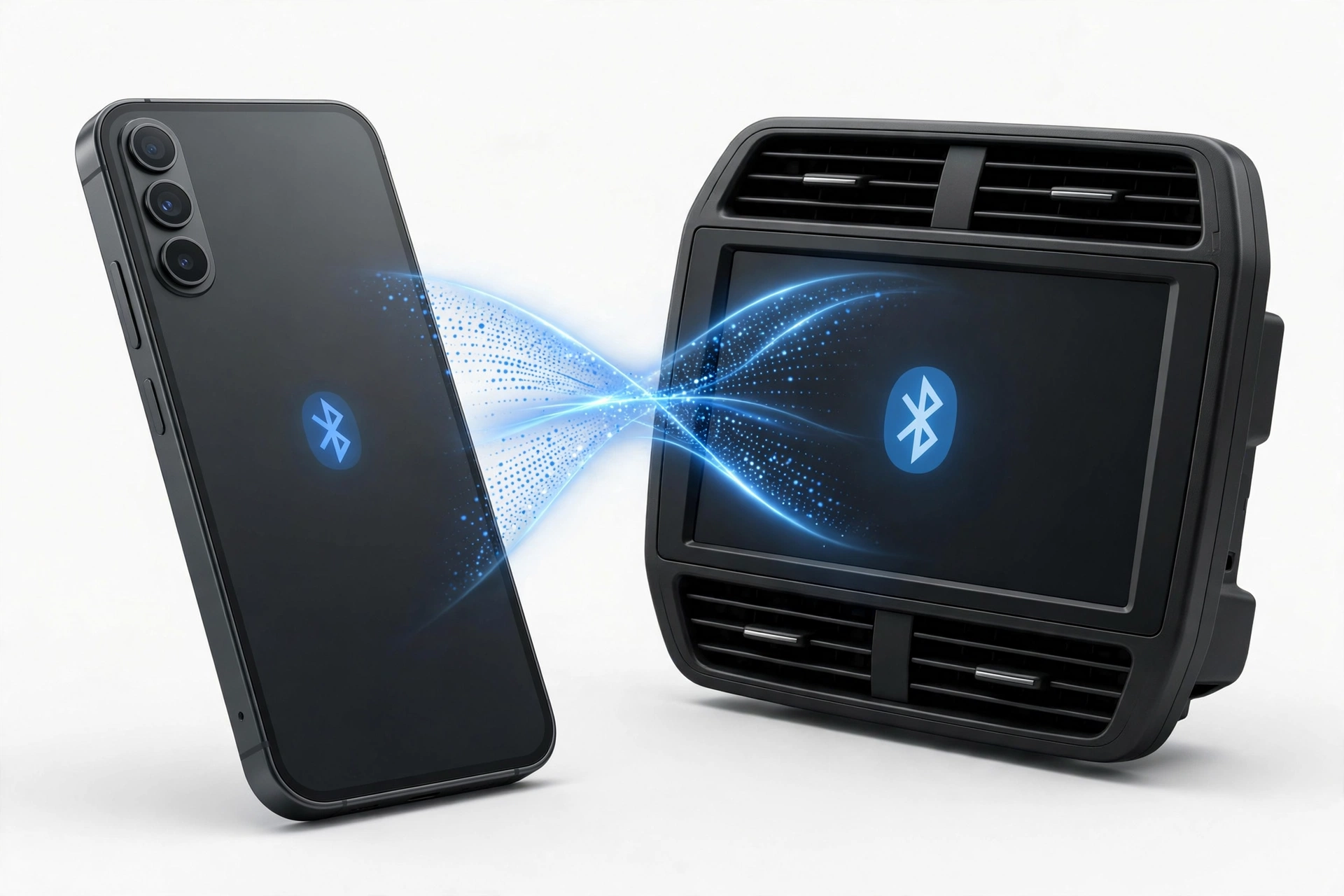
This guide is for anyone whose phone refuses to connect to their car’s Bluetooth system — the phone can’t find the car, the car can’t find the phone, pairing fails partway, or the connection worked yesterday and stopped today. It covers plain Bluetooth audio/calling connections (hands-free calling and music) as well as the common companion systems: Apple CarPlay on iPhone and Android Auto on Android, because Bluetooth is the first step those systems depend on. (Source: thecarplayer.com)
It applies to both iPhone (iOS) and Android phones, including Samsung Galaxy models. If your phone’s Bluetooth works fine with other accessories — a speaker, earbuds, a smartwatch — but fails specifically with your car, this guide is especially relevant: the fault almost always lives in the pairing relationship between the two devices, not in the phone’s Bluetooth hardware.
Quick facts: Bluetooth pairing stores a shared identity between phone and car. Deleting that stored pairing on both sides and creating a fresh one fixes most failures. Wireless CarPlay needs both Bluetooth and Wi-Fi enabled; Android Auto wireless needs Bluetooth, Wi-Fi, and location services on most phones. Cheap or worn USB cables are the leading cause of wired CarPlay and Android Auto failures.
2. Quick answer: what to do first
If you want to try the fastest path before reading further, follow this five-minute sequence. It resolves most car Bluetooth failures without deeper troubleshooting.
- Turn the car fully off and back on. On many cars the infotainment system keeps running on accessory power after the engine stops. Turn the ignition fully off, open and close the driver door to let the system sleep, then restart.
- Restart your phone. A full restart clears temporary Bluetooth stack glitches on both iPhone and Android.
- Forget the car on your phone. On iPhone: Settings > Bluetooth, tap the i next to your car’s name, then Forget This Device. On Android: Settings > Connected devices (or Bluetooth), tap the gear or the car’s name, then Forget or Unpair.
- Forget the phone on the car. In your car’s Bluetooth menu (usually under Settings, Connections, or Phone on the head unit), find your phone’s name in the paired-devices list and delete it.
- Re-pair from scratch. Put the car in pairing/discoverable mode (check the vehicle manual — sometimes it requires holding the voice button or opening the Bluetooth menu), then search for it from your phone’s Bluetooth screen and complete pairing, approving any PIN match shown on both screens.
If the connection succeeds, the old stored pairing was the problem — likely a corrupted profile or a version mismatch left over from a software update. If it still fails, continue with the sections below.
Tip: Pair with the car stationary and the engine running if the manual suggests it, and keep the phone close to the dashboard during pairing. Long distances and a parked phone in a back seat can cause first-time pairing to time out.
3. How car Bluetooth pairing actually works
Understanding the handshake makes troubleshooting faster. When you pair a phone to a car, three things happen:
- Discovery: the car’s system broadcasts its presence (discoverable mode) and your phone scans for nearby Bluetooth devices.
- Pairing: the two devices agree to trust each other, usually by confirming a matching PIN or passkey shown on one or both screens.
- Connection: every time both are in range afterward, they recognize the stored pairing and reconnect automatically — the car typically connects to the last paired phone it detects.
Failure can occur at any of these three stages, and each stage points to a different cause. If the phone never sees the car in the device list, discovery is failing. If it sees the car but pairing fails or keeps asking for a PIN, the pairing handshake is failing. If it pairs but won’t reconnect later, the auto-reconnect behavior or stored profile is at fault.
4. The phone never finds the car
When your car doesn’t appear in your phone’s Bluetooth device list, the car is usually not in discoverable/pairing mode — or something on the phone is blocking the scan.
Make the car discoverable
Cars typically only broadcast their presence while you’re in the Bluetooth menu or pairing screen. Consult the vehicle manual, but common approaches include:
- Opening Settings > Bluetooth (or Phone, Connections) on the head unit.
- Selecting Add Device, Pair New Device, or similar.
- On some systems, pressing and holding the voice-command button on the steering wheel initiates pairing.
Phone-side blockers to check
- Bluetooth is off: verify it’s on in Settings > Bluetooth (iPhone) or Settings > Connected devices (Android). A phone in Airplane Mode with Bluetooth off can’t scan.
- The car is already paired to another phone that’s nearby: many cars connect to the first previously paired phone they detect. If your partner’s phone is in the car or the house nearby, the car may be busy. Move the other phone away or delete unused devices from the car’s paired list.
- Phone is in a case that weakens the signal: thick metal cases can reduce Bluetooth range. Try removing the case briefly during pairing.
- Too many paired devices: some car systems have a small pairing-list limit (often 5). If the list is full of old phones, the car may refuse new pairings. Delete unused entries from the car’s Bluetooth menu.
5. The phone sees the car but pairing fails
When the car appears in the list but pairing won’t complete — it spins, asks for a PIN repeatedly, or says “Pairing unsuccessful” — the handshake is failing.
- Confirm the PIN match on both screens. Modern pairing shows a code on both the phone and the car; you must confirm the codes match. Don’t type an old default PIN (like 0000) unless the car manual says to — that was common on older systems.
- Old corrupted pairing: even if the phone shows the car as “Not Connected” rather than paired, a stale partial profile can block a fresh pairing. Delete the entry on the phone, delete the phone’s entry on the car, restart both, and try again.
- Phone software is outdated: Bluetooth stack bugs are regularly fixed in iOS and Android updates. Check for a system update before concluding the hardware is at fault.
- Restart the phone’s Bluetooth: toggle Bluetooth off, wait ten seconds, toggle it back on, then scan again. On iPhone, toggle it from Settings > Bluetooth, not just Control Center.
Tip: Grant permission prompts promptly. During pairing your phone may ask to allow contacts and call-history access for hands-free calling. Denying these doesn’t break audio pairing, but features like showing caller names and accessing the address book through the car won’t work until you allow them.
6. It paired once but won’t reconnect
A phone that paired successfully and then stops reconnecting is dealing with one of these common situations:
- The car connects to a different phone first. Most cars auto-connect to the last paired phone in range. If two phones share the car, the one the car detects first wins. Set your phone as the priority/primary device in the car’s Bluetooth settings if that option exists.
- Auto-join is off. On iPhone, tap the i next to the car in Bluetooth settings and make sure the connection isn’t being ignored. On some Android phones, check the device’s settings for a “connect automatically” option.
- The phone “forgets” while driving away and never re-establishes. This is often battery optimization on Android pausing background Bluetooth processes. Add Bluetooth-related system apps to the unrestricted battery list, or disable aggressive power-saving modes while driving.
- Software update broke the profile. Both iOS and Android updates occasionally leave old Bluetooth profiles in a state the car no longer recognizes. The fix is the same: forget both sides and re-pair.
7. Phone-side settings checklist
Run through these on the phone before blaming the car. Most are quick.
On iPhone
- Bluetooth on in Settings > Bluetooth (not just the Control Center toggle).
- Airplane Mode off — Airplane Mode disables Bluetooth and Wi-Fi, which also kills wireless CarPlay.
- Siri enabled (Settings > Apple Intelligence & Siri) — CarPlay requires Siri; without it, wireless CarPlay setup can fail even when plain Bluetooth pairing works.
- Screen Time restrictions: check Settings > Screen Time > Content & Privacy Restrictions. If CarPlay or Bluetooth features are restricted here, they won’t work regardless of other settings.
- Allow CarPlay While Locked: in Settings > General > CarPlay, select your car and confirm Allow CarPlay While Locked is on if you use CarPlay.
- Low Power Mode: temporarily turn it off while testing — it can throttle background radios on some iOS versions.
On Android
- Bluetooth on in Settings > Connected devices > Bluetooth.
- Location services on — Android requires location to be enabled for Bluetooth scanning in many versions; wireless Android Auto typically needs Bluetooth, Wi-Fi, and location all on.
- Battery saver / Data saver off during testing — these can throttle the background services that maintain car connections.
- Android Auto permissions: Settings > Apps > Android Auto > Permissions — confirm all requested permissions are granted.
- “Add new cars to Android Auto” enabled in the Android Auto settings.
- USB mode (for wired Android Auto): when plugged in, the USB preference should be File Transfer / MTP or PTP, not “Charging only.”
8. Car-side checks
The car is a computer too, and its software causes a surprising share of failures.
- Infotainment firmware updates: car makers release head-unit software updates that fix wireless connectivity problems. Check the manufacturer’s app, website, or dealership for an update for your model year. Several reported waves of wireless CarPlay and Android Auto drops have been fixed by car-side firmware, not phone updates.
- Delete old phones from the car’s list: stale entries and phones you no longer own compete for the connection and can confuse auto-connect behavior.
- Select the right source: if Bluetooth audio connects but you hear nothing, check the car’s audio source is set to Bluetooth and that the phone’s volume and the car’s volume are both up. Some vehicles keep separate volume levels for navigation prompts versus media.
- Proper infotainment restart: turning the display off often leaves the infotainment computer running. Use the vehicle manual’s restart procedure (often a long-press of the power knob), or fully shut the car down, open and close the driver door, and wait several minutes for the system to sleep.
- Check the vehicle manual for CarPlay/Android Auto support specifics: some cars support plain Bluetooth audio but only offer CarPlay or Android Auto over a wired connection — or only on certain trims. Bluetooth audio working does not prove wireless CarPlay or wireless Android Auto is supported by the car.
9. Apple CarPlay specifics
CarPlay rides on top of Bluetooth. Plain Bluetooth audio can work while CarPlay fails, because they have separate requirements.
Wired CarPlay
- Use a data-capable cable, not a charge-only cable. Many USB cables carry only power. CarPlay needs a data cable — ideally the one that came with the iPhone or a certified data cable.
- Use the right port. Cars often have several USB ports but only one supports CarPlay data. Look for a CarPlay or smartphone icon on the port.
- Skip hubs and adapters. Plug directly into the car’s port rather than through a splitter, hub, or extension.
- Clean the iPhone’s port. Lint packed into the Lightning or USB-C port causes intermittent data drops.
Wireless CarPlay
- Both Bluetooth and Wi-Fi must be on. Wireless CarPlay pairs over Bluetooth, then hands the actual data to a direct Wi-Fi connection between phone and car.
- Auto-Join the CarPlay Wi-Fi network. In iPhone Wi-Fi settings, open the CarPlay network for your car and confirm Auto-Join is enabled.
- Disable VPN completely — VPN software can interfere with the local network connection wireless CarPlay needs, even when the VPN appears disconnected.
- Forget and re-pair: in Settings > General > CarPlay, tap your car and choose Forget This Car, then set it up again from the beginning.
Tip: If wired CarPlay works reliably but wireless doesn’t, keep that result — it proves the phone, cable, and car port are fine and isolates the problem to the wireless handshake (Bluetooth + Wi-Fi + head-unit firmware).
10. Android Auto specifics
Wired Android Auto
- Cable quality matters most. Use a USB-IF certified cable, ideally under three feet long. Worn or frayed cables cause most wired Android Auto failures.
- Try a different car USB port — only the data port supports Android Auto.
- Confirm USB mode is File Transfer / MTP or PTP, not Charging only.
- Phone requirements: wired Android Auto generally needs Android 9.0 or higher.
Wireless Android Auto
- Bluetooth, Wi-Fi, and location services all on.
- Phone supports 5 GHz Wi-Fi — wireless Android Auto typically uses the 5 GHz band for the phone-to-head-unit link.
- Clear Android Auto’s cache and data if it worked before and broke: Settings > Apps > Android Auto > Storage & cache > Clear cache, then Clear storage if needed. Clearing storage resets the app’s setup, so you’ll re-pair afterward — this is normal.
- Forget all cars in the Android Auto settings (the three-dot menu), then set up your car fresh.
- Disable VPN — like CarPlay, wireless Android Auto breaks when a VPN reroutes local traffic.
- Set battery to Unrestricted for Android Auto in battery settings so the system doesn’t starve it in the background.
11. Symptom → likely cause → safe fix
| Symptom | Likely cause | Safe fix |
|---|---|---|
| Car never appears in phone’s Bluetooth list | Car not in pairing mode; car paired-list full; another phone already connected | Put car in pairing mode via head-unit menu; delete old phones from car’s list; move other phones away |
| Pairing starts but fails or keeps asking for PIN | Corrupted partial pairing; PIN mismatch | Forget on both sides, restart both, re-pair and confirm matching codes |
| Paired once, won’t reconnect automatically | Car connects to a different phone first; auto-connect disabled; Android battery optimization | Set phone as priority device; check auto-connect; set Android Auto/Bluetooth battery to unrestricted |
| Calls work but music won’t play (or vice versa) | Media/call audio profiles disabled on one side; wrong car audio source | Check phone’s Bluetooth device settings for media-audio and call-audio toggles; set car’s source to Bluetooth |
| CarPlay/Android Auto worked, then stopped after phone update | Stale Bluetooth profile after OS update | Forget both sides and re-pair; check Screen Time / Android Auto permissions |
| Connection drops mid-drive repeatedly | Interference, low phone storage (CarPlay caching), aggressive power saving, outdated head-unit firmware | Restart both; update head-unit firmware; disable VPN; free up phone storage; test wired as a baseline |
| Voice assistant / steering-wheel button doesn’t trigger | Siri disabled (CarPlay); Android Auto permissions missing | Enable Siri; grant Android Auto all permissions |
| New phone won’t pair with a car that worked with the old phone | Car’s paired list still references the old phone; limit reached | Delete the old phone’s entry on the car and re-pair the new phone |
12. Calls connect but music doesn’t (or the reverse)
A partial connection is a useful diagnostic clue. Bluetooth exposes separate “profiles” for call audio and media audio, and each can be enabled independently.
- On iPhone: Settings > Bluetooth, tap the i next to your car. Options here can include device type settings; some cars register twice (once for calls, once for media) — make sure both entries are connected.
- On Android: in the Bluetooth device settings for the car, confirm both Phone calls and Media audio toggles are on. If media audio is off, music apps stay silent while calls work.
- Car source: the head unit must be set to the Bluetooth source for music. If it’s on FM or USB, calls may still route through while media plays nowhere.
If you’re troubleshooting call audio specifically, see our guide on fixing poor phone call quality — it covers microphone and speaker behavior that can also show up through a car connection. For phone-side Bluetooth problems that affect every accessory (not just the car), see iPhone Bluetooth not working.
13. Hypothetical examples
(The following are hypothetical illustrations, not customer stories.)
Example 1 — Maya’s “it worked yesterday” failure. Maya drives the same route daily with her iPhone connected over Bluetooth for calls. One morning the car won’t connect at all. She remembers her phone installed an iOS update overnight. She forgets the car in Settings > Bluetooth, deletes her phone from the car’s paired list, restarts the phone, and re-pairs. It connects immediately. Lesson: an overnight OS update had left the old Bluetooth profile in a state the car no longer accepted — the classic fix was a clean re-pair.
Example 2 — Daniel’s two-phone conflict. Daniel and his partner share a car. His Samsung phone pairs fine when he’s alone, but when both are in the car, the head unit always grabs his partner’s phone. He opens the car’s Bluetooth settings, sets his phone as the priority device, and deletes an old phone neither of them owns anymore. Lesson: the car’s auto-connect was simply choosing the first previously paired phone it detected — priority settings and a cleaned device list solved it.
14. What these checks can and cannot establish
| What you observe | What it establishes |
|---|---|
| Re-pairing fixes it | The stored pairing or profile was the problem. The hardware is fine. |
| Wired CarPlay/Android Auto works but wireless doesn’t | Phone, port, and cable are fine. The fault is in the wireless handshake or head-unit firmware. |
| Phone pairs with other accessories but not the car | The phone’s Bluetooth hardware is working. The issue is car-side or the specific pairing. |
| No phone pairs with the car | The car’s system is the likely fault — head-unit software, a full device list, or a hardware issue in the car. |
| Nothing pairs with the phone anywhere | The phone may have a Bluetooth hardware or system fault. A shop assessment is warranted. |
One important limit: Bluetooth audio working does not prove a car supports wireless CarPlay or Android Auto. Those are separate features with separate requirements (Wi-Fi hand-off, app permissions, Siri). Check the vehicle manual or manufacturer’s compatibility list rather than assuming.
15. When to stop and seek assessment
Stop troubleshooting and consider professional help or manufacturer support when:
- No phone will pair with the car at all, after a full infotainment reset per the vehicle manual — this points to the car’s system, and car-side diagnosis belongs to the dealer or manufacturer.
- Your phone’s Bluetooth fails with every accessory — earbuds, speakers, other cars. That suggests a phone hardware or system fault worth an assessment.
- The car’s head unit freezes, reboots, or shows errors during pairing attempts — head-unit software or hardware, again a car-side matter.
- Your phone has physical damage around the charging port or shows other input problems — unrelated faults can share a root cause worth a professional look.
Stop for safety: Never troubleshoot pairing while driving. Pull over or do it parked. Re-pairing, reading the head-unit menus, and handling the phone are all distracted-driving hazards — the car must be stationary and preferably in park.
16. Frequently asked questions
Why did my phone connect yesterday but not today?
Most often: a software update on the phone (overnight) invalidated the stored pairing, the car auto-connected to a different phone first, or a temporary glitch in either device. Forget both sides and re-pair — that resolves the large majority of “worked yesterday” cases.
Do I need Wi-Fi on for car Bluetooth?
Plain Bluetooth calls and music do not need Wi-Fi. Wireless CarPlay and wireless Android Auto do — they pair over Bluetooth, then transfer data over a direct Wi-Fi link. If you only want calls and music, Bluetooth alone is enough.
My car asks for a PIN. What do I enter?
Modern cars usually show a matching code on both the car screen and your phone — confirm they match rather than typing anything. Older systems may use a default like 0000 or 1234; check the vehicle manual. Never invent a PIN — a failed code just means retrying the pairing.
Can I have two phones paired to one car?
Most cars store several paired phones but connect to only one at a time for calls and media. Set a priority/primary device in the car’s Bluetooth settings to control which phone wins when both are present.
Why does wireless CarPlay keep disconnecting?
Common causes: the CarPlay Wi-Fi network’s Auto-Join turned off, a VPN interfering, low iPhone storage (CarPlay caches maps and music), head-unit firmware needing an update, or interference. Work through the wireless CarPlay checklist in section 9, and test wired CarPlay as a baseline.
Android Auto asks me to enable location — is that normal?
Yes. Android requires location services for Bluetooth scanning and wireless Android Auto uses location as part of its connection setup. Granting it is normal for this feature; you can review it in the app’s permissions afterward.
Should I reset network settings on my phone?
Only as a later step, not a first step. Resetting network settings erases all saved Wi-Fi networks, Bluetooth pairings, and VPN settings. Try forget-and-re-pair for the car first. If multiple Bluetooth accessories fail and nothing else helps, a network-settings reset is a reasonable deeper step — but you’ll re-enter Wi-Fi passwords afterward.
Can a repair shop fix car Bluetooth problems?
If your phone’s Bluetooth fails with every accessory, a shop can assess the phone’s hardware. If only the car fails — or the car’s head unit is the problem — that’s a dealer or car-manufacturer matter, not a phone repair. Describe exactly which combinations you tested (phone + other accessories, other phones + the car) so the assessment starts from evidence.
Video: How to tell if your smartphone is fake or real
Sources and editorial notes
- The Car Player — Apple CarPlay Won’t Connect via Bluetooth or Wi-Fi: third-party walkthrough corroborating the CarPlay settings path (Settings > General > CarPlay), the Forget This Car re-pair step, removing old phones from the car, and restarting both devices. (Last checked October 13, 2026.)
- iPhone Life — CarPlay Not Working: How to Fix Connection Issues: third-party guide corroborating Bluetooth-on checks, Airplane Mode off, Allow CarPlay While Locked, and the Forget This Car reset flow. (Last checked October 13, 2026.)
- Visboo — USB-C vs Wireless CarPlay: Fix Random Disconnects: third-party guide corroborating data-cable requirements for wired CarPlay, port selection, lint in the charging port, the Bluetooth-plus-Wi-Fi requirement for wireless CarPlay, and Reset Network Settings as a last resort. (Last checked October 13, 2026.)
- Cartelligent — How to Use Android Auto: Complete Setup & Troubleshooting Guide: third-party guide corroborating Android Auto phone requirements, USB mode (File Transfer/PTP), certified cables, Bluetooth/Wi-Fi/location for wireless, and clearing Android Auto cache and storage. (Last checked October 13, 2026.)
- BlogWheelz — Why Wireless Android Auto & CarPlay Keep Disconnecting: third-party guide corroborating corrupted cache, Android battery restrictions on Android Auto, VPN interference with wireless connections, and clean re-pairing. (Last checked October 13, 2026.)
Last source check: October 13, 2026. AI-assisted editorial guide, checked against the linked manufacturer information. Procedures described here follow Apple, Samsung, and Google published support guidance as corroborated by the sources above. Car Bluetooth behavior varies by vehicle make, model year, and head-unit software — consult your vehicle manual for pairing-mode steps and firmware updates. If your phone needs hands-on assessment, Las Vegas Phone Repair & Accessories is at 7400 Las Vegas Blvd S, Unit TT42, Las Vegas, NV 89123 — call (424) 406-6202 ahead to confirm today’s hours (generally 10:00 AM–8:00 PM).
Let’s get you connected again.
Tell us what’s happening with your device and we’ll help you decide the safest next step — no jargon, no pressure.
Las Vegas Phone Repair & Accessories · 7400 Las Vegas Blvd S, Unit TT42, Las Vegas, NV 89123
10:00 AM–8:00 PM — call ahead to confirm today’s hours