
How to Transfer SMS History to New Phone: iPhone and Android
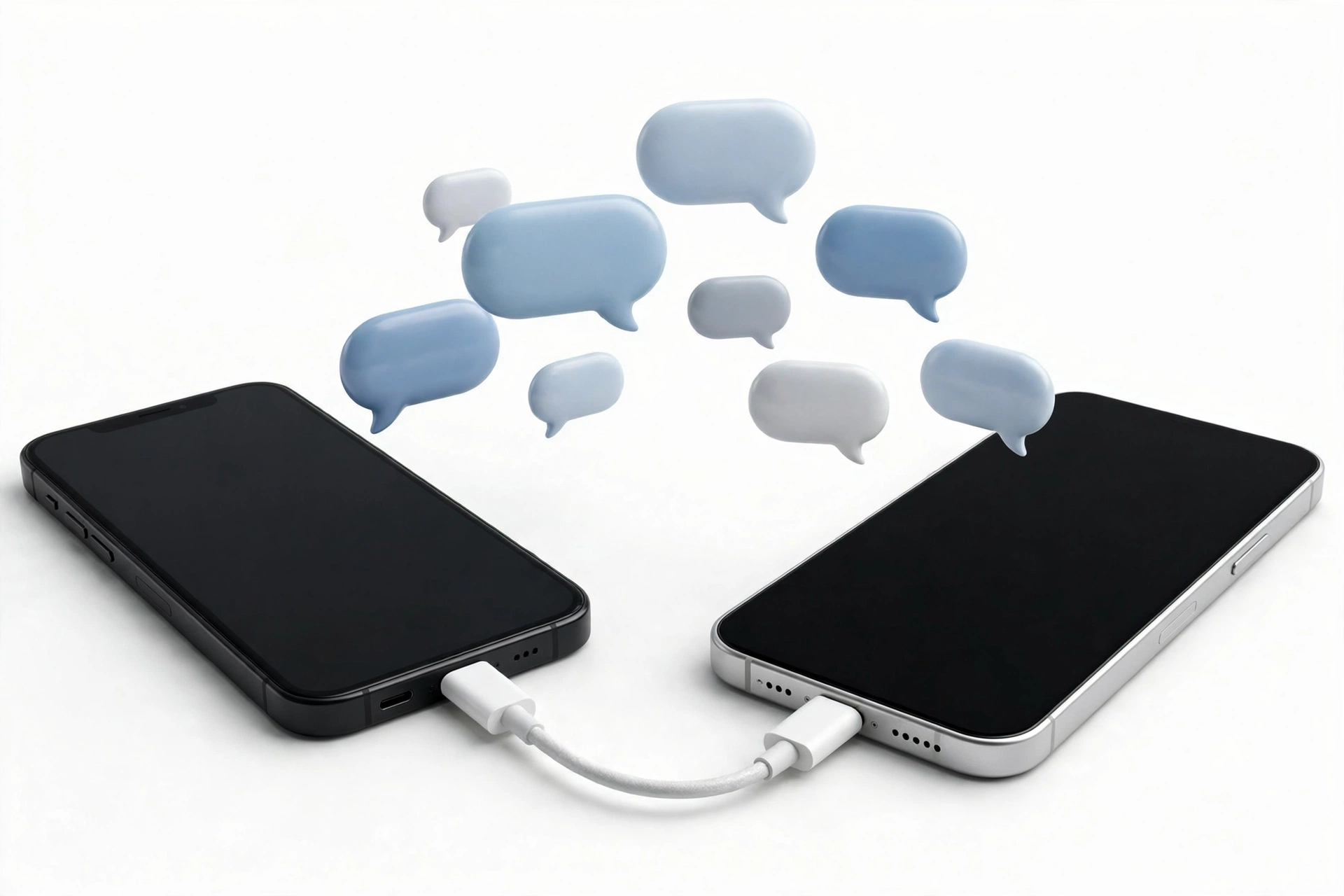
To transfer SMS history to a new phone, use the same-ecosystem route built for it: Quick Start or iCloud Messages for iPhone-to-iPhone, Google One backup restore or Smart Switch for Android-to-Android, and Move to iOS for Android-to-iPhone. There is no official Apple route for iPhone-to-Android SMS — that direction needs a computer-based method instead.
On this page
To transfer SMS history to a new phone, use the same-ecosystem route built for it: Quick Start or iCloud Messages for iPhone-to-iPhone, Google One backup restore or Smart Switch for Android-to-Android, and Move to iOS for Android-to-iPhone.
1. Who this guide is for
This guide is for anyone getting a new phone who wants their old text conversations — SMS and MMS history — to arrive intact on the new device. That includes: (Source: aeanet.org)
- Upgraders moving iPhone to iPhone or Android to Android.
- Switchers moving between iPhone and Android in either direction.
- Anyone who realized after setup that their old messages are missing.
It focuses specifically on SMS history — the green-bubble texts and carrier MMS in your Messages app — rather than iMessage-only, WhatsApp, or RCS features, though those come up where they overlap. For app-to-app messaging transfers, see How to Transfer Messages to New Phone; for the whole-device picture, see How to Transfer Data to New Phone.
2. The 60-second answer by direction
Pick your direction and follow the route. Each is covered in detail below.
| Direction | Best route | What you need |
|---|---|---|
| iPhone → iPhone | Quick Start (device-to-device) or iCloud Messages sync | Old iPhone nearby; both on recent iOS |
| Android → Android | Google One backup restore during setup | Same Google account on both phones |
| Any Samsung involved | Samsung Smart Switch (wired or wireless) | Smart Switch app on both devices |
| Android → iPhone | Move to iOS during new-iPhone setup | Old phone still available; new iPhone not yet set up |
| iPhone → Android | Computer-based export/import (no official route) | A computer and a backup of the iPhone |
3. How SMS history actually lives on your phone
Understanding where texts live explains why transfers sometimes fail:
- On iPhone: SMS/MMS history is part of the Messages database. If “Messages in iCloud” is on, a copy syncs to iCloud; if it is off, texts exist only in on-device storage and device backups.
- On Android: texts live in the messaging app’s database. Google’s backup service can include SMS and MMS in the cloud backup tied to your Google account.
- MMS attachments (photos, videos sent by text) inflate history size and are the most common reason transfers stall or backups run out of space.
Note: SMS history is tied to the messaging database, not the SIM card. Swapping your SIM or eSIM into a new phone does not bring old texts with it.
4. iPhone to iPhone: Quick Start (easiest)
Quick Start is Apple’s device-to-device transfer, and it is the most complete way to move SMS history between iPhones. It copies apps, settings, photos, messages, accounts, and Home Screen layout in one pass.
Requirements
- Both iPhones on iOS 12.4 or later (newer is better).
- Both phones near each other, Bluetooth on, connected to power.
- The new iPhone still at its setup screens. If you already finished setup, you must erase it first (Settings > General > Transfer or Reset iPhone > Erase All Content and Settings).
Steps
- Turn on the new iPhone and place it next to the old one.
- A Set Up New iPhone card appears on the old iPhone — tap Continue.
- Scan the animation shown on the new iPhone with the old iPhone’s camera (or authenticate manually).
- Enter the old iPhone’s passcode on the new iPhone.
- When asked how to transfer, choose Transfer from iPhone.
- Keep both phones close and plugged in until the transfer completes.
Tip: Quick Start does not depend on iCloud storage, so it works even if your iCloud plan is full. You cannot use either phone for calls or heavy browsing while the transfer runs.
5. iPhone to iPhone: iCloud Messages sync
If “Messages in iCloud” is enabled, your full message history — including SMS — syncs to iCloud and then down to any iPhone signed into the same Apple Account.
Before switching
- On the old iPhone, go to Settings > [Your Name] > iCloud > Messages and make sure it is toggled on.
- Connect to Wi-Fi and give it time to finish syncing — large histories take a while.
- Check you have enough iCloud storage: Settings > [Your Name] > iCloud > Manage Storage.
On the new iPhone
- Sign in with the same Apple Account during setup.
- Make sure Messages in iCloud is on (same path as above).
- Open the Messages app — conversations will fill in progressively. This can take hours for very large histories.
Note: Messages may arrive in batches rather than all at once. If older threads are missing, leave the phone on Wi-Fi and charging — sync continues in the background.
6. iPhone to iPhone: iCloud backup restore
If the old iPhone is gone or Quick Start is not an option, restore from an iCloud backup:
- On the old iPhone (if you still have it): Settings > [Your Name] > iCloud > iCloud Backup — turn it on and tap Back Up Now.
- On the new iPhone at setup, choose Restore from iCloud Backup.
- Sign in with the same Apple Account and pick the latest backup.
- Wait for the restore to finish. Texts appear gradually as the restore completes.
7. Android to Android: Google One backup restore
The easiest and most reliable route for Android-to-Android SMS transfer is Google’s backup, restored during the new phone’s setup.
On the old phone
- Open Settings, tap Google, then Backup (or All services > Backup).
- Turn on Backup by Google One if it is off.
- Confirm SMS and MMS messages are listed under backup details.
- Tap Back Up Now and wait for it to complete.
On the new phone
- Sign in with the same Google account during setup.
- When asked whether to restore data from your account, choose Restore.
- Once setup finishes, open the Messages app and check your chats.
Tip: Every Google account includes 15 GB of free storage shared across Gmail, Drive, and Photos. If you are close to the limit, free up space or add Google One storage before backing up, or the SMS backup may not complete.
8. Samsung to anything: Smart Switch
Samsung Smart Switch is Samsung’s official migration tool and handles SMS/MMS history well. It works:
- Samsung → Samsung (wireless or cable).
- Other Android → Samsung.
- iPhone → Samsung (via cable or computer backup).
Steps (wireless or cable)
- Install/open Smart Switch on both phones.
- On the old phone tap Send data; on the new phone tap Receive data.
- Choose Wireless or Cable and connect the devices.
- When the new phone scans available data, choose Custom, select Messages (and anything else you want), and tap Transfer.
- Wait for the transfer to complete before using either phone.
Note: Keep at least a few hundred megabytes of free space on both devices so the transfer does not stall partway.
9. Android to iPhone: Move to iOS
Apple’s Move to iOS app transfers message history from Android to iPhone — but only during the new iPhone’s initial setup.
- On the new iPhone, proceed through setup until you reach the Apps & Data screen.
- Choose Move Data from Android.
- On the old Android phone, install and open Move to iOS from the Play Store.
- Enter the code shown on the iPhone, connect to the temporary Wi-Fi network it creates, and select Messages (plus anything else you want).
- Wait for the transfer to finish before continuing iPhone setup.
Stop for safety: Move to iOS only works during initial setup. If your iPhone is already set up, you must erase it (after backing up) to use this route — never erase without a verified backup. If erasing is not acceptable, see the computer-based options below.
10. iPhone to Android: the honest picture
There is no official Apple-supported route for moving SMS history from iPhone directly to Android. Apple’s transfer tools all point toward iPhone, not away from it. That leaves two practical options:
- Samsung phones: Smart Switch can pull messages from an iPhone via cable or from an iTunes/Finder backup on a computer.
- Other Android phones: a computer-based method — back up the iPhone to a computer, then use a reputable transfer utility to extract the Messages database and import it. Vet any third-party tool carefully: it will handle your private conversations.
Note: Be skeptical of apps promising one-tap iPhone-to-Android SMS transfer with no computer involved. SMS data on iPhone is not exposed to third-party apps, so any tool doing this is reading a backup file — which is fine, as long as you understand what you are handing over.
11. What transfers — and what does not
| Method | Direction | What transfers | Limitations |
|---|---|---|---|
| Quick Start | iPhone → iPhone | Full Messages database (SMS, MMS, iMessage) | Both phones needed at setup; cannot use phones during transfer |
| iCloud Messages sync | iPhone → iPhone | Synced message history | Needs iCloud storage; large histories sync slowly |
| iCloud backup restore | iPhone → iPhone | Messages as part of backup | Needs recent backup; restore wipes new phone’s setup state |
| Google One backup restore | Android → Android | SMS and MMS messages | 15 GB free storage cap; same Google account required |
| Smart Switch | → Samsung | Messages plus other data | Samsung on the receiving end (mostly) |
| Move to iOS | Android → iPhone | Message history | Setup-time only; new iPhone must be fresh or erased |
| Computer-based tools | iPhone → Android | SMS database extracted from backup | No official route; vet tools carefully |
12. Troubleshooting: texts did not transfer
If messages are missing after a transfer, work through these in order:
- Same account? The number-one cause. iCloud and Google restores only work when the new phone signs into the same account the backup was made with.
- Sync still running? Large histories download progressively. Leave the phone on Wi-Fi and charging for several hours.
- Messages in iCloud off? On iPhone, check Settings > [Your Name] > iCloud > Messages on both phones.
- Storage full? A full iCloud or Google account silently blocks backups. Free space, then back up again.
- Wrong restore point? If you restored from an older backup, newer texts are not in it. There is no way to merge two backups — it is one or the other.
- iMessage reactivation: after an iPhone transfer, iMessage may need a few minutes to reactivate; SMS still arrives meanwhile.
- Update software: outdated iOS or Android versions cause compatibility hiccups — update both phones.
- Restart both phones: the classic fix resolves stuck sync processes more often than expected.
13. Old phone broken, lost, or won’t turn on
If you cannot access the old phone, your options narrow to whatever was backed up before the phone died:
- iPhone: if Messages in iCloud was on, your history is already in iCloud — sign into the new iPhone with the same Apple Account and it syncs down. If only iCloud Backup was on, restore from the latest backup during new-phone setup. If neither was on and the phone will not power on, the SMS history is most likely unrecoverable without professional data-recovery service — and even then, encrypted modern phones make recovery uncertain.
- Android: if Google One backup included SMS, restore during setup with the same Google account. If the phone died without any backup, the messages lived only in its local storage.
- What does not work: asking your carrier for old SMS content. Carriers generally do not retain message content for customers, and privacy law restricts what they can provide.
Tip: This is why the backup-before-you-need-it habit matters. Turn on Messages in iCloud (iPhone) or Google One backup with SMS included (Android) now, while the phone works — not when it is already failing.
14. MMS photos, videos, and group chats
MMS content deserves special attention because it behaves differently from plain texts:
- Attachments inflate everything. Years of MMS photos and videos are usually the largest part of a message database. They are the reason backups run out of space and transfers take hours.
- Group chats transfer as conversations, not as individual contacts’ messages. On cross-platform moves, group threading usually survives, but reactions (likes, laughs) and tapbacks may not map between iMessage and Android.
- Expired carrier MMS: very old MMS attachments sometimes show as placeholders or download links that no longer work — the message record transfers, but the media itself may be gone. This is a carrier retention issue, not a transfer failure.
- Save what matters separately. For photos you cannot lose, save them to your photo library (tap and hold → Save) before transferring, so they exist outside the message database.
15. Before you erase the old phone
Erasing is the point of no return for SMS history. Do this first:
- Open the Messages app on the new phone and spot-check old conversations — including ones with photo attachments.
- Search for a specific old text to confirm history depth, not just recent threads.
- Confirm the new phone sends and receives SMS (send yourself a test text).
- Keep the old phone for a few days if you can — a safety net costs nothing.
Stop for safety: Never erase the old phone the same day you set up the new one. Sync and restore processes can lag hours behind what the setup screens show. For the full pre-erase routine, see How to Back Up Your Phone Before a Factory Reset.
14. Hypothetical examples
(The following are hypothetical illustrations, not customer stories.)
Hypothetical example: Maya upgrades from a Pixel 7 to a Pixel 10. Before setup, she runs a manual Google One backup on the old phone and confirms SMS and MMS are listed. On the new phone she signs into the same Google account and chooses Restore. Her three years of texts — including MMS photos — appear in Google Messages within the hour.
Hypothetical example: Daniel switches from a Galaxy S23 to an iPhone 17. During the iPhone’s setup he uses Move to iOS, selecting Messages. His SMS history transfers, but he learns afterward that a few banking verification texts sent during the switch went to the old phone’s number before his eSIM transfer completed — a reminder to finish carrier transfer before retiring the old device.
15. What observations can and cannot establish
| Observation | What it establishes | What it does not establish |
|---|---|---|
| Recent texts visible on new phone | Transfer at least partially worked | That the full history transferred |
| Backup completed successfully | Data was captured at backup time | That the restore will include everything |
| Same account on both phones | Sync can work | That sync has finished |
| Old phone erased | Nothing — the safety net is gone | That anything transferred correctly |
| Texts searchable by keyword | Deep history likely intact | That every attachment came through |
16. Frequently asked questions
Do text messages transfer to a new phone automatically?
Only if the transfer mechanism is set up to include them. iPhone-to-iPhone via Quick Start moves them automatically; Android-to-Android requires the Google One backup to include SMS and a restore during setup. Cross-platform always needs a deliberate step.
Does switching my SIM transfer my texts?
No. SMS history lives in the phone’s messaging database (and cloud backups), not on the SIM. Moving the SIM only moves your phone number and carrier service.
How long does an SMS transfer take?
Minutes for a light history over a direct connection; hours for years of messages with MMS attachments, especially over cloud restore. Leave the phone on Wi-Fi and charging until the Messages app stops filling in.
Can I transfer texts after the new phone is already set up?
On iPhone, enabling Messages in iCloud after setup will still sync history down. On Android, restoring a Google backup after setup requires resetting the phone. Move to iOS only works during initial iPhone setup.
Do deleted texts transfer?
No. Only messages present in the backup or sync at the time it was made will transfer. Deleted conversations are gone unless they exist in an older backup.
Will my message timestamps stay correct?
Yes — timestamps are part of the message records and are preserved by all the official methods. If times look wrong, check the new phone’s date, time, and timezone settings.
What about RCS chats?
RCS (Rich Communication Services) history generally follows the same backup/restore paths as SMS on Android via Google One backup. On iPhone, RCS messages are part of the Messages database and transfer with it.
Do my texts count against iCloud or Google storage?
Yes. On iPhone, Messages in iCloud and iCloud backups both consume iCloud storage. On Android, SMS/MMS in Google One backup counts against the 15 GB free Google storage shared with Gmail, Drive, and Photos. Heavy MMS users should check available space before backing up.
Can a repair shop transfer my texts for me?
A shop can help you run the official transfer steps, but never hand over your Apple Account or Google account passwords — enter credentials yourself. If your phone needs hands-on help, Las Vegas Phone Repair & Accessories at 7400 Las Vegas Blvd S, Unit TT42, Las Vegas, NV 89123 can assess the device; call (424) 406-6202 ahead to confirm today’s hours (generally 10:00 AM–8:00 PM).
Video: How to transfer all data to new iPhone fast
Sources and editorial notes
- AEANET — Transfer Text Messages iPhone to iPhone: Quick Start and iCloud backup/restore flows for moving Messages between iPhones, corroborated against Apple’s documented setup options. (Last checked October 13, 2026.)
- SolveYourTech — Transfer Data From iPhone to iPhone: Quick Start requirements (Bluetooth, proximity, iOS version) and eSIM transfer notes. (Last checked October 13, 2026.)
- ArsDigitech — Set Up New iPhone From Old iPhone: comparison of Quick Start direct transfer vs. iCloud download vs. wired vs. computer backup. (Last checked October 13, 2026.)
- Android Authority — Move Text Messages to a New Phone: Google One backup flow (Settings > Google > Backup, SMS/MMS listed, restore at setup) for Android-to-Android transfers. (Last checked October 13, 2026.)
- SlashGear — Transfer Texts Between Android Devices: Google backup storage caveat (15 GB shared) and restore-at-setup steps. (Last checked October 13, 2026.)
- Unplix — Transfer Text Messages Android to Android: Smart Switch wireless/cable flow for Samsung devices, selecting Messages for transfer. (Last checked October 13, 2026.)
- GuidingTech — Transfer Text Messages From Android to Android: Google backup toggle verification and restore behavior notes. (Last checked October 13, 2026.)
Last source check: October 13, 2026. AI-assisted editorial guide, checked against the linked manufacturer information. Procedures described here follow Apple’s and Google’s published support guidance; third-party sources are cited only for corroboration. Menu paths and backup behaviors can change with software updates — if a setting differs on your phone, check the manufacturer’s current support pages. If your phone needs hands-on assessment, Las Vegas Phone Repair & Accessories is at 7400 Las Vegas Blvd S, Unit TT42, Las Vegas, NV 89123 — call (424) 406-6202 ahead to confirm today’s hours (generally 10:00 AM–8:00 PM).
Let’s get you connected again.
Tell us what’s happening with your device and we’ll help you decide the safest next step — no jargon, no pressure.
Las Vegas Phone Repair & Accessories · 7400 Las Vegas Blvd S, Unit TT42, Las Vegas, NV 89123
10:00 AM–8:00 PM — call ahead to confirm today’s hours