
Infinix Phone Speaker Not Working After Update: Causes and Safe Fixes
An Infinix phone speaker that went silent after an update is usually a software or settings problem, not a broken speaker. The fix is a short ladder of checks — volume routing, Bluetooth, Do Not Disturb, DTS Sound and equalizer settings, a restart, a speaker blockage inspection, Safe Mode, and the XOS system update screen — and this guide walks through each one in the order Infinix’s own support partner uses.
On this page
An Infinix phone speaker that went silent after an update is usually a software or settings problem, not a broken speaker.
1. Who this guide helps, and what “after an update” usually means
This guide is written for anyone whose Infinix phone (Hot, Note, Smart, Zero, or GT series) lost speaker sound right after installing an XOS or system update: no ringtones, no media sound, no speakerphone audio, or sound that became faint and muffled. It also covers the mixed cases that updates commonly cause — sound works in some apps but not others, calls are fine but music is silent, or everything was fine until the phone restarted for the update. (Source: carlcare.com)
The timing clue matters. When sound dies immediately after an update, the odds favor software causes: audio routing changed, a volume channel was reset, the update reset Do Not Disturb or sound profiles, a third-party app became incompatible, or the update’s audio files didn’t install cleanly. Hardware rarely fails at the exact moment software changes. That said, updates can expose weaknesses that were already there — a speaker grille packed with dust becomes obvious when new equalizer presets change how sound is processed, for example. So this guide tests both software and the simple physical checks before concluding anything about the speaker module itself.
2. The two-minute triage: answer three questions first
Before touching settings, characterize the problem. The answers route you to the right section and keep you from wasting time on fixes for a different problem.
Question 1: Which sounds are broken?
- Everything is silent (ringtones, music, videos, speakerphone, alarms): start at the system-level sections below — volumes, routing, Do Not Disturb, restart.
- Only media is silent (calls and ringtones fine, music/videos silent): the media volume channel or a per-app setting is the likely culprit.
- Only calls have no sound (media plays fine): check in-call volume during an active call and the earpiece section — a different speaker may be involved.
- Only one app is silent: the problem is almost certainly inside that app’s settings or cache, not the phone.
Question 2: Is anything connected to the phone?
Wired earphones, a Bluetooth speaker, a car system, or a USB audio device will all steal the phone’s audio. Updates are notorious for re-pairing to Bluetooth devices you thought were off. Check both the headphone jack and the Bluetooth status — this single check solves a surprising share of “speaker not working” cases.
Question 3: Is the earpiece (top) or the bottom speaker (loudspeaker) the broken one?
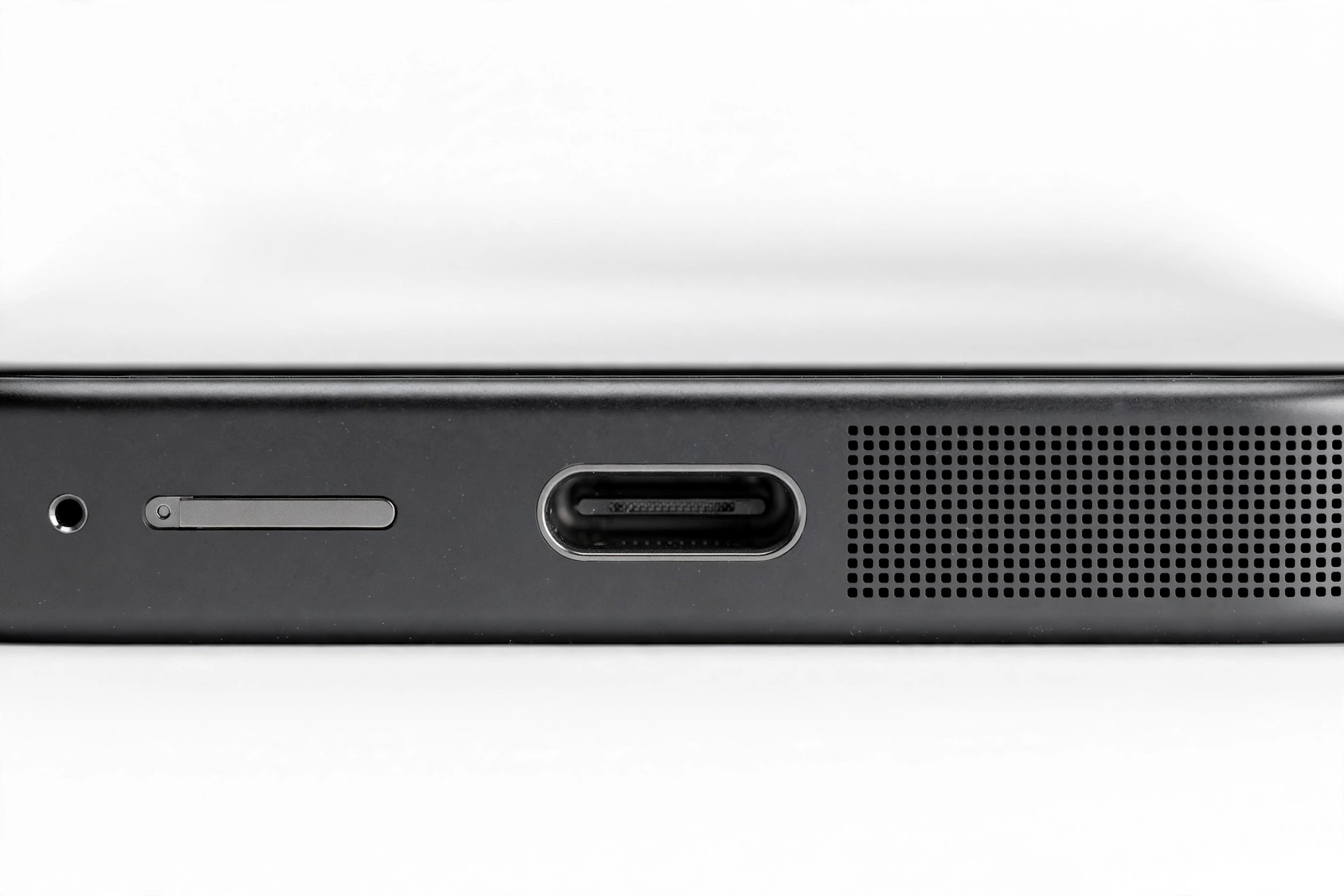
Most Infinix phones have two sound outlets: the earpiece at the top (used for normal phone calls, quiet) and the loudspeaker at the bottom (used for ringtones, music, videos, speakerphone, loud). Knowing which one is dead changes the diagnosis:
- Bottom speaker dead, earpiece works: media/ringtones/speakerphone silent, but normal calls (held to ear) sound fine.
- Earpiece dead, bottom speaker works: music and ringtones fine, but calls sound silent unless switched to speakerphone.
- Both dead: a system-level routing or software problem is more likely than two speakers failing at once.
Quick fact: on stereo-equipped Infinix models (many recent Note and GT phones), the earpiece doubles as a second speaker during media playback. If media sounds “thin” or one-sided after an update, that may be the stereo balance or a DTS Sound preset — not damage. See the XOS sound settings section below.
3. Check volume routing: the four volume channels
Android (and XOS on top of it) maintains separate volume sliders: media, ring/notification, alarms, and call volume. Updates can reset individual channels while leaving others intact, which is why “ringtones work but YouTube is silent” is a classic post-update pattern.
Do this now: press the Volume Up button, then tap the small ⋯ / three-dot icon (or gear) on the volume panel to expand all sliders. Raise each one — media, ringtone, notification, and alarm — and test after each. Some Infinix models also let you reach the same screen at Settings > Sound & Vibration.
- Media volume: YouTube, music apps, games, videos.
- Call volume: can only be adjusted during an active call — make a test call and press Volume Up while it’s connected.
- Ringtone/notification volume: incoming calls and message alerts.
- Alarm volume: the alarm app’s slider.
If one slider refuses to stay up or drops back down on its own, a third-party app may be managing volume — jump to the Safe Mode section.
4. Disconnect anything stealing the audio
Bluetooth
Open Settings > Connected devices / Bluetooth (or swipe down the quick settings panel) and check whether Bluetooth is connected to anything — headphones, a car, a speaker, even a smartwatch with call audio. Turn Bluetooth off entirely while testing, then play a video. If sound returns, the update re-enabled an old pairing; forget the device or leave Bluetooth off when you’re not using it.
Wired earphones and the headphone port
Unplug any wired headset or adapter. If the phone thinks earphones are connected when they aren’t (the headphone icon in the status bar is the giveaway), dust or lint in the 3.5 mm jack or USB-C port may be triggering the false detection. Shine a light into the port; remove visible lint gently with a dry soft brush or a wooden/plastic pick — never a metal pin, and never blow hard enough to drive debris deeper.
Do Not Disturb and sound profiles
Updates sometimes reset the sound profile. Swipe down quick settings and confirm Do Not Disturb is off and the sound mode is set to Sound (not Vibrate or Mute). Then check Settings > Sound & Vibration for the active profile — on some XOS versions there are separate “Normal,” “Silent,” and custom profiles that control ringtones and notifications independently.
5. XOS sound settings: DTS Sound, equalizer, and presets
This is the most Infinix-specific section in the guide — and the one most generic “speaker fix” articles miss.
DTS Sound presets
Many Infinix models ship with DTS Sound processing at Settings > Sound & Vibration > DTS Sound (the exact path varies by XOS version). It offers presets such as Music, Video, and Game, plus an equalizer. An update can change the active preset or reset the equalizer to a flat or extreme curve, which can make the speaker sound dramatically quieter, thinner, or distorted — even though the hardware is fine.
Try this: open DTS Sound, switch through the presets while playing the same test video, and listen for a change. Then open the equalizer and either select a neutral preset or turn the equalizer off entirely for the test. If the sound character changes between presets, the “problem” is processing, not the speaker. Pick the preset you like afterward.
Stereo and mono audio
At Settings > Sound & Vibration (sometimes under “More sound settings” or Accessibility), check whether Mono audio got switched on — it collapses stereo into one channel and can make media sound noticeably weaker on stereo models. While you’re in Accessibility, also confirm the audio balance slider is centered; an update resetting it to one side makes sound appear to come from only one speaker.
App-specific volume and permissions
Some media apps keep their own volume or output settings (equalizers inside the app, “speaker output” toggles, Bluetooth-forcing options). Open the silent app’s own settings and look for anything audio-related. Also check Settings > Apps > [app name] > Permissions — a media app that lost a permission after the update can behave as if the speaker were dead for that app only.
6. Restart the phone — properly
This sounds trivial, but it is the single most effective step for post-update audio problems. An update leaves background audio services (media servers, the DTS processing chain, Bluetooth audio routing) in states that only a full restart clears. Infinix’s own support partner, Carlcare, lists restarting the phone as a core troubleshooting step for speaker problems.
Press and hold the power button, tap Restart (not just “power off and immediately on” — use the Restart option so the full boot sequence runs), and wait for the phone to fully finish booting — let the home screen settle and widgets load — before testing sound again. Test with a local ringtone first (Settings > Sound & Vibration > Phone ringtone), because it doesn’t depend on any app or network.
7. Clean the speaker grilles and earpiece mesh
Physical blockage is the other half of the story. The bottom loudspeaker grille and the top earpiece mesh collect pocket lint, dust, and dried moisture over time. After an update changes equalizer processing, a partially blocked speaker can suddenly sound muffled or dead — the timing is coincidence, but the fix is real.
- Remove the case and inspect the bottom speaker grille and the top earpiece slot under good light.
- Clean gently with a dry soft-bristled brush (a clean, dry toothbrush works) or a wooden/plastic pick for visible lint.
- Do not push pins, needles, or SIM tools into the grilles — you’ll puncture the mesh or the speaker diaphragm.
- Do not use liquids, compressed air cans, or heat. Blowing with your mouth is acceptable for loose dust; a vacuum on low held nearby is safer than blowing hard.
Stop for safety: if the phone was recently exposed to water, or the battery is swollen, hot, or the screen is lifting — do not charge it, do not keep testing it, and do not try to open it. Power it down and have it assessed professionally.
If the speaker was merely muffled, this step alone often restores full volume. If it was fully silent before cleaning and stays fully silent after, keep going — the blockage wasn’t the cause.
8. Safe Mode: the third-party app test
If sound still fails, the next diagnostic separates system software from third-party apps. On most Infinix phones, you enter Safe Mode by pressing and holding the power button, then long-pressing the Power off option on screen until a “Reboot to safe mode” prompt appears, then tapping OK. (The exact gesture varies slightly by XOS version; “Safe mode” will appear in the corner of the screen once active.)
In Safe Mode, only the phone’s built-in apps run. Play a ringtone and a local video:
- Sound works in Safe Mode: a third-party app is muting or hijacking the audio — commonly equalizer apps, volume managers, call recorders, VPNs with audio routing, or a recently updated game. Restart normally, then remove or disable recently installed/updated apps one by one, testing sound after each, starting with the most recently updated.
- Sound still fails in Safe Mode: the problem is in the system software or hardware — continue to the system update and reset sections.
Restart the phone normally to leave Safe Mode.
9. Check for another update — and install it correctly
This is the counterintuitive one: when an update causes a speaker problem, the fix is often another update. A partially installed or buggy audio driver package gets replaced by the follow-up patch. Infinix distributes fixes through Settings > System > System update (on some models: Settings > System > Online update). Check for updates, connect to Wi-Fi, keep the battery above 50% (or plugged in), and install anything offered. Restart after installing and test again.
If no update is offered and you’re sure the current version broke the sound, you have two honest options: wait for the next patch (manufacturers usually fix audio regressions quickly because they generate a lot of reports), or continue with the reset steps below. Do not attempt to downgrade the firmware with unofficial files — mismatched firmware on Infinix devices can break the modem, the camera, or the phone entirely, and it voids any remaining warranty.
10. Clear the system cache partition (where supported)
On XOS versions that support it, wiping the cache partition removes stale temporary files from the update without touching your data. The usual method: power the phone off, then hold Power + Volume Up until the Infinix logo appears, release, and use the volume keys to select Wipe cache partition in the recovery menu, then confirm with the power button and reboot. (If your model goes straight to a different menu, skip this step — not all Infinix phones expose it, and forcing it isn’t worth the risk.)
Quick fact: “Wipe cache partition” and “Wipe data / factory reset” are different menu items that sit next to each other in recovery. Double-check you’re selecting the cache option — the data option erases everything.
11. Reset network and sound-related settings before a full reset
Before the nuclear option, use the gentler resets XOS provides:
- Reset network settings at Settings > System > Reset options > Reset Wi-Fi, mobile & Bluetooth: clears Bluetooth pairings and network state that can trap audio routing. This does not delete your files or apps.
- Reset app preferences at Settings > System > Reset options > Reset app preferences: restores default app associations and re-enables disabled system apps (including ones the audio stack depends on) without deleting data.
Test the speaker after each. Only if both fail should you consider a factory reset.
12. Factory reset: last resort, backup first
A factory reset returns XOS to a clean state and is the definitive test for “is this software?”: if the speaker works on a fresh setup before you reinstall anything, the cause was software (a corrupted update install or a bad app); if it still fails on a clean setup, the cause is hardware.
Stop for safety: a factory reset erases everything — photos, messages, accounts, app data. Back up first: check Settings > System > Backup for Google backup status, copy photos and files to Google Drive or a computer, and confirm you know your Google account password (you’ll need it after the reset). Never factory-reset a phone you can’t afford to wipe.
Run the reset at Settings > System > Reset options > Erase all data (factory reset). After it completes, test the speaker before restoring your backup or reinstalling apps — play the default ringtone. If it sounds, set the phone up and reinstall apps gradually, testing sound along the way, so a bad app can’t hide again.
13. Cause table: match your symptom to the likely cause
| Symptom | Likely cause | Fix (section) |
|---|---|---|
| All sound dead after update | Audio routing stuck on Bluetooth/headset, or profile reset | §4 disconnect + restart (§6) |
| Ringtones fine, media silent | Media volume channel reset by update | §3 expand all volume sliders |
| Media fine, calls silent (earpiece) | In-call volume low or earpiece mesh blocked | §3 during-call volume; §7 clean mesh |
| Sound thin / one-sided / weak | DTS preset changed, mono audio on, balance off-center | §5 DTS + balance settings |
| One app silent, others fine | App’s own settings, cache, or lost permission | §5 app settings; reinstall the app |
| Muffled or distorted sound | Blocked grille, or equalizer extreme after update | §7 clean; §5 equalizer off |
| Sound dies when a specific app opens | Third-party app hijacking audio | §8 Safe Mode, then remove the app |
| Everything fails even in Safe Mode, after resets | Speaker module or audio circuit failure | Professional assessment (see below) |
14. Hypothetical examples: how this usually plays out
(The following are hypothetical illustrations, not customer stories.)
Amara’s Bluetooth ghost
Amara updated her Infinix Note over Wi-Fi one evening. The next morning: no alarm, no ringtone, no music. She was about to factory-reset when she noticed the Bluetooth icon in quick settings — her car, parked in the driveway, had reconnected overnight, and the phone was sending all audio to it. She turned Bluetooth off, the speaker came back instantly, and she forgot the car’s pairing to stop it happening again. Total time spent: under two minutes.
Devon’s DTS surprise
Devon’s Infinix Hot sounded “hollow and quiet” after an XOS update — music played, but weakly, from what seemed like one side. The media volume was maxed. In Settings > Sound & Vibration > DTS Sound, he found the update had switched the preset and pushed the equalizer into an odd curve; the stereo balance had also shifted off-center. Resetting the preset and centering the balance restored the sound exactly as he remembered it. No restart, no reset, no repair needed.
Priya’s blocked grille
Priya’s phone sounded muffled after an update, and she assumed the update had damaged the speaker. A look at the bottom grille showed it packed with pocket lint. A dry soft brush cleared it, and the speaker was as loud as ever. The update had only changed the equalizer preset enough to make the existing blockage obvious.
15. When it’s hardware: what a repair shop actually checks
If the speaker fails on a clean factory-reset setup, in Safe Mode, with nothing connected, and the grilles are clean — the evidence points to hardware: the loudspeaker module, the earpiece, or the audio circuit. At this point, stop troubleshooting and get a professional assessment. A technician will test the speaker module with a meter (an “open” speaker coil confirms the module failed), check the connector and sub-board, and rule out the audio IC before replacing anything. This is board-level work: it needs schematics, proper tools, and experience, not a DIY guide.
Be honest with the shop about the timeline (“it failed right after the XOS update on [date]”) and what you’ve already tried — it saves diagnostic time. And treat any promise of “guaranteed” repair with skepticism; a reputable shop diagnoses first and quotes second.
If you’re in the Las Vegas area and the steps above didn’t bring the sound back, Las Vegas Phone Repair & Accessories (7400 Las Vegas Blvd S, Unit TT42, Las Vegas, NV 89123; (424) 406-6202; open 10 AM–8 PM — call ahead to confirm today’s hours) can assess the speaker and tell you whether it’s a module, a connector, or something deeper before any work is approved.
16. Frequently asked questions
Can a software update actually damage the speaker physically?
No — an update cannot melt a coil or tear a diaphragm by itself. What an update can do is reset settings, change audio processing (DTS/equalizer), corrupt an audio service’s files, or expose a blockage that was already there. The distinction matters because software causes are fixable at home and hardware causes are not.
Why do my ringtones work but YouTube has no sound?
Because they’re on different volume channels. The update reset your media volume while leaving the ringtone volume intact. Press Volume Up, expand all sliders (the ⋯ icon), and raise the media channel.
My phone shows the headphone icon but nothing is plugged in. What now?
The phone believes a headset is connected, so it’s routing audio to a jack that has nothing in it. Lint or debris in the 3.5 mm jack or USB-C port is the usual trigger. Inspect with a light, clean gently with a dry soft brush, and restart. If the icon persists with a clean port, the jack’s detection switch may be faulty — that’s a hardware assessment.
Should I install the next update if the last one broke my sound?
Usually yes — follow-up patches frequently fix audio regressions, and manufacturers prioritize them because they generate many reports. Install over Wi-Fi with the battery above 50%, then restart and retest. Don’t install unofficial firmware files to “downgrade”; mismatched firmware can break the modem or camera.
Will a factory reset definitely fix it?
It fixes every software cause, but no hardware cause — which is exactly what makes it a useful diagnostic. The critical part: test the speaker on the fresh setup before restoring your backup, or you’ll never know whether the reset or the missing apps fixed it.
Is it safe to use “speaker cleaner” apps that play loud tones?
They’re generally harmless but rarely useful: they play tones at high volume, which can’t clear a physically blocked grille and can’t fix a software routing problem. A dry soft brush does more for blockage; the settings ladder in this guide does more for software. Skip apps that demand broad permissions for a one-minute tone.
The earpiece works but the bottom speaker doesn’t (or vice versa). Is that one problem or two?
Usually one problem affecting one module — they’re separate parts with separate connectors. If both died simultaneously right after an update, though, suspect system software first, because two independent hardware failures at the same moment is unlikely.
How do I know it’s really the update and not a coincidence?
You can’t prove it from the outside — but the timing is strong evidence when sound was fine minutes before the update and broken immediately after the restart, especially if Safe Mode or a follow-up update changes the behavior. Either way, the fix ladder is the same: work the software checks first, because they’re free and fast, and let a failed clean factory-reset test be the evidence that it’s hardware.
Video: How to tell if your smartphone is fake or real

Sources and editorial notes
- Carlcare — How to Fix Infinix Phone Speaker Not Working: Infinix’s official service partner’s published troubleshooting order (check speaker activation, volume up, media volume, unplug headphones, clean speaker, reboot; visit a service center if these fail). Summarized; last checked October 14, 2026.
- HardReset.info — Infinix Note 30 VIP no-sound fix walkthrough: demonstrates the media-volume, Do Not Disturb, Bluetooth-off, grille-cleaning, restart, and system-update steps on a current Infinix model. Summarized; last checked October 14, 2026.
- HardReset.info — Infinix Hot 50 low-volume fix: Settings → Sound & Vibration path, in-call volume adjustment, headphone-port and speaker cleaning, restart, and XOS update check. Summarized; last checked October 14, 2026.
- HardReset.info — Infinix Hot 60i 5G low/muffled speaker volume: documents the DTS Sound presets (Music/Video/Game) and equalizer at Settings → Sound & Vibration as the Infinix-specific cause of changed sound character. Summarized; last checked October 14, 2026.
- iFixit Answers — Infinix Hot 10i speaker troubleshooting: the Safe Mode diagnostic (works in Safe Mode = third-party app cause; fails in Safe Mode = module or board-level issue). Summarized; last checked October 14, 2026.
Last source check: October 14, 2026. AI-assisted editorial guide, checked against the linked manufacturer and service-partner information. Steps follow the documented Infinix/Carlcare troubleshooting order and publicly demonstrated XOS paths; no disassembly instructions are included, and no manufacturer authorization is claimed. For related guidance, see Phone Speaker Not Working After Update: Causes and Safe Fixes (the brand-agnostic version of this guide), Vivo Phone Speaker Not Working After Update: Causes and Safe Fixes, and Huawei Phone Speaker Not Working After Update: Causes and Safe Fixes.
Let’s get you connected again.
Tell us what’s happening with your device and we’ll help you decide the safest next step — no jargon, no pressure.
Las Vegas Phone Repair & Accessories · 7400 Las Vegas Blvd S, Unit TT42, Las Vegas, NV 89123
10:00 AM–8:00 PM — call ahead to confirm today’s hours