
iPhone Control Center Not Working: Causes and Safe Fixes
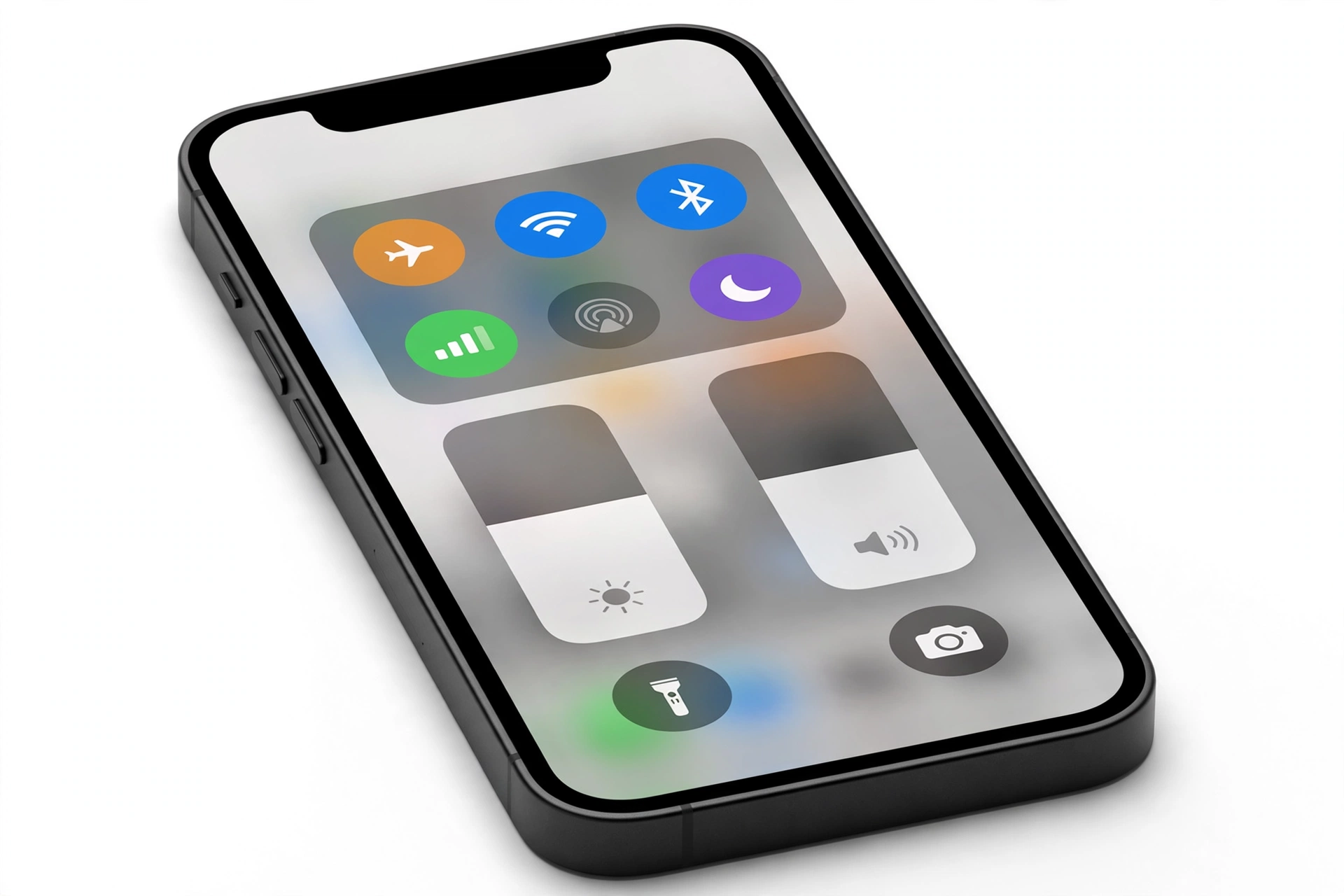
When Control Center won’t open on your iPhone, the most common causes are a disabled “Access Within Apps” or Lock Screen setting, the wrong swipe gesture for your model, or an accessibility feature like VoiceOver or Guided Access intercepting the gesture. Most cases are fixed in under five minutes with settings checks — no repair needed.
On this page
When Control Center won’t open on your iPhone, the most common causes are a disabled “Access Within Apps” or Lock Screen setting, the wrong swipe gesture for your model, or an accessibility feature like VoiceOver or Guided Access intercepting the gesture.
Who this guide helps
This guide is for iPhone owners whose Control Center panel refuses to open when they swipe, opens only on the Home Screen but not inside apps, won’t open from the Lock Screen, or opens with missing or blank controls. It covers every iPhone from models with a Home button through the latest Face ID models on current iOS. If your swipe gesture works everywhere except one specific area of the screen, or your touch screen misbehaves in other apps too, see our guide to intermittent touch screen problems — that pattern usually points to the display rather than Control Center settings. (Source: support.apple.com)
QUICK FACTS: Control Center is a software panel, not hardware. On Face ID iPhones you open it by swiping down from the top-right edge; on Home-button iPhones by swiping up from the bottom edge. Closing it is the reverse gesture. If a gesture “feels” right but nothing happens, work through the checks below in order — the fix is almost always a setting.
First: make sure you’re using the right gesture
This sounds obvious, but a surprising number of “broken Control Center” reports come down to swiping from the wrong place — especially for people who recently moved from a Home-button iPhone to a Face ID iPhone (or the reverse), or who handle someone else’s phone.
On an iPhone with Face ID (iPhone X and later, no Home button)
Swipe down from the top-right edge of the screen — the area near the battery icon. To close Control Center, swipe up from the bottom. Note the asymmetry: Notification Center is the top-left and top-center; Control Center is top-right. Swiping down from the middle of the screen opens Notification Center, which looks similar enough to confuse matters at a glance.
On an iPhone with a Home button (iPhone 8 and earlier, iPhone SE)
Swipe up from the bottom edge of the screen. To close Control Center, swipe down or press the Home button.
Test the gesture deliberately
Start your finger slightly off the very edge and make a confident, straight swipe of at least a couple of centimeters — hesitant, short, or curved swipes near the corner can register as taps or get claimed by in-app gestures. If the panel opens reliably with a deliberate swipe but not with your usual flick, the panel was never broken; your muscle memory just needs the adjustment. Apple documents these gestures in its official Control Center guide.
The five-minute fix sequence
Work these in order. Each step takes seconds, and most failures are resolved by step 2 or 3.
Step 1 — Confirm the gesture for your model. Face ID: down from the top-right. Home button: up from the bottom. Try it three times deliberately.
Step 2 — Enable “Access Within Apps.” Open Settings > Control Center and make sure Access Within Apps is turned on (green). When this is off, Control Center only opens from the Home Screen — it will seem to “stop working” the moment you open any app. This is the single most common cause reported for “Control Center won’t swipe down” complaints.
Step 3 — Check Lock Screen access. If the problem is specifically that Control Center won’t open while the phone is locked, go to Settings > Face ID & Passcode (or Touch ID & Passcode), enter your passcode, scroll to Allow Access When Locked, and toggle Control Center on. On older iOS versions this same option lived directly under Settings > Control Center as “Access on Lock Screen.”
Step 4 — Check Guided Access and VoiceOver. Go to Settings > Accessibility > Guided Access and make sure it is off — an active Guided Access session restricts gestures to the current app and blocks Control Center. Then check Settings > Accessibility > VoiceOver; VoiceOver changes how gestures work across the phone (you interact by tapping to select, then double-tapping to activate), which makes the normal Control Center swipe feel “broken.”
Step 5 — Restart the iPhone. A plain restart clears transient software glitches. If the phone is responsive, use the normal power-off slider; if taps aren’t registering at all, use the force-restart button sequence for your model (volume up, volume down, then hold the side button until the Apple logo appears).
Symptom-to-cause worksheet
Match what you’re seeing to the most likely cause, then apply the fix in the right-hand column.
| What you see | Most likely cause | Fix to try |
|---|---|---|
| Panel won’t open inside apps, works on Home Screen | “Access Within Apps” is off | Settings > Control Center > turn on Access Within Apps |
| Panel won’t open from the Lock Screen | Lock Screen access is disabled | Settings > Face ID & Passcode > allow Control Center when locked |
| Swipe does nothing anywhere; other gestures feel strange too | VoiceOver is on | Settings > Accessibility > VoiceOver > turn off |
| Gestures locked to one app; triple-click does things | Guided Access session active | Triple-click side/Home button to end it, or Settings > Accessibility > Guided Access > off |
| Nothing responds after rapid Notification Center then Control Center swipes | Reported iOS 27 interface freeze | Force restart with the button sequence; update iOS when a fix ships |
| Panel opens but a control is missing or blank | Control removed in edit mode, or its app deleted/updated | Re-add in Control Center edit mode; reinstall the app if it’s a third-party control |
| Swipe works on part of the edge but not the top-right corner | Screen protector, case lip, dirt, or a digitizer dead spot | Clean the display; remove thick protector or case and retest |
| Panel stopped working right after an iOS update | Software bug or settings migration glitch | Restart; check for a follow-up update; Reset All Settings as a last resort |
| Panel opens but changes don’t stick | Customization not saved / restrictions profile | Re-add controls and close the panel; check for Screen Time or work-profile restrictions |
| Nothing in this table matches | Deeper software or hardware fault | Work through the full sections below, then seek assessment |
“Access Within Apps” — the hidden master switch
iOS gives you a separate permission for Control Center inside apps, and it trips up more people than any other setting. Open Settings > Control Center and look for Access Within Apps. When this toggle is off, swiping opens Control Center from the Home Screen and Lock Screen (if allowed) but does nothing inside any app — Safari, games, video players, all of them.
Why would it be off? Sometimes it’s deliberate: full-screen games and video apps feel better when an accidental edge swipe doesn’t yank you out of the action, so some users (or a well-meaning family member) turn it off and forget. Occasionally it gets flipped during an iOS update or when restoring from a backup made on a different model. The fix takes five seconds: toggle it on and retest inside an app immediately.
One nuance worth knowing: a few full-screen apps — particularly games and some video players — can still swallow edge swipes even with the setting on, because they claim the gesture area for their own controls. If Control Center works in every app except one game, the game is the cause, not your iPhone. Try swiping a second time (some apps pass the first swipe to the system only after you’ve “claimed” the edge) or check the app’s own settings.
Lock Screen: the separate permission
Apple treats the Lock Screen as a separate security zone, so Control Center access there has its own switch. If the panel opens fine once you’re unlocked but refuses on the Lock Screen, this is your culprit — not a broken phone.
Go to Settings > Face ID & Passcode (or Touch ID & Passcode on Home-button models), authenticate, and scroll down to Allow Access When Locked. Toggle Control Center on. Retest from the Lock Screen with the correct gesture for your model.
Why would someone turn this off? It’s a legitimate security choice: with Lock Screen Control Center enabled, anyone holding your phone can toggle airplane mode (which cuts Find My tracking), turn on Do Not Disturb, or control media. Some security-conscious users disable it on purpose. If you disabled it intentionally and now miss the convenience, you’re making a trade-off, not fixing a bug — weigh the convenience against the exposure and decide deliberately.
Related: if Control Center opens on the Lock Screen but your controls behave oddly there (for example, Home controls asking for authentication), that’s normal — iOS restricts what can run without unlocking. It’s the panel access, not individual controls, that the toggle governs.
Guided Access: the session you forgot about
Guided Access is an accessibility feature that locks the iPhone to a single app and lets you disable parts of the screen and hardware buttons. While a Guided Access session is active, Control Center, Notification Center, and most system gestures are blocked by design — the phone isn’t broken, it’s following orders.
Signs a session is running: the status bar may show a subtle indicator, the Home indicator behaves differently, and triple-clicking the side button (or Home button) brings up a Guided Access prompt asking for a passcode. To end it, triple-click and enter the passcode that started it.
To make sure it can’t ambush you again, go to Settings > Accessibility > Guided Access and turn it off entirely — or at minimum, turn off its Accessibility Shortcut so a triple-click can’t start it accidentally. Parents who use Guided Access to child-proof a phone should note: this is a feature working exactly as documented, and the “fix” is ending the session, not troubleshooting the panel.
VoiceOver and other accessibility settings
VoiceOver is Apple’s screen reader, and it fundamentally changes the touch interface: you tap once to select an item (VoiceOver speaks it), then double-tap to activate it, and gestures like the Control Center swipe behave differently — often requiring you to interact with the status bar area deliberately rather than flicking. If VoiceOver got turned on accidentally (the classic route is an unintended triple-click of the side button, which is the default Accessibility Shortcut), every familiar gesture will feel “broken,” Control Center included.
Check Settings > Accessibility > VoiceOver. If it’s on and you didn’t mean it, turn it off — and while you’re there, look at Accessibility Shortcut at the bottom of the Accessibility screen to see which features are assigned to the triple-click, so it doesn’t happen again. Ask Siri to “turn off VoiceOver” as a shortcut if navigating the menus is difficult with the reader active.
If you use other accessibility gestures, check those too: a misconfigured Back Tap double- or triple-tap action can change how you interact with the phone and make normal swipes feel unreliable.
Two related settings worth a glance:
- Reduce Motion (Settings > Accessibility > Motion): several third-party troubleshooting guides report that toggling this off has helped stubborn Control Center cases, though Apple doesn’t document it as a Control Center fix. It’s harmless to try — set it to your preference and retest.
- Touch Accommodations (Settings > Accessibility > Touch > Touch Accommodations): if hold duration or ignore-repeat settings are enabled, swipes can feel unresponsive across the whole phone, not just Control Center. If everything touch-related feels sluggish, check here.
- Zoom (Settings > Accessibility > Zoom): with the zoom controller active, edge gestures can be claimed by the zoom window. If you use Zoom and Control Center stopped cooperating, test with Zoom temporarily off.
The swipe itself: technique, dirt, protectors, and cases
If Control Center fails from one specific spot — say, the top-right corner on a Face ID iPhone — while the rest of the touch screen is fine, suspect the path between your finger and the digitizer before suspecting software.
Technique
The swipe must begin at or very near the display edge. Starting even a centimeter too far inward can hand the gesture to the app underneath (opening Notification Center instead, on Face ID models, is the classic symptom — you’re swiping from the top-center rather than the top-right). Make the swipe straight and confident, at least a couple of centimeters long. In landscape orientation, remember the “top-right edge” rotates with the phone — the gesture zone moves to what is now the top edge.
Dirt and films
Skin oils, lint, and residue collect fastest exactly where thumbs rest — including the swipe zones. Wipe the display with a clean, dry microfiber cloth (Apple’s own guidance for display cleaning), paying attention to the edges. If you use a screen protector, check whether it’s lifting, bubbling, or simply too thick around the edges; an ill-fitting tempered glass protector is a well-known cause of dead edge zones. Remove it temporarily and retest — if Control Center springs back to life, you’ve found your answer and can replace the protector with a properly fitted one.
Cases
Rugged cases with a raised lip around the top edge can physically block your fingertip from reaching the swipe zone, especially on Face ID models where the gesture starts at the very edge. Pop the case off and retest. This is a thirty-second test that saves a lot of settings archaeology.
Dead spots
If the top-right corner ignores all touch — not just the Control Center swipe, but taps on app icons or keyboard keys in that region too — you may have a digitizer dead spot, which is hardware. Confirm by rotating the phone (does the dead area move with the screen or stay with the physical corner?) and by testing the same screen region in different apps. A dead spot that survives a restart and a settings reset needs professional assessment, not more settings toggling.
A reported iOS 27 freeze triggered by rapid swipes
Tech press has reported a specific bug in iOS 27 worth knowing about: swiping down to open Notification Center and then immediately swiping down again to open Control Center can leave the iPhone frozen — buttons and icons stuck near the top of the display, the rest of the interface ignoring touches. It looks alarming, but reporting indicates it is a software hiccup, not damage: a force restart clears it.
If your phone is in this state, the on-screen controls won’t help, so use the physical buttons: quickly press and release the volume up button, quickly press and release the volume down button, then press and hold the side button until the Apple logo appears (you may need to hold for more than ten seconds). The phone should restart normally. Until Apple ships a fix in a later iOS 27 update, the practical advice is simple: pause briefly between opening Notification Center and Control Center rather than chaining the swipes.
QUICK FACTS: A freeze that follows a specific gesture sequence, clears with a force restart, and doesn’t recur in normal use is a software bug — not a hardware failure. Don’t let a single freeze scare you into an unnecessary repair or a factory erase.
Software fixes: restart, update, and re-adding controls
Restart (plain and force)
A normal restart resolves most transient glitches: on Face ID models, press and hold the side button plus either volume button, then drag the power-off slider; on Home-button models, hold the side (or top) button. If the screen is unresponsive, use the force-restart sequence described above. After restarting, test Control Center before changing anything else — if it works, you had a one-off glitch, and you’re done.
Update iOS
Bugs that break system gestures are exactly the kind of thing point updates fix. Go to Settings > General > Software Update and install anything available. If you’re running a beta, consider that betas are expected to contain bugs like this — the honest fix for a beta-caused Control Center failure is updating to the next beta or returning to the stable release, not troubleshooting the panel as though stable software were at fault.
Reset the Control Center layout
If the panel opens but behaves strangely — controls in odd places, blank tiles, a control that does nothing — reset the layout rather than the whole phone. Open Control Center, enter edit mode, and remove and re-add the misbehaving controls; or go to Settings > Control Center and rebuild your included-controls list. Removing a control from Control Center never deletes its app or data — it only removes the shortcut tile.
Third-party controls that stopped working
Controls supplied by third-party apps depend on the app being installed, up to date, and permissioned. If a third-party tile went dead: update or reinstall the app, check its permissions under Settings > Privacy & Security, then remove and re-add the tile. If the app’s developer dropped the Control Center integration in an update, the tile is gone for good — that’s the developer’s decision, not your phone malfunctioning. If it’s specifically the screen recording tile that’s missing or unresponsive, see our dedicated guide to iPhone screen recording not working.
Reset All Settings: the last software resort
If every setting above is correct, the gesture is right, the screen is clean, and a restart plus an iOS update changed nothing, conflicting internal settings may be the cause. The documented last-resort software step is Reset All Settings: Settings > General > Transfer or Reset iPhone > Reset > Reset All Settings. This returns system settings (including Control Center’s) to defaults without deleting your photos, messages, or apps — though you will need to re-enter Wi-Fi passwords and re-tweak preferences afterward.
Stop for safety: Reset All Settings is NOT the same as Erase All Content and Settings. Never factory-erase your iPhone to fix Control Center — erasing deletes everything and cannot fix a gesture problem any better than a settings reset can. Back up before any reset, and treat anyone advising an erase for this issue with skepticism.
Hypothetical examples
(The following are hypothetical illustrations, not customer stories.)
Hypothetical example: Maya’s game-night problem. Maya notices Control Center won’t open while she’s playing a full-screen game, though it works everywhere else. She checks Settings > Control Center and finds Access Within Apps is off — she’d disabled it months ago because accidental swipes kept pausing her games. She turns it back on, accepts the occasional accidental swipe as the trade-off, and the panel works in every app again. Total fix time: under a minute, once she knew where to look.
Hypothetical example: Daniel’s triple-click accident. Daniel’s father calls to say “the swipe thing is broken and the phone talks now.” Daniel recognizes the talking: VoiceOver got enabled via an accidental triple-click of the side button in a pocket. He asks Siri to turn off VoiceOver, then checks Settings > Accessibility > Accessibility Shortcut and removes VoiceOver from the triple-click assignment so it can’t recur. Control Center works normally again — it was never the panel that broke.
What your observations can and cannot establish
Being honest about what a symptom proves keeps you from chasing the wrong fix.
| Observation | What it establishes | What it does NOT establish |
|---|---|---|
| Panel fails only inside apps | A software setting (Access Within Apps) is almost certainly off | That anything is wrong with the touch screen or panel itself |
| Panel fails only on the Lock Screen | The Lock Screen permission is off | That the phone needs repair |
| All gestures feel wrong and the phone narrates touches | VoiceOver is active | That iOS is corrupted |
| One screen corner ignores all touch | A localized touch problem (protector, dirt, or digitizer) | Which of those three it is — test by removing protector/case |
| Freeze after a specific rapid swipe sequence | A software bug matching reported iOS 27 behavior | That the phone is damaged |
| Nothing fixes it after all settings checks and a reset | The cause is deeper than user settings | Whether it’s software corruption or hardware — that needs diagnosis |
When to stop troubleshooting and seek assessment
Stop and get professional eyes on the phone if any of these are true:
- A region of the touch screen ignores all input — not just the Control Center swipe — and the dead area survives removing the case and screen protector, cleaning, a restart, and Reset All Settings.
- The display shows lines, discoloration, flickering, or phantom touches alongside the gesture failure (see our touch screen guide).
- The phone is bent, the screen is lifting, or there’s any sign of swelling — stop using it normally and seek assessment promptly; a swollen battery is a safety matter, not a settings matter.
- The problem began immediately after a drop or liquid exposure, even if the screen looks fine — impact and corrosion can damage the digitizer layer invisibly.
- You’ve worked through every section above methodically and Control Center still won’t open anywhere. At that point the remaining possibilities (deep software corruption requiring a computer-based restore, or a hardware fault) are beyond safe DIY steps.
Note what a repair assessment can realistically determine: whether the digitizer and display assembly respond correctly, whether the issue reproduces in a clean software state, and whether the fault is in the panel assembly or the logic board’s touch circuitry. No assessment can “fix” a disabled setting — so do the settings checks first and save yourself the trip.
Video: How to tell if your smartphone is fake or real
Frequently asked questions
Why won’t my iPhone let me swipe down for Control Center?
The most common reasons are: you’re swiping from the top-center (which opens Notification Center) instead of the top-right edge; “Access Within Apps” is turned off in Settings > Control Center; or an accessibility feature such as VoiceOver or an active Guided Access session is intercepting gestures. Work through the five-minute sequence near the top of this guide — the cause is a setting in the large majority of cases.
How do I enable Control Center on the Lock Screen?
Go to Settings > Face ID & Passcode (or Touch ID & Passcode), enter your passcode, scroll to “Allow Access When Locked,” and toggle Control Center on. Note the security trade-off: with this enabled, anyone holding your locked phone can toggle airplane mode and other quick settings.
Why does Control Center work on the Home Screen but not in apps?
Because the “Access Within Apps” toggle (Settings > Control Center) is off. iOS treats in-app access as a separate permission. Turn it on. If it still fails in one specific game or video app, that app is likely claiming the edge gesture for itself — try the swipe a second time or check the app’s settings.
Can a screen protector stop Control Center from opening?
Yes — a thick, lifting, or poorly fitted tempered glass protector can deaden the edge zones where the swipe begins. Remove the protector temporarily and retest; if the panel works, replace the protector with a properly fitted one. A raised case lip can cause the same symptom — test with the case off too.
Will Reset All Settings delete my photos and messages?
No. Reset All Settings returns system settings to defaults without deleting your personal data, apps, or media — though you’ll need to re-enter Wi-Fi passwords and redo preferences. It is entirely different from Erase All Content and Settings, which wipes the phone. Never erase the phone to fix Control Center.
A Control Center tile is missing or blank. Is my phone broken?
Almost certainly not. Tiles disappear when removed in edit mode, when their app is deleted, or when an app update drops the Control Center integration. Re-add the tile in Control Center’s edit mode; for third-party tiles, update or reinstall the app and check its permissions first.
Control Center froze my whole iPhone. What do I do?
If the freeze followed rapidly opening Notification Center and then Control Center in immediate succession, it matches a reported iOS 27 interface bug. Force restart: quickly press and release volume up, quickly press and release volume down, then hold the side button until the Apple logo appears. Avoid chaining those two swipes until Apple ships a fix.
When should I take the iPhone to a repair shop for this?
After the settings checks, cleaning, restart, iOS update, and Reset All Settings have all failed — or immediately, if a screen region ignores all touch, the display shows lines or phantom touches, the phone is bent or swelling, or the problem started with a drop or liquid exposure. A shop can determine whether the digitizer or touch circuitry is at fault; no shop can fix a disabled setting, so check those first.
Sources and editorial notes
- Apple Support — Use and customize Control Center on iPhone: Apple’s official guide — how to open Control Center on Face ID models (swipe down from the top-right edge) and Home-button models (swipe up from the bottom), touch-and-hold for extra options, and adding/organizing controls via Settings > Control Center. (Last checked October 13, 2026.)
- FoneTool — How to Fix iPhone Control Center Won’t Swipe Down: third-party troubleshooting flow — Access on Lock Screen toggle, Reduce Motion, resetting Control Center items, Access Within Apps, and VoiceOver. Used for corroboration of settings paths, not as a primary source. (Last checked October 13, 2026.)
- MacObserver — How to Fix iPhone Control Center Not Working: lock-screen enablement via Face ID & Passcode, disabling VoiceOver, display cleaning and screen-protector removal, Reset All Settings path. Corroboration only. (Last checked October 13, 2026.)
- Trusted Reviews — This iOS 27 bug can freeze your iPhone: reported freeze triggered by swiping down for Notification Center then immediately for Control Center; force-restart button sequence as the recovery. Reported behavior, not Apple documentation. (Last checked October 13, 2026.)
- SlashGear — How To Fix A Control Center That Isn’t Working On iPhone: cleaning the display, updating iOS, enabling Access Within Apps and lock-screen access. Corroboration only. (Last checked October 13, 2026.)
Last source check: October 13, 2026. AI-assisted editorial guide, checked against the linked manufacturer information. Apple’s support pages document the gestures and settings referenced here; third-party guides are cited only for corroboration of troubleshooting sequences. Menu paths and toggle names can change with iOS updates — if a setting differs on your iPhone, check Apple’s current support pages. If your iPhone needs hands-on assessment, Las Vegas Phone Repair & Accessories is at 7400 Las Vegas Blvd S, Unit TT42, Las Vegas, NV 89123 — call (424) 406-6202 ahead to confirm today’s hours (generally 10:00 AM–8:00 PM).
Let’s get you connected again.
Tell us what’s happening with your device and we’ll help you decide the safest next step — no jargon, no pressure.
Las Vegas Phone Repair & Accessories · 7400 Las Vegas Blvd S, Unit TT42, Las Vegas, NV 89123
10:00 AM–8:00 PM — call ahead to confirm today’s hours