
How to Transfer Browser Bookmarks to New Phone: iPhone and Android
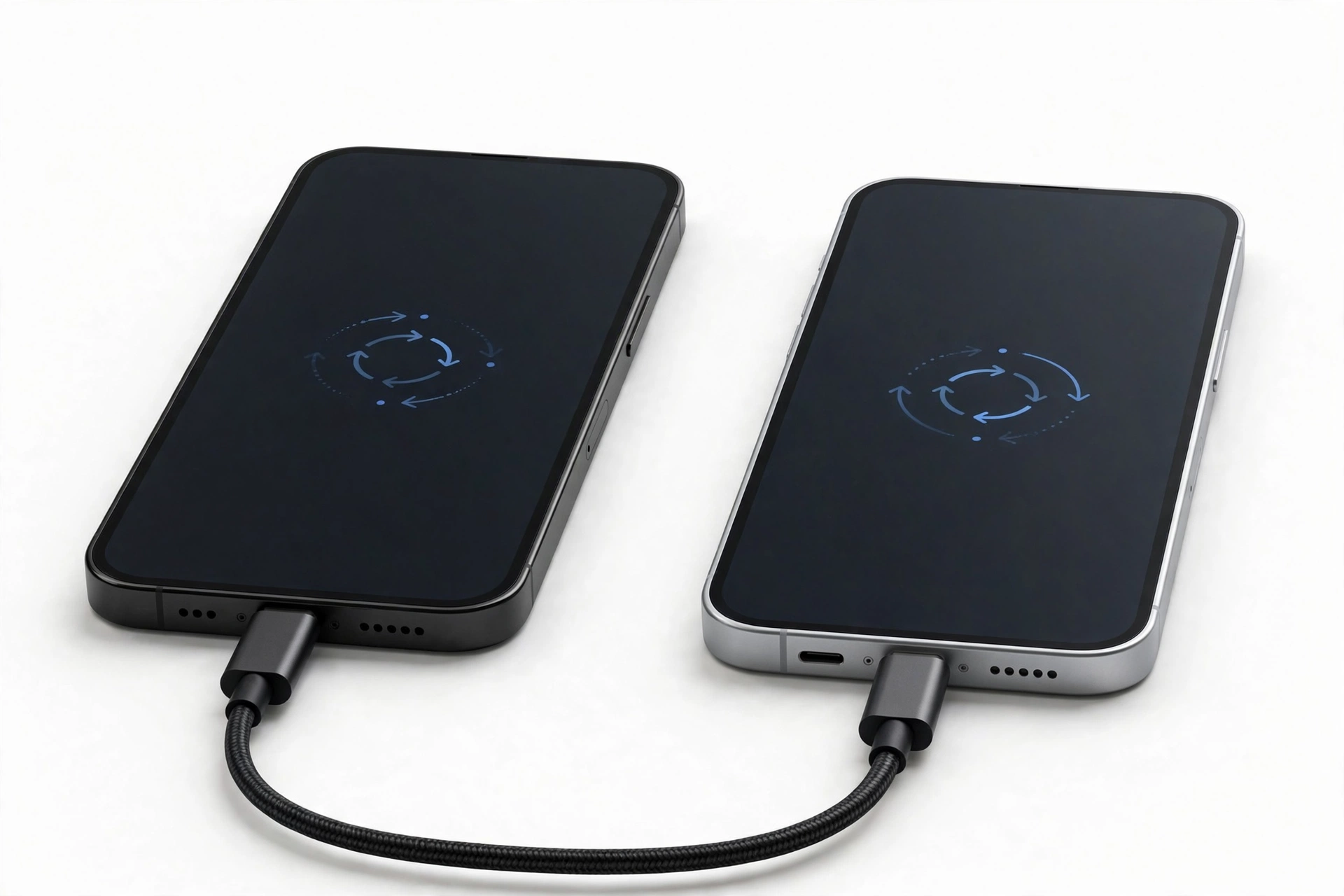
Transfer browser bookmarks to a new phone by syncing the account tied to your browser, not by copying files. Safari bookmarks move through your Apple Account via iCloud; Chrome bookmarks move through your Google Account via Chrome sync; Samsung Internet bookmarks move through Samsung Cloud.
On this page
Transfer browser bookmarks to a new phone by syncing the account tied to your browser, not by copying files.
Who this guide helps
This guide is for anyone switching to a new iPhone or Android phone who wants their saved websites to arrive with them. It is especially useful when you are changing brands at the same time — for example, moving from a Samsung phone running Chrome to an iPhone, or from an iPhone running Safari to a Samsung phone. Each browser stores bookmarks differently, and the steps that work for one browser usually do not work for another. (Source: support.apple.com)
This article is bookmarks-specific. It does not cover contacts, photos, apps, or passwords — those each move through their own systems and have their own guides. If you are planning a full device transfer, our guide on how to transfer data to a new phone covers the complete process.
The one rule that makes everything else make sense
Bookmarks live in an account, not really in your phone. When you sign the same account into the same browser on your new phone, your bookmarks follow. When you switch browsers or stay signed out, they do not. Every method below is a version of this rule:
- Safari bookmarks follow your Apple Account through iCloud. They do not follow your Google Account, and they do not follow you into Chrome unless you convert them.
- Chrome bookmarks follow your Google Account through Chrome sync. They appear in Chrome on any device signed into that account — Android, iPhone, or desktop.
- Samsung Internet bookmarks follow Samsung Cloud on Samsung devices. They do not appear in Chrome or Safari unless you move them there first.
QUICK FACTS: Bookmarks are tiny — syncing hundreds of them usually takes seconds on Wi-Fi. The part that takes time is signing into the right account on both phones, not the bookmarks themselves.
Moving Safari bookmarks to a new iPhone
If you use Safari on your iPhone, your bookmarks sync through iCloud. The setup is the same whether you are upgrading from one iPhone to another or restoring after a repair.
Step 1: Turn on Safari sync on your old iPhone
On your old iPhone, go to Settings, tap your name at the top, then tap iCloud. Tap See All (it may read Show All on some iOS versions), then turn on the switch next to Safari. This uploads your Safari bookmarks, Reading List, Tab Groups, and open tabs to your Apple Account. Give it a few minutes on Wi-Fi, and confirm you are signed into the same Apple Account on each device.
Step 2: Turn on Safari sync on your new iPhone
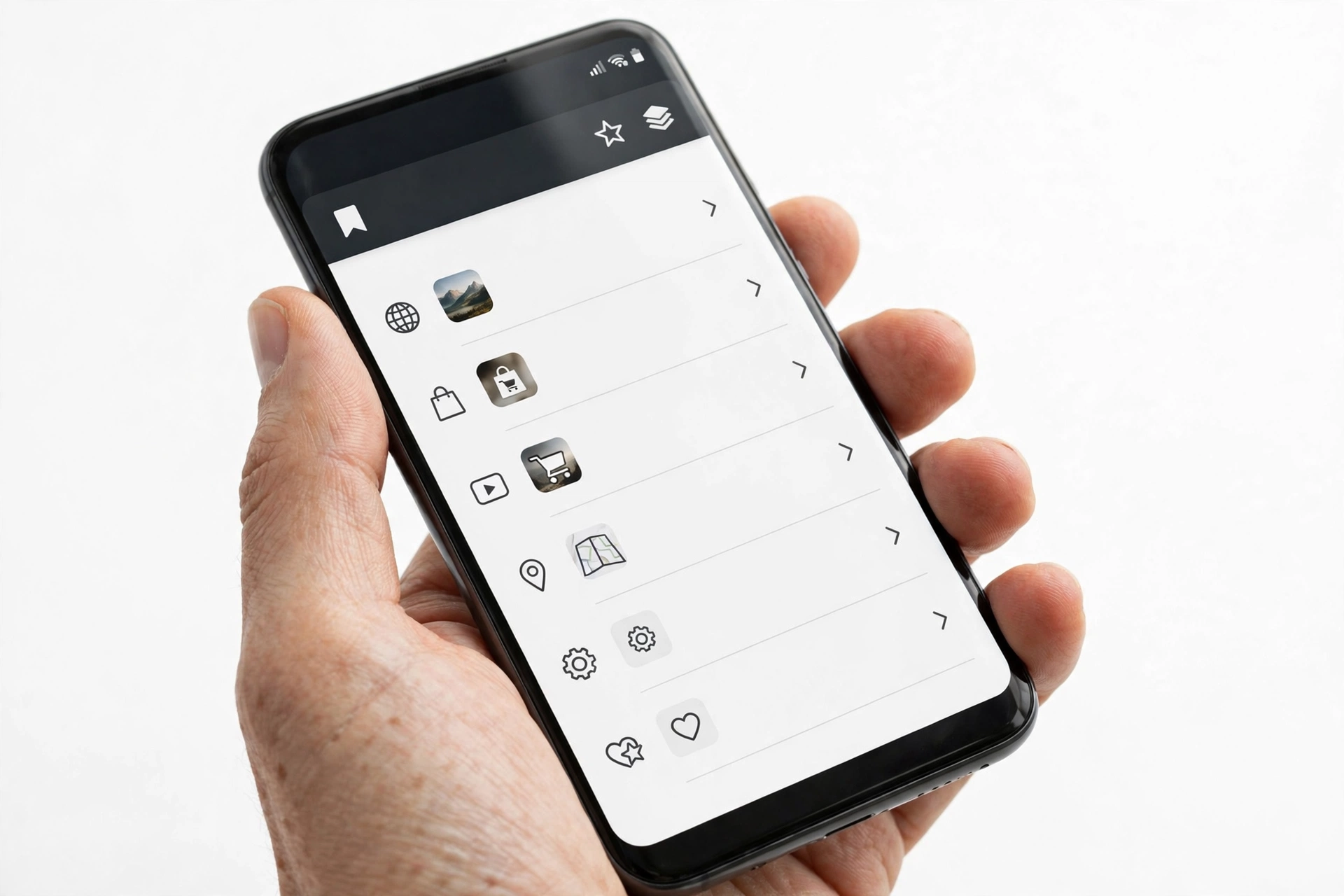
Sign into the same Apple Account on your new iPhone, then follow the same path: Settings > [your name] > iCloud > See All > turn on Safari. Open Safari and look for your bookmarks — they appear under the bookmarks button. If they do not appear right away, wait a few minutes and reopen Safari.
What Safari sync includes (and does not include)
According to Apple’s documentation, turning on Safari in iCloud syncs bookmarks, Reading List, Tab Groups, and tabs open on your other devices. It does not sync passwords — those move through iCloud Keychain / Passwords, a separate system — and it does not sync bookmarks from other browsers such as Chrome or Firefox.
TIP: Safari bookmark sync is turned on by default on most iPhones during setup. Before worrying, check whether it is already enabled — the answer is often “it already synced.”
Moving Safari bookmarks to a new Android phone
This is the trickiest direction, because Safari does not exist on Android. There is no official “send Safari bookmarks to Android” button. Your bookmarks are not lost — they just need a detour. Choose whichever route you have access to.
Route 1: Export as HTML using a Mac
If you have access to a Mac, this is the most reliable route. First, make sure your Safari bookmarks are synced to iCloud (as above) and that your Mac is signed into the same Apple Account with Safari sync on. Then on the Mac, open Safari, click the File menu, and choose Export > Bookmarks. Save the file as an HTML file. This HTML file can then be imported into Chrome on your Android phone via Chrome’s desktop import, or transferred to the phone and opened in a browser that supports bookmark import.
Route 2: Use a Windows PC with the iCloud Bookmarks extension
Install iCloud for Windows and the iCloud Bookmarks browser extension. Sign into iCloud for Windows with the same Apple Account used on your iPhone. In the iCloud window, click Options next to Bookmarks and make sure Chrome is selected, then click Apply. Chrome bookmarks and Safari bookmarks then stay in sync through iCloud — so your Safari bookmarks flow into Chrome, and once they are in Chrome, Chrome sync carries them to your Android phone.
Route 3: Rebuild manually from your Reading List memory
If you only have a handful of bookmarks, the simplest honest option is to open Safari on your old iPhone, work through your bookmarks list, and save each site in your new phone’s browser. Slow, but foolproof, and it also gives you a chance to drop dead links.
Stop for safety: Entering passwords into browsers or accounts on an unfamiliar computer is risky. If you use a shared or public computer for the Windows route, sign out of everything when you finish, and never save passwords in a browser you do not own.
Moving Chrome bookmarks to a new phone
Chrome is the easiest browser to move between phones, because Chrome sync is the same on Android, iPhone, and desktop. The only requirement is signing into the same Google Account.
On your old phone: confirm sync is on
Open the Chrome app, tap the three-dot menu, and go to Settings. Tap your account name at the top, then tap Sync. Make sure Sync is turned on and that Bookmarks is among the items saved to your account. On iPhone the flow is similar: open Chrome, tap More, go to Settings, tap your account name, then tap Sync, and turn off “Sync everything” if you want to pick items individually — or leave it on to sync everything.
On your new phone: sign in and wait
Open Chrome on your new phone and sign into the same Google Account. Go to Settings > your account name > Sync and confirm Bookmarks is on. Tap the bookmark icon or the three-dot menu to find your saved sites. They should match the folders you had before — including Mobile Bookmarks, which holds bookmarks saved on phones specifically.
What Chrome sync can and cannot do on mobile
Chrome on mobile (Android and iOS) does not have a built-in export-bookmarks button. If you want an HTML backup file of your bookmarks, you need Chrome on a desktop: sign into the same Google Account, open the Bookmark Manager (three-dot menu > Bookmarks > Bookmark Manager), click the three-dot Organize menu in the top right, and choose Export bookmarks. This is worth knowing because an HTML export is the only portable, account-independent copy of your bookmarks.
TIP: If you sync everything, Chrome also syncs history, open tabs, saved tab groups, settings, addresses, and — if enabled — passwords and payment info. If you only want bookmarks, use the “Customize sync” option and toggle on Bookmarks alone.
Moving Samsung Internet bookmarks to a new phone
If you browse with Samsung Internet on a Samsung phone, your bookmarks sync through Samsung Cloud.
Samsung-to-Samsung transfers
Sign into the same Samsung Account on your new Samsung phone. Samsung Internet bookmarks synced through Samsung Cloud will appear. Samsung’s Smart Switch — covered in our full data transfer guide — also carries Samsung Internet data between Samsung phones during setup.
Moving from Samsung Internet to a different browser
This is where it gets harder. Samsung Internet does not have an official, one-tap “export to Chrome” or “export to Safari” path on the phone itself. The practical approaches:
- Open each important bookmark in Chrome and re-save it. If your new phone uses Chrome, open the sites from your old Samsung Internet and tap the bookmark star in Chrome. This is manual but reliable for small collections.
- Use Samsung Internet on a Windows PC. Samsung Internet is available for Windows, where you can sign into Samsung Cloud sync and then access bookmarks — from there, use whatever export or import tools that environment offers.
- Switch to Chrome on the old phone first. Before your old phone retires, install Chrome on it, sign into your Google Account, and re-save the bookmarks you care about in Chrome. Then Chrome sync carries them to your new phone automatically.
None of these is as smooth as Google’s or Apple’s account sync. That is the honest state of cross-browser bookmark transfer — the ecosystems are designed to keep you inside them.
Switching browsers at the same time as phones
Many people switch both device brand and browser at once. Here is how the common combinations work:
From iPhone Safari to Android Chrome
Use Route 1 or Route 2 from the Safari-to-Android section above: export Safari bookmarks as HTML on a Mac and import into Chrome on a desktop, or sync through iCloud for Windows and the iCloud Bookmarks extension. Once they are in Chrome on any device signed into your Google Account, Chrome sync carries them to your Android phone.
From Android Chrome to iPhone Safari
On a Mac or Windows PC, export your Chrome bookmarks as HTML (Bookmark Manager > Organize > Export bookmarks), then import that HTML file into Safari on the Mac (File > Import From > Bookmarks HTML File). With iCloud Safari sync on, those bookmarks then appear on your iPhone. Note that Safari on iPhone and iPad cannot import from another browser directly — a Mac or the Windows workaround is required.
Keeping both browsers going
Some people use Chrome on their new iPhone alongside Safari. This works fine: install Chrome on the iPhone, sign into your Google Account, and your Chrome bookmarks appear in Chrome while your Safari bookmarks stay in Safari. The two collections stay separate, which can actually be useful — for example, work bookmarks in one browser and personal in the other.
Method comparison: which route fits your situation
| Method | From | To | Limitations |
|---|---|---|---|
| iCloud Safari sync | iPhone Safari | iPhone / iPad / Mac Safari | Apple devices and Apple Account only; no Android |
| Chrome sync (Google Account) | Chrome on any phone | Chrome on any phone | Stays inside Chrome; no export on mobile |
| Samsung Cloud sync | Samsung Internet | Samsung Internet on Samsung devices | No official path to Chrome or Safari |
| Export HTML on Mac | Safari or Chrome | Any browser with import | Needs a Mac or desktop access |
| iCloud for Windows + extension | Safari | Chrome on Windows, then any Chrome | Setup-heavy; use only on a trusted computer |
| Manual re-save | Any browser | Any browser | Slow for large collections, but always works |
Bookmarks versus passwords: know what actually moved
A common surprise after transferring: the bookmarks arrived, but the logins did not. Bookmarks and saved passwords are separate systems, and syncing one never transfers the other:
- Bookmarks are saved website links. They move through Safari/iCloud, Chrome sync, or Samsung Cloud as described above.
- Passwords are login credentials. On iPhone they move through iCloud Keychain / the Passwords app; in Chrome they move through Google Password Manager; in Samsung Internet, through Samsung Pass. Each has its own sync toggle.
- History and open tabs may or may not follow depending on your sync settings. Chrome syncs them if enabled; iCloud syncs Safari tabs and Tab Groups.
- Payment methods and addresses follow their own sync rules too — they are never part of bookmark sync.
If passwords are what you actually need on the new phone, see our guide on how to transfer passwords to a new phone. And if apps themselves are missing, see how to transfer apps to a new phone.
What to check before you erase or retire the old phone
Do not factory-reset, trade in, or wipe your old phone until you have verified the bookmarks on the new one. The checklist:
- Open the browser on the new phone and confirm your bookmark folders are all present — check counts, not just the first few.
- Open three or four bookmarks at random to confirm they are the right URLs (not just folder names).
- Confirm the new phone is on Wi-Fi and sync has finished — bookmarks can take a few minutes on first sign-in.
- Confirm you are signed into the same account on both phones (same Apple Account for Safari, same Google Account for Chrome).
- If you exported an HTML file, keep it as a backup copy for at least a few weeks after the switch.
Stop for safety: Erasing the old phone before confirming the transfer is the number one way bookmarks get lost permanently. Bookmarks are not always recoverable after a device is wiped — verify first, erase second.
When bookmarks do not appear: troubleshooting
Check 1: Same account, sync on, correct toggle
The three most common causes are being signed into a different account, sync being off, or the bookmarks toggle being off while everything else syncs. On iPhone, re-check Settings > [your name] > iCloud > See All > Safari. In Chrome, re-check Settings > your account > Sync > Bookmarks.
Check 2: Wi-Fi and software updates
Sync needs an internet connection and current software. Update your browser and phone software, restart the browser app, and wait a few minutes. Apple’s documentation notes that very old iOS versions (iOS 10 and earlier) can no longer sync bookmarks at all — if an old device is involved, updating is the fix.
Check 3: Turn sync off and back on
Both Apple and Google document this as a repair step: toggle the relevant sync switch off, wait a moment, and toggle it back on. In stubborn cases, signing out of the account entirely and signing back in resets the sync state.
Check 4: Look in the right folder
Chrome keeps phone bookmarks in a folder called “Mobile Bookmarks,” separate from the Bookmarks Bar and Other Bookmarks. If your old bookmarks seem missing, tap the bookmark icon and scroll to the Mobile Bookmarks folder before concluding they did not transfer.
Check 5: Conflicting edits on multiple devices
If you edited bookmarks on two devices while offline, sync may merge them in unexpected ways — duplicates, or folders that appear on one device and not another. Let sync finish on all devices, then clean up duplicates once on any one device; the cleanup syncs everywhere.
What your bookmarks can and cannot tell you
| Observation | What it can establish | What it cannot establish |
|---|---|---|
| Bookmarks missing on the new phone | Sync is off, the wrong account is signed in, or sync has not finished | That the bookmarks are gone — check the old phone first |
| Bookmarks appear on one device but not another | The sync toggle or account differs between the devices | That the browser is broken — this is almost always a settings issue |
| Duplicate bookmark folders | Conflicting edits were merged from multiple devices | Which copy is the “correct” one — review and delete extras |
| Passwords did not transfer with bookmarks | Password sync is a separate system that is off or unsigned in | That something failed — bookmarks never carried passwords |
| Safari bookmarks absent on Android | Safari has no Android presence; a conversion step is needed | That the bookmarks were lost — they are in your Apple Account |
Hypothetical examples
(The following are hypothetical illustrations, not customer stories.)
Hypothetical example: Maya’s iPhone-to-Samsung switch. Maya bought a Samsung phone after years on an iPhone. Her 200 Safari bookmarks did not follow automatically. She borrowed her brother’s Mac, signed into her Apple Account, enabled Safari sync in iCloud, then used Safari’s File > Export > Bookmarks to save an HTML file. She imported that file into Chrome on the same Mac, and once Chrome sync picked them up, all 200 bookmarks appeared in Chrome on her new Samsung phone — taking about ten minutes total.
Hypothetical example: Daniel’s half-synced Chrome. Daniel’s Chrome bookmarks appeared on his new Pixel but his Mobile Bookmarks folder was empty. The problem: he was signed into his personal Google Account on the new phone but had saved most bookmarks under his work Google Account on the old phone. Switching the Chrome sign-in to the work account brought everything in.
Video: How to transfer all data to new iPhone fast
Frequently asked questions
Do my browser bookmarks transfer automatically to a new phone?
Only if sync is turned on and you sign into the same account. If you set up the new phone with a new Apple Account or new Google Account, or skipped the sign-in step, your bookmarks stay on the old phone until you sync them.
How do I transfer bookmarks from iPhone to Android?
Export your Safari bookmarks as an HTML file on a Mac (Safari > File > Export > Bookmarks), import the file into Chrome, and let Chrome sync carry them to your Android phone. Alternatively, use iCloud for Windows with the iCloud Bookmarks extension to sync Safari bookmarks into Chrome.
How do I transfer Chrome bookmarks from Android to iPhone?
Install Chrome on the iPhone and sign into the same Google Account — your bookmarks appear in Chrome on the iPhone. If you want them in Safari instead, export Chrome bookmarks as HTML on a desktop, import into Safari on a Mac, and let iCloud sync deliver them to the iPhone.
Why are my bookmarks not syncing?
Check three things in order: (1) you are signed into the same account on both devices, (2) sync is turned on, and (3) the Bookmarks/Safari toggle specifically is enabled. Then confirm Wi-Fi, update the browser software, and try toggling sync off and back on.
Can I export bookmarks directly from Chrome on my phone?
No. Chrome on Android and iOS has no built-in export button. Turn on Chrome sync, then export from Chrome on a desktop using the Bookmark Manager’s Organize menu.
Can I export bookmarks directly from Safari on my iPhone?
No. Safari on iPhone has no export option. Sync your bookmarks to iCloud, then export them from Safari on a Mac, or use iCloud for Windows with the iCloud Bookmarks extension.
Will my saved passwords transfer with my bookmarks?
No. Passwords are a separate system — iCloud Keychain/Passwords on iPhone, Google Password Manager in Chrome, Samsung Pass on Samsung phones. Syncing bookmarks never transfers passwords.
Do I need to keep my old phone until bookmarks transfer?
Yes — keep the old phone, powered on and signed in, until you have verified every bookmark folder on the new phone. Once verified, you can safely prepare the old phone for trade-in or recycling using our full transfer checklist.
Sources and editorial notes
- Apple Support — Set up iCloud for Safari on all your devices: Apple’s documented setup (Settings > [your name] > iCloud > See All > turn on Safari) and what sync covers (bookmarks, Reading List, Tab Groups, tabs). (Last checked October 13, 2026.)
- Apple Support — Sync or export bookmarks on older iOS/macOS: minimum software requirements (iOS 11+, macOS Sierra 10.12.6+) and the iCloud Bookmarks browser extension for Windows. (Last checked October 13, 2026.)
- BrowserHow — Export bookmarks from Safari on Mac and iPhone: corroboration that iPhone Safari has no direct export; export requires Mac or iCloud sync. (Last checked October 13, 2026.)
- Beebom — Import Chrome bookmarks to Safari on Mac and iPhone: corroboration of the iCloud Bookmarks Chrome extension route for Windows users. (Last checked October 13, 2026.)
- Help Desk Geek — Organize and sync Chrome bookmarks: Chrome sync settings locations, the Bookmarks toggle, and the desktop-only export path. (Last checked October 13, 2026.)
- Flowsdigital — Export bookmarks from Chrome Mobile: corroboration that Chrome mobile has no export; sync to a desktop and export there. (Last checked October 13, 2026.)
- SlashGear — Sync Google Chrome across devices: mobile sync flows on iOS and Android. (Last checked October 13, 2026.)
Last source check: October 13, 2026. AI-assisted editorial guide, checked against the linked manufacturer information. Procedures described here follow Apple’s, Google’s, and Samsung’s published support guidance; third-party sources are cited only for corroboration. Sync behaviors and menu paths can change with software updates — if a setting differs on your phone, check the manufacturer’s current support pages. If your phone needs hands-on assessment, Las Vegas Phone Repair & Accessories is at 7400 Las Vegas Blvd S, Unit TT42, Las Vegas, NV 89123 — call (424) 406-6202 ahead to confirm today’s hours (generally 10:00 AM–8:00 PM).
Let’s get you connected again.
Tell us what’s happening with your device and we’ll help you decide the safest next step — no jargon, no pressure.
Las Vegas Phone Repair & Accessories · 7400 Las Vegas Blvd S, Unit TT42, Las Vegas, NV 89123
10:00 AM–8:00 PM — call ahead to confirm today’s hours