
Kyocera Phone Speaker Not Working After Update: Causes and Safe Fixes
A software update cannot physically damage your Kyocera phone’s speaker. If sound stopped working right after an update, the cause is almost always a settings or software change — audio routing, a muted stream, Safe Mode-revealed app conflict, or on Kyocera rugged phones, Covert Mode or moisture in the speaker path — and the fixes below walk through them in order.
On this page
A software update cannot physically damage your Kyocera phone’s speaker.
1. The short answer: what an update can and cannot break
An update changes software: drivers, permissions, audio routing tables, and app behavior. It cannot crack a speaker cone, corrode a contact, or burn out a coil — those are physical failures, and software has no mechanism to cause them. When silence follows an update, one of a small set of software events is responsible: (Source: manuals.plus)
- Audio routing changed. The phone now sends sound to Bluetooth, a USB-C accessory, or a “headphone” it thinks is plugged in.
- A volume stream was reset. Android keeps separate volumes for calls, media, alarms, and notifications; updates sometimes zero one of them.
- An app grabbed audio focus and won’t release it. “Speaker cleaner,” booster, or equalizer apps are frequent offenders.
- A permission or cache was corrupted during the update, breaking the audio path for one or more apps.
- A Kyocera-specific mode or condition — Covert Mode enabled, or moisture still in the speaker — is silencing or muffling output.
Quick fact: Coincidence is the one honest exception. A speaker that was already failing can go silent the same week an update installs. The checks below distinguish the two: if every software check passes and the speaker is silent in Safe Mode with all volumes up, the timing was coincidence, not causation.
2. How Kyocera audio is different: the Smart Sonic Receiver
Many Kyocera rugged phones — including the DuraForce line and the Torque — use Kyocera’s Smart Sonic Receiver instead of a conventional earpiece speaker. A ceramic actuator vibrates the display panel itself to create sound, transmitting it both as ordinary sound waves and as vibrations conducted through tissue to the eardrum. Kyocera’s own user guide describes it this way: the receiver “transmits sound through vibrations on your phone’s display screen,” and advises users to “place your ear around the internal receiver and adjust the position of the phone to find the best hearing point depending on the surrounding environment.”
Why this matters for troubleshooting:
- There is no earpiece grille to clean. If call audio is weak or odd, the fix is repositioning the phone on your ear — not cleaning a hole that doesn’t exist.
- Covering the microphones hurts call audio. The same user guide warns: “Do not cover the microphones during a call.” On a rugged phone with a case, check that the case isn’t covering a mic port.
- The loudspeaker is a separate component. Smart Sonic affects the earpiece (call) path. If media and ringtones play fine through the loudspeaker but calls sound wrong, the loudspeaker is healthy and the issue is in the call-audio path — positioning, mic blockage, or a software setting.
Tip: Not every Kyocera model uses Smart Sonic Receiver. The isolation test in section 8 tells you which audio path failed regardless of which earpiece technology your model has — run it before assuming anything about your specific phone.
3. Check Covert Mode first: the Kyocera-only audio killer
Kyocera’s DuraSport 5G and DuraForce Ultra 5G manuals document a feature most phone brands don’t have: Covert Mode, which “makes your phone effectively unnoticeable even in silent and dark environments by disabling all touch operation, display, lights, device audio and vibrations.” If Covert Mode is on, every speaker on the phone is deliberately silent — and no amount of volume-button pressing will fix it, because the silence is intentional.
How to check and exit it (from the DuraSport 5G manual):
- From the Apps launcher, tap Settings > Security > More security settings > Covert mode (on some models: Settings > Security > Covert mode).
- If Covert mode is allowed and active, turn it off — or long-press the power key to exit Covert Mode.
- Test sound again immediately.
The manual notes that audio through the headset jack, USB-C port, or Bluetooth can optionally stay enabled in Covert Mode — which produces a confusing symptom: Bluetooth audio works but the phone’s own speakers are dead. If that exact pattern appeared after your update, Covert Mode is the prime suspect, because an update can surface a previously enabled setting you forgot about.
(The following is a hypothetical illustration, not a customer story.) Daniel, a site foreman, updated his DuraForce Ultra 5G on a Sunday evening. Monday morning the phone was completely silent — no ringtones, no media — yet his truck’s Bluetooth played calls fine. He was ready to buy a replacement before a coworker asked whether he’d ever turned on Covert Mode for a night shift months earlier. He had. One long-press of the power key later, every speaker worked. The update hadn’t broken anything; it had simply been the first restart since the mode was enabled, and the silence was doing exactly what the mode was designed to do.
Stop for safety: Do not confuse Covert Mode with a hardware fault and start disassembling anything. It is a software mode with a documented exit path. Check it before any deeper troubleshooting.
4. The 60-second checks: volume streams, Do Not Disturb, restart
Before anything clever, run the basics — they resolve a large share of post-update silence:
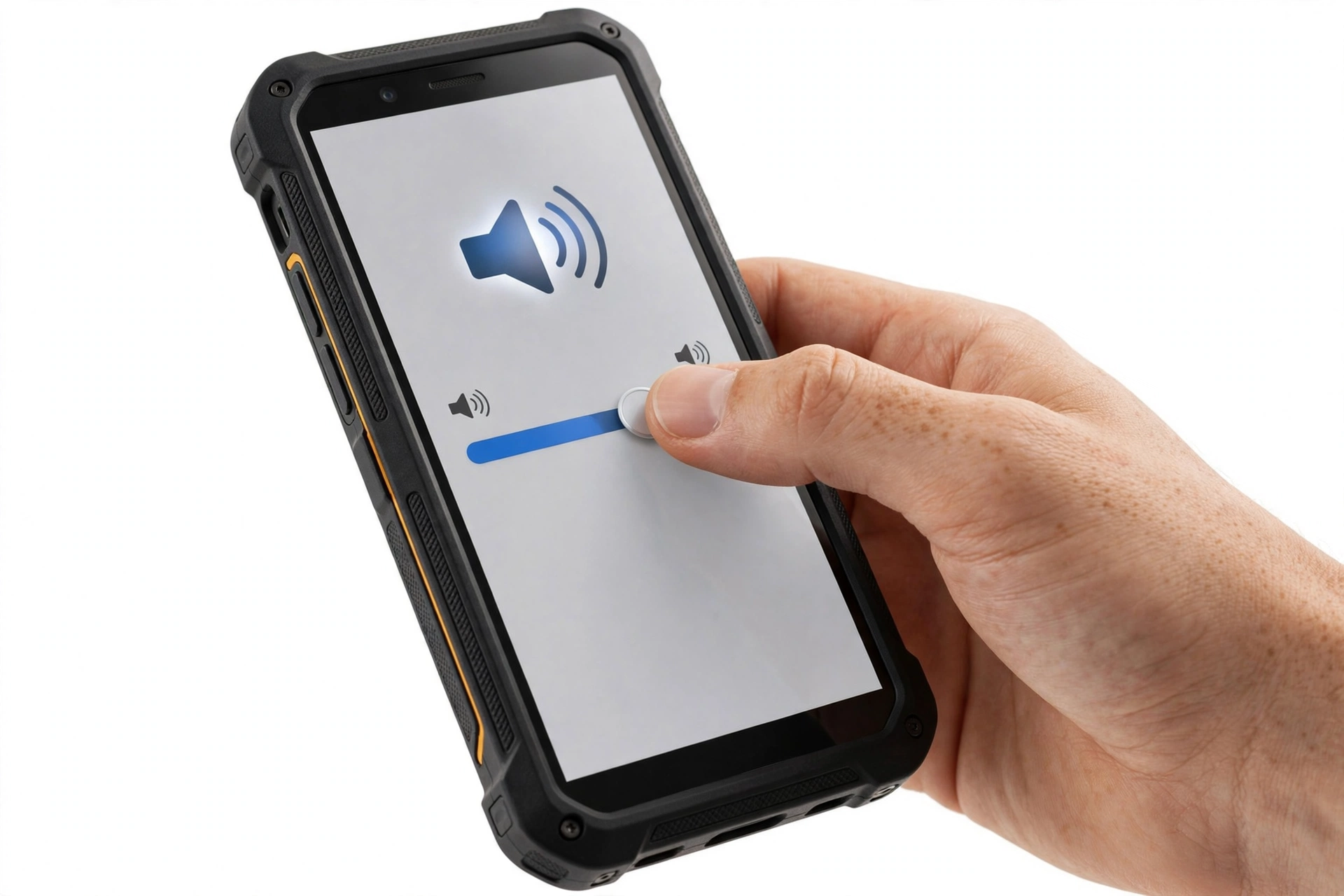
- Check every volume stream. Press a volume button, tap the three-dot or gear icon, and confirm the Media, Call, Ring, and Alarm sliders are all up. Updates commonly reset one stream while leaving the others alone, so “calls work but music doesn’t” (or the reverse) points here.
- Check Do Not Disturb and Silent mode. Swipe down the Quick Settings panel and confirm DND is off and the ringer is set to sound, not vibrate or mute.
- Restart the phone. Hold the power button, tap Restart (or power off, wait 30 seconds, power on). This clears transient audio-routing glitches the update may have left behind.
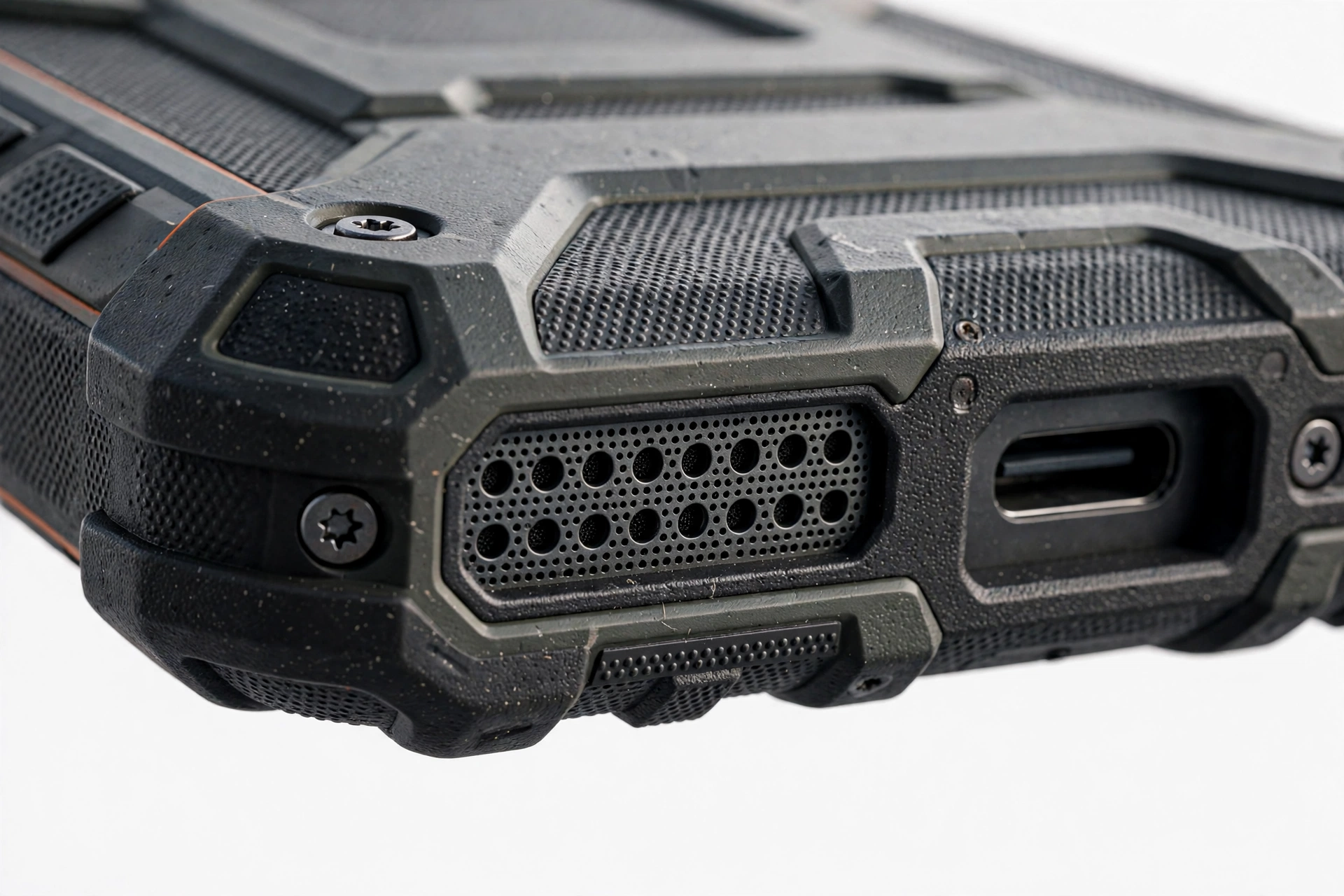
- Check for blockage you can see. Look at the loudspeaker port for visible debris. If you see lint, flick it away gently with a dry soft brush — never poke into the grille with a pin, needle, or SIM tool.
Community troubleshooting guides for the DuraForce Pro (iFixit contributors) list this same order — restart, visible blockage check, headphone-jack check, Bluetooth check, DND check — and it remains the correct first pass because each step eliminates one common cause in seconds.
5. Rule out Bluetooth ghost connections
The single most common false alarm after any update: the phone is connected to a Bluetooth device you aren’t using — a car kit, earbuds in their case, a smartwatch, a portable speaker in another room. The phone routes all audio there, and its own speakers go quiet.
- Go to Settings > Connected devices (or Bluetooth) and look at what’s actually connected.
- Temporarily turn Bluetooth off entirely and test the speaker.
- If sound returns, the “fault” was routing. Reconnect devices one at a time to find which one was grabbing audio — car kits are the classic culprit, because they auto-connect when the phone is merely near the vehicle.
Quick fact: This also explains “speaker works for calls but not music” and similar split symptoms. Android can route call audio and media audio to different outputs simultaneously, so a half-connected Bluetooth device can silence exactly one stream.
6. Headphone-jack and USB-C audio routing
If the phone believes headphones are plugged in, it mutes the loudspeaker. Post-update, the jack-detection state can get stuck:
- Plug a wired headset in, then unplug it firmly. Repeat twice. This is the standard reset for a stuck jack sensor, and it appears in DuraForce community troubleshooting for exactly this symptom.
- Inspect the jack (if your model has one) for lint or moisture. A dry cotton swab, gently rotated, is the most aggressive cleaning this jack should ever get.
- Check USB-C audio. If a USB-C adapter, dock, or dongle was connected around update time, unplug it and retest. Some adapters hold the audio route even after removal until the phone restarts.
- Try a different headset if sound only fails through wired audio — a damaged cable or plug mimics a phone fault.
Stop for safety: Never insert metal objects — pins, needles, paperclips, SIM ejector tools — into the headphone jack or speaker grille. You can short contacts or puncture the speaker membrane, turning a software problem into a real hardware repair.
7. If the phone got wet: moisture and the speaker
Kyocera’s rugged phones are built for wet work — but the manual is explicit that water and speakers don’t mix in the short term. The DuraSport 5G user guide states: “If your phone still retains some moisture, audio quality and speaker performance may be affected. Dry your phone completely before using it again.” A sealed speaker membrane with water trapped behind it sounds muffled, tinny, or nearly silent — exactly like a “broken” speaker.
The manual’s drying guidance, summarized:
- Shake/tilt the phone gently to drain visible water from ports, then wipe it with a clean dry cloth.
- Let the phone dry completely at room temperature.
- Never use a hair dryer, an oven, or any other appliance to dry it — the manual carries an explicit caution that excessive heat may damage the phone.
- Retest only after it is fully dry; muffled sound that clears as drying progresses was moisture, not update damage.
Quick fact: This is the most Kyocera-relevant section of this guide. Rugged-phone owners are the users most likely to get a phone wet the same week an update installs — and the update gets blamed for what is actually a drying problem. If the failure coincided with rain, a job site, or a rinse, dry first and troubleshoot second.
(The following is a hypothetical illustration, not a customer story.) Amara rinsed her DuraSport 5G under a tap after a dusty warehouse shift — the same evening a system update installed. The next day the speaker was muffled and faint. Convinced the update had damaged it, she worked through volume checks and Bluetooth toggles with no improvement. On the third day, with the phone fully dry, the sound was back to normal. The timeline had pointed at the update; the water had been the cause all along, exactly as the manual’s moisture warning describes.
8. Earpiece calls vs loudspeaker: isolate which path failed
Before deeper steps, determine which speaker path is silent. The answer halves the suspect list:
| Test | What to play | If silent, suspect |
|---|---|---|
| Loudspeaker | Play a video or music with volume up | Loudspeaker path: routing, media volume, app conflict, moisture |
| Earpiece (call) | Make a test call, earpiece mode (not speakerphone) | Call-audio path: Smart Sonic positioning, call volume, mic blockage |
| Speakerphone | Same call, switched to speakerphone | If speakerphone works but earpiece doesn’t, the earpiece/Smart Sonic path specifically |
| Ringtone | Call the phone from another phone | Ring volume stream or DND — not the speaker hardware |
| Alarm | Set an alarm 1 minute out | Alarm volume stream — alarms use their own channel |
On Smart Sonic Receiver models, pay special attention to the earpiece test: reposition the phone slowly across your ear while the call audio plays. The manual’s guidance — adjust position to find the best hearing point — exists because the vibration coupling varies with placement. An “earpiece failure” that changes with position is a coupling issue, not a broken component.
9. Safe Mode: the organizing diagnostic
Safe Mode boots Android with all third-party apps disabled. It is the single most informative test for post-update speaker problems, because it separates system causes from app causes in one reboot. (The same diagnostic is central to our general guide to phone speaker problems after updates, which covers the non-rugged-specific side of these failures in more depth.)
- Press and hold the power button until the power menu appears.
- Touch and hold Power off until the “Reboot to safe mode” prompt appears, then tap OK. (On some Kyocera models the path is: hold Power, then hold Volume Down while the phone restarts.)
- You’ll see “Safe mode” in a corner of the screen. Play media and make a test call.
- Restart normally to exit Safe Mode.
| Safe Mode result | Meaning | Next step |
|---|---|---|
| Sound works in Safe Mode | A third-party app is causing the silence | Uninstall recently updated apps one by one — start with audio, cleaner, and booster apps (section 12) |
| Still silent in Safe Mode | System setting, routing, or hardware — not a third-party app | Continue with cache clearing (section 10) and the update check (section 13) |
| Works intermittently | Marginal hardware or moisture | Dry the phone fully (section 7), then retest |
10. Clear the cache of the misbehaving app
If the silence affects one app (music plays in one app but not another), the app’s cached data may have corrupted during the update:
- Go to Settings > Apps (or Apps & notifications).
- Tap the affected app, then Storage & cache.
- Tap Clear cache — this deletes temporary files only, not your data, logins, or downloads.
- Restart the app and retest.
Do not tap “Clear storage” / “Clear data” unless you understand the consequence: it wipes the app’s logins, settings, and offline content. Cache-clearing is the safe, targeted step; data-clearing is a bigger hammer for later, if ever.
Tip: If every app is silent, skip per-app cache clearing — a single app’s cache can’t mute the whole phone. Go back to routing checks (sections 5–6) and Safe Mode (section 9).
11. The Hearing Aid toggle: a community-reported fix
Kyocera owners in community forums report a peculiar fix worth trying: in Settings > Sound (or volume settings), toggling the Hearing Aid compatibility option restored normal volume after it had mysteriously dropped. Multiple users describe the same pattern — low or absent audio, toggling Hearing Aid, volume returns.
Quick fact: This is community reporting, not Kyocera documentation — but it costs nothing to try and has no side effects. Hearing Aid compatibility adjusts the audio coupling profile; on some builds an update leaves it in a state that suppresses output until toggled. If it works, the “fault” was a stuck audio profile, full stop.
12. “Speaker cleaner” and booster apps are a common cause, not a cure
Apps marketed as “speaker cleaners” (which play tones to eject water) and volume boosters are among the most frequent causes of post-update silence:
- They request audio focus and sometimes hold it, muting everything else.
- They install themselves as the default audio path or overlay the volume controls.
- An OS update can change the permissions they rely on, leaving them half-functional and fully muting.
If you have any such app installed — especially one installed or updated around the same time as the system update — uninstall it, restart the phone, and retest before doing anything else. Safe Mode (section 9) already told you whether an app is involved; this is where you act on that result.
Stop for safety: Never install a “speaker cleaner” app on a phone you suspect has water inside. The tones do nothing for sealed membranes, and the app’s permissions and audio-focus behavior create new problems while solving none.
13. Check for a follow-up update before anything drastic
Manufacturers and carriers ship bad updates, then ship fixes. Before a factory reset:
- Go to Settings > System > System update (path varies slightly by carrier build).
- Tap Check for update and install anything offered.
- Check the Google Play Store for updates to the apps affected — an app-side fix often lands faster than a system patch.
A factory reset reinstalls the same system version that’s currently on the phone — including the same audio driver with the same bug. That is why resetting before checking for updates is backwards: you endure the most destructive step to end up exactly where you started. Updates first, reset last.
14. Factory reset: the last resort, and only with a verified backup
If every check above passes and the speaker is still silent in Safe Mode with volumes up, a factory reset is the final software step. It is also the most destructive one, so treat it with respect:
- Back up first — and verify the backup. Go to Settings > System > Backup and confirm a recent backup exists in your Google account. Photos, authenticator codes, and WhatsApp chats need their own backup checks.
- Go to Settings > System > Reset options > Erase all data (factory reset).
- After the reset, test the speaker before restoring your backup. If it works on a clean system but breaks after restore, a setting or app in your backup is the cause — restore selectively.
Stop for safety: A factory reset erases everything on the phone. Never reset to “fix” a speaker without a verified backup, and never reset a phone with a swollen, distorted, or dangerously hot battery — power it down and stop instead.
15. Five ways an update can silence a speaker, in likelihood order
When readers ask “but how could an update do this,” this is the honest technical answer — the mechanisms, ranked by how often each actually occurs:
| # | Mechanism | Typical symptom | Fix (section) |
|---|---|---|---|
| 1 | Audio routing stuck (Bluetooth, jack, USB-C) | Total silence or one silent stream | Sections 5–6 |
| 2 | Volume stream reset or DND engaged | Some sounds work, others don’t | Section 4 |
| 3 | Third-party app holding audio focus | Silence that Safe Mode cures | Sections 9, 12 |
| 4 | App cache or audio permission corrupted | One app silent, others fine | Section 10 |
| 5 | Shipped audio-driver bug | Silence in Safe Mode, all settings correct | Section 13 (wait for patch) |
Notice what isn’t on the list: physical damage. It isn’t there because software updates don’t cause it. Keep that frame while troubleshooting — it prevents the most expensive mistake, which is paying for a speaker replacement the phone never needed.
16. Symptom worksheet: match what you hear to the first check
| Symptom | Most likely cause | First check |
|---|---|---|
| No sound at all, any app | Routing or Covert Mode | Covert Mode (3), Bluetooth off (5) |
| Calls silent, media plays | Call volume stream or earpiece path | Call volume slider (4), isolation test (8) |
| Media silent, calls work | Media volume stream or app conflict | Media slider (4), Safe Mode (9) |
| Muffled or tinny sound | Moisture behind membrane | Dry fully at room temperature (7) |
| Sound only from Bluetooth | Routing stuck on Bluetooth | Turn Bluetooth off and retest (5) |
| Sound only with headphones | Stuck jack detection | Plug/unplug headset twice (6) |
| One app silent, rest fine | App cache or focus | Clear that app’s cache (10) |
| Crackling or distortion | Moisture, debris, or failing driver | Dry (7), visible debris (4), then update check (13) |
| Volume very low everywhere | Stuck audio profile | Hearing Aid toggle (11), all sliders (4) |
| Worked, then died days later | Coincidental hardware failure | Safe Mode (9) — silence there points to hardware |
17. What home checks can and cannot establish
| Observation | Establishes | Does NOT establish |
|---|---|---|
| Sound returns after Bluetooth off | Routing was the cause | That the update “broke” anything |
| Sound works in Safe Mode | A third-party app is responsible | Which app, without further testing |
| Still silent in Safe Mode, volumes up | Not a third-party app | Whether it’s a driver bug or hardware |
| Muffled sound after water exposure | Moisture is the likely cause | That drying will fully restore it |
| Silence began exactly at update time | Correlation in time | Causation — coincidence remains possible |
| Factory reset didn’t help | Not a settings or app problem | Whether a future update would fix it |
18. When to stop and get professional help
Stop troubleshooting and seek a professional assessment when:
- The speaker is silent in Safe Mode, all volumes are up, routing is verified, the phone is dry — and no update is available. You’ve exhausted software causes.
- Sound is distorted or crackling at all volumes even after full drying — possible membrane or driver damage.
- The battery is swollen, distorted, or the phone gets dangerously hot — power it down and stop immediately; this is a safety issue, not a speaker issue.
- The phone was dropped and sound failed at the same time — impact damage is a hardware matter no setting can fix.
When you do seek help, bring the results of your isolation tests — which paths work, what Safe Mode showed, whether moisture was involved. That history lets a technician skip the software checks and go straight to hardware diagnosis, which saves you diagnostic time. The isolation approach in this guide transfers directly to other rugged brands as well — our Sonim speaker troubleshooting guide covers SecureAudio routing traps unique to Sonim phones, and the CAT speaker guide goes deeper on sealed-membrane muffling.
If you’re in the Las Vegas area, Las Vegas Phone Repair & Accessories (7400 Las Vegas Blvd S, Unit TT42, Las Vegas, NV 89123; (424) 406-6202) can assess speaker issues in person — call ahead to confirm today’s hours. For warranty or manufacturer-specific questions, Kyocera’s support contact page is at kyoceramobile.com/contact/.
19. Frequently asked questions
Can a software update physically damage my Kyocera’s speaker?
No. Updates change software — drivers, settings, routing. They have no mechanism to tear a speaker cone, corrode a contact, or burn a coil. If silence followed an update, work through the software causes in this guide before assuming hardware failure.
What is Covert Mode and could it be muting my phone?
Covert Mode is a Kyocera feature (documented in the DuraSport 5G and DuraForce Ultra 5G manuals) that disables all device audio, lights, and vibrations for discreet environments. If it’s on, every speaker is intentionally silent. Check Settings > Security > More security settings > Covert mode (path varies by model) and turn it off, or long-press the power key to exit it.
My DuraForce earpiece sounds wrong but the loudspeaker is fine. Is the speaker broken?
Probably not — many Kyocera rugged phones use Smart Sonic Receiver, which vibrates the display panel instead of using a conventional earpiece speaker. Reposition the phone slowly on your ear to find the best coupling point (the manual advises exactly this), and make sure no case is covering the microphones during the call.
The speaker went quiet after my phone got wet. Is it broken?
Not necessarily. Kyocera’s own manual warns that retained moisture affects audio quality and speaker performance, and instructs users to dry the phone completely at room temperature before judging the sound. Never use a hair dryer or oven — excessive heat can damage the phone. Retest only when fully dry.
Why does sound work in Safe Mode but not normally?
That pattern proves a third-party app is causing the silence — Safe Mode disables all of them. Uninstall recently added or updated apps one at a time, starting with audio tools, “speaker cleaners,” equalizers, and volume boosters, restarting and retesting after each removal.
Should I factory reset to fix the speaker?
Only as a last resort, and only with a verified backup. A reset reinstalls the same system version — including the same audio driver — so it cannot fix a shipped driver bug, and it erases everything on the phone. Check for follow-up updates first; they fix driver bugs without wiping your data.
There’s no earpiece grille on my Kyocera. Where do I clean it?
Nowhere — that’s the Smart Sonic Receiver design. There is no earpiece speaker cavity to clean, which is also why it’s more waterproof. If call audio is poor, adjust the phone’s position on your ear and check that the microphones aren’t covered; don’t poke at the display looking for a grille.
When is it time to take the phone to a repair shop?
When the speaker stays silent in Safe Mode with all volumes up, routing verified, Covert Mode off, and the phone fully dry — you’ve ruled out every software cause. Also stop immediately and power down if the battery is swollen or the phone gets dangerously hot; that’s a safety matter, not a speaker matter.
Video: How to tell if your smartphone is fake or real
Sources and editorial notes
- Kyocera DuraSport 5G Smartphone User Manual (Manuals.plus) — Covert Mode documentation and steps; moisture and speaker performance warning; “never use a hair dryer, an oven or any other appliance” drying caution.
- Kyocera DuraForce Ultra 5G UW User Manual (Manuals.plus) — Covert Mode path (Settings > Security > Covert mode); audio-option behavior in Covert Mode.
- Kyocera Torque User Guide (Manuals.plus PDF) — Smart Sonic Receiver description: “transmits sound through vibrations on your phone’s display screen”; positioning guidance; “do not cover the microphones during a call.”
- Kyocera DuraForce Pro Troubleshooting (iFixit Wiki) — community troubleshooting order: restart, speaker-port blockage check, headphone-jack plug/unplug, alternate headphones, Bluetooth check, Silent/DND check. Community source, labeled as such.
- How to fix audio problems on Kyocera phone (answers.informer.com) — community reports of the Hearing Aid toggle restoring volume. Community source, labeled as such.
- Kyocera, Sprint Price Their First Rugged LTE Smartphone (TWICE, 2013) — Smart Sonic Receiver background: ceramic actuator replacing the traditional earpiece speaker.
- Kyocera DuraForce Pro 3 Smartphone Instruction Manual (Manuals.plus) — model E7200 reference; Kyocera Mobile support contact (8611 Balboa Avenue, San Diego, CA 92123).
Last source check: October 14, 2026. AI-assisted editorial guide, checked against the linked manufacturer information. Kyocera publishes limited model-specific audio troubleshooting, so this guide applies the documented manual procedures (Covert Mode, Smart Sonic Receiver positioning, moisture drying) and the standard documented Android audio paths behind them, and says so where relevant. Community forum and wiki reports are labeled as such. If Kyocera or your carrier publishes updated speaker troubleshooting, the official guidance takes precedence.
Let’s get you connected again.
Tell us what’s happening with your device and we’ll help you decide the safest next step — no jargon, no pressure.
Las Vegas Phone Repair & Accessories · 7400 Las Vegas Blvd S, Unit TT42, Las Vegas, NV 89123
10:00 AM–8:00 PM — call ahead to confirm today’s hours