
Phone Charging Port Loose: Assessment and Safe Steps
A loose-feeling charging port is usually compacted lint preventing the cable from seating fully — not a broken port. Check the cable’s fit, test another cable, and inspect for debris before assuming the port needs repair.
On this page
A loose-feeling charging port is usually compacted lint preventing the cable from seating fully — not a broken port.
1. Who this guide is for
This guide is for anyone whose charging cable feels loose, wiggly, or unreliable — the cable falls out easily, only charges when held at a specific angle, or clicks in without the firm seating it used to have. It covers both iPhone (Lightning and USB-C) and Samsung Galaxy (USB-C) phones. (Source: samsung.com)
This is not the general charging-port cleaning guide or the slow-charging guide. If your port is dirty and you want the full safe-cleaning routine, read how to clean your phone’s charging port safely. If charging works but is slow, read phone charging slowly: diagnosis and fixes. If your iPhone is not charging at all, read iPhone not charging: safe checks. Those guides address different problems. This one is specifically about assessing a loose or unreliable physical connection.
2. What a loose charging port actually means
When people say their charging port feels “loose,” they are usually describing one of three distinct situations. Telling them apart matters, because each one calls for different action.
The cable no longer seats flush
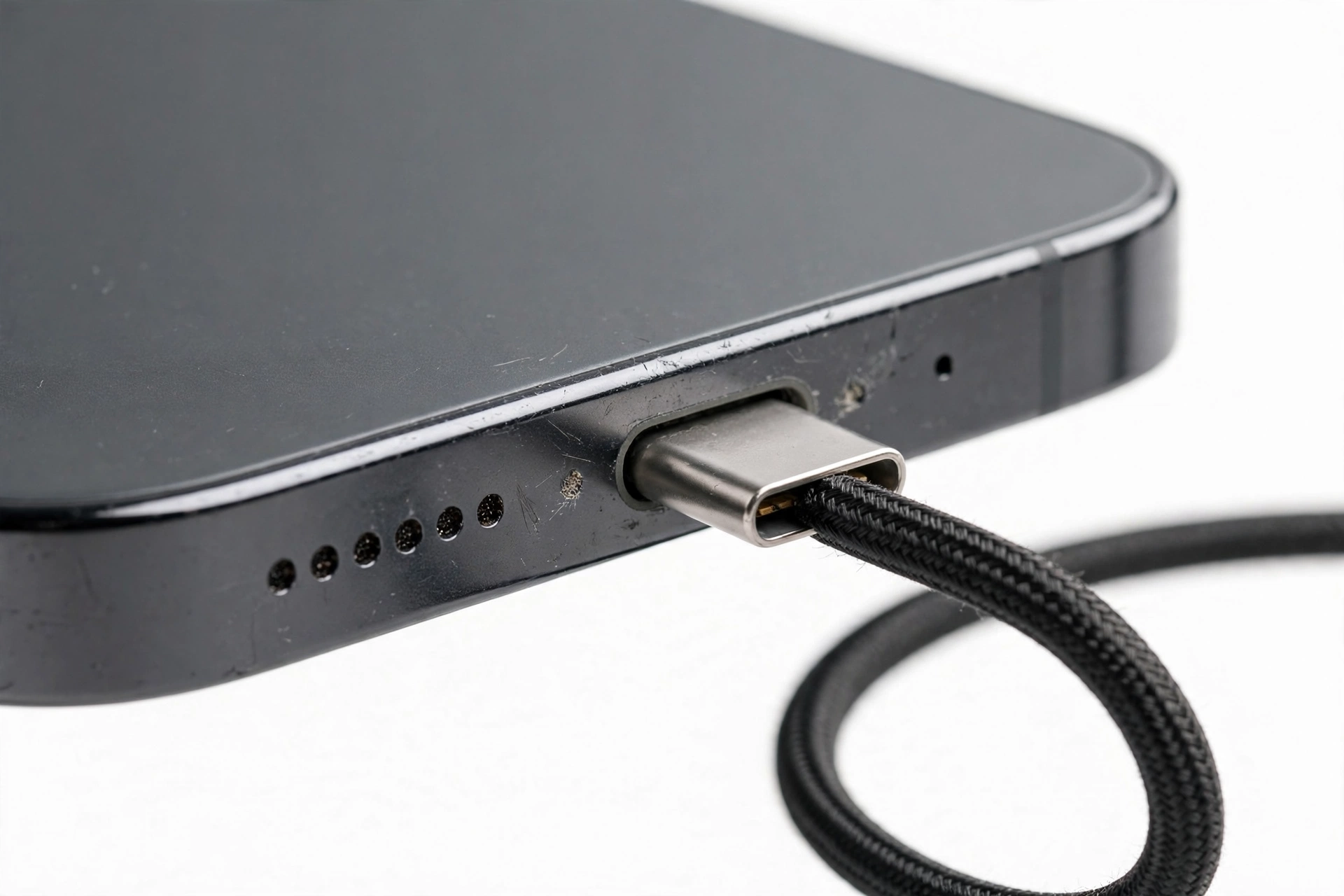
This is the most common case. The cable used to click in firmly and sit flush against the phone’s frame; now it sticks out slightly, feels wobbly, or pulls out with almost no resistance. The usual cause is compacted lint at the bottom of the port physically blocking the plug from going all the way in. Each time the phone went into a pocket, new fibers packed down on top of old ones, forming a dense layer at the bottom of the port. The plug now rests on that layer instead of reaching the contact pins properly.
The cable only works at an angle
Charging starts and stops when the cable is wiggled, or it only works when the cable is held at a specific tilt. This can mean debris is pressing against one side of the contacts — or it can mean the port’s internal structure or the cable’s connector is worn or damaged. This distinction needs careful testing (covered in section 8) before deciding which one it is.
The port looks or feels physically damaged
The port opening is visibly distorted, the cable feels different than it ever did, or there is heat, burning smell, or discoloration. This is not a cleaning problem. It is a damage problem, and the rest of this guide’s cleaning steps do not apply to it. Skip to section 11.
3. The seat test: one minute that diagnoses most cases
Before anything else, do this simple comparison. It takes about a minute and resolves the majority of loose-port cases.
Take a cable you know is good — one that fits snugly in another phone — and plug it into your phone. Look at where the plug meets the phone’s frame. On a healthy port, the plug sits nearly flush with the frame, with only the strain-relief portion of the cable outside. If the plug sticks out noticeably and you can see a gap between the connector shoulder and the phone’s frame, something inside the port is physically occupying space the plug needs. That “something” is almost always compacted lint.
QUICK FACTS: A cable that doesn’t sit flush is the classic signature of packed debris. A worn-out port, by contrast, usually seats flush but holds loosely — the plug goes in fully but slides out too easily or rattles side to side.
Now unplug it and look at the cable’s connector tip under a bright light. Compare it with how you remember a new cable looking. A connector with bent tips, fraying near the base, or discoloration has its own problems regardless of what the port looks like — and a damaged cable can also damage a port over time.
4. Lint versus a worn port: the key distinction
This is the central question of the whole guide. Everything you do depends on which one you are dealing with, because lint is a safe home fix and a worn port is not.
Signs it is probably lint or debris
- The problem developed gradually over weeks or months, not suddenly.
- The plug does not sit as deep as it used to — there is a visible gap.
- Charging stopped working reliably around the same time the fit changed.
- You regularly carry the phone in a pocket, bag, or open container.
- Charging still works when the cable is pressed firmly in — suggesting the contacts themselves are fine and the issue is depth of insertion.
Signs it may be wear or damage
- The plug seats fully but feels loose — it rattles, slides out too easily, or wiggles side to side while fully inserted.
- The problem started suddenly after a drop, a hard tug on the cable, or using a badly bent cable.
- One side of the port visibly looks different from the other under a bright light.
- You see or smell heat damage — discoloration, a burning smell, or warmth concentrated at the port while charging.
- Cleaning out all visible debris does not change anything (after doing the safe inspection below).
If you land firmly in the first list, the safe-debris section applies. If you land in the second list — or are genuinely unsure — skip to section 11. There is no prize for guessing wrong on a damaged port.
5. Safe assessment: how to look without touching anything yet
Everything in this section is inspection only. Do not insert anything into the port during this pass.
- Power the phone off. Hold the power button and follow the on-screen prompt to shut down fully. Samsung’s own troubleshooting guidance begins debris inspection with the device turned off, and this applies regardless of phone brand.
- Find strong, direct light. A desk lamp, a flashlight, or bright daylight. The port is a tiny opening; ambient room light is not enough to see inside it properly.
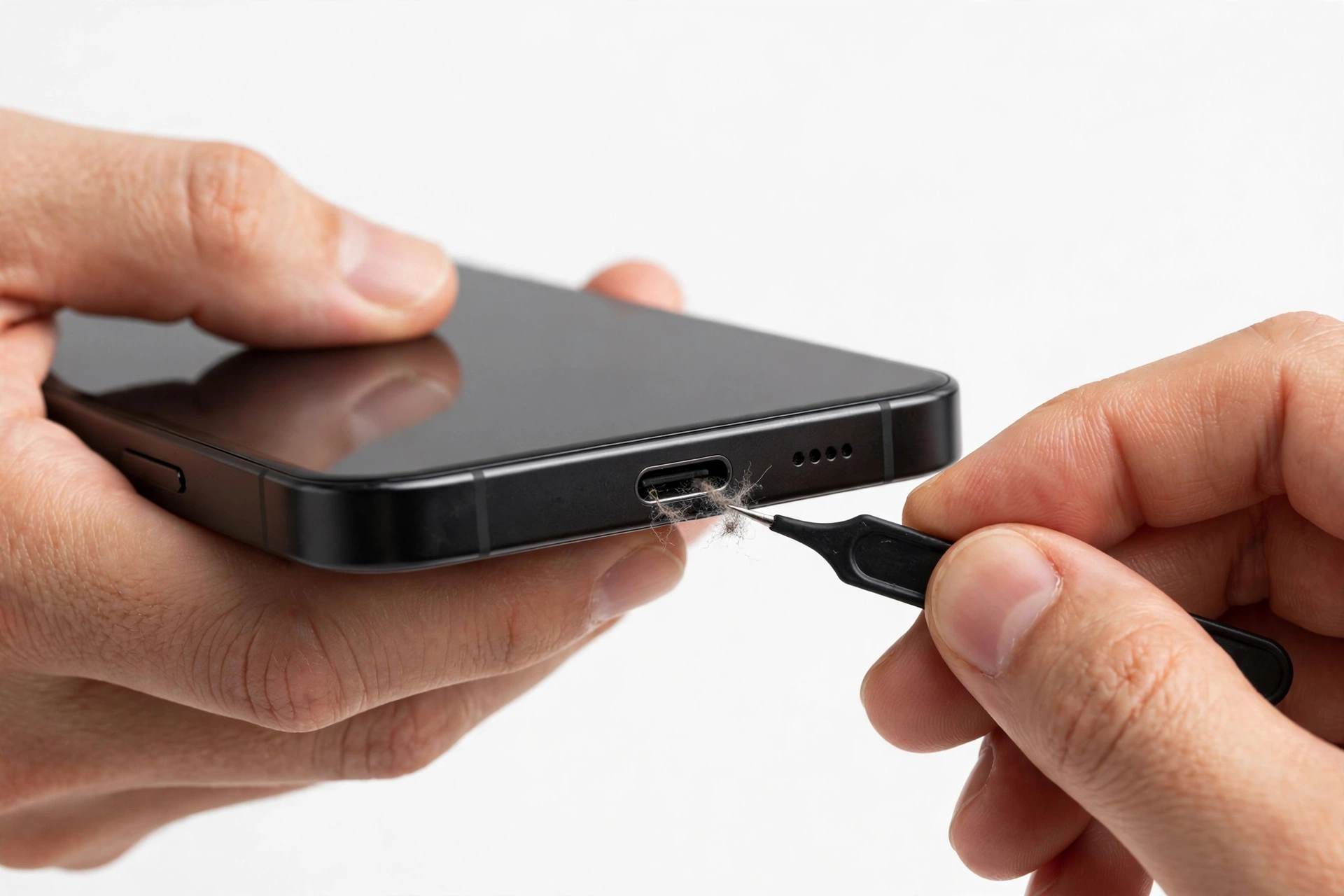
- Look straight in first. You are checking for a dark, felt-like layer at the very bottom of the port — compacted lint has a distinctly dull, fibrous appearance, different from the smooth plastic and metal of the port itself.
- Look for the center tongue. On USB-C ports, there is a thin center tongue with contacts on it. Note its position and whether it looks straight and centered. Do not touch it — you are only establishing a baseline appearance.
- Check for corrosion and moisture. Green, white, or black residue, or any sign of liquid, changes the situation. Samsung’s guidance notes that charging may be blocked for safety when debris or moisture is present, and warns that charging with moisture in the port risks internal circuit damage.
- Note symmetry. Look at the port from a slight angle. Does one side look different from the other? Asymmetry can indicate impact damage rather than debris.
TIP: If you cannot see clearly because the port is tiny, take a photo with another phone’s camera using its flash. The zoomed-in image often reveals lint, corrosion, or damage far better than the naked eye.
6. Symptom → likely cause → safe action
Use this worksheet with the results of your inspection.
| Symptom | Likely cause | Safe action |
|---|---|---|
| Plug doesn’t seat flush; visible gap at frame | Compacted lint at bottom of port | Safe debris removal (section 7); if plug then seats flush, resolved |
| Charges only when cable is pressed or held at an angle | Debris pressing contacts unevenly, or worn connector/port | Remove debris first; if angle-dependence persists, stop — seek assessment |
| Plug seats fully but slides out too easily | Worn retention tabs on port or stretched cable connector | Test with a different good cable; if it persists, stop — assessment needed |
| Charging stops after the phone warmed up | Unstable connection generating excess heat at the port | Stop using that cable/port combination; do not keep forcing it |
| Port looks distorted, discolored, or smells of heat | Physical or heat damage | Do not charge; do not probe; seek assessment |
| Green or white residue visible inside | Corrosion, possibly from moisture exposure | Do not scrape at it; assessment by a technician |
| Moisture warning when plugging in (Samsung) | Moisture detected in the port | Do not charge; let the port dry naturally with airflow for several hours; restart and re-check |
| No charging at all after removing all debris | Port hardware or cable fault beyond debris | Re-test with a known-good cable; if still nothing, assessment needed |
7. Safe debris removal — for accessible lint only
This section applies only when your inspection showed loose, accessible lint or dust and the port otherwise looks healthy — no distortion, no corrosion, no heat damage. If anything looked wrong in section 5, skip this section entirely.
STOP FOR SAFETY: Never force anything into the port. The contacts and the USB-C center tongue are delicate — force, metal tools, needles, and SIM ejector pins can bend pins or snap the tongue, turning a cleaning job into a port replacement. If debris will not come out with gentle effort, stop and seek professional cleaning.
- Keep the phone powered off. It should still be off from your inspection.
- Use a soft, dry brush first. Samsung’s official guidance says to remove debris using a soft brush, and to avoid inserting sharp objects. A clean, dry, soft-bristled brush (like a new small paintbrush or an unused makeup brush) swept gently across the opening can dislodge surface lint without touching the contacts.
- Loosen stubborn lint with a non-conductive pick, gently. For compacted lint at the bottom of the port, a wooden or plastic toothpick used with very light pressure can lift fibers out. Work from the bottom of the port, use short lifting motions, and stop frequently to check your progress. Do not scrape at the contacts or the center tongue.
- Blow out loosened dust. A gentle breath or a short burst of air can carry loosened dust out. Do not blow moisture into the port.
- Re-test the fit. Power the phone back on, plug in a known-good cable, and check whether it now seats flush and charges reliably.
For the complete routine — including what to do about deeper buildup and what never to put in the port — see how to clean your phone’s charging port safely. This guide’s cleaning steps are deliberately limited to the accessible-lint case, because this guide is about assessing a loose connection, not performing a deep clean.
8. The cable test: isolating the real fault
Many “loose port” complaints turn out to be cable problems. The cable is the cheapest part of the system, it wears fastest, and a worn connector produces exactly the same symptoms as a worn port: poor retention, angle-dependent charging, intermittent connection.
Test systematically, changing one variable at a time:
- Try your cable on a different phone. If it feels loose there too, the cable’s connector is the problem — replace the cable.
- Try a different, known-good cable on your phone. If it seats flush and holds firmly, your port is fine and the old cable was the fault.
- If multiple good cables all feel loose in your phone but seat firmly in other phones, the issue is in your port — and since you have already removed accessible debris, this points to wear or damage. Seek assessment.
- While testing, also swap the adapter and try a different wall outlet. A faulty adapter can mimic port symptoms by delivering unstable power that the phone intermittently accepts.
Never keep using a damaged cable just because it still works when you wiggle it. An unstable connection can produce excess heat at the port and is a genuine fire and damage risk. If a cable only works at certain angles, retire it.
9. What NOT to do — the don’t-force rules
STOP FOR SAFETY: These rules protect the port and your safety. Never force a cable into the port — if it does not seat with normal, gentle pressure, something is blocking it, and forcing it can bend pins, crack the center tongue, or push debris deeper. Never insert metal objects: needles, pins, paper clips, and SIM tools are conductive and can short the pins, damage the logic board, or cause heat damage. Never pour liquids into the port. Never keep charging through a port that is generating heat, smells of burning, or shows discoloration.
A few more specific warnings:
- Don’t straighten bent pins yourself. It looks like a simple mechanical fix. It is not — the pins are delicate, and a slip damages neighboring pins. This is technician work.
- Don’t use the phone while force-charging through a loose connection. Using high-performance apps during charging raises temperature, and an already-unstable connection adds heat at the port. Samsung’s own guidance notes that heavy use during charging increases device temperature and slows charging.
- Don’t mistake wireless charging as a permanent fix. If your phone supports wireless charging, it is a reasonable stopgap while you arrange an assessment — but it does not fix the port, and a damaged wired port should still be assessed.
10. Hypothetical examples
(The following are hypothetical illustrations, not customer stories.)
Amara’s pocket-lint port
Amara carries her Galaxy phone loose in her jacket pocket every day. Over about four months, her cable gradually stopped clicking in fully. She noticed the plug sticking out about two millimeters and charging dropping out overnight. The seat test showed a clear gap; the flashlight inspection showed a dull gray felt-like layer at the bottom of the port. With the phone off, she lifted the compacted lint out with a wooden toothpick using very light pressure. The cable seated flush again and charged reliably overnight. Her situation was the classic lint case: gradual onset, visible debris, full resolution from safe removal.
Daniel’s angle-only charger
Daniel’s iPhone only charged when the cable was tilted upward and held in place. He removed some visible lint, which helped slightly — but the angle dependence remained. He then tested with his partner’s cable, which was newer and known-good, and the problem persisted. Two good cables, same angle dependence, after debris removal: that pattern points past debris toward wear or damage inside the port. He stopped probing and arranged an assessment instead of forcing the issue. His decision was the right one — continued wiggling of a worn port risks turning a repair into a bigger one.
11. What these checks can and cannot establish
| Observation | What it establishes | What it does NOT establish |
|---|---|---|
| Cable seats flush after debris removal | Debris was the cause; connection is restored | That the port is undamaged — deep contact wear can still exist |
| Multiple good cables feel loose | The port, not the cable, is the problem | Whether it is wear, debris you can’t reach, or damage — that needs hands-on assessment |
| Charging works at a specific angle only | Connection is mechanically unstable | Whether the instability is in the cable or the port — the cable test decides this |
| Port looks distorted or discolored | Physical or heat damage is likely | The extent of internal damage — do not probe to find out |
| Samsung Members cable-charging diagnostic passes | The phone detects stable power delivery right now | That the mechanical retention is fine — a loose-feeling port can still pass while powered |
A note on diagnostics: Samsung’s Members app includes a cable-charging diagnostic that can confirm whether the phone is receiving power steadily. It is a useful confirmation, but it tests electrical delivery — it cannot test how firmly the cable is physically retained. Run it as a supplement to the physical checks, not a replacement.
12. When to stop and seek professional assessment
Stop all home steps and arrange an assessment if any of the following are true:
- The port is visibly distorted, discolored, corroded, or smells of heat or burning.
- Accessible debris is removed but the connection is still loose or angle-dependent with multiple good cables.
- The USB-C center tongue looks bent, off-center, or damaged.
- The port generates noticeable heat while charging.
- A moisture warning persists after several hours of natural drying.
- You are tempted to use force, metal tools, or liquids — that is the signal to hand it over, not to improvise.
A technician can inspect the port under magnification, clean areas you cannot safely reach, and determine whether the port assembly needs replacement. That is a hardware job involving opening the phone — not a home procedure.
13. Frequently asked questions
Why did my charging port get loose over time?
The most common reason is gradual lint compaction, not the port wearing out. Pocket fibers pack into the bottom of the port a little at a time, and the cable seats a fraction of a millimeter less each month. True mechanical wear — loosened retention tabs — does happen, but it is much less common than debris, so always check for debris first.
Is it safe to keep using a cable that only works at an angle?
No. An unstable connection can generate excess heat at the port and may damage the port further. It is also a sign that either the cable or the port is already compromised. Replace the cable first; if the problem persists with a good cable, stop using the wired port and get an assessment.
Can a loose port damage my phone?
A merely dirty port, cleaned safely, causes no lasting harm. But a damaged port that keeps being forced can damage the pins, the center tongue, or in bad cases the logic board. Heat from unstable connections is the main risk. When in doubt, wireless charging is a safer stopgap than forcing a bad wired connection.
Will cleaning fix a port that is genuinely worn?
No. Cleaning fixes debris. Wear — loosened retention tabs, a fatigued center tongue — is mechanical and needs hardware service. If two or more known-good cables all feel loose after the port is clean, you have your answer.
Should I use wireless charging instead?
As a temporary measure while you arrange an assessment, yes — if your phone supports it. It bypasses the wired port entirely. But treat it as a stopgap, not a solution: a damaged wired port should still be assessed, since the same impact or heat event may have affected more than the port.
How do I prevent this from happening again?
Keep the phone out of lint-heavy pockets when possible, use a case with a port cover or a dust plug, and unplug by pulling the connector — not yanking the cable. Check the port with a flashlight every few months and remove surface lint with a soft dry brush before it compacts.
Video: 20 iPhone battery saving tips you need right now
Sources and editorial notes
- Samsung Support — What to do if your Galaxy phone is not charging: Samsung’s official troubleshooting including debris removal from the charging port (turn off the device, use compressed air or a soft brush, avoid sharp objects), moisture warnings, and Samsung Members cable-charging diagnostics. (Last checked October 13, 2026.)
- Samsung Support — What to do if your phone is not charging: Samsung’s official guidance on checking the charging port and cable condition, removing debris with a soft brush, using approved chargers, and rebooting the device. (Last checked October 13, 2026.)
- Anker — Charger Port Not Working: Causes, Fixes and Repair Tips: third-party guide corroborating the seat test (testing one variable at a time), safe debris cleaning (soft dry brush, no pins or liquids), and the warning that damaged cables should not be kept in use. (Last checked October 13, 2026.)
- iFixit — Samsung Galaxy Phone Not Turning On (troubleshooting): third-party repair guide corroborating the cable-fit check (USB-C plug should sit flush; if loose or angle-dependent, start with cleaning) and the gentle-cleaning warning for the port tongue. (Last checked October 13, 2026.)
Last source check: October 13, 2026. AI-assisted editorial guide, checked against the linked manufacturer information. Procedures described here follow Apple and Samsung published support guidance; third-party sources are cited only for corroboration. If your phone needs hands-on assessment, Las Vegas Phone Repair & Accessories is at 7400 Las Vegas Blvd S, Unit TT42, Las Vegas, NV 89123 — call (424) 406-6202 ahead to confirm today’s hours (generally 10:00 AM–8:00 PM).
Let’s get you connected again.
Tell us what’s happening with your device and we’ll help you decide the safest next step — no jargon, no pressure.
Las Vegas Phone Repair & Accessories · 7400 Las Vegas Blvd S, Unit TT42, Las Vegas, NV 89123
10:00 AM–8:00 PM — call ahead to confirm today’s hours