
Phone Overheating During Video Calls: Causes and Safe Fixes
Direct answer: a phone getting warm during a video call is usually normal — video calls work the camera, video encoder, cellular or Wi-Fi radio, and screen all at once, which generates heat. If the phone is too hot to hold comfortably, shows a temperature warning, or the heat persists after the call ends, stop the call, let it cool, and look for an underlying problem like a failing battery, poor signal, or a rogue app.
On this page
Direct answer: a phone getting warm during a video call is usually normal — video calls work the camera, video encoder, cellular or Wi-Fi radio, and screen all at once, which generates heat.
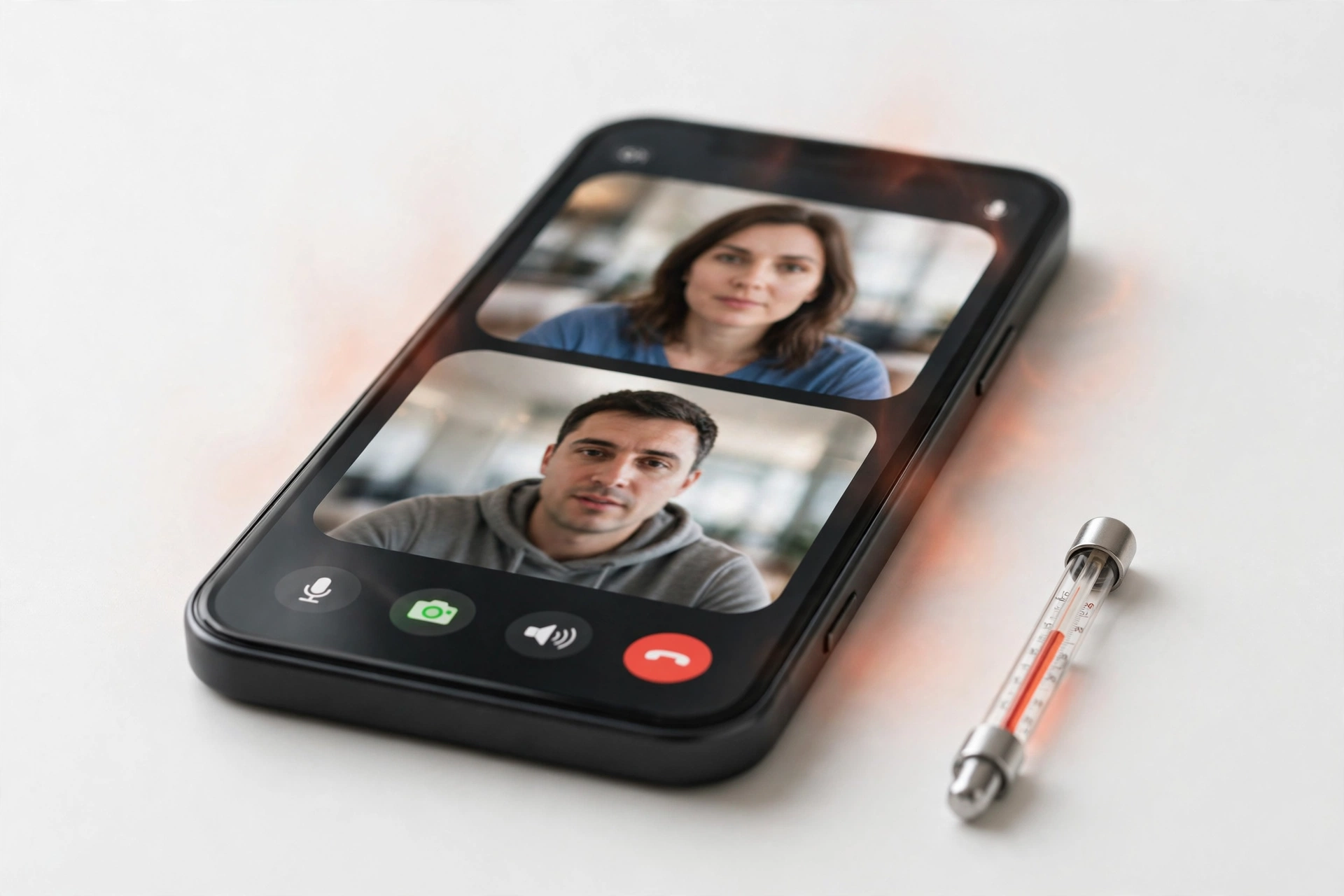
Quick facts: This guide helps anyone whose iPhone, Samsung Galaxy, Pixel, Motorola, or OnePlus phone gets hot during Zoom, FaceTime, Google Meet, WhatsApp, or Teams video calls. It covers why video calls heat phones more than voice calls, how much warmth is normal, safe steps to cool down mid-call, and clear signs that the heat means something more serious.
Why video calls heat your phone more than voice calls
A voice call uses the microphone, speaker, and cellular or Wi-Fi radio. A video call adds several power-hungry components at the same time: (Source: support.apple.com)
- Camera sensor and image pipeline: the front camera captures, processes, and encodes video continuously — far more demanding than a photo.
- Video decoding: your phone also decodes the incoming video of everyone else on the call, which taxes the processor and graphics chip.
- Display at high brightness: the screen stays on for the entire call, often at high brightness, and the display is one of the biggest heat sources in any phone.
- Radio working hard: video needs sustained upload and download bandwidth, so the Wi-Fi or cellular radio runs at high power for the duration of the call.
- Speaker and microphone: continuous audio output and input, sometimes with noise-cancellation processing, adds a smaller but constant load.
No single component is the whole story. The heat you feel is the sum of all of them running together, often for 30 minutes or more. This is why a phone that stays cool during a 10-minute voice call can feel noticeably warm 15 minutes into a video call — the workload is several times larger.
| Heat factor | Heat contribution | What you can do about it |
|---|---|---|
| Camera + video encoding | High — continuous capture and compression | Switch to a lower video resolution in the app settings; turn your camera off for portions of the call |
| Display at high brightness | High — the screen is a major heat source | Lower brightness to a comfortable level; enable adaptive brightness |
| Cellular or Wi-Fi radio at full power | High — sustained upload/download | Use Wi-Fi instead of cellular when possible; move closer to the router |
| Video decoding of other participants | Medium — processor and graphics load | Use gallery view sparingly; pin fewer video feeds if the app allows |
| Case trapping heat | Medium — blocks heat dissipation | Remove the case during long calls |
| Charging while calling | Medium to high — charging adds heat on top | Avoid charging during the call; if the battery is low, use a cool, well-ventilated setup |
| Background apps syncing | Low to medium — extra processor load | Close unused apps before the call; pause large downloads and uploads |
| Hot environment or direct sun | Variable — can push a warm phone over the limit | Move indoors or into shade; never leave a phone on a car dashboard in the sun |
How much warmth is normal — and where the line is
Phones are designed to run warm. Apple documents an ambient operating range of 0°C to 35°C (32°F to 95°F) for iPhone and iPad, and says heat-producing activities such as processor-intensive apps and streaming high-quality video are normal causes of a warm device. Samsung likewise says it is normal for a Galaxy phone to generate some heat during high-power tasks like streaming and video calls. Both manufacturers build in thermal protection that automatically slows charging, dims the display, limits performance, or — in extreme cases — shows a temperature warning and temporarily restricts use until the phone cools.
Note: ambient temperature is the temperature of the air around the phone, not the phone itself. A phone will feel warmer than the room it is in. In Las Vegas, where summer afternoons regularly exceed 40°C (104°F), the environment alone can push a phone closer to its limits — this is an especially relevant factor for outdoor or car-based video calls.
Practical rule of thumb for video calls:
- Normal: the back of the phone feels warm to the touch, like a cup of tea that has been sitting for a while. Performance is unchanged, the call continues normally.
- Concerning: the phone is hot enough that holding it is uncomfortable, the screen dims on its own, charging slows or pauses, the app stutters or drops frames, or the phone displays a temperature warning.
- Abnormal — stop and cool: the phone is too hot to hold, smells odd, shows a swollen or separating screen or back, shuts down, or stays hot long after the call ends in a cool room.
Stop for safety: if the phone is too hot to hold comfortably, turn off the video call, move the phone to a cooler spot, and do not charge it. If you notice a swollen battery, a lifting screen, a strange smell, or the phone stays dangerously hot after cooling down, stop using and charging it and seek professional assessment. Do not open the phone yourself.
Safe steps to cool down a hot phone mid-call
If your phone is getting warmer than you like during a call, work through these in order — you may not need to leave the call at all:
1. Turn down the screen brightness
The display is one of the largest heat contributors. Dropping brightness from full to 50–60% visibly reduces heat for most phones, and you can still see the call clearly.
2. Take the case off
Thick or rugged cases trap heat. Removing the case for the duration of the call lets the phone shed heat through its body, which is how phones are designed to cool.
3. Move to a cooler spot
Step out of direct sunlight, away from a hot car interior, and into shade or an air-conditioned room. Never set the phone on a dashboard in the sun during a call.
4. Switch to Wi-Fi if you are on cellular
When the cellular signal is weak, the radio works harder and generates more heat. If Wi-Fi is available, switching to it usually lowers both heat and data use.
5. Lower the video quality or go audio-only for a stretch
Most video apps let you reduce outgoing video quality or disable your camera. Turning your camera off for a few minutes — or dropping to 480p — meaningfully reduces encoding load while you stay on the call.
6. Stop charging while on the call
Charging generates its own heat. If the phone is getting hot, unplug it for the duration of the call unless the battery is about to die. Resume charging after the phone cools.
7. Close background apps and pause syncs
Close navigation, games, and streaming apps running in the background. Pause large uploads, downloads, and cloud photo backups until after the call.
Preventing hot video calls: setup habits that work
A few setup habits keep video calls consistently cooler:
- Start cool and ventilated: begin calls in a cool room, on a hard surface or a stand rather than on a bed or sofa, which insulates the phone.
- Prefer Wi-Fi: Wi-Fi generally uses less power than cellular for sustained video, especially when the cellular signal is weak.
- Keep software updated: both Apple and Samsung list installing the latest software among their heat-reduction steps, because updates can include thermal and power-management fixes.
- Reduce refresh rate on Samsung: Samsung notes that a higher refresh rate uses more power. Switching Motion smoothness to Standard (60 Hz) during long calls can lower heat.
- Turn off what you are not using: disable Bluetooth, GPS, and mobile hotspot during the call if they are not needed.
- Use a stand instead of your hand: a simple stand improves airflow around the phone and keeps your hand from insulating one side.
- Do not charge and call on a soft surface: if you must charge during a long call, use the phone’s own or a certified charger, on a hard surface, in a cool room.
iPhone-specific steps when video calls run hot
Apple’s heat guidance (“If your iPhone or iPad gets too hot or too cold”) applies to all iPhones. When an iPhone overheats, iOS automatically steps in — it may slow or pause charging, dim the display, put the cellular radio into a low-power state, disable the camera flash temporarily, and slow performance. These are protective moves, not signs of a broken phone, and behavior returns to normal once the phone cools.
- Watch for the temperature screen: if you see “iPhone needs to cool down before you can use it,” end the call, turn the phone off or move it somewhere cool, and wait. Emergency calls still work.
- Check Battery settings: Settings > Battery shows which apps used the most energy over the last 24 hours. If an app other than your video app is burning through battery, it is adding heat — restrict its background activity.
- Update iOS: install pending updates, since Apple notes that major-update warmth is normal but persistent heat after updates should be investigated.
- Low Power Mode: turning it on during a call reduces background activity and some visual effects, which lowers total heat generation.
- Remove MagSafe accessories while calling: wallets, mounts, and chargers add insulation and, in the case of chargers, extra heat.
Samsung-specific steps when video calls run hot
Samsung publishes a dedicated “What to do when your phone heats up” guide. Its recommended steps map directly onto video-call heat:
- Use Optimize now: Settings > Battery and device care > Optimize now closes background apps and frees memory, reducing the load that competes with your video call.
- Turn off Wi-Fi, GPS, and Bluetooth when not in use: use the Quick panel to disable radios the call does not need.
- Decrease screen brightness and use Standard refresh rate: both lower power draw and heat.
- Put unused apps to sleep: Settings > Battery and device care > Battery > Background usage limits keeps background apps from heating the phone during calls.
- Do not charge while the phone is hot: Samsung advises disconnecting the charger, closing running apps, and waiting for the phone to cool before charging again.
- Heed the warning message: if the phone shows an overheating warning, Samsung says the device limits brightness, performance, and charging, and may close apps — let it cool before continuing the call.
On Pixel, Motorola, and OnePlus phones, the same principles apply: lower brightness, close background apps, prefer Wi-Fi, remove the case, and stop charging while the phone cools.
What your observations can and cannot establish about call-time heat
| Observation | What it suggests | What it cannot prove |
|---|---|---|
| Warm during every video call, cool otherwise | Normal workload heat | Cannot prove anything is wrong |
| Gets hot faster than it used to | Possible battery aging, new app, or software issue | Cannot identify which one without testing |
| Hot even on short calls in a cool room | Worth investigating — could be battery or app | Cannot prove the battery is failing without a battery health check |
| Only hot on cellular, fine on Wi-Fi | Radio working hard, likely weak signal | Cannot prove the radio hardware is faulty |
| Temperature warning appears | The phone’s thermal limit was reached | Cannot tell whether the cause is workload, environment, or hardware |
| Stays hot long after the call ends | Something is still running or the battery may be struggling | Cannot prove hardware failure without diagnostics |
When heat means something more than a busy call
Stop troubleshooting and treat the phone as potentially faulty if any of these apply:
- The phone is too hot to hold or shows a temperature warning on short calls in a cool room.
- Heat is new and getting worse — calls that used to be fine now overheat the phone.
- The phone stays hot after the call ends and the room is cool.
- You notice a swollen battery (screen lifting, back bulging, case no longer fits), a strange smell, or the phone shuts down unexpectedly.
- Battery life has dropped sharply at the same time the heat appeared.
Stop for safety: a swollen battery, a separating screen, or a chemical smell means the battery may be failing. Stop charging and stop using the phone, keep it away from heat and flammable materials, and have it assessed by a professional. Never attempt to open the phone or puncture the battery.
Questions to ask before approving any service
If a shop suggests repair for call-time heat, ask:
- What did the diagnostic find — battery health, a specific app, or a hardware fault?
- Can you show me the battery health or diagnostic result before I approve anything?
- Is the repair the battery, another component, or a software fix — and what does each cost?
- Will the repair affect my data, and do I need a backup first?
- What warranty comes with the repair?
- Was water exposure or physical damage found, and how does that change the options?
Hypothetical examples
Hypothetical example: Maya joins a 90-minute team video call from her parked car in a Las Vegas summer afternoon. Twenty minutes in, her phone dims the screen and pauses charging. She ends the call, moves the phone into the shade with the case off, and it cools within 15 minutes. The heat was environmental plus workload — normal behavior, handled correctly.
Hypothetical example: Daniel’s phone has started getting uncomfortably hot on 15-minute WhatsApp video calls in his air-conditioned living room — something that never happened before. Battery settings show no unusual app, and the heat persists after the call. Because the pattern changed in a cool environment, he stops relying on workarounds and has the battery and thermals assessed professionally instead of assuming it is normal.
Video: How to tell if your smartphone is fake or real
Frequently asked questions
Is it normal for my phone to get warm on a video call?
Yes, in most cases. Video calls simultaneously run the camera, video encoding, the display at high brightness, and the cellular or Wi-Fi radio — one of the heaviest sustained workloads a phone handles. Both Apple and Samsung describe this kind of warmth as expected behavior.
Why does my phone get hotter on video calls than on voice calls?
A voice call uses the microphone, speaker, and radio. A video call adds continuous camera capture, video encoding and decoding, and the screen staying on the whole time. The combined load generates far more heat.
Should I stop a video call if my phone gets hot?
If the phone is uncomfortably hot, shows a temperature warning, or the screen dims and charging pauses on its own, end the call and let the phone cool. For mild warmth, try lowering brightness, removing the case, and switching to Wi-Fi first.
Does charging during a video call make overheating worse?
Yes. Charging generates heat on its own, and both Apple and Samsung advise against charging a hot phone. If the phone is warming up, unplug it until the call is over and the phone has cooled.
Is Wi-Fi or cellular better for keeping the phone cool on video calls?
Wi-Fi is usually better, especially when the cellular signal is weak — a struggling cellular radio works harder and produces more heat. Move closer to your router for the coolest, most stable call.
Can a case really make my phone overheat on calls?
A thick or insulating case can trap heat and slow cooling. Both manufacturers recommend removing the case when a phone gets hot. Taking it off for long calls is a simple, effective step.
When should I worry that call-time heat is a hardware problem?
Worry when the pattern changes: heat on short calls in a cool room, a phone too hot to hold, temperature warnings appearing regularly, heat that lingers after the call, or heat arriving together with fast battery drain, shutdowns, or a swelling battery. Those are signs to get the phone assessed rather than worked around.
Will putting my phone in the fridge cool it down faster?
No — do not do this. Rapid cooling can cause condensation inside the phone, which risks water damage to electronics. Let the phone cool gradually in a cool, dry, shaded place with good airflow.
Related guides
If heat is a recurring problem beyond video calls, these guides go deeper:
- Phone Overheating While Charging: Causes and Safe Fixes — when heat and charging combine.
- Phone Overheating During Gaming: Causes and Safe Fixes — the other heavy workload that heats phones.
- iPhone Overheating: Safe Checks Before Repair — iPhone-focused heat troubleshooting.
Note: if your phone’s heat pattern has changed — short calls now overheat it, it stays hot afterward, or heat arrives with fast battery drain or shutdowns — a professional assessment can identify whether the battery or another component is at fault. Las Vegas Phone Repair & Accessories, 7400 Las Vegas Blvd S, Unit TT42, Las Vegas, NV 89123, can evaluate overheating phones; call (424) 406-6202 ahead to confirm today’s hours (open 10:00 AM–8:00 PM).
Sources and editorial notes
- Apple Support — “If your iPhone or iPad gets too hot or too cold”: documents the 0°C–35°C (32°F–95°F) ambient operating range, normal causes of warmth (including processor-intensive apps and streaming high-quality video), and the automatic protective behaviors iOS applies when a device overheats (slowed or paused charging, dimmed display, low-power cellular, disabled flash, reduced performance). Summarized in original language.
- Samsung Support (UK) — “Why is my Samsung phone overheating or getting hot”: lists causes of heat and the recommended steps — keep software updated, restart, turn off unused Wi-Fi/GPS/Bluetooth, close background apps, lower brightness, stop using the phone while hot, disconnect the charger when overheating. Summarized in original language.
- Samsung Support (US) — “How to prevent overheating when using your Samsung Galaxy device”: notes that heat during high-power tasks like streaming is normal, lists high-power and processor-intensive uses (including downloading large files during a video call), and advises stopping use to let the device cool. Summarized in original language.
- Samsung Support (SG) — “How to prevent overheating when using your Samsung Galaxy device”: safety precautions including avoiding prolonged skin contact with a warm device and troubleshooting steps for heat during use. Summarized in original language.
Last source check: October 13, 2026. AI-assisted editorial guide, checked against the linked manufacturer information. Manufacturer pages may be updated after this date; the guidance here summarizes what those pages stated at the time of checking.
Let’s get you connected again.
Tell us what’s happening with your device and we’ll help you decide the safest next step — no jargon, no pressure.
Las Vegas Phone Repair & Accessories · 7400 Las Vegas Blvd S, Unit TT42, Las Vegas, NV 89123
10:00 AM–8:00 PM — call ahead to confirm today’s hours