
Phone Screen Too Dim Outdoors: Causes and Safe Fixes
A phone screen that looks too dim outdoors is usually software or heat protection doing its job, not a broken display. Check auto-brightness, heat-related dimming, color filters, and anything covering the light sensor before assuming the screen needs repair.
On this page
A phone screen that looks too dim outdoors is usually software or heat protection doing its job, not a broken display.
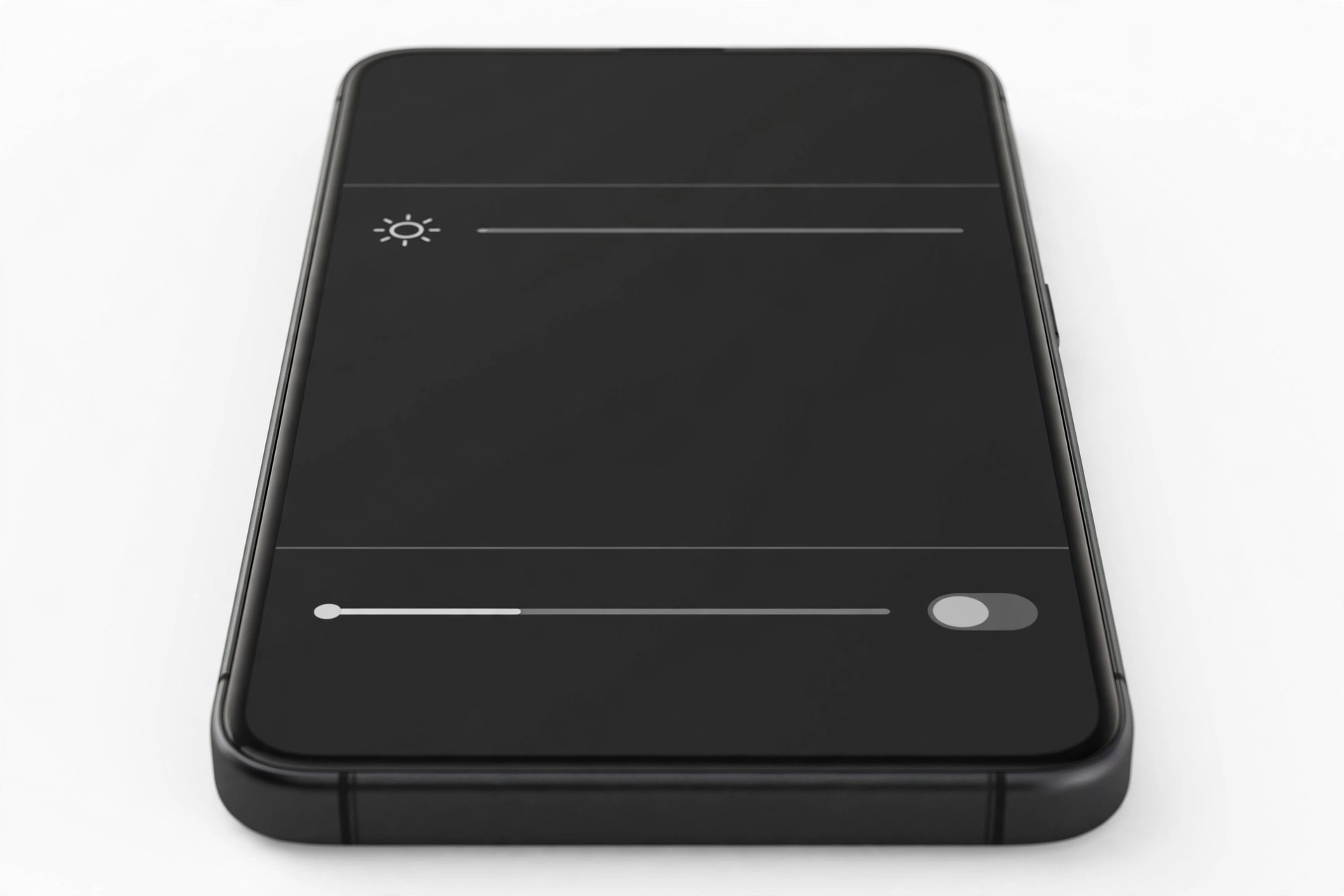
Who this guide helps
This guide is for anyone whose phone screen looks unreadable, gray, or washed out in bright daylight even though the brightness slider appears to be set high. It covers both iPhone and Samsung Galaxy phones, because the two brands handle brightness in different ways. The steps below are all safe: none of them open the phone, delete your data, or change anything you cannot undo. (Source: support.apple.com)
If your screen flickers rather than simply staying dim, that is a different symptom with different causes — see our guides on iPhone screen flickering causes and checks and Samsung Galaxy screen flickering checks. If your phone also runs unusually hot, read why phones overheat and how to cool them safely, because heat and dimming are closely linked.
The short version: the 6 most common reasons
Before diving into detail, here is what is behind almost every “too dim outdoors” complaint:
- Auto-brightness is off or the slider is low. Without auto-brightness, the screen stays wherever the manual slider left it — and indoors that was probably dimmer than daylight needs.
- Heat protection has dimmed the display. Both Apple and Samsung phones deliberately reduce brightness when the phone gets hot. This is documented protective behavior, not a fault.
- A color or white-point setting is reducing perceived brightness. True Tone, Night Shift, Reduce White Point, Extra Dim, or Eye Comfort Shield can all make the screen look darker than the slider suggests.
- Low Power or power saving mode is on. These modes cap brightness to save battery.
- Something is covering the ambient light sensor. A case edge, screen protector, dust, or a finger over the sensor makes the phone think it is darker than it really is.
- A genuine hardware fault. Least common, but possible: a failing backlight driver, damaged sensor, or degraded display panel.
How auto-brightness actually works
Understanding auto-brightness removes most of the mystery, so it is worth explaining properly.
On iPhone
Apple documents that iPhones use an ambient light sensor to adjust brightness based on the light around you: the sensor lowers brightness in dark locations and raises it in bright ones. Auto-brightness is turned on by default. When it is on, you may notice the brightness slider moving on its own as light conditions change. The setting lives in a place many people never look: Settings > Accessibility > Display & Text Size > Auto-Brightness. Apple has deliberately put it there rather than under Display & Brightness, which is why many owners do not know whether theirs is on.
One nuance worth knowing: auto-brightness learns your habits. If you repeatedly drag the slider down in bright rooms, the phone treats that as your preference and settles on lower levels. A manual reset of your habits — leaving auto-brightness on and adjusting the slider deliberately outdoors a few times — often restores sensible behavior.
On Samsung Galaxy
Samsung’s equivalent is called Adaptive brightness and it lives directly under Settings > Display. Samsung documents that it learns from your manual adjustments over time and applies similar adjustments automatically. Samsung also offers brightness-boost behavior in bright conditions: when the ambient sensor detects strong sunlight, the display can push beyond its normal maximum for short periods. That peak is time- and heat-limited, which matters for the next section.
Heat dimming: the protection most people misread
This is the single most misunderstood cause of outdoor dimming, so it deserves a full explanation.
Both Apple and Samsung design their phones to protect themselves from heat. Apple documents that when the interior temperature of the device exceeds the normal operating range — Apple cites 0°C to 35°C (32°F to 95°F) as the ideal operating range — you may notice changes including “the display dims or goes black.” This is listed alongside slowed charging, weakened cellular signal, and disabled camera flash as expected protective behavior. The phone returns to normal once it cools down.
Samsung’s support guidance similarly treats heat-related dimming as normal: the phone reduces brightness to protect the display and battery at high temperatures. Samsung Members community responses to owners of flagship phones confirm that quick outdoor dimming on a hot day is treated as expected behavior rather than a defect.
Heat dimming is protection, not damage. If your phone dims because it is hot, the correct response is to cool it down — move into shade, remove the case, stop charging, close demanding apps — not to force it brighter with third-party tools. Overriding thermal protection can shorten the battery’s life and damage the display.
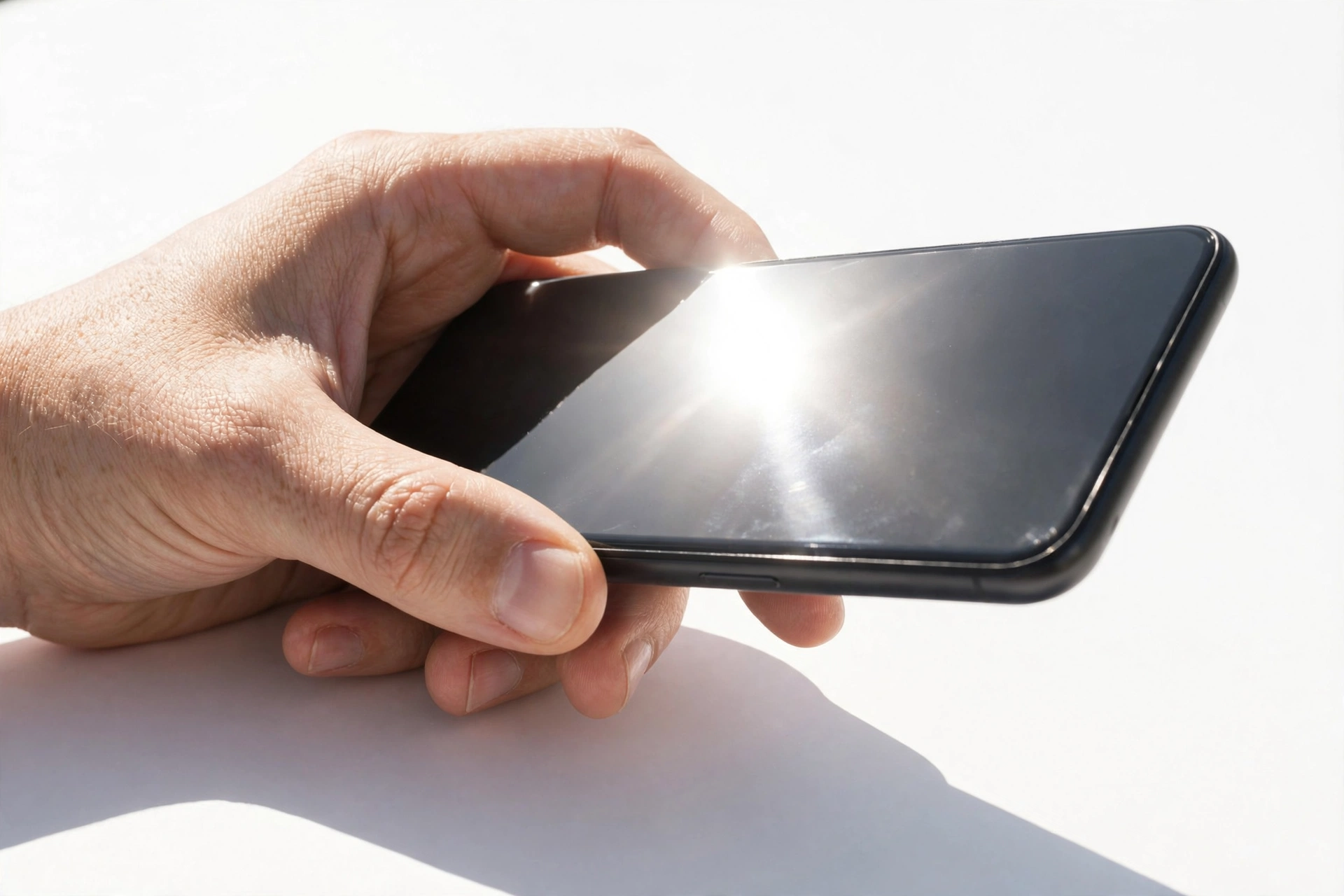
Why does this hit outdoors in particular? Direct sunlight heats the phone’s body fast, and the display itself generates heat at high brightness. A phone can go from a cool pocket to a thermally protected state in a few minutes of bright-sun use, especially while charging or navigating. That is why the screen may look fine indoors but dim the moment you step outside — heat, not a settings problem, is doing it.
iPhone-specific checks, in order
1. Confirm auto-brightness is actually on
Go to Settings > Accessibility > Display & Text Size and scroll to Auto-Brightness. If it is off, turn it on, then go outside and watch the slider respond. If it was already on, try toggling it off and on once, which restarts the adaptive learning.
2. Check True Tone and Night Shift
True Tone is on by default and adjusts the color and intensity of the display to match ambient light, so images look more natural. If you find colors look muted or yellow in daylight, True Tone may be the reason — you can compare with it off under Settings > Display & Brightness > True Tone. Night Shift shifts colors toward the warm end of the spectrum and can make the screen look dimmer or more orange; if it is on a schedule, it may be active at times you do not expect. Adjust or disable it from Settings > Display & Brightness > Night Shift using the color-temperature slider.
3. Check Reduce White Point and color filters
Under Settings > Accessibility > Display & Text Size, look at Reduce White Point — this setting directly lowers the intensity of bright colors and can make the screen look dim at any slider position. Also check Color Filters on the same screen; some accessibility filters reduce perceived brightness.
4. Check Low Power Mode and Attention-Aware features
Low Power Mode reduces display brightness to extend battery life. If it is on, turn it off to restore full brightness. On Face ID iPhones, Attention-Aware Features under Settings > Accessibility > Face ID & Attention can dim the display when the phone does not detect you looking at it — worth disabling as a test.
5. Rule out heat
If the phone feels warm and the screen is dimmer than the slider suggests, it is almost certainly thermal protection. Move to shade, take the case off, and give it a few minutes. Do not charge it while it cools.
Samsung-specific checks, in order
1. Confirm Adaptive brightness and check Extra Dim
Go to Settings > Display and confirm Adaptive brightness is on. Then check Settings > Accessibility > Vision enhancements for Extra Dim — this accessibility feature dims the screen beyond the normal minimum and is easy to switch on by accident. Make sure it is off.
2. Check Eye Comfort Shield and power saving
Eye Comfort Shield (Settings > Display) reduces blue light and can also lower brightness, especially on a schedule. Samsung documents that power saving mode limits brightness to save battery — check Settings > Battery and turn power saving off while testing.
3. Check the proximity sensor and screen timeout
Samsung’s own guidance notes that the proximity sensor at the top of the phone can darken or shut off the screen if a case or screen cover blocks it. Make sure nothing is covering the top edge. Also confirm your screen timeout is not set so short that the screen keeps sleeping before you read it.
4. Rule out heat
Same principle as iPhone: if the phone is hot, brightness reduction is protection. Cool it down in shade before judging anything else. Third-party reporting describes Samsung’s Good Lock Display Assistant offering Standard and Light brightness-limit profiles for hot conditions — the Standard profile (default) limits brightness at high temperatures while Light sustains it but cools more slowly. These are reported options, not manufacturer-endorsed overrides of protection.
Physical causes: sensor, protector, and case
The ambient light sensor is a small opening near the top of the display, usually beside the front camera. Anything that shadows it tells the phone it is darker than reality:
- Screen protectors with dark borders or poor cutouts can partially cover the sensor. Cheap or misaligned protectors are a classic cause of chronically dim screens.
- Cases with raised lips can shadow the sensor at certain angles, especially outdoors.
- Dust, sunscreen, or smudges over the sensor area reduce the light it measures. A wipe with a soft, dry cloth fixes this.
- Your hand or thumb covering the top of the phone while holding it.
Test this safely: with auto-brightness on, shine a bright light at the top of the screen while shielding the sensor with your finger, then remove your finger. If the brightness jumps up noticeably when you uncover it, the sensor is working and something in normal use is shadowing it.
When dimming means a hardware fault
Hardware faults are uncommon, but they do happen. Suspect hardware — rather than settings or heat — when:
- The screen is dim at maximum brightness indoors in a cool room, with auto-brightness off and all dimming features disabled.
- Brightness is uneven — one half of the screen darker than the other, or dark patches that do not move.
- Dimming appeared after a drop or liquid exposure, not gradually.
- The screen flickers while dimming, suggesting a failing backlight driver or loose connection.
- Auto-brightness does nothing at all even when the sensor is clearly uncovered — pointing to a dead sensor.
A phone that only dims in bright sun on hot days is almost certainly protecting itself, not broken. A phone that is dim everywhere, all the time, deserves assessment.
Symptom-to-cause worksheet
| Scenario | Likely cause | Safe fix |
|---|---|---|
| Dim only in bright sun, fine indoors | Auto-brightness off, or heat protection | Turn on auto-brightness; cool the phone in shade |
| Screen dims a few minutes after going outside | Heat protection kicking in | Remove case, stop charging, move to shade — let it cool |
| Screen looks yellow or gray at full brightness | True Tone, Night Shift, or color filter active | Check Display & Brightness and Accessibility display settings |
| Screen is dimmer than the slider position suggests | Reduce White Point or Extra Dim active | Turn off under Accessibility > Display settings |
| Brightness changes when you tilt or cover the top of the phone | Sensor shadowed by case, protector, or dirt | Clean sensor area; reposition case or protector |
| Dim even at maximum brightness in a cool, dark room | Possible hardware fault | Seek professional assessment; do not open the phone |
| Uneven brightness or dark patches | Display panel or backlight issue | Seek professional assessment |
Safe 10-minute checklist
- Turn auto-brightness (iPhone) or Adaptive brightness (Samsung) on.
- Set the manual slider to maximum as a test.
- Turn off Low Power Mode / power saving.
- Disable Reduce White Point (iPhone) or Extra Dim (Samsung).
- Turn off Night Shift / Eye Comfort Shield temporarily.
- Clean the top of the screen around the sensor with a soft, dry cloth.
- Remove the case and check whether a protector edge covers the sensor.
- Take the phone out of direct sun for five minutes and see if brightness returns.
- Restart the phone once — this clears transient brightness bugs.
- Check for a software update; display-behavior fixes ship in updates.
If none of this changes the dimness in a cool room at maximum brightness, that is your signal to stop troubleshooting and get the display assessed.
What your observations can and cannot establish
| Observation | What it establishes | What it cannot establish |
|---|---|---|
| Brightness returns in the shade | Heat protection was the cause | Whether the battery or display is degraded |
| Covering the sensor changes brightness | The ambient light sensor works | Why it was misreading before |
| A setting change fixes it | The cause was software | Nothing about hardware health |
| Dim everywhere, all the time | A hardware fault is likely | Which component failed — that needs testing |
Prevention habits
- Leave auto-brightness on and let it learn your preferences rather than fighting it.
- Keep the phone out of direct sun when not in use — a hot car or sunlit dashboard is the fastest route to thermal dimming.
- Remove thick cases during heavy outdoor use like navigation.
- Choose screen protectors with proper sensor cutouts and check alignment after installation.
- Keep software updated; manufacturers refine brightness and thermal behavior in updates.
When to stop and seek assessment
Stop troubleshooting and have the phone assessed if the screen stays dim at maximum brightness in a cool room with every dimming feature off, if brightness is uneven across the panel, or if dimming started after a drop or liquid exposure. Also stop if the phone shows any swelling, a lifting screen, unusual heat with a strange smell, or the battery drains abnormally fast — those are safety signals, not settings problems.
Never open the phone to inspect the display or sensor. Modern phones are sealed assemblies; opening one without proper tools and training risks battery damage, broken seals, and injury.
Questions worth asking before approving any service: What did the diagnostic show — sensor, display panel, or backlight driver? Is the replacement part new or refurbished? Will water resistance be affected after opening? What warranty covers the repair work?
Hypothetical examples
Hypothetical example: Maya, a rideshare driver in Las Vegas, found her iPhone unreadable on her dashboard every afternoon. She assumed the screen was failing — until she noticed brightness returned in the shade. The cause was heat protection from direct sun through the windshield combined with wireless charging. Moving the mount out of direct sun and charging before her shift fixed it.
Hypothetical example: Daniel’s Samsung phone was dim no matter what he tried. Working through the checklist, he found Extra Dim switched on under Accessibility > Vision enhancements — likely enabled while exploring settings weeks earlier. Turning it off restored normal brightness immediately.
Video: How to tell if your smartphone is fake or real
Frequently asked questions
Why does my screen dim when I go outside if auto-brightness is supposed to make it brighter?
Because heat often overrides brightness. Auto-brightness pushes the display brighter in sunlight, but sunlight also heats the phone — and once the phone gets hot enough, thermal protection reduces brightness to protect the display and battery. You see the net result as dimming.
Should I turn off auto-brightness?
Generally no. Auto-brightness keeps the screen readable across lighting conditions and saves battery. Turn it off only as a temporary test, then turn it back on. Constantly running maximum brightness manually drains the battery faster and generates more heat.
Does True Tone make the screen dimmer?
True Tone adjusts color and intensity to match ambient light. In some lighting it can make the screen look warmer or slightly less punchy than with it off. It does not cap brightness the way Reduce White Point or Extra Dim does — those are the bigger suspects when the screen looks dim.
Can a screen protector really make my screen dim?
Yes, if it covers or shadows the ambient light sensor. The phone then thinks it is darker than it is and keeps brightness low. A protector with a proper sensor cutout, correctly aligned, should not cause this.
Is it safe to use apps that boost brightness beyond the maximum?
No. Third-party brightness boosters can override the thermal limits the manufacturer built in. Sustained over-brightness at high temperatures can degrade the display and shorten battery life. Use the built-in settings instead.
My screen is dim and flickering. Is that the same problem?
Probably not. Simple dimming is usually settings or heat. Dimming plus flickering points more toward a display or connection issue — see our iPhone flickering guide or Samsung flickering guide, and consider an assessment.
Will a repair shop be able to fix heat dimming?
Heat dimming is normal protective behavior, not something to repair — a reputable shop will tell you that. What a shop can assess is whether your dimming is genuinely heat-related or actually a failing sensor or display, using diagnostic tools you cannot run at home.
Sources and editorial notes
- Apple Support: Adjust the brightness and color temperature on your iPhone or iPad — auto-brightness behavior, ambient light sensor explanation, Settings > Accessibility > Display & Text Size path, True Tone and Night Shift descriptions. Last checked October 13, 2026.
- Apple Support: If your iPhone or iPad gets too hot or too cold — documents “the display dims or goes black” as expected protective behavior above the normal operating range; 0–35°C operating guidance. Last checked October 13, 2026.
- Samsung Support: Stop the screen brightness from dimming on your Galaxy phone — Adaptive brightness, Extra Dim, Eye Comfort Shield, proximity sensor checks, power saving effects. Last checked October 13, 2026.
- SamMobile: Hot weather dimmed your Galaxy display — why and how to fix it — third-party reporting on heat-related brightness limits and Good Lock Display Assistant brightness profiles. Last checked October 13, 2026.
Last source check: October 13, 2026. AI-assisted editorial guide, checked against the linked manufacturer information. Manufacturer pages describe how their brightness and thermal features work; troubleshooting steps and examples are editorial. This guide does not open or disassemble any device and does not override manufacturer safety guidance. For hands-on help in Las Vegas, Las Vegas Phone Repair & Accessories, 7400 Las Vegas Blvd S, Unit TT42, Las Vegas, NV 89123, (424) 406-6202 — open 10:00 AM–8:00 PM; call ahead to confirm today’s hours.
Let’s get you connected again.
Tell us what’s happening with your device and we’ll help you decide the safest next step — no jargon, no pressure.
Las Vegas Phone Repair & Accessories · 7400 Las Vegas Blvd S, Unit TT42, Las Vegas, NV 89123
10:00 AM–8:00 PM — call ahead to confirm today’s hours