
Samsung Phone Not Receiving Texts: Causes and Safe Fixes
If your Samsung phone is not receiving texts, the most common causes are a blocked number, an aggressive spam filter, the wrong default messaging app, or a stuck network registration — and most are fixable in under ten minutes. This guide walks you through safe, ordered checks for Samsung Galaxy phones, explains when the problem is your carrier rather than your phone, and shows exactly when to stop troubleshooting and ask for help.
On this page
If your Samsung phone is not receiving texts, the most common causes are a blocked number, an aggressive spam filter, the wrong default messaging app, or a stuck network registration — and most are fixable in under ten minutes.
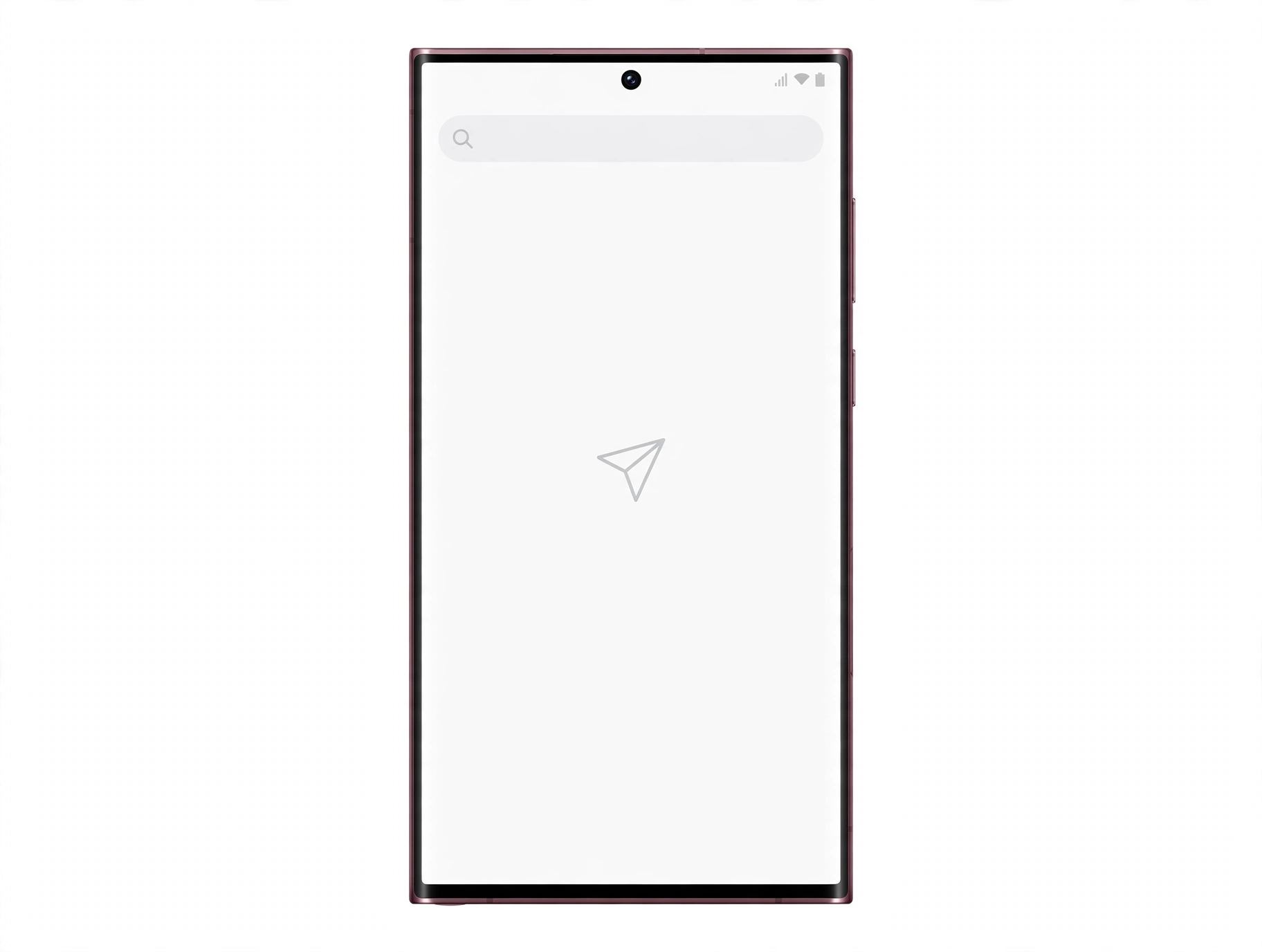
1. The short answer: where your missing texts probably are
When text messages stop arriving on a Samsung Galaxy phone, the phone is usually not broken. In the majority of cases, one of four things has happened: the sender’s number ended up on a block list or in a spam folder, the messaging app handling your texts changed after a software update, your phone’s connection to the carrier network needs a refresh, or the number is being sent as an iMessage that your Samsung phone can never receive. Each of these has a specific fix, and the rest of this guide walks you through them in the order a technician would check them. (Source: samsung.com)
Who this guide helps: Samsung Galaxy phone owners who can send texts but cannot receive them, or who are missing messages from only certain contacts. If your phone has no signal at all — no calls, no data, “No service” on the screen — the problem is broader than messaging, and our guide to phone signal problems and safe checks is the better starting point. If your phone does not detect the SIM card at all, see Samsung phone not detecting SIM first, because no SIM means no SMS.
This guide focuses on texts you should be receiving but are not. It does not cover third-party apps like WhatsApp or Telegram (those use their own servers and have their own troubleshooting), and it does not cover sending problems in depth, though several of the checks help both directions.
Quick fact: SMS (the classic text message) travels over your carrier’s voice network, while RCS (“chat features”) travels over mobile data or Wi-Fi. A phone can fail at one while the other works fine — which is why “I get iMessages but not texts” and “my Android friend’s messages come through but group chats don’t” are such common patterns.
2. What this guide covers — and what it doesn’t
To keep this article genuinely useful instead of a generic checklist, here is the exact scope:
- Covered: missing SMS and RCS messages on Samsung Galaxy phones, blocked numbers, spam filtering, default messaging app mix-ups, network registration issues, SIM problems, the iMessage deregistration trap after switching from iPhone, and how to tell a carrier-side outage from a phone-side fault.
- Not covered here: no-signal / “No service” faults (see the no-service guide), a phone that does not detect its SIM (see SIM detection), WhatsApp or other internet-only messengers, and moving old texts to a new phone (see transferring SMS history).
- Honest limit: some message losses are caused by the sender’s carrier, by short-code restrictions (bank and 2FA codes), or by carrier spam filtering that you cannot see or change from your phone. This guide tells you how to identify those cases so you stop wasting time on fixes that cannot work.
3. The five-minute triage: do these first
Before changing any settings, run this short sequence. It resolves a surprising number of “not receiving texts” reports on its own, and each step takes seconds.
3.1 Restart the phone
A restart re-registers your phone with the carrier network. On most Galaxy phones, swipe down from the top of the screen to open Quick Settings, tap the power icon, and choose Restart. Messages that were queued during a stale registration often flood in after the reboot — a pattern reported by many owners whose texts arrive in a burst only after restarting.
3.2 Toggle airplane mode
If a full restart feels like overkill, airplane mode does a lighter version of the same job: it forces the phone to drop and re-establish its network connection. Swipe down for Quick Settings, tap the airplane icon, wait about thirty seconds, then tap it again to turn it off. Ask someone to send you a test text after the signal bars return.
3.3 Send yourself a test message
Open your messaging app and send a text to your own number. If it arrives, your SMS path is fundamentally working and the problem is specific to certain senders — which points toward blocking, spam filtering, or RCS quirks rather than a dead radio.
3.4 Check for a software update
Carrier messaging behavior can change with updates, and messaging bugs are frequently fixed in monthly security patches. Open Settings, tap Software update, and install anything pending. Samsung’s own support guidance treats keeping the phone current as a baseline troubleshooting step.
Tip: do these four steps in this order before touching blocks, filters, or network resets. They are non-destructive — nothing gets deleted — and they eliminate the most common transient causes.
4. RCS vs. SMS: why the difference matters for missing texts
Modern Samsung phones handle two kinds of texts, and knowing which one is failing narrows the search dramatically.
- SMS/MMS: the traditional text message, carried by your mobile carrier. Works without mobile data. Delivery reports and read receipts are basic or absent.
- RCS (“chat features”): the newer standard with typing indicators, read receipts, and high-quality media. Needs mobile data or Wi-Fi, and both sides must support it. On Samsung phones it is handled through Google Messages.
Common patterns and what they mean:
- Texts from iPhone users missing, Android contacts fine: the iPhone may be trying to send iMessages to your number. See Section 9 — this is the iMessage deregistration trap, and it is one of the most common causes after switching from iPhone.
- One-to-one texts arrive, group chats do not: group chats often depend on RCS or MMS data; check mobile data and RCS status.
- Verification and bank codes missing, personal texts fine: short codes are frequently filtered by carrier spam systems or blocked by “block unknown senders” style settings. This is rarely a phone fault.
- RCS chats stuck on “connecting”: the chat-features registration has failed. Toggle RCS off and on, and make sure Carrier Services is updated — a sequence Google’s own support teams recommend for stubborn RCS.
Quick fact: Samsung retired its own Samsung Messages app for Galaxy phones on recent Android versions and now points users to Google Messages, which handles RCS. If your phone still lists an old or third-party app as the default SMS app, messages can land in an app you never open. Section 6 covers this.
5. Blocked numbers and spam filters: the silent thief
The single most common reason a Samsung phone “receives texts from everyone except one person” is that the person was blocked — often accidentally. Samsung’s messaging apps also quietly filter suspected spam, and a legitimate new contact can land in the spam folder with no notification at all.
5.1 Check the blocked numbers list
In your messaging app, open the menu (three dots, top corner), choose Settings, then “Block numbers and spam.” Look at the blocked numbers list. If the missing sender is there, remove them with the minus icon. Also check the system-level block list in the Phone app, because a number blocked for calls stays blocked for messages too.
5.2 Check the spam folder
Google Messages filters suspected spam silently. Open the app, tap your profile picture or the menu, and select “Spam & blocked.” If the missing conversation is there, open it and mark it as not spam — or unblock the number. This single check resolves a large share of “my new contact’s texts never arrive” reports.
5.3 Review spam protection settings
In Messages settings under “Block numbers and spam,” review options like blocking unknown or private numbers and spam protection. Aggressive settings can intercept legitimate messages, especially automated ones like delivery notifications and two-factor codes. If verification codes are the only thing missing, this is the first place to look — and if the codes still do not arrive, the carrier may be filtering them upstream, which no phone setting can override.
Stop and think before erasing: clearing a messaging app’s data is sometimes suggested as a fix. It can delete unsent drafts and reset app settings. Try the non-destructive checks in this guide first, and make sure important conversations are backed up (see how to preserve SMS history) before you clear anything.
6. Your default messaging app: make sure the right app is in charge
Only one app can be the default SMS app at a time. After software updates, carrier app installs, or a switch from an old phone, the default can change — and your texts will quietly arrive in an app you never open.
6.1 Confirm the default SMS app
Open Settings, tap Apps, then “Choose default apps” (sometimes under “Default apps”), then “SMS app.” Make sure it is set to Google Messages — Samsung’s current recommended messaging app for Galaxy phones. If a different app is selected and you rarely open it, that alone can explain missing texts.
6.2 Update the messaging app
Open the Play Store, search for Google Messages, and install any available update. Messaging bugs — including ones that affect incoming delivery — are regularly fixed in app updates, and Samsung’s support guidance treats updates as a standard step.
6.3 Clear the app cache (safe) before clearing data (destructive)
If the app itself is misbehaving, first clear only the cache: long-press the Messages icon, tap App info, then Storage, then “Clear cache.” This removes temporary files without touching your messages. Only consider “Clear data” as a later step, and back up important conversations first, because it resets the app to its default state.
7. Network and carrier-side causes
If the phone-side checks have not helped, the problem may live with the carrier — either your registration, your plan, or a wider outage.
7.1 Verify you actually have service
Glance at the signal bars. Try making a call. If calls fail too, or the phone shows “No service,” this is a network problem, not a messaging problem — work through our no-service checks instead of messaging settings.
7.2 Check the message center number
The SMS center (SMSC) number is the carrier routing address your phone uses for texts. If it is wrong or corrupted, messages fail in both directions. In the messaging app: menu, Settings, “More settings” or “Advanced,” then Text messages, and look for the message-center entry. The correct number is specific to your carrier — if it looks wrong or you cannot find it, contact your carrier for the right value rather than guessing.
7.3 Reset network settings
This is the standard fix for corrupted network configuration: open Settings, search for “Reset network settings,” and follow the prompts. Note what this costs you: saved Wi-Fi passwords and paired Bluetooth devices will need to be set up again. It does not delete messages, photos, or apps.
7.4 Rule out carrier outages and plan issues
Check your carrier’s status page or social channels for outages in your area. Also confirm your account is in good standing — a suspended line, an expired prepaid plan, or a port-in-progress number transfer can all silently stop incoming texts. If you recently changed carriers or plans, messaging can be disrupted for hours to a day during number porting.
7.5 Short codes and 2FA codes
Bank logins, delivery confirmations, and two-factor codes come from short codes that carriers treat differently from person-to-person texts. If these are the only missing messages, the cause is almost always carrier-side filtering or an opt-out status on your number — your phone cannot fix this, but your carrier’s support team can re-enable short-code delivery.
8. SIM card and account issues
A damaged, dirty, or badly seated SIM card can interrupt message reception even when the phone otherwise seems fine. Power the phone off, remove the SIM tray, and inspect the card: clean the gold contacts gently with a dry microfiber cloth, reseat it firmly, and power back on. If the phone intermittently fails to detect the SIM, work through the SIM detection guide — a phone that cannot reliably see its SIM cannot reliably receive texts.
Dual-SIM owners should also check which SIM is designated for messages. In Settings under SIM card manager (wording varies by model), confirm the messaging default is the SIM tied to the number people are texting. It is surprisingly common for texts to arrive “fine” on a number the owner forgot was the secondary line.
9. The iPhone-switch trap: deregistering iMessage
This deserves its own section because it is both extremely common and completely invisible from your Samsung phone. If you previously used the same phone number on an iPhone, Apple’s servers may still route your texts as iMessages — which go to Apple devices only and never reach your Samsung phone. The senders see their messages as “delivered” (to your old iPhone registration), so nobody realizes anything is wrong.
The fix is to deregister the number from iMessage. If you still have the iPhone: put the SIM back in it, connect to Wi-Fi or mobile data, open Settings, tap Messages, and turn iMessage off. If you no longer have the iPhone, Apple provides a web-based deregistration flow — search Apple’s support site for “deregister iMessage,” enter your phone number, and confirm with the code Apple texts you. After deregistration, ask an iPhone contact to send a fresh text (not a reply in an old iMessage thread) to confirm texts are arriving as SMS.
Quick fact: this trap also catches people who never owned an iPhone but used a number previously registered to one — for example, a recycled number from a carrier. If only iPhone users’ texts go missing, iMessage deregistration is the prime suspect regardless of your own phone history.
10. Advanced checks: Safe Mode and when they matter
If nothing so far has worked, two deeper checks can separate a software conflict from a genuine fault.
10.1 Test in Safe Mode
Safe Mode starts the phone with third-party apps disabled. If texts arrive normally in Safe Mode, an installed app — often a third-party messenger, spam filter, or “booster” utility — is interfering. Uninstall recently added apps one at a time, starting with anything that touches calls, messages, or spam filtering. To enter Safe Mode on most Galaxy phones: power off, then press and hold the power key; when the Samsung logo appears, release power and immediately press and hold volume down until the phone finishes booting (“Safe mode” appears in the corner).
10.2 The factory reset question
A factory reset is the last resort, not a troubleshooting step. It erases everything on the phone. Only consider it after all the checks above, and only with a complete backup in place. In practice, most “not receiving texts” cases never need it — the cause is almost always found in blocking, the default app, the network registration, or the carrier.
11. Symptom-to-cause worksheet
| Symptom | Most likely cause | Fix (section) |
|---|---|---|
| Missing texts from one or two contacts only | Blocked number or spam filtering | Section 5: unblock, check spam folder |
| Texts arrive in a burst only after restart | Stale network registration | Section 3: restart; Section 7: network reset if recurring |
| iPhone users’ texts missing; Android contacts fine | iMessage still registered to your number | Section 9: deregister iMessage |
| Verification / bank codes missing; personal texts fine | Carrier short-code filtering or aggressive spam block | Section 5.3, then Section 7.5: carrier support |
| Group chats fail; one-to-one texts work | RCS/MMS data issue | Section 4: check mobile data and RCS status |
| Nothing arrives and calls fail too | Network or SIM fault, not messaging | No-service guide; SIM guide |
| Texts arrive in an app you never open | Wrong default SMS app | Section 6: set Google Messages as default |
| Works in Safe Mode, fails normally | Third-party app interference | Section 10.1: remove suspect apps |
12. What these checks can and cannot establish
| Observation | What it establishes | What it does NOT establish |
|---|---|---|
| Test text to yourself arrives | Your SMS send-and-receive path works | That any particular sender is not blocked or filtered |
| Missing sender found in spam folder | The phone received the message; the filter hid it | Why the filter flagged that sender |
| Texts work in Safe Mode | A third-party app is interfering | Which app, without testing them one by one |
| Carrier confirms an outage | The fault is upstream of your phone | When it will be fixed; no phone setting helps |
| iMessage deregistration fixes iPhone senders | Apple was routing your texts as iMessages | That Android-to-Android issues had the same cause |
13. Two worked examples
(The following are hypothetical illustrations, not customer stories.)
Example A: Maya’s missing group chat
Maya, a hypothetical Galaxy S24 owner, notices she has stopped receiving her family’s group chat, though one-to-one texts arrive normally. Working through this guide, she first confirms mobile data is on and RCS is enabled (Section 4). The group chat was an RCS conversation; her chat-features registration had silently dropped after a software update. Toggling RCS off and back on re-registers it, and the queued group messages arrive within minutes. Her takeaway: group chats depend on data-based messaging, so they fail differently from plain SMS.
Example B: Daniel’s iPhone-switch silence
Daniel, a hypothetical new Galaxy owner who switched from an iPhone last month, can text Android friends but hears nothing from iPhone contacts. His test text to himself works (Section 3.3), so his SMS path is fine. Remembering he used the same number on his old iPhone, he deregisters it from iMessage through Apple’s web flow (Section 9). An iPhone friend sends a fresh text — not a reply in the old thread — and it arrives. His takeaway: the senders’ phones were delivering to his old iMessage registration, so nothing on his Samsung phone could ever have fixed it.
14. When to contact your carrier — and when to visit a repair shop
Contact your carrier when: the outage affects calls as well as texts, short codes and verification messages are the only failures, the message-center number needs correcting, your number was recently ported, or you suspect account or plan issues. The carrier can check provisioning, re-push network settings, and re-enable short-code delivery — things no phone setting can do.
Visit a repair shop when: the SIM is intermittently undetected, the messaging app crashes persistently even after cache clears and updates, or a hardware fault is suspected (for example, after physical damage). A shop can assess SIM reader and antenna hardware; it cannot fix carrier-side routing or Apple’s iMessage registration for you.
Tip: before any service visit, back up conversations you care about — see how to preserve SMS history. And if you are in the Las Vegas area and the checks above point to a hardware or SIM-reader problem, Las Vegas Phone Repair & Accessories (7400 Las Vegas Blvd S, Unit TT42, Las Vegas, NV 89123; (424) 406-6202; open 10AM–8PM, call ahead to confirm today’s hours) can assess the phone in person.
Video: How to tell if your smartphone is fake or real
Frequently asked questions
Why can I send texts but not receive them?
Sending and receiving use the same radio but different paths through blocking, filtering, and carrier routing. A blocked sender list, a spam filter, or a stale network registration can easily break incoming messages while outgoing ones work. Start with Sections 3 and 5.
Why am I not receiving texts from iPhones on my Samsung?
The most common cause is that your number is still registered with Apple’s iMessage, so iPhones send your texts as iMessages that never reach a Samsung phone. Deregister the number from iMessage (Section 9), then have an iPhone contact send a brand-new text to confirm.
Do I need mobile data to receive text messages?
Plain SMS does not need mobile data — it travels over the carrier’s voice network. But RCS chats, group chats, and MMS picture messages do need mobile data or Wi-Fi. If only group chats and media messages fail, check your data connection and RCS status (Section 4).
Can a full inbox stop new texts from arriving?
On modern phones this is rare, because storage is large and old messages are usually managed automatically. But if storage is critically full, the messaging app can fail to save incoming texts. Free up space if your phone warns that storage is full — and note that this is different from the old “inbox full” limits of early mobile phones.
Will resetting network settings delete my messages?
No. Resetting network settings (Section 7.3) clears saved Wi-Fi networks, Bluetooth pairings, and mobile network configuration, but it does not delete messages, photos, or apps. You will need to re-enter Wi-Fi passwords afterward.
My verification codes never arrive. Is my phone broken?
Probably not. Short codes used for bank and two-factor codes are frequently filtered by carrier spam systems, and this is the most common pattern for “everything works except codes.” Check your spam folder and spam-blocking settings first (Section 5), then contact your carrier to confirm short-code delivery is enabled on your line (Section 7.5).
Should I switch from Samsung Messages to Google Messages?
Samsung now directs Galaxy owners to Google Messages as the messaging app, since it handles RCS on current phones. If your default SMS app is an old or unfamiliar app, setting Google Messages as the default (Settings, Apps, Choose default apps, SMS app) often resolves texts arriving in the wrong place (Section 6).
When should I stop troubleshooting and get help?
Stop and contact your carrier if calls are also failing, if short codes are the only problem, or if the issue began during a number port. Visit a repair shop if the SIM is intermittently undetected or the messaging app crashes persistently. Do not factory-reset the phone as a first step — it erases everything and rarely fixes message delivery (Section 10.2).
Sources and editorial notes
- Samsung UK Support — How do I use text messages on my device? — Samsung’s official guidance on sending texts, enabling chat features (RCS), and blocking numbers and spam on Galaxy phones. Supports the RCS enable path, blocking procedure, and spam-handling steps in Sections 4–6.
- GuidingTech — 6 Fixes for Samsung Galaxy Phones Not Receiving Text Messages — independent troubleshooting guide corroborating the blocked-list check, default-SMS-app check, iMessage deregistration, storage, cache clearing, and SIM cleaning steps.
- TechWiser — 10 Fixes for Samsung Galaxy Phones Not Sending or Receiving Text Messages — independent guide corroborating the blocked-numbers path, SMS center number check, and iMessage deregistration for switchers.
- TechNerdiness — Android Not Receiving Texts From iPhone? How to Fix It — recent reporting on the Samsung Messages retirement and Google Messages as the RCS-capable default, plus spam-folder and system block-list checks.
- WebProNews — Google Messages RCS Failures After Smart Switch Transfers — press reporting on post-transfer RCS registration failures and the recommended fix sequence (update app, toggle RCS, clear Carrier Services data, restart).
- iFixit Answers — Can’t receive text messages (Galaxy A53 5G) — community-sourced fix corroborating the network-settings reset for messages that arrive in a burst only after restart.
Last source check: October 14, 2026. AI-assisted editorial guide, checked against the linked manufacturer information. Procedures describe documented Samsung and Google Messages menu paths as of the check date; app layouts can change with updates. Carrier behavior (short-code filtering, provisioning, outages) varies by provider and plan.
Let’s get you connected again.
Tell us what’s happening with your device and we’ll help you decide the safest next step — no jargon, no pressure.
Las Vegas Phone Repair & Accessories · 7400 Las Vegas Blvd S, Unit TT42, Las Vegas, NV 89123
10:00 AM–8:00 PM — call ahead to confirm today’s hours