
Vivo Phone Camera Not Working After Update: Causes and Safe Fixes
Direct answer: a Vivo camera that stops working right after a system update is almost always a software problem — a corrupted camera-app cache, a permission the update reset, or a stuck camera session — and it can usually be fixed at home with safe steps. A software update cannot physically damage the camera sensor, so if the camera worked the day before the update and the phone was never dropped, soaked, or opened, the hardware is almost certainly fine. This guide walks you through Vivo-specific checks — the in-app “Restore defaults” reset, clear cache versus clear data, the third-party camera test, and the fix ladder in the right order — so you fix the problem without risking your photos or your data.
On this page
Direct answer: a Vivo camera that stops working right after a system update is almost always a software problem — a corrupted camera-app cache, a permission the update reset, or a stuck camera session — and it can usually be fixed at home with safe steps.
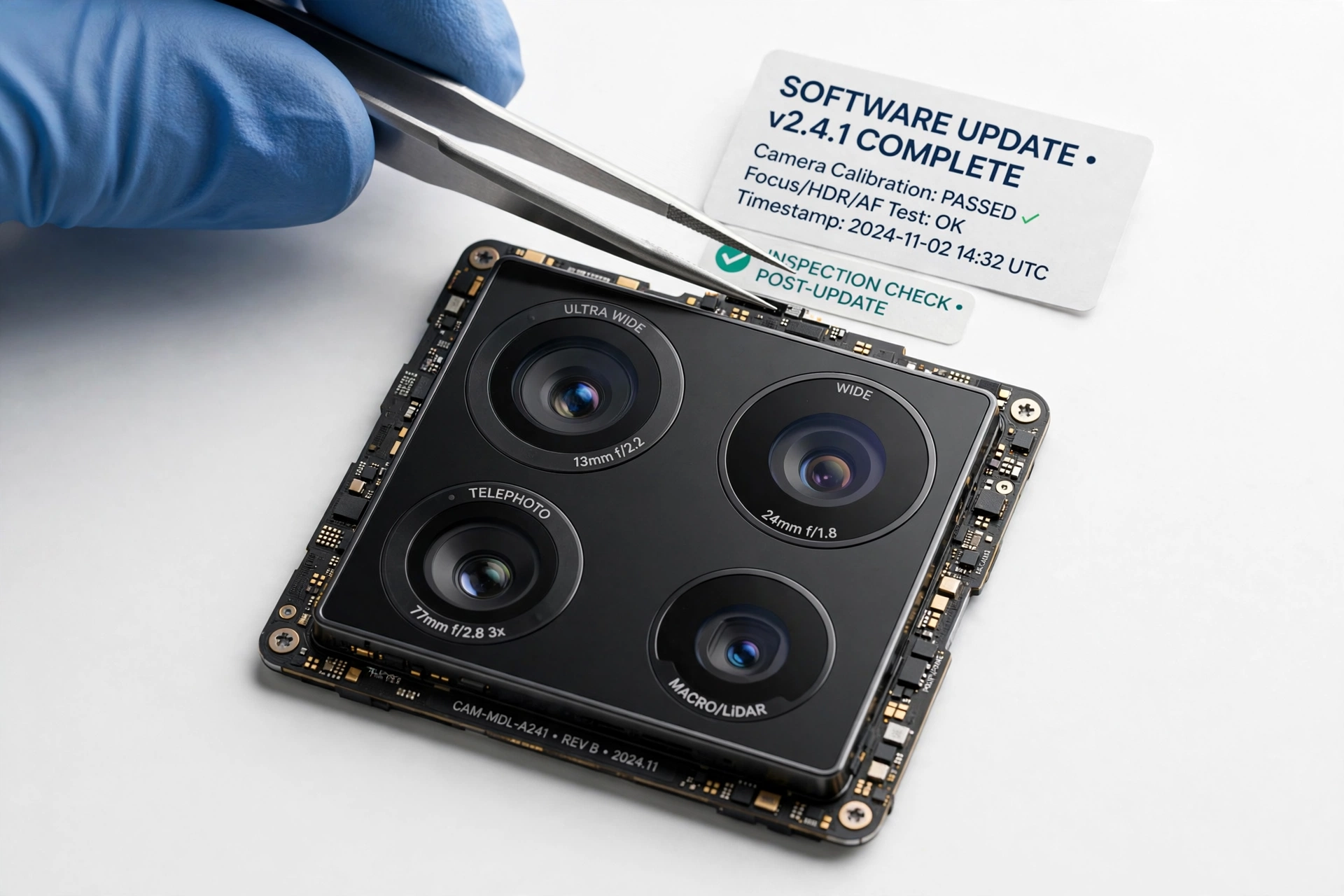
This guide is for Vivo phone owners (Funtouch OS and OriginOS devices) whose camera misbehaves after a software update — the camera app won’t open, shows a black screen, crashes, or takes broken photos. It is the Vivo-specific companion to our brand-agnostic guide, Phone Camera Not Working After Update. If you use a different brand, see also Oppo Camera After Update and Realme Camera After Update. Every procedure here uses only documented settings paths; nothing requires opening the phone.
1. Start here: the two-minute triage
Before changing anything, answer three quick questions. Your answers route you to the right fix and save you from trying steps that cannot help. (Source: hardreset.info)
- Does the camera app open at all? If it opens but the viewfinder is black, skip to the permission and session sections (sections 7 and 8). If it crashes on launch, start with the in-app reset and cache steps (sections 5 and 6).
- Did anything else break? If other apps also misbehave after the update (speaker, microphone, Wi-Fi), the problem is more likely system-level than camera-level — a follow-up update or a settings reset is the right target.
- Does another camera app work? Install any reputable third-party camera app from the Play Store and test it. This single test is the most important diagnostic in this guide. If the third-party app works, your hardware is fine and the problem lives in Vivo’s Camera app. If no camera app works, the problem is deeper (section 7 explains the interpretation table).
Quick fact: On Vivo phones, your photos and videos are stored by the Gallery (or Photos) app — not by the Camera app. Clearing the Camera app’s cache or data, or restoring its default settings, never deletes your existing photos. This is worth knowing before you hesitate at those steps.
2. Why an update breaks a camera that was working
An update cannot physically harm the sensor, but it can break the software chain between the sensor and the screen. Understanding the five mechanisms helps you pick the right fix instead of guessing.
| Mechanism | What happens | Typical symptom |
|---|---|---|
| Corrupted app cache or data | The update changes camera-app files while old cached data remains, creating a conflict. | Camera crashes on launch or freezes. |
| Reset permissions | The update silently revokes the camera or microphone permission, or an app-compatibility flag changes. | Camera opens but shows black; video recording crashes. |
| Stuck camera session | Another app (video call, scanner, filter app) holds the camera and never releases it. | “Camera in use” error; camera works in no app at all. |
| App / system version mismatch | The Camera app version is incompatible with the new system version until both are updated. | Camera worked on the old version; broke immediately after update. |
| Genuine shipped bug | The update itself contains a camera driver bug, fixed in a follow-up release. | Widespread reports from other owners of the same model. |
The honest framing matters: an update cannot physically damage the sensor or the lens. If the phone was dropped or got wet around the same time as the update, treat that as the real suspect — software steps cannot fix cracked or corroded hardware.
3. The Vivo fix ladder, in the right order
Work through these steps in order. Stop as soon as the camera works again — there is no prize for finishing the list.
Step 1: Full restart
Hold the power button, tap Restart (or power off fully, wait 30 seconds, then power on). A restart clears stuck camera sessions and is the fix for a surprising share of post-update camera complaints. Locking and unlocking the screen does not count.
Step 2: Force-close the camera and everything that uses it
Go to Settings > Apps (or App management), find the Camera app, and tap Force stop. Then force-stop any app that might hold the camera: video-calling apps, QR scanners, banking apps, social apps with camera features. Then restart the Camera app. The classic failure pattern is an app that grabbed the camera before the update and never released it afterward.
Step 3: Restore the camera’s default settings (in-app)
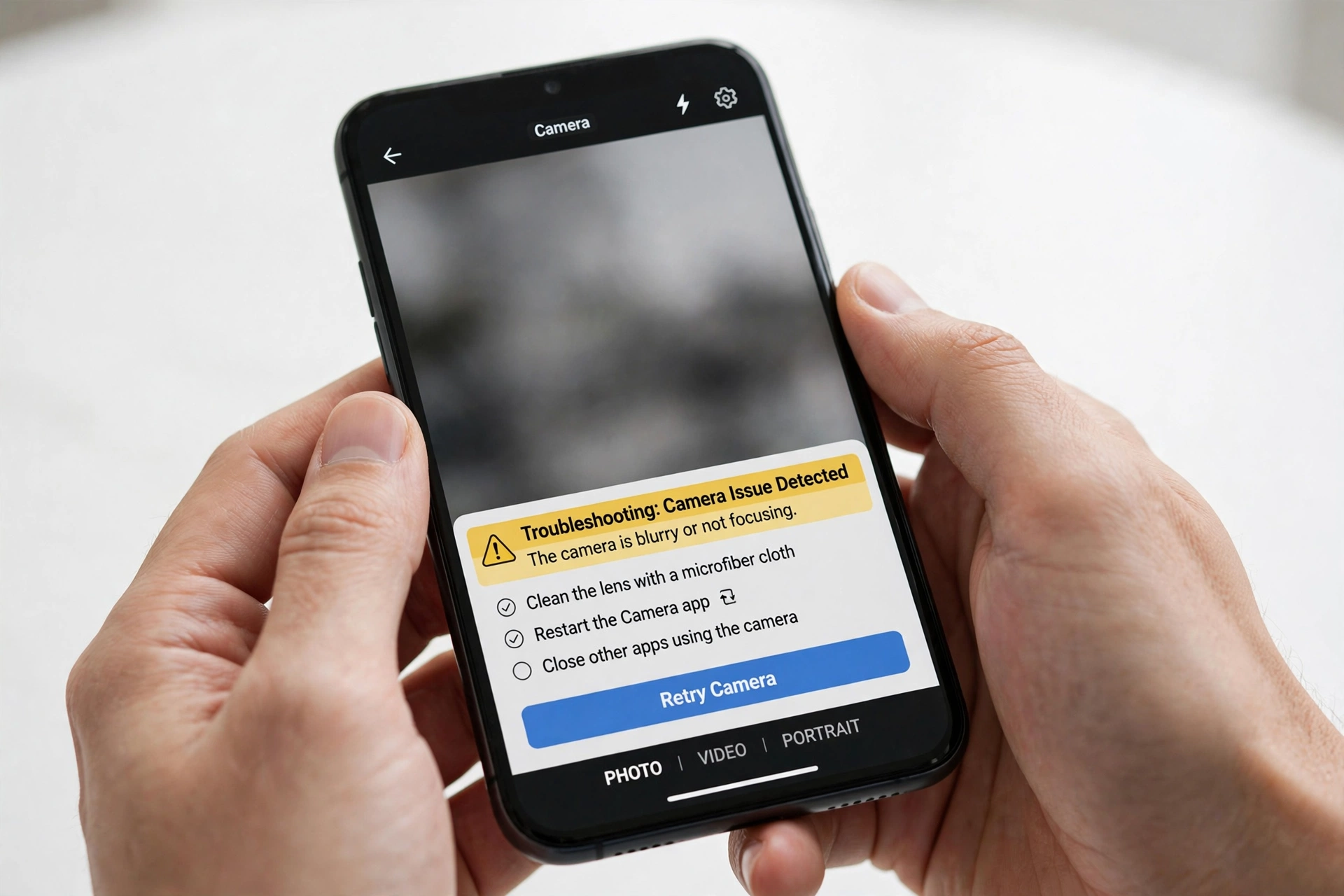
Vivo’s Camera app includes its own reset, which is gentler than clearing app data. Open the Camera app, tap the Settings gear icon (usually top right), look for “More settings” or scroll to the bottom, and choose “Restore defaults” (labeled “Reset” on some models). Confirm. This returns every camera mode, resolution choice, and toggle to first-run state — it does not delete photos. This single step fixes cameras that misbehave because a setting saved under the old system version is no longer valid. (Community walkthroughs document this path on models like the Vivo Y19 and Y21D; the menu position can vary slightly by Funtouch OS / OriginOS version.)
Step 4: Clear cache, then clear data
Go to Settings > Apps > Camera > Storage, and tap “Clear cache” first. Test the camera. If it still fails, return and tap “Clear data” (on some Vivo versions labeled “Clear storage”). Section 6 explains exactly what each one does and which is safer.
Step 5: Check permissions
Go to Settings > Privacy > Permission manager > Camera, and confirm the Camera app is allowed. Updates sometimes revoke or re-ask permissions. While you are there, check the Microphone permission too — a camera app that crashes only when recording video is often a microphone-permission problem, not a camera problem. Section 8 covers this sneaky culprit in detail.
Step 6: Update everything
Check Settings > System update for a pending system patch — camera bugs introduced by one update are frequently fixed in the next. Also update the Camera app and all apps in the Play Store, since version mismatches between the app and the system are a documented post-update failure mode.
Step 7: Safe Mode
Restart into Safe Mode to test the camera with all third-party apps disabled. On most Vivo phones: press and hold the power button until the power menu appears, then long-press “Power off” until the “Reboot to Safe Mode” prompt appears, and tap OK. If the camera works in Safe Mode, a third-party app is the culprit — uninstall recently added or updated apps one at a time, starting with camera-related ones. Restart normally to exit Safe Mode.
Step 8: Reset all settings (not factory reset)
If nothing above worked, use the lighter system reset: Settings > System > Reset options > “Reset all settings” (path varies by OS version). This restores system preferences — Wi-Fi passwords, wallpapers, notification settings — without deleting your photos, files, or apps. It is the right middle ground before the nuclear option.
Step 9: Factory reset — last resort only
A factory reset rules out every software cause. Back up everything first (photos, contacts, messages, authenticator codes), because it erases the phone. Only do this after the steps above have failed and after confirming the problem is not a known widespread bug awaiting a patch.
Stop for safety: Never open the phone to “check” the camera, and never poke anything into the lens area. Phone assemblies are glued shut; forcing them open risks puncturing the battery, which can cause fire. All fixes in this guide are software-only.
4. Vivo’s in-app “Restore defaults”: the step most guides skip
This deserves its own section because it is the most Vivo-specific fix in this guide and one of the least destructive. Many camera problems after an update are caused by a single stale setting — a resolution, a mode preference, or a toggle saved under the old system version that the new version cannot interpret.
Inside the Camera app, the settings gear opens the app’s own preferences. Scrolling to the bottom reveals a “Restore defaults” (or “Reset”) option. Tapping it and confirming returns every in-app preference to the factory state: modes, resolution, flash behavior, watermark, location tagging, and AI/scene settings. Your photos stay exactly where they are.
Use this step when:
- The camera opens but photos look wrong (exposure, focus, color) after the update.
- Modes or options you used before the update are missing or behave oddly.
- The app crashes only in certain modes (night mode, portrait, video) but works in photo mode.
If the app crashes before you can even reach its settings screen, skip this and go to clear cache / clear data (section 6) — those work from the system Settings app instead.
5. Clear cache vs. clear data: what each one actually does
These two buttons sit next to each other and are easy to confuse. The distinction matters, because one is nearly risk-free and the other resets the app.
| Clear cache | Clear data | |
|---|---|---|
| What it removes | Temporary files the app saved for speed | All app data: settings, preferences, cached files |
| Deletes your photos? | No | No — photos live in the Gallery/Photos app |
| Resets in-app settings? | No | Yes — equivalent to a fresh install of the app |
| When to use | First. Fixes crashes and freezes from stale temp files. | When cache-clearing and in-app reset both failed. |
| Risk | Essentially none | Low — you lose custom camera settings only |
The recommended sequence is always: clear cache first, test, then clear data if needed. Jumping straight to clear data is not dangerous, but it is unnecessary when the gentler step would have worked.
6. The third-party camera test: your most important diagnostic
Install any reputable third-party camera app (for example, Open Camera or another well-known camera app from the Play Store) and try it. Do not grant it more permissions than it needs for the test.
| Result | What it establishes | What it does not establish |
|---|---|---|
| Third-party app works, Vivo Camera doesn’t | The sensor and hardware are fine; the problem is in Vivo’s Camera app or its data. | Which exact file or setting is corrupt — but you don’t need to know; the app-level fixes apply. |
| No camera app works | The problem is system-level: permissions, a stuck session, a driver issue, or hardware. | Whether it is software or hardware — continue with Safe Mode and permissions. |
| Third-party app also crashes | Same as above — points away from the Vivo Camera app specifically. | Whether a factory reset would fix it. |
This test is worth doing before any reset, because it tells you whether the app-level fixes (in-app reset, clear data) can possibly work. If the Vivo Camera app is the only broken one, keep your effort at the app level. If nothing works, keep your effort at the system level.
7. The permission trap: when the camera is fine but the app can’t see it
After a system update, Android sometimes revokes or re-asks app permissions, and camera-adjacent permissions are easy to overlook. Check all of these:
- Camera permission: Settings > Privacy > Permission manager > Camera > Camera app must be set to Allow (or “Allow only while using the app”).
- Microphone permission: the sneakiest one. If still photos work but video recording crashes or records silence, the camera is innocent — the app is crashing because it cannot access the microphone. Grant it.
- Storage / Files permission: on older Funtouch OS versions, the camera app needs storage access to save photos. If photos “take” but never appear, check this.
- Location permission: only affects geotagging, not the camera itself — but a crash tied to a location toggle is worth testing with it off.
Permission problems are also the classic cause of the black viewfinder: the app opens, the hardware is ready, but the operating system refuses to hand the camera feed to an app that lost its permission in the update.
8. “Camera in use” and the stuck-session problem
If any app reports that the camera is busy, in use, or unavailable — even when no camera app appears open — another app is holding the camera session. Common holders: video-calling apps left in the background, QR/barcode scanners, banking apps, and social apps with camera features.
The fix: force-stop every recently used app (Settings > Apps, or the recent-apps screen with “close all”), then do a full restart. A restart is the only reliable way to release a camera session held by a crashed background process. If the error persists after a restart with no apps opened, the session is stuck at the system level — clear the camera app’s data, and if that fails, treat it as a candidate for the follow-up-update or reset-all-settings steps.
Quick fact: This error can also appear right after an update because the update restarted system services while an app still held the camera. The timing makes it look like the update “broke” the camera, when the real problem is a session that never got released.
9. Safe Mode: isolating a third-party app conflict
Safe Mode boots the phone with only pre-installed system apps running. It is the cleanest way to answer one question: is a third-party app causing this?
To enter Safe Mode on most Vivo phones: press and hold the power button until the power menu appears, then press and hold “Power off” until the “Reboot to Safe Mode” prompt appears, and tap OK. Test the camera. Then restart normally to leave Safe Mode.
- Camera works in Safe Mode: a third-party app is interfering. Uninstall recently added or updated apps one at a time, beginning with camera-related apps (filters, editors, scanners, launchers with camera shortcuts), testing after each removal.
- Camera still fails in Safe Mode: the problem is in the system or hardware — third-party apps are ruled out. Continue with update checks and the reset steps.
Do not delete apps at random. Remove the most recently installed or updated ones first, and retest between each removal, so you learn which app was responsible.
10. When the update itself is the bug
Sometimes the update ships with a genuine camera bug. Signs that point this way:
- Many owners of the same Vivo model report the identical camera problem starting on the same update.
- The camera broke at the exact moment of the update, with no drop, no water, and no new apps.
- Every software fix fails, including Safe Mode and clear data.
If this matches your situation, the correct action is patience plus preparation: check Settings > System update for a follow-up patch (manufacturers often fix camera regressions within days or weeks), and avoid the factory reset — a reset cannot fix a bug that lives in the shipped system image, and you would lose your data for nothing. Note the exact timing (“broke immediately after the Funtouch OS / OriginOS update on this date”); that detail helps a technician if you later seek repair.
11. Safe physical checks (no tools, no opening)
Software deserves the blame after an update, but rule out the physical basics before going deeper:
- Remove the case and screen protector temporarily — a case lip can cover a lens or a sensor, and some protectors interfere with proximity or light sensors that the camera app consults.
- Clean the lens with a soft, dry, lint-free cloth. Use no liquids, no chemicals, no compressed air, no heat.
- Look at the lens in bright light for cracks, deep scratches, or fogging inside the glass. Fogging or condensation inside the lens means moisture got in — stop the software troubleshooting and seek repair, because corrosion worsens with time.
Stop for safety: Never push pins, needles, or any object into the phone’s openings, never apply heat to “dry” a lens, and never use compressed air on camera modules. These can destroy the module or push debris deeper. Lens cleaning means a soft dry cloth, nothing more.
12. Symptom-to-fix worksheet
Find your symptom, read the likely cause, and try the fix in the order given.
| Symptom | Likely cause | Try this |
|---|---|---|
| Camera app crashes immediately on launch | Corrupted cache or app data | Clear cache → in-app Restore defaults → clear data |
| Black viewfinder, app otherwise works | Revoked camera permission or stuck session | Check permissions → force-stop all apps → restart |
| “Camera in use” / “can’t connect” error | Another app holds the camera | Force-stop all apps → full restart |
| Photos work, video crashes | Microphone permission revoked | Grant microphone permission to the camera app |
| Focus, exposure, or modes wrong after update | Stale in-app settings | In-app Restore defaults |
| Works in third-party app, not Vivo Camera | Vivo Camera app data corrupt | Clear data → reinstall/update the app if possible |
| No camera app works, even in Safe Mode | System-level issue or hardware | Check for follow-up update → reset all settings → professional assessment |
| Flash not working with camera | Permission or settings conflict; or LED hardware | Permissions → Restore defaults → test flashlight separately |
| Front camera fails, rear works (or vice versa) | App-level or single-module issue | Clear data → third-party app test per lens |
| Everything worked until the update, nothing helps | Shipped bug in the update | Wait for follow-up patch; note timing for a technician |
13. What your observations can and cannot prove
Honest diagnostics matter — a test result only means what it means.
| Observation | Establishes | Does not establish |
|---|---|---|
| Camera worked yesterday, broke after the update | Timing strongly suggests software | That the hardware is definitely fine — a coincidental drop still counts |
| Third-party camera app works | Sensor and hardware path work | Which file or setting in Vivo’s app is broken |
| Works in Safe Mode | A third-party app is interfering | Which app — you must isolate by removal |
| Clear data fixes it | Corrupt app data was the cause | That the update was “bad” — corruption can happen on any update |
| Nothing fixes it, even factory reset | The problem is almost certainly hardware or a shipped system bug | Which one — needs professional diagnostics |
| Lens is cracked or fogged inside | Physical damage — software cannot fix this | That the update played any role at all |
14. When to stop troubleshooting and seek repair
Stop the software steps and get a professional assessment when any of these are true:
- The lens is cracked, deeply scratched, or fogged from the inside.
- The phone was dropped, bent, or exposed to water around the time the problem started.
- The camera fails identically after a factory reset (with no backup restored yet — testing before restoring your backup is the diagnostic that separates software from hardware).
- The phone is swollen, distorted, or unusually hot — power it down and do not charge it.
- You see error messages about hardware, sensors, or repeated crashes across every app after all resets.
When you seek repair, bring the timeline: the phone model, the OS version, the exact date of the update, and which steps you already tried. A technician diagnoses faster with that history. If you are in the Las Vegas area, Las Vegas Phone Repair & Accessories, 7400 Las Vegas Blvd S, Unit TT42, Las Vegas, NV 89123, (424) 406-6202, can assess camera issues — hours are 10 AM–8 PM, and it is worth calling ahead to confirm today’s hours before visiting.
15. Two hypothetical examples
(The following are hypothetical illustrations, not customer stories.)
Example A: the permission reset
Maya updated her Vivo V-series phone overnight. The next morning the camera opened to a black screen. She almost factory-reset the phone — but first she checked Settings > Privacy > Permission manager and found the camera permission had been revoked by the update. She re-allowed it, and the viewfinder returned immediately. Total time: under two minutes, no data touched.
Example B: the stuck session
Daniel’s camera showed “can’t connect to camera” after an OriginOS update. He had used a QR scanner the day before. Force-stopping every app and doing a full restart released the stuck camera session, and the camera worked again. The update had only restarted services while the scanner still held the camera — the timing was a coincidence, not a bug.
16. Frequently asked questions
Will clearing the camera app’s data delete my photos?
No. On Vivo phones, photos and videos are stored by the Gallery (or Google Photos) app, not by the Camera app. Clearing the Camera app’s cache or data only removes the app’s temporary files and settings. Your existing photos are untouched.
What does “Restore defaults” inside the camera app do?
It returns every in-app camera preference — modes, resolution, flash behavior, watermark, location tagging — to first-run state. It fixes problems caused by a stale setting saved under the old system version. It does not delete photos. Find it via the Camera app’s settings gear, sometimes under “More settings” at the bottom.
Why does my camera work in one app but not another?
That pattern means the hardware is fine and the problem is app-level: corrupt data or a revoked permission in the failing app. Clear that app’s cache and data, check its permissions, and reinstall it if needed.
The camera broke the exact moment the update installed. Is it definitely the update’s fault?
Very likely software-related, but not definitely the update’s bug — corrupted app data and revoked permissions are far more common than shipped driver bugs, and both are triggered by updates. Work the fix ladder before concluding the update itself is broken.
Should I factory-reset right away?
No. A factory reset is the last resort: it erases everything and cannot fix a shipped system bug or hardware damage. Most post-update camera problems yield to the earlier steps — restart, in-app reset, clear cache/data, permissions — in a few minutes.
Can I downgrade to the previous system version?
Downgrading is not a documented consumer procedure on Vivo phones and can cause data loss or boot problems. The supported path is to install the next follow-up update, which usually contains the fix. Do not attempt unofficial downgrades.
My lens looks fine but the viewfinder is black in every app. Hardware or software?
Still possibly software: check permissions, Safe Mode, and a follow-up update first. If the camera fails identically in Safe Mode, after clearing data, and after a factory reset (tested before restoring your backup), the evidence points to hardware or a shipped system bug — time for professional diagnostics.
Are “camera fixer” or “camera booster” apps safe to try?
No. These apps are not part of any manufacturer’s troubleshooting flow, they request broad permissions, and some hold the camera session themselves — causing the very “camera in use” errors they claim to fix. Stick to the documented steps in this guide.
Video: How to tell if your smartphone is fake or real
Sources and editorial notes
- HardReset.info — Reset camera preferences on Vivo Y19: documents the in-app Restore defaults / Reset path (Camera app > Settings > Reset > Confirm); summarized in original language.
- Carrier-hosted Vivo troubleshooting guide (front camera): restarting after an update, checking permissions and additional updates, factory reset as last resort with backup warning; summarized in original language.
- Carrier-hosted Vivo troubleshooting guide (back camera black): restart and clear camera cache after a software update; third-party app conflicts; professional repair when software steps fail; summarized in original language.
- FixMyPCStore — phone camera black screen guide: third-party camera test as hardware-vs-software diagnostic; clear cache before clear data; factory reset as the last software step; summarized in original language.
Last source check: October 14, 2026. AI-assisted editorial guide, checked against the linked manufacturer information and independent troubleshooting references above. Procedures describe documented settings paths only; no device opening, no unofficial firmware changes, and no manufacturer authorization are implied. If your Vivo model’s menu names differ slightly (Funtouch OS vs. OriginOS wording), use the closest matching path.
Let’s get you connected again.
Tell us what’s happening with your device and we’ll help you decide the safest next step — no jargon, no pressure.
Las Vegas Phone Repair & Accessories · 7400 Las Vegas Blvd S, Unit TT42, Las Vegas, NV 89123
10:00 AM–8:00 PM — call ahead to confirm today’s hours