
Sonim Phone Speaker Not Working After Update: Causes and Safe Fixes
An update cannot physically damage your Sonim’s speaker — so if the speaker stopped working right after an update, the cause is almost certainly software: audio routing, a reset permission, a conflicting app, or a corrupted setting. The fix is a sequence of safe, documented checks — volume and silent modes, Bluetooth and SecureAudio accessory routing, Safe Mode isolation, app-cache clearing, and a follow-up system update — before anyone considers a repair.
On this page
An update cannot physically damage your Sonim’s speaker — so if the speaker stopped working right after an update, the cause is almost certainly software: audio routing, a reset permission, a conflicting app, or a corrupted setting.
1. The honest starting point: what an update can and cannot do
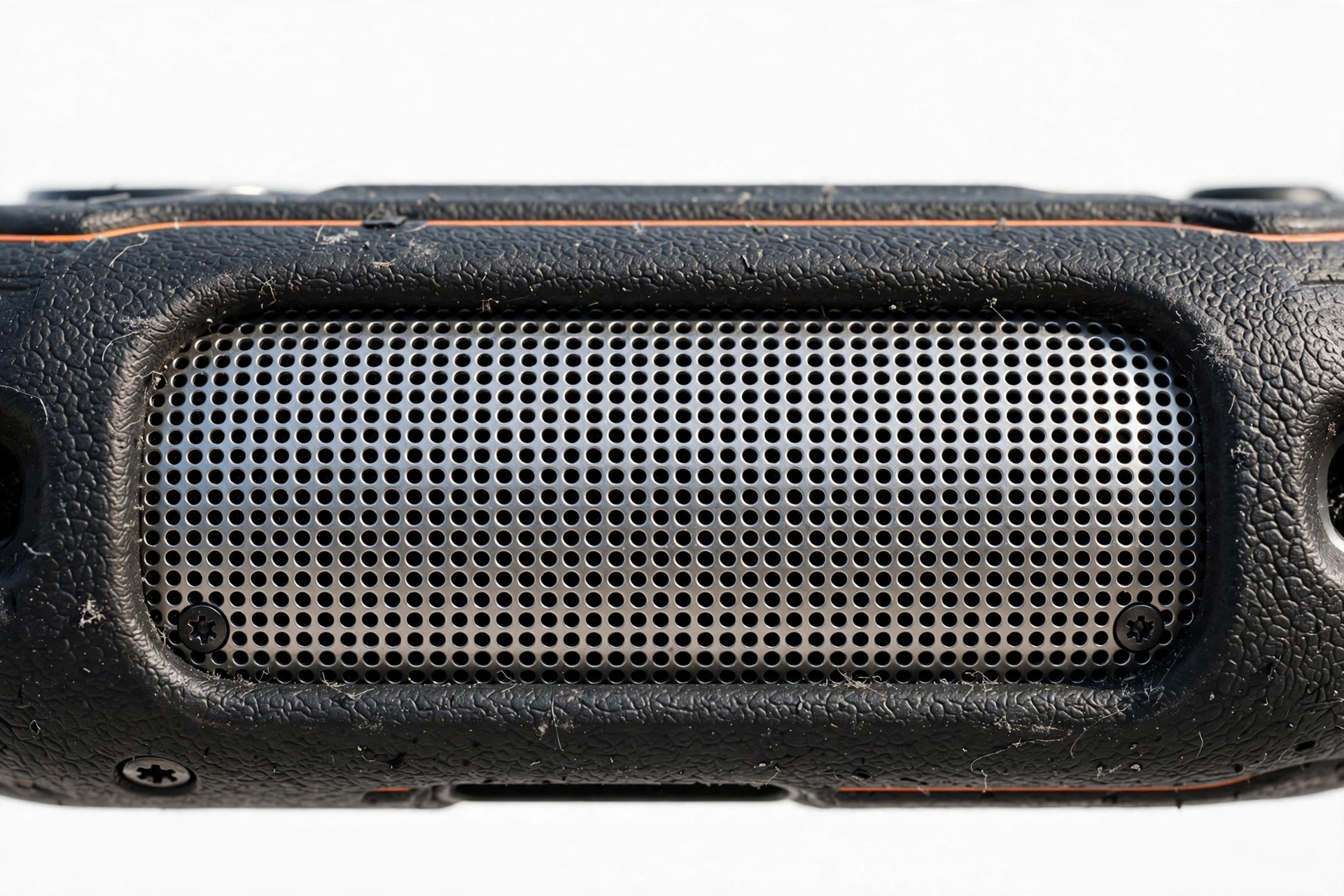
Sonim builds ultra-rugged phones (the XP series) for construction crews, first responders, and field workers. These phones have sealed speaker assemblies behind dustproof membranes. A software update installs code; it does not touch the speaker cone, the wiring, or the membrane. What an update can do is change which audio path the phone uses, reset an app permission, reinstall a buggy audio driver, or leave a background app holding the audio output open. Every one of those is reversible, and every one is diagnosed the same way: isolate the symptom before changing anything destructive. (Source: manuals.plus)
Quick fact: If sound works through a wired headset, a Bluetooth device, or a Sonim SecureAudio remote speaker mic but not through the phone’s own speaker, the speaker hardware is very likely fine — the phone is simply sending audio somewhere else, or the handset audio path is blocked by software.
The five mechanisms below are ordered by how often they actually cause post-update speaker silence, from most to least likely.
| Mechanism | What happened | Signature symptom |
|---|---|---|
| Audio routing change | The update re-paired, re-enabled, or reprioritized an output — Bluetooth, a SecureAudio accessory, or a wired headset | Everything looks normal, but sound comes from another device; handset speaker is silent |
| Volume / mode reset | The update reset volume levels, enabled Do Not Disturb, or dropped the phone into Silent or Vibrate mode | No ringtone, no media sound; vibrate icon or silent icon in the status bar |
| Permission or preference reset | An app lost a permission it needs (microphone, notifications), or app preferences were reset | One app is silent while everything else works; calls work but app audio doesn’t, or vice versa |
| Third-party app conflict | A “speaker cleaner,” “volume booster,” or equalizer app grabs exclusive control of audio output | Sound stopped right after the app updated too, or the app shows an error about audio focus |
| Corrupted system audio cache or driver | The update left a damaged cache partition entry or a mismatched audio driver for the chipset | No sound from any output — speaker, earpiece, headset, Bluetooth — and Safe Mode changes nothing |
2. The two-minute checks: volume, mute, and modes
Start with the physical controls, because an update can silently change them. On Sonim phones, the volume keys sit on the side of the device. Press volume up while media is playing and watch the on-screen slider — make sure the media stream (not just the ringtone stream) is turned up. Android keeps separate volumes for calls, media, alarms, and notifications; an update can reset one while leaving the others alone.
Next, check whether the phone slipped into Vibrate or Silent mode during the update. When Vibrate mode is active, a vibrate icon appears in the notification bar; in Silent mode, a silent icon appears. Press the volume keys and look at what the phone says it is doing before you assume the speaker is broken.
Also open Settings > Sound and check Do Not Disturb. Updates have been known to re-enable scheduled Do Not Disturb rules or flip its default behavior. If the phone is silent only for calls and notifications but plays media fine, Do Not Disturb (or a per-app notification setting) is the prime suspect, not the speaker.
3. Earpiece versus loudspeaker: find out which path failed
“The speaker doesn’t work” is actually two different problems, and they point at different causes. Work through this isolation before doing anything else — it takes ninety seconds and prevents a whole category of wrong fixes.
| Test | How | If it works | If it fails |
|---|---|---|---|
| Earpiece (call audio) | Make a test call; listen at the top earpiece with speakerphone OFF | Call audio path is healthy | Earpiece path is blocked — check in-call volume and Speaker Boost (section 5) |
| Loudspeaker (media) | Play a video or music with the volume up, no accessories connected | Media path is healthy | Loudspeaker path is blocked — check routing and Safe Mode |
| Ringtone | Call the phone from another phone | Notification path is healthy | Check Silent/Vibrate/Do Not Disturb (section 2) |
| Wired headset | Plug in a compatible headset and play audio | Audio system works; fault is in the handset output path | Fault is deeper — system audio or app-level |
If the earpiece works but the loudspeaker doesn’t (or the reverse), you have a routing or single-driver problem, not a dead phone. Write down which paths work and which don’t — a repair shop will ask exactly this, and the answer determines whether the fix is software or hardware.
4. The number-one false alarm: ghost audio routing
After an update, the single most common reason a Sonim goes silent is that it is playing sound somewhere you aren’t listening. Updates re-scan for paired devices, re-enable previously disabled Bluetooth connections, and re-detect wired accessories. Run this routing audit:
- Bluetooth: Open Settings > Connected devices > Bluetooth and look at what is connected — a truck stereo, a work headset, a smartwatch with calling. Updates can re-connect to a device that was previously only paired. Disconnect or unpair everything, then retest the speaker.
- Wired headset: Unplug any headset or adapter, then play audio. A stuck headphone-jack detection circuit can keep the phone in “headset mode” with nothing attached.
- SecureAudio accessories: If a remote speaker mic (RSM) was ever attached to the Sonim SecureAudio connector, make sure it is detached and the phone isn’t still routing audio to it (section 6).
- Car kits and PTT docks: Sonim phones live on job sites — in vehicle cradles and push-to-talk docks that hold audio focus. Remove the phone from any dock and retest.
Tip: The classic ghost-routing case: a worker’s phone auto-connects to the truck’s Bluetooth every morning. After an update re-enabled the connection, every call and alert plays through the truck speakers — including when the truck is parked a hundred feet away. If your phone went silent after an update and you drive a work vehicle, check Bluetooth first.
(The following are hypothetical illustrations, not customer stories.) Daniel, a foreman, updated his XP8 overnight; the next morning his phone was silent. The update had re-enabled a connection to his pickup’s stereo — every ringtone was playing in the empty truck. Forgetting the truck’s Bluetooth entry restored the handset speaker in under a minute.
5. The Sonim-only check: Speaker Boost during calls
Sonim phones have a documented Speaker Boost function: during a call, when the speaker is active, you can press the navigation down key to activate Speaker Boost, which makes the speaker extra loud. If you disable the setting, you cannot use the function.
Why this matters after an update: if Speaker Boost was active before the update and the update changed its state — or if the call screen’s speaker toggle is in an odd state — call audio can behave strangely: oddly quiet, or seemingly dead until you toggle the speakerphone button. During your next test call, tap the speakerphone icon off and on, and try pressing the navigation down key while the speaker is active to check the boost state. This is a Sonim-specific behavior that generic Android troubleshooting guides never mention.
6. The other Sonim-only check: the SecureAudio connector and remote speaker mics
Sonim XP-series phones carry a proprietary Sonim SecureAudio connector — a threaded audio port that remote speaker microphones (RSMs) screw into for mission-critical audio. The same connector design is shared across the XP5s and XP8. This is a strength of the platform, but it is also an audio-routing path that an update can disturb:
- If an RSM is attached, call and alert audio routes through it by design. Detach it to test the handset speaker.
- Conversely, the connector gives you a powerful diagnostic: if a known-good RSM produces sound while the handset speaker stays silent, the phone’s audio system is healthy and the fault is isolated to the handset speaker path — useful information before any repair decision.
- Keep the connector free of dust and debris. Sonim’s own maintenance guidance for its rugged phones is to clean the device with a soft, damp cloth, avoid harsh chemicals, and keep ports and jacks clear — a blocked or corroded connector can cause intermittent routing confusion.
Two honest caveats. First, on the XP5s, the USB-C port cannot be used for audio and power at the same time, and it is not compatible with 3.5mm adapters — so if you are testing with a USB-C audio adapter on an XP5s, the adapter itself may be the problem, not the update. Second, “speaker cleaner” and “volume booster” apps from app stores cannot help a SecureAudio path and frequently cause audio-focus conflicts; treat them as suspects, not cures (section 8).
7. Safe Mode: the single most informative test
Safe Mode starts the phone with only the pre-installed system apps running. If the speaker works in Safe Mode but not in normal mode, a third-party app is the culprit — the update didn’t break the speaker, it broke (or re-enabled) an app’s grip on the audio system.
To enter Safe Mode on most Sonim Android phones: press and hold the power button until the power menu appears, then press and hold “Power off” until the “Reboot to safe mode” prompt appears, and tap OK. (Exact steps vary slightly by model; check your model’s user guide.) Test the speaker in Safe Mode — play media, make a test call. Then restart normally to exit Safe Mode.
| Result in Safe Mode | Meaning | Next step |
|---|---|---|
| Speaker works | A third-party app is interfering | Uninstall recently updated “cleaner,” “booster,” or equalizer apps one by one (section 8) |
| Speaker still silent | System-level issue or hardware | Continue with cache clearing and update checks (sections 9–10) |
| Works only for calls, not media (or reverse) | Per-stream routing or permission issue | Check per-app permissions and notification settings (section 9) |
8. The usual suspects: “speaker cleaner” and “booster” apps
A special warning about a whole category of apps. “Speaker cleaner,” “volume booster,” and “sound enhancer” apps promise to fix or improve your speaker. In practice, on rugged Android phones, they are one of the most common causes of post-update silence:
- They request exclusive audio focus and don’t always release it, muting everything else.
- They often update at the same time as a system update, so the timing looks like the system update broke the speaker — when the app did.
- Some play sustained high-frequency tones “to eject water,” which is useless on a sealed Sonim membrane and can be unpleasant at high volume.
Stop for safety: Never run a “speaker cleaner” app at maximum volume through a sealed rugged speaker, and never poke anything into the speaker grille — no pins, needles, compressed air, or heat. Sonim’s speaker assemblies sit behind sealed dustproof membranes; forcing air or objects in can damage the membrane and the waterproofing. A soft, dry brush on the outside of the grille is the limit of safe cleaning.
(The following is a hypothetical illustration, not a customer story.) Amara installed a “speaker booster” the same week her XP5s updated. When the phone went quiet, she blamed the system update — but uninstalling the booster and restarting restored full sound immediately. The system update was innocent.
9. Clear caches and reset app preferences — the documented Android path
If Safe Mode points at software but no single app is obviously guilty, work through the documented, non-destructive steps. These are standard Android procedures that carrier support pages document for Sonim phones, and they cost you nothing:
- Restart the phone. A full power-off restart (not just screen-off) clears transient audio-service states. Do this first, every time.
- Reset an individual misbehaving app: Settings > Apps, select the app, tap Force stop, then Storage & cache > Clear cache. This does not delete your texts, photos, or voicemails; it clears the app’s temporary data, which is exactly where a corrupted audio state lives.
- Reset all app preferences: Settings > Apps > menu > Reset app preferences. This restores default settings for disabled apps, notification restrictions, default apps, and permission restrictions — undoing exactly the kind of silent permission reshuffle an update can cause. It does not delete your data.
- Check per-app permissions: if one app lost microphone or notification access in the update, grant it again in Settings > Apps > [app] > Permissions.
Sonim’s own troubleshooting guidance for its phones follows the same shape: for unclear or distorted audio, the documented advice is to make sure the speaker and microphone are unobstructed and to move to a quieter environment — physical blockage first, software second. Only after the physical checks fail do the deeper software steps begin.
10. Check for a follow-up update — the update that fixes the update
When a system update ships with an audio bug, the manufacturer or carrier typically ships a correction within days or weeks. Before doing anything drastic:
- Open Settings > System > System update (path varies slightly by model) and check for updates manually. Install anything pending, then retest.
- If your phone is carrier-managed (many Sonim phones are sold through carriers for workforce fleets), check with your IT administrator — enterprise fleets often stage updates, and a fix may already be approved but not yet pushed to your device.
- Sonim’s SCOUT device-management platform lets fleet administrators manage updates across many handsets; if your phone is enrolled, your admin can confirm which build you are on.
A factory reset reinstalls the same system version that is already on the phone — it cannot remove a bug that shipped inside that version. Resetting before checking for a newer build is wasted effort at best. This is the “don’t factory-reset first” rule, and it applies to every brand in this series.
11. Sealed rugged construction: what dust, water, and membranes do to sound
Sonim phones are built to MIL-STD-810H and IP68/IP69 ratings. The speaker sits behind a sealed membrane with a dustproof net — excellent for survival, but with two honest consequences:
- A wet or dirty membrane muffles sound. If the phone was recently submerged, in heavy dust, or in a concrete-cutting or desert environment, the membrane may be temporarily blocked. Let the phone dry naturally, grille-down, in airflow — no hairdryers, no heat, no compressed air. Sonim’s maintenance guidance allows only a soft, damp cloth for cleaning and keeping ports free of debris.
- Pressure equalization matters. Sealed phones can hold a slight pressure difference across the membrane after temperature swings (hot truck cab to cold outdoors), which temporarily dulls the speaker. It usually resolves on its own.
The timing trap: if the phone got dusty or wet around the same time as the update, the update gets blamed for a physical problem. Ask yourself what the phone went through in the last week, not just what software changed.
12. When it is actually hardware: the symptom worksheet
Work through this table honestly. Software fixes stop being the answer when the pattern below appears.
| Symptom | Most likely cause | First action |
|---|---|---|
| No sound from speaker, earpiece, headset, or Bluetooth | System audio service or driver failure | Safe Mode, cache clearing, follow-up update (sections 7–10) |
| Speaker silent but headset/Bluetooth/RSM work | Routing issue or handset speaker-path fault | Routing audit (section 4); if routing is clean, suspect hardware |
| Distorted, crackling, or rattling sound | Damaged speaker cone or debris behind the grille | External cleaning only; then professional assessment |
| Sound cuts in and out when the phone is flexed or tapped | Loose internal connection | Stop troubleshooting — needs a technician |
| Speaker failed immediately after a drop onto concrete | Physical damage | Professional assessment; no software step will fix this |
| Phone was submerged beyond its rating, or the seals are visibly damaged | Water damage to the speaker assembly | Power off, dry naturally, professional assessment |
| Speaker works in Safe Mode only | Third-party app conflict | Uninstall suspects one by one (section 8) |
| Everything worked until the update, and only the update changed | Software regression | Follow-up update; carrier/IT escalation (section 10) |
One more honest note: Sonim’s own engineering documentation treats speaker replacement as a technician-level procedure — removing the battery cover and multiple screws, fixtures, and re-sealing. That is the opposite of a DIY job, and opening a sealed rugged phone destroys its waterproofing. Never open the phone yourself.
13. When to stop and get professional help
Stop troubleshooting and seek professional assessment when:
- The speaker is distorted, rattling, or intermittent regardless of software state.
- The phone was dropped, crushed, or submerged beyond its rating.
- The battery is swollen, distorted, or the phone gets dangerously hot — power it off, do not charge it, and do not attempt any further troubleshooting.
- You have worked through sections 2–10 and the speaker is still silent in Safe Mode with no accessories attached.
Stop for safety: A swollen or deformed battery is a fire risk. Do not charge, puncture, heat, or attempt to remove a swollen battery yourself. Power the phone off and take it to a professional. This overrides every troubleshooting step in this guide.
Before approving any service, ask the shop: what exactly will you test, will the waterproof seals be re-tested or re-certified after opening, and what warranty covers the repair itself? A shop that opens a rugged phone should be able to explain how it preserves the sealing — “we’ll just glue it back” is not an answer.
Sonim documents a 3-year warranty on the phone and a 1-year warranty on the battery for its handsets, with support reachable through the manufacturer’s published channels. Warranty terms change and carrier-sold devices may be handled by the carrier — confirm your specific coverage before assuming anything. If you are in the Las Vegas area and would like an in-person assessment, Las Vegas Phone Repair & Accessories, 7400 Las Vegas Blvd S, Unit TT42, Las Vegas, NV 89123, (424) 406-6202 — please call ahead to confirm today’s hours.
14. What this guide can and cannot establish
| Check | Can establish | Cannot establish |
|---|---|---|
| Safe Mode test | Whether a third-party app is involved | Which system component is at fault |
| Routing audit | Whether audio is going to the wrong output | Whether the speaker itself is healthy |
| RSM / headset test | Whether the audio system as a whole works | Whether the handset speaker transducer is intact |
| Cache clearing | Whether corrupted temporary data was the cause | Whether a deeper driver bug exists |
| Visual inspection | Obvious grille blockage or physical damage | Internal connection or membrane condition |
| Follow-up update | Whether the vendor already fixed it | Anything about hardware health |
15. Frequently asked questions
Can a software update physically break my Sonim’s speaker?
No. An update installs code; it cannot damage the speaker cone, wiring, or sealed membrane. If the speaker failed right after an update, the cause is software — routing, permissions, a conflicting app, or a corrupted setting — or a coincidence (dust, water, or a drop that happened around the same time).
My Sonim is completely silent — no calls, no media, no ringtones. Where do I start?
Check Silent/Vibrate mode and Do Not Disturb first (section 2), then the routing audit (section 4): disconnect Bluetooth, unplug headsets, detach any SecureAudio accessory. Then restart the phone and test again. Most total-silence cases end at one of these steps.
Should I use a “speaker cleaner” app to fix it?
No. These apps are a frequent cause of post-update silence because they grab exclusive audio focus, and their high-frequency tones do nothing useful on a sealed Sonim membrane. Uninstall any such app and restart instead.
The speaker works for calls but not for music (or the reverse). Is the speaker broken?
Almost certainly not — you have a routing or per-stream problem. Work through the earpiece-versus-loudspeaker isolation in section 3, then the routing audit. A physically broken speaker does not selectively fail by audio type.
What is Speaker Boost, and could it be related?
Speaker Boost is a Sonim feature: during a call with the speaker active, pressing the navigation down key makes the speaker extra loud. If call audio behaves oddly after an update, toggle the speakerphone button during a call and check the boost state — the update may have changed it.
My phone connects to a remote speaker mic. Could that be the problem?
Yes — if an RSM is attached to the SecureAudio connector, audio routes through it by design. Detach it to test the handset speaker. But the RSM is also a diagnostic tool: if the RSM produces sound while the handset speaker doesn’t, the phone’s audio system is healthy and the fault is isolated to the handset speaker path.
When should I factory reset?
Only after you have checked for a follow-up system update, and only with a verified backup in place. A reset reinstalls the same system version, so it cannot fix a bug that shipped inside that version. For most post-update speaker issues, the reset is unnecessary — the routing audit, Safe Mode, and cache steps resolve them.
The speaker is crackling and distorted. Is that software?
Probably not. Distortion, rattling, or sound that changes when you tap the phone points to a damaged speaker or debris behind the grille — a hardware problem. Limit yourself to safe external cleaning and get a professional assessment; do not open the sealed phone.
16. Related guides
If this guide didn’t cover your situation, these companion guides address the same problem on other rugged phones and the general case:
- Phone Speaker Not Working After Update: the general fix guide — the universal version of this checklist for any Android phone.
- CAT Phone Speaker Not Working After Update — the same problem on CAT rugged phones, including the Bullitt Group shutdown context.
- AGM Phone Speaker Not Working After Update — the same problem on AGM rugged phones, with AGM manual procedures.
Video: How to tell if your smartphone is fake or real
Sources and editorial notes
- Sonim XP3 Plus XP3900 user manual (Manuals.plus) — SecureAudio connector description; maintenance guidance (soft damp cloth, keep ports clear); troubleshooting table for unclear/distorted audio.
- Verizon: Sonim XP8 — Reset App — documented force-stop and clear-cache path for misbehaving apps.
- AT&T: Sonim XP5 sounds & alerts — side volume keys; Vibrate and Silent mode behavior.
- Sonim XP5s user guide (PhoneCompass) — Speaker Boost via navigation down key during calls; SecureAudio connector details; 3-year phone / 1-year battery warranty statement.
- Sonim accessory guide (Manuals.plus) — SecureAudio connector shared across XP5s and XP8; XP5s USB-C audio limitations.
- Sonim X100 service documentation (Manuals.plus) — speaker replacement documented as engineer-level procedure with fixtures and re-sealing; cited only to establish that speaker service is not a DIY job.
- AT&T: Stone Mountain Phoenix remote speaker mic — example of a SecureAudio-connector RSM accessory for XP5s/XP8.
Last source check: October 14, 2026. AI-assisted editorial guide, checked against the linked manufacturer information. Sonim publishes limited model-specific speaker troubleshooting; where the guide applies standard documented Android procedures, it says so. Procedures, warranty terms, and support contacts reflect the cited documents and may change — confirm current details with Sonim or your carrier before acting on them.
Let’s get you connected again.
Tell us what’s happening with your device and we’ll help you decide the safest next step — no jargon, no pressure.
Las Vegas Phone Repair & Accessories · 7400 Las Vegas Blvd S, Unit TT42, Las Vegas, NV 89123
10:00 AM–8:00 PM — call ahead to confirm today’s hours