
AGM Phone Speaker Not Working After Update: Causes and Safe Fixes
A software update cannot physically damage your AGM phone’s speaker — but it can change routing, re-enable Bluetooth, or shuffle audio effects so that sound goes to the wrong place or stays silent. Work through the checks in this guide in order, and the problem usually resolves without touching the hardware.
On this page
A software update cannot physically damage your AGM phone’s speaker — but it can change routing, re-enable Bluetooth, or shuffle audio effects so that sound goes to the wrong place or stays silent.
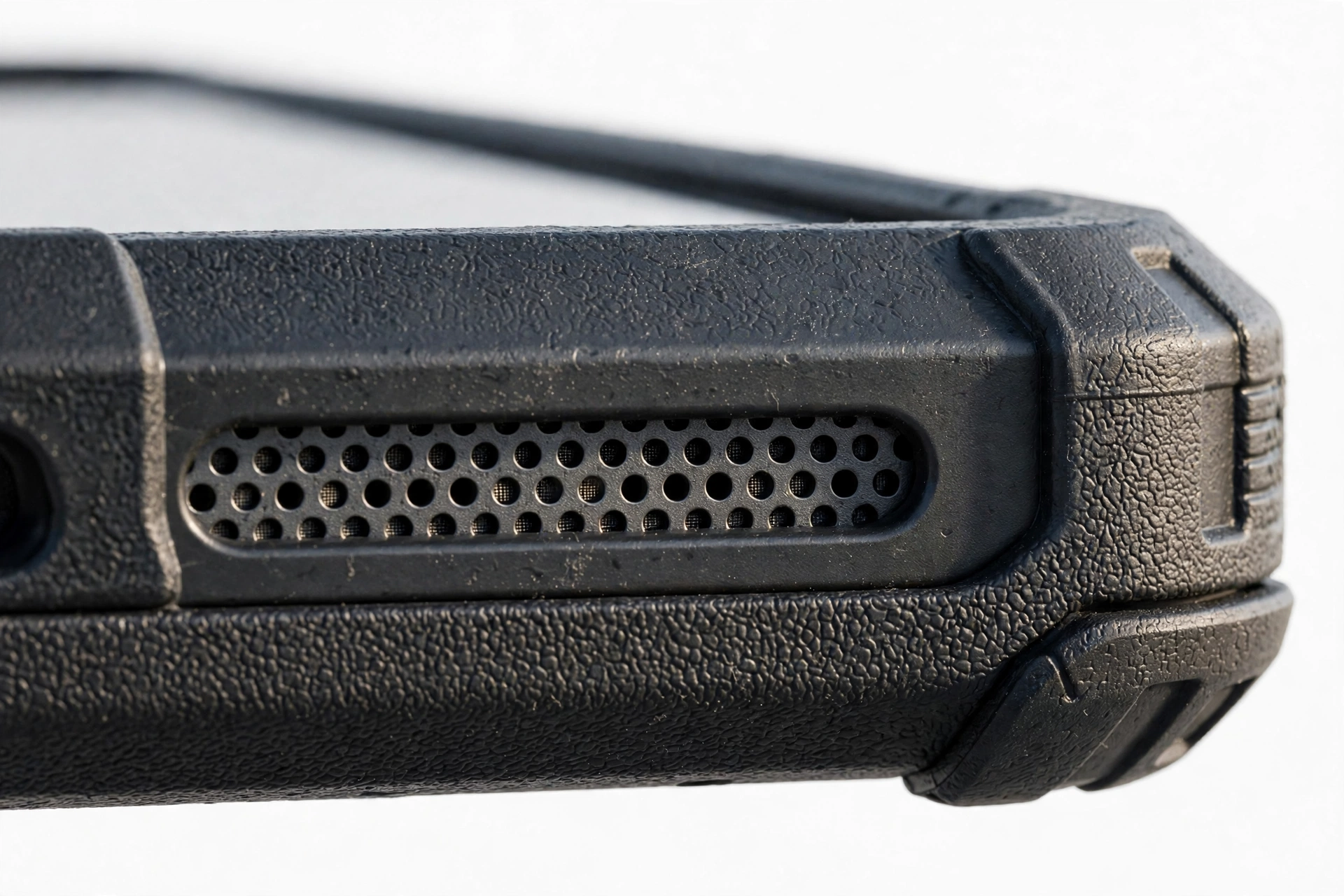
AGM phones are rugged devices built for construction sites, workshops, and outdoor work. Models like the AGM H6 and AGM G2 Guardian carry IP68/IP69K and MIL-STD-810H ratings, oversized batteries, and — on the G2 Guardian — a very loud 109dB loudspeaker. That rugged design changes the speaker-troubleshooting picture a little: waterproof rubber covers, sealed membranes, and speaker grilles exposed to dust and mud introduce hardware-adjacent causes that ordinary phones don’t have. This guide is written for owners of AGM rugged phones whose speaker stopped working (or started sounding wrong) right after a software update, and it keeps the two halves of the problem separate: the software half, which the update can explain, and the physical half, which it can’t.
Quick fact: The checks in this guide are ordered from fastest to slowest. Most post-update speaker failures are routing problems (Bluetooth, headset detection, app conflicts), not broken speakers — resist the urge to start with a factory reset.
1. What an update can — and cannot — do to your speaker
A software update replaces code, drivers, and configuration. It cannot crack a speaker diaphragm, blow a voice coil, or burn out an amplifier — those are physical failures that require physical causes like impact, heat, or electrical faults. What an update can do is: (Source: manuals.plus)
- Reset your Bluetooth pairing behavior so audio silently routes to a car kit, earbuds, or speaker you forgot about.
- Re-enable an audio effect, equalizer, or “enhancement” that now distorts or mutes the output.
- Change which audio device the system treats as default for calls, media, or alarms.
- Introduce a shipped bug in the audio driver that affects a specific function (e.g., media plays but calls don’t).
- Reset app permissions or battery optimizations that change how a third-party audio app behaves.
Every one of those is fixable without tools and without opening the phone. That is the honest framing for this whole guide: post-update speaker silence is a settings-and-routing problem until proven otherwise. The one honest exception is coincidence — a speaker that was already failing can stop working on the same day an update installs. The isolation tests below will sort that out.
2. The five post-update mechanisms, in likelihood order
| Mechanism | What happens | Typical symptom |
|---|---|---|
| Bluetooth ghost connection | Audio routes to a previously paired device | Everything silent; phone thinks audio is playing elsewhere |
| Wired headset false detection | Headphone jack switch stuck or misreads | Headphone icon in status bar; speaker silent |
| Audio-effect re-enabled | Equalizer/enhancement conflicts with the update | Distorted, tinny, or very quiet output |
| Third-party app conflict | A “cleaner,” “booster,” or game app holds the audio route | Silence in some apps but not others |
| Shipped driver bug | The update itself has an audio defect | Specific function fails (e.g., no media audio) on a fully working phone |
Work through this guide top to bottom and you’ll test these in roughly this order — which is also the order from cheapest to most expensive fix.
3. AGM-specific physical checks first (before any software steps)
AGM’s own manuals call out several physical conditions that affect audio, and because rugged phones live in dust, mud, and water, these are worth ruling out before you blame the update.
- Close the rubber covers. On the AGM H6 and AGM G2 Guardian, the USB port and (where fitted) the headphone jack have waterproof rubber covers that must be completely closed. A half-open cover lets moisture and debris reach the contacts — and a wet or dirty contact can fool the phone into thinking a headset is plugged in, which mutes the speaker.
- Don’t cover the receiver, main mic, or sub mic. AGM’s manuals explicitly warn against covering these openings. A thick case, a screen protector edge, or dried mud over the speaker grille blocks output directly.
- Check the speaker grille for debris. Construction dust, sawdust, and mud are the occupational hazards of rugged phones. Use a soft, dry brush to sweep the grille — never a pin, needle, or compressed air (more on why in the safety section).
- Try the G2 Guardian at an angle. The G2 Guardian’s powerful 109dB loudspeaker is positioned so that laying the phone flat on a table can muffle it noticeably. Prop the phone upright and re-test — this single check explains a surprising number of “muffled after update” reports, where the update merely coincided with the phone being set down differently.
- Test at medium volume first. AGM warns that full-volume use can damage hearing; for diagnostics, medium volume gives cleaner results and avoids triggering protection circuits that limit output.
Tip: If the speaker sounds muffled only outdoors or only in your workshop, suspect debris or water in the grille — not the update. Software failures don’t pick locations.
4. Isolate the failure: earpiece vs. loudspeaker
Your AGM has (at least) two sound outputs: the earpiece receiver you hold to your ear on calls, and the loudspeaker that plays media, speakerphone, ringtones, and alarms. Testing them separately narrows the cause dramatically.
| Test | Result | Likely meaning |
|---|---|---|
| Play a video (loudspeaker) | Silent or distorted | Media route problem or loudspeaker issue |
| Play the same video | Normal | Loudspeaker is fine — check the app that failed |
| Make a normal call (earpiece) | Silent | Call route problem or earpiece issue |
| Make the call on speakerphone | Works | Earpiece path failed; loudspeaker path OK |
| Ringtone on incoming call | Silent | Loudspeaker or ringtone-setting problem |
| Alarm sounds | Silent | Loudspeaker problem or alarm volume muted |
If some audio works and other audio doesn’t, the speaker hardware is almost certainly fine — a dead speaker would be dead for everything. That pattern points at routing or app-level causes, which the next sections address.
5. Kill the ghost: disconnect every Bluetooth audio device
This is the single most common cause of “no sound after update.” Updates can reset Bluetooth behavior, re-pair devices automatically, or change the media-audio toggle — and AGM users often have multiple audio accessories (truck kits, earbuds, work radios) from before.
- Open Settings > Connected devices > Bluetooth (on AGM’s near-stock Android the path follows the standard layout).
- Look for any device showing Connected — earbuds, a car kit, a portable speaker, even a smartwatch that takes audio.
- Tap the gear icon next to each and turn off Media audio (or tap Disconnect).
- Better still: turn Bluetooth off entirely for the test. If sound returns, you’ve found it.
- Test with a video or a test call while Bluetooth stays off.
(The following is a hypothetical illustration, not a customer story.) Daniel drives a work truck with a hands-free kit. After a system update on his AGM H6, all media sound vanished. The phone was auto-connecting to the truck’s Bluetooth the moment he started the engine, routing every video and podcast into a silent cabin system. Turning Bluetooth off restored the speaker instantly — the update had re-enabled auto-connect on a pairing he’d forgotten.
Quick fact: AGM phones on stock-ish Android may show a small Bluetooth icon in the status bar, but audio can route to a paired device without any obvious on-screen warning. Off means off — test with the radio switch fully disabled.
6. Check for a stuck wired-headset detection
Several AGM models (including the G2 Guardian and H6) retain a 3.5mm headphone jack with a waterproof rubber cover. The jack contains a tiny mechanical/electrical switch that detects a plug. Dust, pocket lint, or moisture in that jack can hold the switch in the “plugged” position — the phone then sends all audio to a headset that isn’t there, and the loudspeaker stays silent.
- Look at the status bar for a headphone icon when nothing is plugged in. If it’s there, the phone thinks a headset is connected.
- Open the rubber cover and inspect the jack. Brush out visible lint with a soft, dry brush.
- Plug a known-good headset in fully, then remove it firmly — this can re-seat a sluggish switch.
- Do not blow into the jack with your mouth (moisture) or use compressed air (pressure can drive debris deeper and damage the sealed membrane).
Close the rubber cover completely afterward. AGM’s manuals are explicit: the cover must be fully closed to keep the waterproofing intact, and a half-closed cover invites the very moisture this check is trying to rule out.
7. Remove “speaker cleaner” and “volume booster” apps
This one deserves its own section because it’s such a frequent cause of post-update silence. Apps that promise to “clean your speaker with sound waves” or “boost volume 200%” work by seizing control of the audio output path. After an update, their hooks can conflict with the new system — leaving the audio route locked, muted, or distorted.
- Open Settings > Apps and look for any app with “speaker,” “cleaner,” “booster,” “volume,” “equalizer,” or “sound” in the name that you installed yourself.
- Uninstall it (not just force-stop — uninstall).
- Restart the phone.
- Re-test the speaker.
(The following is a hypothetical illustration, not a customer story.) Amara installed a “speaker cleaner” app on her AGM G2 after an update, hoping to fix quiet audio. The app’s ultrasonic-cleaning feature held the audio output open in the background, and after the update it started muting everything else. Uninstalling the app and restarting restored normal sound in under two minutes — the “fix” had been the problem all along.
Tip: Android needs no third-party app to manage its speaker. The system settings cover volume, balance, and output selection. Any app that claims to “clean” hardware with software should be treated as suspect.
8. Use Safe Mode as the organizing diagnostic
Safe Mode starts Android with only the pre-installed system apps — every third-party app is temporarily disabled. This one test cleanly separates “the update’s system broke something” from “one of my apps broke something.”
- Press and hold the power button until the power menu appears.
- Touch and hold Power off until the Reboot to safe mode prompt appears, then tap OK. (If your AGM model’s menu differs, consult the manual for your specific device.)
- The phone restarts with “Safe mode” shown in a corner. Test the speaker: play a video, play a ringtone, make a test call.
- To exit, restart the phone normally.
| Safe Mode result | Meaning | Next step |
|---|---|---|
| Speaker works in Safe Mode | A third-party app is interfering | Uninstall recently added/updated apps one by one (see section 7) |
| Still silent in Safe Mode | System-level or hardware cause | Continue with cache clearing and software checks below |
| Works in Safe Mode but fails on some apps after restart | A specific app’s audio handling is broken | Clear that app’s cache, or uninstall and reinstall it |
Quick fact: If your AGM ever becomes unresponsive during these steps, AGM’s own guidance is to press and hold the power button until the device vibrates, then release — a documented hard-restart path for its rugged phones.
9. Clear caches — app first, then system
Updates can leave behind stale cached data that the new system chokes on. Clearing caches is non-destructive: no accounts, photos, or messages are removed.
App cache: Go to Settings > Apps, tap an audio-heavy app (music player, video app, browser), then Storage & cache > Clear cache. Do this for the apps that misbehave first.
System cache partition: AGM phones run near-stock Android, so the standard recovery-mode path applies:
- Power the phone off completely.
- Press and hold Power + Volume Up until the AGM logo appears, then release.
- In recovery mode, use the volume buttons to highlight Wipe cache partition and the power button to select it.
- Confirm, then select Reboot system now.
This removes temporary system files the update may have corrupted, and it takes a couple of minutes. It does not delete your data.
10. Check for a follow-up update
Manufacturers ship bad updates. When a software release breaks audio on a popular model, a corrective patch usually follows within days or weeks. Because some AGM owners report limited future-update support for older models, this check matters both ways: if a patch exists, install it; if none exists, that information shapes what you do next.
- Go to Settings > System > System update.
- Tap Check for updates even if the phone says it’s current — carrier and regional variants can lag.
- Install anything offered, then re-test the speaker after the phone restarts.
If a follow-up update fixes the problem, you’ve confirmed a shipped bug — and the fix was patience, not hardware work.
11. The water-exposure check (AGM’s own 30-minute rule)
AGM’s manuals state plainly that water contact “may affect the audio for a short period,” and they give the official remedy: dry the phone with a clean cloth, then let it stand and dry naturally for 30 minutes. No hairdryers, no heat, no rice.
This matters in a post-update context because updates and water exposure often coincide by routine, not causation: people charge and update their phones at night, next to sinks, or after a day on a wet site. If your AGM was wet, washed, or used in heavy rain around the time of the update:
- Power the phone off.
- Open the rubber covers and shake out any visible water gently.
- Wipe the speaker grille and all covers with a clean, dry cloth.
- Leave the phone upright in a ventilated spot for at least 30 minutes — longer if the grille was visibly wet.
- Close all covers firmly, power on, and re-test.
Stop for safety: Never use a hairdryer, heat gun, or radiator to dry a phone. AGM’s manuals warn explicitly that other drying methods affect performance — heat can warp seals, damage the battery, and push moisture deeper into the device.
12. Factory reset: last resort, with a verified backup
A factory reset wipes the phone back to its out-of-box software state. It is the strongest software fix available — and it is also the most destructive, which is why it comes after every check above.
The key logic most guides skip: a factory reset reinstalls the same system version that caused the problem. If the update shipped with a genuine audio-driver bug, the reset restores that same buggy build, and the speaker will fail again. A reset only helps when the cause is corrupted configuration or a bad app state — which the Safe Mode test in section 8 already helps you identify.
Before resetting:
- Back up everything that matters: photos, contacts, messages, authenticator apps, and work documents. Verify the backup exists (open Google Drive or your backup app and confirm the timestamp).
- Remove or note your Google account — you’ll need the password after the reset (Factory Reset Protection).
- Charge to at least 50% and keep the charger connected.
Path: Settings > System > Reset options > Erase all data (factory reset). After the reset, test the speaker before restoring your apps — if it works on the clean build and breaks after you restore, one of your apps was the cause.
Stop for safety: Do not factory-reset a phone with a swollen, distorted, or dangerously hot battery, and never as a first step. A reset cannot fix hardware, and it permanently deletes unbacked-up data.
13. Symptom-to-cause worksheet
Use this worksheet like a checklist. Find your symptom, check the likely cause column, and run the indicated fix before moving on.
| Symptom | Likely cause | First fix (section) |
|---|---|---|
| No sound at all, anywhere | Ghost Bluetooth connection | Turn Bluetooth off entirely (5) |
| Headphone icon shown, nothing plugged in | Stuck jack detection / wet contact | Clean jack, re-seat with a plug, dry (6) |
| Muffled or quiet, all apps | Blocked grille / flat-on-table position | Brush grille, prop phone upright (3) |
| Distorted or tinny output | Audio effect re-enabled by update | Check sound settings, disable effects (9) |
| Some apps silent, others fine | App conflict or app cache | Safe Mode test, clear app cache (8, 9) |
| Calls silent, media fine | Call-route default changed | Check in-call audio output, Bluetooth (4, 5) |
| Media silent, calls fine | Media volume muted or media-route stuck | Check volume sliders, Bluetooth media toggle (5) |
| Started after water contact | Moisture in grille or jack | AGM 30-minute drying rule (11) |
| Started after installing a “cleaner” app | App seized the audio route | Uninstall the app, restart (7) |
| Everything failed, all steps done | Shipped driver bug or hardware failure | Follow-up update check, then repair assessment (10, 14) |
14. What home tests can — and cannot — establish
Honest diagnostics require knowing the limits of what you can test at home. This table draws the line.
| Test | Can establish | Cannot establish |
|---|---|---|
| Bluetooth off restores sound | The cause was routing, not hardware | Why the update changed the routing |
| Safe Mode restores sound | A third-party app was the cause | Which exact app, without further testing |
| Cache wipe fixes it | Stale data was the cause | Whether the bug will return after the next update |
| Speaker silent in every test | System-level or hardware cause is likely | Driver bug vs. failed speaker without a repair bench |
| Factory reset fixes it | Configuration corruption was the cause | That a hardware fault isn’t developing underneath |
| Distortion at all volumes | Output-stage problem likely | Software vs. hardware without bench diagnosis |
15. When to stop troubleshooting and seek a repair assessment
Stop and get the phone looked at in person if any of these apply:
- The speaker is silent in every test above — Safe Mode, Bluetooth off, clean build after a reset — and no follow-up update exists. That pattern points at hardware.
- Output is distorted at all volumes and in Safe Mode. A consistently distorted driver usually means a damaged diaphragm or a failing amplifier stage.
- The phone took a hard drop, was crushed, or was exposed to salt water or chemicals around the time of the update. Rugged ratings don’t cover every real-world impact.
- The battery is swollen, the phone runs dangerously hot, or you smell anything unusual. Power down and stop — do not charge it.
- You see physical damage: a cracked speaker grille, a bent frame, or a loose back cover that breaks the seal.
A repair shop can open the device safely, test the speaker module against a known-good part, and check the audio amplifier circuit — things no home test can do. If you’re in the Las Vegas area, Las Vegas Phone Repair & Accessories (7400 Las Vegas Blvd S, Unit TT42, Las Vegas, NV 89123; (424) 406-6202) offers in-person assessments — call ahead to confirm today’s hours before visiting.
Quick fact: AGM’s own manual notes that after a strong shock, or if the phone has been bent or twisted, it should not come into contact with water — the seals may no longer hold. Mention any drops to the technician.
16. Frequently asked questions
Can a software update physically damage my AGM’s speaker?
No. Updates change code and settings; they cannot crack a diaphragm or burn out an amplifier. What feels like “the update killed my speaker” is almost always routing (Bluetooth, headset detection), an app conflict, or an audio effect the update re-enabled. The isolation tests in sections 4–8 distinguish these cases in minutes.
The earpiece works but the loudspeaker doesn’t. What does that mean?
It means the two output paths diverge somewhere in software or hardware. If the earpiece plays call audio normally, the audio system as a whole is alive. Work the loudspeaker-specific checks: Bluetooth media routing, the media volume slider (separate from call volume), grille obstruction, and Safe Mode.
Sound only comes through my earphones — why?
The phone believes a headset is connected. Check the status bar for a headphone icon with nothing plugged in, inspect the 3.5mm jack for lint or moisture under its rubber cover, and try the plug-in/plug-out re-seat. On AGM models with waterproof covers, a half-closed cover is a common culprit.
Should I install a “speaker cleaner” or “volume booster” app?
No. These apps seize the audio output path and are a frequent cause of post-update silence, not a cure. Android’s built-in settings handle volume and output selection fully. If you already have one installed, uninstall it and restart before any other troubleshooting.
How do I tell if it’s a shipped bug in the update?
The signature pattern: the speaker fails in Safe Mode too, no app or setting explains it, the phone was fully working immediately before the update, and other owners of the same model report the same failure. Checking for a follow-up update (section 10) is both the test and — when a patch exists — the fix.
Will a factory reset fix my speaker?
Sometimes, but only when the cause is corrupted configuration or bad app state — never when the cause is a shipped driver bug (the reset restores the same buggy build) or hardware. Always back up and verify the backup first, and test the speaker before restoring your apps afterward.
My AGM got wet around the same time. Is that related?
Quite possibly — and AGM’s manuals say so directly. Water contact can temporarily affect audio. Follow the official 30-minute rule: power off, wipe with a clean cloth, open the covers, let it stand and dry naturally, then close everything and re-test. Never use heat.
When should I take the phone to a repair shop?
When the speaker fails every software test including Safe Mode and a clean reset, when output is distorted at all volumes, after significant physical damage, or if the battery shows any swelling or heat. A bench test with a known-good speaker module is the only definitive hardware answer.
Video: How to tell if your smartphone is fake or real
Sources and editorial notes
- AGM H6 smartphone user manual (via Manuals.plus) — IP68/IP69K/MIL-STD-810H certification, rubber-cover requirement, official water-contact audio guidance (clean cloth, 30-minute natural drying, no hairdryers).
- AGM G2 Guardian user manual (via Manuals.plus) — 109dB loudspeaker, “do not cover receiver/mics,” hard-restart guidance, identical waterproofing warnings.
- MobilityArena: G2 Guardian expert solutions — 109dB speaker positioning advice (prop at angle when muffled), Bluetooth audio tips, update guidance.
- SlashGear: Android speaker troubleshooting — standard fix order (restart, volume, Bluetooth, Safe Mode, cache wipe, update, factory reset).
- iFixit community answers: no phone speaker sound — Bluetooth routing and headset-jack false-detection checks.
For related guidance, see our general phone speaker post-update fix guide, the Oukitel speaker post-update guide, and the Cubot speaker post-update guide.
Last source check: October 14, 2026. AI-assisted editorial guide, checked against the linked manufacturer information. AGM publishes limited model-specific audio troubleshooting; where the manuals are silent, this guide uses the documented standard Android paths that apply to AGM’s near-stock software, and says so.
Let’s get you connected again.
Tell us what’s happening with your device and we’ll help you decide the safest next step — no jargon, no pressure.
Las Vegas Phone Repair & Accessories · 7400 Las Vegas Blvd S, Unit TT42, Las Vegas, NV 89123
10:00 AM–8:00 PM — call ahead to confirm today’s hours