
Phone NFC Not Working After Update: Causes and Safe Fixes
If NFC stopped working right after a software update, the update almost certainly changed a setting, corrupted a payment token, or introduced a bug — it did not physically damage the NFC chip. Work through the diagnosis and ordered fixes below before assuming the hardware has failed.
On this page
If NFC stopped working right after a software update, the update almost certainly changed a setting, corrupted a payment token, or introduced a bug — it did not physically damage the NFC chip.
1. What this guide covers (and what it doesn’t)
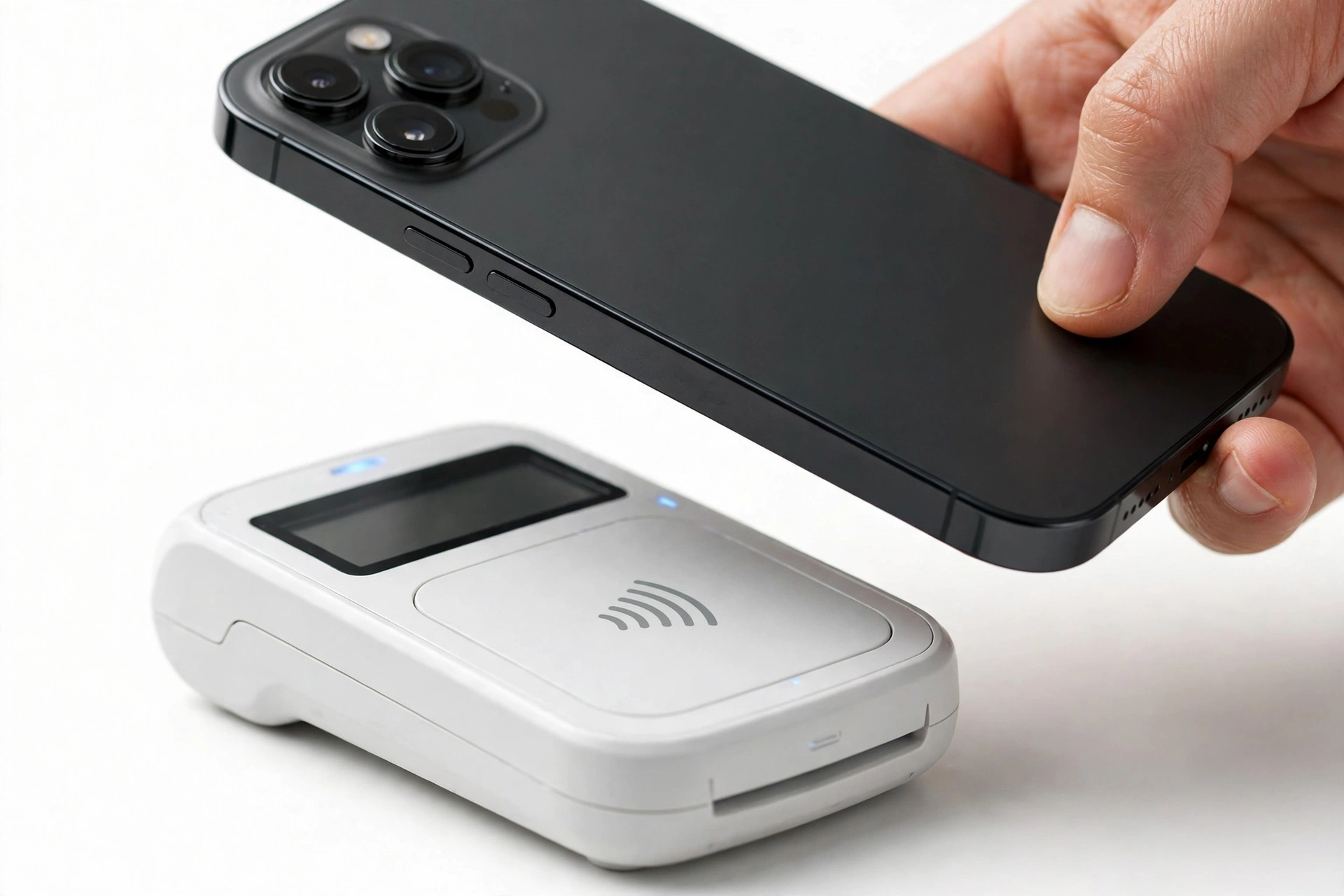
This guide is for one specific situation: contactless features — tap-to-pay at a checkout, transit cards, NFC tag reading — that worked before a software update and stopped working after it. That timing is the most important clue you have. A hardware failure does not politely wait for an update to finish installing; a settings change, a corrupted payment token, or an operating-system bug does. (Source: samsung.com)
Who this helps: iPhone owners whose Apple Pay or NFC tag reading broke after an iOS update, and Samsung Galaxy owners whose Samsung Wallet, Google Wallet, or NFC tag features broke after an Android or One UI update. The steps are ordered from quickest to most involved, and each section tells you when to stop.
What this guide does not cover: NFC problems that began without any update (a phone that never read tags, or one that stopped working months after its last update), and general NFC setup for a brand-new device. If your situation matches one of those, the companion guides — Bluetooth problems after updates, Wi-Fi problems after updates, and GPS problems after updates — cover the same diagnostic logic for their own radios and sensors, but the NFC-specific steps below are written for the post-update case only.
Scope note: This article is part of a series on problems that appear specifically after software updates. Each guide in the series covers a different feature — Bluetooth, Wi-Fi, the speaker, the microphone, the camera, the screen, the hotspot, GPS — because each feature has its own settings, caches, and failure modes. The NFC steps below will not help with a broken speaker or a dead Wi-Fi radio, and the Bluetooth guide will not fix your tap-to-pay. Keep the symptom and the feature matched.
2. How NFC works on your phone (the 60-second version)
NFC — near-field communication — is a short-range radio built into most modern phones. It powers three everyday uses: contactless payments (Apple Pay, Samsung Wallet, Google Wallet), transit and access passes stored in a wallet app, and reading small NFC tags (the stickers and posters that open a website, join a Wi-Fi network, or trigger an automation when you tap your phone to them).
On iPhone, there is no NFC on/off switch. Apple documents that NFC is always on; the only related setting is background tag reading, which lets the phone read tags without opening an app first. Apple Pay is the main consumer-facing use, and it depends on more than the radio: a provisioned card token from your bank, Face ID or Touch ID authentication, and Apple’s servers all have to cooperate for a payment to succeed.
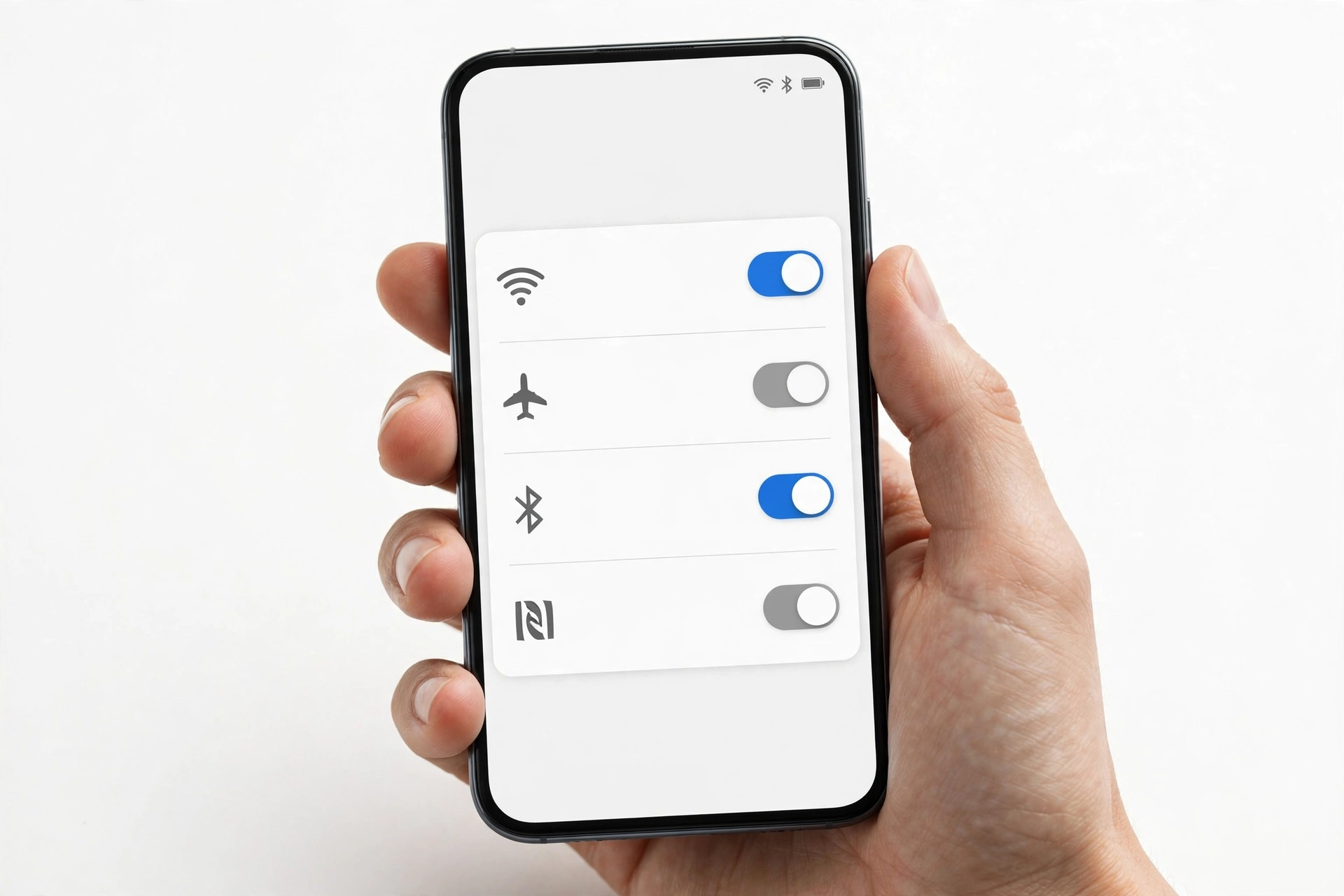
On Samsung Galaxy phones, NFC has an explicit toggle at Settings > Connections > NFC and contactless payments, plus a default payment app selection. Samsung’s own support pages describe the standard troubleshooting order: toggle NFC off and back on, confirm the default payment app, remove interfering cases, and hold the device correctly against the reader, using the on-screen placement guide in the NFC settings screen.
The key point for this guide: an operating-system update touches every one of these layers. It can flip a toggle, invalidate a payment token, change which app is the default, corrupt a cache the NFC service depends on, or ship a genuine bug in the NFC stack. Any of those produces “NFC not working,” and each has a different fix.
3. Why an update can break NFC: the six update-specific mechanisms
When NFC worked yesterday and the only thing that changed is a software update, one of these six mechanisms is usually responsible. Knowing which one fits your symptom saves you from destructive steps like a factory reset.
3.1. A setting was silently reset or changed
Updates sometimes revert individual settings to defaults. On Samsung phones, the NFC toggle itself, the default payment app, or the “Pay with currently open app” switch can change. On iPhone, there is no NFC toggle to reset, but related settings — background app refresh, region, date and time — can shift, and any of them can block wallet verification.
3.2. A payment token was corrupted or de-verified
Contactless payment does not send your real card number; it sends a token your bank issued to the phone. The update process can corrupt that token or break the link between the wallet app and the bank’s verification. The card still appears in the wallet, which is misleading — it looks fine but fails at the terminal. Removing and re-adding the card forces a fresh provisioning with the bank, which is why this is one of the most effective post-update fixes.
3.3. The default payment app changed
If you recently installed or updated a second wallet app, the update may have changed which app handles contactless payments — or the selection may need to be re-established even though it looks correct. Samsung’s support documentation specifically calls out checking the default payment app as a core troubleshooting step.
3.4. A system or app cache was corrupted
The NFC service and wallet apps keep caches that speed up normal operation. An update can leave those caches in an inconsistent state. Clearing the cache of the wallet app (and, on Samsung, the NFC system service) is a low-risk fix that resolves a surprising number of post-update failures.
3.5. An app became incompatible with the new OS version
A wallet or transit app that has not yet been updated for the new operating system can fail even though the NFC radio itself is fine. This is especially common with bank apps and transit-agency apps in the first days after a major OS release.
3.6. A genuine bug shipped in the update
Sometimes the update itself is at fault. Press reporting in September 2026 described a Pixel NFC bug that broke tap-to-pay, where restarting the phone only restored function temporarily — a pattern that points to an OS-level defect rather than anything the user did. Google has previously shipped NFC regressions and fixed them in later patches, including one in an Android 17 quarterly release that had broken tag reading. When every other fix fails and many other users report the same timing, waiting for a point release is the correct move, not a factory reset.
Quick fact: A software update cannot physically damage the NFC chip or antenna. If NFC worked immediately before the update and the phone suffered no drop, impact, or water exposure at the same time, treat the problem as software until a full clean test proves otherwise. The diagnostic steps in section 4 are designed to establish exactly that.
4. Before you fix anything: the 2-minute diagnosis
Do not start changing settings until you know which part is broken. NFC involves three independent pieces — the phone’s radio, the payment or tag app, and the other end (terminal or tag). A single failed tap tells you almost nothing; these three quick tests tell you a great deal.
4.1. Test A: Is it the phone or the terminal?
Try a second, different NFC target. If tap-to-pay failed at one store, try a different store’s terminal, or try reading a known-good NFC tag (a transit card, a tag you have used before). Samsung’s support pages note that unsupported or misconfigured card readers can prevent wallet transactions even when the phone is fine. If the phone works with a second target, the first terminal was the problem — stop troubleshooting the phone.
4.2. Test B: Is it payments or the NFC radio?
Try reading an NFC tag (not a payment). If tag reading works but payments fail, the NFC radio is fine and the problem is in the wallet app, the card token, or the bank. If tag reading also fails, the problem is at the radio or system level, and the platform fix paths in sections 6 and 7 are the right place to start.
4.3. Test C: Is it one card or all cards?
If you have more than one card in the wallet, try a different one. One failing card with others working points at that card’s token or the issuing bank. Every card failing points at the phone’s NFC stack, the wallet app, or a system-level issue. Apple-directed troubleshooting guides make the same distinction: a single-card failure is a bank/token problem; an all-cards failure is a phone problem.
Tip: Write down the results of the three tests before you change anything. “Tags work, all cards fail, second terminal also fails” is a precise problem statement that makes every later step faster — and it is exactly what a support agent or repair shop will ask you first.
5. Quick fixes: the 5-minute pass
These take minutes, change nothing destructive, and resolve a large share of post-update NFC failures. Do them in order.
5.1. Restart the phone
A plain restart clears temporary system state that can wedge the NFC service after an update. On current Pixel devices, press reporting noted that a restart temporarily restored tap-to-pay even during an acknowledged NFC bug — which also tells you that if a restart fixes it for an hour and it breaks again, you are likely looking at an OS bug (section 3.6), not a setting.
5.2. Check the NFC toggle (Samsung) and Airplane Mode (both platforms)
On Samsung: go to Settings > Connections > NFC and contactless payments and confirm the toggle is on. Toggle it off, wait a few seconds, and toggle it back on — Samsung’s own support pages list this as the first troubleshooting step. You can also do it from the Quick settings panel by swiping down and tapping the NFC button twice. On iPhone there is no toggle, but confirm Airplane Mode is off, since it disables the NFC radio along with the other radios.
5.3. Remove the case and try again
Thick cases, metal components, and magnetic wallet cases that hold cards can block or detune the NFC antenna. Samsung’s support documentation explicitly warns that non-genuine covers — especially ones containing magnets, cards, or metal — may interfere with NFC communication, and recommends removing the case before using NFC functions. Test case-free before you conclude anything about software.
5.4. Reposition the phone on the reader
The NFC antenna sits near the top of most phones. Hold the top of the phone close to the reader or tag and keep it still for a second or two rather than waving it. Samsung provides an on-screen placement guide at Settings > Connections > NFC and contactless payments — check it if you are unsure where your model’s antenna sits.
5.5. Update the wallet app and install any pending point release
Open the Play Store or App Store and update the wallet app (Samsung Wallet, Google Wallet, your bank’s app). Then check Settings for a pending OS point release — if the update that broke NFC shipped a bug, the fix often arrives within days as a small patch. Installing it is the correct response to a suspected OS bug, and it costs nothing.
6. iPhone: the ordered fix path
Work top to bottom. Stop at the first step that fixes it.
6.1. Force restart
A force restart clears deeper system state than a normal restart. Press and quickly release Volume Up, press and quickly release Volume Down, then press and hold the Side button until the Apple logo appears.
6.2. Check the “Apple Pay Issue Detected” message
After some updates or restarts, iPhones can display an “Apple Pay Issue Detected” message. When this appears, Apple Pay and Wallet payments will not work until iOS is reinstalled — some passes may still work, but purchases will not. Apple documents the fix: back up the iPhone, connect it to a computer with the latest macOS, iTunes, or the Apple Devices app, select the iPhone, then hold Command (Mac) or Control (Windows) while clicking Check for Update, and choose Download and Update. Keep the phone connected until it finishes. If you see this message, skip the remaining software steps and do this — nothing else will clear it.
6.3. Remove and re-add the payment card
If no “Issue Detected” message appears but payments fail, the card token is the prime suspect. In the Wallet app, remove the affected card, restart the iPhone, then tap the plus icon and add the card again, completing whatever verification your bank requires. Multiple troubleshooting guides identify this as the single most effective fix for Apple Pay failures after an iOS update, because it forces a fresh provisioning with the bank.
6.4. Verify Face ID / Touch ID, region, and date & time
Apple Pay requires working biometric authentication. If Face ID or Touch ID is failing, fix that first. Then check Settings > General > Date & Time (set to automatic — wrong time can block verification) and Settings > General > Language & Region (an incorrect region can restrict Apple Pay availability).
6.5. Update iOS to the latest point release
Go to Settings > General > Software Update and install anything pending. Apple regularly ships fixes for wallet and NFC regressions in point releases.
6.6. Reset All Settings (not Erase)
If nothing above worked, go to Settings > General > Transfer or Reset iPhone > Reset > Reset All Settings. This clears system preferences — Wi-Fi networks, Bluetooth pairings, and configuration — without deleting apps, photos, or Wallet cards, and it resolves corrupted network and system settings that commonly interfere with Apple Pay authentication after updates.
Stop for safety: On the Reset screen there are two similarly named options. “Reset All Settings” keeps your data. “Erase All Content and Settings” wipes the entire phone. Tap carefully — choosing Erase by mistake means restoring from a backup or losing data that was never backed up. If you are unsure, do not tap either; ask someone to read the screen with you.
6.7. Check with the bank, then Apple Support
If a single card still fails after re-adding it, call the bank — Apple does not approve or decline cards; the issuer does. Ask whether the card supports Apple Pay, whether a device limit was reached, and whether the token needs reissuing. If every card fails on the phone, contact Apple Support, which can check token status and device eligibility from their side.
7. Samsung Galaxy: the ordered fix path
Work top to bottom. Stop at the first step that fixes it.
7.1. Toggle NFC and confirm the default payment app
Go to Settings > Connections > NFC and contactless payments. Toggle NFC off and back on. While you are there, confirm your preferred payment app is set as the default, and check the “Pay with currently open app” switch — Samsung’s support pages list both as core checks, because updates can change them.
7.2. Force restart
Press and hold Power and Volume Down together until the Samsung logo appears, then release. This clears temporary system state that can wedge the NFC service.
7.3. Clear the wallet app’s cache (and the NFC service cache)
Go to Settings > Apps, select the wallet app (Samsung Wallet, Google Wallet, or your bank’s app), tap Storage, then Clear Cache. Do not tap Clear Data — that would sign you out and delete the app’s local state. If the problem persists, repeat the process for the NFC system service: in the Apps list, enable “Show system apps,” find the NFC or NfcNci service, and clear its cache. Samsung’s own community support team has published this cache-clearing approach as an official troubleshooting step.
7.4. Remove and re-add the payment card
As on iPhone, a corrupted token survives every settings toggle. Remove the card from the wallet app, restart the phone, and add the card again with bank verification.
7.5. Check the SIM card
Some NFC services store payment or authentication information on the SIM card. Samsung’s support documentation advises removing and reinserting the SIM — power off, eject the tray with the SIM pin (insert it straight, never force it), reseat the card with gold contacts up, reinsert the tray, and restart. If the SIM itself is damaged, a replacement from the carrier may be necessary.
7.6. Run the Samsung Members NFC diagnostic
Open the Samsung Members app, go to Support, then Phone Diagnostics, and run the NFC test. This is Samsung’s built-in hardware check: if the diagnostic passes but payments still fail, the problem is software or account-side; if the diagnostic fails, you are looking at a hardware fault and should contact a Samsung service center rather than continuing to reset software.
7.7. Install the next software update, then consider a factory reset
Check Settings > Software Update > Download and install. If an OS bug is responsible, the patch is the fix. Only as a last resort, back up everything (Samsung’s Smart Switch plus your Google account — and note your Google password, since factory reset protection will ask for it) and perform a factory reset. If NFC still fails on a clean, fully updated system, the NFC hardware needs professional diagnosis.
Quick fact: A rooted phone, or one where the Knox security tripwire has been triggered, will have Samsung Pay permanently disabled as a security measure — no settings change can re-enable it. If the phone was ever rooted, that is the cause, and it is not fixable through troubleshooting.
8. Payment-app problems after an update
Many “NFC not working” reports are really wallet-app problems wearing an NFC disguise. The radio is fine; the app, its token, or its account state is not. Run through these checks whenever Test B in section 4 showed that tag reading works but payments do not.
8.1. Re-verify the default payment app
On Samsung, go to Settings > Connections > NFC and contactless payments and confirm the default app is the one you intend to pay with. If you installed or updated a second wallet recently, the selection may have changed silently — re-select it even if it looks right, because the underlying binding sometimes needs to be re-established after an update.
8.2. Update the wallet app itself
Wallet apps are updated independently of the OS. After a major OS update, an outdated wallet app can fail in ways that look exactly like an NFC hardware fault. Update Samsung Wallet, Google Wallet, or your bank’s app from the Galaxy Store or Play Store, then re-verify the default payment selection, since app updates can also disturb it.
8.3. Re-add cards rather than re-adding them repeatedly
Remove the failing card once, restart, and add it back with full bank verification. If it fails again immediately, do not delete and re-add it five more times — repeated re-provisioning of the same card rarely helps and can trigger the bank’s fraud systems. At that point the problem is elsewhere: the terminal, the bank’s authorization rules, or the phone’s NFC stack.
8.4. Separate network problems from NFC problems
A wallet can report a network error that feels like an NFC failure. Samsung’s wallet troubleshooting documentation specifically calls out network errors as a separate payment failure mode. If the wallet app shows a network or server message, test the phone’s Wi-Fi or mobile data instead of resetting NFC settings — the radio was never the problem.
8.5. Check card-level blocks with the bank
Banks can block mobile-wallet transactions for fraud prevention, expired tokens, or changed card details without telling you in the wallet app. If one card fails everywhere while others work, call the number on the back of that card and ask specifically about mobile-wallet authorization before doing anything destructive to the phone.
9. The symptom worksheet: match what you see to the likely cause
Find the row that best describes your symptom. Start with the fix in the right column; the middle column explains why that fix is the right first move.
| Symptom | Likely cause | First fix |
|---|---|---|
| Tap-to-pay fails at one terminal, works at another | Terminal misconfigured or offline — not the phone | Use a different terminal; no phone changes needed |
| Tags read fine, but all payments fail | Wallet app, token, or account problem — radio is healthy | Update wallet app, re-verify default app, re-add cards |
| One card fails, other cards work | That card’s token corrupted or bank-blocked | Remove and re-add that one card; call the bank if it persists |
| Every card fails, tags also fail | System-level NFC problem from the update | Restart, toggle NFC, clear NFC/wallet caches, update OS |
| “Apple Pay Issue Detected” message on iPhone | Update left Wallet in a broken state (Apple-documented) | Reinstall iOS via computer per Apple’s steps — nothing else clears it |
| NFC toggle is greyed out or will not stay on (Samsung) | System service wedged, carrier restriction, or hardware fault | Restart; if still greyed out after a factory reset, seek service |
| Worked right after the update, fails later in the day | OS bug — service degrades over time (reported Pixel pattern) | Restart for temporary relief; install the next point release; carry a backup card |
| Fails only with the case on | Case interferes with the antenna | Remove the case; replace magnetic or metal cases |
| Wallet shows a network or server error | Connectivity or account problem, not NFC | Test Wi-Fi/mobile data; check Apple/bank system status |
| Nothing NFC-related works after a factory reset | Hardware failure of the NFC chip or antenna | Professional diagnosis — stop resetting software |
10. What your observations can and cannot establish
Honest diagnosis means knowing the limits of each test. This table keeps you from overconfident conclusions — and from destructive steps taken for the wrong reason.
| Observation | What it suggests | What it cannot prove |
|---|---|---|
| Tags read, payments fail | The NFC radio works; the fault is in the wallet, token, or bank | It does not prove which of those three is at fault |
| Works at one terminal, fails at another | The first terminal is the problem | It does not prove the phone is fully healthy — only that it works there |
| A restart fixes it temporarily | A software or service-state issue, possibly an OS bug | It does not prove the bug is fixed — watch whether it recurs |
| Fails only with the case on | The case interferes with the antenna | It does not prove the software is fine — test case-free after updates too |
| Samsung Members NFC diagnostic passes | The NFC hardware responds | It does not prove payments will work — tokens and accounts are separate |
| Still fails after a full factory reset | Strong evidence of a hardware fault | It does not identify which component failed — that needs a bench diagnosis |
11. Hypothetical examples
(The following are hypothetical illustrations, not customer stories.)
11.1. Maya’s transit card stops working after a One UI update
Maya taps her Galaxy phone on the bus reader every morning. The day after a One UI update, the reader does nothing. She works the diagnosis: a grocery-store terminal also fails (Test A — not one bad reader), but her phone still reads an NFC sticker on her desk (Test B — the radio works, so it is a wallet problem). In the NFC settings she finds the update had switched her default payment app to a transit app she installed months ago and never used. She re-selects her wallet, taps the bus reader, and it works. Total time: under five minutes, no data lost.
11.2. Daniel’s Apple Pay fails at every store after an iOS update
Daniel updates his iPhone overnight. At lunch, Apple Pay fails at two different stores (Test A — not the terminal), and NFC tag reading also fails (Test B — system-level, not just the wallet). He force-restarts — no change. He checks for the “Apple Pay Issue Detected” message — not present. He removes his card from Wallet, restarts, and re-adds it with bank verification. The next tap works. The update had corrupted the card token; everything else on the phone was fine.
12. When to stop troubleshooting and get professional help
Stop and seek an assessment when any of these is true:
- NFC still fails after a factory reset on a fully updated phone — the hardware is the remaining suspect.
- The Samsung Members NFC diagnostic fails — Samsung’s own hardware test says the radio is not responding.
- The NFC toggle is greyed out and will not turn on even after a restart and a settings reset.
- There is visible damage near the top of the phone where the NFC antenna sits, or the phone suffered a hard drop at the same time as the update.
- You see the “Apple Pay Issue Detected” message and have no computer available to reinstall iOS — use another payment method until you can do the computer-based fix.
Never open the phone yourself to reach the NFC antenna or coil. The antenna sits near other fragile components, and opening a modern sealed phone risks battery damage, broken seals, and voided warranty coverage. A professional assessment is the safe next step.
Tip: If you are in the Las Vegas area and the steps above point to hardware, Las Vegas Phone Repair & Accessories (7400 Las Vegas Blvd S, Unit TT42, Las Vegas, NV 89123; (424) 406-6202; open 10AM–8PM, call ahead to confirm today’s hours) can assess NFC hardware issues. Bring the results of the three diagnosis tests in section 4 — they make the assessment faster.
13. Preventing NFC problems after future updates
You cannot prevent every OS bug, but you can make the next update far less disruptive:
- Update wallet apps before the OS update. An up-to-date wallet app is less likely to break when the OS underneath it changes.
- Screenshot your NFC and payment settings. On Samsung, capture the NFC settings screen and the default payment app selection. If the update changes them, you will know exactly what to restore.
- Test NFC right after every update. Tap a terminal or read a tag within a day of updating, while the timing is fresh in your mind. Catching it early makes the cause obvious.
- Keep a backup payment method. During the Pixel NFC bug in 2026, affected users’ only reliable fallback was a physical card. Until a suspected bug is patched, carry one.
- Do not update on the morning of a travel day. If you depend on a transit pass in your wallet, update the evening before and test — not at the station.
14. Frequently asked questions
Can a software update really break NFC, or is that a myth?
It is real. Updates change settings, invalidate payment tokens, corrupt caches, and occasionally ship genuine bugs in the NFC stack. Press reporting has documented NFC regressions after both iOS and Android updates, including cases fixed only by a later patch. The timing — worked before, broken after, nothing else changed — is the signature.
Why does my phone read NFC tags but Apple Pay / Samsung Wallet fails?
Because tag reading uses only the NFC radio, while payments also need a valid card token, a working wallet app, biometric authentication, and (sometimes) network access. When tags work and payments do not, the radio is healthy — focus on the wallet app, the card token, and the bank, not on NFC settings.
Do I need to turn NFC on somewhere on my iPhone?
No. iPhones have no NFC toggle; the radio is always on. If NFC is not working on an iPhone, the cause is elsewhere — a corrupted card token, the “Apple Pay Issue Detected” state, a settings problem, or hardware. Do not waste time hunting for a switch that does not exist.
Where is the NFC toggle on a Samsung Galaxy phone?
Settings > Connections > NFC and contactless payments. It is also available in the Quick settings panel (swipe down from the top of the screen). Samsung’s support pages recommend toggling it off and back on as the first troubleshooting step, and checking the default payment app on the same screen.
Will a factory reset fix NFC that broke after an update?
Sometimes, but it is the last resort, not the first step. A factory reset is only worth doing after the restart, toggle, cache-clear, card re-add, and point-release steps have all failed — and only with a complete backup first. If NFC still fails on a clean, fully updated system, the problem is hardware, and no amount of resetting will change that.
My bank says the card is fine, but tap-to-pay still fails. What now?
Work the phone side systematically: different terminal, tag-reading test, wallet app update, default-app check, card removal and re-add, OS point release. If every card fails everywhere and tags fail too, run the Samsung Members NFC diagnostic (Galaxy) or contact Apple Support (iPhone) — at that point you need a hardware verdict, not another settings change.
Can my phone case really break NFC?
Yes. Thick cases, metal components, and magnetic wallet cases can block or detune the NFC antenna. Samsung’s official support documentation specifically warns about this. Always test with the case removed before concluding the problem is software — it takes ten seconds and rules out the simplest cause.
NFC worked for an hour after restarting, then broke again. What does that mean?
That pattern — temporary recovery after a restart, then failure later — points to an operating-system bug rather than a setting. It matches the Pixel NFC bug reported in 2026, where restarts only helped briefly. Install any pending point release, keep a physical card handy, and wait for the patch rather than performing destructive resets.
Video: How to tell if your smartphone is fake or real
Sources and editorial notes
- Samsung Support: Troubleshoot NFC issues on Galaxy devices — official steps: toggle NFC off/on, check default payment app, remove interfering cases, hold device correctly using the on-screen placement guide.
- Samsung Support: NFC is not working properly on a Samsung Galaxy device — Quick settings toggle, case-interference warning, SIM-card reseat procedure for NFC services stored on the SIM.
- The Mac Observer: How to Fix NFC / Apple Pay Not Working on iOS — re-adding payment cards after an iOS update to force fresh bank provisioning; force-restart procedure.
- TechWiser: Ways to Fix NFC Not Working on iPhone — installing pending iOS updates for NFC bugs; Reset Network Settings path (Settings > General > Transfer or Reset iPhone > Reset).
- SSMApps: NFC Not Working on Android? Safe Fixes — separating NFC radio problems from wallet/network/account problems; re-verifying the default payment service after updates.
- Android Headlines: Google Pixel Phone NFC Bug Breaks Tap to Pay (Sept 2026) — press reporting on the Pixel NFC bug: restart as temporary workaround, no permanent user-side fix pending a Google patch.
- CreditMinds: Google Wallet Pixel Issues — NFC Payments Failing — user-reported workarounds (restart, clear Wallet cache) and the carry-a-physical-card fallback during the bug.
- Android Pure: Pixel Owners Report Tap-to-Pay Failing with Google Wallet — context on Google’s prior NFC regression fixed in Android 17 QPR1 Beta 8; no official acknowledgment timeline for the current bug at the time of reporting.
Last source check: October 14, 2026. AI-assisted editorial guide, checked against the linked manufacturer information. Manufacturer support pages change over time; menu names and screen layouts may vary by model and software version. Nothing here is a manufacturer-authorized repair procedure, and no outcome is guaranteed — when the steps point to hardware, professional diagnosis is the safe next step.
Let’s get you connected again.
Tell us what’s happening with your device and we’ll help you decide the safest next step — no jargon, no pressure.
Las Vegas Phone Repair & Accessories · 7400 Las Vegas Blvd S, Unit TT42, Las Vegas, NV 89123
10:00 AM–8:00 PM — call ahead to confirm today’s hours