
How to Transfer Authenticator to New Phone: iPhone and Android
Your authenticator codes do not move to your new phone automatically — you must transfer them yourself while you still have your old phone. Use Google Authenticator’s “Transfer accounts” export-and-scan flow, Microsoft Authenticator’s cloud backup restore, or Apple’s iCloud Keychain sync for the Passwords app, and keep the old phone until every code on the new one has been tested.
On this page
Your authenticator codes do not move to your new phone automatically — you must transfer them yourself while you still have your old phone.
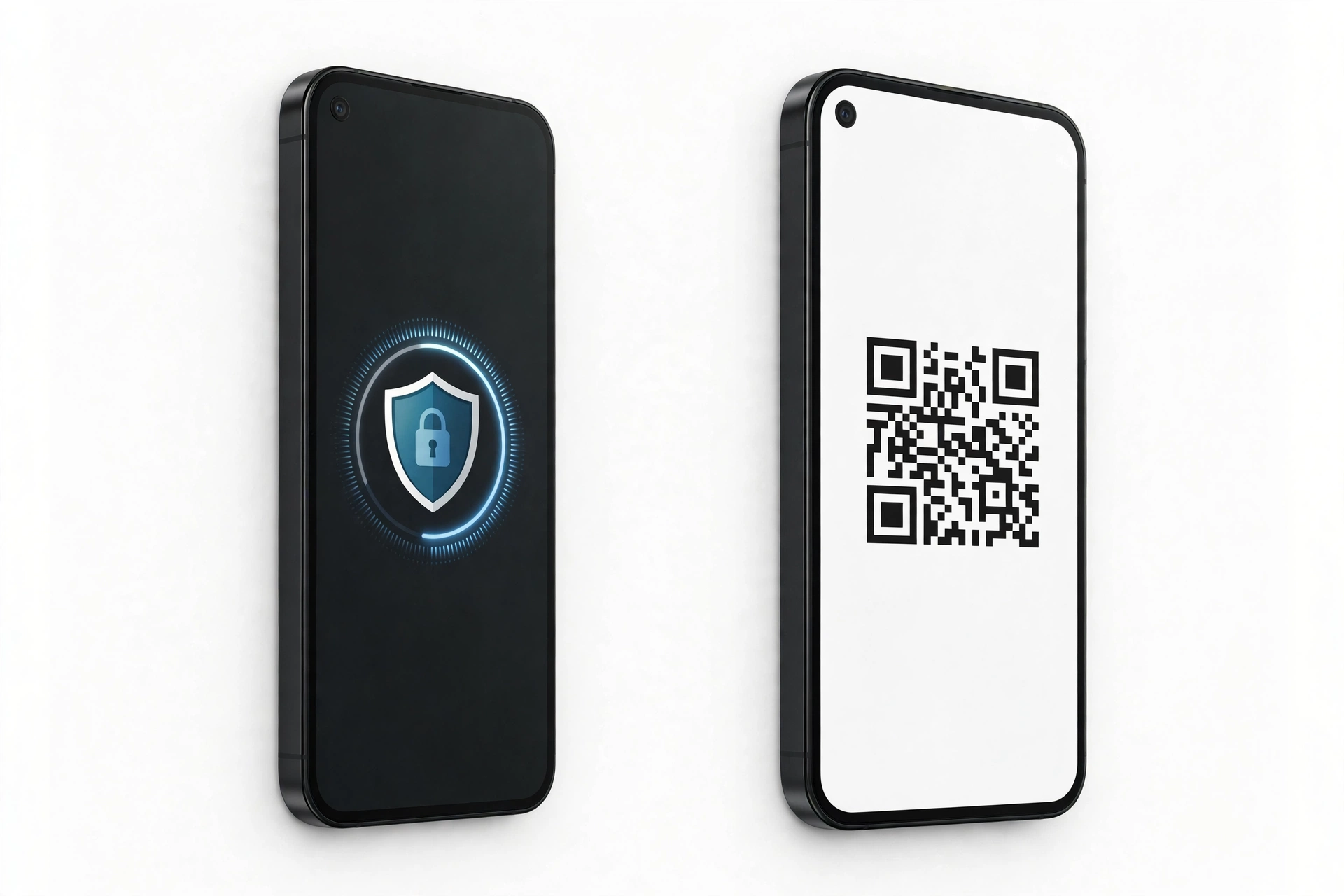
1. Who this guide helps
This guide is for anyone moving from one phone to another — iPhone to iPhone, Android to Android, or across platforms — who uses a two-factor authentication (2FA) app such as Google Authenticator, Microsoft Authenticator, or Apple’s Passwords app. If your bank, email, work accounts, social media, or crypto exchange are protected by codes from one of these apps, a phone switch can lock you out of all of them at once. That is the problem this guide prevents. (Source: howtogeek.com)
Quick fact: an authenticator app is just a code generator. Two-factor authentication is switched on or off at each service’s own website — the app holds a shared secret, and the codes it generates prove you hold that secret. Losing the app does not delete your accounts; it deletes your fastest way to prove you are you.
The guide covers the three most common authenticator setups:
- Google Authenticator — the standalone app many people installed years ago and never revisited.
- Microsoft Authenticator — common for work and school accounts, and increasingly used for personal accounts too.
- Apple Passwords — Apple’s built-in password manager on iPhone and Mac, which can also hold one-time verification codes synced through iCloud Keychain.
If you use a different app (Duo Mobile, Authy, 1Password, Bitwarden), the principles are the same — move or restore while the old phone is in your hand — but the exact menu names differ, so check that app’s current help pages before you start. If you are also moving your saved passwords (not just codes), see our guide on how to transfer passwords to a new phone — passwords and authenticator codes are a natural pair to move together.
2. The 60-second answer
| App | Transfer method | Where the transfer happens |
|---|---|---|
| Google Authenticator | Export accounts as a QR code on the old phone; scan it on the new phone | Inside the app: menu → Transfer accounts → Export / Import |
| Google Authenticator (signed in) | Sign in with the same Google account on the new phone to sync codes | Automatic once signed in, when sync is enabled |
| Microsoft Authenticator | Cloud backup on the old phone, then “Restore from backup” on the new phone | Settings → Backup (iCloud on iPhone, cloud account on Android) |
| Apple Passwords | Verification codes sync automatically through iCloud Keychain | Settings → [your name] → iCloud → Passwords and Keychain |
Three hard rules apply no matter which app you use:
- Do the transfer while the old phone still works. Every supported method is easier with both phones in hand.
- Test every code before you erase, sell, or trade in the old phone. One missed account means an account-recovery process later.
- Save each account’s backup or recovery codes. They are the escape hatch when a transfer goes wrong.
3. The golden rule: keep your old phone until every account is verified
Stop for safety: do not erase, factory reset, sell, trade in, or recycle your old phone until you have confirmed that every authenticator code works on the new phone. Erasing first is the single most common way people lock themselves out of their own accounts. The old phone is your safety net — keep it until the transfer is fully verified.
Why is this so important? Because authenticator apps intentionally keep your secrets off cloud sync by default (or behind strict device-type rules) for security reasons. A regular phone backup may move your apps, but it often does not move your authenticator secrets. Microsoft’s own documentation states that backup and restore work only on the same device type — an iPhone backup cannot be restored to an Android phone. And if a transfer step fails silently, you will only discover it the next time a login asks for a code.
A safe transfer sequence looks like this:
- Set up the new phone enough that apps can run (complete initial setup, connect to Wi-Fi).
- Run the transfer method for your authenticator app (details in sections 4–6).
- One by one, open each account on a computer or the new phone, sign in, and enter the code from the new phone.
- Only when every code has been tested working do you remove the old phone — and even then, keep the old phone for a few days in case a rarely used account turns out to be missing.
4. Transferring Google Authenticator to a new phone
Google Authenticator gives you two routes: a manual QR-code export, and account sync through your Google account. Both are documented by Google and third-party guides; use the one that matches how you use the app.
4a. Route 1 — Export and scan (works on any phones)
This is the classic method, and it works whether you are moving iPhone to iPhone, Android to Android, or across platforms. You need both phones nearby.
On your old phone:
- Open the Google Authenticator app.
- Tap the menu icon (three lines or three dots, usually top-left or top-right).
- Choose Transfer accounts.
- Choose Export accounts.
- Verify your identity if prompted (fingerprint, face, or phone passcode).
- Select the accounts you want to move. Google Authenticator allows about 10 accounts per QR code, so if you have more than 10, repeat the process for the rest.
- Tap Next. A QR code (barcode) appears on screen, and the screen may brighten.
On your new phone:
- Install Google Authenticator from the App Store or Play Store and open it.
- Open the menu and choose Transfer accounts, then Import accounts (some versions say “Get started → Import existing accounts”).
- Choose Scan QR code.
- Point the new phone’s camera at the code on the old phone.
- Confirm the imported accounts match, then tap Done on both devices.
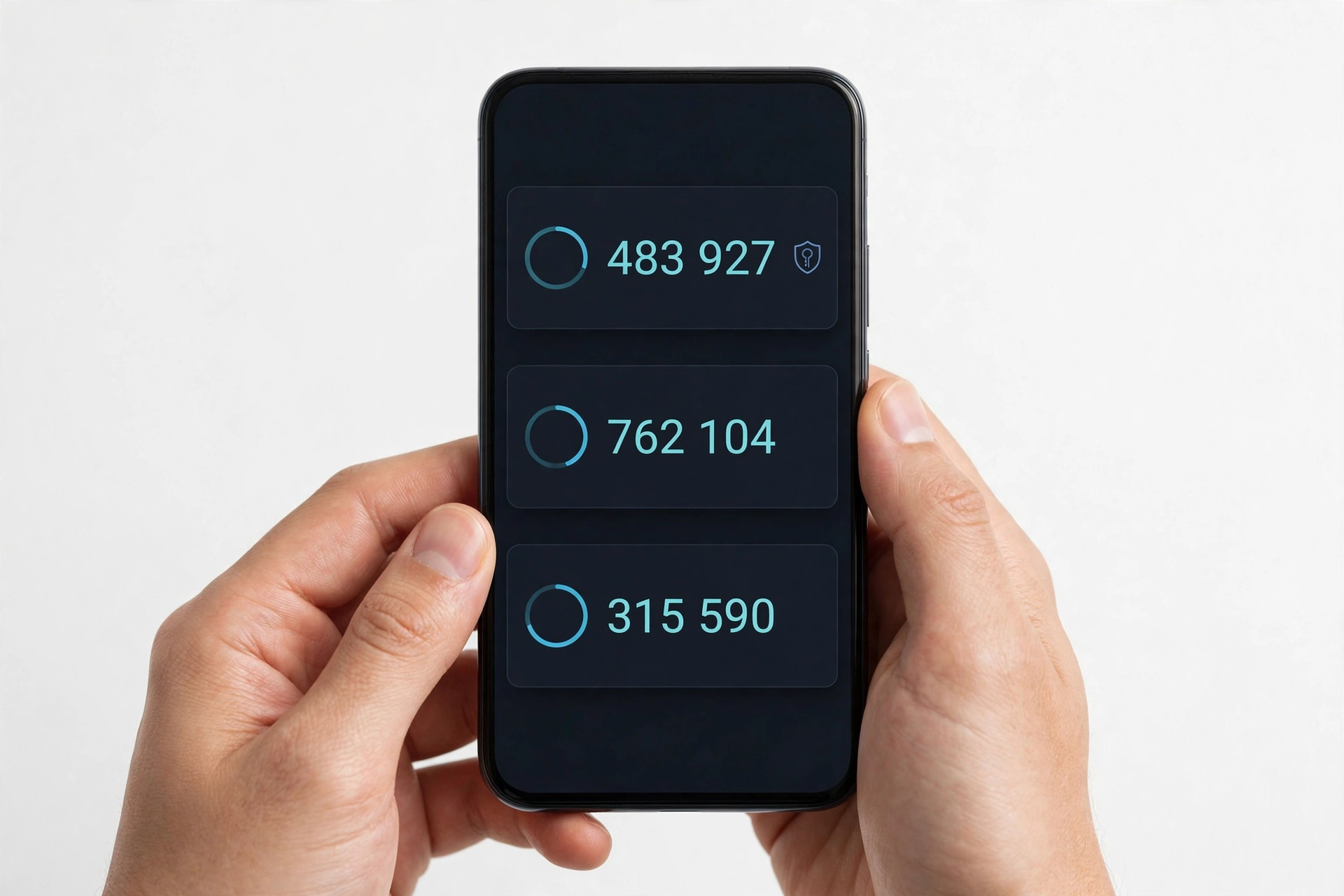
After a successful import, both phones show the same six-digit numbers for the transferred accounts. Once you have verified the new phone’s codes, you can remove the accounts (or the app) from the old device.
Quick fact: treat export QR codes like passwords. Anyone who scans that code can copy your authenticator secrets onto their own phone. Do the export in a private place, never take a screenshot of it, and never send it to anyone — including support staff.
4b. Route 2 — Sign in and sync (signed-in users)
Google added the ability to sync authenticator codes across devices with your Google account. If you are signed in to Google Authenticator with your Google account on the old phone, signing in to the same Google account in the app on the new phone can bring your codes across automatically. This is the simplest route if you have already enabled it.
Even with sync available, the manual QR-code export remains the most reliable method when switching platforms or when you are not sure sync is fully enabled. When in doubt, do the QR-code export — it is the method every guide agrees on.
4c. If you have already lost the old phone
Without the old phone, you cannot export. Your options are:
- Use each account’s backup codes (the set of one-time codes many services issue when you first enable 2FA) to sign in and re-enroll the new phone.
- Sign in to your Google account’s 2-Step Verification settings, use another configured second step (backup codes, security key), and set up Authenticator on the new phone from scratch.
- Contact each service’s account-recovery process individually. This is slow, which is why backup codes and the old phone matter so much.
5. Transferring Microsoft Authenticator to a new phone
Microsoft Authenticator uses cloud backup and restore rather than QR-code export. The key points from Microsoft’s documentation are:
- Backup happens on the same device type only. Accounts backed up on an iPhone restore to an iPhone; accounts backed up on Android restore to Android. A cross-platform move (Android to iPhone or the reverse) needs a different approach — see section 5d.
- Backup stores to your account. On iPhone it uses iCloud; on Android it uses your cloud/Google account.
- Not everything restores the same way. Third-party accounts (Amazon, Facebook, Gmail) that use 30-second one-time codes restore their codes. Microsoft personal accounts restore their codes if they use one-time codes; passwordless accounts restore only the account name and must be signed in again. Work or school accounts restore only the account name — you must sign in again on the new phone.
5a. Turn on cloud backup on the old phone
- Open Microsoft Authenticator on the old phone.
- Tap the three dots (…) in the top-right corner (on iPhone, the menu lines in the top-left).
- Tap Settings.
- In the Backup section, turn on Cloud backup (Android) or iCloud Backup (iPhone).
- Sign in with your Microsoft account when prompted and verify your identity.
- Wait for the confirmation that the backup succeeded.
Quick fact: on iPhone, Microsoft’s documentation asks you to have iCloud Drive, iCloud Keychain, and iCloud Backup enabled so the backup can land in iCloud. If restore later fails on iPhone, the first things to check are that iCloud Drive and iCloud Keychain are on and that Authenticator is listed among the apps using iCloud.
5b. Restore on the new phone
- Install Microsoft Authenticator on the new phone and open it.
- Look for “Restore from backup” (also shown as “Begin recovery” or “Already have a backup? Sign in to your recovery account”).
- Sign in with the same Microsoft account you used for the backup on the old phone.
- Your accounts are added automatically.
- Expect some accounts to ask for revalidation — signing in to the account or scanning a QR code. The app tells you when this is needed.
- Only after every account works, remove Authenticator from the old phone.
Stop for safety: if the restore screen does not appear, do not start adding accounts manually. Adding accounts before restoring can block the restore. Reinstall the app fresh, look for the “Restore from backup” / “Begin recovery” option first, and sign in to the recovery account before adding anything by hand.
5c. The “already signed in” trap
A common snag: on a new phone, signing in to your Microsoft account during setup or in another app does not mean the backup was restored. Some users find the restore option disappears once they are signed in. If that happens, the documented workaround is to delete Authenticator, reinstall it fresh, and look carefully for the restore/recovery option before adding any accounts manually — and on iPhone, to make sure both phones use the same Apple ID for iCloud and the same Microsoft account for the backup.
5d. Moving Microsoft Authenticator across platforms (Android ↔ iPhone)
Because backup and restore work only within the same device type, a platform switch is a manual move: on the new phone, re-add each account by scanning the QR code in each account’s own 2FA settings, while the old phone still generates working codes. Where a Microsoft work or school account is involved, your organization’s IT administrator can reset your MFA so you can re-register the new phone. For personal accounts without a backup, each service’s own recovery process is the fallback.
6. Transferring authenticator codes with Apple Passwords (iPhone)
If you keep your one-time verification codes in Apple’s Passwords app instead of a standalone authenticator app, the transfer story is simpler — because the codes travel with iCloud Keychain, the same system that syncs your passwords.
6a. How codes get into the Passwords app
Apple’s Passwords app can store a verification code alongside each login. You set one up by opening a login entry and choosing “Set up verification code”, then scanning the QR code the service gives you (or entering the setup key manually). From then on, the app generates the same six-digit codes as any authenticator app, and Safari and many apps can autofill them during login.
One practical shortcut: if you are moving out of Google Authenticator and into the Passwords app, one documented route is to export your Google Authenticator accounts as a QR code on the old phone, then — instead of scanning it into the new phone’s Google Authenticator — let iOS read the QR code and add the verification codes in Passwords, linking each code to its matching login entry. It is a one-time manual job, but after that the codes sync across all your Apple devices.
6b. How codes move to the new iPhone
iCloud Keychain makes your passwords and passkeys available on all your approved Apple devices. According to Apple’s documentation:
- On the old iPhone, make sure iCloud Keychain is on: Settings → [your name] → iCloud → Passwords and Keychain, with sync enabled.
- When you set up the new iPhone — whether by Quick Start, an iCloud backup restore, or an encrypted computer backup — your verification codes transfer along with your Keychain items.
- Apple may ask you to approve the new device on your old device, or with your old device’s passcode, before iCloud Keychain starts updating automatically on it.
Because codes and passwords move together as part of the normal iPhone migration, many readers using the Passwords app find they have nothing extra to do. The one thing to double-check is that iCloud Keychain was actually on before the switch — if it was off, codes stay local to the old phone and must be moved manually from it. This is one step of the broader migration; for the full device-to-device walkthrough, see our guide to transferring data to a new phone.
7. What about Duo Mobile, Authy, 1Password, and Bitwarden?
The same rule — move while you have the old phone — applies. Briefly:
- Duo Mobile has an export function, but after transferring to a new phone it requires re-scanning the QR code to generate codes again, so keep each service’s original QR codes or recovery codes handy.
- Authy offers its own multi-device and backup feature tied to an Authy account — enable the backup on the old phone and restore on the new one.
- 1Password and Bitwarden store one-time passwords inside the password item, so the codes move with the vault when you sign in to the vault on the new phone.
For any app not listed here, open its current help pages before you start the phone switch, and complete its recommended migration first — not last.
8. Method comparison at a glance
| App | Method | Works for | Limitations |
|---|---|---|---|
| Google Authenticator | QR-code export → scan | Any iPhone/Android combination | ~10 accounts per QR code; needs both phones nearby; QR code is a live secret — handle in private |
| Google Authenticator | Google account sync | Any phone signed in to the same Google account | Only if sync was enabled before the switch; manual export is the reliable fallback |
| Microsoft Authenticator | Cloud backup → restore | Same device type: iPhone→iPhone or Android→Android | Cross-platform moves need manual re-enrollment; work/school and passwordless accounts need re-sign-in |
| Apple Passwords | iCloud Keychain sync | iPhone→iPhone (Apple devices) | Keychain must be on before the switch; codes only exist inside Apple’s ecosystem |
| Any app | Backup/recovery codes | Every service, every platform | Manual, one service at a time; requires having saved the codes earlier |
9. Lost your old phone? Your recovery options, in order
If the old phone is gone — lost, stolen, broken, or already wiped — the app cannot help you. Work through this order:
- Restore from a backup you made. Microsoft Authenticator restores from its cloud backup; Google Authenticator syncs if you had signed in. On iPhone, an encrypted computer backup or iCloud backup can bring Apple Passwords codes back.
- Use each account’s backup codes. The 10-or-so one-time codes many services issued when you enabled 2FA let you sign in without the app, then re-enroll the new phone.
- Use another configured second step. A security key, SMS backup number, or recovery email attached to the account can get you back in.
- Go through each service’s account recovery. The service will verify your identity (ID, linked email/phone, waiting period) and then let you re-enroll. This is the slow path — it exists, but it is deliberately slow because it must distinguish you from an attacker.
- For work or school accounts, ask your IT administrator to reset your MFA registration.
Quick fact: no shop, tool, or third-party service can “extract” your authenticator secrets from a wiped or dead phone. Anyone claiming they can is either mistaken or running a scam — authenticator secrets are designed to die with the device when there is no backup.
10. Pre-switch checklist (do this before touching the new phone)
- ☐ Open your authenticator app on the old phone and confirm every account you expect is listed.
- ☐ For Google Authenticator: decide on QR-code export (recommended) and confirm the app is updated.
- ☐ For Microsoft Authenticator: open Settings → Backup and confirm Cloud backup is ON, with a successful backup message.
- ☐ For Apple Passwords: confirm iCloud Keychain is ON on the old iPhone.
- ☐ Save each account’s backup/recovery codes somewhere safe (paper in a secure place, or a password manager — not just the phone).
- ☐ Charge both phones and keep them nearby during the transfer.
- ☐ Do not erase, trade in, or recycle the old phone until every code is tested on the new one (section 3). For the erase step itself, read our guide on backing up your phone before a factory reset — authenticator transfer and full-device backup are separate jobs, and you need both.
11. 2FA hygiene after the move
A phone switch is the best moment to audit your two-factor setup:
- Keep codes on at least two devices. Readers who keep codes on two phones (old + new) never face a single-device failure again.
- Re-save backup codes. After re-enrolling accounts on the new phone, many services issue fresh recovery codes — save the new set.
- Remove the old phone from each service’s trusted devices. Once the transfer is verified, sign the old phone out everywhere so a lost or sold device cannot be used.
- Consider a security key or passkeys. Hardware keys and passkeys are a more recoverable second factor than app codes for important accounts.
- Turn on cloud backup where it exists. Microsoft Authenticator’s cloud backup and Google Authenticator’s account sync exist precisely to make the next phone switch painless — enable them now, before you need them.
12. What these checks can and cannot establish
| Observation | What it establishes | What it cannot establish |
|---|---|---|
| A code on the new phone matches the old phone’s code | The secret transferred correctly for that account | That every account transferred — check each one |
| The app opened on the new phone with no codes | The transfer did not run, or ran into the wrong account | Whether the codes are recoverable — check backups and recovery codes |
| An account asks for revalidation after restore | Normal behavior for some accounts — sign in and re-enroll it | A failure; revalidation is expected for work/school and passwordless accounts |
| Backup was ON before the switch | A restore is possible on the new phone | That the restore will cover cross-platform moves — Microsoft’s restore is same-device-type only |
| Recovery codes are saved | You have an independent escape hatch for each account | That the transfer succeeded — recovery codes are a fallback, not a transfer |
13. Hypothetical examples
(The following are hypothetical illustrations, not customer stories.)
Hypothetical example: Maya’s QR-code export. Maya is upgrading from a three-year-old Android phone to a new iPhone. She opens Google Authenticator on the old phone, goes to the menu → Transfer accounts → Export accounts, and scans the QR code into Google Authenticator on the new iPhone — repeating it once because she has 14 accounts. She then signs into each account on her laptop using the new phone’s codes, one by one. Only after all 14 work does she factory reset the old phone. Total extra time: about half an hour. Cost of skipping the verification: none.
Hypothetical example: Daniel’s Microsoft restore across the same platform. Daniel switches from an older iPhone to a new iPhone. On the old phone he opens Microsoft Authenticator → Settings and confirms Cloud backup is on with a successful backup timestamp. On the new phone he installs the app fresh, taps “Restore from backup,” and signs in with his Microsoft account. His personal email codes restore immediately; his work account restores only the account name, so he signs in again when prompted. His wife holds the old phone for a week as a backup — a rarely used stock-trading account that needed re-scanning is caught on day two.
14. Frequently asked questions
Does Google Authenticator transfer automatically to my new phone?
Not unless you have signed in with your Google account and enabled sync. Without that, codes stay on the old phone until you run the manual “Transfer accounts → Export/Import” flow while you still have both phones.
Can I transfer Microsoft Authenticator from Android to iPhone?
Not through backup and restore — Microsoft’s documentation limits restore to the same device type. For a platform switch, re-add each account on the new phone using each service’s own 2FA setup, while the old phone still generates working codes.
I erased my old phone before transferring. What now?
Work through section 9: restore from any cloud backup, then use each account’s backup codes, then other second steps (security key, recovery email/phone), and finally each service’s account-recovery process. It is slow, but most accounts are recoverable.
Are the export QR codes safe to screenshot?
No. Anyone who scans or photographs that QR code gets your authenticator secrets. Do the export in private, scan it directly phone-to-phone, and do not save, share, or send the QR image.
Do I need to delete the accounts from the old phone after transferring?
After you have verified every code on the new phone, yes — remove the accounts or delete the app on the old phone, especially if you are selling or trading it in. Until then, keep the old phone as your safety net.
Will restoring from a phone backup move my authenticator codes?
Usually not. A regular app-data backup often excludes authenticator secrets by design. For Apple Passwords codes, iCloud Keychain sync (or an encrypted backup) does carry them; for Google and Microsoft Authenticator, use their in-app transfer/backup features.
What happens to work or school accounts in Microsoft Authenticator?
According to Microsoft’s documentation, work or school accounts restore only the account name — you must sign in again on the new phone. If you cannot, your organization’s IT administrator can reset your MFA registration.
Can a repair shop transfer my authenticator for me?
A shop can help with the mechanics of a phone-to-phone transfer while both phones are present, but never hand over your account passwords, QR codes, or recovery codes. You should enter every credential yourself — even at a shop. For anything beyond hands-on help with a working old phone, see the links below; a trustworthy shop will walk you through the steps rather than ask for your secrets.
Video: How to transfer all data to new iPhone fast
Sources and editorial notes
- How-To Geek — How to Move Google Authenticator to a New Phone: documented Transfer accounts → Export/Import QR-code flow, identity verification, and Google-account sync capability. (Last checked October 14, 2026.)
- TechRadar — How to Transfer Google Authenticator to a New Phone: corroboration of the export/import steps and the ~10-accounts-per-QR-code limit. (Last checked October 14, 2026.)
- Microsoft Support — Restore account credentials from Microsoft Authenticator: official restore documentation, same-device-type limitation, and what restores per account type. (Last checked October 14, 2026.)
- Microsoft Q&A — How do I transfer my Authenticator to a new phone: official-step summary for cloud backup on the old phone and “Already have a backup? Sign in to your recovery account” on the new phone, plus revalidation notes. (Last checked October 14, 2026.)
- Apple Support — Use the Passwords app: official documentation for the Passwords app, iCloud Keychain sync across Apple devices, and approving a new device. (Last checked October 14, 2026.)
- MakeUseOf — Use iCloud Keychain to Sync Passwords: corroboration that verification codes transfer with Keychain items when setting up a new phone from backup. (Last checked October 14, 2026.)
- Splashtop Support — How do I export my Authenticator to a new phone: step-by-step corroboration for Google and Microsoft Authenticator transfers. (Last checked October 14, 2026.)
Last source check: October 14, 2026. AI-assisted editorial guide, checked against the linked manufacturer information. Procedures described here follow Google’s, Microsoft’s, and Apple’s published guidance; third-party sources are cited only for corroboration. App menus and cloud-backup behavior can change with software updates — if a menu path differs on your phone, check the app’s current help pages. Never share authenticator QR codes, recovery codes, or account credentials with anyone — a trustworthy repair shop will guide you through the steps rather than ask for your secrets. If your phone needs hands-on assessment, Las Vegas Phone Repair & Accessories is at 7400 Las Vegas Blvd S, Unit TT42, Las Vegas, NV 89123 — call (424) 406-6202 ahead to confirm today’s hours (generally 10:00 AM–8:00 PM).
Let’s get you connected again.
Tell us what’s happening with your device and we’ll help you decide the safest next step — no jargon, no pressure.
Las Vegas Phone Repair & Accessories · 7400 Las Vegas Blvd S, Unit TT42, Las Vegas, NV 89123
10:00 AM–8:00 PM — call ahead to confirm today’s hours