
Phone Screen Color Distortion: Causes and Safe Fixes
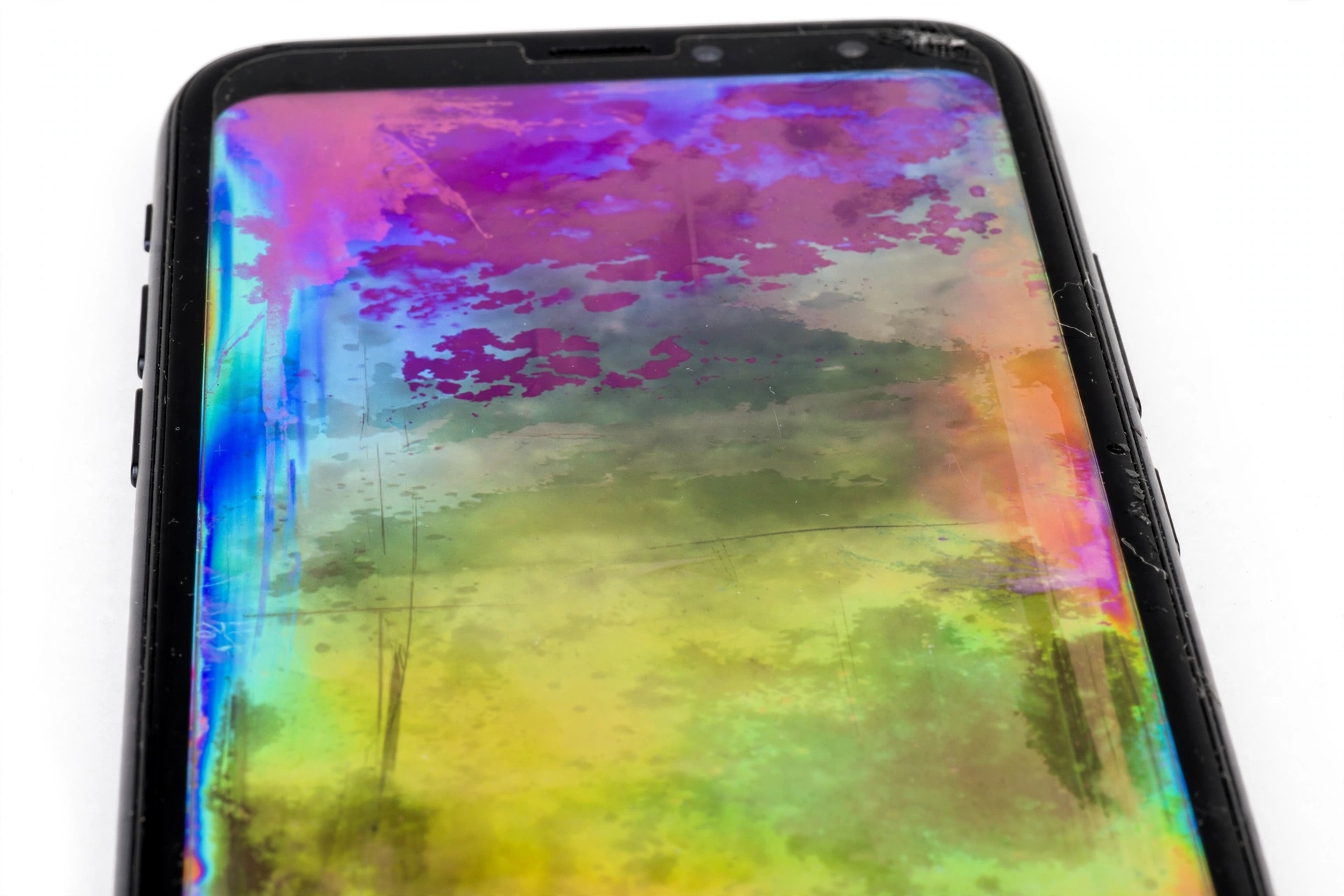
If your phone’s screen suddenly shows wrong colors — a yellow tint, a pink wash, washed-out gray, or blotches — it is usually a display or accessibility setting, not a broken screen. Turning off True Tone or Night Shift (iPhone) or Eye Comfort Shield, Adaptive colour tone, and Colour correction (Samsung) fixes most color distortion in minutes, while persistent blotches, color shift that follows a drop, or a uniform green line point to hardware that needs professional assessment.
On this page
If your phone’s screen suddenly shows wrong colors — a yellow tint, a pink wash, washed-out gray, or blotches — it is usually a display or accessibility setting, not a broken screen.
The five-minute quick answer
Do these checks in order before assuming the display is damaged. They take about five minutes and resolve the majority of color-distortion complaints. (Source: samsung.com)
- Rule out the warm-color features. On iPhone: Settings > Display & Brightness — turn off True Tone and Night Shift temporarily. On Samsung: Settings > Display — turn off Eye Comfort Shield and Adaptive colour tone (S24 series and later).
- Check accessibility color settings. On iPhone: Settings > Accessibility > Display & Text Size > Color Filters — turn it off. On Samsung: Settings > Accessibility > Vision enhancements — turn off Colour correction and Colour filter.
- Check Samsung’s Screen mode. Settings > Display > Screen mode — try switching between Natural and Vivid. A phone set to Natural can look washed out next to a phone set to Vivid.
- Restart the phone. A full restart clears temporary rendering glitches that can distort colors after an update or a long uptime.
- Compare against a reference. Open the same photo or web page on your phone and on another device under the same indoor lighting. If yours is the outlier, the setting is on your phone; if they match, your eyes may have adapted to a different screen.
Quick fact: Apple documents True Tone as a feature that automatically adapts the display so colors appear consistent in different environments, and Night Shift as a feature that shifts the colors of the display to the warmer end of the spectrum. Samsung documents Adaptive colour tone as automatically adjusting colors and white balance based on ambient lighting, and Colour correction and Colour filter as accessibility features that change how colors appear. When any of these change without you realizing it — after an update, a settings reset, or an accidental tap — the screen can look “wrong” even though the hardware is fine.
Who this guide helps
This guide is for iPhone and Samsung Galaxy owners whose screens show color distortion: a yellow or orange cast, a pink or green tint, washed-out or faded colors, overly saturated colors, blotchy or uneven color, inverted or negative-like colors, or a grayscale/black-and-white screen. The examples and menu paths cover iPhone (iOS) and Samsung Galaxy (One UI); most Android phones have equivalent settings under Display and Accessibility.
This guide is not about screen flickering, green lines running down the display, a black screen, or touch problems. For flickering specifically, see our guides on Samsung Galaxy screen flickering, iPhone screen flickering, and auto-brightness problems.
How phone displays render color (plain-language primer)
Understanding three facts makes every troubleshooting step below make sense:
- The display can be told to change colors. Your phone has software layers between apps and the screen that can warm colors, cool colors, desaturate them, or filter them — for comfort (Night Shift), accessibility (color filters), or adaptive viewing (True Tone). These layers change what you see without changing the underlying content.
- Two identical screens can look different. Manufacturing variation means one phone’s “white” can look slightly warmer or cooler than another phone’s “white.” That is normal and does not mean either phone is defective.
- OLED screens shift at angles. Apple has documented that with OLED displays, it is normal to experience slight color shifts when viewing the phone at an angle. If whites look yellow straight on but white from the side — or vice versa — that can be the panel’s viewing-angle behavior, not damage.
Software cause 1: Accessibility color settings (the most common culprit)
On both iPhone and Samsung, the single most common cause of sudden, dramatic color distortion is an accessibility color feature that got turned on — sometimes by accident, sometimes after a software update or settings reset.
iPhone: Color Filters
Apple documents Color Filters under Settings > Accessibility > Display & Text Size. They are designed to help people distinguish colors, and include options such as grayscale, red/green, green/red, blue/yellow, and a general color tint with hue and intensity sliders. Any of these, left on unintentionally, will tint or drain the color from the entire screen.
To check: Settings > Accessibility > Display & Text Size > Color Filters. If the toggle is on, turn it off and look at the screen again.
Tip: A completely grayscale, black-and-white iPhone screen is almost always Color Filters (grayscale) or the Reduce White Point / zoom grayscale accessibility settings — not a broken display. Check Accessibility before worrying.
Samsung: Colour correction, Colour filter, Extra dim
Samsung’s own support documentation lists three Vision-enhancement settings that make screen colors look different or unusual:
- Colour correction — helps users distinguish colors more clearly. Path: Settings > Accessibility > Vision enhancements > Colour correction. Turn it off if colors look strange.
- Colour filter — adds a color filter across the whole screen to improve text readability. If the entire screen appears tinted, this is likely on. Path: Settings > Accessibility > Vision enhancements > Colour filter. Turn it off.
- Extra dim — makes the screen darker than usual (more a brightness issue, but it changes how colors read). Path: Settings > Accessibility > Vision enhancements > Extra dim. Turn it off.
Samsung’s guidance is direct: when screen colors look different, unnatural, or tinted, check these accessibility features first.
Check Sleep / Bedtime grayscale too
Samsung phones can turn the screen grayscale through Modes and Routines > Sleep, and Digital Wellbeing bedtime modes can do the same on other Android phones. If your screen goes black-and-white on a schedule, a sleep mode is the likely cause — turn it off in Modes and Routines.
Software cause 2: Warm-color comfort features
The second most common cause is a “comfort” feature that warms the display — working exactly as designed, but unwanted.
iPhone: True Tone and Night Shift
- True Tone (Settings > Display & Brightness) automatically adapts the display based on ambient light. Under warm indoor lighting it adds warmth to the screen, which many people read as a yellow tint. It is available on iPhone 8 and later.
- Night Shift shifts colors toward the warmer end of the spectrum on a schedule — typically sunset to sunrise. If your screen turns yellow in the evening and normal in the morning, Night Shift is on and working as intended.
For color-accurate work (photo editing, comparing products), turn both off temporarily. Neither changes your photos or files — only how they appear on the screen.
Samsung: Eye Comfort Shield and Adaptive colour tone
- Eye Comfort Shield (Settings > Display) reduces blue light and makes the screen appear yellow or warmer than expected — Samsung’s own support page says exactly this. Turn it off and compare.
- Adaptive colour tone (Settings > Display; S24 series and later) automatically adjusts colors and white balance based on ambient lighting. If colors suddenly appear different, Samsung’s guidance is to turn this feature off and check again.
Note on scope: These are comfort and adaptive features, not defects. A warm screen at night is the feature doing its job. The fix is a settings choice, not a repair.
Software cause 3: Samsung Screen mode and white balance
Samsung phones offer display modes under Settings > Display > Screen mode:
- Natural — more accurate, balanced colors.
- Vivid / Adaptive — more saturated, punchy colors.
If your colors look washed out after comparing with a friend’s phone, the two phones may simply be set to different modes. Choose the mode you prefer. Within Screen mode, advanced settings may include a white balance slider — if it is pushed toward the warm or cool end, colors will tint accordingly. Center it to reset.
Hardware cause 1: OLED viewing angles and burn-in
Not all color distortion is fixable in settings:
- Angle-dependent tint. Slight color shifts when tilting an OLED phone are normal panel behavior, as Apple has documented. If the tint only appears at extreme angles and the screen looks fine straight on, that is characteristic of the panel.
- Burn-in / image retention. Static elements (navigation bars, keyboard outlines) can leave faint ghosts after long-term display of the same image. Burn-in appears as ghosting of old content, not as an overall tint — and it does not go away with a settings change.
- Pressure damage. A phone squeezed in a tight pocket or pressed hard can develop localized discoloration (bright or dark blotches) where the panel layers were stressed. This follows the pressure point and does not change with settings.
- Water exposure. Moisture inside the display assembly can cause spreading discoloration or hazy patches. This tends to change over days as moisture migrates — and it never resolves through settings.
Stop for safety: If the screen shows spreading discoloration, the phone was recently exposed to liquid, or the battery area feels swollen or the screen is lifting away from the frame, stop using the phone and power it down. Do not try to open the phone, do not apply heat to “dry it out,” and do not charge a phone you suspect has internal moisture or a swollen battery. Seek professional assessment.
Hardware cause 2: After a screen repair — panel quality, connector, calibration
Color distortion that appears immediately after a screen replacement has three usual explanations:
- Panel quality. Replacement displays vary in color calibration. An aftermarket panel may render colors noticeably cooler, warmer, or less saturated than the original.
- Display connector. If colors shift when you flex the phone slightly, or the problem comes and goes, the display connector may not be fully seated. This is a job for the shop that did the repair — display ribbon cables tear easily and reseating is not a DIY step.
- Reset calibration settings. Some repairs reset display settings such as True Tone or Night Shift, so the screen looks different even though the panel is fine. Check the software causes in this guide first — it is the fastest resolution.
Compare against a reference image on a second device to describe the difference concretely (“everything looks pink” is more useful than “it looks wrong”).
The ordered 10-step fix sequence
Work through these in order. Stop as soon as the colors look right.
- Warm features off: iPhone — True Tone and Night Shift off (Settings > Display & Brightness). Samsung — Eye Comfort Shield and Adaptive colour tone off (Settings > Display).
- Accessibility color off: iPhone — Color Filters off (Settings > Accessibility > Display & Text Size). Samsung — Colour correction and Colour filter off (Settings > Accessibility > Vision enhancements).
- Sleep grayscale off: Samsung — Modes and Routines > Sleep > turn off. Other Android — check Digital Wellbeing bedtime mode.
- Screen mode check (Samsung): Settings > Display > Screen mode — try Natural, then Vivid; center the white balance slider.
- Dark Mode check: Settings > Display — if the whole system looks inverted or wrong, verify whether Dark Mode is on and switch to Light temporarily to isolate the issue.
- Restart the phone. Hold the power/side button (plus volume on newer iPhones), power off fully, wait 30 seconds, power on.
- Remove third-party screen apps. Blue-light filter apps, launcher themes, and “screen dimmer” overlays can tint the display. Uninstall or disable them and test.
- Reference comparison. Open the same photo on your phone and a second device under the same indoor lighting. Screenshot your screen and view the screenshot on another device: if the screenshot looks normal elsewhere, your phone’s display pipeline (not the content) is the variable.
- Samsung hardware test (*#0*#): Open the Phone dialer and enter *#0*#. Tap Red, Green, and Blue to view solid color screens. If discoloration, lines, or blotches appear on the solid test screens, the panel or connection is at fault — the test bypasses the operating system, so settings cannot be the cause.
- Update software, then assess. Install any pending system update (updates sometimes include display calibration fixes), and if the distortion persists on solid test screens or after a drop or liquid exposure, stop troubleshooting and seek professional assessment.
Tip: The screenshot test in step 8 is the single most useful diagnostic in this guide. A screenshot captures what the software sent to the display — if the screenshot looks fine on another device, the problem is in your phone’s display hardware or its per-panel calibration, not in the app or the photo.
Symptom-to-cause worksheet
| What you see | Likely cause | First fix to try |
|---|---|---|
| Whole screen yellowish/warm, worse in the evening | Night Shift / Eye Comfort Shield | Turn the feature off temporarily and compare |
| Colors shift with room lighting | True Tone / Adaptive colour tone | Turn off True Tone / Adaptive colour tone |
| Screen is black and white | Grayscale Color Filter, Sleep mode, or Bedtime mode | Accessibility color settings off; Sleep mode off |
| Everything looks like a photo negative | Color inversion accessibility setting | Turn off color inversion / Smart Invert |
| Whole screen tinted one color (pink, blue, orange) | Color Tint / Colour filter enabled | Turn off the tint/filter in Accessibility |
| Colors look washed out vs. another phone | Screen mode set to Natural (Samsung) | Switch Screen mode to Vivid / center white balance |
| Blotches or hazy patches, possibly after moisture | Liquid inside display assembly | Power down; professional assessment — not a settings fix |
| Colors shift when flexing the phone | Loose display connector | Return to the repair shop — do not open the phone |
| Ghost images of old content | OLED burn-in | Not fixable in settings; panel replacement is the remedy |
| Tint only at steep viewing angles | Normal OLED viewing-angle behavior | No fix needed; view straight on for color-critical work |
What your observations can and cannot establish
An honest troubleshooting guide should say what a symptom actually proves. Color symptoms narrow the possibilities — they rarely identify the exact fault on their own.
| Observation | What it can establish | What it cannot establish |
|---|---|---|
| Distortion disappears when a setting is toggled | The setting was the cause | Whether the panel is perfectly calibrated |
| Distortion appears on Samsung’s *#0*# solid color screens | The fault is in the panel or its connection, not software | Whether it is the panel itself or the connector |
| Screenshot looks normal on another device | The content and software pipeline are fine; the issue is display-side | Whether the panel, connector, or calibration is at fault |
| Blotches after a drop or liquid exposure | Physical damage to the display assembly is likely | Whether the panel alone or also the connector/logic board is affected |
| Tint only at angles | Normal OLED viewing-angle characteristic is likely | That the panel has zero manufacturing variation |
When to stop troubleshooting and seek assessment
- Discoloration, lines, or blotches appear on Samsung’s *#0*# solid-color test screens (settings cannot cause this).
- The distortion followed a drop, bend, or liquid exposure.
- Colors shift when the phone is flexed (possible loose connector — a shop job).
- The screen is lifting from the frame, the battery area feels swollen, or the phone gets dangerously hot.
- A single vertical green or pink line runs down the display (a known AMOLED hardware failure pattern).
- Burn-in ghosting is confirmed — no setting reverses it; the panel needs replacement.
Preventing color problems
- After any screen repair, ask the shop to verify display settings (True Tone, Night Shift, Screen mode) were not reset — and compare colors against a reference photo before leaving.
- Avoid squeezing the phone in tight pockets or sitting on it; panel pressure causes localized discoloration.
- Keep the phone away from prolonged moisture; water inside the display causes spreading discoloration that settings cannot fix.
- For OLED phones, vary on-screen content and avoid maximum brightness on static screens for hours to slow burn-in.
- Use a case that does not press on the display edges.
Hypothetical examples
(The following are hypothetical illustrations, not customer stories.)
Hypothetical example: Maya’s yellow screen. Maya notices her iPhone screen looks yellow every evening but fine in the morning. Working through the guide, she finds Night Shift scheduled from sunset to sunrise — the feature working as designed. She shortens the schedule and keeps True Tone on, and the “problem” is resolved without any repair.
Hypothetical example: Daniel’s pink tint after repair. Daniel’s Galaxy screen looks pinkish after a third-party screen replacement. The software checks in this guide change nothing, and the pink cast appears on the *#0*# solid red/green/blue test screens too — pointing to the replacement panel’s calibration rather than a setting. He returns to the shop with a clear, testable description of the fault.
Video: How to tell if your smartphone is fake or real
Frequently asked questions
Why is my phone screen yellow all of a sudden?
The most common reasons are Night Shift (iPhone) or Eye Comfort Shield (Samsung) turning on — often on an automatic evening schedule — or True Tone / Adaptive colour tone responding to warm room lighting. Turn these off temporarily in Display settings; if the yellow cast disappears, it was a feature, not a fault.
Why is my phone screen black and white?
Almost always an accessibility setting: iPhone Color Filters in grayscale mode, Samsung Colour correction/filter, a Sleep mode, or a bedtime grayscale routine. Check Accessibility > Vision enhancements (Samsung) or Accessibility > Display & Text Size (iPhone) and turn the grayscale options off.
Can a software update change my screen colors?
Yes. Updates can reset display settings, enable accessibility features, or change default color behavior. If distortion appeared right after an update, work through the settings checks in this guide before suspecting hardware.
My screen looks fine head-on but tinted from the side. Is it broken?
Probably not. Slight color shifts at viewing angles are normal OLED behavior, documented by Apple. If the screen looks correct viewed straight on, that is characteristic of the panel, not damage.
What does it mean if colors shift when I bend the phone?
That points to a loose display connector rather than a settings issue. Do not open the phone yourself — display ribbon cables tear easily. Take it to the shop that performed the repair, or to a professional for assessment.
Will a factory reset fix screen color distortion?
A factory reset is not a first step for color issues and erases all your data. Because most color distortion comes from a toggleable setting, work through the settings sequence in this guide first. Only consider a reset as a last resort, with a full backup completed beforehand.
How do I know if it’s the panel or just a setting?
Two tests help: (1) the screenshot test — screenshot the screen and view it on another device; if it looks normal there, the issue is display-side; (2) on Samsung, the *#0*# hardware test — if solid color screens show the distortion, settings are ruled out and the panel or connector is at fault.
Should I get the screen replaced for burn-in?
Burn-in (ghost images of old content) cannot be fixed by settings or software. If it bothers you, panel replacement is the remedy. A repair shop can assess the phone and confirm burn-in versus other discoloration before you approve any work.
Sources and editorial notes
- Samsung Support — How to fix unusual screen colours on your Samsung Galaxy device: Samsung’s documented flow for unusual screen colors — turn off Adaptive colour tone (Settings > Display), Colour correction, Colour filter, and Extra dim (Settings > Accessibility > Vision enhancements). (Last checked October 13, 2026.)
- Samsung Support — How to fix display issues on your Samsung Galaxy device: display settings adjustments including turning off Eye comfort shield when the screen appears yellow or warmer than expected. (Last checked October 13, 2026.)
- GuidingTech — 7 Ways to Fix iPhone Screen Colors Messed Up or Distorted: corroboration of the iPhone settings sequence — Color Filters off, restart, True Tone off, Night Shift color temperature adjustment. (Last checked October 13, 2026.)
- FixMyPCStore — Phone Screen Repaired but Colors Look Off: corroboration of post-repair causes — panel quality, loose display connector, and reset calibration settings; the connector-flex test. (Last checked October 13, 2026.)
- MacObserver — What is True Tone on iPhone: corroboration of True Tone behavior — automatic adaptation to ambient light, does not change photo files, turn off for color-accurate work. (Last checked October 13, 2026.)
- The Droid Guy — Fix Galaxy S23 Screen Discoloration: corroboration of the *#0*# hardware diagnostic flow (Red/Green/Blue solid screens) and the software-vs-hardware interpretation. (Last checked October 13, 2026.)
Last source check: October 13, 2026. AI-assisted editorial guide, checked against the linked manufacturer information. Procedures described here follow Apple’s and Samsung’s published support guidance; third-party sources are cited only for corroboration. Display behavior and menu paths can change with software updates — if a setting differs on your phone, check the manufacturer’s current support pages. If your phone needs hands-on assessment, Las Vegas Phone Repair & Accessories is at 7400 Las Vegas Blvd S, Unit TT42, Las Vegas, NV 89123 — call (424) 406-6202 ahead to confirm today’s hours (generally 10:00 AM–8:00 PM).
Let’s get you connected again.
Tell us what’s happening with your device and we’ll help you decide the safest next step — no jargon, no pressure.
Las Vegas Phone Repair & Accessories · 7400 Las Vegas Blvd S, Unit TT42, Las Vegas, NV 89123
10:00 AM–8:00 PM — call ahead to confirm today’s hours