
How to Transfer Data from Broken Huawei Phone to New Phone: Complete Guide
Direct answer: If your broken Huawei phone backed up to Huawei Cloud before it broke, sign in with the same HUAWEI ID on your new phone and restore — the broken phone is not needed. If there is no cloud backup, recovery depends on how broken the phone is: a phone with a dead screen but a working body can often still give up its data via USB or a repair assessment, while a completely dead phone with no backup usually means the data is gone.
On this page
Direct answer:
1. The first question: did it back up before it broke?
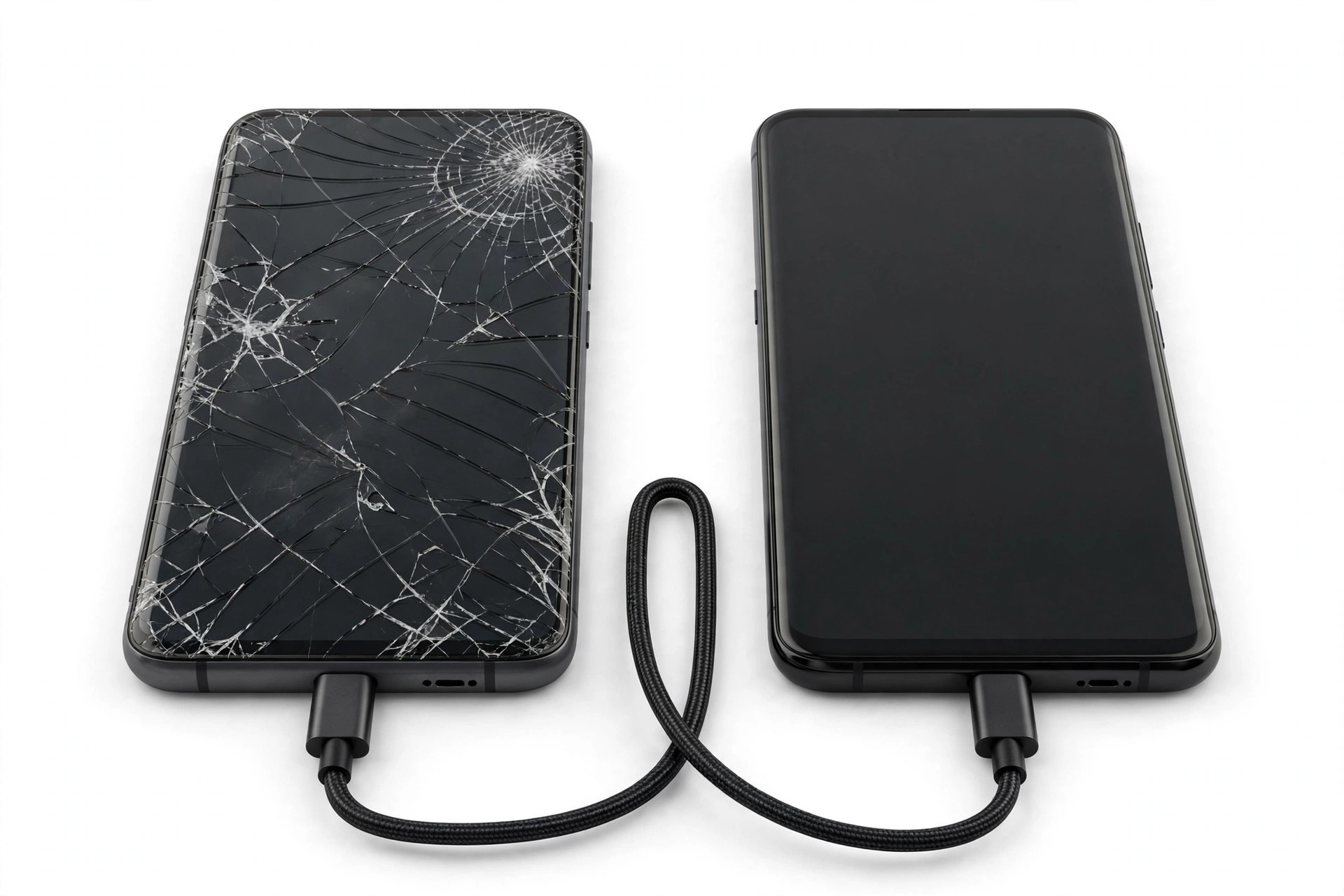
Before you try anything, answer one question: did the broken Huawei phone back up to Huawei Cloud (or anywhere else) before it broke? This single fact decides which path you take, and it saves you from wasting hours on methods that cannot work for your situation. (Source: consumer.huawei.com)
Huawei phones back up through two main channels:
- Huawei Cloud Backup — tied to your HUAWEI ID. If it was turned on, your contacts, messages, photos, system settings, and app data were copied to Huawei’s servers automatically. Restoring needs only your HUAWEI ID and password, not the broken phone.
- Google backup — only on Huawei phones that shipped with Google Mobile Services (generally models released before the 2019 restrictions, or older devices). Newer Huawei phones do not have Google backup at all.
Think of it this way:
- Path A — a cloud backup exists: you do not need the broken phone at all. Sign in on the new phone and restore.
- Path B — no backup exists: everything depends on the physical condition of the broken phone. Keep reading.
Quick fact: If you are unsure whether a backup exists, check on the new phone. Sign in with your HUAWEI ID, go to Settings > HUAWEI ID > Cloud > Cloud Backup, and look for a backup entry for the old device. If one is listed with a recent date, Path A is open to you.
2. Path A: restore from Huawei Cloud Backup
This is the cleanest path. Huawei’s own support documentation describes the restore flow, and it requires nothing from the broken phone — just your account credentials and an internet connection.
2.1. The restore steps
On your new Huawei phone:
- Open Settings and tap Log in to HUAWEI ID. Sign in with the same HUAWEI ID you used on the broken phone.
- Go to Cloud.
- If your Cloud app is version 10.6.2.300 or later: tap MANAGE STORAGE > Cloud Backup, select your old device, then tap Restore data. Choose the backup copy and tap RESTORE.
- If your Cloud app is older: go to Cloud Backup, select the backup copy, and tap Restore.
Tip: Huawei notes that the exact menu path varies with the Cloud app version. If the path above does not match your phone exactly, look for “Cloud Backup” and “Restore” under the Cloud or HUAWEI ID screens — the function is the same.
2.2. What a Cloud Backup restore brings back
A Huawei Cloud Backup typically restores:
- Contacts and call history
- Text messages
- Photos and videos stored in the Gallery
- System settings (Wi-Fi networks, wallpapers, home-screen layout)
- App data for supported apps
- Calendar events, notes, and memos
2.3. What it does not bring back
Be honest with yourself about the gaps, so nothing surprises you after the restore:
- WhatsApp chats need their own backup. Phone Clone and cloud backups do not carry WhatsApp messages reliably between setups — check WhatsApp’s own Google Drive (or local) backup separately.
- Authenticator codes (Google Authenticator, Microsoft Authenticator) do not transfer through a standard restore. If you cannot open the old phone, recovering these means going through each service’s account-recovery process.
- Banking and payment apps will need fresh sign-in and re-verification for security reasons.
- Data in apps that never backed up — anything stored only inside the broken phone’s internal memory, with no cloud sync, is not in the backup.
3. Path B: Phone Clone — when the broken phone still works
Phone Clone is Huawei’s own migration tool, and Huawei’s support documentation describes it as the fast way to move basic data — contacts, calendar, images, videos, messages, and more — directly from one phone to another. Between two Huawei phones it can move a very complete set; from other Android phones or iPhones it moves the basics.
But here is the critical limitation for our situation: Phone Clone requires you to operate both phones. The documented flow is:
- On the new device, open the Phone Clone app (or go to Settings), tap This is the new device, and select Huawei or Other Android.
- On the old device, install and open Phone Clone, tap This is the old device, and connect by scanning a QR code or connecting manually.
- On the old device, select the data to move and tap Transfer.
That QR-code step is the whole problem. If the broken phone’s screen is dead, or it will not power on, you cannot scan a code or tap through the setup. Phone Clone is only a real option when the broken phone can still display its screen and accept touch input — for example, a phone with a cracked-but-usable screen, or one with a failing battery that still runs while plugged in.
Quick fact: Phone Clone builds a direct Wi-Fi connection between the two phones, so it does not need internet access or mobile data during the transfer. Keeping both phones on chargers during a long transfer avoids a mid-transfer shutdown — which matters when one of the phones is already damaged.
3.1. What Phone Clone moves — and what it does not
According to Huawei’s documentation and independent walkthroughs of the tool, Phone Clone moves contacts, messages, photos, videos, music, calendar entries, apps, and many system settings in one session. Two honest caveats:
- Apps transfer as installers, not as logged-in sessions. You will sign back into banking, social, and messaging apps on the new phone. Game progress and chat history that lived only on the device may not survive.
- Phone Clone needs Android 4.4 or later on the old device. Any Huawei phone from the last decade qualifies, so this is rarely the blocker — the screen is.
4. If the screen is broken: three cases
A broken screen does not automatically mean lost data. Work through these three cases in order — stop at the first one that matches your phone.
4.1. Case 1: the display is dead but touch still works (or vice versa)
If the screen shows nothing but the phone still responds to touch — or shows an image but ignores taps — you may still be able to operate it:
- OTG adapter + USB mouse: plug a USB On-The-Go adapter into the phone’s charging port and connect a regular USB mouse. A cursor appears on screen (or moves invisibly, which you can verify once the display wakes), letting you tap through backup menus, enable cloud backup, or start a Phone Clone session by feel and memory.
- External display: some Huawei models support video output over USB-C to an HDMI adapter or dock. If yours does, you get a full working screen on a monitor.
If you can get any working input and output combination, immediately do the highest-value actions first: turn on Huawei Cloud Backup and let it complete, or start a Phone Clone transfer to the new phone. Do not waste a dying phone’s remaining life on low-value steps.
4.2. Case 2: the phone powers on but the screen is fully unusable
If you cannot see or touch anything, but the phone vibrates, lights up, or makes sounds when powered on:
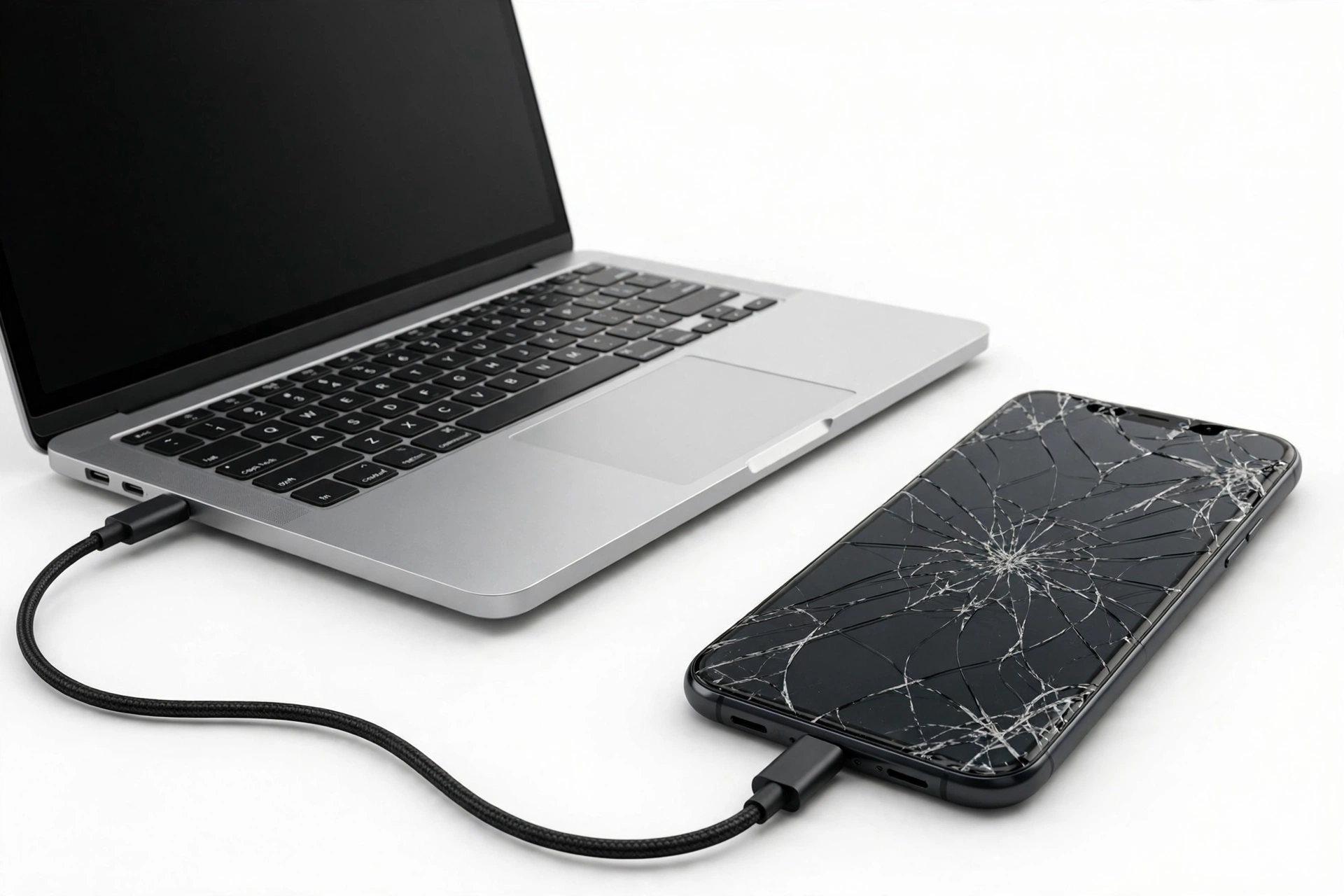
- Connect it to a computer with a USB cable. If the computer recognizes the phone’s storage, copy photos, videos, and documents manually — this is the fastest win available.
- On some Huawei phones, previously enabled USB debugging allows deeper access, but if it was not enabled before the break, you generally cannot enable it now without the screen.
- Huawei’s HiSuite desktop software (for models that support it) can back up a connected phone to the computer, including more than plain file copy — but it still needs the phone to be recognized over USB.
4.3. Case 3: the phone will not power on at all
A phone that shows no signs of life after charging for at least 30 minutes and attempting a force restart (hold Power + Volume Up for about 10–15 seconds) leaves you with two remaining options:
- Cloud sources: Huawei Cloud Backup, Google Photos, Google Drive, or any other cloud service the phone was syncing to. Check every account you might have used.
- Professional assessment: a repair shop can determine whether the phone’s main board can be revived enough to boot. This is assessment, not a guaranteed rescue — see Section 8.
Stop for safety: Never open a damaged phone yourself. Never charge a phone that is swollen, distorted, leaking, or dangerously hot. A damaged battery can catch fire — if the phone shows any of these signs, power it down if possible, do not charge it, and keep it away from flammable materials.
5. Cable transfer via a computer (HiSuite and manual copy)
For Huawei phones that are recognized by a computer over USB, a cable gives you two routes:
- Manual file copy: open the phone’s storage on the computer and copy the DCIM (photos/videos), Documents, Downloads, and Music folders. This is simple and fast, and it is often all people actually need.
- HiSuite backup: Huawei’s desktop companion can create a fuller backup of a connected phone — contacts, messages, and settings in addition to files. Availability depends on the phone model and the HiSuite version; newer Huawei models may have limited HiSuite support.
After copying to the computer, move the files to the new phone over USB, or upload them to a cloud service and download them on the new device. If the new phone is also a Huawei signed into the same HUAWEI ID, restoring through the Cloud path (Section 2) may be simpler than manual copying.
6. Moving from a broken Huawei to a non-Huawei phone
If your new phone is a Samsung, Pixel, Motorola, or iPhone, Huawei Cloud Backup will not restore directly onto it — the restore path in Section 2 is Huawei-to-Huawei. Your options:
- Files via computer: copy photos, videos, and documents off the broken phone (Case 2 above), then move them to the new phone. Contacts can be exported as a vCard file and imported anywhere.
- Google account sync: if the broken Huawei had Google services and was syncing contacts, calendar, and photos to a Google account, signing into that Google account on the new phone pulls all of it down automatically — brand-independent.
- Phone Clone in reverse: Huawei’s Phone Clone can send data from an old Huawei to certain new non-Huawei phones when both are operable, but again this needs a working screen on the old device.
- Move to iOS: Apple’s Move to iOS app transfers from Android to iPhone, but it needs the old Android phone to be operable. It also does not transfer everything — call history, for example, does not come across.
7. Method comparison
| Method | Requires | Best for | Limitations |
|---|---|---|---|
| Huawei Cloud Backup restore | HUAWEI ID + password; backup made before the break; new Huawei phone | The complete, no-broken-phone-needed restore | Only restores what was actually backed up; Huawei-to-Huawei only; WhatsApp and authenticator apps need separate handling |
| Phone Clone | Both phones powered on with working screens; QR-code pairing | Fast direct transfer when the old phone still works | Useless with a dead screen or dead phone; apps transfer without login state |
| USB file copy to computer | Phone recognized over USB; unlocked or previously trusted computer | Photos, videos, documents — the fastest manual win | Only files, not app data, messages, or settings; needs USB recognition |
| HiSuite backup | Supported Huawei model; phone recognized over USB | Fuller backup than manual copy | Model-dependent support; still needs USB recognition |
| Google account sync | Google services on the old phone; sync was enabled | Brand-independent restore of contacts, calendar, photos | Not available on post-2019 Huawei phones without Google services |
| OTG adapter + mouse | Working phone body; OTG-compatible port | Operating a phone with a dead touchscreen | Needs some display output or memorized navigation; fiddly |
| Professional board-level assessment | A repair shop willing to assess; realistic expectations | Dead phones with no backup where data matters | Expensive; never guaranteed; encryption may make recovery impossible |
8. What your situation actually tells you
It helps to be precise about what each observation proves — and what it does not. Misreading these is how people waste a weekend on a method that was never going to work.
| Observation | Establishes | Does not establish |
|---|---|---|
| The phone vibrates or lights up when charged | The main board likely still works; USB or OTG methods may succeed | That the screen can be used; that data is intact |
| A computer recognizes the phone over USB | File copy and possibly HiSuite backup are available | That app data, messages, or settings are recoverable this way |
| A Huawei Cloud Backup exists for the old device | A full restore to a new Huawei phone is possible without the broken phone | That the backup is complete or current — check its date |
| The phone is completely dead (no lights, no vibration) | Only cloud sources or professional assessment remain | That the data is definitely gone — a board-level fault can be repairable |
| Phone Clone starts but stalls midway | The connection or the old phone’s stability is failing | That retrying the same way will eventually work — change the approach |
| Photos appear in Google Photos on another device | Those photos are safe regardless of the broken phone | That messages, contacts, or app data were synced too |
9. The data that defeats every method
Some data resists even a perfect transfer. Knowing this in advance lets you start the separate recovery processes early instead of discovering the gap weeks later:
- Authenticator codes: time-based one-time password apps are deliberately designed not to export. Without the old phone, recovery runs through each service’s own account-recovery flow (backup codes, SMS verification, ID checks). Start with your most important accounts — email first, since email access unlocks most other recoveries.
- WhatsApp chats: check WhatsApp’s own backup settings. On Huawei phones with Google services, that means Google Drive; without them, local backups on the phone’s storage (recoverable via USB file copy if the phone is recognized).
- Banking and payment apps: these re-verify on every new device by design. Have your ID and account details ready; none of them restore silently.
- DRM-protected media: rented or purchased movies and music tied to a specific device license may need re-download rather than transfer.
- In-app purchases and game progress: only survive if the app itself syncs to an account. Check each important app individually.
Quick fact: Your email account is the master key. Almost every other service’s recovery flow routes through email verification, so securing access to your email on the new phone first makes everything else easier.
10. The encryption reality for dead phones
Modern Huawei phones — like all modern smartphones — use hardware-bound file encryption. This has one blunt consequence: removing the storage chip and reading it elsewhere does not bypass the encryption. The data can only be decrypted by the phone’s own secure hardware, which means the board must be revived enough to boot.
This is why professional data recovery for a dead phone means board-level repair work (power circuit, charging circuit, or component-level faults), not chip-swapping magic — and why it is expensive and never guaranteed. Any service promising “guaranteed recovery” before examining the phone is a red flag; walk away.
11. What NOT to do
- Do not factory-reset the broken phone before your data is secured elsewhere. A reset wipes the encryption keys along with the data, making professional recovery effectively impossible afterward.
- Do not keep charging a phone that is swollen, hot, hissing, or leaking. Power it down if you can do so safely and stop.
- Do not open the phone yourself. Beyond the battery danger, opening a modern Huawei phone without the right tools and knowledge usually destroys whatever chance a professional had.
- Do not install “data recovery” apps from outside trusted stores on the new phone in hopes they will reach the old one — they cannot, and sketchy apps are a malware vector.
- Do not sign into your HUAWEI ID on a stranger’s or a shop’s demo phone to “check the backup.” Use your own new phone or Huawei’s web account portal.
Stop for safety: If the broken phone is swollen, distorted, leaking fluid, or dangerously hot, do not charge it, do not attempt USB connections, and do not keep it in a pocket or bag. Place it on a non-flammable surface away from anything combustible and seek professional handling.
12. When to stop and get help
You have reached the end of safe DIY options when:
- The phone will not power on after 30 minutes of charging and a force restart.
- A computer does not recognize the phone over USB.
- No Huawei Cloud Backup (or Google backup) exists.
- The phone is physically damaged in a way that involves the battery.
At that point, the remaining option is a professional assessment of whether the board can be revived. Go in with the right expectations: assessment first, a clear quote before any work, and no guarantees about the data. If the data matters enough to pay for board-level work, say so up front so the shop prioritizes data access over cosmetic repair.
If you are in the Las Vegas area and want an in-person assessment, request a repair quote from Las Vegas Phone Repair & Accessories, 7400 Las Vegas Blvd S, Unit TT42, Las Vegas, NV 89123, phone (424) 406-6202. Hours are 10:00 AM–8:00 PM; call ahead to confirm today’s hours. For related situations, see our general broken-phone data transfer guide, plus the brand-specific companions for Realme and Xiaomi.
13. Two hypothetical illustrations
(The following are hypothetical illustrations, not customer stories.)
Illustration 1 — Maya’s cracked P40 with a working body: Maya drops her Huawei P40 and the display goes permanently black, but the phone still vibrates when she holds the power button. She connects it to her laptop with a USB cable; the computer recognizes the phone’s storage. She copies the entire DCIM folder (two years of family photos) to the laptop in twenty minutes. She then checks her HUAWEI ID on her new Huawei phone and finds a Cloud Backup from three nights before the drop — she restores it and gets her contacts, messages, and settings back too. The photos she copied manually fill the one gap the backup did not cover.
Illustration 2 — Daniel’s dead Mate 40 with no backup: Daniel’s Huawei Mate 40 goes through a washing machine cycle and never powers on again — no lights, no vibration, even after a day of drying and charging. He signs into his HUAWEI ID on his replacement phone and finds no Cloud Backup was ever enabled. A USB connection shows nothing. He takes the phone to a repair shop for a board-level assessment; the technician finds corrosion across the power management section and explains that revival is unlikely and data recovery cannot be guaranteed. Daniel accepts the loss, and the shop securely wipes what remains before recycling. His takeaway: he enables Cloud Backup on the new phone the same day.
14. Frequently asked questions
Can I transfer data from a Huawei phone with a completely black screen?
Possibly. If the phone still powers on (vibrates, lights up, makes sounds), try a USB connection to a computer first — file copy may work even with a dead display. An OTG adapter with a USB mouse can sometimes let you operate the phone blind. If nothing responds, check your Huawei Cloud Backup from the new phone; the broken phone may not be needed at all.
Does Phone Clone work if my old Huawei will not turn on?
No. Phone Clone requires both phones to be powered on and interactive — the old phone must run the app and scan a QR code (or connect manually). A phone that will not power on cannot participate. Use the cloud-restore path instead.
How do I check whether my broken Huawei had Cloud Backup turned on?
On your new Huawei phone, sign in with the same HUAWEI ID, then go to Settings > HUAWEI ID > Cloud > Cloud Backup and look for the old device’s name. If a backup entry with a date appears, you can restore from it. The exact menu path varies slightly with the Cloud app version.
Will my WhatsApp chats transfer from the broken Huawei?
Not automatically through Phone Clone or a standard cloud restore. Check WhatsApp’s own backup: open WhatsApp on the new phone after verifying your number and look for a restore prompt from Google Drive (on Google-services Huawei phones) or from a local backup copied off the old phone via USB.
Can I move data from a broken Huawei to a Samsung or iPhone?
Yes for files: copy photos, videos, and documents off the broken phone via USB to a computer, then move them to the new phone. Contacts can be exported as a vCard. Huawei Cloud Backup itself restores only to Huawei phones, so for messages and settings you will rely on Google account sync (if the old phone had Google services) or manual migration.
My Huawei has no Google services. Does that change anything?
It removes the Google backup/sync path entirely — no Google One backup, no Google Photos sync, no Google Drive WhatsApp backup. Your cloud options narrow to Huawei Cloud (tied to your HUAWEI ID) and any third-party cloud apps you installed yourself. This makes having Huawei Cloud Backup enabled especially important on these models.
Is it safe to keep trying to charge a dead Huawei phone?
Charging a merely dead (not physically damaged) phone for 30 minutes to attempt revival is reasonable. Stop immediately — and do not continue charging — if the phone becomes swollen, distorted, very hot, or starts leaking or smelling unusual. Those are battery-damage signs, not a flat battery.
Should I factory-reset the broken phone before taking it to a shop?
No — not before your data is secured. A factory reset wipes encryption keys and makes professional data recovery effectively impossible. Reset only after you have confirmed your data is safely restored or copied elsewhere, or after you have decided the data is not recoverable and you want the device wiped for privacy before disposal.
Video: How to transfer everything from old to new Android
Sources and editorial notes
- Huawei Support UK — “Use Phone Clone to Move Data to Your New Device”: the official Phone Clone flow (new device / old device roles, QR-code or manual connection, data selection, Transfer). Summarized in original language.
- Huawei Support NZ — “How to restore or delete data in Cloud Backup”: the official Cloud Backup restore paths for Cloud 10.6.2.300+ (Settings > HUAWEI ID > Cloud > MANAGE STORAGE > Cloud Backup > Restore data) and earlier versions. Summarized in original language.
- Huawei Support NZ — “[Hello, Fresh HUAWEI Fans] (Issue 1): Data Transfer”: Phone Clone overview, including the Huawei-to-Huawei full-clone behavior versus basic-data moves from other Android phones and iPhones. Summarized in original language.
- Fone.tips — “How to Transfer Data From Huawei to Another Android Phone”: independent walkthrough noting Phone Clone’s direct Wi-Fi hotspot (no internet needed), app-binaries-without-login-state behavior, and the separate WhatsApp backup requirement. Used for practical detail; manufacturer steps verified against Huawei’s own pages.
Last source check: October 14, 2026. AI-assisted editorial guide, checked against the linked manufacturer information. Huawei’s support pages describe Phone Clone and Cloud Backup for working devices; the broken-device triage, encryption notes, and safety guidance are editorial additions based on standard smartphone repair knowledge. Menu paths may vary by EMUI/HarmonyOS version and Cloud app version. This guide does not guarantee data recovery and does not represent Huawei or any manufacturer.
Let’s get you connected again.
Tell us what’s happening with your device and we’ll help you decide the safest next step — no jargon, no pressure.
Las Vegas Phone Repair & Accessories · 7400 Las Vegas Blvd S, Unit TT42, Las Vegas, NV 89123
10:00 AM–8:00 PM — call ahead to confirm today’s hours