
How to Transfer Data from Broken Realme Phone to New Phone: Complete Guide
Start with the backup question: if your broken realme phone backed up to Google before it broke, you can restore most of your data onto the new phone without touching the broken one. If there is no backup, your options depend on exactly what still works on the broken phone — this guide walks through every real path, including Clone Phone, cable transfer, and what to do when the screen or the whole phone is dead.
On this page
Start with the backup question: if your broken realme phone backed up to Google before it broke, you can restore most of your data onto the new phone without touching the broken one.
1. The one question that decides everything
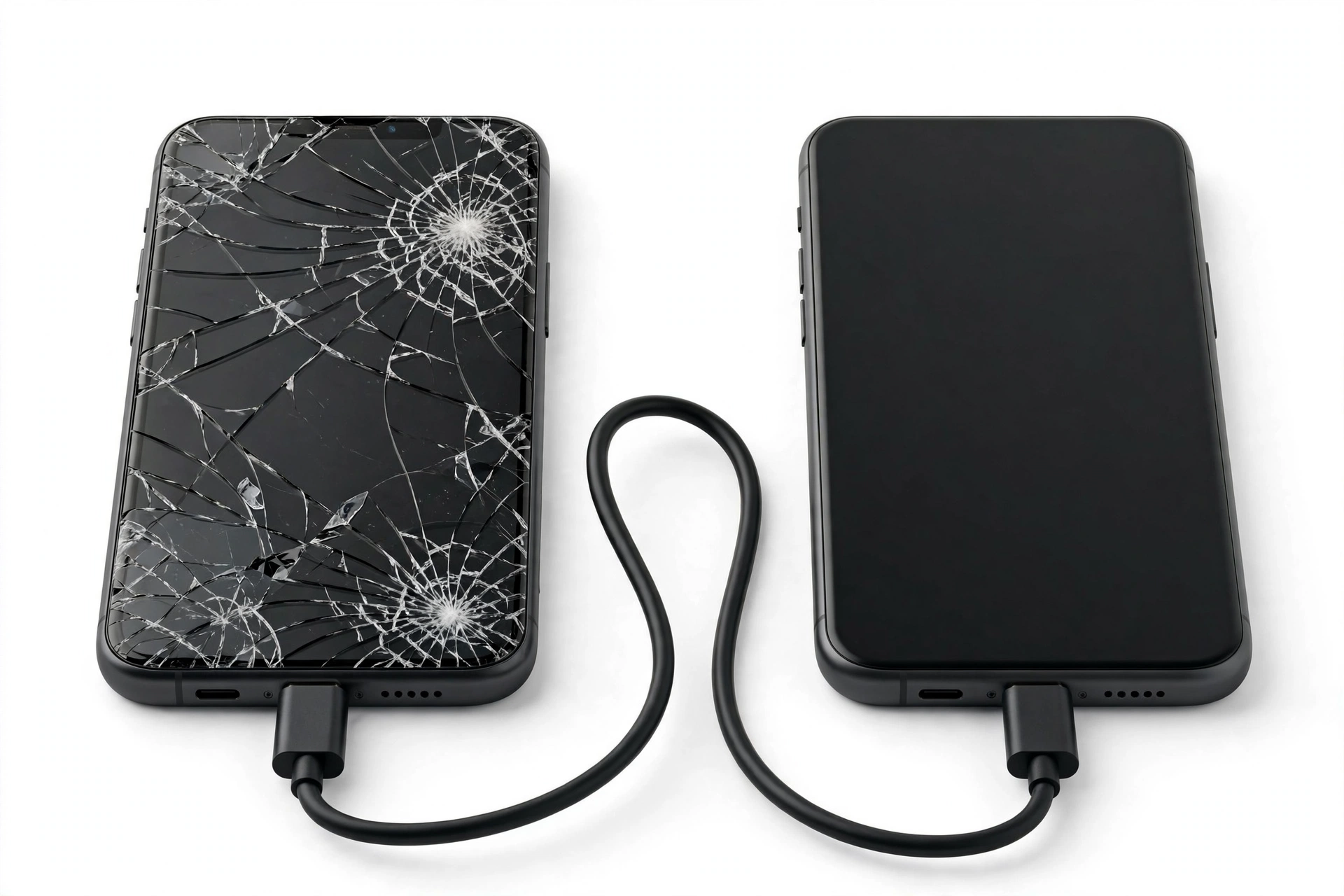
Before you try anything, answer this: did your realme phone back up to Google before it broke? This single answer splits the whole process into two paths. (Source: realme.com)
- Path A — a backup exists: You do not need the broken phone at all. Sign in to your Google account on the new phone and restore. Photos synced to Google Photos, contacts saved to your Google account, and the device backup restore automatically.
- Path B — no backup, or you are not sure: Everything depends on the physical condition of the broken phone. A phone with a cracked screen that still responds to touch is a very different situation from a phone that will not turn on at all.
Quick fact: A Google backup does not require you to have done anything special beyond having Backup turned on. On realme phones running realme UI 2.0 and later, Google backup lives in the Google One app under Storage → Device backup; on older realme UI 1.0 it sat under Settings → Additional settings → Back up & reset → Google backup. If you used the phone normally with a Google account signed in, there is a reasonable chance a backup already exists — Section 3 shows how to check.
2. Who this guide helps (and how it differs from the general guide)
This guide is written specifically for realme phone owners — models running realme UI, from older realme 5/6/7-series phones through the Narzo line and newer realme GT and number-series phones. It is realme-specific in three ways:
- Clone Phone, realme’s official peer-to-peer migration tool, behaves differently from Google’s or Samsung’s tools — including one important limitation for broken phones that Section 5 covers honestly.
- realme UI backup paths (local “Back up & migrate,” Google backup locations, HeyTap Cloud) are described with the exact menu locations documented for realme phones.
- Condition-based triage is tuned to what realme owners actually run into: cracked screens on mid-range phones, dead batteries on older Narzo devices, and the encryption reality of modern realme phones.
If your old phone is not a realme, or you want the brand-neutral overview, see our general guide how to transfer data from a broken phone. Owners of broken Xiaomi and Motorola phones have dedicated companions too: Xiaomi and Motorola.
3. Path A: check for and restore from a Google backup
A Google backup is the single best outcome when a realme phone breaks. It restores without the broken phone being involved at all — you only need your Google account credentials.
3.1. What a Google backup can restore
Google’s device backup on Android typically covers: installed apps and app data (for apps that participate), call history, contacts saved to your Google account, SMS text messages (with Google Messages on supported setups), device settings (Wi-Fi networks, wallpaper, display settings), and photos/videos if Google Photos backup was enabled. What it does not reliably cover is listed in Section 12 — read that before assuming everything is safe.
3.2. How to check whether a backup exists
- On a computer or another device, sign in to the same Google account at Google One’s storage page or in the Google One app.
- Look for a Device backup entry naming your realme phone, with a date.
- Check the date carefully: a backup from six months ago restores six-month-old data. If the backup date is before something important happened (photos from last week’s trip, a new contact), that item will not be in the restore.
Tip: If Google Photos backup was on, open Google Photos on any device and search for recent photos. Photos synced to the cloud appear there even if the full device backup is stale or missing — your photos may already be safe even if nothing else is.
3.3. Restoring during new-phone setup
- On the new phone, start the normal setup process and connect to Wi-Fi.
- Sign in with the same Google account used on the broken realme.
- When the setup offers “Copy apps and data” (or “Restore from a backup”), choose the backup of your broken realme phone.
- Let the restore finish over Wi-Fi before judging results — apps and their data download in the background and can take a long time on a fresh phone.
Stop for safety: Do not factory-reset the broken realme phone hoping it will “fix itself” before you have secured your data. A factory reset wipes the phone’s encryption keys, which can make professional data recovery impossible even if the hardware is later repaired. Decide on your data strategy first.
4. Path A variants: HeyTap Cloud, local backups, and realme account sync
Google backup is the most reliable cloud path, but realme phones have brand-specific options worth checking:
4.1. HeyTap Cloud (realme Cloud)
realme phones signed in with a realme account may sync contacts, messages, and some settings to HeyTap Cloud. Availability varies by region and ROM version — it is not available everywhere — so treat it as a bonus rather than a guarantee. If you were signed in with a realme account, sign in with the same account on the new phone (or check via a browser on another device) to see what synced.
4.2. Local backups (“Back up & migrate”)
realme UI includes a local backup feature: on realme UI 3.0 and later, Settings → System/Additional settings → Back up & reset → Back up & migrate → New Backup. This creates a backup file stored on the phone itself (or copyable to a computer). A local backup only helps if it was created before the phone broke — and you can get the file off the broken phone (see Section 8). If you routinely copied the backup folder to a computer, you may already hold the file you need.
4.3. Contacts and calendar synced to Google
Worth a separate check: contacts are often the most valuable data on a phone. If your contacts were saved to your Google account (the default on most realme phones when you create a contact), they appear at Google Contacts in any browser — no backup restore needed at all.
5. What Clone Phone can — and cannot — do with a broken phone
Clone Phone is realme’s official migration app (launched by OPPO, fully compatible with realme). On a healthy pair of phones it is the simplest migration route: it creates a direct Wi-Fi hotspot between the phones, uses no mobile data, and transfers photos, videos, music, contacts, messages, and apps. The official operation path on a realme phone is Tools → Clone Phone: on the new phone choose “This is a new phone” and the old phone’s type; on the old phone open Clone Phone, choose “This is an old phone,” scan the QR code shown on the new phone, select the data, and start the transfer.
Here is the honest limitation for broken phones:
- Clone Phone needs the old phone working enough to run an app, display a QR code, and keep Wi-Fi running. Both phones must complete an interactive pairing flow — one phone shows a QR code, the other scans it.
- A cracked screen with working touch: Clone Phone usually works if you can see and tap enough of the screen to launch the app and aim the camera. A phone with a shattered-but-responsive screen is often still clonable.
- A phone with a dead display or dead touch: Clone Phone cannot complete the QR-code pairing if you cannot see the code or cannot launch the app. This is the case where the methods in Sections 6–10 take over.
Quick fact: Phone cloning is a copy, not a move — realme’s support documentation confirms the old phone’s data remains after cloning. Cloned call records, messages, contacts, and media merge into the new phone rather than replacing its existing matching data (app data may overwrite when the same app exists on both phones). So there is no risk of “losing” anything on the old phone by attempting a clone — but you cannot clone from a phone you cannot operate.
6. Path B: broken-screen triage — three cases
If there is no usable backup, the next step is to figure out which of three cases your broken realme falls into. Each case has a different best method.
6.1. Case 1 — display works, touch is dead or unreliable
You can see the screen but taps do not register (or register in the wrong places). This is the most workable case: a USB OTG adapter plus a standard USB mouse gives you a cursor you can drive with. Many realme phones support OTG out of the box. Plug in the mouse, wait for the cursor, and navigate as normal: unlock the phone, enable file transfer over USB, or run Clone Phone (Section 9 walks through this).
6.2. Case 2 — touch works, display is dead or unreadable
You cannot see anything, but taps still register. This is harder because you are navigating blind. The practical route is connecting to a computer via USB cable from memory: plug in, then perform the unlock gesture or PIN entry you know by muscle memory, then swipe down the notification shade and tap where “USB for file transfer” would be. This requires patience and works best if you have done the motions many times. Alternatively, if USB debugging was enabled before the break, a computer tool may be able to mirror the screen — but do not install sketchy “screen mirror” apps from a broken phone’s state; use only tools you already had.
6.3. Case 3 — neither display nor touch works, or the phone will not power on
Try the basics first: charge for at least 30 minutes with a known-good charger and cable (a deeply discharged battery can mimic a dead phone), then try a force restart — on realme phones, press and hold Power + Volume Up together until the realme boot animation appears. If the phone vibrates or shows any sign of life, return to Case 1 or 2. If it stays completely dead, skip to Section 10 — your realistic options narrow to cloud backups and professional help.
| Method | Requires | Best for | Limitations |
|---|---|---|---|
| Google backup restore | Backup existed before the break; Google account credentials | Any broken-phone condition | Only restores what was backed up; stale backups miss recent data; some app data excluded |
| Clone Phone | Old phone powers on, runs apps, and can show/scan a QR code | Cracked-but-usable screens | Needs interactive pairing on both phones; cannot work with dead display or dead touch |
| USB cable file copy | Phone unlockable; touch working enough to enable file transfer | Photos, videos, documents, downloads | Copies files only — not app data, messages, or settings; needs the phone unlocked |
| OTG + USB mouse | Visible display; OTG support; a USB mouse and adapter | Touch-dead, display-alive phones | Only as good as the display; cannot fix a dead screen |
| HeyTap Cloud / realme account sync | realme account was signed in; sync was on; regional availability | Contacts, messages | Not available in all regions; limited data types |
| Local backup file | Backup was created before the break; file retrievable | Full restore of what was backed up | Useless if never created; file lives on the broken phone unless copied to a PC |
| Professional repair / data recovery | A reputable shop or lab; budget for the work | Dead phones with no backup | Expensive; success never guaranteed; encryption limits what is possible (Section 11) |
7. Method in detail: USB cable transfer to a computer
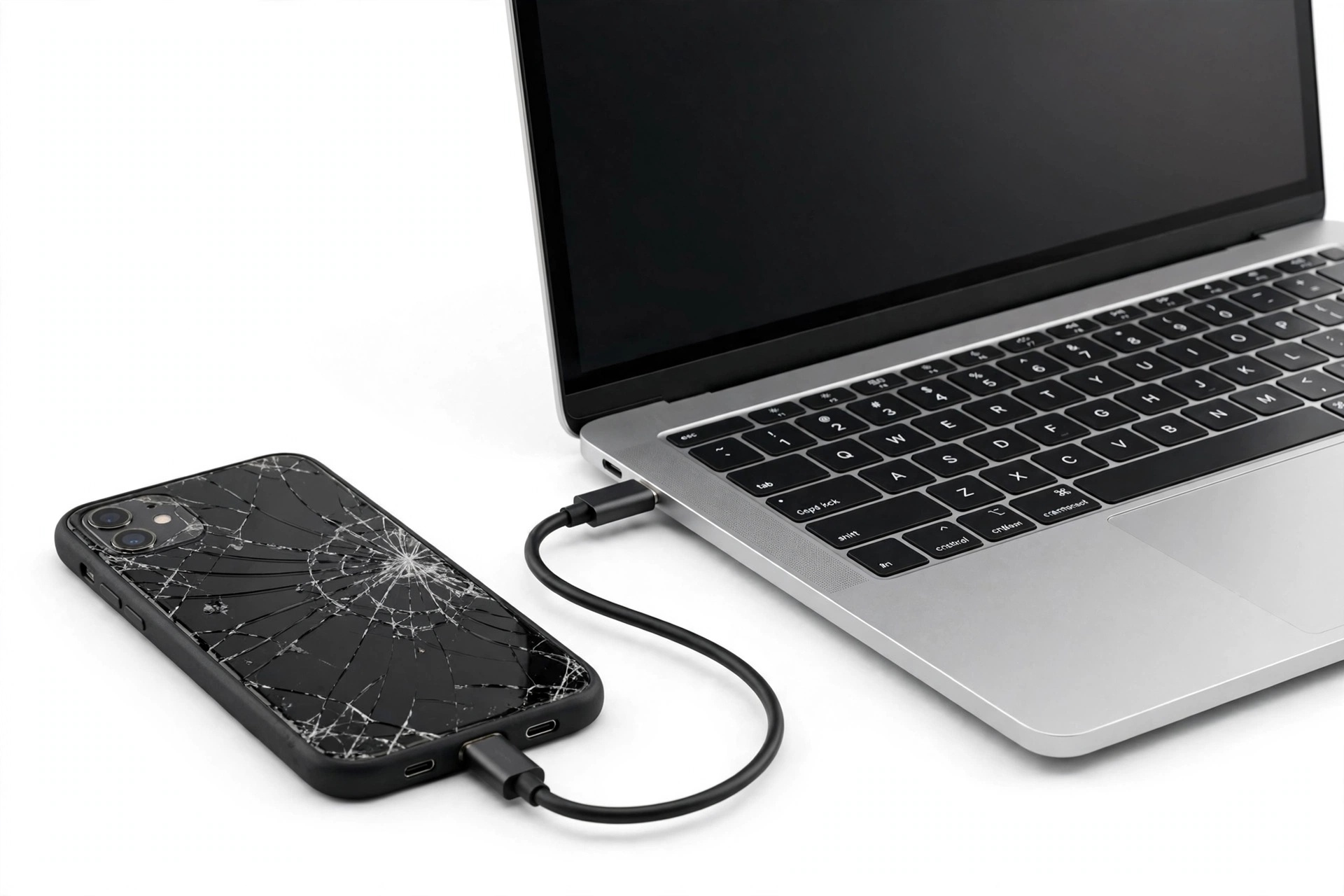
When the broken realme can power on and be unlocked, a USB cable to a computer is the most reliable way to pull files (photos, videos, music, documents, downloads) off the phone. It does not transfer app data, messages, or settings — but for most people, the camera roll is the irreplaceable part.
- Connect the realme phone to the computer with a data-capable USB cable (some cheap cables are charge-only — if the computer does not react at all, try another cable).
- Unlock the phone. If touch works, pull down the notification shade and set the USB mode to File transfer (wording varies: “File transfer,” “MTP,” or “Transfer files”).
- On the computer, open the phone’s storage and copy the DCIM (camera photos/videos), Pictures, Download, Music, and Documents folders to the computer.
- If the computer does not see the phone: try a different USB port, a different cable, and confirm the phone is unlocked. On Windows, a driver may need to install automatically — give it a minute.
Tip: Copy first, organize later. Drag entire folders to the computer even if they look messy — sorting can happen after your data is safe. While copying, do not disconnect the cable or let the computer sleep.
8. Method in detail: OTG mouse for a touch-dead phone
This is the hero method for Case 1 (Section 6.1): display visible, touch dead.
- Get a USB OTG adapter (USB-C to USB-A for most modern realme phones) and any standard USB mouse.
- Plug the adapter into the phone, then the mouse into the adapter. A cursor should appear within a few seconds.
- Use the mouse to unlock the phone (PIN pad, pattern, or password — the cursor clicks work like taps).
- From here you have two good options:
- Enable USB file transfer (connect a cable to the computer as in Section 7, using the mouse to tap the USB notification), or
- Run Clone Phone (Tools → Clone Phone → “This is an old phone”) to migrate everything to the new phone directly.
- If the cursor never appears, the phone may not support OTG, the adapter may be faulty, or the USB port may be damaged — try another adapter before concluding.
9. When the phone is completely dead
A realme that will not power on at all — no vibration, no charging indicator, no boot animation after 30+ minutes of charging and a force restart (Power + Volume Up held together) — leaves you with a short list:
- Recheck every cloud source: Google backup (Section 3), Google Photos, Google Contacts, HeyTap Cloud, WhatsApp’s own cloud backup (WhatsApp backs up to Google Drive separately from the device backup — open WhatsApp on the new phone and check), and any computer copies of local backup files.
- Check the charger and cable: test with a known-good charger and cable, and a different wall outlet. A surprising number of “dead” phones are dead chargers.
- Consider a repair assessment: a phone that will not boot may have a failed battery, charging port, or board issue — some of which are repairable. A repair that gets the phone booting again is often far cheaper than a data-recovery lab, and it reopens every method above.
- Data-recovery labs as a last resort: for truly dead boards, specialized labs can sometimes revive the board enough to boot or read the storage chip. This is expensive, slow, and never guaranteed (see Section 11 on why).
10. The honest truth about encryption and data recovery
Modern realme phones (like all modern Android phones) use file-based encryption tied to the phone’s hardware. This is a security feature, and it has one blunt consequence for broken phones:
Stop for safety: Removing the storage chip from a dead phone and reading it elsewhere does not bypass encryption. The data is scrambled with keys stored in the phone’s secure hardware; without the original board cooperating, the chip’s contents are unreadable. Any service that promises “guaranteed” recovery from a dead modern phone is promising something physics and cryptography do not support — treat such promises as a red flag.
What this means in practice: data recovery from a dead phone generally requires getting the phone (or at least its main board) working again — a new battery, a charging-port repair, or board-level work — so the phone itself can decrypt its storage. That is why a repair assessment (Section 9, step 3) is usually the sensible middle step before a lab.
11. The data that defeats every method
Even with a perfect transfer, some data types need separate handling. Check each of these individually:
- Authenticator codes (Google Authenticator, Microsoft Authenticator, Authy): these do not travel with normal backups reliably. If you can still access the old phone, use each app’s export/transfer feature now. If the phone is dead and you have no export, you will need each service’s account-recovery process — start with your email accounts first, since they gate most other recoveries.
- WhatsApp chats: backed up to Google Drive separately from the device backup. On the new phone, install WhatsApp, verify the same phone number, and it will offer the Drive restore. If Drive backup was off, chats lived only on the broken phone.
- Banking and payment apps: these almost always require fresh verification on a new phone (SMS codes, card re-entry) by design. Plan for it rather than being surprised.
- DRM media (rented movies, some subscription downloads): licenses are device-bound and typically must be re-downloaded, not transferred.
- App login sessions: most apps require signing in again on the new phone. A password manager — or your written-down passwords — makes this painless.
| Observation | What it establishes | What it does NOT establish |
|---|---|---|
| A Google backup exists with a recent date | Most settings, apps, and synced data can be restored | That everything is covered — photos need Photos backup; chats need their own backups |
| Clone Phone completed successfully | Selected data now lives on the new phone | That authenticator codes, banking sessions, or DRM licenses transferred |
| Files copied to a computer | Those files are safe regardless of the phone’s fate | That app data, messages, or contacts came along — files are only files |
| The phone vibrates when the charger is plugged in | The phone has some signs of life; charging circuitry responds | That the phone will boot or that data is recoverable — vibration is a hint, not a diagnosis |
| OTG mouse cursor appears | The USB port and basic system are alive; you can likely navigate | That the touchscreen will ever work again — this is a workaround, not a repair |
12. Safety stops: what not to do with a broken realme
Stop for safety: Never open a phone yourself. Beyond voiding any remaining warranty, lithium batteries can be punctured during amateur disassembly — a punctured battery can catch fire. Broken screens also mean exposed glass edges; handle the phone carefully and keep it away from children and pets.
Stop for safety: Never charge a phone that is wet inside, swollen, distorted, or dangerously hot. A swollen battery (screen lifting, back cover separating) is a fire risk — do not charge it, do not press on it, and take it to a professional promptly. Do not put a hot phone in a freezer; rapid temperature shock can make battery damage worse.
Two more rules that protect your data specifically:
- Do not factory-reset the broken phone until your data is secured elsewhere. A reset wipes encryption keys and makes recovery dramatically harder.
- Do not install random “data recovery” apps on the broken phone — they cannot bypass Android’s encryption, and shady apps may harvest the accounts you sign into.
13. After the transfer: checklist for the new phone
- Verify the important stuff first: open Photos and check recent pictures exist; open Contacts and spot-check; open Messages for recent threads.
- Reinstall and sign in to banking, email, and messaging apps one by one; complete each app’s device verification.
- Move authenticator codes using each authenticator app’s official transfer/export, then confirm you can log in somewhere before wiping the old phone.
- Restore WhatsApp from its Google Drive backup during WhatsApp setup.
- Check storage: a fresh restore can fill a smaller new phone — confirm free space in Settings → Storage.
- Keep the broken phone for two weeks before recycling or resetting it, in case you discover something missing. (Store it powered off, in a cool dry place — and never a swollen-battery phone; that goes to a professional immediately.)
14. When to stop and ask a professional
Stop DIY efforts and get an assessment if any of these are true:
- The battery is swollen, the phone is distorted, or it gets dangerously hot.
- The phone is completely dead after charging and force-restart attempts.
- You need data that exists nowhere else and the phone cannot be operated.
- You are unsure whether a backup exists and cannot check (for example, you cannot access the Google account — recover the account first; no shop can bypass Google’s account security for you).
A repair assessment can determine whether the phone can be revived enough to boot — which, per Section 10, is usually the key that unlocks every other method. If you are in the Las Vegas area, Las Vegas Phone Repair & Accessories, 7400 Las Vegas Blvd S, Unit TT42, Las Vegas, NV 89123, (424) 406-6202, can assess a broken realme and discuss options. Hours are 10:00 AM–8:00 PM — please call ahead to confirm today’s hours.
Video: How to transfer everything from old to new Android
Frequently asked questions
Can Clone Phone transfer data from a realme with a completely black screen?
Only if the touch layer still works and you can navigate by memory or with an OTG mouse to launch the app and complete the QR pairing. Clone Phone needs an interactive flow on both phones — a code shown on one, scanned by the other. If the phone will not power on at all, Clone Phone cannot help; check cloud backups instead.
Does cloning delete data from my old realme phone?
No. realme’s support documentation confirms cloning is a copy: the old phone keeps everything. Matching contacts, messages, call records, pictures, videos, music, and documents merge into the new phone, while app data from the old phone may overwrite the same app’s data on the new phone. Your old phone is untouched.
I never turned on backup. Is my data gone?
Not necessarily. First, check whether a backup exists anyway (Section 3) — many phones back up automatically with a signed-in Google account. If there truly is no backup, your data still lives on the broken phone’s storage, and the methods in Sections 6–9 may retrieve it depending on the phone’s condition. What is genuinely unrecoverable is data on a phone that cannot be powered or repaired and was never backed up anywhere.
Can I transfer data from a broken realme to an iPhone?
Partially. Clone Phone supports migrating from Android to a new realme, and realme’s docs describe signing in to an iCloud account within Clone Phone for iPhone-sourced data — but broken-phone-to-iPhone is a narrower path. In practice: restore Google-synced items (contacts, photos via Google Photos, calendar) on the iPhone by signing in to your Google account there, and use Apple’s Move to iOS flow where it applies. App data generally does not cross platforms.
How long does a Clone Phone transfer take?
It depends on how much data you selected — a few gigabytes over the direct Wi-Fi hotspot typically takes tens of minutes. Keep both phones close together, plugged into power, and do not use either phone during the transfer. If a transfer fails partway, realme’s support notes the progress is saved and you can resume from where it stopped; also try turning off “auto-connect to best Wi-Fi” on the old phone, which is a documented cause of cloning failures.
Will my WhatsApp chats transfer with Clone Phone?
Do not rely on it. WhatsApp maintains its own backup to Google Drive, separate from both Clone Phone and the device backup. The reliable route is: on the new phone, install WhatsApp, verify your number, and accept the Google Drive restore when offered. Check that a Drive backup exists before you need it — open WhatsApp → Settings → Chats → Chat backup on any working device with the same account.
The phone charges but the screen stays black. What should I try?
Charge for at least 30 minutes with a known-good charger and cable, then force-restart by holding Power + Volume Up until the realme boot animation appears. If you feel a vibration or hear sounds, the phone is alive with a dead display — the USB-cable and computer methods (Section 7) or an OTG mouse (Section 8) may work. If there is no response at all, treat it as a dead phone (Section 9).
Should I just take the broken phone to a repair shop first?
If the data matters and the phone cannot be operated, a repair assessment is often the highest-value first step: many “dead” phones have a failed battery or charging port, and a working phone reopens every transfer method in this guide. Get the assessment, ask specifically whether the phone can be made to boot, and only then decide between DIY transfer and professional data recovery.
Sources and editorial notes
- realme Support — “How to use Clone Phone”: official operation path (Tools → Clone Phone), new-phone/old-phone roles, QR-code pairing, data selection, latest-version download link.
- realme Support — “Do both old and new phones have data after phone cloning?”: cloning is a copy; merge vs. overwrite behavior for contacts, messages, call records, media, and app data.
- realme Support — “How to deal with Phone Cloning failure?”: auto-connect-to-best-Wi-Fi as a failure cause, resume-from-last-progress behavior, service-center fallback.
- realme Support — “How to download realme Phone Clone App for other brands of phones?”: QR-code download flow for non-realme old phones; i.clonephone.coloros.com/download.
- MobiKin — realme sync/backup overview: realme UI backup menu paths (Back up & migrate), Google One device-backup location on realme UI 2.0+, HeyTap Cloud scope and limits. Independent guide; menu paths consistent with realme UI documentation.
Last source check: October 14, 2026. AI-assisted editorial guide, checked against the linked manufacturer information. Procedures describe documented realme and Google flows as of the check date; menu names and app behavior can change with realme UI updates. No manufacturer authorization, certification, or guaranteed data-recovery outcome is claimed. Hypothetical examples in this article are illustrations, not customer stories.
Let’s get you connected again.
Tell us what’s happening with your device and we’ll help you decide the safest next step — no jargon, no pressure.
Las Vegas Phone Repair & Accessories · 7400 Las Vegas Blvd S, Unit TT42, Las Vegas, NV 89123
10:00 AM–8:00 PM — call ahead to confirm today’s hours