
How to Transfer Data from Broken Motorola Phone to New Phone: Complete Guide
If your Motorola phone is broken, your data moves to the new phone through your Google One backup, a USB cable to a computer, or a screen workaround — whichever your phone’s condition allows. The deciding question is whether the phone backed up to your Google account before it broke; if it did, you may not need the old phone to work at all.
On this page
If your Motorola phone is broken, your data moves to the new phone through your Google One backup, a USB cable to a computer, or a screen workaround — whichever your phone’s condition allows.

The deciding question: did it back up before it broke?
Every broken-Motorola data story falls into one of two branches, and knowing which branch you are on saves hours of wasted effort: (Source: en-us.support.motorola.com)
- Branch A — a Google One backup exists. You do not need the broken phone to power on, unlock, or even charge. You sign in to the same Google account during setup of the new phone, choose the backup, and the restore happens from Google’s servers.
- Branch B — no backup exists. Your options depend entirely on what the broken phone can still do: power on, show a display, register touch, or be recognized by a computer. Each working function opens one more door.
Quick fact: modern Motorola phones (Moto G, Moto Edge, Razr families) back up through Android’s built-in “Backup by Google One” system, not through a Motorola-specific cloud. This guide is Motorola-specific in its menu paths, workarounds, and history — but the backup itself lives in your Google account.
Who this guide helps
This guide is for anyone whose Motorola phone is cracked, has a dead display, will not power on, or was damaged by liquid — and who needs their photos, contacts, messages, and app data on a new phone. It covers Moto G, Moto E, Moto Edge, and Motorola Razr models, old and new. If your phone works perfectly and you simply want to move to a new device, the normal Android setup transfer is easier and faster than anything here.
Scope note: this is the Motorola entry in a broken-phone series. If your broken phone is a different brand, see the general guide to transferring data from a broken phone, the OnePlus version, or the Google Pixel version. The principles are similar, but the menu paths, apps, and history differ by brand.
Step 1: check whether a backup exists (from another device)
Before touching the broken phone, find out whether Google already has your data. You can do this from any working device — a computer, a tablet, or a borrowed phone:
- Check Google One storage. Visit one.google.com/storage in a browser and sign in with the Google account that was on the Motorola phone. A device backup, if one exists, appears here with the phone’s name and backup date.
- Check Google Photos. Open photos.google.com with the same account. If “Back up & sync” was on, your photos and videos are already safe in the cloud — even if the phone itself is destroyed.
- Check Google Contacts. Open contacts.google.com. Contacts synced to the Google account reappear automatically on any new phone signed in to that account.
- Check Google Drive. Drive holds any files you manually uploaded, plus some app backups.
Tip: many Motorola owners are surprised to find a backup they never consciously made. Android enables “Backup by Google One” by default during initial phone setup, so unless it was turned off, there is a good chance a recent backup exists. A backup can take up to 24 hours to complete its first cycle, so the most recent one may be from the day before the phone broke.
What to do if you find a backup
Go straight to Method 1 below. Do not factory-reset the broken phone, do not hand it to anyone yet, and do not try risky recovery tricks — you already have what you need.
What to do if you find no backup
Work through the methods in order. Each one matches a different level of phone damage, from “screen cracked but working” down to “completely dead.”
Method 1: restore the Google One backup on the new phone
This is the cleanest path and the one Motorola’s own support documentation describes. Motorola’s “Back up phone” support article states that Backup by Google One can automatically back up apps and app data, call history, contacts, phone settings (including Wi-Fi passwords and permissions), photos and videos (synced to your Google Photos library), and SMS text messages when using the Messages app. When you add your Google account to a phone, that previously backed-up content is restored onto it.
How the restore works during new-phone setup
- Turn on the new phone and connect it to Wi-Fi.
- When setup asks whether to copy apps and data, choose the option for restoring from a backup.
- If the old phone cannot be used, choose “Can’t use old device?” (the exact wording varies by Android version).
- Sign in with the same Google account that was on the broken Motorola.
- Select the backup of the old phone from the list.
- Tap Restore and let setup finish. Apps reinstall in the background afterward.
Important: the restore must happen during the new phone’s initial setup. If you skip setup and add your Google account later, contacts and calendar still sync, but the full device restore (app data, call history, settings, SMS) will not run. If you already finished setup, you can factory-reset the new phone and start setup again — that is safe to do on the new phone before you have put anything on it.
What the backup restores — and what it does not
| Data type | Restored? | Notes |
|---|---|---|
| Contacts synced to Google account | Yes | Also syncs independently of any backup |
| Photos and videos (Google Photos backup on) | Yes | Synced to Photos library, not stored inside the device backup |
| App data | Mostly | Depends on each app’s own backup support |
| Call history | Yes | Included in the device backup |
| SMS text messages | Yes, if using Messages | RCS and Messages-based SMS are covered |
| Device settings (Wi-Fi passwords, permissions) | Yes | Restored with the device backup |
| Files in Downloads or other folders | No | Only if manually uploaded to Drive |
| Authenticator app codes | Usually no | Designed not to transfer; see the caveats section |
| WhatsApp chats | Only via WhatsApp’s own backup | Check WhatsApp’s Google Drive backup separately |
Method 2: connect the broken phone to a computer with a USB cable
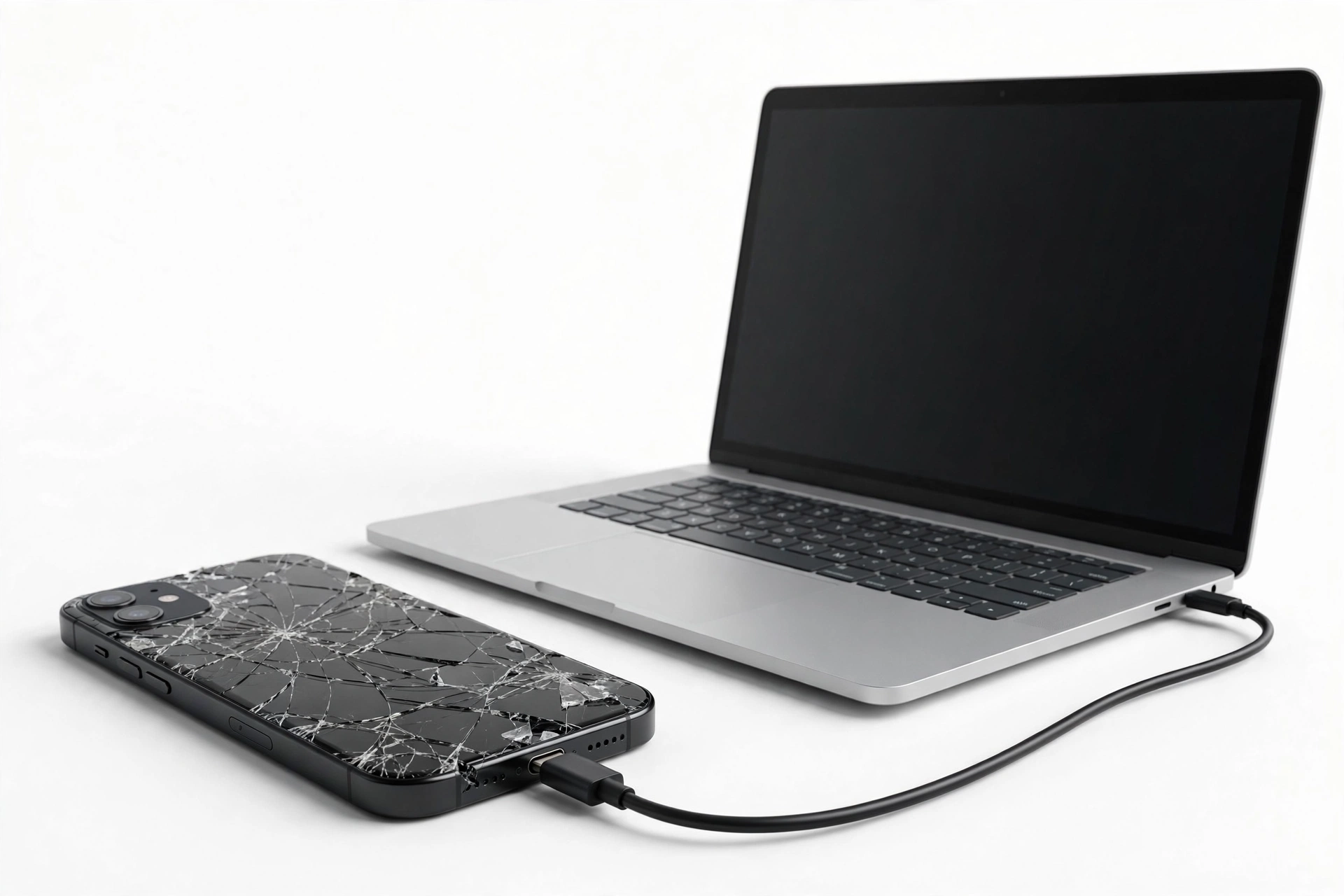
If there is no cloud backup but the phone still powers on, a computer can often read its storage directly — even with a cracked or partially dead screen.
- Connect the Motorola phone to a Windows PC or Mac with a USB cable that supports data (not a charge-only cable).
- If the phone’s screen works enough to show the USB notification, tap it and choose File transfer / MTP.
- On the computer, open the phone’s storage and copy the DCIM (photos), Pictures, Music, Downloads, and any app folders you recognize to a folder on the computer.
- Copy that folder to the new phone later by reversing the process.
Quick fact: USB file transfer works at the storage level and does not need the phone’s screen to be readable — but it does need the phone to power on and, on most Android versions, for you to approve the USB mode on the screen at least once. A completely dead touch layer with a working display can sometimes still be driven with the workaround in the next section.
Method 3: workarounds for a broken screen
A shattered screen falls into three cases, each with a different answer:
Case A: display works, touch does not
Connect a USB OTG adapter (USB-C to USB-A) to the phone and plug in an ordinary USB mouse. A cursor appears on the screen, and you can tap, swipe, approve the USB transfer dialog, and even run a manual backup to Google One (Settings > System > Backup > Back up now) — all with the mouse. This is the single most useful trick for a touch-dead Motorola, and it costs only the price of the adapter.
Case B: touch works, display is dead or unreadable
If you know the phone’s layout from memory, a USB cable to the computer may still work: connect the cable, then swipe down and tap where the USB notification would be. This is fiddly, but some owners succeed by mirroring the gestures they remember. Alternatively, if the phone was previously paired with a Bluetooth mouse or a computer for debugging, those connections may still function.
Case C: neither display nor touch works, but the phone powers on
A computer may still recognize the phone’s storage if USB file transfer was the last-used mode. Connect it and check. If the computer sees nothing and the screen never authorizes the connection, there is usually no further DIY path — see the sections on honest limits and professional recovery below.
Stop for safety: never open a damaged phone to “fix” the screen yourself, and never charge a phone that is swollen, distorted, giving off heat or odor, or that was soaked — damaged lithium batteries can catch fire. If the battery looks or smells wrong, stop and treat the phone as a hazardous item, not a data project.
Method 4: what about Motorola Migrate?
Older guides mention Motorola Migrate, the company’s old phone-to-phone transfer app. Here is the honest picture:
- Motorola Migrate let you copy contacts, messages, photos, videos, music, and call logs from an old phone to a new Motorola over a peer-to-peer Wi-Fi connection, paired by scanning a QR code. Motorola’s help pages still document it for phones like the Moto X and Moto G of that era.
- Motorola discontinued Migrate in 2017. It was built for Android 2.2 through Android 5.1 and does not work on modern Android versions or current Motorola phones.
- Even when it worked, both phones had to be functional enough to install the app, connect to the same Wi-Fi, and scan a QR code — conditions a broken phone rarely meets.
Quick fact: if your broken Motorola is a 2014–2016 era model (Moto X, Moto G 1st/2nd gen, Droid Ultra/Maxx/Mini) and it still powers on with a working screen, Migrate may technically still function — but for anything made in the last decade, Google’s backup and cable transfer are the real options. Do not waste a broken phone’s remaining battery life installing a dead app.
Method comparison: which path fits your situation?
| Method | Requires | Old phone must… | Limitations |
|---|---|---|---|
| Google One restore (Method 1) | Same Google account; new phone | Nothing — backup already in cloud | Only restores what was backed up; needs the backup to exist |
| USB cable to computer (Method 2) | Data-capable cable; PC or Mac | Power on; approve USB mode once | Only files on storage; no app data or settings |
| OTG + mouse (Method 3A) | OTG adapter; USB mouse | Power on; display visible | Slow; touch-only tasks still awkward |
| Motorola Migrate (Method 4) | Both phones working; old app | Power on; install app; scan QR | Discontinued 2017; Android 5.1 and older only |
| Professional recovery | A reputable lab | Physically intact board ideally | Expensive; never guaranteed |
Caveats: the data that defeats every method
Some data is designed not to move, and knowing this in advance prevents nasty surprises:
- Authenticator codes (Google Authenticator, Microsoft Authenticator, and similar) are deliberately device-bound. If you cannot open the app on the old phone, you will need each account’s backup codes or recovery process. This is by security design, not a transfer failure.
- WhatsApp chats move only through WhatsApp’s own Google Drive backup. Check drive.google.com for a WhatsApp backup under the same account; if chat backup was off, the chats live only on the broken phone.
- Banking and payment apps typically require re-verification on the new phone regardless of backup.
- Files that were only in internal app storage (downloaded documents inside apps, offline maps, game progress without cloud save) may not be in any backup.
When the phone is completely dead: honest limits
If the Motorola will not power on at all — no vibration, no LED, no recognition by a computer — and there is no cloud backup, be honest with yourself about what remains:
- Data that was never backed up and never synced exists only on the phone’s storage chips. No software, cable trick, or shop procedure can recover what was never saved anywhere else.
- Modern Android storage is encrypted with keys tied to the phone’s hardware. Removing chips and reading them elsewhere does not bypass that encryption.
- Professional data-recovery labs can sometimes repair a board just enough to power the phone and unlock it — but this is specialized microsoldering work, it costs far more than a phone is worth in most cases, and no reputable lab guarantees results.
| Observation | What it means | What it does not mean |
|---|---|---|
| A Google One backup exists | Most data is recoverable on the new phone | That every file and app setting survived |
| Photos appear in Google Photos | Photos are safe regardless of the phone | That videos, messages, or files are safe too |
| The phone vibrates but shows nothing | The board may be alive; a lab might help | That the data is definitely recoverable |
| No backup and no power | Recovery odds are poor | That a shop can “just pull the data off” |
Professional data recovery: how to think about it
If the data matters enough to pay for, a recovery lab is the last resort — but go in with clear eyes:
- No guarantees. Any lab that promises your data back before examining the phone is one to avoid.
- Ask how they work. Reputable labs repair the board to a bootable state and image it; they do not ask for your Google password or offer to “bypass” your lock screen.
- Ask about pricing structure. Understand whether you pay for the attempt, the success, or both — and get it in writing.
- Do not factory-reset the phone first. A reset wipes the encryption keys and makes professional recovery effectively impossible. If the phone still powers on, leave it exactly as it is until you have decided.
Tip: for most people, the honest math is that a cloud backup (free, already done) or a cable copy (free, an hour of work) solves the problem, and professional recovery is only worth considering for irreplaceable data — years of family photos with no backup, critical business records — where the cost is justified by what is at stake.
Setting up the new phone so nothing is lost twice
- During setup, restore the Google One backup before installing anything manually — this keeps app data matched to the right apps.
- Confirm that Backup by Google One is on (Settings > System > Backup) on the new phone, so the next accident is a non-event.
- Turn on Google Photos backup for full-resolution photos and videos.
- Open WhatsApp and restore its own Drive backup if you use it.
- Move authenticator accounts to the new phone now, while you still have (or can recover) access — and store the backup codes somewhere safe this time.
- Keep the broken phone untouched for a week or two until you are certain everything you need made it across. Only then decide on repair, trade-in, or recycling.
Hypothetical examples
(The following are hypothetical illustrations, not customer stories.)
Maya’s cracked Moto G. Maya drops her Moto G and the touch layer dies, but the display still lights up. She buys a USB-C OTG adapter and plugs in a spare mouse, uses the cursor to open Settings > System > Backup, and taps “Back up now” over Wi-Fi. An hour later, she sets up her new phone, signs in to the same Google account, chooses the fresh backup, and everything — contacts, messages, photos, app data — lands on the new device.
Daniel’s dead Moto Edge. Daniel’s Moto Edge goes through the wash and never powers on again. He checks one.google.com from his laptop and finds a backup from two nights before the accident. During new-phone setup he picks “Can’t use old device?”, signs in, and restores. His photos are intact because Google Photos backup was on; his authenticator codes are gone, so he spends an evening recovering each account with backup codes — a hassle he resolves never to repeat.
Video: How to transfer everything from old to new Android
Frequently asked questions
Can I transfer data from a Motorola that will not turn on?
Only if a Google One backup or Google Photos sync already exists — then the old phone does not need to power on at all. Without any backup, a fully dead phone leaves no DIY path; professional board-level recovery is the only (expensive, uncertain) option.
Does Motorola have its own cloud backup like Samsung Cloud?
No. Modern Motorola phones rely on Android’s Backup by Google One system. Motorola Migrate, the company’s old transfer app, was discontinued in 2017 and does not work on current phones.
Will Smart Switch work on a Motorola?
No — Samsung Smart Switch is Samsung-only. For Motorola, the equivalents are Google One restore and USB cable transfer.
Can I use Motorola Migrate on my new Moto G?
No. Migrate was built for Android 2.2–5.1 era phones and is not compatible with modern Android versions or current Motorola devices.
My screen is cracked but the phone works — what is the fastest path?
If the touch still works, run a manual Google One backup right now (Settings > System > Backup > Back up now) over Wi-Fi, then restore it on the new phone during setup. If touch is dead but the display works, use a USB OTG adapter and a mouse to do the same thing.
Will my WhatsApp chats transfer with the Google backup?
Not automatically. WhatsApp keeps its own separate backup to Google Drive. Check that WhatsApp’s chat backup was enabled; if it was, reinstall WhatsApp on the new phone and restore when prompted.
What if I forgot which Google account was on the phone?
Check every Google account you own at one.google.com/storage — the backup appears under the account that made it. Also check the purchase email for the phone or any “welcome to your new phone” emails, which name the account.
Should I factory-reset the broken phone before trading it in?
Only after you have verified, on the new phone, that everything you need transferred successfully. A reset is irreversible, and wiping the phone also wipes any chance of a later recovery attempt. Keep the broken phone for a week or two as insurance.
When to stop and get help
Stop DIY efforts and seek professional assessment if the phone is swollen, hot, giving off an odor, or was liquid-damaged and now behaves erratically — those are battery-safety issues, not data-transfer puzzles. Likewise, if the data is business-critical or irreplaceable and no backup exists, a reputable recovery lab is a better next step than repeated DIY attempts that could make things worse.
If you are in the Las Vegas area and need help assessing a broken Motorola — for example, determining whether it powers on, whether a screen workaround is viable, or what your realistic options are — Las Vegas Phone Repair & Accessories (7400 Las Vegas Blvd S, Unit TT42, Las Vegas, NV 89123; (424) 406-6202; open 10AM–8PM, call ahead to confirm today’s hours) can take a look and give you an honest read on the situation.
Sources and editorial notes
- Motorola Support US — “Back up phone”: documents Backup by Google One setup (Settings > System > Backup), what is backed up (apps and app data, call history, contacts, phone settings including Wi-Fi passwords and permissions, photos and videos via Google Photos, SMS via Messages), and that adding your Google account to a phone restores previously backed-up data. Last checked October 14, 2026.
- Motorola Support US — “Reset phone”: documents pre-reset backup steps, the security information needed to restore data after a reset (Google account credentials, screen lock), and Factory Reset Protection behavior. Last checked October 14, 2026.
- Motorola Help — “Transfer stuff from your old phone” (Migrate): documents the Migrate app’s data types (contacts, messages, photos, videos, music, call logs) and its peer-to-peer Wi-Fi QR-code flow for older Motorola phones. Last checked October 14, 2026.
- EaseUS — Motorola-to-Motorola transfer guide: independent guide noting Motorola Migrate’s 2017 discontinuation and its Android 2.2–5.1 limitation. Last checked October 14, 2026.
- FoneLab — Motorola transfer guide: independent guide describing Migrate’s QR-code flow and its incompatibility with newer Android versions. Last checked October 14, 2026.
- Vibosoft — Motorola data transfer guide: independent guide covering Migrate-era Motorola models (Moto X, Moto G, Moto E, Droid series). Last checked October 14, 2026.
Last source check: October 14, 2026. AI-assisted editorial guide, checked against the linked manufacturer information. Motorola Migrate details reflect the app’s documented historical behavior; its discontinuation (2017) and Android version limits are reported from multiple independent guides. Backup and restore procedures follow Motorola’s current published support documentation. This guide does not replace professional data-recovery advice for high-stakes situations.
Let’s get you connected again.
Tell us what’s happening with your device and we’ll help you decide the safest next step — no jargon, no pressure.
Las Vegas Phone Repair & Accessories · 7400 Las Vegas Blvd S, Unit TT42, Las Vegas, NV 89123
10:00 AM–8:00 PM — call ahead to confirm today’s hours