
Google Pixel Speaker Not Working After Update: Causes and Safe Fixes
Direct answer: if your Pixel’s speaker stopped working right after an update, check the silent settings first — volume sliders, Do Not Disturb, Flip to Shhh, and Bluetooth routing — then restart, test in Safe Mode, and only then consider resets. Most post-update speaker problems on Pixel phones are software settings that changed during the update, not broken hardware, and they resolve without a repair.
On this page
Direct answer: if your Pixel’s speaker stopped working right after an update, check the silent settings first — volume sliders, Do Not Disturb, Flip to Shhh, and Bluetooth routing — then restart, test in Safe Mode, and only then consider resets.
1. Who this guide helps
This guide is for Google Pixel owners whose phone speaker — the bottom-firing speaker, the earpiece during calls, or both — stopped working, sounds wrong, or behaves strangely after installing an Android update or a Google app update. It covers Pixel 6, Pixel 7, Pixel 8, Pixel 9, and Pixel 10 series phones, including Pro models and foldables, running recent Android versions. (Source: ifixit.com)
You are in the right place if any of these match: no sound at all from the phone speaker after an update; sound works in some apps but not others; the earpiece works for calls but media has no sound (or the reverse); a loud popping or crackling appeared after an update; the speakerphone button in the Phone app lags or does nothing.
What this guide cannot do: it cannot repair a physically damaged speaker, and it cannot undo a hardware failure that happened to coincide with an update. It also cannot promise that a future software patch will fix every reported bug — some reported issues are still unresolved, and this guide labels those honestly. Nothing here asks you to open the phone, bend it, press on it, or install root-level audio mods.
Scope note: This is the Pixel-specific companion to the brand-agnostic phone speaker not working after update guide. The general guide covers principles that apply to any phone; this one walks Pixel-only settings paths, Pixel-exclusive audio features, and bugs reported specifically on Pixel devices.
2. Two-minute triage: find which path your sound took
Before changing anything, spend two minutes answering three questions. Your answers decide which section of this guide matters to you, and they prevent you from doing a factory reset for a problem that was actually a Bluetooth connection.
Question 1: Which speaker is silent?
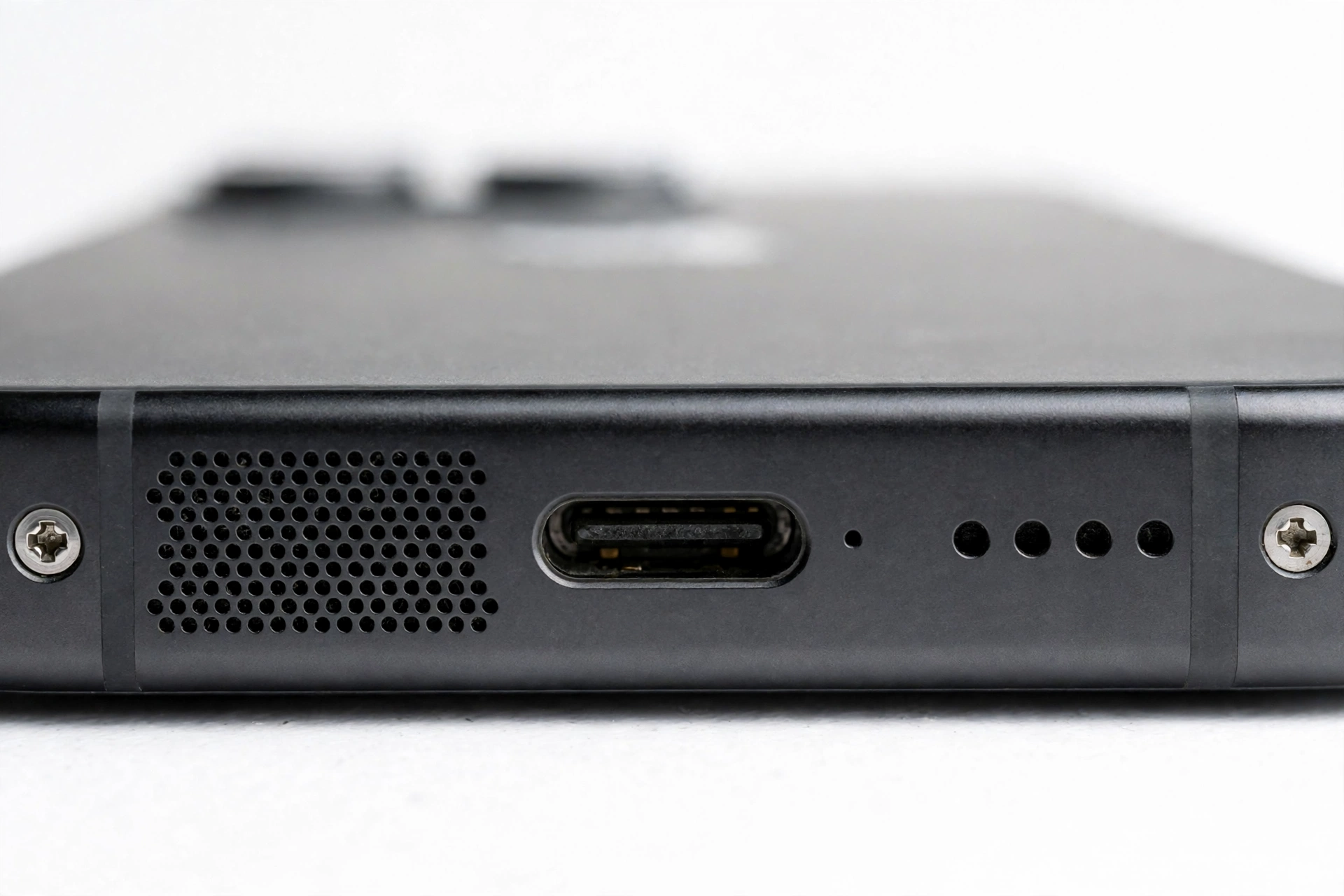
Pixel flagships use a stereo pair: the earpiece speaker (the small slot at the top of the screen, also used for call audio) and the bottom-firing speaker (the grille at the bottom edge). Play a video and cover the bottom grille with your finger — if the sound barely changes, the bottom speaker is the silent one; if the sound mostly disappears, the earpiece side is the problem. Now make a phone call on speakerphone and then switch to the earpiece. Note exactly which output is dead. This matters because a dead bottom speaker with a working earpiece points at a different cause than total silence.
Question 2: Is it one app or every app?
Open YouTube and play a video, then open the Phone app and play a voicemail or make a test call, then try the alarm or a ringtone preview in Settings > Sound & vibration. If YouTube is silent but the ringtone plays, the problem is likely app-specific (permissions, cache, or a buggy app update) rather than system-wide. If nothing makes a sound anywhere, the cause is at the system level.
Question 3: Where is the audio actually going?
Press a volume button and look at the volume panel. Then swipe down twice to open Quick Settings and check whether Bluetooth is on — your Pixel may be happily sending all audio to a forgotten pair of earbuds in a drawer, a car stereo, or a smart speaker. Also tap the audio-output switcher if one appears in the volume panel. A surprising number of “my speaker died after the update” cases are really “the update reconnected my forgotten Bluetooth device.”
| Your observation | Most likely direction | Jump to |
|---|---|---|
| Bluetooth was connected to another device | Audio routing, not a speaker fault | Section 6 |
| Silent in one app only | App permissions, cache, or app bug | Sections 10 and 12 |
| Silent everywhere, both speakers | System setting (Do Not Disturb, volumes) or system bug | Sections 6 and 8 |
| Bottom speaker dead, earpiece fine | Routing/effects setting or speaker hardware | Sections 6, 13, and 15 |
| Crackling or popping that started with the update | Software audio bug | Section 8 |
| Speakerphone button lags in the Phone app | Known reported Phone-app issue | Section 8 |
3. How Pixel speakers work (the 60-second version)
Knowing the layout helps you describe the problem accurately. On Pixel 6 through Pixel 10 flagships, media audio normally plays through two speakers working as a stereo pair: the earpiece at the top and a dedicated speaker at the bottom edge. During a regular (non-speakerphone) call, only the earpiece is active. On speakerphone, both fire. Ringtones, alarms, and notifications use the bottom speaker primarily.
Pixel A-series phones also have stereo speakers, but the tuning and maximum loudness differ from the flagships — so if you are comparing your Pixel 8a to a friend’s Pixel 8 Pro, some difference in loudness and fullness is expected and is not a defect.
The audio pipeline is fully software-controlled: Android’s audio service mixes app audio, applies the volume sliders, applies Pixel features like Adaptive Sound and spatial audio processing, and routes the result to the speakers, Bluetooth, or wired output. An operating-system update can legitimately change every one of those software layers, which is why “it worked before the update” is a meaningful clue rather than a coincidence.
Honest framing: An Android update cannot physically damage a speaker — no software update can tear a speaker cone or corrode a contact. What an update can do is change settings, reset permissions, alter audio routing, introduce a driver bug, or update an app (like the Phone app) into a buggy state. Keep that distinction in mind as you read the fix ladder: you are hunting software causes first.
4. Five ways an update can silence your Pixel
These are ordered from most to least likely, based on how Android updates behave on Pixel phones.
1. It changed or reset a sound setting
Major Android updates and even monthly patches sometimes reset Do Not Disturb schedules, notification categories, or per-app sound permissions. The Flip to Shhh gesture (Settings > System > Gestures) can also get re-enabled or re-triggered. These are silent killers: everything looks normal, but no sound comes out.
2. It re-routed your audio
Updates can re-pair or re-prioritize Bluetooth devices, and Android 16-era builds changed how the output switcher behaves. If the phone believes a Bluetooth headset, car system, or Cast target is the active output, the built-in speakers stay quiet — correctly, from the phone’s point of view.
3. It changed an app’s behavior
Google updates its own apps (Phone, YouTube, Messages) through the Play Store independently of system updates. A Phone app update can break the speakerphone button; a YouTube update can mute playback; new permission behavior can revoke a permission an app needs for audio. The fix here is app-level, not phone-level.
4. It altered the audio pipeline
Feature drops and quarterly updates adjust audio effects processing — spatial audio defaults, Adaptive Sound behavior, equalizer handling. Occasionally a genuine driver-level bug ships, like the loud audio popping some Pixel owners reported after the Android 16 QPR2 update (covered in Section 8 as press reporting, not a confirmed Google acknowledgment).
5. It exposed a coincidental hardware problem
Least likely, but worth naming: a speaker that was already failing can seem to “die with the update” because the restart that comes with installing an update is the first full reboot in weeks. If every software avenue fails and the speaker is silent in Safe Mode too, hardware assessment is the next step — not another reset.
5. The silent-killer settings checklist
Work through these in order. Each takes under a minute, and collectively they resolve the majority of post-update speaker complaints.
Volume sliders (all of them)
Press a volume button, then tap the three-dot menu (or the settings gear) in the volume panel to reveal every slider: Media, Call, Ring, Notification, Alarm. An update can leave the Media slider at zero while Ring stays loud — so “my phone rings but videos are silent” is a classic slider problem, not a speaker problem. Drag each slider up and test.
Do Not Disturb
Swipe down twice for Quick Settings. If the Do Not Disturb tile is highlighted, tap it off. Then go to Settings > Sound & vibration > Do Not Disturb and check whether a schedule got re-enabled by the update — some users find DND turning itself on at night after a patch. Also verify which notification categories are set to “Make sound” versus silent.
Flip to Shhh
This Pixel-exclusive gesture silences the phone when you place it face-down. If your phone lies face-down on a desk, it will not ring — by design. Check Settings > System > Gestures > Flip to Shhh and turn it off if you do not want it. This one is easy to forget because there is no persistent on-screen indicator.
Bluetooth and other outputs
Turn Bluetooth fully off (Quick Settings toggle, or Settings > Connected devices > Bluetooth) and retest. Then check Settings > Connected devices for previously paired audio devices and, in the volume panel, confirm the output reads “Phone speaker” or “This device” rather than a Bluetooth name. If sound returns the moment Bluetooth goes off, the speaker was never broken — the audio was going elsewhere.
App-specific mutes
Some apps (notably browsers and video apps) have their own mute state that survives updates. In the silent app, check its in-app volume/mute control, then go to Settings > Apps > [the app] > Notifications and confirm its notification categories can make sound.
Quick fact: On Pixel phones there is no physical mute switch, unlike iPhones — so if you came from an iPhone and are hunting for a silent switch, that is why you cannot find one. All silencing on a Pixel is software, which means it is all reversible in Settings.
6. Pixel audio features that change what you hear
Pixel phones ship with audio processing features that alter speaker output. After an update, their defaults can change — and the result can sound like a broken speaker.
Adaptive Sound
Adaptive Sound uses the phone’s microphones to sample ambient noise and automatically adjust the speaker equalization for your environment — boosting clarity in a noisy room, for example. It processes everything on-device, and the audio samples are deleted shortly after recording. It is opt-in and lives at Settings > Sound & vibration > Adaptive Sound. After an update, if it was on, try toggling it off and retesting: in rare cases the environmental adjustment can make audio sound thin or oddly quiet, which some owners misread as a speaker fault. If it was off, you can leave it off — it is a quality enhancement, not a requirement.
Spatial audio
Spatial audio creates a wider, more immersive soundstage from the phone speakers for supported movies and shows (5.1 surround tracks and above on services like YouTube, Netflix, Disney Plus, and Max). It is available on Pixel 6 series and newer flagships. The phone-speaker toggle lives at Settings > Sound & vibration > Spatial audio, and on some builds it is off by default. If audio sounds strangely hollow or “phasey” after an update, check whether spatial audio got toggled on for phone speakers and try it off. Conversely, if you enjoy it, make sure you are on the latest Android version, since Google ties the feature to recent builds.
Sound Amplifier (headphones only)
Sound Amplifier (Settings > Accessibility > Sound Amplifier) tunes loudness for the surrounding environment, but it only works with headphones — it does not affect the built-in speakers. If someone suggests it as a speaker fix, that advice is mistaken.
Stop for safety: Do not install “speaker cleaner,” “speaker booster,” or “fix my speaker” apps from the Play Store, and never grant such apps accessibility or device-admin permissions. They cannot repair hardware, several are adware or worse, and playing maximum-volume test tones for long periods can stress an already struggling speaker.
7. Reported post-update Pixel audio bugs (read carefully)
This section covers issues described in independent press reporting and user communities. They are included so you can recognize them — not as confirmed Google positions.
Loud audio popping after Android 16 QPR2 (reported)
In early 2026, independent press reported that some Pixel owners heard brief, loud static pops — usually under a second — when audio started or stopped, after installing the Android 16 QPR2 stable update. Users who replaced hardware under warranty reported the pop persisted on the replacement unit, which points to a software-level cause rather than broken speakers. The working theory in the reporting is an audio-driver glitch during stream handoffs. As of the last check for this guide, there was no confirmed permanent user-side fix beyond waiting for a subsequent monthly patch. If your symptom matches this exactly (short loud pop at audio start/stop, began with QPR2), run the standard checklist to rule out settings, then monitor for the next system update rather than resetting repeatedly.
Speakerphone button lag in the Google Phone app (reported)
Pixel 9 and Pixel 10 owners reported that the speakerphone button inside the Google Phone app lagged or failed to respond — while the speakerphone toggle in the notification shade worked fine. According to press coverage of Google’s issue tracker, Google closed the report as “Won’t Fix (Infeasible)” citing insufficient actionable information. If this is your symptom, the practical workarounds from the reporting are: use the notification-shade toggle instead of the in-call button, or revert the Phone app to an earlier version via the Play Store (Phone app page > uninstall updates). This is an app-interface bug, not a speaker failure — your speaker is fine.
Why this section exists
These reports matter because they change the correct action. A settings problem rewards troubleshooting; a shipped software bug rewards patience and a different workaround. Misidentifying a known reported bug as “my speaker is broken” leads to unnecessary factory resets and repair quotes.
8. Cause worksheet: symptom to likely cause to fix
| Symptom | Likely cause | Try first |
|---|---|---|
| No sound anywhere, all apps | Media volume at zero, DND on, or Bluetooth routing | All volume sliders up; DND off; Bluetooth off (Section 5) |
| Rings but no media sound | Media slider muted independently | Volume panel > three-dot menu > raise Media slider |
| Silent in one app only | App mute state, revoked notification permission, or buggy app update | In-app unmute; app notification settings; update or reinstall the app |
| Bottom speaker dead, earpiece works | Routing/effects setting, blockage, or hardware | Spatial audio off; case removed; grille check (Section 11); then Section 13 |
| Earpiece dead on calls, speakerphone works | Call volume down or earpiece issue | Raise Call volume during a call; clean earpiece slot gently; Safe Mode test |
| Crackling or distortion at high volume only | Normal small-speaker limits, or debris | Lower volume two notches; grille check; do not “burn in” at max volume |
| Short loud pop when audio starts/stops | Reported QPR2-era driver behavior | Rule out settings (Section 5); await monthly patch (Section 7) |
| Speakerphone button lags in Phone app | Reported Phone-app interface bug | Use notification-shade toggle; revert Phone app updates (Section 7) |
| Sound cuts out when screen sleeps | Battery optimization silencing the app | Settings > Apps > [app] > Battery > Unrestricted |
| Worked until the update’s reboot, never since | Coincidental hardware failure unmasked by reboot | Full ladder (Section 9); if Safe Mode also silent, Section 13 |
9. The fix ladder, in order
Do these in sequence. Stop at the first step that fixes the sound — later steps are progressively more disruptive.
Step 1: Restart the phone
Press and hold the power button, tap Restart. A restart clears transient audio-service glitches that updates commonly leave behind. If the screen is unresponsive, press and hold the power button for about 30 seconds until you feel a vibration and see the Google logo (forced restart).
Step 2: Remove the case and check for blockage
Take the phone out of its case — some cases and accessories muffle the bottom speaker. Look at the bottom grille and earpiece slot for lint or debris. (Cleaning instructions are in Section 11.)
Step 3: Run the silent-killer checklist
Complete every item in Section 5: all volume sliders, Do Not Disturb (including schedules), Flip to Shhh, Bluetooth off with output confirmed as the phone speaker, and per-app mute states.
Step 4: Toggle the audio pipeline features
Temporarily turn off Adaptive Sound and spatial audio for phone speakers (Section 6), then retest. If sound returns, re-enable them one at a time to identify the trigger. Leave whichever combination sounds correct.
Step 5: Update everything
Go to Settings > System > System update and install anything pending — Google frequently ships audio fixes in monthly patches. Then open the Play Store, tap your profile icon > Manage apps & devices, and update all apps, especially the Phone app and any app where sound fails.
Step 6: Safe Mode test
Boot into Safe Mode (full instructions in Section 10). If the speaker works in Safe Mode, a third-party app is interfering — uninstall recently installed or updated apps one at a time, starting with audio-related ones (equalizers, “booster” apps, call recorders). If the speaker is still silent in Safe Mode, the cause is in the system or hardware, not a third-party app.
Step 7: Reset app preferences
This is the gentlest reset: it restores default app permissions, notification settings, and background restrictions without deleting your data. Go to Settings > System > Reset options > Reset app preferences and confirm. You will need to re-grant some permissions afterward.
Step 8: Reset Wi-Fi, mobile & Bluetooth
At Settings > System > Reset options > Reset Wi-Fi, mobile & Bluetooth. This clears all paired Bluetooth devices and network settings, which resolves routing problems where the phone clings to a phantom audio output. You will need to re-pair Bluetooth devices afterward.
Step 9: Factory reset (last resort, backup first)
Only if every step above failed. A factory reset erases everything: back up first (Settings > System > Backup, and confirm photos, messages, and authenticator codes are safe). Then Settings > System > Reset options > Erase all data (factory reset). After the reset, test the speaker before restoring your backup — if it works on a clean system but breaks after restore, a setting or app in your backup is the culprit, and you should set up as new rather than restoring.
Stop for safety: A factory reset permanently deletes data on the phone. Never reset a phone you cannot afford to wipe until backups are verified — check that photos, files, and two-factor authenticator codes exist somewhere other than the phone before you tap Erase all data.
10. How to use Safe Mode on a Pixel
Safe Mode loads Android with third-party apps disabled, which isolates app-caused audio problems cleanly.
Entering Safe Mode
Method A (from the power menu): press and hold the power button until the power menu appears, then touch and hold “Power off” until the “Reboot to safe mode” prompt appears, and tap OK. Method B (during boot): power off the phone, press the power button, and when the Google logo appears, press and hold the volume-down button until the phone finishes booting — you will see “Safe mode” in the bottom corner.
Testing in Safe Mode
Play a video, play a ringtone preview, and make a test call on speakerphone. Note the results precisely — “works” or “silent” for each. If sound works here, the next step is uninstalling suspect third-party apps (start with anything installed or updated around the time the problem began, especially audio tools, equalizers, VPNs with audio filtering, and call-recording apps).
Exiting Safe Mode
Press and hold the power button for about 30 seconds, or simply tap Restart from the power menu. The phone boots normally with all your apps available again.
11. Speaker grille care (and what never to do)
Pixel speaker grilles collect pocket lint. A blocked grille genuinely reduces volume and can make a speaker sound dead.
Safe cleaning
Remove the case. Use a clean, soft-bristle toothbrush — dry — and brush the bottom grille and earpiece slot gently to dislodge lint. A microfiber cloth can wipe the area afterward. That is the entire safe cleaning procedure.
Never do these
- Never push pins, needles, SIM tools, or toothpicks into the grille — you can puncture the speaker membrane or the water-resistance mesh.
- Never use liquids, soapy water, or cleaning sprays on the speaker area.
- Never use compressed air — it can drive debris deeper and damage the membrane.
- Never apply heat (hair dryers) to “dry out” the speaker.
- Never press, squeeze, or bend the phone to “reseat” anything — forum posts describing pressure tricks are describing a way to temporarily mask a hardware fault while risking a cracked screen or worse.
Quick fact: Pixel water resistance (on models rated IP68) is tested on new phones under lab conditions and degrades with age, drops, and repairs. Never test water resistance yourself, and never charge a wet phone — if the phone got wet, power it down and let it dry thoroughly before charging or judging the speaker.
12. What your tests can and cannot prove
Honest troubleshooting means knowing the limits of each test.
| Observation | Establishes | Does NOT establish |
|---|---|---|
| Sound returns with Bluetooth off | Audio was routing to a Bluetooth device | That the speaker was ever faulty |
| Works in Safe Mode | A third-party app is interfering | Which app, or that the system is healthy |
| Silent in Safe Mode too | The cause is system-level or hardware | That a factory reset will fix it |
| Works after factory reset (before restore) | A setting or app in your data was the cause | That the hardware is perfect long-term |
| Still silent after factory reset | Strongly suggests a hardware fault | Which component failed — that needs hands-on diagnosis |
| One speaker works, the other doesn’t | The audio pipeline is alive; the fault is localized | Whether it is blockage, connection, or a dead driver |
13. Two hypothetical cases (illustrations, not customer stories)
The following are hypothetical illustrations, not customer stories. They show how the triage in this guide plays out.
Case A — Maya’s silent videos. Maya updates her Pixel 9 overnight. In the morning, YouTube has no sound, but her alarm rang. Her triage: the ringtone works, so the speaker is alive; only media audio is silent. She opens the volume panel’s three-dot menu and finds the Media slider at zero — the update reset it. She drags it up, and sound returns. Total fix time: under a minute, no resets needed.
Case B — Daniel’s Bluetooth ghost. Daniel updates his Pixel 8 Pro, and afterward all audio is dead — calls, media, everything. His triage: Bluetooth is on in Quick Settings. He turns it off, and sound immediately returns. His old earbuds, forgotten in a gym bag, had auto-reconnected after the update and were receiving all audio. He unpairs them in Settings > Connected devices to prevent a repeat.
14. When to stop troubleshooting
Stop and seek professional assessment if: the speaker is silent in Safe Mode and after a factory reset (tested before restoring your backup); there is visible damage, the phone was dropped, or the grille area is dented; sound is accompanied by rattling or buzzing that cleaning does not fix; or the phone shows any swelling, extreme heat, or battery distortion — in that last case, power the phone down, do not charge it, and handle it as a battery-safety matter first.
Also stop if you have repeated the ladder twice with identical results. Repeating the same resets hoping for a different outcome wastes your time and, in the case of repeated factory resets, risks your data.
When you seek help, bring the notes from your triage: which speaker, which apps, what Safe Mode showed, and exactly which update preceded the problem. That information shortens any diagnostic considerably. If you are in the Las Vegas area, Las Vegas Phone Repair & Accessories (7400 Las Vegas Blvd S, Unit TT42, Las Vegas, NV 89123; (424) 406-6202; open 10 AM–8 PM, call ahead to confirm today’s hours) can assess speaker issues in person — an assessment can confirm whether the fault is in the speaker module, its connection, or the audio circuitry before you approve any work.
For context on how speaker failures compare across brands, the general phone speaker after update guide and the iPhone speaker after update guide cover the same triage logic with brand-specific settings. If your Pixel’s camera is also misbehaving after the same update, the Pixel camera after update guide may help you determine whether you are dealing with one broad software problem rather than two separate ones.
15. Frequently asked questions
Why did my Pixel speaker stop working right after an update?
Almost always because the update changed something in software: a volume slider, Do Not Disturb schedule, Bluetooth routing, an app’s permissions, or audio-pipeline defaults like spatial audio. Updates cannot physically damage the speaker. Work through the silent-killer checklist in Section 5 before assuming hardware failure.
How do I know if it is the earpiece or the bottom speaker?
Play media and cover the bottom grille with your finger. If the sound barely changes, the bottom speaker is the quiet one. Then make a call: if you hear the caller on the earpiece but speakerphone is dead, the bottom speaker path is the problem. Note both results before troubleshooting.
Will a factory reset fix my Pixel speaker?
Only if the cause is a corrupted setting or a misbehaving app in your data. Test in Safe Mode first — if the speaker works there, uninstalling the offending app fixes it without wiping anything. If the speaker is silent in Safe Mode too, a reset is less likely to help, and you should back up carefully before trying one.
What is Adaptive Sound, and should it be on?
Adaptive Sound (Settings > Sound & vibration > Adaptive Sound) uses the microphones to sample ambient noise and auto-adjust speaker EQ. It is opt-in, processes on-device, and generally improves clarity. If audio sounds wrong after an update, try toggling it off as a test — but it is not a fix for total silence.
Should I turn on spatial audio for phone speakers?
It is a preference, not a repair. Spatial audio (Settings > Sound & vibration > Spatial audio) widens the soundstage for supported movies and shows on Pixel 6 and newer flagships. If audio sounds hollow or phasey after an update, check whether it got toggled on and try it off.
My speakerphone button lags in the Phone app. Is my speaker broken?
No — that is a reported Phone-app interface bug on Pixel 9 and 10 devices, not a speaker fault. The notification-shade speakerphone toggle reportedly works normally. Try that toggle, or revert the Phone app’s updates in the Play Store.
Is it safe to clean the speaker grille with a pin or compressed air?
No. Pins and needles can puncture the speaker membrane; compressed air can drive debris deeper and damage the membrane. Use only a dry, soft-bristle toothbrush, gently. If that does not clear it, stop and get an assessment rather than escalating to sharper tools.
The speaker worked before the update’s reboot and never since. Is that a coincidence?
It can be. The reboot that installs an update is often the first full restart in weeks, and a speaker that was already failing can go silent at that reboot. If the full software ladder — including Safe Mode and a factory reset tested before restoring your backup — leaves it silent, treat it as a hardware fault and get an assessment.
Video: How to tell if your smartphone is fake or real
Sources and editorial notes
- iFixit — Google Pixel No Sound troubleshooting: documents the standard Pixel audio triage order (sound settings, case/grille obstruction, third-party app isolation via Safe Mode, reset app preferences). Summarized; last checked October 14, 2026.
- Google Pixel Tablet Help — Listen with Spatial Audio: Google’s official spatial-audio documentation, including the Settings > Sound > Spatial audio path and supported content types. Summarized; last checked October 14, 2026.
- Android Central — How to enable Adaptive Sound on a Google Pixel phone: documents the Settings > Sound & vibration > Adaptive Sound path and the microphone-based environmental adjustment. Summarized; last checked October 14, 2026.
- PiunikaWeb — Pixel loud audio popping on Android 16 QPR2 (Feb 2026): independent reporting on the short static pops after the QPR2 update, including warranty-replacement units still exhibiting the issue. Treated as press reporting, not a Google statement. Summarized; last checked October 14, 2026.
- Android Authority — Pixel 9/10 speakerphone button issue: coverage of the lagging Phone-app speakerphone button and Google’s “Won’t Fix (Infeasible)” tracker resolution. Treated as press reporting. Summarized; last checked October 14, 2026.
- Technobezz — Pixel ringer troubleshooting: documents Flip to Shhh (Settings > System > Gestures), forced restart (hold power ~30 seconds), system-update and reset-app-preferences paths on modern Pixels. Summarized; last checked October 14, 2026.
Last source check: October 14, 2026. AI-assisted editorial guide, checked against the linked manufacturer and independent information above. Pixel feature availability varies by model and Android version; Settings paths are described for recent Pixel phones and may differ slightly on older builds. Reported bugs are labeled as press reporting throughout and are not Google statements. No manufacturer authorization is claimed.
Let’s get you connected again.
Tell us what’s happening with your device and we’ll help you decide the safest next step — no jargon, no pressure.
Las Vegas Phone Repair & Accessories · 7400 Las Vegas Blvd S, Unit TT42, Las Vegas, NV 89123
10:00 AM–8:00 PM — call ahead to confirm today’s hours