
Samsung Phone Bluetooth Not Working After Update: Causes and Safe Fixes
Bluetooth worked before the update and stopped after it — and the fix is almost always in Samsung’s documented Bluetooth repair order: unpair and re-pair the accessory, restart the phone, then reset Wi-Fi and Bluetooth settings. This guide is written specifically for Samsung Galaxy phones running One UI, walks through Samsung’s own official steps in order, and explains how to tell a software glitch apart from a hardware failure.
On this page
Bluetooth worked before the update and stopped after it — and the fix is almost always in Samsung’s documented Bluetooth repair order: unpair and re-pair the accessory, restart the phone, then reset Wi-Fi and Bluetooth settings.
1. Who this guide is for
This guide is for owners of Samsung Galaxy phones — Galaxy S, Z, A, and M series — whose Bluetooth stopped working correctly after a software update. That update might have been a major Android version jump (for example, Android 15 to Android 16, or One UI 7 to One UI 8), a monthly security patch, or a small carrier update. The symptoms vary: earbuds that pair but produce no sound, a car system that refuses to connect, a phone that cannot find any Bluetooth device at all, or connections that drop every few minutes. (Source: samsung.com)
If your Bluetooth broke on a phone that was never updated, or you use a different brand, the general guide at phone Bluetooth not working after update covers the brand-agnostic version of this problem. If your phone’s speaker itself is silent (not the Bluetooth audio path), see Samsung phone speaker not working after update or the iPhone equivalent at iPhone speaker not working after update.
Scope note: Every procedure in this guide follows Samsung’s published support logic for Galaxy devices — the Settings menu paths, the reset options, and the Samsung Members diagnostics route described below are Samsung’s own. Menu names can vary slightly between models and One UI versions; the guide notes those variations where they matter.
2. How an update can break Bluetooth: the five real mechanisms
Before touching any setting, it helps to understand why an update breaks Bluetooth. An update cannot physically damage the Bluetooth radio — it is the same chip it was yesterday. What an update can do is change the software around that chip. In order of likelihood:
- 1. Corrupted pairing records. The update changed the Bluetooth stack or its configuration, and the saved pairing for your earbuds, car, or watch no longer matches what the other side expects. This is the single most common cause, and it is why unpairing and re-pairing fixes most cases.
- 2. Reset or changed toggles and permissions. Updates sometimes reset app permissions, battery-optimization lists, or “Nearby devices” permission that accessories need to connect. The phone looks fine; the permission that made the connection work is simply gone.
- 3. Stale Bluetooth service data. The system Bluetooth app carries cached data from before the update. Samsung’s own support teams instruct users to clear the Bluetooth system app’s cache (and, if needed, its data) for exactly this reason.
- 4. Accessory firmware mismatch. This one surprises people: sometimes the accessory is the outdated side. An update can introduce a newer Bluetooth profile or codec handling that an old earbud firmware does not fully support. The phone is fine; the accessory needs its own firmware update through its manufacturer’s app.
- 5. A genuine shipped bug. Occasionally an update ships with a real Bluetooth defect — community reporting after major Android version jumps has included audio stuttering and broken reconnections. These are usually fixed by a follow-up patch within weeks, which is why checking for updates is a real step, not a throwaway.
Quick fact: Samsung’s own support article on this topic was last updated in September 2026 and lists the same core order used here: confirm Bluetooth is enabled, re-pair, reset Bluetooth settings, restart, run Samsung Members diagnostics, and update software.
3. Two-minute triage: isolate the problem before you fix anything
Run these three checks first. Each one takes under a minute and tells you whether the fault is in the phone, the accessory, or the environment:
- Check A — Is it the accessory? Try connecting the same earbuds, speaker, or watch to a different phone. If it fails there too, the accessory is the problem — charge it, put it in pairing mode, or update its firmware. Samsung’s own support guidance makes this the first isolation test.
- Check B — Is it one accessory or all of them? Try a different Bluetooth device on your Galaxy phone. If one accessory fails but another works, the problem is that specific pairing or accessory — skip the phone-wide resets and go straight to unpairing and re-pairing that device (Section 4, Step 2).
- Check C — Is it the environment? Move away from Wi-Fi routers, microwaves, and USB 3.0 hubs for a moment. Bluetooth shares the crowded 2.4 GHz band; interference after an update is a coincidence, not a software bug, but it is worth ruling out in thirty seconds.
If every Bluetooth device fails on your phone and works on another phone, the fault is in your Galaxy’s Bluetooth stack — work through Samsung’s fix order in Section 4.
4. Samsung’s official Bluetooth fix order, step by step
Follow these in order. Each step is Samsung’s documented procedure; stop as soon as Bluetooth works again.
Step 1 — Confirm Bluetooth is actually enabled
It sounds obvious, but updates can leave the toggle off, and the Quick Settings tile can show a misleading state. Check it properly:
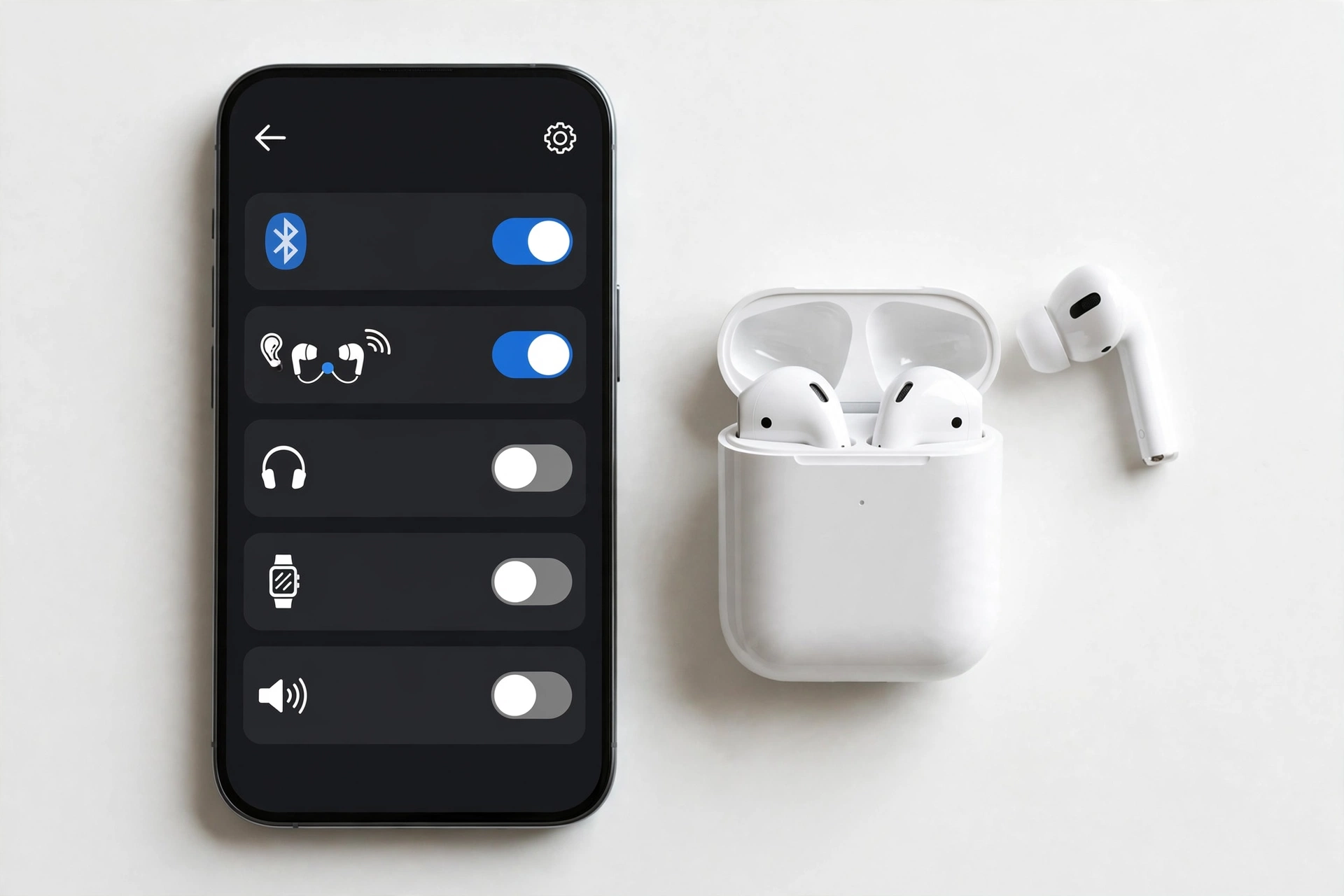
- Open Settings > Connections and confirm Bluetooth is turned on.
- Alternatively, swipe down from the top-right of the screen to open the Quick settings panel and confirm the Bluetooth icon is lit.
While you are here, check Airplane mode is off — it disables Bluetooth along with the other radios.
Step 2 — Unpair the broken accessory and pair it fresh
This single step resolves more post-update Bluetooth failures than everything else combined. Samsung’s support page puts it near the top of its order for a reason: stale pairing records are the most common post-update failure.
- Open Settings > Connections > Bluetooth.
- Tap the settings (gear) icon next to the accessory that will not connect.
- Tap Unpair.
- Put the accessory back into pairing mode — this is the step people skip. An accessory that is merely powered on is often not discoverable; it must be in its pairing mode. Refer to the accessory’s manual: earbuds usually require holding a button or both touch areas for several seconds until an indicator flashes.
- Back on the phone, in Settings > Connections > Bluetooth, select the accessory from the list of available devices and tap Pair.
Tip: If the accessory still does not appear, disconnect it from any other nearby phone, laptop, or tablet first. Many accessories auto-reconnect to the last device they were paired with and hide from new scans while doing so.
Step 3 — Restart the phone
Temporary software issues can prevent Bluetooth devices from being recognized properly, in Samsung’s own words. A restart reloads the Bluetooth service with a clean state.
- Swipe down from the top-right to open the Quick settings panel, tap the Power off icon, then tap Restart.
- If the device freezes or the Restart menu does not appear: press and hold the Side key and Volume down key together for more than 7 seconds until the device restarts.
Step 4 — Reset Wi-Fi and Bluetooth settings
If re-pairing and a restart did not help, Samsung’s documented next step is to reset the Bluetooth settings. Samsung actually gives you two reset options in the same menu, and choosing the right one matters:
| Option | What it clears | What it keeps | Use when |
|---|---|---|---|
| Reset Wi-Fi and Bluetooth settings | Saved Wi-Fi networks and passwords; all Bluetooth pairings | Mobile data and APN settings; VPN settings; all personal files | Only Bluetooth (or Bluetooth + Wi-Fi) is broken and mobile data works fine — start here |
| Reset network settings | Everything above, plus mobile data configurations and VPN settings | All personal files, photos, contacts, apps | Bluetooth plus mobile data or Wi-Fi calling is also misbehaving, or the lighter reset did not help |
The procedure for the lighter reset:
- Open Settings > General management.
- Tap Reset.
- Tap Reset Wi-Fi and Bluetooth settings.
- Tap Reset settings, enter your lock-screen PIN or pattern if prompted, and confirm.
Quick fact: There is no hidden dialer code that resets Bluetooth on modern Samsung phones — Samsung’s reset utility in Settings is the supported route. Guides that promise a secret code for this are describing other brands or outdated software.
After the reset, you will need to reconnect to your Wi-Fi networks and pair your accessories again — a small inconvenience that fixes a large share of stubborn post-update Bluetooth problems. Neither reset touches your photos, contacts, messages, apps, or files.
Step 5 — Clear the Bluetooth system app’s cache (and data, if needed)
Samsung’s support teams routinely instruct users to clear the Bluetooth system app’s stored data when connections keep failing. Clear cache first — it removes residual files without touching your pairings. Only clear data if the cache clear did not help, because clearing data resets the Bluetooth app to its defaults and removes your pairings.
- Open Settings > Apps.
- Tap the filter/sort menu and enable Show system apps, then confirm.
- Search for Bluetooth and tap the Bluetooth system app.
- Tap Storage, then tap Clear cache. Test Bluetooth.
- If it still fails, return to the same screen and tap Clear data, then tap OK and re-pair your accessories.
Step 6 — Reset app preferences
Updates can silently revoke permissions — including the “Nearby devices” permission accessories need — or re-enable battery optimizations that kill Bluetooth in the background. Resetting app preferences restores default permissions and background allowances without deleting any app or data:
- Open Settings > Apps.
- Tap the More option (three dots, top-right) and tap Reset app preferences.
- Confirm, then restart the phone and test.
Step 7 — Test in Safe Mode
If Bluetooth works in Safe Mode but not in normal mode, a third-party app is interfering — common culprits are battery-saver apps, “Bluetooth auto-connect” utilities, and VPN apps that hook the network stack.
- Press and hold the Side key until the power menu appears, then press and hold Power off until the Safe mode prompt appears, and tap it.
- Test Bluetooth. If it works in Safe Mode, restart normally and remove recently installed or updated utility apps one at a time until the culprit is found.
Step 8 — Check for a follow-up software update
Samsung explicitly lists updating the software as part of its Bluetooth troubleshooting order: keeping the phone updated helps optimize Bluetooth compatibility and connectivity.
- Open Settings > Software update and tap Check for updates.
- Install anything offered and retest. Genuine shipped Bluetooth bugs are typically corrected in a follow-up patch.
5. Symptom → likely cause → fix worksheet
Match your exact symptom to the most likely cause and the fix that addresses it:
| Symptom | Most likely cause | Fix (in order) |
|---|---|---|
| Phone cannot find the accessory at all | Accessory not in pairing mode; accessory connected to another device | Put accessory in pairing mode; disconnect it from other devices; then scan again |
| Pairs but immediately disconnects | Corrupted pairing record from the update | Unpair and re-pair (Step 2); then reset Wi-Fi and Bluetooth settings (Step 4) |
| Connects but no audio (calls or media) | Audio profile not enabled on the pairing; accessory firmware mismatch | In the accessory’s gear settings, confirm call audio / media audio toggles are on; update accessory firmware; re-pair |
| Audio stutters or cuts out | Interference; battery optimization killing the audio app; shipped codec bug | Move away from interference; set audio app to Unrestricted battery usage; check for follow-up update (Step 8) |
| Worked, then stops after screen off | Background usage limits re-applied by the update | Settings > Battery > Background usage limits — set the audio app to Unrestricted or remove it from sleeping apps |
| Car system will not connect | Car expects to initiate pairing; stale car-side pairing | Search for the phone from the car’s Bluetooth system (not the other way around); delete the old phone entry in the car and pair fresh |
| Galaxy Watch will not stay connected | Galaxy Wearable app permission or battery optimization reset | Reset app preferences (Step 6); confirm Nearby devices permission for Galaxy Wearable; re-pair through the Wearable app |
| Bluetooth toggle will not turn on at all | System service crash; rarely, hardware fault | Restart (Step 3); reset Wi-Fi and Bluetooth settings (Step 4); Samsung Members diagnostics (Section 7) |
6. Accessory-side problems that masquerade as update bugs
A meaningful share of “the update broke my Bluetooth” cases turn out to be the accessory. Check these before concluding the phone is at fault:
- Accessory firmware mismatch. After a phone update introduces newer Bluetooth behavior, an accessory running old firmware may partially fail — it pairs but audio stutters, or reconnection breaks. Check the accessory manufacturer’s app (Galaxy Wearable, Sony Headphones, Jabra Sound+, and similar) for a firmware update.
- Pairing mode confusion. Powered on is not the same as discoverable. Samsung’s support page stresses this explicitly: if the Bluetooth device is not in pairing mode, the Galaxy device cannot detect it. Galaxy Buds3/Buds3 Pro enter pairing mode by holding the case’s pairing button for more than 3 seconds; Buds2/Buds2 Pro by pressing and holding both earbuds in the open case; older Buds models by wearing both and holding both touchpads.
- Multipoint conflicts. Accessories that connect to two devices at once may silently attach to a nearby laptop or tablet instead of your phone. Turn off Bluetooth on nearby secondary devices while troubleshooting.
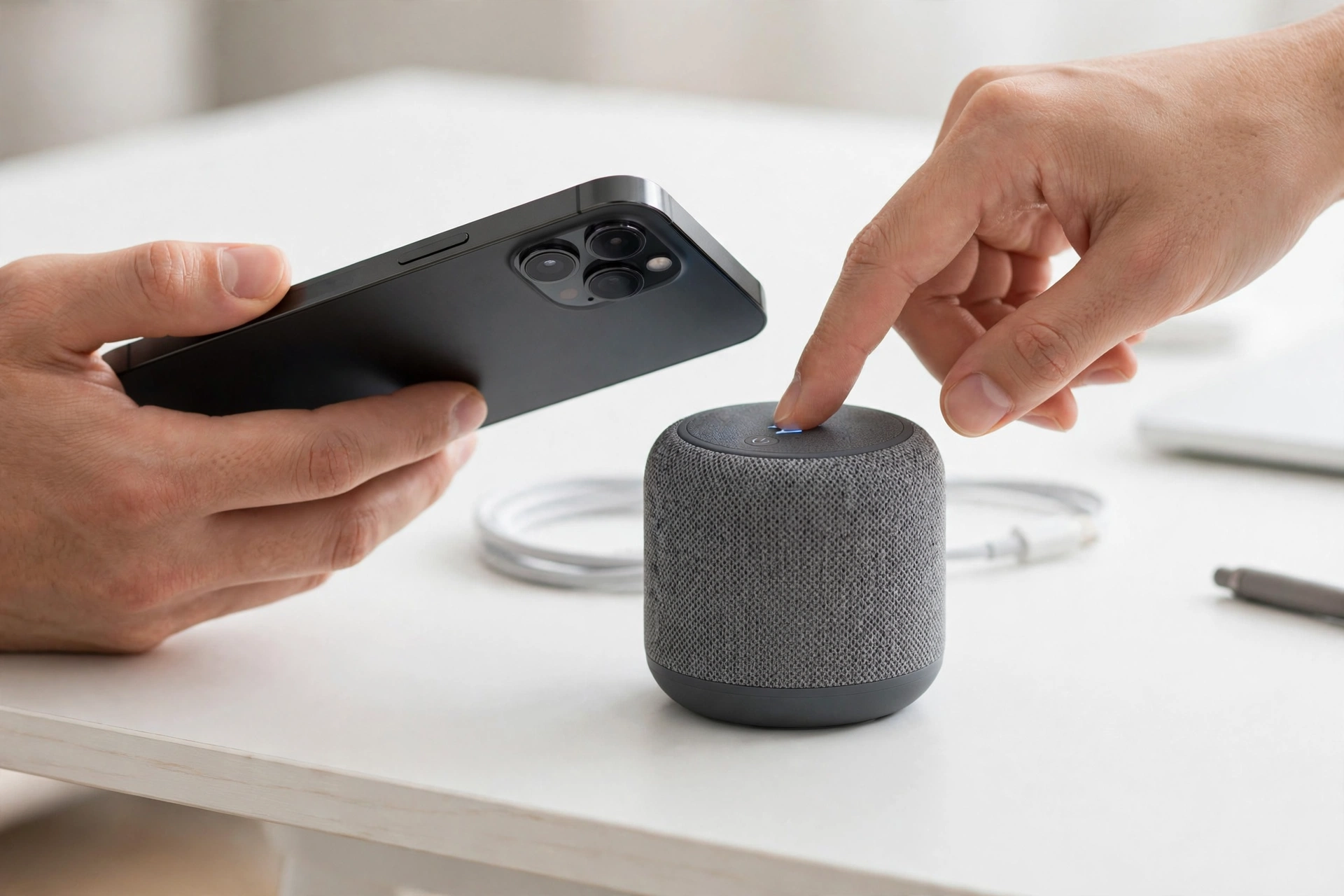
- Car systems pair backwards. Samsung documents a specific quirk: for vehicle hands-free systems, search for the phone from the car’s system rather than searching for the car from the phone, and make sure the car system is in pairing mode per the vehicle manufacturer’s instructions.
- Low accessory battery. Some accessories drop into a degraded mode or refuse pairing when nearly flat. Charge before concluding anything.
7. When Bluetooth stays dead: software glitch or hardware failure?
If you have worked through Samsung’s full order and Bluetooth still fails, use Samsung’s built-in diagnostic before assuming the worst:
- Open the Samsung Members app and tap Support.
- Tap Get started under Phone diagnostics (you can run the full scan or select individual items).
- Select Bluetooth and follow the on-screen instructions, then check the results.
This diagnostic is available only on Galaxy devices with the Samsung Members app installed. If it reports a Bluetooth hardware failure, the phone needs evaluation by a qualified technician — no settings change can fix a dead radio. If the diagnostic passes but connections still fail, the problem is software: at that point a factory reset with a full backup first is Samsung’s documented last resort, or an error report can be filed through Samsung Members (Support > Error reports) so the issue reaches Samsung’s developers.
| Observation | Establishes | Does NOT establish |
|---|---|---|
| Accessory works on another phone | The accessory is functional | That the update caused it — coincidence with a dying accessory battery is possible |
| One accessory fails, another works | The phone’s Bluetooth radio works | Which side holds the stale pairing — re-pair before judging |
| Bluetooth works in Safe Mode | A third-party app is interfering | Which app — remove candidates one at a time |
| Samsung Members diagnostic fails | A hardware-level Bluetooth fault is likely | The exact failed component — that needs hands-on diagnosis |
| Problem started the day of the update | Strong timing correlation | Causation by itself — the triage checks in Section 3 are what confirm it |
8. What never to do
Stop for safety: Never open the phone to “reseat” a Bluetooth antenna or chip. Bluetooth radios are soldered components; opening the phone risks battery damage, breaks water resistance, and voids warranty coverage. There is no user-serviceable Bluetooth part inside a Galaxy phone.
- Do not factory reset as a first step. A factory reset erases everything and is Samsung’s documented last resort. Work through Steps 1–8 first; most post-update Bluetooth failures are fixed by Step 4.
- Do not install “Bluetooth fixer” or “Bluetooth repair” apps from outside the Play Store. They cannot repair the Bluetooth stack and commonly carry malware or aggressive ads.
- Do not downgrade the software to “go back” to the old version. Unofficial downgrades can brick the phone and break security protections; Samsung does not support them.
- Do not confuse the two resets. “Reset Wi-Fi and Bluetooth settings” clears connections; “Reset all settings” goes further; “Factory data reset” erases everything. Read the confirmation screen before tapping.
9. When to stop troubleshooting and ask a technician
Stop and get hands-on help if any of these are true:
- The Bluetooth toggle will not turn on at all after a restart and a settings reset.
- Samsung Members diagnostics reports a Bluetooth hardware failure.
- Bluetooth fails identically in Safe Mode and normal mode after the full fix order.
- The phone shows other radio failures at the same time (Wi-Fi and Bluetooth both dead can indicate a shared hardware fault).
- The phone was dropped or exposed to liquid around the same time as the update — the update may be a coincidence.
For readers in the Las Vegas area, Las Vegas Phone Repair & Accessories, 7400 Las Vegas Blvd S, Unit TT42, Las Vegas, NV 89123, (424) 406-6202, can assess Bluetooth and other connectivity faults in person. Hours are 10:00 AM–8:00 PM; call ahead to confirm today’s hours before visiting.
10. Hypothetical examples
(The following are hypothetical illustrations, not customer stories.)
Example 1 — Maya’s silent car rides. Maya updated her Galaxy S24 overnight. The next morning her car stereo paired as usual but calls had no audio. She almost booked a service appointment — but the symptom worksheet (Section 5) pointed at the audio profile. She unpaired the car system, deleted the old phone entry in the car’s Bluetooth menu, searched for the phone from the car per Samsung’s vehicle guidance, and paired fresh. Call audio returned immediately. Total fix time: under ten minutes.
Example 2 — Daniel’s stuttering earbuds. After a One UI update, Daniel’s two-year-old earbuds connected but music stuttered constantly. The phone-side resets changed nothing — because the phone was not the problem. His earbuds’ companion app showed a pending firmware update he had ignored for a year; installing it resolved the stuttering. The phone update had merely exposed the outdated accessory firmware.
11. Frequently asked questions
Why did Bluetooth break right after the update if the update did not damage anything?
Updates change the Bluetooth software stack, configuration, and permissions around the radio — the chip itself is untouched. Stale pairing records and reset permissions are the usual culprits, which is why the software-side fixes in Section 4 resolve most cases without any repair.
Will resetting Wi-Fi and Bluetooth settings delete my photos or apps?
No. It clears saved Wi-Fi networks and passwords, Bluetooth pairings, and (with the full network reset) mobile data and VPN configurations. Photos, contacts, messages, apps, and files are untouched. You will need to reconnect to Wi-Fi and re-pair accessories afterward.
What is the difference between “Reset Wi-Fi and Bluetooth settings” and “Reset network settings”?
The first is the lighter option: it clears Wi-Fi and Bluetooth connection data only, leaving mobile data and APN settings alone. The full network reset clears mobile data configurations and VPN settings as well. Start with the lighter one if mobile data works fine.
My earbuds pair but there is no sound. Is the phone broken?
Probably not. Check the accessory’s settings (tap the gear icon next to it in Bluetooth settings) and confirm the call-audio and media-audio toggles are enabled, then check the accessory manufacturer’s app for a firmware update. Re-pairing fresh resolves most instances of this symptom.
Bluetooth works in Safe Mode but not normally. What does that mean?
A third-party app is interfering with Bluetooth. Battery-saver apps, Bluetooth auto-connect utilities, and some VPN apps are common causes. Restart normally and remove recently installed or updated utility apps one at a time until Bluetooth works.
Should I factory reset my phone to fix Bluetooth?
Only as a last resort, with a complete backup first. Samsung’s documented order — re-pair, restart, reset Bluetooth settings, clear the Bluetooth app’s cache, reset app preferences, Safe Mode check, software update — resolves the large majority of post-update Bluetooth failures without erasing anything.
How do I know if it is a hardware failure?
Run the Bluetooth check in Samsung Members (Support > Phone diagnostics > Bluetooth). If it reports failure after you have completed the software steps, or the Bluetooth toggle will not turn on at all, the radio likely needs professional evaluation.
Can I use a dialer code to reset Bluetooth instead?
No — modern Samsung phones have no hidden dialer code that resets Bluetooth. The supported route is Settings > General management > Reset > Reset Wi-Fi and Bluetooth settings. Guides promising a secret code are describing other brands or outdated software.
Video: How to tell if your smartphone is fake or real
Sources and editorial notes
- Samsung Support — How to fix Bluetooth connection issues on your Samsung Galaxy device (support page, last update September 14, 2026; documents the official order: confirm Bluetooth enabled, pairing-mode pairing, unpair/re-pair, reset Wi-Fi and Bluetooth settings, restart via power menu or Side key + Volume down, Samsung Members diagnostics, vehicle pairing guidance, software update check).
- Samsung Community US — Galaxy Z Fold Bluetooth not working after recent update (community thread with Samsung moderator guidance on reset network settings path and error reporting).
- Samsung Members Community — Bluetooth issues after Android 14 update (Samsung support responses documenting reset app preferences, Bluetooth system-app cache/data clearing, reset settings, and Safe Mode checks).
- FixesToFollow — How to Fix Samsung Bluetooth After an Update (independent guide summarizing the reset paths; notes no dialer code exists for Bluetooth reset on modern Samsung devices).
- Android Authority — How to reset network settings on a Samsung Galaxy phone or tablet (independent verification of the Settings > General management > Reset path).
Last source check: October 14, 2026. AI-assisted editorial guide, checked against the linked manufacturer information. Menu paths reflect Samsung’s published support documentation; minor wording may vary by model and One UI version. If anything here conflicts with Samsung’s current support pages, Samsung’s pages take precedence.
Let’s get you connected again.
Tell us what’s happening with your device and we’ll help you decide the safest next step — no jargon, no pressure.
Las Vegas Phone Repair & Accessories · 7400 Las Vegas Blvd S, Unit TT42, Las Vegas, NV 89123
10:00 AM–8:00 PM — call ahead to confirm today’s hours