
iPhone Speaker Not Working After Update: Causes and Safe Fixes
If your iPhone’s speaker stopped working right after an iOS update, start by checking the ringer volume, the silent switch, and any connected Bluetooth device — most cases are software settings or stuck audio routing, not a broken speaker. This guide walks you through iPhone-specific checks in the right order, explains what an update can and cannot change, and tells you honestly when the speaker itself is the problem.
On this page
If your iPhone’s speaker stopped working right after an iOS update, start by checking the ringer volume, the silent switch, and any connected Bluetooth device — most cases are software settings or stuck audio routing, not a broken speaker.
1. Who this guide helps
This guide is for iPhone owners who updated iOS and then noticed audio problems from the phone’s built-in speakers: no sound from the earpiece during calls, no sound from the bottom speaker for music or ringtones, muffled or crackling audio, or sound that comes out of the wrong speaker. It applies whether you updated over the air or through a computer. (Source: support.apple.com)
It does not apply to Bluetooth headphones or external speakers — if sound plays fine through AirPods but not the built-in speaker, that is a routing issue, and it is covered in the triage below.
2. How this guide differs from general speaker guides
The companion guide Phone Speaker Not Working After Update: Causes and Safe Fixes covers the problem across iPhone, Samsung, Google Pixel, and other brands. This article goes deeper on the iPhone: the two-speaker system (earpiece + bottom speaker), the ring/silent switch, Apple’s documented check order, and the iOS settings that an update can silently change. If you do not have an iPhone, read the brand-agnostic guide instead.
3. Your iPhone has more than one sound path
Before fixing anything, it helps to know which speaker is actually silent. Modern iPhones use up to three output paths:
- The earpiece — the narrow slot at the top of the screen. It plays call audio by default and acts as the second speaker in stereo playback (music, videos, speakerphone).
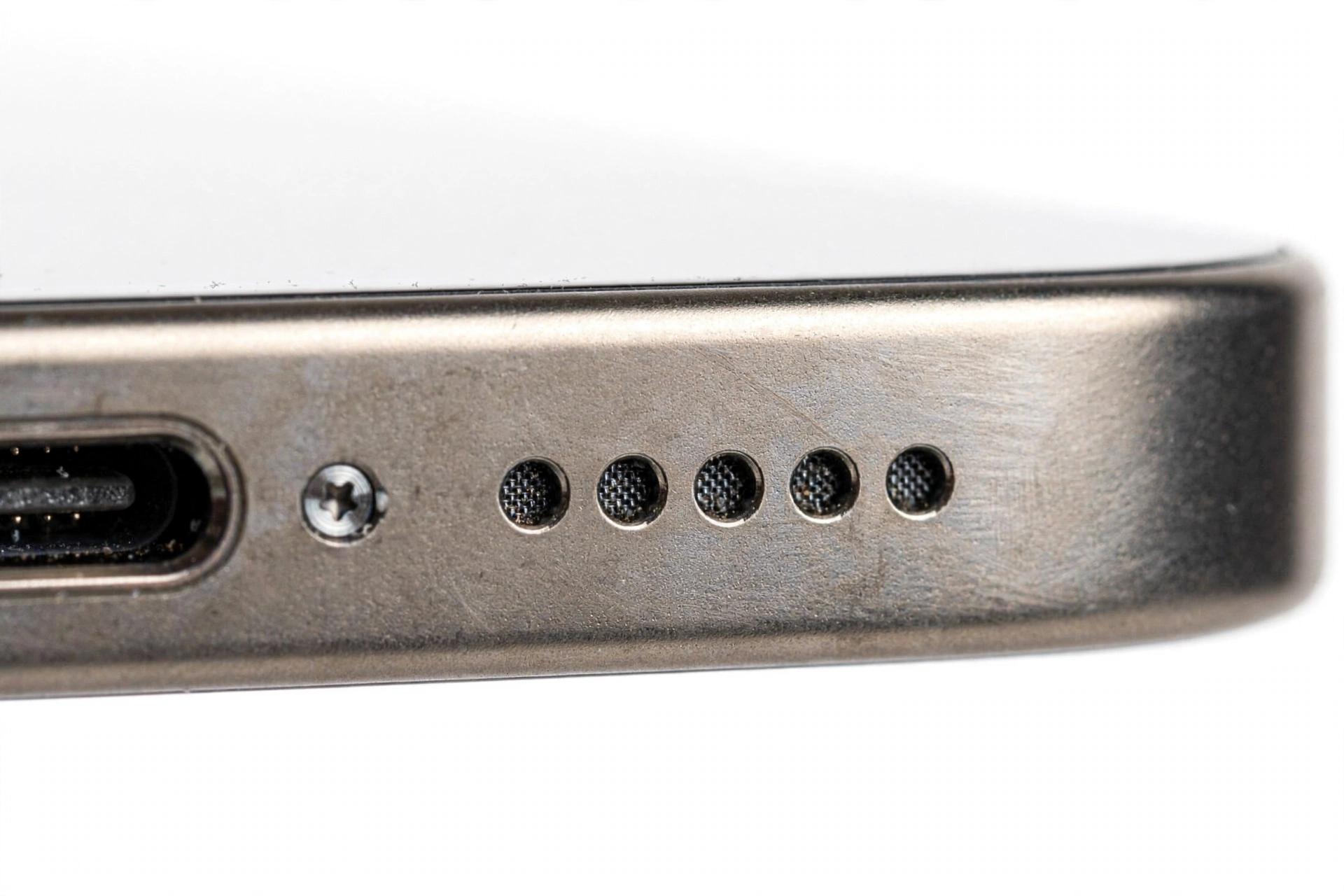
- The bottom speaker — the grille to the right of the charging port. It plays ringtones, media, and speakerphone audio.
- Bluetooth and audio-output routing — sound can be sent to AirPods, a car system, an Apple TV, or a hearing device even when you do not realize it.
Pin down the failing path first. If the earpiece is silent but the bottom speaker works, the fault is unlikely to be a single broken speaker component — it points to call-audio routing or settings. If everything built-in is silent but Bluetooth headphones work, the audio pipeline is healthy and the problem sits between the system and the physical speakers.
4. The two-minute triage
Run these three quick tests before any settings changes. They take about two minutes and often isolate the cause immediately.
Test A: Which output is silent?
Play a ringtone (Settings > Sounds & Haptics > Ringtone and play a sample), then make a regular call, then put that call on speakerphone. Write down which of the three produces no sound. If only the ringtone is silent, check the ring/silent switch and ringer volume first. If only call audio is silent, suspect routing or permissions. If everything built-in is silent, keep going.
Test B: Is sound going somewhere you cannot see?
Open Control Center and check the audio output tile — it shows the active output device. If it says “AirPods” or a car name while the earbuds are sitting in their case, the phone is sending audio to a device you are not hearing. Disconnect or forget the device and test again.
Test C: Does another audio app behave the same way?
If the speaker is silent in one app (say, a video app) but works for ringtones and other apps, the app itself is the likely cause — its permissions, its in-app mute, or an app bug — not your speaker and not the update. Force-quit the app, check its settings, and try the same content in another app.
Quick fact: An iOS update cannot physically damage your speaker hardware. Updates replace system software on the phone’s storage; they do not touch the speaker diaphragm, amplifier, or connectors. When sound stops right after an update, the cause is software, settings, or a hardware weakness the update exposed — never the update physically breaking a speaker.
5. Five ways an iOS update can silence your speaker
When the timing points at the update, one of these mechanisms is usually responsible, in rough order of likelihood:
- Silently changed settings. Updates can reset or alter audio settings: the ringer volume can drop, Do Not Disturb schedules can activate, or the audio-output route can switch. This is the most common cause by far.
- Stuck audio routing. The phone can get “stuck” believing it is connected to Bluetooth or CarPlay after the update, sending sound to a device that is not there.
- Corrupted settings or cache. Update migrations occasionally corrupt audio preferences. Apple Support’s documented remedy for stubborn cases is to reset settings or restore software.
- App incompatibility. A third-party app that handles audio (music, podcast, calling, or hearing-aid apps) may not be compatible with the new iOS version, and the problem appears as silent audio in that app only.
- A genuine iOS bug. It happens: a new release can ship with an audio bug. In that case the fix is Apple’s next point release, and the right interim step is checking for updates rather than resetting the whole phone.
6. Symptom worksheet: match, then fix
Find your symptom in the table, then jump to the matching fix section. Try the quick fixes in order — stop at the first one that restores sound.
| Symptom | Most likely cause | First fix to try |
|---|---|---|
| No ringtone, but media plays | Silent switch on, or ringer volume down | Section 7 |
| No sound anywhere built-in, Bluetooth headphones work | Stuck routing or muted system output | Section 8 |
| No sound at all, even Bluetooth | System-wide mute or software fault | Section 8, then Section 10 |
| Callers cannot hear you, but you hear them | Microphone issue, not speaker | See the iPhone microphone after-update guide |
| You hear callers faintly on speakerphone only | Earpiece path fault or blockage | Section 8, then Section 12 |
| Crackling or distorted sound | Physical obstruction or failing speaker | Section 8, then Section 12 |
| Silent in one app only | App permissions, in-app mute, or app bug | Section 9 |
| Sound plays from the wrong place (car, TV) | Stuck audio-output routing | Section 8 |
| Everything was fine, then went silent days later | App update or background change, not the iOS update | Section 9, then Section 10 |
| Silent after the phone got wet or dropped | Hardware damage | Section 12 |
7. Check the ring/silent switch and ringer volume
This is the classic fix because it is the classic cause. iPhones without an Action Button have a physical ring/silent switch above the volume buttons. After an update — or a case change, or the phone shifting in a pocket — the switch can sit in the silent position.
- Ring/silent switch: Flip it so you see orange (silent) and then back to non-silent. When you flip it, the screen briefly shows “Silent” or “Ringer.” Make sure it ends on Ringer.
- Ringer volume: Go to Settings > Sounds & Haptics and drag the Ringer and Alerts slider to the middle or higher. If the phone shows “Headphones” or a Bluetooth name next to the slider, see Section 8 — the phone thinks audio is going elsewhere.
- Change with Buttons: While you are there, check whether “Change with Buttons” is enabled. If it is off, the side volume buttons control only media volume, and pressing them during a silent ringtone changes nothing. Turning it on makes the buttons adjust the ringer when no media is playing.
- Do Not Disturb / Focus: Check Settings > Focus. A Focus mode that silences notifications or calls can activate automatically on a schedule or per location. If a Focus mode is on, ringtones and alerts are suppressed even though the speaker itself works.
If your iPhone has an Action Button instead of a silent switch (iPhone 15 Pro and later, iPhone 16 and 17 families), check what the Action Button is assigned to: Settings > Action Button. A silent-mode toggle there can be bumped accidentally. Also confirm that Control Center’s Silent Mode tile (if added) is not enabled.
8. Unstick the audio routing
When sound works through one path but not another, routing is the suspect. Work through these in order:
- Disconnect Bluetooth. Go to Settings > Bluetooth and turn Bluetooth off, then test the speaker. If sound returns, a paired device (earbuds in their case, a car you are not in, a speaker in another room) was swallowing the audio. “Forget” the offending device if the problem repeats.
- Check CarPlay and AirPlay. If the phone was ever paired with a car or an Apple TV, check that it is not still routing to them: Control Center’s audio output tile lists the active destination.
- Force-restart the phone. Apple Support’s documented sequence: press and quickly release the volume-up button, press and quickly release the volume-down button, then press and hold the side button until the Apple logo appears. A force restart clears the audio routing state without deleting anything.
- Check for debris. Look at the earpiece and bottom speaker grille. Lint and dust can pack into the grille and muffle or block sound. Apple’s guidance: clean gently with a soft, dry, lint-free brush. Never push a pin, needle, or any metal object into the openings.
- Check the case. Remove the case and any screen protector that covers the earpiece, then test. Misaligned cases are a real cause of “the update killed my earpiece.”
Tip: If the slider in Settings > Sounds & Haptics shows “Headphones” while no headphones are connected, plug a wired pair in (via the appropriate adapter) and remove it again. This can unstick the headphone jack/port detection that tells the phone an output is connected.
9. Fix app-specific silence
If only one app is silent, the update is a coincidence or the app needs attention — not your speaker. Try, in order:
- Force-quit the app and reopen it. (On iPhones with Face ID: swipe up from the bottom and pause, then swipe the app away. On iPhones with a Home button: double-click the Home button and swipe the app away.)
- Check the app’s own mute or volume control — many video and game apps have an in-app sound toggle.
- Check Settings > Privacy & Security > Microphone only if the issue involves calling or recording features, and confirm the app has permission where relevant.
- Update the app in the App Store. Developers commonly ship compatibility fixes in the days after a major iOS release.
- If the app still misbehaves, delete and reinstall it (first confirm you will not lose data — see the crackling and app-isolation notes for how to distinguish app faults from hardware faults).
A useful isolation test: if the speaker works for ringtones and for other apps, the speaker hardware is fine. Full stop. Hardware does not fail in exactly one app.
10. Move up the software ladder: update, reset settings, restore
If nothing above restored sound, the software itself is the suspect. Escalate in this order — each step is a little more involved than the last, and you should stop at the first one that works.
Step 1: Install the latest iOS point release
Go to Settings > General > Software Update. If an update is available, install it over Wi-Fi while the phone is plugged in. Apple’s follow-up releases frequently fix audio bugs introduced by the original update. This is also the correct response to a confirmed iOS audio bug — there is no user-side fix for a shipped bug beyond Apple’s patch.
Step 2: Reset All Settings
If a fresh point release does not help, go to Settings > General > Transfer or Reset iPhone > Reset > Reset All Settings. This restores system settings (Wi-Fi passwords, wallpapers, sound settings, accessibility options) to defaults without deleting your data. It clears corrupted audio preferences that can survive a restart.
Stop for safety: “Reset All Settings” is not the same as “Erase All Content and Settings.” The erase option deletes everything on the phone. Never tap Erase without a verified, current backup — an iCloud backup or an encrypted computer backup that you have confirmed contains your data.
Step 3: Restore iOS via a computer
If the problem persists through a settings reset, Apple’s documented next step is to restore the phone’s software: connect the iPhone to a computer, open Finder (Mac) or the Apple Devices app (Windows), back the phone up, then choose Restore iPhone. This reinstalls a fresh copy of iOS. Set the phone up and test the speaker before restoring your backup — if the speaker works on a fresh install but fails after the backup is restored, the fault is in the backed-up settings or data, not the hardware.
What not to do
- Do not install beta or developer software to fix a stable-release audio problem.
- Do not follow “speaker repair” apps or scripts that claim to fix hardware with sound waves — vibration apps do not repair a dead speaker, and scam apps in this category are common.
- Do not attempt to open the phone or replace the speaker yourself. iPhone speakers sit deep in the assembly near the battery and logic board; DIY attempts risk the battery, the water resistance, and any remaining warranty coverage.
11. What observations can and cannot establish
Honest diagnosis matters here, because speaker symptoms are easy to misread. This table states what each test result actually proves.
| Observation | Establishes | Does not establish |
|---|---|---|
| Speaker silent in one app only | The app is the problem | Nothing about the hardware |
| Bluetooth headphones work, built-in silent | The audio pipeline works; fault is in output routing or the speaker hardware | That the speaker is physically dead — routing is still the likelier cause |
| Sound returned after a force restart | The cause was transient software state | That the update is “bad” — it was a one-off state |
| Speaker works on a fresh iOS install | The fault is in settings or data, not hardware | Which setting — a reset resolves it without needing to know |
| Crackling or distortion that survives a restore | Physical speaker or connection fault is likely | The exact failed component without inspection |
| Silence began exactly at update time | Timing worth investigating | Causation — coincidence with a failing speaker is common |
12. When it is genuinely hardware
If sound stays silent or distorted through a fresh iOS install on a computer — with no case, no Bluetooth, clean grilles, and full settings defaults — the speaker assembly itself is the likely fault. These signs strengthen that conclusion:
- Crackling, buzzing, or rattling at all volumes, before and after the update.
- Sound cuts in and out when you press gently near the bottom grille (loose connection).
- The phone was dropped, crushed, or got wet — liquid and impact damage speaker components directly.
- One speaker path is permanently silent while every other audio path works perfectly.
At this point, stop troubleshooting and arrange a professional assessment. A technician can test the speaker assembly, check the internal connections, and confirm whether the speaker, the audio IC, or the logic board is at fault — these are different repairs with different costs.
Assessment is exactly the right framing: do not approve a repair before a technician has confirmed which component failed and explained the options. Ask what part is being replaced, whether it is a genuine or third-party component, and what warranty the repair carries. For honest guidance on choosing a shop, see the brand-agnostic speaker guide.
13. Myths that waste your time
- “The update fried my speaker.” Updates replace software; they cannot burn out a speaker coil or diaphragm. If the speaker truly failed, it was already weakening.
- “Rice or vibration apps will fix it.” Speaker-repair apps play loud tones. They do not reseat connections or heal torn diaphragms. Drying a wet phone needs airflow and patience, not rice — and never charge a wet phone.
- “A factory reset fixes everything.” A restore is a valid diagnostic step, but it is not a first step. Most iPhone speaker-after-update cases resolve at the settings or routing level.
- “The silent switch is just for the ringer.” It is not — silent mode also mutes alert sounds, and it is one of the most common causes of “no sound after update.”
14. Two hypothetical illustrations
(The following are hypothetical illustrations, not customer stories.)
Hypothetical example A: Maya’s stuck Bluetooth route
Maya updated her iPhone in the evening. The next morning, calls produced no sound from the earpiece, and ringtones were silent — but her AirPods worked. During triage she noticed Control Center’s output tile showed her car’s name, even though the car was parked in the garage. She turned Bluetooth off: the speaker immediately returned. The update had changed the phone’s audio-routing priority, and the phone preferred the car system it could not actually reach. She “forgot” the car profile, and the problem never returned.
Hypothetical example B: Daniel’s silent switch surprise
Daniel’s ringtone went silent after updating. Media and calls worked normally, so the speaker itself was fine. He went through the worksheet: symptom “no ringtone, but media plays” pointed to Section 7. His silent switch had been nudged while he changed cases after the update. One flip of the switch — confirmed by the on-screen “Ringer” indicator — restored his ringtone. The whole fix took ten seconds.
15. When to stop troubleshooting
Stop and seek professional assessment when any of these is true:
- You have tried Sections 7 through 10, including a computer-based restore, and the speaker is still silent or distorted.
- The symptom is crackling, rattling, or intermittent sound that changes when you press the phone — these point to a physical fault.
- The phone was dropped, crushed, or exposed to liquid before or during the problem period.
- You are considering opening the phone yourself. Do not — iPhone internals combine the battery, speaker, and logic board in a tight assembly, and opening the phone without proper tools and training risks injury and further damage.
Tip: If you are in the Las Vegas area, Las Vegas Phone Repair & Accessories, 7400 Las Vegas Blvd S, Unit TT42, Las Vegas, NV 89123, (424) 406-6202, can assess speaker problems in person. Hours are 10 AM–8 PM — call ahead to confirm today’s hours. An assessment confirms which component failed before you approve any repair.
16. Frequently asked questions
Why does my iPhone speaker not work after the update but headphones do?
This is the classic signature of stuck audio routing or muted output settings. The audio pipeline itself works — the system is sending sound somewhere you are not hearing, or output settings were changed by the update. Work through Sections 7 and 8 before suspecting hardware.
Should I factory-reset my iPhone to fix the speaker?
Only as a last step, and only with a verified backup. Most speaker-after-update cases resolve with settings or routing fixes. If you do restore, test the speaker before restoring your backup — that tells you whether the fault is in the software or in your settings and data.
Can an iOS update damage my speaker?
No. An update replaces software on the phone’s storage; it cannot physically damage the speaker diaphragm, coil, or connectors. It can expose a speaker that was already weakening, and it can change settings or introduce software bugs — those are the real mechanisms.
How do I know if it is the earpiece or the bottom speaker?
Play a ringtone (tests the bottom speaker) and make a call (tests the earpiece). If only one path is silent, focus on that path: check routing for call audio, check the silent switch and ringer volume for ringtone audio, and check for grille debris on the silent path.
The speaker works for ringtones but not in one app. Is it broken?
No. Hardware does not fail in exactly one app. The app has its own mute, permission problem, or compatibility issue with the new iOS version. Force-quit it, check its settings, update it, and if needed reinstall it.
My phone says “Headphones” in Settings but nothing is plugged in. What does that mean?
The phone believes an output is connected. Try plugging a wired headset in and removing it to unstick the detection. If it persists after a restart, it can indicate debris or damage in the charging port area — which affects audio routing — and deserves professional inspection.
Will “Reset All Settings” delete my photos and messages?
No. Reset All Settings restores system settings to defaults without deleting your data. “Erase All Content and Settings” is the destructive one — never tap it without a verified backup. Apple Support documents this distinction; when in doubt, choose the reset option with “All Settings” in the name, not “All Content.”
How long should I wait before concluding the update is not the cause?
Some update-related effects (indexing, background re-optimization) settle within a day or two, but a fully silent speaker is not a “wait it out” symptom — settings and routing issues do not self-heal. Work the triage the same day, and escalate to the software steps within a few days if nothing resolves.
Video: How to fix iPhone stuck after iOS update
Sources and editorial notes
- Apple Support: If you hear no sound or distorted sound from your iPhone, iPad, or iPod touch speaker — Apple’s documented speaker-troubleshooting sequence (volume, silent switch, case removal, cleaning guidance, restart, update, service path). Last checked October 14, 2026.
- Apple Support: If you can’t hear a person on a call or voicemail or if the sound isn’t clear — earpiece and call-audio guidance. Last checked October 14, 2026.
- iPhone User Guide: Change iPhone sounds and vibrations — ringer volume, silent mode, Focus and Do Not Disturb settings. Last checked October 14, 2026.
- Apple Support: Restart your iPhone — the documented force-restart sequences for iPhones with Face ID. Last checked October 14, 2026.
- Apple Support: Restore your iPhone, iPad, or iPod touch from a backup — computer-based restore procedure and the “test before restoring backup” diagnostic logic. Last checked October 14, 2026.
- Apple Support: Update your iPhone or iPad — installing point releases that address bugs from earlier updates. Last checked October 14, 2026.
Last source check: October 14, 2026. AI-assisted editorial guide, checked against the linked manufacturer information. Manufacturer procedures are summarized in original language; no passages are copied. Menu paths reflect documented Apple Support flows. Internal links reference other guides on this site. The business mention reflects the business’s own published details and does not imply Apple authorization or a warranty on repairs.
Let’s get you connected again.
Tell us what’s happening with your device and we’ll help you decide the safest next step — no jargon, no pressure.
Las Vegas Phone Repair & Accessories · 7400 Las Vegas Blvd S, Unit TT42, Las Vegas, NV 89123
10:00 AM–8:00 PM — call ahead to confirm today’s hours