
How to Transfer Data from Broken Xiaomi Phone to New Phone: Complete Guide
Yes — you can usually move your data from a broken Xiaomi, Redmi, or POCO phone to a new phone without needing the old one to work. The deciding question is whether the old phone backed up to Mi Cloud or Google before it broke: if it did, your new phone can restore most things by signing in; if it didn’t, your options depend on what still works on the broken phone.
On this page
Yes — you can usually move your data from a broken Xiaomi, Redmi, or POCO phone to a new phone without needing the old one to work.
1. Who this guide is for
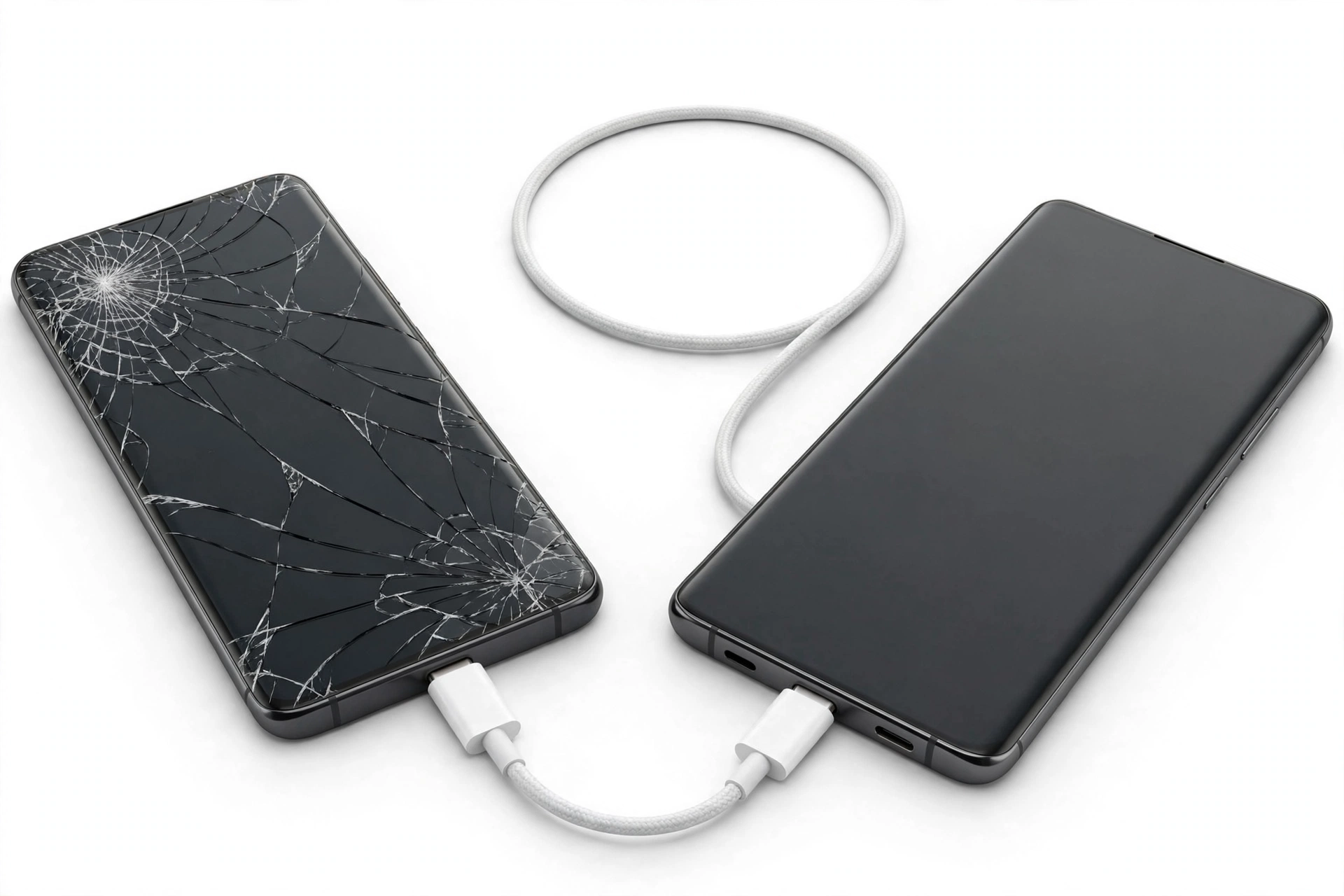
This guide is for owners of a Xiaomi, Redmi, or POCO phone (all part of the Xiaomi family) that is damaged, partially dead, or fully unresponsive — a cracked screen you can’t see through, a touch panel that won’t respond, a phone that powers on but freezes, or a phone that won’t power on at all — and who now want their contacts, photos, messages, and other data on a replacement phone. (Source: mi.com)
It covers every legitimate recovery path in the order you should try them, from the easiest (cloud restore, which doesn’t touch the broken phone at all) to the hardest (a phone that is completely dead with no backup). Along the way it explains what each method can and cannot bring across, so you don’t discover gaps after the fact.
Quick fact: “Mi,” “Xiaomi,” “Redmi,” and “POCO” are all brands within the Xiaomi ecosystem. Mi Cloud, Mi Mover, and the backup tools described here work across all of them. If your phone says Redmi or POCO on the box, this guide applies to you exactly the same way.
2. Start here: the one question that decides your path
Before trying anything, answer this single question: did the broken phone back up to the cloud before it broke? Most Xiaomi phones do this automatically if you signed into a Mi Account (now often labeled “Xiaomi Account”) or a Google account during setup — many owners don’t realize it’s happening. Your answer sorts you into one of two paths:
- Path A — a backup exists. You may not need the broken phone at all. Sign into the same accounts on the new phone and pull your data down from the cloud. Skip straight to sections 3 and 4.
- Path B — no backup, or you’re not sure. Your options depend on what still works on the broken phone. Work through sections 5–9, starting with whichever method fits the phone’s condition.
How to check for a backup without the phone: visit i.mi.com on a computer, sign in with your Xiaomi Account, and look for your device and its backups. On a computer, sign into drive.google.com with your Google account and check Settings > Manage apps for a phone backup. If you find one, you’re on Path A.
Stop for safety: If the broken phone is swollen, bent, cracked with visible battery exposure, leaking, or smells unusual, do not charge it, do not try to power it on, and do not attempt any recovery method below. Lithium battery damage can cause fire or burns. Set it aside in a cool, non-flammable place away from anything that burns, and skip to section 11.
3. Path A, part 1: restore from Xiaomi Cloud (Mi Cloud)
Xiaomi Cloud — still widely called Mi Cloud — is Xiaomi’s own cloud service, tied to your Xiaomi Account. Xiaomi offers a free tier (commonly 5 GB) that backs up contacts, messages, call history, notes, photos, and system settings, plus larger paid tiers. If the broken phone had backups enabled, this is the most faithful restore for a Xiaomi-to-Xiaomi move, because it can bring across Xiaomi-specific items (like system settings and home screen layout) that Google backup won’t.
What Mi Cloud can restore
According to Xiaomi’s support documentation, a device backup restore on a replacement Xiaomi device typically covers:
- Contacts
- Messages (SMS)
- Call history
- Notes
- Gallery photos and synced albums
- System settings, and in full device backups, home screen layout
How to restore on the new phone
On a new or reset Xiaomi-family phone, sign into the same Xiaomi Account that the broken phone used, then:
- Open Settings, tap your Xiaomi Account at the top, and choose Xiaomi Cloud.
- Tap Backup & Restore (wording varies slightly by MIUI/HyperOS version) and pick the backup snapshot from the broken phone — each entry usually shows the device model, software version, and backup size.
- Choose which categories to restore (contacts, messages, call history, notes, Gallery, system settings) and tap Restore.
- Keep the phone on Wi-Fi until the progress bar finishes. Large Gallery restores can take a long time on a typical home connection — let it run.
The phone may restart during or after the restore. That’s expected.
Tip: Gallery photo restore sometimes confuses new users: after restore, open the Gallery, accept the “merge synced items” prompt, and make sure the specific albums you want are switched on under synced albums. Photos land album by album, not all at once.
What Mi Cloud cannot do
Xiaomi’s own documentation is clear that some things are not covered by a Mi Cloud device backup. Installed apps generally need re-downloading (their settings may restore, the apps themselves usually don’t). Data inside third-party apps that never synced to that app’s own cloud stays behind unless the app has its own backup — WhatsApp chats, for example, need WhatsApp’s own Google Drive backup to be enabled separately. And a Mi Cloud backup is useless for a non-Xiaomi replacement phone: Google backup or cable transfer is the way there (see section 5).
4. Path A, part 2: restore from Google backup (Google One)
If the broken Xiaomi phone was signed into a Google account — almost certain for anyone who used the Play Store — Google almost certainly kept its own backup of the phone. Google’s backup is the universal path: it restores to any Android phone, not just Xiaomi.
How to restore on the new phone
- During the new phone’s initial setup, sign into the same Google account the broken phone used.
- When setup offers to copy apps and data, choose restore from a cloud backup and select the broken phone’s backup.
- Choose what to restore (apps, contacts, call history, device settings) and let it finish on Wi-Fi.
What Google backup covers — and what it skips
Google backup reliably brings across Google-account data (Gmail, Calendar, Drive files, Play purchases), contacts synced to the Google account, call history, device settings, SMS (in many configurations), and installed apps (which re-download from the Play Store). Photos come across only if Google Photos backup was turned on — Google Photos is separate from the device backup. Check photos.google.com on a computer to confirm.
What it skips: anything stored only on the phone’s internal storage (downloads, locally saved files, recordings), app data for apps that don’t participate in Google backup, and the items covered by Xiaomi Cloud instead (MIUI notes, Xiaomi-specific settings). That’s why many people get the best result using both restores — Google first during setup, then Xiaomi Cloud afterwards — when moving Xiaomi-to-Xiaomi.
Quick fact: A Google device backup is created per Google account, not per phone. If the broken phone used two Google accounts, check both — the backup may live under the account you set up first.
5. Path B, part 1: Mi Mover — Xiaomi’s official phone-to-phone transfer
Mi Mover is Xiaomi’s official migration app — the tool Xiaomi itself recommends for moving from an old phone to a new Xiaomi-family phone. It transfers contacts, messages, photos, videos, music, apps, documents, system preferences, notes, calendars, alarms, and other personal data directly between the two phones over Wi-Fi Direct, with no cable and no internet needed. Importantly, Xiaomi describes the transfer as local and peer-to-peer: data is not uploaded to any server, which is good for privacy.
When Mi Mover is the right choice
Mi Mover is ideal when the broken phone still powers on and you can operate the screen — even partially — and you’re moving to a new Xiaomi, Redmi, or POCO phone. It handles more data types in one pass than any other method. It can also pull data from other Android brands and from iPhones to a new Xiaomi phone, which makes it useful when the replacement is a Xiaomi but the broken one isn’t.
The official steps
According to Xiaomi’s support documentation:
- Make sure both phones have at least 30% battery, and that Bluetooth and Wi-Fi are enabled on both. Install the latest Mi Mover on both phones if it isn’t pre-installed (on the new Xiaomi phone it’s often at Settings > Additional Settings > Mi Mover).
- Open Mi Mover on both phones. On the old phone, tap “I’m a sender” (or “Old”). On the new phone, tap “I’m a receiver” (or “New”). The new phone will display a QR code.
- Use the old phone to scan the QR code on the new phone. A Wi-Fi Direct connection is established — this uses direct wireless, not your mobile data.
- Select the data types to transfer. The app shows the approximate size of each category — contacts, messages, photos, videos, music, apps, documents, system app data, notes, and more.
- Tap Send and wait. Keep both phones close together, keep both screens on, and don’t switch apps during the transfer. The progress bar shows remaining time.
Tip: If pairing fails, try the simple fixes first: restart both phones, reopen the app on both, keep the phones close and on a stable surface, and temporarily disable any VPN. These resolve most pairing failures.
Mi Mover’s limits
- The old phone must power on, show a usable screen, and run the app — it can’t work with a dead phone or a display you can’t operate.
- Some banking apps, security-sensitive apps, and DRM-protected content require manual sign-in or re-download after transfer.
- Transfer time scales with data size — a phone full of photos and videos can take a long while.
6. Path B, part 2: USB cable transfer through a computer
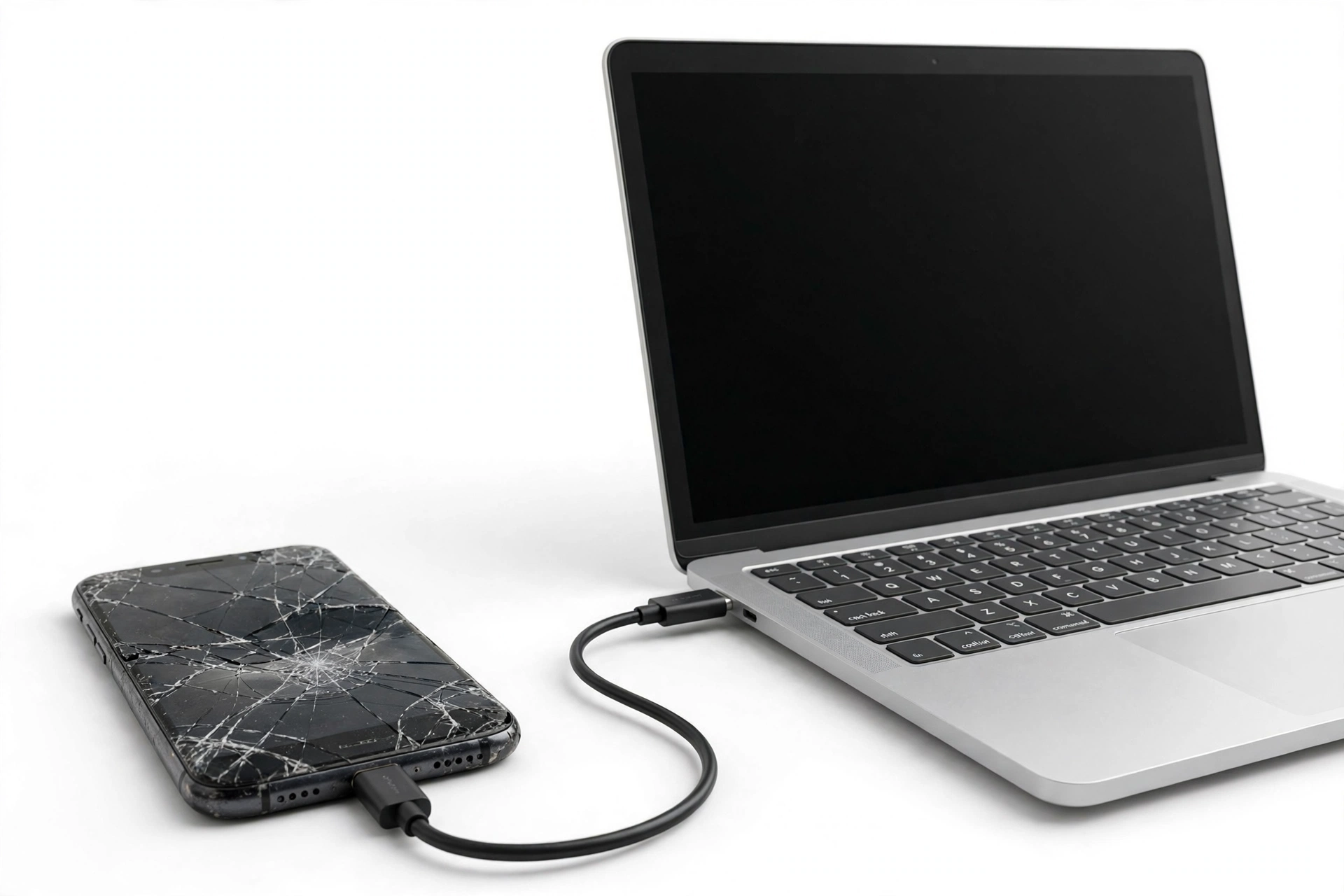
A wired transfer is the most reliable way to move files — photos, videos, documents, recordings, downloads — off a broken Xiaomi phone that still powers on, even if the screen is partially unusable.
- Connect the broken phone to a Windows PC (or Mac) with a USB cable. Use a data-capable cable, not a charge-only cable — charge-only cables are a classic silent cause of “computer doesn’t see the phone.”
- If the phone shows a USB notification, set the mode to File transfer / MTP. If you can’t see the screen, try this after connecting: on many Xiaomi phones the default USB mode still allows the computer to browse storage once the phone is unlocked.
- On the computer, open the phone’s storage and copy the important folders — typically DCIM (camera photos and videos), Download, Documents, WhatsApp/Media, and MIUI.
- Paste them to the computer, then copy them to the new phone (or upload them to Google Drive / Xiaomi Cloud).
Tip: A computer transfer is files-only — it won’t move contacts, messages, call logs, or app data. Pair it with a cloud restore (sections 3–4) for those, and this method for the files.
7. Path B, part 3: the MIUI local backup folder
Xiaomi phones have a built-in local backup tool at Settings > Additional Settings > Backup & reset > Local backups that saves a full backup file to the phone’s internal storage (or SD card), in the folder MIUI > Backup > AllBackup. If you — or the phone’s automatic schedule — ever created one, it’s a gold mine: it restores through the same screen on a replacement Xiaomi phone.
Two ways this helps with a broken phone:
- If the screen still works: create a fresh local backup now, before anything else. It’s the most complete Xiaomi-to-Xiaomi snapshot available.
- If the screen is dead but the phone powers on: connect the phone to a computer via USB and copy the MIUI/Backup/AllBackup folder to safety. Then, on the new Xiaomi phone, place that folder in the same path and restore from Settings > Additional Settings > Backup & reset > Local backups.
Quick fact: Local backups are encrypted with your lock-screen PIN, password, or pattern. You’ll need that credential to restore — another reason never to factory-reset a phone before you’ve decided on your data plan.
8. Broken screen, phone still alive: three cases
A cracked or dead display doesn’t necessarily mean dead data. The phone’s storage is separate from its screen — if the phone powers on, one of these usually works:
Case A: display dead, touch still responds
You can’t see what you’re tapping, but the phone still registers touches. If you know the layout of the unlock screen by muscle memory, you may be able to unlock it — then connect it to a computer and copy files. This is finicky but worth one calm attempt. Plug the phone into the computer first, then try unlocking, so any successful unlock immediately lets the computer browse storage.
Case B: display alive (partially), touch dead
The classic trick is a USB OTG adapter with a USB mouse: plug a cheap OTG adapter into the phone’s USB port, attach a regular USB mouse, and a cursor appears on the screen. You can then navigate with the mouse to enable backups, run Mi Mover, or set USB file-transfer mode. Most Xiaomi phones support USB OTG. This is the single most useful $5 tool for a broken-screen recovery.
Case C: neither display nor touch works
If the phone powers on (vibration, sounds, LED) but shows nothing and responds to nothing, the computer-recognition test is your next step: connect the phone to a computer via USB and see whether the computer detects a device. If it does, copy the MIUI/Backup folder and your DCIM/Download/Documents folders directly (section 6–7). If the computer detects nothing, you’re in section 9 territory.
Quick fact: While you’re trying these, keep the phone charged but not hot. A dying battery mid-transfer can corrupt a backup in progress. And if the screen is shattered but the phone works, put tape over the cracks before handling — glass splinters in a fingertip turn a data problem into a medical one.
9. Phone completely dead: what’s still possible
A phone that won’t power on at all — no vibration, no LED, no sounds — narrows your options sharply, but it doesn’t automatically mean the data is gone.
- Cloud first. A dead phone can’t create a new backup, but an old one may already exist. Check i.mi.com and Google Drive as described in section 2. Many “dead phone” cases end here, happily.
- Try a genuine charge. A phone that seems dead may just have a deeply discharged battery. Use the original charger and cable, plug it in, and wait a full 30 minutes before concluding anything. Try a different known-good charger too.
- Force restart. On most Xiaomi phones, holding the power button for 10–15 seconds forces a restart. If it vibrates or shows a logo, you’re back to section 8.
- Beyond that, stop. A phone that stays dead after charging and a forced restart has a hardware failure — power circuit, battery, or board. No software method can reach its storage.
Stop for safety: Never attempt to open a dead phone yourself to “get the storage chip out.” Modern Xiaomi phones use encrypted storage soldered to the main board — removing a chip doesn’t bypass the encryption, and opening a lithium-battery device without proper equipment risks fire, toxic fumes, and destroying the very board a professional lab would need.
The encryption honesty you need
Modern Android phones, including all recent Xiaomi models, encrypt their storage with keys tied to the phone’s hardware and your lock-screen credential. This is excellent for security and terrible for dead-phone recovery: even a perfect copy of the storage chip is unreadable without the original board booting far enough to unlock it. That’s why professional data recovery from a dead phone means repairing the phone enough to boot — not reading the chip directly — and why it’s expensive and never guaranteed.
10. Method comparison: pick your path
| Method | Requires | Best for | Limitations |
|---|---|---|---|
| Xiaomi Cloud restore | Xiaomi Account signed in; backup existed | Xiaomi-to-Xiaomi moves; settings, notes, messages | Broken phone not needed; won’t restore apps themselves; 5 GB free tier may be full |
| Google backup restore | Google account signed in; backup existed | Any Android replacement; contacts, apps, settings | Broken phone not needed; photos only if Google Photos backup was on |
| Mi Mover | Old phone powers on and screen works; new Xiaomi phone | Biggest one-shot transfer, including apps | Old phone must run the app; banking/security apps need re-login |
| USB cable via computer | Phone powers on; computer detects it | Photos, videos, documents, recordings | Files only — no contacts, messages, or app data |
| Local backup folder copy | Phone powers on; USB access; folder exists | Most complete Xiaomi-to-Xiaomi snapshot | Needs the lock-screen credential to restore |
| OTG mouse + on-phone backup | Phone powers on; USB OTG support | Dead touch, live display | Needs an OTG adapter and a mouse |
| Professional board-level recovery | None from you | Dead phone, no backup, data is critical | Expensive, slow, never guaranteed; encryption may defeat it |
11. What each observation can and can’t tell you
Guessing wrong about what a symptom means wastes time. This table keeps expectations honest:
| Observation | Establishes | Does not establish |
|---|---|---|
| Phone vibrates when charger plugged in | Power circuit likely alive; battery may be deeply discharged | That the screen, touch, or storage is healthy |
| Computer detects the phone via USB | Storage may be readable for file copy | That contacts or messages are accessible |
| A Mi Cloud backup exists on i.mi.com | You can restore without the phone | That the backup is recent or complete |
| Mi Mover transfer “completes” | Selected categories moved | That every app’s internal data moved — check banking and authenticator apps manually |
| Photos appear on Google Photos website | Those photos are safe regardless of the phone | That videos, originals, or albums all synced — verify counts |
| Phone boots to lock screen but touch dead | Board and storage likely fine; OTG mouse may unlock full access | That data is intact — always verify after copying |
12. The data that defeats every method
Some data is designed to resist transfer — usually for your security. Plan for these manually, before you wipe or abandon the old phone:
- Authenticator codes (Google Authenticator, Microsoft Authenticator, and similar): these live only in the app. If you can’t open the app on the old phone, use your saved backup codes or each service’s account-recovery flow. Some authenticator apps offer their own cloud sync — check the app’s settings on the new phone.
- WhatsApp chats: need WhatsApp’s own Google Drive backup enabled inside WhatsApp (Settings > Chats > Chat backup). A Xiaomi or Google device backup doesn’t include them.
- Banking and payment apps: deliberately don’t transfer login sessions. Expect to re-verify identity in each app on the new phone — keep your ID and the phone number that receives verification codes accessible.
- DRM-protected media: downloaded movies, music, and ebooks from subscription services must be re-downloaded in each app; the files won’t play if copied manually.
- App-internal data for apps without cloud sync: notes apps, fitness logs, and games that never synced keep their data on the old phone only. Open each one that matters and use its own export or account-sync feature.
Stop for safety: Do not factory-reset the broken Xiaomi phone — or the new one mid-setup — until your data is confirmed on the new phone and in at least one cloud backup. A reset wipes the encryption keys that protect on-device data, making any later recovery attempt impossible. “Reset it and start over” is the single most common way recoverable data becomes unrecoverable.
13. Hypothetical examples: how this plays out
(The following are hypothetical illustrations, not customer stories.)
Example 1 — Maya’s cracked Redmi Note. Maya drops her Redmi Note and the screen goes black, but the phone still vibrates on calls. She buys an OTG adapter and a USB mouse, navigates to Settings > Additional Settings > Backup & reset, creates a fresh local backup, and copies the MIUI/Backup/AllBackup folder to her laptop via USB. On her new Xiaomi phone she restores the local backup, then signs into her Google account during setup for the rest. Total data loss: almost none.
Example 2 — Daniel’s dead POCO. Daniel’s POCO won’t power on after a swim — no LED, no vibration. He doesn’t attempt to open it. He checks i.mi.com on his computer and finds a Xiaomi Cloud backup from two weeks earlier, and Google Drive shows a device backup from last night. He restores the Google backup during new-phone setup and the Xiaomi Cloud backup afterwards. He loses one day of photos — the gap between the last Google Photos sync and the swim — but everything else returns.
14. When to stop and get a professional assessment
Stop DIY recovery and seek a professional assessment if any of these apply:
- The phone is swollen, bent, leaking, hot, or smells unusual (safety first — see section 2).
- The phone stays completely dead after 30 minutes on a known-good charger and a forced restart.
- The computer doesn’t detect the phone at all via USB.
- The data is irreplaceable (legal documents, a deceased relative’s photos, business records) and no backup exists — don’t experiment on the only copy.
- You’ve tried the methods above and something failed halfway — repeated attempts on failing hardware can make things worse.
A reputable repair shop can assess whether the phone can be revived enough to boot — which is what data recovery actually requires — and give you an honest read on the odds before any work begins. Be wary of anyone who guarantees recovery: with modern encryption, no honest technician can promise that.
If you’re in the Las Vegas area, Las Vegas Phone Repair & Accessories (7400 Las Vegas Blvd S, Unit TT42, Las Vegas, NV 89123; (424) 406-6202; open 10 AM–8 PM, call ahead to confirm today’s hours) can assess a damaged Xiaomi-family phone and advise on the realistic recovery options for its condition.
For background on the general principles that apply to any brand, see our guides to transferring data from a broken phone, broken Motorola data transfer, and broken OnePlus data transfer.
15. Frequently asked questions
Can I transfer data from a broken Xiaomi phone if the screen is completely black?
Often, yes — if the phone still powers on. A black screen doesn’t mean dead storage. Try the computer-recognition test (section 8, case C): connect the phone to a computer via USB and see if it’s detected. If it is, copy your DCIM, Download, Documents, and MIUI/Backup folders. A USB OTG adapter with a mouse is the next step if the display shows anything at all.
Does Mi Mover work if my old phone isn’t a Xiaomi?
Mi Mover can pull data from other Android phones and iPhones to a new Xiaomi-family phone — that’s a supported direction. But the old phone must be functional enough to run the app and scan the QR code. A broken non-Xiaomi phone is better served by its own brand’s tools or the cloud-restore path.
Will my WhatsApp chats transfer with Mi Mover or Mi Cloud?
Not reliably. WhatsApp keeps its chats in its own backup system. Open WhatsApp on a working phone and enable its Google Drive backup under Settings > Chats > Chat backup. If the old phone is already broken and WhatsApp’s own backup was never enabled, the chats are likely unrecoverable — this is the most common painful surprise in phone migrations.
How do I check if my broken Xiaomi had a cloud backup?
On any computer, sign into i.mi.com with your Xiaomi Account to see Xiaomi Cloud backups, and sign into drive.google.com (Settings > Manage apps) with your Google account to see Google device backups. Finding either one means you can restore to a new phone without touching the broken one.
My new phone isn’t a Xiaomi. What changes?
Use the Google path, not the Xiaomi path: restore the Google backup during the new phone’s setup, verify Google Photos, and move files via USB cable and computer. Mi Cloud restore and Mi Mover’s receiver side only work on Xiaomi-family phones. Mi Mover can still send from a working Xiaomi to a new Xiaomi — for a non-Xiaomi replacement, Google’s setup-time transfer or cable copy is the way.
How long does a Mi Mover transfer take?
It scales with data size: a lightly used phone may finish in minutes, while a phone with tens of gigabytes of photos and videos can take an hour or more. Keep both phones on chargers, close together, with screens on, and don’t use either phone during the transfer.
Is it safe to keep trying to charge a phone that got wet?
No. Do not charge a phone that has been exposed to liquid until it is fully dry inside and out — charging a wet phone risks short circuits and battery damage. If the phone was submerged, power it off if possible, don’t charge it, and get a professional assessment before applying power again.
Should I factory-reset the broken phone before recycling or trading it in?
Only after you’ve confirmed your data is on the new phone and in a cloud backup — and removed your Xiaomi Account and Google account from the old phone first (to avoid activation lock trapping the next owner, or yourself if you need the phone again). Never reset before your migration is verified complete.
Video: How to transfer everything from old to new Android
Sources and editorial notes
- Xiaomi Support — “How to transfer data using the Mi Mover App?” — Xiaomi’s official Mi Mover documentation: data types supported, 30% battery and Bluetooth/Wi-Fi prerequisites, Old/New (sender/receiver) flow, QR-code pairing, Wi-Fi Direct operation, and peer-to-peer privacy notes.
- EverythingXiaomi — “How to transfer data from an old phone to a Xiaomi device” — independent walkthrough of the Mi Mover sender/receiver flow, including the iPhone-to-Xiaomi variant, consistent with Xiaomi’s official steps.
- AndroidGuías — “Xiaomi Mi Mover: User Guide, Alternatives, and Troubleshooting” — independent guide covering Mi Mover preparation, category selection, and pairing-failure troubleshooting (restart, distance, VPN).
- Fone.Tips — “Xiaomi Data Recovery: How to Restore Lost Files (2026)” — independent guide to Mi Cloud restore flow (Settings > Xiaomi Cloud > Backup & Restore) and backup snapshot contents.
- MIUI ROM — “How to Back Up Xiaomi, Redmi, and POCO Phones” — independent reference for Mi Cloud backup creation and restore steps and the 5 GB free tier.
- MobiKin — “6 Easy Methods for Mi/Xiaomi Backup and Restore” — independent reference for Mi Cloud enable/restore steps, local backup via Settings > Additional Settings, and Mi PC Suite.
- Cocosenor — “Ways to Safely Back Up and Restore Your Xiaomi Phone” — independent reference for local backup restore from the MIUI/Backup/AllBackup folder path.
Last source check: October 14, 2026. AI-assisted editorial guide, checked against the linked manufacturer information. Xiaomi’s menus and app wording vary by MIUI/HyperOS version and region; steps above follow Xiaomi’s published support documentation. Cloud backup contents and free-tier storage limits change over time — verify current details in your Xiaomi Account and Google account settings. Data recovery from physically damaged phones is never guaranteed; nothing here is a promise of recovery or an authorization claim.
Let’s get you connected again.
Tell us what’s happening with your device and we’ll help you decide the safest next step — no jargon, no pressure.
Las Vegas Phone Repair & Accessories · 7400 Las Vegas Blvd S, Unit TT42, Las Vegas, NV 89123
10:00 AM–8:00 PM — call ahead to confirm today’s hours