
Samsung Phone GPS Not Working After Update: Causes and Safe Fixes
Your Samsung phone’s GPS can stop working properly after a software update because the update may reset location toggles, revert app permissions, corrupt cached location data, or re-apply battery rules that suspend navigation apps. Most post-update GPS problems are fixed by re-enabling Location services, turning on Google Location Accuracy, restoring app permissions, clearing the Google Play services cache, and removing navigation apps from Samsung’s sleeping-apps list.
On this page
Your Samsung phone’s GPS can stop working properly after a software update because the update may reset location toggles, revert app permissions, corrupt cached location data, or re-apply battery rules that suspend navigation apps.
1. Who this guide helps
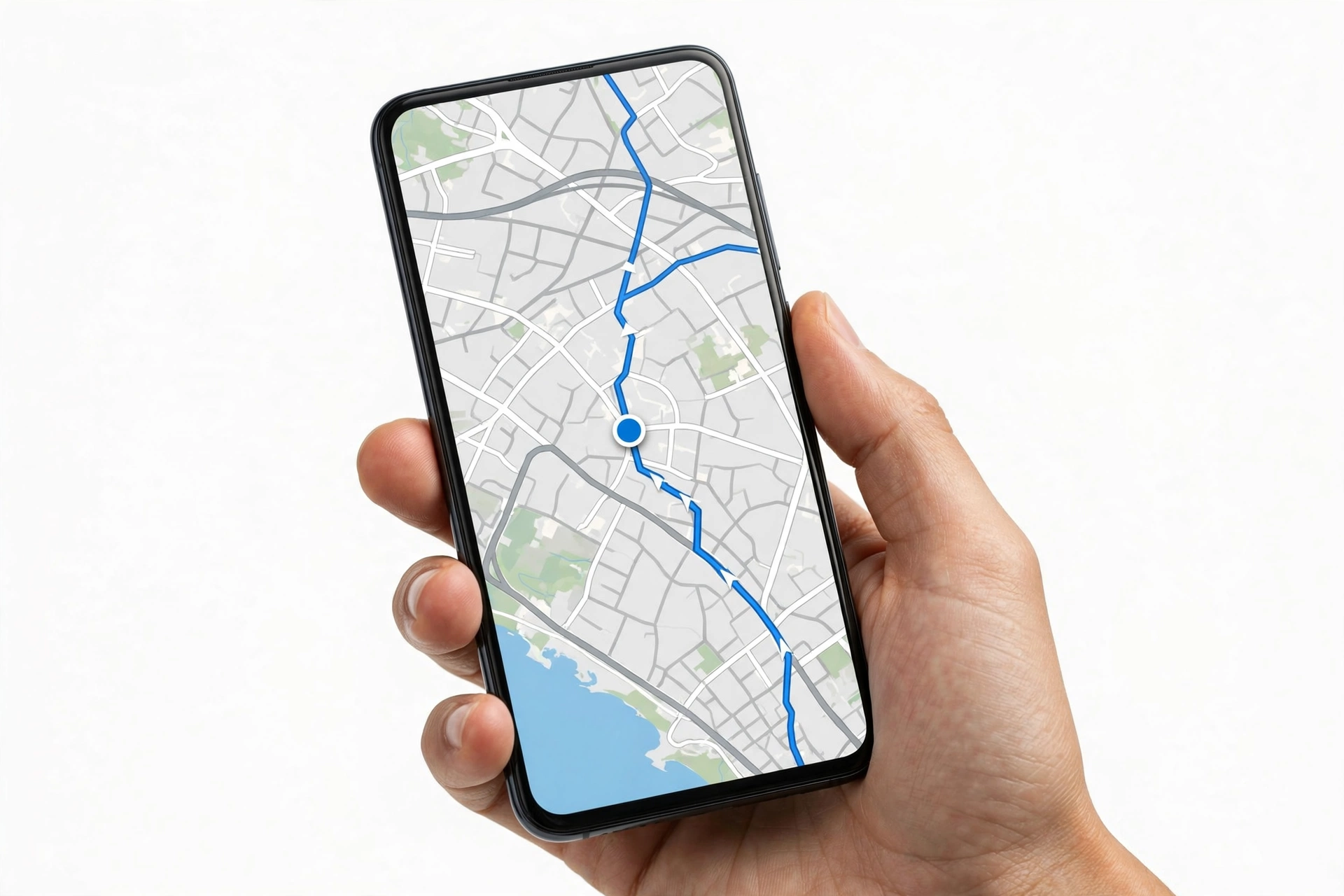
This guide is written for owners of a Samsung Galaxy phone — S series, Z Fold and Z Flip series, and A series — whose location services, GPS accuracy, or navigation apps misbehave after installing a One UI or Android update. If your phone shows the wrong location in Google Maps, takes forever to lock onto satellites, shows the GPS icon constantly since the update, or loses your position during hikes and drives only after updating, the steps below are ordered to match Samsung’s own support logic. (Source: samsung.com)
This is a Samsung-specific, update-specific guide. It covers One UI settings, Samsung power management (sleeping apps, Adaptive battery), Google Location Accuracy on Galaxy devices, and post-update bugs that community reporting has linked to specific One UI releases. For brand-agnostic GPS troubleshooting after an update, see our general GPS after update guide. Sibling guides in this Samsung update series cover camera failures after an update and, for iPhone owners, speaker failures after an update.
Scope note: This guide assumes your GPS worked before the update and degraded or broke after it. If your Galaxy phone’s GPS never worked properly since you bought it, the steps still apply, but the “post-update mechanisms” framing in section 4 will not fit your situation.
2. What “GPS not working” looks like after an update
Post-update GPS problems on Galaxy phones tend to appear in a few recognizable patterns. Identifying your pattern first matters, because each pattern points at a different cause:
- Wrong or jumping location: Maps shows you blocks away, or your position drifts and snaps back. Common when Improve accuracy settings were reset and the phone is relying on a single, weak signal source.
- Slow or no satellite lock: Navigation apps spin endlessly trying to find you, especially outdoors. Often follows a corrupted Google Play services cache after the update’s data migration.
- GPS dies during long activities: Your track records the first few minutes of a hike or ride, then the position freezes or the app stops recording. Community reporting has linked background-tracking freezes to specific One UI releases.
- Location icon stuck on since the update: The location indicator appears constantly in the status bar, with Google Play Services or “Phone services” pinging location every few minutes. User reporting tied this behavior to post-update builds on the S24 and S25 series.
- One app can’t find you: Google Maps works but a hiking, delivery, or rideshare app does not. Almost always an app-permission state changed by the update.
3. Two-minute triage before changing anything
Run these quick tests before touching settings. They take two minutes and tell you whether the problem is your phone, one app, or the environment:
- Test outdoors: Step outside with a clear view of the sky and open Google Maps. GPS works best with a direct line to satellites; tall buildings, dense tree cover, and being indoors all degrade it. Samsung’s own support guidance starts here — the feature is not designed to be tested from a basement.
- Test a second app: Open a different app that uses location (for example, a weather app or Samsung’s compass). If only one app fails, the problem is that app’s permission or cache — not the phone’s GPS.
- Test a second device: If another phone in the same spot gets a fast, accurate lock, your environment is fine and the problem is in your phone’s settings or software.
Stop for safety: If you are driving or navigating while moving, pull over and stop before running these tests or changing settings. Never troubleshoot navigation while the vehicle is in motion.
4. Why updates break GPS on Galaxy phones: five mechanisms
A software update cannot physically damage your phone’s GPS antenna. What it can do is disturb the software stack GPS depends on. In rough likelihood order, the post-update mechanisms are:
| Mechanism | What happens | Typical symptom |
|---|---|---|
| Silently reset toggles | The update migrates settings and turns off Location services, Improve accuracy, or Wi-Fi/Bluetooth scanning. | Wrong location, slow lock |
| Changed app permissions | Apps lose their “Allow all the time” location permission or get new restrictions under updated privacy rules. | One app can’t find you; background tracking stops |
| Corrupted location cache | Google Play services’ cached location data is invalid after the migration. | Slow or no lock; location jumps |
| Re-applied power management | The update re-enables battery optimization, puts navigation apps on sleeping-apps lists, or turns Adaptive power saving back on. | GPS dies mid-hike; location freezes when screen is off |
| Genuine shipped bug | A defect in the update itself — for example, persistent location polling or background GPS freezing reported after specific One UI releases. | Location icon constantly on; tracking freezes regardless of settings |
The fix order below follows this table: settings first, then permissions, then cache, then power management, then bugs — and hardware assessment last.
5. Check 1: the Location services master toggle
Start with the simplest check, because updates have been known to leave it off:
- Open Settings.
- Tap Location.
- Make sure the switch at the top is On.
If Location was off, turning it back on often resolves everything immediately. If it was already on, continue — the toggle being on is necessary but not sufficient.
6. Check 2: Improve accuracy and Google Location Accuracy
Your Galaxy phone combines satellite GPS with Wi-Fi and Bluetooth signals to pinpoint you faster and more accurately. Both assists have their own switches that updates can disable.
- In Settings > Location, tap Improve accuracy.
- Turn on Wi-Fi scanning and Bluetooth scanning. These let the phone use nearby networks and beacons to sharpen your position — Samsung’s support guidance recommends both for accuracy problems.
- Go back to Settings > Location and tap Google Location Accuracy.
- Make sure it is On. Samsung community support staff have listed enabling this as a core fix step for GPS issues.
If your location is wrong or slow only indoors, these assists are usually the missing piece: pure satellite GPS is weakest indoors, and Wi-Fi scanning is what fills the gap.
7. Check 3: app location permissions
When only one navigation or tracking app misbehaves after an update, the cause is almost always its permission state. Android requires each app to hold its own location permission, and updates can reset it.
- Go to Settings > Apps.
- Select the app that cannot find you (for example, Google Maps).
- Tap Permissions, then Location.
- Choose Allow all the time for apps that need to track you while you are not looking at them (hiking, delivery, and rideshare apps). Samsung’s own support guidance names this exact choice for apps that use a GPS signal.
Quick fact: For apps you only navigate with while they are open on screen, “Allow only while using the app” is enough. “Allow all the time” matters specifically for background tracking — the hiking and running apps that record your route with the screen off.
Also confirm the app is up to date in the Play Store: Samsung’s guidance notes that outdated apps can misbehave after OS updates because they have not adapted to the new system’s permission model.
8. Check 4: Samsung power management — sleeping apps and adaptive battery
This is the section that most generic guides miss, and it is the single most common cause of GPS that dies during long activities after an update. Samsung aggressively suspends apps to save battery, and updates can re-apply those rules to apps you had previously exempted.
- Go to Settings > Battery and device care > Battery > Background usage limits.
- Check Sleeping apps and Deep sleeping apps. If your navigation or tracking app is listed, remove it — apps on these lists can have their background location updates throttled or stopped. Samsung’s own support guidance specifically names removing GPS apps from the sleeping-apps list.
- Alternatively, go to Settings > Apps, select the app, tap Battery, and set it to Unrestricted.
- Go to Settings > Battery and device care, open the three-dot menu, and make sure Adaptive power saving (or Adaptive battery behavior) is not forcing your apps into restricted modes.
This check explains a classic post-update mystery: GPS works fine for the first ten minutes of a ride, then freezes. The app is fine; Samsung’s power manager put it to sleep after the screen went off, and the update re-enabled the rule you had switched off months ago.
Tip: Background tracking also needs a foreground notification on modern Android. If your hiking app asks to keep a persistent notification while recording, let it — that notification is the mechanism that keeps location flowing with the screen off.
9. Check 5: restart, then clear the Google Play services cache
If settings and permissions are correct but location is still slow, wrong, or jumpy, the cached location data may be stale or corrupted from the update migration.
- Restart the phone. Press and hold the side and volume-down buttons, tap Restart, and test GPS outdoors afterward. Samsung support lists a restart as an early step for a reason: it clears transient post-update glitches.
- If the problem persists, go to Settings > Apps, find Google Play services, tap Storage, then Clear cache. This refreshes the location data your phone uses without deleting anything personal — cache, not data.
- Restart once more and test.
Quick fact: Tap “Clear cache” only — not “Clear data.” Clearing Google Play services data can sign you out of services and cause more problems than it solves.
10. Check 6: reset network settings
GPS problems are not entirely signal-related. A misconfigured network layer can undermine assisted-GPS, which relies on Wi-Fi and cellular data to speed up satellite fixes.
- Go to Settings > General management > Reset.
- Tap Reset network settings, then Reset settings to confirm.
This resets Wi-Fi, mobile data, and Bluetooth settings without deleting your personal data. Samsung community support staff list this as a standard GPS troubleshooting step.
Quick fact: Resetting network settings forgets your saved Wi-Fi networks and Bluetooth pairings, so you will need to reconnect to your home and office Wi-Fi afterward. It does not delete photos, apps, or files.
11. Check 7: Safe Mode isolation
If GPS still misbehaves, rule out a third-party app that updated badly alongside the system update:
- Press and hold the side and volume-down buttons until the power menu appears.
- Touch and hold Power off until “Safe mode” appears, then tap it. The phone restarts with third-party apps disabled.
- Test location in Google Maps while in Safe Mode.
- Restart normally to leave Safe Mode.
If GPS works in Safe Mode but not outside it, a third-party app is interfering — remove recently updated apps one at a time, starting with anything that touches location, VPNs, or system overlays.
12. Check 8: follow-up updates and the known post-update bugs
Some post-update GPS problems are genuine shipped bugs that no setting can fix. Two patterns have been reported in connection with specific One UI releases:
- Persistent location icon after update: Users reported the location indicator appearing constantly in the status bar, with location services being pinged every few minutes, following updates on Galaxy S24 and S25 series phones — with restart and cache-clearing not reliably resolving it. This pattern is user reporting, not an official Samsung acknowledgment, and the practical response is to report it through the Samsung Members app so the company can log the bug, and to install any follow-up patch.
- Background GPS freezing during long tracks: Reports of GPS freezing during extended recording sessions on One UI 8, with users reporting that a later official update resolved the freezing for them. Again, this is community reporting, not official confirmation — but it establishes the key point: when a GPS failure affects every app, survives all the checks above, and matches a known pattern, the fix is usually the next patch, not more resetting.
So check for updates deliberately: go to Settings > Software update > Download and install, and update your navigation apps in the Play Store. Samsung’s own support guidance lists keeping both device software and apps current as a GPS troubleshooting step.
13. Symptom worksheet: match your problem to the fix
| Symptom | Likely post-update cause | Try first |
|---|---|---|
| Wrong location in all apps | Improve accuracy / scanning toggles reset | Section 6: re-enable scanning and Google Location Accuracy |
| Slow or no satellite lock | Corrupted Play services cache | Section 9: restart, clear Google Play services cache |
| Only one app can’t find you | App permission changed by update | Section 7: restore “Allow all the time” |
| GPS dies mid-hike or mid-drive | App placed on sleeping-apps list | Section 8: remove from sleeping apps, set Unrestricted |
| Location icon constantly on since update | Possible shipped bug | Section 12: check for patch; report via Samsung Members |
| Works in Safe Mode only | Conflicting third-party app | Section 11: identify and remove the app |
| Bad only indoors | Wi-Fi scanning off; satellite GPS can’t reach indoors | Section 6: enable Wi-Fi scanning |
| Bad everywhere, all apps, all checks done | Possible hardware issue | Section 14: professional assessment |
14. What observations can and cannot establish
Honest diagnosis matters because it decides whether more resetting helps or you are wasting your time:
| Observation | What it establishes | What it does not establish |
|---|---|---|
| GPS fails in every app, including Maps | The problem is phone-level, not one app’s fault | That the GPS antenna is broken — software causes are still more likely |
| GPS works in Safe Mode | A third-party app is interfering | Which app — that needs isolation |
| Another phone locks on in the same spot | Your environment is fine | That your phone has a hardware fault — settings and software come first |
| Everything fails after all software checks | Professional assessment is warranted | The exact failed component — antenna, connector, or board |
15. When to stop troubleshooting and get an assessment
Stop and seek professional assessment when any of these is true:
- GPS fails in Safe Mode, outdoors, with a clear sky view, after every check above.
- Location is wrong or unavailable on a phone with a history of drops or liquid exposure — physical damage to the antenna path is plausible regardless of the update’s timing.
- You are considering a factory reset as the next step. Factory reset erases the phone; verify a current backup first (Samsung Cloud or Google One), and understand that a reset is a diagnostic of last resort, not a fix you owe the phone.
Tip: A repair shop can test the GPS receiver with Samsung Members diagnostics and check for physical antenna damage. Las Vegas Phone Repair & Accessories, 7400 Las Vegas Blvd S, Unit TT42, Las Vegas, NV 89123, (424) 406-6202, open 10 AM–8 PM — call ahead to confirm today’s hours. A reputable shop will assess before quoting and will not promise a software update can fix a hardware fault.
Never open the phone yourself to inspect the GPS antenna. Internal inspection requires tools and training; opening the device risks further damage and can void remaining warranty coverage.
16. Two hypothetical examples
(The following are hypothetical illustrations, not customer stories.)
Example 1: Maya’s post-update hiking problem
Maya updates her Galaxy S25 to a new One UI release on a Friday. On Saturday’s hike, her tracking app records the first twelve minutes, then the trail goes dead — a straight line to the parking lot. Her instinct is to blame the update’s GPS code. Running the triage, she finds Google Maps works fine in the foreground. Checking Settings > Battery and device care > Battery > Background usage limits, she finds her hiking app on the Deep sleeping apps list — the update had re-applied a restriction she had lifted months earlier. She removes it, sets the app’s battery to Unrestricted, and her next hike records fully.
Example 2: Daniel’s constant location icon
Daniel notices the location icon in his status bar almost every time he unlocks his Galaxy S24 after an update, and his battery drains faster. He works through the checks: Location services on, Improve accuracy on, permissions correct, cache cleared, no sleeping-app issue. The behavior survives everything. Matching his pattern to section 12, he recognizes the reported persistent-location behavior tied to post-update builds — a candidate shipped bug. He installs the next available patch, which reduces the polling, and files a report through Samsung Members documenting what he tried.
17. Frequently asked questions
Why did GPS break right after my Samsung update?
The most common reasons are reset location toggles, changed app permissions, corrupted cached location data, or re-applied battery restrictions on your navigation apps. An update changes the software stack GPS depends on; it does not damage the GPS antenna.
Which location settings should be on after an update?
Location services on (Settings > Location), Improve accuracy with Wi-Fi and Bluetooth scanning on, and Google Location Accuracy on. These are the three switches updates most often leave off.
Why does only one app fail to find my location?
That app’s location permission was likely changed by the update. Go to Settings > Apps, select the app, tap Permissions > Location, and set Allow all the time for apps that track you in the background.
Why does GPS stop during long hikes or drives?
Samsung’s power management may be suspending the app once the screen goes off — the update can re-apply sleeping-app rules. Remove the app from Sleeping and Deep sleeping apps, and set its battery use to Unrestricted.
Should I clear Google Play services data?
No — clear the cache only. Clearing data can sign you out of services and create new problems. Cache clearing refreshes location data without deleting anything personal.
The location icon won’t go away since the update. Is that normal?
Persistent location polling after updates on Galaxy S24 and S25 phones has been reported by users as a possible shipped bug, not expected behavior. Install any available patch and report it through the Samsung Members app.
Will resetting network settings delete my photos?
No. Resetting network settings forgets saved Wi-Fi networks and Bluetooth pairings, but does not delete photos, apps, or files.
When should I take the phone in for repair?
When GPS fails in Safe Mode, outdoors with a clear sky, after every software check — or when the phone has a history of drops or liquid exposure that makes antenna damage plausible. A shop can run Samsung Members diagnostics to test the receiver.
Video: How to tell if your smartphone is fake or real
Sources and editorial notes
- Samsung Support — Why is my Galaxy phone GPS location inaccurate? (official location accuracy guidance: Location services, Improve accuracy, Wi-Fi/Bluetooth scanning, sleeping-apps removal, Adaptive power saving, clear-sky testing)
- Samsung Support UK — What to do if the location information is inaccurate (official app-permission paths: Settings > Apps > Permissions > Location > Allow all the time; case and antenna-obstruction notes)
- SamMobile — How to fix location accuracy on Samsung phones (independent summary of Improve accuracy, Play services cache clearing, and network-settings reset steps)
- Android Central forums — One UI 8 GPS freeze during long tracks (community reporting on background GPS freezing and its reported resolution by a later update; labeled as user reporting)
- TechIssuesToday — Persistent location icon after update on Galaxy S24/S25 (reporting on post-update constant location polling; labeled as user reporting, not official confirmation)
- Samsung Community — Multiple problems after installing the One UI 8.5 update (user reports including GPS inaccuracies after updates; labeled as community reporting)
Last source check: October 14, 2026. AI-assisted editorial guide, checked against the linked manufacturer information. Post-update bug patterns are described from community and press reporting and labeled as such; official Samsung procedures are reproduced from Samsung’s published support pages in original language.
Let’s get you connected again.
Tell us what’s happening with your device and we’ll help you decide the safest next step — no jargon, no pressure.
Las Vegas Phone Repair & Accessories · 7400 Las Vegas Blvd S, Unit TT42, Las Vegas, NV 89123
10:00 AM–8:00 PM — call ahead to confirm today’s hours