
How to Transfer Data from Broken Oppo Phone to New Phone: Complete Guide
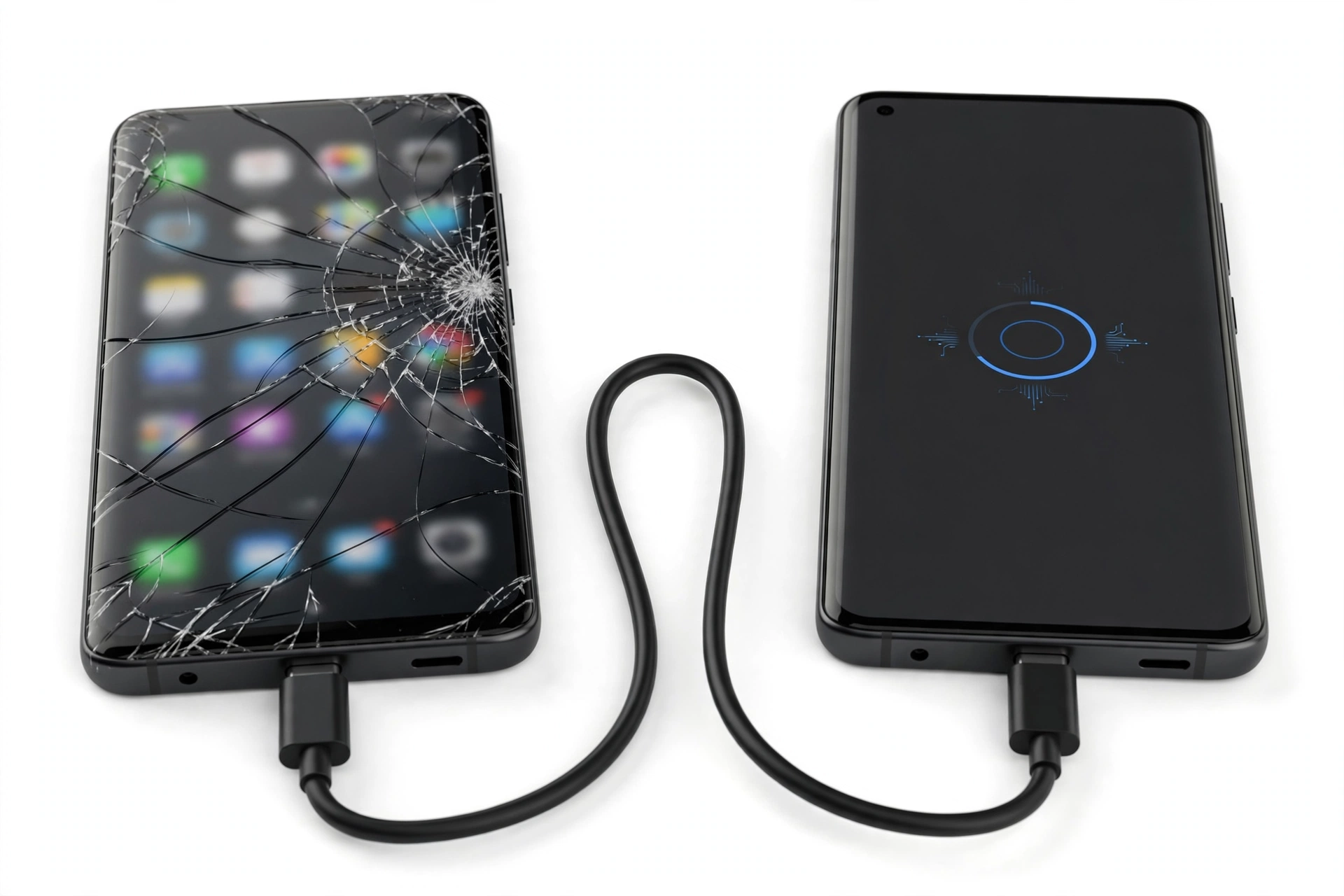
If your broken OPPO phone backed up before it broke, you can restore everything to a new phone without ever touching the old one. If it did not, your options depend on what still works — a screen with a working display, a working touchscreen, or a phone that is completely dead.
On this page
If your broken OPPO phone backed up before it broke, you can restore everything to a new phone without ever touching the old one.
1. Who this guide is for
This guide is for anyone with a damaged OPPO phone — cracked screen, unresponsive touchscreen, phone that will not turn on — who needs to get their data onto a new phone. It covers OPPO-specific tools (Clone Phone, HeyTap Cloud, local backup) alongside the standard Android methods (Google backup, USB file copy, computer backup). (Source: support.oppo.com)
A note on scope: this is a data guide, not a repair guide. If you are deciding whether the broken phone is worth fixing, see our general guide to transferring data from a broken phone for the broader decision framework, and the Huawei and realme editions for those brands.
2. The one question that decides your path
Before you do anything else, answer this: did the broken OPPO phone back up before it broke?
- Yes, or you are not sure: start with Path A. Cloud backups happen quietly in the background; many people have one without remembering setting it up.
- No — and you know backups were off: go to Path B. Your options now depend on what the phone can still do.
Quick fact: On most OPPO phones running ColorOS, Google’s automatic backup runs if you signed in with a Google account. HeyTap Cloud backup runs only if you created a HeyTap account and enabled it — it is not on by default for everyone.
3. Path A: Restore from a cloud backup (broken phone not needed)
If any cloud backup exists, the broken phone can stay in a drawer. You only need the account credentials on the new phone.
HeyTap Cloud restore
HeyTap Cloud (also called OPPO Cloud) backs up contacts, SMS, photos, videos, recordings, WLAN settings, browser data, and Private Safe contents, depending on what you enabled. OPPO offers 5 GB of free cloud storage; deleted files can be recovered from a cloud recycle bin.
To restore on a new OPPO phone, sign in with the same HeyTap account, open HeyTap Cloud, and choose the backup record you want. Select the data categories and restore them to the new phone. OPPO’s support documentation notes that backup and restore require a network connection.
Tip: HeyTap Cloud availability varies by region. OPPO documents it as available on devices sold in India, Indonesia, Thailand, the Philippines, Vietnam, Malaysia, Taiwan, Japan, Singapore, and Cambodia; on devices sold in other regions it may not be available. If your new phone has no HeyTap Cloud app, your backups were almost certainly not going there.
Google backup restore
On OPPO phones sold with Google services, Google backup covers contacts, call history, device settings, SMS (on some setups), and photos via Google Photos. During setup of a new Android phone, sign in with the same Google account, choose the backup, select the data to transfer, and tap Restore.
You can check from any browser whether a backup exists: open Google Drive, go to Backups, and look for your OPPO phone’s name. If it is there with a recent date, Path A will work.
What cloud backups do not restore
No cloud backup moves everything. Expect to re-verify banking apps, re-enter authenticator accounts (unless you used a cloud-synced authenticator), re-download offline music and maps, and re-pair Bluetooth devices. WhatsApp needs its own Google Drive backup; check WhatsApp > Settings > Chats > Chat backup for the date.
4. Path B: The phone still works — use OPPO Clone Phone
If the broken phone still powers on and you can operate its screen, OPPO’s official Clone Phone tool is the fastest route, especially OPPO-to-OPPO.
How Clone Phone works
Clone Phone transfers data directly between two phones over a local connection — no internet, no mobile data, no cables. Open the Clone Phone app on both phones. On the new OPPO phone, tap This is the new device and select the old phone’s type (OPPO/other Android/iPhone). On the old phone, tap This is the old device and scan the QR code shown on the new phone. Choose the data categories — contacts, call logs, SMS, photos, videos, music, documents, apps (Android to Android), WhatsApp media, calendar, system settings — then tap Next and start the migration.
Quick fact: Clone Phone needs both phones powered on, nearby, and able to display and scan a QR code. If the old phone’s screen is dead or its touchscreen does not respond, this method cannot run.
What Clone Phone moves — and what it cannot
| Data type | Transfers | Notes |
|---|---|---|
| Contacts, call logs, SMS | Yes | Core data types, reliably moved |
| Photos, videos, music, documents | Yes | Large libraries take longer; keep both phones charged |
| Apps | Android to Android | Apps reinstall; some app data may not carry over |
| WhatsApp media | Yes | Chat history still needs WhatsApp’s own backup for full restore |
| System settings, calendar | Yes | On supported device combinations |
| Banking and authenticator apps | Partially | Apps install; logins and codes usually need re-setup |
| Accounts and passwords | No | Re-enter manually or via a password manager |
Before you start cloning
- Charge both phones well above half; a transfer can take a long time on big photo libraries.
- Keep both phones close together and keep their screens awake — power-saving sleep can interrupt the transfer.
- Make sure the new phone has enough free storage for everything you are moving.
- Grant the permissions Clone Phone asks for; a denied permission silently skips that data type.
5. Path B: Screen damaged but the phone is alive
A cracked screen changes which methods work. Triage by what still functions:
Display works, touch does not
If you can see the screen but cannot tap it, connect a USB OTG adapter and a standard USB mouse to the phone. The mouse cursor lets you operate the phone normally — open Settings, enable Google backup, or run Clone Phone’s “old device” side by clicking through it.
Touch works, display does not
If the screen is black but touch registers, you are navigating blind. The practical move: connect the phone to a computer with a USB cable. If the computer recognizes the phone’s storage, copy the DCIM, Download, Documents, and Music folders manually. For contacts, they are usually already synced to your Google account.
Phone powers on but nothing responds
Try a force restart first — on most OPPO phones, hold the power button for about 10 seconds until the phone vibrates or the OPPO logo appears. If it boots, immediately back up before the phone dies again: Settings > System settings (or Additional settings) > Back up and reset > Back up & restore, and run both a local backup and a Google backup.
Stop for safety: If the phone is swollen, distorted, leaking, or dangerously hot, do not charge it and do not keep trying to power it on. A damaged battery is a fire risk. Put the phone somewhere non-flammable and stop.
6. OPPO local backup — the overlooked option
OPPO’s built-in local backup (ColorOS 5.0 through ColorOS 14 and later: Settings > Additional settings or System settings > Back up and reset > Back up & restore > Local backup > New backup) saves applications, personal data (contacts, messages), and system data (settings, clock, calendar, browser bookmarks, and more) to the phone’s storage.
If the broken phone previously made a local backup, that backup folder may still be readable when you connect the phone to a computer — copy the entire Backup folder to the computer, then later copy it into the new OPPO phone’s internal storage and run the restore from the same menu. OPPO’s support documentation also describes restoring from a computer backup this way: enable USB debugging on the new phone, connect it, choose Transfer Files, and paste the Backup folder into internal shared storage.
Tip: A local backup lives on the phone itself, so it only helps if you can still access the phone’s storage from a computer. It is not a cloud backup — but it is better than nothing, and many OPPO users have one without realizing it.
7. Path B: Phone is completely dead
If the phone will not power on at all — no vibration, no logo, no charging light — your options narrow sharply:
- Charge it properly first. Use the original charger and cable for at least 30 minutes. A deeply discharged battery can look dead.
- Try the force restart described above while it is charging.
- Check every cloud source from a browser: Google Drive Backups, Google Photos, HeyTap Cloud (if you had an account), WhatsApp’s Drive backup date, and your email for any backup confirmations.
- Get a repair assessment. A phone that will not boot often has a fixable power or board issue. A technician can sometimes revive it long enough to pull data — ask specifically for a data-recovery assessment, not a full repair quote.
Stop for safety: Never open a dead phone yourself to “check the battery.” Modern OPPO phones use glued assemblies; puncturing a lithium battery can cause fire. Data recovery from a dead board is professional work.
8. Method comparison
| Method | Requires | Best for | Limitations |
|---|---|---|---|
| HeyTap Cloud restore | HeyTap account with prior backup; new OPPO phone | Contacts, SMS, photos when backup was on | 5 GB free; regional availability; backup must predate the damage |
| Google backup restore | Google account with prior backup | Most users; works to any Android phone | 15 GB shared free storage; does not cover everything |
| OPPO Clone Phone | Old phone operable (screen + touch); both phones nearby | Fastest full move OPPO-to-OPPO | Useless if the old phone cannot run the app |
| USB file copy to computer | Phone recognized by computer via USB | Photos, videos, documents, music | Does not move contacts, SMS, or app data |
| Local backup folder copy | Prior local backup on the phone’s storage | Full OPPO-to-OPPO restore including settings | Backup lives on the broken phone; needs USB access |
| OTG mouse operation | Working display; USB OTG support | Dead touchscreen with visible screen | Needs an OTG adapter and mouse on hand |
| Professional recovery | A repair shop willing to do a data assessment | Dead phones with no backups | Costs money; success never guaranteed |
9. What each observation can and cannot tell you
| What you see | What it establishes | What it does not establish |
|---|---|---|
| Phone charges and shows a light | Power circuitry likely works | That the screen, storage, or data are intact |
| Computer recognizes the phone | USB and storage controller work; file copy is possible | That contacts or app data are recoverable |
| Google Drive shows a backup | A restore will bring back core data | That the backup is recent or complete |
| Clone Phone fails halfway | Something interrupted the transfer | That the data is lost — retry with both phones charged and awake |
| Phone is completely unresponsive | DIY options are exhausted | That the data is gone — a lab may still revive the board |
10. Data that defeats every method
Even a perfect transfer leaves gaps. Plan for these separately:
- Authenticator codes: if your authenticator app did not sync to the cloud, codes live only on the broken phone. Use each service’s backup codes or account recovery.
- WhatsApp chats: need WhatsApp’s own Google Drive backup; a phone clone moves media but chat history restores from WhatsApp’s backup.
- Banking and payment apps: will require re-verification by design — this is a security feature, not a failure.
- DRM media and offline downloads: streaming downloads are licensed to the device; re-download them on the new phone.
- Notes in Private Safe: OPPO’s Private Safe contents restore only via HeyTap Cloud if that backup was enabled.
11. Hypothetical examples
(The following are hypothetical illustrations, not customer stories.)
Example 1 — Maya’s cracked Reno. Maya drops her OPPO Reno; the screen shows a spiderweb of cracks but the display still lights up. Touch does not respond. She borrows a USB OTG adapter and a mouse, clicks through to Settings, and runs a Google backup plus a local backup. On her new phone she restores the Google backup during setup and later copies the local backup folder over USB for the remaining system settings.
Example 2 — Daniel’s dead Find X. Daniel’s OPPO Find X went through the wash and never turns on again. No HeyTap account, but he had signed in with Google three years ago. He checks Google Drive Backups from his laptop and finds a backup from two months before the accident. He restores it to his new phone, re-verifies his banking apps, and accepts that two months of photos not in Google Photos are gone.
12. When to stop and get help
Stop DIY efforts and get a professional assessment if the phone is swollen, hot, or leaking; if it will not power on after proper charging and a force restart; or if the data is valuable enough that a failed attempt could make things worse. Never factory-reset the broken phone “to fix it” before your data is secured — a reset wipes the encryption keys and makes professional recovery far harder.
If you are in the Las Vegas area, Las Vegas Phone Repair & Accessories (7400 Las Vegas Blvd S, Unit TT42, Las Vegas, NV 89123; (424) 406-6202; open 10 AM–8 PM, call ahead to confirm today’s hours) can assess a dead or damaged OPPO phone and tell you honestly whether data recovery is feasible before you spend money on it.
13. How to confirm your restore actually worked
Do not assume the transfer is complete because the progress bar finished. Run through this checklist on the new phone before you wipe, recycle, or repair the old one:
- Contacts: open the Phone app and scroll — spot-check names you call often, and confirm the total count looks right.
- Photos and videos: open Google Photos (or your gallery app) and check the oldest and newest items. Missing months usually mean a backup gap, not a transfer failure.
- Messages: open your SMS app and confirm conversations are present, especially ones with photos attached.
- WhatsApp: open it and verify chat history restored; if it prompts you to restore from Drive, let it finish before using the app.
- Apps: check that your most important apps installed and open. Log into banking, email, and work apps fresh — treat every login as expected.
- Two-factor codes: open your authenticator app and confirm your accounts are listed. If they are empty, use backup codes now, while you still have the old phone as a fallback.
Tip: Keep the broken phone untouched for at least a week after the move. If you discover something missing — an old conversation, a notes app, a saved Wi-Fi password — the old phone is your only second chance. Only reset or dispose of it once you are confident nothing is missing.
14. Frequently asked questions
Can OPPO Clone Phone transfer data from a broken phone?
Only if the broken phone can still run the app — it needs a working screen to scan the QR code and a working touchscreen to select data. A phone with a dead screen or that will not boot cannot use Clone Phone.
Does HeyTap Cloud work in the United States?
OPPO documents HeyTap Cloud availability for devices sold in specific Asian regions (including India, Indonesia, Thailand, the Philippines, Vietnam, Malaysia, Taiwan, Japan, Singapore, and Cambodia). On devices sold in other regions it may not be available — check whether your phone has the HeyTap Cloud app before counting on it.
How do I check if my broken OPPO had a Google backup?
From any browser, open Google Drive, go to Backups in the side menu, and look for your OPPO phone’s name and the backup date. No computer connection to the broken phone is needed.
Can I transfer data from a broken OPPO to an iPhone?
Partially. Clone Phone supports iPhone as a destination for basic data types, and Google contacts, photos (via Google Photos), and calendar sync to iPhone. WhatsApp can move via its own Move to iOS flow. App data generally does not cross platforms.
Will a local backup restore to a different OPPO model?
Usually yes for personal data (contacts, messages) and often for system settings, though some settings may not apply cleanly across very different ColorOS versions. Applications restore best when the same apps are available for the new model.
My computer does not recognize the broken phone. What now?
Try a different cable (charge-only cables lack data wires), a different USB port, and the force restart while connected. If nothing works, the USB controller or board may be damaged — that is the point to seek a professional assessment rather than keep trying.
Is it safe to keep charging a phone with a cracked screen?
A cracked screen alone is not a charging hazard, but stop immediately if the phone becomes unusually hot, swells, distorts, or smells strange. Never charge a phone that has been soaked and has not fully dried.
Should I factory reset the broken phone before taking it for repair?
Not before your data is secured elsewhere. A factory reset wipes the encryption keys and makes any later recovery attempt far harder. Back up first, reset only once you have confirmed your data is safe on the new phone or in the cloud.
Video: How to transfer everything from old to new Android
Sources and editorial notes
- OPPO Support — What are the Backup Methods to Restore Data on OPPO Phone: documents local backup paths by ColorOS version, computer restore, and HeyTap Cloud restore for contacts, SMS, photos, and more, including regional availability notes.
- OPPO Support — If You Fail to Back up or Restore Data with HeyTap Cloud/OPPO Cloud: documents clearing HeyTap/OPPO Cloud app data by ColorOS version and updating phone software as troubleshooting steps.
- OPPO Support — How to Restore OPPO Phone Files from Computer Backup: documents copying the Backup folder back to internal shared storage and restoring from it.
- OPPO Support — Does OPPO Find X3 Pro have HeyTap?: describes HeyTap services including HeyTap Cloud and notes that services vary by model, region, and ColorOS version.
- InstaCash — OPPO Clone Phone App Data Transfer: Complete Guide: independent walkthrough of Clone Phone’s data types, QR pairing flow, and requirements (used to cross-check the transfer steps).
- MobiKin — Top 6 Methods for OPPO Backup and Restore: independent guide covering OPPO Cloud’s 5 GB free storage and restore steps (used to cross-check HeyTap Cloud behavior).
Last source check: October 14, 2026. AI-assisted editorial guide, checked against the linked manufacturer information. Procedures and app availability change with ColorOS updates; if a menu path differs on your phone, use your phone’s Settings search. This guide does not guarantee data recovery from any specific damaged device.
Let’s get you connected again.
Tell us what’s happening with your device and we’ll help you decide the safest next step — no jargon, no pressure.
Las Vegas Phone Repair & Accessories · 7400 Las Vegas Blvd S, Unit TT42, Las Vegas, NV 89123
10:00 AM–8:00 PM — call ahead to confirm today’s hours