
iPhone Battery Draining After Update: Causes and Safe Fixes
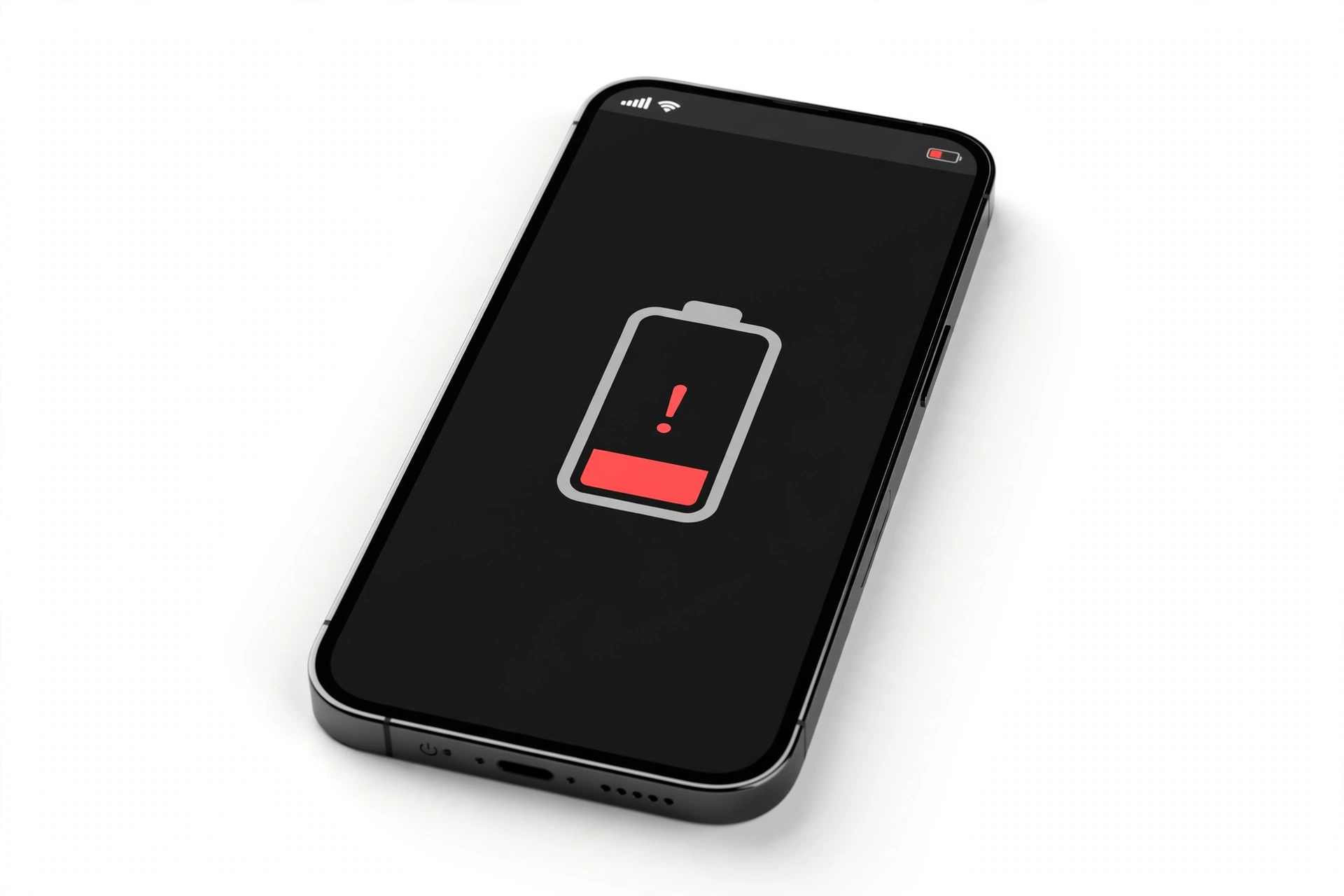
An iPhone that drains faster right after an iOS update is usually normal for a few days. Apple’s own support guidance says battery life can decrease after updating because background tasks related to the update continue running, and the fix for most people is simply to wait a few days and check again.
On this page
An iPhone that drains faster right after an iOS update is usually normal for a few days.
1. Why your iPhone drains faster after an iOS update
When you install an iOS update, the work does not end when the progress bar finishes and your Home Screen reappears. The update itself is only the first phase. Apple documents that after an update, your iPhone continues performing background tasks related to the update — things like re-indexing your files for Spotlight search, re-analyzing your photo library, re-optimizing your apps, and rebuilding system caches. These jobs use the processor and the radio, and processor plus radio activity is exactly what drains a battery. (Source: macobserver.com)
The important thing to understand is that this is a designed part of the update process, not a bug. Your iPhone is doing necessary maintenance that lets search, photos, widgets, and Siri work properly on the new software. Because the phone is working hard in the background, the battery drains faster than usual — and because it is working hard, the phone can also feel warm. Both effects are expected, and both fade when the background work finishes.
Apple’s support article on fast battery drain states the guidance plainly: if you notice decreased battery life after updating your device, wait a few days and then check again. Apple does not define “a few days” precisely and does not name which background tasks are running, but the practical window most owners report is about 24 to 72 hours, with older iPhones or very large photo libraries sometimes needing longer.
Quick fact: Post-update drain is temporary and system-wide. If your iPhone feels warm and drains faster in the first day or two after an update, that combination is the classic signature of background update work — not a failing battery.
2. The wait-a-few-days rule: Apple’s documented advice
Before changing any settings, understand the single most important instruction. Apple’s support page titled “If the battery in your iPhone or iPad drains too quickly” contains a specific section for post-update drain. The instruction is: wait a few days and then check again. The stated reason: certain tasks related to the update continue in the background and might affect battery life.
This matters because it sets the correct order of operations. Many battery guides jump straight to toggling settings off, but Apple’s own sequencing says the first response to post-update drain is patience. Acting too aggressively — for example, factory-resetting your iPhone on day one — can actually restart the background work and make the drain last longer, since the re-indexing has to begin again after the reset.
Here is a practical way to apply the rule:
- Days 0–2 after the update: Expect noticeably faster drain. Use Low Power Mode if you need to stretch the battery, keep the phone charged normally, and avoid judging battery life.
- Days 3–4: The drain should be clearly improving. If it is still as bad as day one, start the checks in this guide.
- After day 4–5: If heavy drain persists with no improvement, treat it as a real problem and work through the diagnostic steps below.
The boundary is improvement, not perfection. A phone that drained 30% faster on day one and only 10% faster on day four is on the right track. A phone whose drain has not improved at all after several days needs attention.
3. How to read Settings > Battery like a diagnostic tool
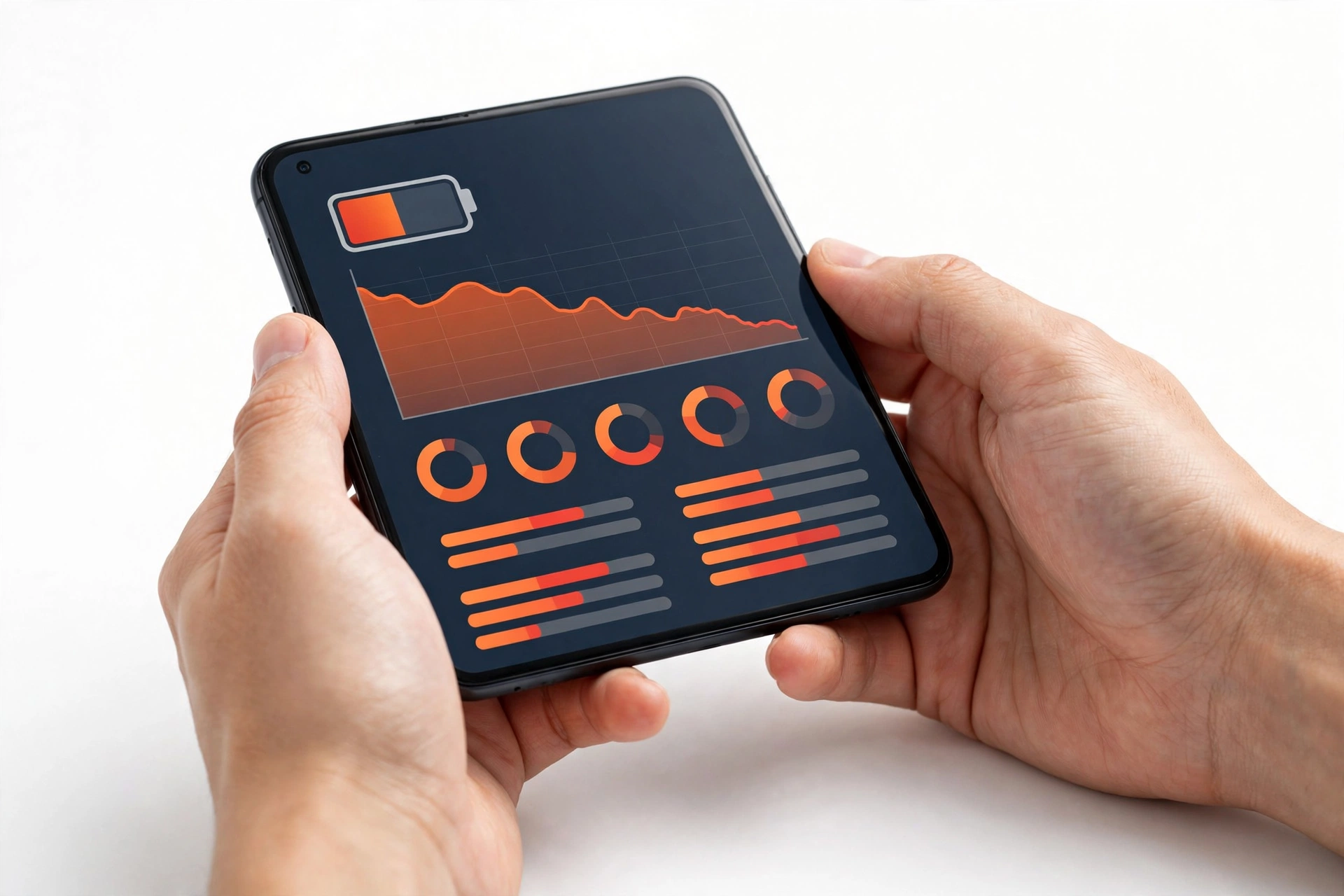
Your iPhone already includes a battery diagnostic screen, and after an update it is the single most useful tool you have. Open Settings > Battery. You will see a battery level graph for the last 24 hours or the last 10 days, plus a list of apps showing what percentage of battery each app has used. Below that, there is an “Activity” view showing screen-on and background time per app.
Here is how to read it after an update:
- The 24-hour graph: Look for steep drops during periods when you were not actively using the phone. Flat-ish overnight drain is normal; a phone that loses 20% overnight while sitting on a nightstand is telling you something is running in the background.
- Battery usage by app: In the first day or two after an update, system processes like Photos, and apps that are re-syncing, can legitimately appear high. After several days, the list should look like your normal usage again — the apps you actually use on top.
- Activity view: Tap an app entry to switch the list to show activity time. An app showing hours of background activity that you barely opened is a strong suspect for a stuck background process.
- Last 10 days view: This is useful for comparing. You can see whether the drain started exactly when the update installed, which confirms the update as the trigger rather than a gradual battery decline.
Repeat the check after a few days. The Battery screen is not just a one-time look — it is how you confirm whether the situation is improving (background work finishing) or stuck (a real problem to fix).
Tip: Screenshot your Settings > Battery screen on day one after the update, then compare it on day four. The comparison is far more informative than a single reading, because it shows the trend.
4. What is actually running: the post-update background jobs
Apple does not publish a complete list of the background tasks that run after an update, but several are well documented and widely reported. Understanding them helps you distinguish “the phone is busy finishing the update” from “something is wrong.”
4.1 Spotlight and search re-indexing
After an iOS update, the system re-indexes files, messages, emails, and app content so that Spotlight search, Siri suggestions, and in-app search work correctly. On a phone with years of messages and photos, this is a large job. It typically runs for hours and is one of the biggest contributors to post-update drain.
4.2 Photos library analysis
The Photos app re-analyzes your library after major updates — recognizing faces, pets, scenes, and objects, and generating memories. This is processor-intensive, and it runs in the background. A large photo library means a longer analysis period.
4.3 App re-optimization and re-downloads
Apps often need to re-optimize for the new iOS version, and some apps download updates or re-sync data right after the OS update. If you have dozens of apps, the combined activity is significant.
4.4 Widget and Live Activity refreshes
Widgets on your Home Screen and Lock Screen, plus Live Activities, refresh their data in the background. After an update these can be more active than usual as they re-establish their data feeds.
4.5 iCloud and account re-syncing
After an update, iCloud services, email accounts, and other synced accounts may re-sync. If you use push email on several accounts, the re-sync traffic adds up.
| Background job | What it does | Typical duration | Signs it is still running |
|---|---|---|---|
| Spotlight re-indexing | Rebuilds search indexes for files, messages, mail | Hours to a day or two | Search results incomplete; phone warm at idle |
| Photos analysis | Re-analyzes faces, scenes, objects in your library | Up to several days for large libraries | Photos app high in Battery usage; Memories not yet generated |
| App re-optimization | Apps adapt to the new iOS version | Hours | Apps updating in the App Store; app crashes on first launch |
| Widget refreshes | Widgets re-establish data feeds | Hours to a day | Widgets showing stale data, then catching up |
| iCloud re-sync | Mail, contacts, calendars, Drive re-sync | Hours | Mail app active; “Syncing” indicators |
5. The ordered fix path: what to do and in what order
Work through these steps in order, stopping as soon as the drain is resolved. The sequence goes from least disruptive to most disruptive, because jumping ahead wastes time and can restart the very background work you are waiting to finish.
Step 1: Wait, with Low Power Mode as a bridge
For the first 48 to 72 hours, the correct action is patience plus Low Power Mode. Open Control Center and tap the battery icon, or go to Settings > Battery > Low Power Mode. Low Power Mode reduces background activity, mail fetch, and visual effects — exactly the things that compete with the update’s background work. It does not pause the update’s background tasks; it just gives your battery breathing room while they finish.
Step 2: Restart the iPhone
If drain is still heavy after a few days, restart. A restart clears stuck background processes that sometimes linger after an update. On iPhones with Face ID, press and hold the side button and either volume button, drag the power-off slider, wait 30 seconds, then hold the side button to turn it back on. On iPhones with a Home button, hold the side (or top) button instead. This is the single most effective simple fix for a process that got stuck during the update.
Step 3: Check Settings > Battery and identify the consumer
After restarting, check the Battery screen again. If one specific app now dominates battery usage with large background activity, you have found your suspect. Update that app in the App Store, or if it is already current, try force-closing it and reopening it. An app that has not been updated for the new iOS version is a common post-update drain source.
Step 4: Review Background App Refresh
Go to Settings > General > Background App Refresh. This setting lets apps refresh their content in the background. After an update, apps can behave more aggressively than before. You do not need to turn it off entirely — instead, turn it off for apps you rarely use or that do not need live data. Leave it on for messaging, navigation, and other apps where background freshness matters to you. This is a targeted change, not a blanket one.
Step 5: Audit Location Services
Go to Settings > Privacy & Security > Location Services. Apps set to “Always” can use location in the background continuously. After an update, review which apps genuinely need “Always” and change the rest to “While Using the App” or “Never.” Location is one of the most power-hungry sensors on the phone, and post-update is a good moment to clean up permissions that accumulated over time.
Step 6: Check display settings
The display is the single largest battery consumer during active use. After an update, check Settings > Display & Brightness: reduce brightness to a comfortable level, and make sure Auto-Brightness is on (Settings > Accessibility > Display & Text Size) so the phone dims itself in dark rooms. On Pro models with Always On Display, consider turning it off temporarily under Settings > Display & Brightness > Always On Display while the post-update work finishes.
Step 7: Change push email to fetch
If you use multiple email accounts with push enabled, each one maintains a live connection. Go to Settings > Mail > Accounts > Fetch New Data, turn off Push, and set accounts to fetch every 15 or 30 minutes instead. This is especially effective if Mail appears high in your Battery usage list.
Step 8: Remove or simplify widgets
Widgets that show live data — weather, stocks, news, fitness — refresh in the background. Long-press widgets you do not need and remove them, at least temporarily. You can always add them back once battery life has stabilized.
Step 9: Install the latest point release
Apple frequently follows a major iOS release with small point updates that fix battery and performance regressions. Go to Settings > General > Software Update and install any available update. A genuine post-update battery bug — as opposed to normal background work — is most likely to be fixed this way.
Step 10: Reset All Settings (not Erase)
If nothing else has worked after a week, Settings > General > Transfer or Reset iPhone > Reset > Reset All Settings returns system settings to defaults without deleting your data, apps, or photos. You will need to re-enter Wi-Fi passwords and reconfigure preferences afterward. This clears corrupted settings that can survive an update and cause persistent drain.
Stop for safety: “Reset All Settings” and “Erase All Content and Settings” are different options on the same screen. Reset All Settings keeps your data. Erase All Content and Settings deletes everything. Tap carefully, and never erase the phone without a confirmed backup.
6. Battery health: when the drain is the battery, not the update
Sometimes an update does not cause the drain — it reveals it. A battery that was already degraded can seem fine on an older iOS version and then show its weakness after an update, because the new software’s background work pushes a tired battery past what it can deliver. Here is how to tell the difference.
Open Settings > Battery > Battery Health & Charging (on some iOS versions, Settings > Battery > Battery Health). This screen shows:
- Maximum Capacity: the battery’s capacity relative to when it was new. A new iPhone shows 100%. Apple considers a battery degraded when it falls significantly — many owners treat anything below about 80% as replacement territory, and Apple itself uses reduced capacity as a service criterion.
- Peak Performance Capability: this tells you whether the battery can still deliver the power the phone needs. If you see a message about performance management being applied after an unexpected shutdown, the battery is struggling and the phone is throttling itself to avoid crashes.
- Cycle count (iPhone 15 and later): one cycle is a full 100% of discharge, not necessarily in one charge. Apple rates iPhone batteries to retain about 80% of original capacity after a stated number of cycles (500 on older models, 1,000 on iPhone 15 and later).
- Optimized Battery Charging and charge limits (iPhone 15 and later): Optimized Battery Charging learns your routine and holds the charge at 80% until you need it. Newer models also offer a fixed 80% charge limit. Both reduce the time the battery spends at full charge, which slows long-term aging.
The diagnostic logic is straightforward: if your Maximum Capacity is in the 80s or lower and the drain began or worsened right after an update, the update’s background work likely exposed a battery that was already near the end of its healthy life. Settings tweaks will help less than they would on a healthy battery, and a battery replacement is the honest fix. If Maximum Capacity is in the 90s or at 100% and drain appeared suddenly with the update, the cause is almost certainly software — the update’s background work or a stuck process.
| Observation | Points to | Next step |
|---|---|---|
| Drain started exactly with the update; Maximum Capacity 95%+ | Normal post-update background work or a stuck process | Wait a few days, then work the fix path in Section 5 |
| Drain started with the update; Maximum Capacity below 85% | Update exposed an already-degraded battery | Settings help is limited; plan a battery replacement assessment |
| Drain improved over 3–4 days then stabilized | Background update work finishing normally | No action needed |
| Drain unchanged after a week; one app dominates Battery usage | Stuck or incompatible app | Update, force-close, or reinstall that app |
| Drain plus unexpected shutdowns; performance management message shown | Battery cannot deliver peak power | Battery replacement assessment |
| Drain plus swelling, distortion, or extreme heat | Battery safety issue | Stop using and charging; seek professional help immediately |
For a deeper explanation of capacity, cycle counts, and when replacement makes sense, see our guide to iPhone battery health explained.
7. When drain comes with heat: the overheating connection
Battery drain and overheating often arrive together after an update, because they share the same cause: heavy background processing. A phone that is warm for the first day or two after updating, while it drains faster, is behaving normally. But there is a line between normal post-update warmth and a heat problem.
- Normal: noticeably warm during the first 24–48 hours after the update, especially while charging or when the phone is idle but working. The warmth fades as the days pass.
- Not normal: too hot to hold comfortably, heat that persists beyond several days, heat accompanied by rapid drain with no improvement, or a phone that gets hot doing nothing at all after a week.
Apple documents that iPhones are designed to operate between 0°C and 35°C (32°F to 95°F). If your phone is genuinely overheating beyond the post-update window, the heat itself becomes the problem to solve — heat accelerates battery drain and, over time, damages battery chemistry. Our companion guide on phone overheating after an update covers that path in detail.
Stop for safety: Never charge a phone that is swollen, distorted, or dangerously hot. Never try to cool a hot phone in a freezer or with ice — rapid cooling can cause condensation inside the device. If the battery is swelling, stop using the phone and seek professional help; a swollen battery is a safety issue, not a settings issue.
8. Hypothetical examples: what post-update drain looks like in practice
(The following are hypothetical illustrations, not customer stories.)
Example 1 — Maya’s major update. Maya installs a major iOS update on her iPhone 14 on a Tuesday evening. On Wednesday, her battery is at 40% by 2 PM, far worse than usual, and the phone feels warm in her pocket. She checks Settings > Battery and sees Photos near the top of the usage list. Instead of changing settings, she turns on Low Power Mode and waits. By Friday the drain is noticeably better, and by Sunday her battery life is back to normal. The cause was Photos re-analyzing her large library — exactly the kind of background task Apple describes.
Example 2 — Daniel’s stuck app. Daniel updates his iPhone 13. A week later, the drain has not improved at all. He checks Settings > Battery, switches to the 10-day view, and sees that a social media app he barely opens has used 35% of his battery with hours of background activity. He updates the app in the App Store — there is a new version released specifically for the new iOS — and the drain stops the same day. The cause was an app that had not been updated for the new iOS version, running a stuck background process.
Example 3 — Priya’s aging battery. Priya updates her iPhone 12, which she has owned for over three years. After the update, the battery drains dramatically and the phone shuts down at 20%. She checks Battery Health and finds Maximum Capacity at 79%, with a message that performance management has been applied. The update did not damage her battery — it exposed a battery that was already at the end of its healthy life. Settings tweaks help only slightly; a battery replacement is the real fix.
9. Myths and mistakes: what will not fix post-update drain
- Force-closing every app constantly. iOS manages background apps efficiently. Obsessively swiping apps closed can actually use more battery, because relaunching an app from scratch costs more energy than resuming it from its suspended state. Only force-close an app that the Battery screen identifies as misbehaving.
- Turning off everything at once. Disabling Background App Refresh, Location Services, push email, widgets, and visual effects all at once makes the phone unpleasant to use and teaches you nothing about which setting mattered. Change one thing at a time so you can see what helps.
- Factory-resetting on day one. A factory reset wipes the phone and forces all the post-update background work to start over after the restore. It is a last resort, not a first step — and it is never casual, because of the data risk if the backup is incomplete.
- Third-party “battery saver” apps. iOS does not allow apps to manage system-level battery behavior. Apps that claim to optimize or calibrate your battery cannot do what they promise, and some are simply adware.
- “Calibrating” the battery by draining it to zero. Fully discharging a lithium-ion battery to zero stresses it. There is no calibration benefit on a modern iPhone; the battery gauge is managed by the system.
- Blaming the update for a swollen battery. An update cannot physically swell a battery. Swelling is a hardware safety issue that needs professional attention, not a software fix.
10. When to stop troubleshooting and seek an assessment
Stop working through settings and seek professional help if any of these are true:
- The battery is swollen, the screen is lifting, or the phone’s body is distorted.
- The phone gets dangerously hot during normal use, beyond the first few days after the update.
- The phone shuts down unexpectedly at moderate charge levels and Battery Health shows degraded capacity with performance management applied.
- Drain persists unchanged after two weeks of troubleshooting, including a point-release install and Reset All Settings.
- You need a battery replacement — iPhone battery replacement is not a DIY job, and opening the phone yourself risks damage and injury.
If you are in the Las Vegas area and the drain turns out to be a battery problem rather than a software one, Las Vegas Phone Repair & Accessories at 7400 Las Vegas Blvd S, Unit TT42, Las Vegas, NV 89123 — phone (424) 406-6202 — can assess the battery and discuss replacement options. Hours are 10:00 AM to 8:00 PM; calling ahead to confirm today’s hours is recommended.
11. Frequently asked questions
Is it normal for my iPhone battery to drain fast after an iOS update?
Yes, for the first few days. Apple documents that battery life can decrease after updating because background tasks related to the update keep running. The official advice is to wait a few days and check again. If the drain has not improved after four to five days, work through the diagnostic steps in this guide.
How long does post-update battery drain last?
Apple does not give an exact number. In practice, most iPhones settle within 24 to 72 hours. Older models or phones with very large photo libraries can take longer. The key signal is improvement: drain that is clearly getting better day by day is normal background work finishing.
Should I turn off Background App Refresh after an update?
Not entirely. Review it per app instead: turn it off for apps you rarely use or that do not need live data, and leave it on for messaging, navigation, and apps where background freshness matters. A blanket switch-off is rarely necessary and makes the phone less useful.
Will Low Power Mode stop the update’s background tasks?
No. Low Power Mode reduces background activity, mail fetch, and visual effects, which stretches your battery while the update’s background work finishes — but it does not pause that work. Think of it as a bridge, not a fix.
Does an iOS update damage the battery?
No. An update cannot physically damage the battery. What an update can do is reveal a battery that was already degraded: the extra background work pushes a tired battery past what it can deliver, making the decline suddenly visible. Check Settings > Battery > Battery Health & Charging to see your Maximum Capacity.
At what battery health percentage should I replace my iPhone battery?
There is no single official threshold published as a rule, but capacity in the low 80s or below — especially with unexpected shutdowns or a performance-management message — is widely treated as replacement territory. Our iPhone battery health guide explains capacity, cycle counts, and the replacement decision in detail.
My iPhone drains overnight while I am not using it. Is that the update?
Some overnight drain is normal — typically a few percent. If your phone loses 15–20% or more overnight in the first days after an update, that is the background work running while you sleep, and it should fade. If heavy overnight drain continues after a week, check Settings > Battery for an app with large background activity.
Should I factory reset my iPhone to fix battery drain after an update?
Only as an absolute last resort, and never casually. A factory reset forces the post-update background work to start over after the restore, so doing it too early can make things worse. Work through the ordered steps in this guide first — most post-update drain resolves with waiting, a restart, or identifying one misbehaving app.
Video: 20 iPhone battery saving tips you need right now
Sources and editorial notes
- MacObserver — iOS 27 Battery Drain Fix: Apple’s Own Advice Is to Wait a Few Days — summarizes Apple Support article 120745 (“If the battery in your iPhone or iPad drains too quickly”), including the exact guidance to wait a few days after an update because background tasks continue. Last checked October 14, 2026.
- MacObserver — iOS 27 Bugs: All Reported Issues and Working Fixes — documents post-update battery drain reports and the standard remedies (wait for indexing, restart, check Settings > Battery). Last checked October 14, 2026.
- Fone.tips — iPhone Battery Dying Fast: 10 Fixes That Actually Work — covers Background App Refresh, Location Services, battery health thresholds, and the 24–48 hour post-update reindexing window. Last checked October 14, 2026.
- iPhone Tonic — iPhone Battery Draining Fast? Here’s the Real Fix (2026 Guide) — discusses Apple’s post-update guidance, indexing time estimates by model, and battery health interpretation. Last checked October 14, 2026.
- InfoStream — How to extend your iPhone’s battery life — documents Optimized Battery Charging, the 80% charge limit on newer models, and Battery Health screen details (maximum capacity, cycle count). Last checked October 14, 2026.
- GossipFunda — iPhone Battery Draining After iOS 18 Update — community-reported post-update fixes including waiting, Background App Refresh review, widget cleanup, and Reset All Settings. Last checked October 14, 2026.
Last source check: October 14, 2026. AI-assisted editorial guide, checked against the linked manufacturer information and independent reporting summarized above. Apple’s official guidance was summarized in original language; no manufacturer text was copied. Battery health thresholds and indexing durations reflect a mix of Apple documentation and independent reporting and are labeled accordingly in the article. For broader post-update battery issues across all phone brands, see our general guide to phone battery draining after an update.
Let’s get you connected again.
Tell us what’s happening with your device and we’ll help you decide the safest next step — no jargon, no pressure.
Las Vegas Phone Repair & Accessories · 7400 Las Vegas Blvd S, Unit TT42, Las Vegas, NV 89123
10:00 AM–8:00 PM — call ahead to confirm today’s hours