
Itel Phone Speaker Not Working After Update: Causes and Safe Fixes
In most cases, an itel speaker that stopped working after an update is a software problem — an update can reset itelOS sound settings, flip a DTS sound scene, or leave the phone stuck in headphone mode — and it usually responds to a settings check and a restart. This guide walks through the itel-specific audio paths, the fastest way to find out whether your problem is the bottom speaker or the earpiece, and the exact fix order to try before ever considering a reset or a repair visit.
On this page
In most cases, an itel speaker that stopped working after an update is a software problem — an update can reset itelOS sound settings, flip a DTS sound scene, or leave the phone stuck in headphone mode — and it usually responds to a settings check and a restart.
1. Who this guide helps
This guide is for itel smartphone owners (A-series, P-series, S-series, and Vision models running itelOS) whose phone speaker changed behavior right after a system update or app update: no sound at all, sound only from some apps, tinny or distorted output, very low volume at maximum setting, or calls that went silent while media still plays. If your speaker never worked at all — even before any update — the update probably did not cause it, and you should skip ahead to the hardware section. If the sound changed exactly at update time, keep reading: that timing points strongly at a settings or routing change, which is the easiest kind of speaker problem to fix. (Source: carlcare.com)
It does not matter which itel model you own for most of these steps. itelOS keeps its sound controls in the same places across recent versions, and the diagnostic logic below is identical whether you have a budget A-series phone or a newer S-series model with dual DTS speakers.
2. The two-minute triage: which speaker is actually dead?
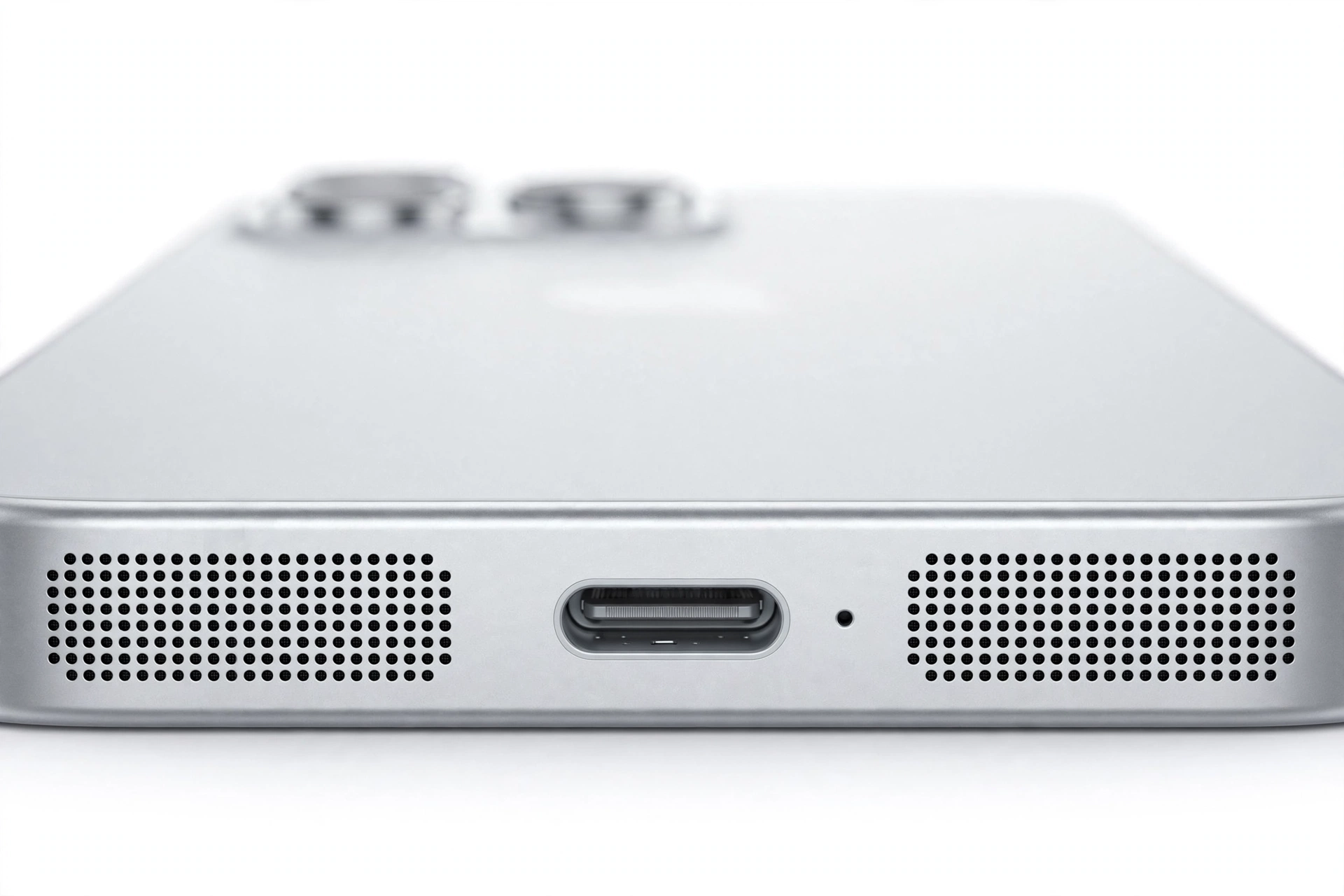
Before changing anything, identify exactly what is broken. itel phones have at least two sound outputs — the earpiece (the small slot at the top you hold to your ear on calls) and the loudspeaker (usually the grille at the bottom edge). Some newer itel models with dual DTS speakers add a second output channel at the top. Run this sixty-second test and note your answers:
- Play a song in your music app with volume at maximum. Do you hear it? From which end of the phone?
- Call a number (a voicemail line works). Hold the phone to your ear — do you hear the other side?
- Switch that call to speakerphone (tap the speaker icon on the call screen). Does the sound change location?
- Plug in wired earphones or a USB-C adapter. Does sound come through them?
The pattern tells you the story:
- Nothing anywhere, but earphones work: the phone thinks audio should go to the speakers but nothing reaches them — settings, routing, or driver issue. This is the most fixable pattern.
- Media plays but calls are silent (or the reverse): Android routes call audio and media audio through separate channels, and updates can change them independently. Check the volume-channel section below.
- Everything is silent including earphones, and the headphone icon is stuck on screen: the phone believes headphones are plugged in even when they are not — skip straight to the headphone-mode section. This is the single most common false “dead speaker” on itel phones.
- One speaker works and the other does not: on dual-DTS itel models, an update can change the stereo sound scene. On single-speaker models, a dead bottom speaker with a live earpiece (or reverse) after an update is unusual and worth testing in safe mode before assuming hardware.
Quick fact: an update cannot physically damage a speaker. Speakers fail physically from water, drops, dust blockage, or age — not from software. If the sound went wrong at the exact moment an update installed, the odds are heavily in favor of a settings, routing, or cache problem.
3. itelOS sound settings: the places an update touches
itel phones run itelOS (recent models run itel OS 13.5) over Android, and itelOS adds its own sound layer on top of Android’s. Updates — both system updates and the app updates that sometimes follow them — can reset any of these. Walk through them in order; most people find their culprit in this section alone.
3.1 The four volume channels
Android does not have one volume knob. It has four: Media (music, video, games), Ring & notification (calls, messages, app alerts), Alarms, and Call (only adjustable during a call). The classic post-update symptom — “ringtones work but YouTube is silent” — is almost always the media channel being muted or turned down while the others are fine.
Check all of them at once: go to Settings > Sound & Vibration and look at every slider. On many itel models you can also press the volume button and tap the ⋯ (three dots) on the volume panel to expand all four channels. Raise each one, then test with a different app than the one that seemed broken.
3.2 Do Not Disturb and silent mode
Updates occasionally flip Do Not Disturb back on with an old schedule, or reset a “scheduled turn on” that silences ringtones at certain hours. Go to Settings > Sound & Vibration > Do Not Disturb and confirm it is off, then tap Schedules and delete or disable any rule you did not set. Also check the quick-settings panel (swipe down from the top) for a bell-with-slash icon.
3.3 DTS sound scenes and sound enhancement
This is the itel-specific check that generic Android guides miss. Many itel models ship with DTS sound and selectable sound scenes — typically Music, Video, Game, and a Smart (automatic) scene — plus a Sound enhancement option for headphones. These are documented itel features (they appear in itel S-series launch materials and in the Sound settings walkthroughs for models like the itel A50).
An update can reset the scene to a preset that sounds thin, quiet, or muffled through the loudspeaker — which feels exactly like a “speaker broken after update” problem. Go to Settings > Sound & Vibration and look for DTS Sound, Sound effects, or Sound enhancement. Try each scene in turn while playing a song: Smart, Music, Video, Game. If one scene sounds normal and the current one does not, the update simply changed your preset — switch it and the “fault” is gone.
Tip: test DTS scenes with the same song each time. Audio memory is short; switching songs between tests makes it impossible to tell whether the scene or the song changed the sound.
3.4 Mono audio and left-right balance
Buried in accessibility settings is a Mono audio toggle and, on some builds, a left-right balance slider. If an update enabled mono audio, stereo content collapses — and on some itel models this makes one speaker channel go nearly silent. Check Settings > Accessibility > Audio (the exact path varies slightly by itelOS version) and confirm mono audio is off and the balance slider is centered.
4. The headphone-mode trap: itel’s number-one false alarm
If the headphone icon is stuck in your status bar with nothing plugged in, the phone is routing all audio to a headphone jack that is empty — so every speaker sounds “dead.” This is one of the most reported audio issues across itel models (it appears repeatedly in itel community repair threads, including for the itel Vision 3), and an update that touches the audio driver can trigger it by misreading the jack sensor.
Work through this in order:
- Plug a pair of wired earphones fully in, then pull them out slowly. Repeat two or three times. This is the fix that works most often — the jack’s internal switch just needs to move.
- If your phone has a USB-C audio adapter instead of a 3.5 mm jack, do the same insert/remove cycle with the adapter.
- Check the jack opening for lint or pocket debris. Do not push anything sharp into it — a soft dry brush or a gentle puff of air from a manual blower is enough. Never use needles, pins, liquids, or canned compressed air near the jack or speaker grille.
- Restart the phone after the icon clears, then test the speaker again.
If the icon refuses to clear after these steps, the jack sensor itself may be faulty — that is a hardware issue for a technician, not a software one. Do not keep stabbing at the jack; you will only damage it.
Quick fact: Bluetooth can cause the same “silent speakers” illusion. Open quick settings and check Bluetooth is actually off — a phone that auto-connects to a car, earbuds, or speaker in another room sends all its audio there and sounds completely dead in your hand.
5. What an update can actually do to your audio
Understanding the mechanism keeps you from trying random fixes. An update can change speaker behavior in five ways, in rough order of likelihood on itel phones:
- Reset settings: volume channels, DTS scenes, Do Not Disturb schedules, and accessibility audio options can all revert to defaults. (Most likely.)
- Re-routed audio: the headphone-jack sensor or Bluetooth stack misbehaves after the driver update, sending sound somewhere it cannot be heard. (Very common.)
- Corrupted audio cache: the system’s audio service or a media app’s cached data is left in an inconsistent state by the update. Clearing cache fixes this without touching your files.
- App incompatibility: one app (often a music, video, or equalizer app) misbehaves under the new system while everything else sounds fine.
- A genuine shipped bug: occasionally an update itself carries an audio regression. These are usually fixed by the next patch — and downgrading unofficially is not the answer (see the warnings below).
Notice what is not on the list: physical damage. Software cannot blow a speaker. Keep that in mind when something tells you to “fix” the speaker with a louder sound file or a booster app — those do nothing for a settings problem and can damage a healthy speaker.
6. The fix ladder: try these in order
Stop at the first step that restores sound. Each step is gentler than the next, and that order matters — especially after an update, where the cause is usually near the top.
Step 1 — Full restart
Hold the power button, choose Restart, and wait for the phone to fully boot. A restart clears the audio service state that an update may have left tangled. Test a song and a ringtone afterward.
Step 2 — Disconnect Bluetooth and re-check the jack
Turn Bluetooth fully off in quick settings. Unplug everything from the headphone jack and USB port. Confirm no headphone icon is showing, then retest. This eliminates every “sound is fine, it’s just going elsewhere” cause in one move.
Step 3 — Walk the sound settings
Go to Settings > Sound & Vibration: raise all four volume channels, turn off Do Not Disturb and its schedules, and cycle the DTS sound scene as described in section 3. Check Settings > Accessibility > Audio for mono audio and balance. This single pass resolves the majority of post-update speaker complaints on itel phones.
Step 4 — Safe mode test
If only some apps are silent, a third-party app may be holding the audio session. Boot into safe mode (on most itel models: long-press Power off on the power menu until Safe mode appears, then tap it). In safe mode only system apps run — if sound works normally there, an app you installed is the culprit. Restart normally, then uninstall or update recently added audio, equalizer, or “booster” apps one at a time until the problem stops.
Step 5 — Clear the audio and media caches
Updates can leave stale audio-service data behind. Go to Settings > App management > App list, find the media apps that are silent (and any equalizer or sound-enhancement app), and tap Storage > Clear cache on each. This deletes no music, photos, or personal data — only temporary files the apps will rebuild.
Step 6 — Check app permissions
Updates can revoke permissions that audio apps relied on. In Settings > App management > App list, open the silent app, tap Permissions, and make sure microphone and any audio-related permissions it needs are allowed. (Yes, some apps need microphone permission to play or record audio correctly after an update.)
Step 7 — Install the next update
Go to Settings > System > System update and check for a newer version. If your speaker problem was caused by a genuine bug in the update you installed, the manufacturer’s follow-up patch is the legitimate fix. Check twice over the following weeks if the problem is intermittent.
Step 8 — Reset all settings (data stays)
If nothing above worked, reset the settings layer without touching your files: Settings > System > Reset > Reset all settings (on some itelOS versions the path is Settings > System > Reset options > Reset all settings). This returns sound, network, and display settings to defaults while keeping your photos, apps, and accounts. This is the step Carlcare — the official service partner for Transsion brands including itel — lists for persistent software-caused audio issues.
Step 9 — Factory reset (last resort, back up first)
Only if every step above failed and safe mode did not isolate an app: Settings > System > Reset > Factory data reset. This erases everything — back up your photos, contacts, and files to Google or a computer first. Note the honest limit: a factory reset reinstalls the same software version, so if the update itself carries the audio bug, the reset will not fix it either. Test the speaker on the fresh setup before restoring your backup — if it still fails there, you have proven it is hardware.
Stop for safety: never factory-reset a phone as a first step for a speaker problem. It is the most destructive and least targeted fix on this list, and it cannot help a settings or routing issue any better than the gentler steps above.
7. Symptom → likely cause → fix (quick reference)
| Symptom | Most likely cause | First fix to try |
|---|---|---|
| No sound from any speaker, earphones work | Muted media channel or DTS scene reset | Settings > Sound & Vibration — raise all sliders, cycle DTS scene |
| Headphone icon stuck on screen | Jack sensor misread after driver update | Plug/unplug earphones 2–3 times; clean jack gently |
| Ringtones work, music and video silent | Media volume channel muted independently | Expand volume panel (⋯) and raise the Media slider |
| Calls silent, media fine | Call channel low, or earpiece issue | Raise volume during a call; test speakerphone toggle |
| Only one app is silent | App cache or permission changed by update | Clear that app’s cache; check its permissions |
| Sound thin, quiet, or distorted since update | DTS scene or sound enhancement preset changed | Try each DTS scene with the same test song |
| Silence in a silent room but fine near a car or earbuds | Auto-connected Bluetooth device | Turn Bluetooth fully off and retest |
| Buzzing or crackling from the speaker | Software glitch, or debris in grille | Restart; test in safe mode; inspect grille (no sharp tools) |
| Everything silent including earphones | System audio service fault or deeper software issue | Restart → reset all settings → consider factory reset |
| Speaker worked after restart, fails again later | Rogue app grabbing the audio session | Safe mode test; remove recent audio/equalizer apps |
8. The “cover test” and other physical checks
If software steps have not helped, rule out the physical before assuming a dead speaker. Play a steady tone or song at medium volume and gently cover the bottom speaker grille with your fingertip — you should feel faint vibration on a working speaker. Compare with the earpiece during a call. Then inspect the grille openings under a bright light for dust, pocket lint, or case blockage. Remove any case and retest — some third-party cases cover the microphone or speaker holes after a phone is handled during an update-day backup.
Do not poke anything into the grille. Speaker meshes tear easily, and a torn mesh lets dust straight onto the speaker cone, which is a genuine path to permanent damage. A soft dry brush across the outside is the most aggressive cleaning a speaker grille should ever get.
9. When it is genuinely hardware
Consider hardware — and a professional assessment — when: the speaker fails the fresh-setup test after a factory reset; the headphone icon never clears despite repeated plug cycles and a clean jack; there is no vibration at all from the grille at maximum volume; or the problem began with a drop, water exposure, or visible damage rather than an update. Buzzing that persists in safe mode after a restart also leans hardware.
One itel-relevant hardware note from community repair reports: on models where the headphone socket sits on the charging sub-board, a failed socket can hold the phone permanently in headphone mode, and the board-level fix is a technician job — not something to attempt at home. Never open the phone yourself: glued assemblies and the battery sitting directly under the back cover make DIY opening a puncture and fire risk.
Stop for safety: never charge a phone that is swollen, distorted, or dangerously hot, and never try to “fix” a silent speaker by playing maximum-volume test tones for long periods — sustained full-volume output can damage a healthy speaker.
10. Hypothetical examples
(The following are hypothetical illustrations, not customer stories.)
Amara’s headphone ghost. Amara updated her itel A-series phone overnight. In the morning, no ringtone, no music, no call audio — but her Bluetooth earbuds played fine. The headphone icon sat in the status bar. She plugged her old wired earphones in and out three times; on the third removal the icon vanished and the speaker burst back to life. The update had left the jack sensor in a confused state; the fix took two minutes and changed nothing else.
Devon’s quiet update. After a system update, Devon’s itel S-series phone sounded “like it was playing from inside a box.” Everything technically worked — just thin and weak. He found the DTS sound scene had reset to a preset meant for calls. Switching it back to the Smart scene while playing the same song restored the full sound instantly.
Priya’s one-app mystery. Priya’s speaker worked for calls and ringtones after an update but her music app was completely silent. Clearing that app’s cache did nothing; the safe-mode test showed system sounds were fine. She uninstalled a “volume booster” app she had added months earlier — the update had broken its compatibility and it was muting the music channel. The speaker was never the problem.
11. What your tests can and cannot prove
| Observation | What it establishes | What it does not establish |
|---|---|---|
| Sound returns after a restart | The cause was software state (audio service or routing) | That it will not recur — watch for a pattern |
| Earphones work, speakers do not | The audio pipeline is alive; output is misrouted or muted | That the speaker is broken — this pattern is usually settings |
| Safe mode restores sound | A third-party app is interfering | Which app — remove recent audio apps one at a time |
| Headphone icon stuck with empty jack | Audio is routed to a phantom headphone connection | That the speaker failed — fix the routing first |
| Speaker still dead after factory reset | The cause is almost certainly hardware | Which component — that needs a technician’s diagnosis |
| Buzzing in safe mode too | Not caused by a third-party app | Hardware vs. system software — keep testing |
12. Related itel and speaker guides
Speaker problems after updates follow the same diagnostic logic across brands, but the settings paths differ. These companion guides cover the same problem on other phones and the brand-agnostic version of this fix:
- Phone Speaker Not Working After Update: Causes and Safe Fixes — the general guide this itel edition builds on.
- Infinix Phone Speaker Not Working After Update: Causes and Safe Fixes — itel’s Transsion sibling, with XOS-specific paths including DTS presets.
- Vivo Phone Speaker Not Working After Update: Causes and Safe Fixes — Funtouch OS / OriginOS audio settings and Vivo’s official fix order.
13. Frequently asked questions
Can a software update really break my itel speaker?
It cannot physically damage the speaker, but it can absolutely make it seem broken: resetting volume channels, changing the DTS sound scene, misreading the headphone jack, or leaving the audio service in a bad state. All of these are reversible with the steps above — no repair needed.
Why does my itel show a headphone icon with nothing plugged in?
The headphone jack’s sensor is misreporting — sometimes triggered by an audio-driver update. Plug earphones in and out a few times to reset the switch, and check the jack for lint. If the icon never clears, the socket itself may need professional attention.
My ringtones work but music apps are silent. Is the speaker dying?
No — this is the classic split-volume-channel pattern. Android keeps separate volume levels for ringtones and media, and updates can change them independently. Expand the volume panel and raise the media slider.
Where is the DTS sound setting on my itel?
On models that have it: Settings > Sound & Vibration, listed as DTS Sound, Sound effects, or Sound enhancement. Try each scene (Smart, Music, Video, Game) with the same test song and keep the one that sounds right.
Should I install a “speaker cleaner” or “volume booster” app?
No. These apps cannot fix a settings or routing problem, some of them cause the exact symptoms described here by grabbing the audio session, and sustained maximum-volume playback can damage a healthy speaker. Fix the settings; skip the apps.
Will a factory reset fix a speaker problem caused by an update?
Sometimes, but it is the last resort for a reason: it erases everything, and if the update itself carries the audio bug, the reset reinstalls the same buggy software. Work through the gentler steps first, and test the speaker on the fresh setup before restoring your backup.
The speaker buzzes since the update. Hardware or software?
Test in safe mode after a restart. If the buzzing stops in safe mode, an app is responsible. If it buzzes in safe mode too, check the grille for debris — and if it is clean, treat it as a possible hardware issue and get an assessment rather than keep troubleshooting software.
When should I take the phone to a repair shop?
When the speaker still fails after a factory reset on a fresh setup, when the headphone icon never clears, when there is no vibration from the grille at maximum volume, or when the problem started with a drop or water exposure. A professional assessment beats further DIY steps at that point. In Las Vegas, Las Vegas Phone Repair & Accessories at 7400 Las Vegas Blvd S, Unit TT42, Las Vegas, NV 89123 — (424) 406-6202, open 10 AM to 8 PM (call ahead to confirm today’s hours) — can assess speaker issues in person.
Video: How to tell if your smartphone is fake or real

Sources and editorial notes
- Carlcare — Fix Tecno, Infinix, and itel Phone Camera and Buzzing Sounds — official service-partner guidance for Transsion brands: restart, safe mode, settings reset paths (Settings > System > Reset), and software-update checks. Summarized; last checked October 14, 2026.
- SlashGear — Android Phone Speaker Not Working? Here’s How To Fix It — independent walkthrough: volume channels, cache clearing, updates, and factory-reset-as-last-resort ordering. Summarized; last checked October 14, 2026.
- iFixit Answers — Audio redirects to Earphones yet none plugged in (itel Vision 3) — community-verified headphone-mode diagnosis: plug/unplug cycles and jack-socket hardware notes. Summarized; last checked October 14, 2026.
- Digital Terminal — itel S24 with Dual DTS Speakers — launch reporting documenting itel’s DTS speaker hardware and customizable sound scenes (Music, Video, Game, Smart). Summarized; last checked October 14, 2026.
- MyTour — Activate Enhanced Sound for Headphones on itel S31 — documents itel’s sound-enhancement setting location in sound settings. Summarized; last checked October 14, 2026.
Last source check: October 14, 2026. AI-assisted editorial guide, checked against the linked manufacturer and independent information above. itelOS menu paths reflect documented settings locations; exact wording may vary slightly between itelOS versions. Speaker symptoms that persist after a factory reset on a fresh setup indicate a hardware fault and need professional diagnosis — this guide does not attempt hardware repair.
Let’s get you connected again.
Tell us what’s happening with your device and we’ll help you decide the safest next step — no jargon, no pressure.
Las Vegas Phone Repair & Accessories · 7400 Las Vegas Blvd S, Unit TT42, Las Vegas, NV 89123
10:00 AM–8:00 PM — call ahead to confirm today’s hours