
Phone Screen Burn-In: Causes, Prevention and What to Do
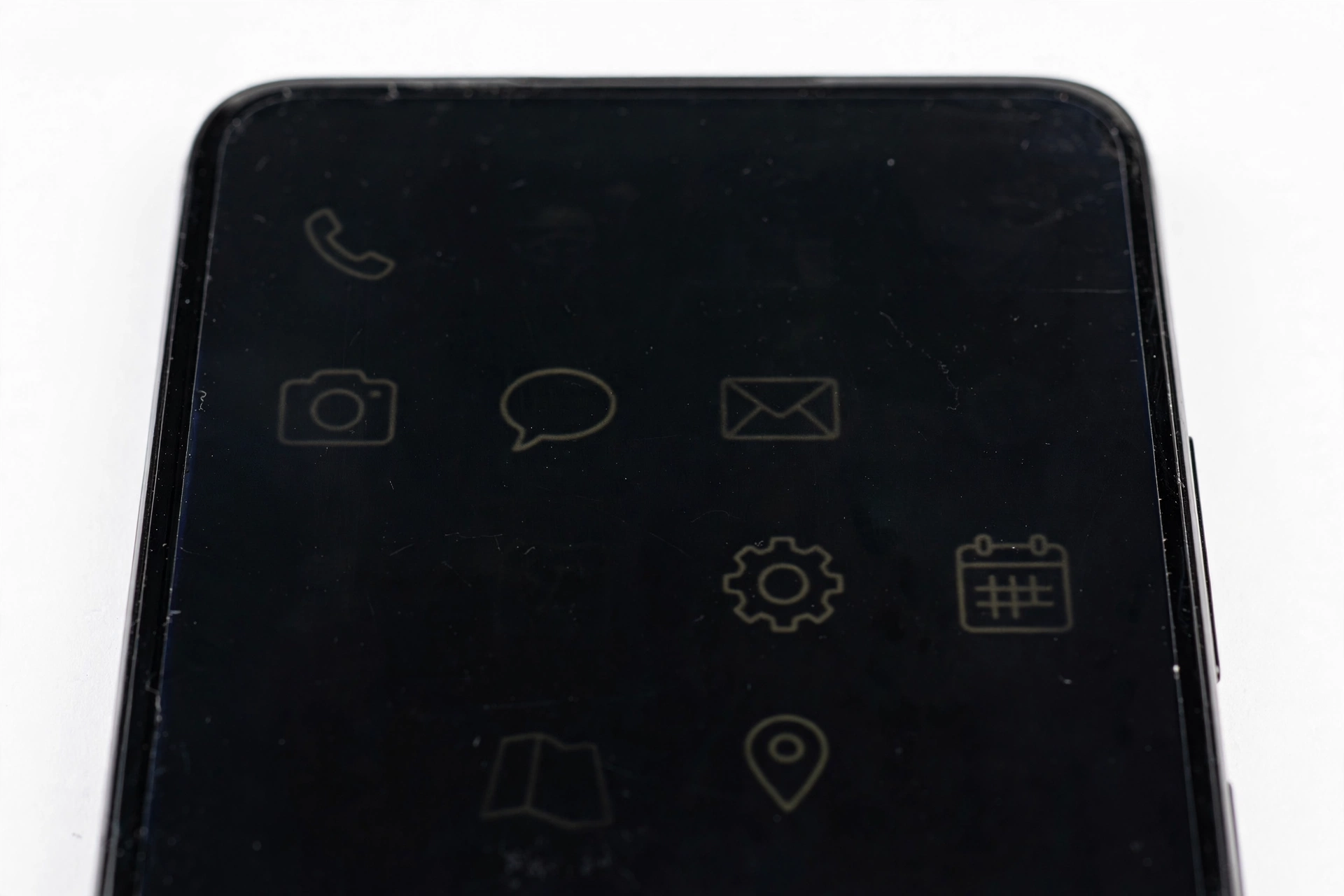
Burn-in is a permanent faint ghost image on an OLED screen, caused by uneven pixel aging when the same static, high-contrast image stays on screen for very long periods. It cannot be fixed by software or settings — but it is largely preventable with a few simple habits.
On this page
Burn-in is a permanent faint ghost image on an OLED screen, caused by uneven pixel aging when the same static, high-contrast image stays on screen for very long periods.
1. Who this guide helps
This guide is for anyone who has noticed — or worries about — a faint permanent image on their phone’s screen: a shadowy navigation bar, a faded keyboard outline, or the ghost of a game HUD visible on every screen. It explains what burn-in is, which phones are vulnerable, what manufacturers do to reduce it, how to check whether what you see is really burn-in, and the habits that genuinely prevent it. (Source: cttsonline.com)
Quick fact: Burn-in is different from the color problems covered in our guide to phone screen color distortion. Color distortion — yellow tint, wrong colors, washed-out display — is usually a settings issue you can fix. Burn-in is physical wear on the screen itself. If your colors are simply off, read that guide first; what follows here is about ghost images, not bad colors.
2. What screen burn-in actually is
Modern phones with OLED displays (including Apple’s Super Retina displays and Samsung’s AMOLED screens) light up every pixel individually. Each pixel is a tiny organic LED that produces its own light. These organic materials age: the longer and brighter a pixel shines, the more it degrades, and the dimmer it becomes over time.
Burn-in happens when some pixels age faster than others. A status bar that sits at full brightness in the same place for thousands of hours will wear its pixels down more than the pixels in the middle of the screen, which constantly change. Over time, that difference in wear becomes visible as a faint, permanent “ghost” of the static image — visible especially on solid-color backgrounds.
Quick fact: Blue sub-pixels degrade fastest of the three colors, which is one reason burn-in often looks slightly greenish or reddish in ghost images. Display manufacturers have engineered countermeasures (Samsung Display uses larger blue sub-pixels and compensation circuits in its panels), but the underlying physics cannot be engineered away entirely.
3. What burn-in looks like — and what it doesn’t
Real burn-in has a specific signature: a faint but persistent copy of something that used to be static on your screen, visible on top of everything else you display. Common examples include:
- Navigation ghosts: the faint outline of back/home buttons, a navigation bar, or an app dock
- Status bar shadows: clock digits, battery icon, or signal bars visible in light areas
- Keyboard ghosts: a faint grid from typing apps used heavily in landscape
- Game and app HUD ghosts: health bars, chat boxes, or channel logos from apps used for hours daily
It is most visible on solid gray or white backgrounds at medium brightness — try opening a plain gray image full-screen. If the ghost shows on gray but not in a screenshot of the same screen viewed on another device, it is the display, not the content.
Not burn-in: temporary image retention
Sometimes a faint remnant of an image lingers briefly and then fades after minutes of normal use. Manufacturers describe this as “image persistence” — a temporary effect that is normal OLED behavior and resolves on its own with regular use. True burn-in does not fade; that is the key difference. If the ghost disappears after you use the phone normally for a while, it was temporary retention, not burn-in.
Not burn-in: color and brightness issues
Yellow tint, blue shift when viewed at an angle, dimming in bright rooms, flickering, or a green line are separate issues with separate causes and fixes. Apple’s own support guidance notes that slight color and hue shifts when viewed off-angle are normal OLED characteristics, not defects — and our sibling guides cover auto-brightness problems, color distortion, and the Samsung green line separately.
4. Which phones can get burn-in: OLED vs. LCD
Burn-in is an OLED phenomenon. If your phone has an OLED display — iPhone X and later Pro models, most Samsung Galaxy phones, Google Pixel, Motorola, OnePlus, Realme, Xiaomi flagships — it is technically susceptible, though modern panels and software mitigations make it far less common than it was a decade ago.
Phones with LCD screens do not suffer true burn-in the same way, because LCD pixels don’t emit their own light. An LCD can occasionally show temporary image persistence, but it typically clears on its own. If you are unsure which type you have, check the manufacturer’s spec sheet for your exact model.
Tip: Always-on displays, long GPS sessions, and games with fixed HUDs are the three everyday situations most likely to keep identical bright pixels lit for hours. Everything else in daily life — scrolling, switching apps, watching video — constantly changes the picture and wears pixels evenly.
5. The habits and situations that cause burn-in
Burn-in is cumulative: it is the total hours of static, bright content that matters, not one afternoon. The worst combination is high brightness plus unchanging high-contrast content plus long duration. Typical real-world contributors include:
- Maximum brightness habits: driving an OLED at full brightness outdoors for long stretches ages pixels fastest; brightness is the single biggest accelerator
- Static navigation bars: older Android versions with permanent three-button navigation bars aged the bottom pixels unevenly — one reason modern phones default to gesture navigation
- Navigation and rideshare apps: hours of GPS with fixed bright route lines, turn arrows, and status bars
- Gaming: daily hours with fixed HUDs, score counters, and chat windows
- Video and streaming apps: fixed player controls and channel logos at full brightness
- Always-on display faces: clock and notification text sitting in the same spot overnight, every night
- Retail and kiosk phones: demo units that run the same looping bright content for months — the classic extreme case, and not representative of normal use
- Long photo and map editing sessions: static toolbars at high brightness for hours
6. What Apple and Samsung do about it automatically
You are not fighting this alone: manufacturers build burn-in countermeasures into the software, and on modern phones most of them work silently in the background.
Apple’s approach
Apple’s support guidance acknowledges that with extended long-term use, OLED displays can show slight visual changes including image persistence or burn-in in extreme cases — and says it has engineered its Super Retina displays specifically to reduce those effects. Apple’s practical advice is the same as this guide’s: keep brightness reasonable (use Auto-Brightness), and let the screen turn off when you’re not using it (short Auto-Lock). Modern iOS also includes display-management features that aim to minimize long-term wear and extend the life of the display.
Samsung’s approach
Samsung has used pixel-shifting for years: static interface elements like the status bar and navigation bar subtly move by a few pixels every so often, too little for you to notice but enough to distribute pixel wear evenly. (The virtual home button on early all-screen Galaxy phones used the same trick.) Samsung’s One UI updates continue to include these protections — when burn-in protection briefly went missing from an update cycle, Samsung restored it in the following release after users noticed status-bar icons were no longer shifting.
Quick fact: These built-in protections work best when your software is up to date. If you’ve been putting off a system update for a year, you may be missing the display-wear mitigations the manufacturer added since.
7. How to check whether you actually have burn-in
Before assuming the worst, confirm it with the simple two-step test:
- The solid-gray test: in a dim room, set brightness to about 50%, open a full-screen plain gray (or white) image or a solid-color test page, and look for a faint ghost of navigation bars, clocks, or app outlines.
- The screenshot test: take a screenshot of the same view and look at it on another device. A screenshot captures the image data, not the physical screen — so if the ghost appears in the gray image but not in the screenshot, it is the display (burn-in). If it appears in the screenshot too, it is content, not the screen.
If you see a faint remnant that fades after minutes of normal scrolling and use, that is temporary image persistence — normal OLED behavior, not damage. If it stays identical day after day, that is burn-in.
| What you see | Likely cause | What it means |
|---|---|---|
| Faint ghost that fades after normal use | Temporary image retention | Normal OLED behavior; no action needed |
| Faint ghost visible daily on gray/white screens | True burn-in | Permanent physical wear; prevention is the fix |
| Ghost appears in screenshots too | Content or app UI element | Not the display; check the app or image |
| Yellow tint or wrong colors everywhere | Display settings (Night Shift, True Tone) | Settings issue — see the color distortion guide |
| Green line or flickering bands | Panel or connector fault | Hardware fault — see the green line guide |
8. Can burn-in be fixed? An honest answer
This is the section scammy apps and clickbait videos get wrong, so here is the plain truth: true burn-in cannot be undone by software. It is physical degradation of the light-emitting material in specific pixels. No settings change, display mode, “pixel refresher” video, or app can regrow worn-out organic pixels.
What is real: temporary image persistence can fade with normal varied use over hours or days. Some “burn-in fixer” videos show solid colors cycling, and occasionally an image-retention ghost that was going to fade anyway gets credited to the video. That is not evidence it reverses actual burn-in.
Stop for safety: Do not pay for apps or services that promise to “fix” or “erase” burn-in. At best they waste your money; at worst they instruct you to run maximum-brightness static content for hours, which is exactly the habit that causes more wear. If someone claims a software fix for burn-in, they are selling you something that physics doesn’t allow.
| Claim | Verdict | Why |
|---|---|---|
| Auto-brightness and reasonable brightness levels | Helps (prevention) | Lower current = slower pixel aging; Apple’s own guidance |
| Short screen timeout (Auto-Lock) | Helps (prevention) | Fewer hours of static content = less uneven wear |
| Dark mode and dark wallpapers | Helps (prevention) | Fewer pixels lit at full power, less differential aging |
| Varying content; avoiding hours of static HUDs | Helps (prevention) | Even wear across the panel |
| System updates with pixel-shifting protections | Helps (prevention) | Manufacturer wear-leveling runs automatically |
| “Pixel refresher” videos and burn-in-fixer apps | Does not reverse burn-in | Cannot regenerate degraded organic material; may add wear |
| Factory reset | Does not help | The wear is in the hardware, not the software — and it erases your data |
| Third-party screen “calibration” tools | Does not help | They adjust color output, not physical pixel wear |
9. Prevention: the ten habits that actually work
If your screen is healthy, these habits keep it that way. None require giving anything up — they are small adjustments, not sacrifices:
- Use Auto-Brightness. It is the single highest-impact habit. Apple’s guidance on its OLED displays specifically recommends it, and our auto-brightness guide covers what to do if it misbehaves. Avoid running at maximum brightness for long periods.
- Keep a short screen timeout. Thirty seconds to one minute means the screen is never glowing statically on a table while you do something else.
- Use Dark Mode. On OLED, dark pixels are dim or off — dramatically reducing wear across the interface.
- Hide static navigation elements. Use gesture navigation instead of three-button bars, and use immersive or full-screen modes in apps where available so static bars disappear.
- Vary your wallpaper and home screen. A static bright wallpaper with fixed widget positions ages the same pixels daily; rotate them.
- Use dark keyboards and themes in apps you type in for hours, to protect the lower half of the display.
- Be deliberate with GPS and gaming sessions. For very long drives or gaming marathons, lower brightness a notch, and take the phone out of full-screen static modes during breaks.
- Let the screen sleep overnight. If you charge beside the bed, face-down or scheduled Do Not Disturb with the screen off beats an always-lit clock — or use an always-on display designed with pixel shifting.
- Keep software updated. Display-wear mitigations ship in system updates; staying current keeps pixel-shifting and related protections active.
- Know your panel type. If you bought a phone with an LCD specifically because you run static content all day (point-of-sale, dashboards), that choice itself was good burn-in avoidance.
10. Burn-in on the status bar, keyboard, and always-on display
Three zones deserve special attention because they are the most static parts of the interface:
- Status bar: clock, battery, and signal icons barely move. Modern systems subtly shift them (Samsung) or reduce their brightness; dark mode and short timeouts do the rest.
- Keyboard area: heavy landscape typing wears a faint grid. Dark keyboard themes are the simple countermeasure.
- Always-on display: these are designed with burn-in in mind — clocks typically shift position periodically and render at low brightness. They are far less risky than they look, but a third-party always-on app with a fixed bright logo is a different story.
11. Should you worry about a new phone?
For typical use, no. Modern OLED panels and software mitigations mean burn-in in normal daily use takes years of heavy static-content habits to become visible — well past most people’s upgrade cycles. The realistic risk profile:
- Typical user (varied apps, auto-brightness, screen sleeps normally): very low risk over 3–4 years.
- Heavy static-content user (hours of GPS daily at max brightness, all-day kiosk-style display, fixed-HUD gaming marathons): meaningful risk over 1–2 years; the prevention habits in section 9 matter most here.
- Retail/demo units: the extreme case; irrelevant to how you use your own phone.
Buying used or refurbished is the other scenario where burn-in matters: a two-year-old phone that lived as a delivery driver’s GPS terminal may carry ghosts invisible in the seller’s photos. Run the solid-gray test from section 7 before you buy.
12. When the only fix is a new screen
If you have confirmed true burn-in and it bothers you in daily use, the only remedy is replacing the display panel — the worn pixels are part of the hardware. That is a repair decision, not a settings decision:
- Assessment first: a technician can confirm the ghosting is burn-in rather than a failing panel or connector issue, which matters because the repair path differs.
- Warranty reality: manufacturers generally treat gradual wear as expected behavior rather than a defect, so burn-in coverage under standard warranty is unlikely — ask before assuming.
- Panel quality: replacement panels vary in quality; the same wear protections depend on panel engineering, which is worth discussing with the repair shop.
- Cost judgment: on an older phone, the repair may cost more than the phone’s remaining value makes sensible — compare honestly before committing.
Stop for safety: If the screen issue comes with a swollen, distorted, or unusually hot device — the back separating, the screen bulging, or heat you can feel through a case — stop using it and do not charge it. That combination points to a battery problem, which is a safety issue, not a display issue. Never open the device yourself; get a professional assessment.
13. Hypothetical examples
(The following are hypothetical illustrations, not customer stories.)
Hypothetical example: The rideshare driver’s status bar
Imagine Daniel, who drives for a rideshare app six days a week. His phone runs navigation at high brightness for eight hours a day, with the same bright status bar and route line. After eighteen months, he notices a faint clock and battery ghost on every photo he takes. Daniel’s case shows the classic burn-in pattern: identical bright static content, long daily duration, high brightness. Lowering brightness one notch and using dark mode for the navigation app would have meaningfully slowed it — but now that the ghost is permanent, his options are living with it or replacing the panel.
Hypothetical example: The worried upgrader
Imagine Maya, who reads scary forum threads about burn-in and considers avoiding OLED phones entirely. Her actual use: social apps, messaging, photos, videos, screen sleeps after a minute, auto-brightness on. Maya is a typical user — her panel will wear evenly for years, and the software mitigations do the rest. For her, burn-in is a non-issue; the prevention habits are one-minute setup choices, not lifestyle changes.
14. Frequently asked questions
Is screen burn-in permanent?
True burn-in — a ghost image that stays identical day after day — is permanent physical wear of the OLED pixels and cannot be reversed by software, settings, or apps. Temporary image retention, which fades with normal use, is not burn-in and needs no fix.
Can a screen protector prevent burn-in?
No. Screen protectors guard against scratches, not pixel aging. Burn-in prevention comes from brightness habits, screen timeout, dark mode, and varied content.
Does dark mode really help?
Yes, meaningfully. On OLED displays, dark pixels are dim or completely off, so dark mode reduces the total light output — and the differential wear between interface regions — across everything you do.
Will my phone get burn-in within a year?
With typical varied use, auto-brightness, and normal screen timeouts, no — modern OLED panels are engineered to last years under normal use. Visible burn-in within a year usually involves extreme static-content habits (max brightness, hours of fixed HUDs daily) or a demo/kiosk history.
Are “burn-in fixer” apps and videos legitimate?
No. They cannot regenerate worn pixel material. At best they do nothing; at worst, running maximum-brightness cycling content for hours adds more wear. Save your money and your pixels.
Does a factory reset fix burn-in?
No — and do not erase your phone for this. The wear is in the display hardware, not the software, so a reset changes nothing except deleting your data.
Is burn-in covered by warranty?
Usually not. Manufacturers generally describe gradual OLED wear as expected long-term behavior rather than a manufacturing defect. Policies vary by brand and region, so check the manufacturer’s current warranty terms rather than assuming.
My ghost appeared suddenly after a drop — is that burn-in?
Sudden display problems after a drop are almost never burn-in, which develops gradually over months. A drop is more likely to cause panel or connector damage — lines, dead zones, or flickering — which needs a professional assessment, especially with our green line guide as a reference for sudden-onset faults.
Video: How to tell if your smartphone is fake or real
Sources and editorial notes
- CTTS — iPhone X burn-in support document summary: quotes Apple’s Super Retina display support documentation on off-angle color shifts being normal OLED behavior, image persistence/burn-in as expected long-term behavior in extreme cases, and Apple’s engineering to reduce burn-in effects. (Last checked October 14, 2026.)
- ZDNet — Apple on Super Retina burn-in: corroborates Apple’s position that its display engineering reduces but does not eliminate burn-in, plus Apple’s recommendations for Auto-Brightness and short Auto-Lock. (Last checked October 14, 2026.)
- Android Authority — One UI 6.1 burn-in prevention: Samsung’s pixel-shifting burn-in protection for status bar and navigation bar icons, and its restoration in One UI 6.1. (Last checked October 14, 2026.)
- SamMobile — Samsung restores OLED burn-in protection: corroboration of the One UI 6.1 return of burn-in protection and how the subtle shifting works. (Last checked October 14, 2026.)
- Samsung Members Community — AMOLED burn-in tips: community guidance on brightness, screen-off timer, dark mode, immersive mode, dark wallpapers and keyboards, and gesture navigation to reduce wear. (Last checked October 14, 2026.)
- PatSnap Eureka — AMOLED burn-in prevention technologies: summary of panel-level engineering including pixel-structure and compensation-circuit approaches used by display manufacturers. (Last checked October 14, 2026.)
Last source check: October 14, 2026. AI-assisted editorial guide, checked against the linked manufacturer information and press reporting. Manufacturer guidance is summarized in original language, not copied. Burn-in behavior and software protections can change with new display hardware and software updates — if a setting differs on your phone, check the manufacturer’s current support pages. If your phone needs hands-on assessment, Las Vegas Phone Repair & Accessories is at 7400 Las Vegas Blvd S, Unit TT42, Las Vegas, NV 89123 — call (424) 406-6202 ahead to confirm today’s hours (generally 10:00 AM–8:00 PM).
Let’s get you connected again.
Tell us what’s happening with your device and we’ll help you decide the safest next step — no jargon, no pressure.
Las Vegas Phone Repair & Accessories · 7400 Las Vegas Blvd S, Unit TT42, Las Vegas, NV 89123
10:00 AM–8:00 PM — call ahead to confirm today’s hours