
Samsung Phone Microphone Not Working After Update: Causes and Safe Fixes
If your Samsung phone’s microphone stopped working right after a software update, the most likely cause is a software problem, not broken hardware — a reset permission, a stuck Bluetooth audio route, or corrupted mic-service data from the update process. Test with Voice Recorder first: if your recording plays back clearly, the hardware is fine and the fix is in settings, permissions, or a follow-up update.
On this page
If your Samsung phone’s microphone stopped working right after a software update, the most likely cause is a software problem, not broken hardware — a reset permission, a stuck Bluetooth audio route, or corrupted mic-service data from the update process.
1. Who this guide helps
This guide is for Samsung Galaxy phone owners — Galaxy S, Z Fold, Z Flip, and A series — whose microphone started misbehaving immediately or shortly after installing a software update, including One UI version upgrades. Typical symptoms include: callers cannot hear you, voice recordings come out silent or garbled, Bixby or Google Assistant no longer responds to voice, voice-to-text stops working, or videos record without sound. (Source: samsung.com)
If your microphone problem started at a time not connected to an update, the companion guide at phone microphone not working after update covers the general topic, and the iPhone-specific version is at iPhone microphone not working after update. This article focuses on Samsung-specific causes, Samsung’s own diagnostic tools, and the settings paths that updates most often disturb on Galaxy phones. (If the problem is with the speaker rather than the mic, see Samsung phone speaker not working after update.)
Quick fact: Most Samsung Galaxy phones have two or more microphones — a primary bottom mic for calls and at least one secondary mic used for noise cancellation and video recording. After an update, software issues can affect one or all of them, while hardware failures rarely arrive on the same schedule as an update. That timing is your best clue: a mic that worked yesterday and failed today after an update is almost certainly a software problem.
2. Why an update can break the microphone (but not the mic itself)
An important honest framing, repeated because it matters: a software update cannot physically damage your microphone. The tiny microphone components — the bottom pinhole mic, the secondary noise-cancellation mics — are hardware. An update can, however, disrupt everything around them. Understanding the five genuine mechanisms helps you pick the right fix instead of trying things at random.
2.1 Mechanism 1: Permissions get reset or revoked
After system updates, permissions are sometimes reset automatically. The Voice Recorder troubleshooting community has documented that microphone permission, background activity permission, and storage permission can silently change after updates. If an app that used the mic before the update suddenly cannot record, the update likely reset its permission. Samsung also has a system-wide switch — Settings > Privacy > Microphone access — that, if toggled off, blocks the microphone for every app at once.
2.2 Mechanism 2: Bluetooth audio routes get stuck or re-paired
When a Bluetooth audio device is connected, your phone may route the microphone to that device instead of using the phone’s own mic. Samsung’s support documentation explicitly warns about this: if you have earbuds or a headset connected, the phone uses the accessory’s microphone, not the phone’s. After an update, a paired accessory can reconnect unexpectedly, or the phone’s routing logic can stick — so your calls seem mic-less while the audio is actually being sent to forgotten earbuds in your bag.
2.3 Mechanism 3: Corrupted mic-service or audio-app data
The update process can corrupt cached data in the audio pipeline apps — Samsung’s support community documents clearing data for system apps like Sound Picker, Sound Alive, and Adapt Sound as a microphone fix. These apps participate in audio processing; stale data after an update can produce silence or distortion without any visible error.
2.4 Mechanism 4: A third-party app conflict revealed by the update
An update can change the rules a background app was relying on, or make two apps fight over the microphone at once. A call-recording app, a battery-saver, an antivirus with mic-blocking features, or a voice assistant can suddenly conflict after an update even though it worked fine before. Safe Mode exists precisely to separate this case from a system problem.
2.5 Mechanism 5: A genuine shipped bug in the update
Occasionally the update itself contains a microphone bug affecting many users. This is the least common case but it happens — and when it does, individual settings changes will not fix it; only a follow-up patch will. Knowing how to distinguish this case saves you from factory-resetting a phone that only needs patience.
3. Which microphone is failing: the three-mic map
Your Samsung phone uses different microphones for different jobs. Knowing which mic serves which function tells you whether you have a total failure or a single-mic problem — and that narrows the cause dramatically.
| Microphone | Location (typical) | Used for | Quick test |
|---|---|---|---|
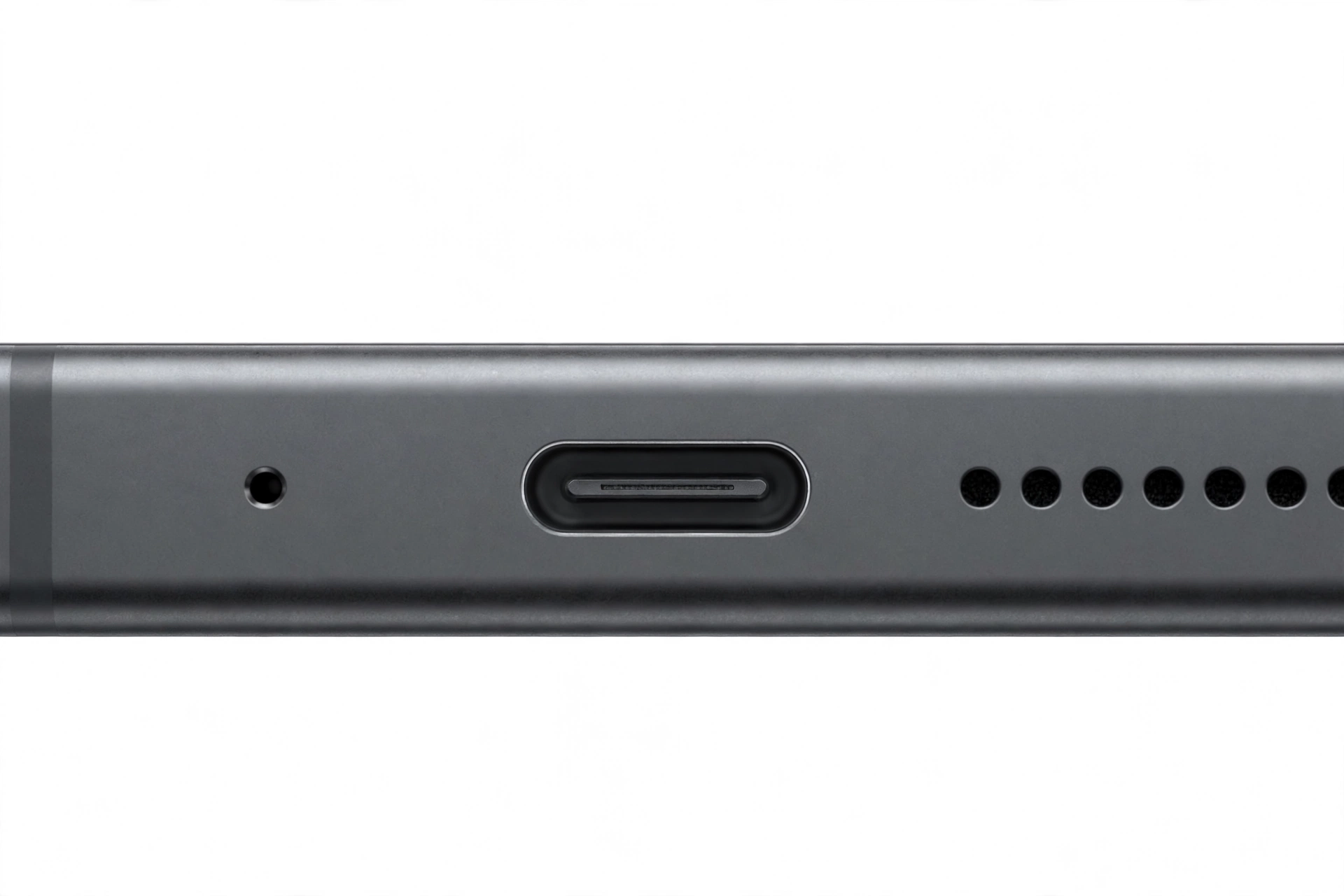
| Primary (bottom) | Bottom edge, near the USB-C port | Phone calls, Voice Recorder, voice notes | Voice Recorder: record and play back |
| Front | Near the selfie camera / earpiece area | Video calls, some voice-assistant input | Record a front-camera video while talking |
| Rear | Near the rear camera array | Video recording audio, noise cancellation | Record a rear-camera video while talking |
Run all three tests before changing anything. The pattern tells a story:
- Voice Recorder fails but calls work: app permission or app-specific problem, not a broken mic.
- Calls fail but Voice Recorder works: routing problem — Bluetooth, network feature, or call-audio routing — the mic hardware is fine.
- Rear-camera video has no audio but everything else works: rear mic path problem; check for obstructions near the camera array.
- Nothing records or transmits anything: system-wide issue — check the Privacy mic-access switch, Safe Mode, then resets.
Tip: Never push a pin, needle, or SIM ejector into a microphone opening. The openings are small, the mic components sit right behind them, and poking can destroy a working microphone. If you suspect debris, use a soft dry brush or gently blow across the opening — never into it with compressed air held close.
4. The two-minute triage: prove what kind of problem you have
Do these three tests in order, before changing any setting. They take two minutes and they prevent most wasted troubleshooting.
4.1 Test 1: Voice Recorder (the hardware truth test)
Samsung’s own support teams use this as the first diagnostic, and you should too:
- Open the app drawer and tap the Samsung folder, then Voice Recorder.
- Tap the record button and speak normally for 10–15 seconds.
- Tap stop, save, then play the recording back.
If your voice plays back clearly, your primary microphone hardware is working. Any problem elsewhere — calls, apps, assistants — is a routing, permission, or software problem. If the recording is silent, garbled, or extremely faint, you have a deeper problem: continue to the obstruction check and the Samsung Members test below.
4.2 Test 2: Disconnect Bluetooth and repeat
Before concluding anything from Test 1, disconnect all audio accessories — Bluetooth earbuds, headsets, wired headphones, anything plugged into the USB-C port. Then repeat the Voice Recorder test. A phone that records fine with accessories disconnected but not with them connected has a routing problem, not a mic problem.
4.3 Test 3: Samsung Members microphone diagnostics
Samsung Members includes a built-in diagnostic that tests each microphone individually — this is Samsung’s own tool, and it is more precise than any third-party mic test:
- Open the Samsung Members app.
- Tap Support, then View tests (on some versions: Phone diagnostics).
- Tap Mic. Grant permission to record audio if asked (While using the app or Only this time).
- Tap Record, speak, then tap Play.
- If you hear the sound, tap Yes; if not, tap No.
- Repeat for the second microphone — the app prompts you through both.
Samsung’s documentation states the key interpretation: if both microphones pass the test, the microphone issues you are having are caused by software problems. That is a powerful result — it means the hardware is fine and your energy belongs in the settings below, not in repair shops.
5. The silent killers: four post-update traps that look like a dead mic
Work through these in order. Each is a five-second check that explains a surprising share of “microphone died after update” reports.
5.1 A Bluetooth device is stealing the mic
Samsung explicitly documents this one: with a Bluetooth audio device connected, your phone may use that device’s microphone instead of the phone’s. After an update, pairing behavior can change — an accessory you have not used in weeks can reconnect on its own.
- Swipe down from the top of the screen and long-press the Bluetooth symbol to open Bluetooth settings.
- Look for any connected device. Tap the gear icon next to it and check whether Calls is enabled — if a forgotten accessory has call audio enabled, your phone is listening through it.
- Turn Bluetooth fully off, then retest with Voice Recorder.
5.2 A case or screen protector covers a mic opening
The microphone openings are tiny — on most Galaxy phones, one sits at the bottom near the USB-C port, one at the top, and others near the camera array. A new case, a rugged case with thick edges, or a screen protector that shifted can cover one or more of them. Samsung’s support guidance says to remove any case or screen protector temporarily and test again. Take the case off, retest immediately — this check takes ten seconds and resolves a remarkable number of mic complaints.
5.3 The system-wide microphone access switch got toggled off
Samsung has a master switch that many owners do not know exists:
- Open Settings.
- Tap Privacy.
- Make sure the switch next to Microphone access is toggled on.
If this switch is off, no app on the phone can use the microphone at all — every app will seem broken at once. Updates have been reported to flip privacy switches, so verify it even if you are sure you never touched it.
5.4 The specific app lost its permission
If Voice Recorder works but one app (WhatsApp, your banking app’s voice feature, a recording app) cannot use the mic, the update likely reset that app’s permission:
- Open Settings > Apps and find the affected app.
- Tap Permissions, then Microphone.
- Set it to Allow only while using the app (or Allow, per your preference).
Check this for every app that is misbehaving — the update may have reset permissions app by app.
6. Samsung’s official fix order
The steps below follow Samsung’s own published troubleshooting order for microphone and speaker problems on Galaxy devices, adapted to the post-update situation. Work through them in sequence — each step rules something out.
6.1 Check for physical obstructions
Inspect the microphone grilles for dust or debris. Remove any case or screen protector temporarily and test. This is Samsung’s step one for a reason: it is the fastest possible fix.
6.2 Restart the device
Press and hold the power button (or swipe down for Quick Settings and tap the power icon), tap Restart, and confirm. A restart clears temporary software glitches — including the kind an update can leave behind — and is Samsung’s recommended step before anything more drastic.
6.3 Disconnect accessories
Samsung’s support teams instruct users to disconnect anything plugged into the headphone/USB-C jack — selfie sticks, headphones, Bluetooth accessories — and remove third-party cases, protective films, or anything touching the device. Do this even if the accessories seem unrelated; mic routing is invisible and accessories are the most common invisible cause.
6.4 Clear audio-system app data
Samsung’s support community documents this as a mic fix: stale data in the audio pipeline apps after an update can cause mic problems.
- Open Settings > Apps.
- Tap the filter/sort icon and enable Show system apps.
- Search for Sound Picker > Storage > Clear data.
- Repeat for Sound Alive and Adapt Sound.
Clearing data for these system apps resets their settings but does not delete your files or photos. It is safe and reversible.
6.5 Reset app preferences
This restores all app permissions and default-app choices to their defaults without deleting any data — useful when an update has scrambled permissions across many apps:
- Open Settings > Apps.
- Tap the three dots menu > Reset app preferences > Reset.
You will need to re-grant permissions the next time each app needs them — that is the point: clean, current permissions.
6.6 Check for a follow-up software update
If the update you installed contains a microphone bug, Samsung’s fix arrives as another update:
- Open Settings > Software update.
- Tap Download and install.
- Install any available update and retest.
Samsung’s guidance states that outdated software can cause microphone issues — and the corollary is that the next update can fix them. If many users report the same mic problem after the same update, this is the step that ultimately resolves it.
6.7 Test in Safe Mode
Safe Mode disables all third-party apps temporarily. If the mic works in Safe Mode but not in normal mode, a downloaded app is the cause:
- Swipe down from the top of the screen and tap the power icon.
- Touch and hold “Power off” until the Safe mode prompt appears.
- Tap Safe mode. You will see “Safe mode” at the bottom of the screen.
- Test the microphone with Voice Recorder.
If the mic works in Safe Mode, think about what you installed or updated around the same time as the system update — call-recording apps, battery savers, antivirus tools with mic blocking, and voice assistants are the usual suspects. Uninstall the most recent one first and retest. Restart the phone normally to exit Safe Mode.
7. Symptom worksheet: match your symptom to the likely cause
| Symptom | Likely cause | Fix |
|---|---|---|
| Nobody can hear you on calls, but Voice Recorder works | Bluetooth routing or call-audio routing | Turn off Bluetooth; retest; check connected devices’ Call audio |
| No app can use the mic at all | System-wide mic access disabled | Settings > Privacy > Microphone access — toggle on |
| One app cannot use the mic, others can | That app’s permission was reset by the update | Settings > Apps > [app] > Permissions > Microphone — allow |
| Mic works in Safe Mode but not normally | Third-party app conflict | Uninstall recently added/updated apps one by one |
| Mic is faint or muffled in all tests | Obstruction — case, protector, debris | Remove case/protector; soft dry brush across openings |
| Rear-camera video has no audio; rest is fine | Rear mic path blocked or misrouted | Check openings near camera array; remove case |
| Voice assistant does not respond | Assistant’s mic permission or Bixby/Assistant setting | Check app permission; check assistant voice settings |
| Mic worked right after the update, then failed days later | Delayed corruption or a newly conflicting app update | Clear Sound Picker/Sound Alive/Adapt Sound data; check new app updates |
| Many users report the same failure after the same update | Shipped bug in the update | Check for a follow-up update; report via Samsung Members |
| Samsung Members mic test fails for both mics | System-level or hardware failure | Reset all settings; if still failing, professional assessment |
8. What your tests can and cannot prove
Honesty about what each observation actually establishes keeps you from drawing the wrong conclusion — and from paying for a repair you do not need.
| Observation | Establishes | Does not establish |
|---|---|---|
| Voice Recorder plays back clearly | Primary mic hardware works | That call routing or app permissions are fine |
| Samsung Members test passes both mics | Both mic hardware units work; problem is software (per Samsung) | Which software component is at fault |
| Mic works in Safe Mode only | A third-party app is interfering | Which app — that takes elimination |
| Mic fails in every test including Members | System-level or hardware failure | That the update caused it vs. revealed it |
| Problem started exactly with an update | Strong correlation with the update | Physical damage to the mic — updates cannot do that |
| Only rear-camera video lacks audio | Rear mic path specifically is affected | Whether it is obstruction or software routing |
9. The reset ladder: from gentle to last resort
If the steps above have not fixed the mic, resets are the next tier. They are ordered from least to most disruptive — stop at the first one that works.
9.1 Reset all settings
This restores system settings to defaults without deleting your data, accounts, or files:
- Open Settings > General management > Reset.
- Tap Reset all settings and confirm.
This clears Wi-Fi passwords, Bluetooth pairings, and customized settings — annoying but not destructive. It is the community-recommended step for stubborn post-update mic issues because it unwinds whatever settings corruption the update introduced.
9.2 Factory data reset (last resort)
Stop for safety: A factory reset erases everything on the phone — photos, messages, app data. Back up first with Samsung Smart Switch or your Google account, and make sure you know your Google account password (you will need it during setup). Never factory reset as a first step, and never reset a phone with a swollen, distorted, or dangerously hot battery — power it down and seek assessment instead.
If Samsung’s own guidance is followed — and it lists a reset as the final step when Safe Mode does not isolate the problem — back up, then reset via Settings > General management > Reset > Factory data reset. After the reset, test the microphone before restoring your backup: if the mic works on the clean system but fails after restore, a setting or app in your backup is the culprit, not the phone.
10. Hypothetical examples
(The following are hypothetical illustrations, not customer stories.)
Amara’s forgotten earbuds. Amara installs a One UI update on her Galaxy S25 on a Sunday night. Monday morning, her first three calls are disasters — nobody can hear her. She is ready to blame the update and drive to a repair shop. Instead she tries the two-minute triage: she opens Voice Recorder, and her voice plays back perfectly. That single result tells her the mic hardware is fine. She then notices her Galaxy Buds — sitting in her gym bag across the room — show as “Connected” in Bluetooth settings with call audio enabled. The update had reconnected them overnight. She disconnects the Buds, calls back, and everything is normal. Total fix time: under two minutes, zero settings changed.
Devon’s permission reset. Devon’s Galaxy A55 updates on a Friday. On Saturday he tries to send a voice note in his messaging app and gets silence; Voice Recorder works fine. Following the permission check, he finds the messaging app’s microphone permission set to “Don’t allow” — the update had reset it. He re-allows it and voice notes work again. He then checks his other apps and finds two more with reset permissions. Ten minutes of permission checks, no reset needed, no data lost.
11. When to stop troubleshooting
Stop and seek professional assessment when any of these are true:
- The Samsung Members microphone test fails for both microphones even after a reset of all settings.
- The microphone openings are visibly damaged, or the phone has been dropped or exposed to liquid — updates do not cause physical damage, and physical damage needs hands-on assessment.
- The battery is swollen, distorted, or the phone gets dangerously hot — power it down and do not charge it.
- A factory reset (with backup) did not restore the mic.
- You are uncomfortable with any step — there is no shame in stopping; a wrong move with permissions or resets costs more time than a professional diagnosis.
If you are in the Las Vegas area and the steps above have not resolved the problem, Las Vegas Phone Repair & Accessories, 7400 Las Vegas Blvd S, Unit TT42, Las Vegas, NV 89123, (424) 406-6202, can assess microphone issues in person. Hours are 10:00 AM–8:00 PM — call ahead to confirm today’s hours before visiting.
12. Frequently asked questions
Can a software update really break my Samsung microphone?
An update cannot physically damage the microphone hardware, but it can reset permissions, corrupt audio-service data, change Bluetooth routing behavior, or introduce a software bug — any of which can make the mic appear dead. That is why a mic that worked yesterday and failed today after an update is overwhelmingly likely to be a software problem with a software fix.
How do I test my Samsung microphone after an update?
Open the Samsung folder, tap Voice Recorder, record for 10–15 seconds, and play it back. Clear playback means the primary mic hardware works. For a deeper test, open Samsung Members > Support > View tests > Mic, which tests both microphones individually — Samsung’s documentation states that if both pass, the problem is software.
Why can callers not hear me but Voice Recorder works?
That pattern means the microphone hardware is fine and the problem is routing: a connected Bluetooth accessory is receiving the audio, or a call-audio setting is misrouted. Turn Bluetooth fully off and retest the call. This is the single most common “mic died after update” scenario on Samsung phones.
Where is the microphone on my Samsung phone?
Most Galaxy phones have several: one at the bottom edge near the USB-C port (the primary call mic), one at the top, and others near the camera array (used for video audio and noise cancellation). The exact locations vary by model — check that cases and screen protectors are not covering any of them.
Should I clean the microphone hole with a pin?
No. Never push a pin, needle, or SIM ejector into a microphone opening — the mic components sit directly behind the opening and can be destroyed. Use a soft dry brush or gently blow across (not into) the opening. If debris is packed in, professional cleaning is safer than improvised tools.
Will a factory reset fix a microphone problem caused by an update?
It can, because it removes whatever settings or data corruption the update introduced — but it is the last resort, not the first step. Back up everything first, and test the mic before restoring your backup afterward. If the mic works on the clean system, restore selectively: a setting or app in your backup may have been the problem all along.
What if many people report the same mic problem after the same update?
That points to a shipped bug in the update rather than anything wrong with your phone. Individual troubleshooting will not fix it — watch for a follow-up software update under Settings > Software update, and report the issue through the Samsung Members app (Support > error report) so Samsung has data on the scope.
Does Safe Mode delete anything?
No. Safe Mode temporarily disables third-party apps; it does not delete data, photos, or accounts. Restarting the phone normally exits Safe Mode. It is a diagnostic tool, not a fix — its value is telling you whether a downloaded app is the cause.
Video: How to tell if your smartphone is fake or real

Sources and editorial notes
- Samsung Support — How to resolve audio and microphone issues on your Galaxy device: Samsung’s published fix order (obstructions, software update, call volume, restart, Voice Recorder test, Safe Mode, permissions).
- Samsung Support — What to do if the microphone or speaker is not working on your Samsung Galaxy phone: case/screen-protector removal, in-call volume adjustment, Safe Mode procedure.
- Samsung Support (Ireland) — How to troubleshoot the microphone of your Galaxy phone: Privacy > Microphone access switch, Bluetooth device check, Samsung Members mic diagnostics for both microphones.
- Einsstark — Fix: Samsung mic not working: walkthrough of the Samsung Members Mic diagnostic (record, play, Yes/No, second microphone) — independent guide, steps consistent with Samsung’s documented flow.
- Mobile Internist — How to test microphone on Android: Voice Recorder as the universal first test; “recorder works but calls don’t” as the permissions/routing signature — independent guide.
- Hogatoga — Troubleshooting Voice Recorder app not working on Samsung phones: post-update permission resets, Samsung Members mic test, security-app interference — independent guide, update-specific observations labeled as such.
Last source check: October 14, 2026. AI-assisted editorial guide, checked against the linked manufacturer information. Procedures describe documented Samsung settings paths; update-bug references reflect user and press reporting, not official Samsung acknowledgments. Business details confirmed from the site’s own published pages.
Let’s get you connected again.
Tell us what’s happening with your device and we’ll help you decide the safest next step — no jargon, no pressure.
Las Vegas Phone Repair & Accessories · 7400 Las Vegas Blvd S, Unit TT42, Las Vegas, NV 89123
10:00 AM–8:00 PM — call ahead to confirm today’s hours